Klippa
Klippa modules allow you to automate document management, classification, and data extraction from your Klippa account.
Getting Started with Klippa
Prerequisites
- A Klippa account – create an account at klippa.com
Connect Klippa to Boost.space Integrator
To connect your Klippa to Boost.space Integrator you need to obtain an API key by contacting the Klippa team at Klippa Support team and inserting it in the Create a connection dialog in the Boost.space Integrator module.

1. Log in to your Boost.space Integrator account and add a module from the AX Semantics app into an Boost.space Integrator scenario.
2. Click Add next to the Connection field.
3. In the Connection name, enter a name for the connection.
4. In the API Key field, enter the API key received from the Klippa support team and click Continue.
The connection has been established.
Actions
Parse a Document
Parse a document in the Klippa system and return all information in JSON.
Connection
Establish a connection to your Klippa account.
Document Source
Select the source of the document:
-
Document URL Address
-
Map Document File
Document URL
Enter (map) the document URL address which you want to parse.
Source File
Add the file details:
-
Filename: Enter (map) the document name.
-
Data: Enter (map) the document data.
Template
Select or map the template to use for parsing the document.
PDF Text Extraction
Select or map the option to extract the PDF text. For example, full, fast.
User Data
Enter (map) the user metadata in JSON format to give to the parser. This field only works with templates that are configured to accept user data.
User Data Set External ID
Enter (map) the User Data Set External ID.
Hash Duplicate Group ID
Enter (map) an identifier to use when saving or detecting hash duplicates. It helps you to allow to have the same document scanned more than once for multiple groups. When doing a scan, the combination of the Hash Group ID and the document hash are used to detect the duplicates. This value is saved hashed on Klippa’s side. The common use cases are Company ID, Campaign ID, and User ID.
Make an API Call
Performs an arbitrary authorized API call.
Connection
Establish a connection to your Klippa account.
URL
Enter a path relative to https://custom-ocr.klippa.com/api For example: /v1/parseDocument
For the list of available endpoints, refer to the Klippa API Documentation.
Method
Select the HTTP method you want to use:
GET to retrieve information for an entry**.**
POST to create a new entry.
PUT to update/replace an existing entry.
PATCH to make a partial entry update.
DELETE to delete an entry.
Headers
Enter the desired request headers. You don’t have to add authorization headers; we already did that for you.
Query String
Enter the request query string.
Body
Enter the body content for your API call.
Example of Use – Get API Usage Statistics
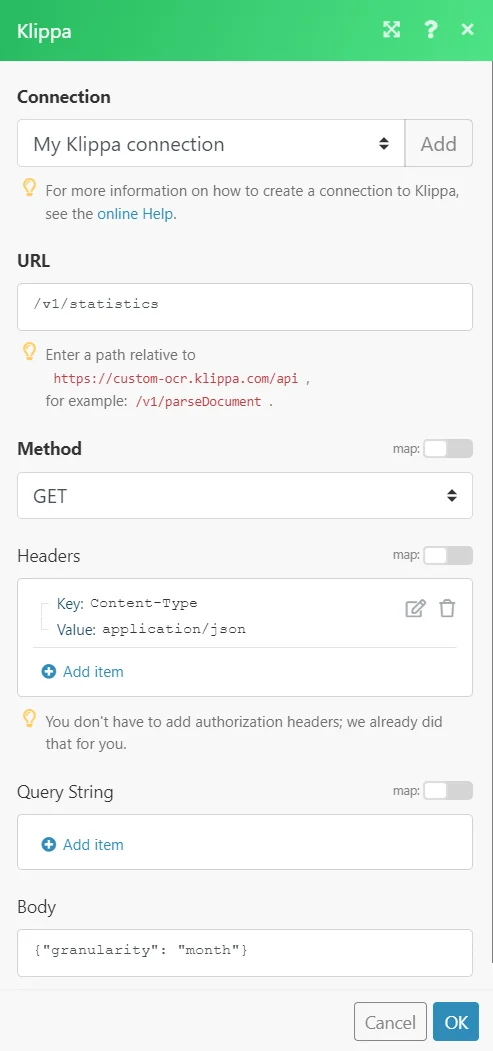
The following API call returns API usage statistics from your Klippa account:
URL: /v1/statistics
Method: GET
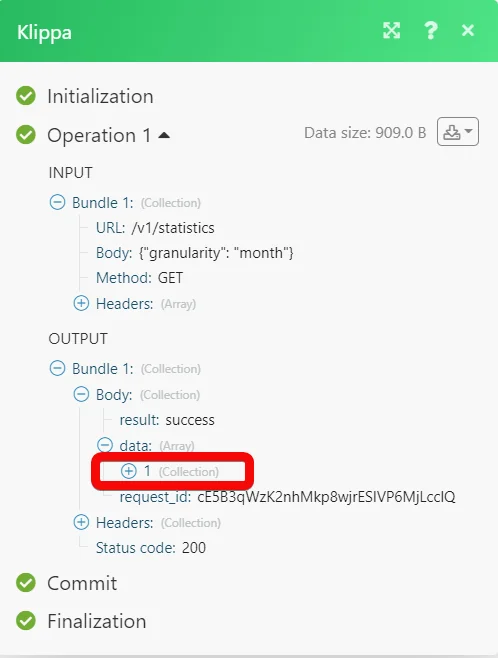
Matches of the search can be found in the module’s Output under Bundle > _Body > data._In our example, 1 record is returned:
Advanced Settings
These settings can be used if you want to modify the parser more.
Template
Select a template for the parser to identify what kind of document it would be. It can be that when changing the template settings, the output data is different.
PDF Text Extraction
Use full when you want the best quality scan, use fast when you want fast scan results. Fast will try to extract the text from the PDF. Full actually scans the full PDF which is slower.
User Data
The User Data allows for sending additional data into the parser and can be used to enable extra features, improve the recognition of certain fields and improve the processing speed. All fields are optional, documents may be submitted without this field. For more information, refer to the Klippa API documentation.
User Dataset External ID
This option is only available when you have custom Datasets and the API has access to these datasets, For more information, contact the Klippa support team.
The ID of the dataset in your own system, The system returns this id in the merchant_id field if there is a match.
Hash Duplicate Group ID
An identifier to use when saving or detecting hash duplicates. This way you can allow to have the same document scanned more than once for multiple groups. When doing a scan, the combination of the Hash Group ID and the document Hash will be used to detect duplicates. This value is saved hashed on the side of Klippa. The common use cases are Company ID, Campaign ID, and User ID.
Legacy article, imported from the original Boost.space knowledge base (/knowledge-base/applications/file-and-document-management/klippa/).

