Microsoft SharePoint Online
Any references to third-party products or services do not constitute Boost.space Product Documentation nor do they create any contractual obligations. This material is for informational purposes only and is subject to change without notice.
Boost.space does not warrant the availability, accuracy, reliability, completeness, or usefulness of any information regarding the subject of third-party services or systems.
With Microsoft SharePoint Online modules in Boost.space Integrator, you can monitor, retrieve, create, delete, and/or update items, lists, pages, sites, files, and or/folders in your Microsoft SharePoint Online account.
To use the Microsoft SharePoint Online modules, you must have a Microsoft SharePoint Online or Office 365 E3 user account. You can create a Microsoft SharePoint Online account at www.microsoft.com.
Connect Microsoft SharePoint Online to Boost.space Integrator
It is only possible to establish a connection between Boost.space Integrator and Microsoft SharePoint Online user accounts. For more information on the Authorization Code Flow connection type used, see the Microsoft OAuth 2.0 authorization code flow documentation.
To establish the connection:
-
Log in to your Boost.space Integrator account, add a Microsoft SharePoint Online module to your scenario, and click Create a connection.
-
Optional: In the Connection name field, enter a name for the connection.
-
Optional: Click Show advanced settings to enter your custom app client credentials and add additional scopes as needed. Refer to the Microsoft Register an App guide for more information.
If requested, use the following Redirect URI when creating your custom app:
https://integrator.boost.space/oauth/cb/azure.https://auth.redirect.celonis.cloud/oauth/cb/azureFor more information about the permissions, see the Microsoft Graph permissions reference.
-
Click Save.
-
If prompted, authenticate your account and confirm access.
You have successfully established the connection. You can now edit your scenario and add more Microsoft SharePoint Online modules. If your connection requires reauthorization at any point, follow the connection renewal steps here.
When you choose to select the Site ID from the drop-down menu, only followed sites are offered in the drop-down menu. To specify a site that is not followed, insert the Site ID manually.
Items
Watch Items
Retrieves item details when an item is created or updated.
Connection
Establish a connection to your Microsoft SharePoint Online.
Watch Item
Select whether you want to watch for a created or modified items.
Site ID
Enter (map) or use the ID Finder to search for the site ID of the site that you want to watch for items.
List ID
Enter (map) or select the ID of the list you want to watch for items.
Limit
Set the maximum number of items Boost.space Integrator will return during one execution cycle.
List Items
Retrieves all items on a specified list.
Connection
Establish a connection to your Microsoft SharePoint Online.
List Items
Select whether you want to specify the Site ID and the List ID manually or select from drop-down menus.
Site ID
Enter (map) or use the ID Finder to search for the site ID or select the site that contains the list you want to retrieve items from.
List ID
Enter (map) or use the ID Finder to search for the list ID or select the list you want to retrieve items from.
Limit
Set the maximum number of items Boost.space Integrator will return during one execution cycle. This module has a maximum limit of 3,500 items to be returned.
Get an Item
Returns item details.
Connection
Establish a connection to your Microsoft SharePoint Online.
Get an Item
Select whether you want to specify the Site ID, the List ID, and the Item ID manually or select from drop-down menus.
Site ID
Enter (map) or use the ID Finder to search for the site ID or select the site that contains the list with the item you want to retrieve details for.
List ID
Enter (map) or use the ID Finder to search for the list ID or select the list that contains the item you want to retrieve details about.
Item ID
Enter (map) or use the ID Finder to search for the item ID or select the item you want to retrieve details about.
Create an Item
Creates a new item in a specified list.
Connection
Establish a connection to your Microsoft SharePoint Online.
Search Method
Select whether to specify the Site ID and the List ID from drop-down menus or manually, and item fields dynamically or in key-value pairs.
Search Method
Site ID and List ID
Fields
Select from the list
Select from drop-down menus.
Enter the item’s information into fields that are dynamically loaded, depending on the List ID you select.
Enter manually (dynamic)
Enter or use the ID Finder to search.
It is not possible to map Site ID and List ID values. If the Site ID or List ID values are mapped, item fields will not load dynamically and must be entered as key-value pairs.
Enter the item’s information into fields that are dynamically loaded, depending on the List ID you specify.
Enter manually (key/value pair)
Enter, map, or use the ID Finder to search.
Enter the item’s information as key-value pairs.
Update an Item
Updates an item’s fields.
Connection
Establish a connection to your Microsoft SharePoint Online.
Search Method
Select whether to specify the Site ID and the List ID from drop-down menus or manually, and item fields dynamically or in key-value pairs.
Search Method
Site ID and List ID
Fields
Select from the list
Select from drop-down menus.
Enter the item’s information into fields that are dynamically loaded, depending on the List ID you select.
Enter manually (dynamic)
Enter or use the ID Finder to search.
It is not possible to map Site ID and List ID values. If the Site ID or List ID values are mapped, item fields will not load dynamically and must be entered as key-value pairs.
Enter the item’s information into fields that are dynamically loaded, depending on the List ID you specify.
Enter manually (key/value pair)
Enter, map, or use the ID Finder to search.
Enter item’s information as key-value pairs.
Delete an Item
Deletes an existing item.
Connection
Establish a connection to your Microsoft SharePoint Online.
Delete an Item
Select whether you want to specify the Site ID, the List ID, and the Item ID manually or select from drop-down menus.
Site ID
Enter (map) or use the ID Finder to search for the site ID or select the site that contains the list you want to delete an item from.
List ID
Enter (map) or use the ID Finder to search for the list ID or select the list you want to delete an item from.
Item ID
Enter (map) or use the ID Finder to search for the item ID or select the item you want to delete.
List
Watch Lists
Retrieves list details when a list is created or updated.
Connection
Establish a connection to your Microsoft SharePoint Online.
Watch Lists
Select whether you want to watch the site for created or modified lists.
Site ID
Enter (map) or use the ID Finder to search for the site ID you want to watch for new lists.
Limit
Set the maximum number of lists Boost.space Integrator will return during one execution cycle.
List Lists
Retrieves all lists for the site.
Connection
Establish a connection to your Microsoft SharePoint Online.
List Lists
Select whether you want to specify the Site ID manually or select from drop-down menus.
Site ID
Enter (map) or use the ID Finder to search for the site ID or select the site you want to retrieve list details for.
Limit
Set the maximum number of lists Boost.space Integrator will return during one execution cycle.
Get a List
Returns list details.
Connection
Establish a connection to your Microsoft SharePoint Online.
Get a List
Select whether you want to specify the Site ID and the List ID manually or select from drop-down menus.
Site ID
Enter (map) or use the ID Finder to search for the site ID or select the site that contains the list you want to retrieve details for.
List ID
Enter (map) or use the ID Finder to search for the list ID or select the list you want to retrieve details for.
Create a List
Creates a new list on a specified site.
Connection
Establish a connection to your Microsoft SharePoint Online.
Enter a Site ID
Select whether you want to specify the Site ID manually or select from drop-down menus.
Site ID
Enter (map) or use the ID Finder to search for the site ID or select the site you want to create a list at.
Display Name
Enter the name of the new list.
Description
Enter the description of the new list.
Add Columns
Specify columns of the list.
Page (Beta)
APIs under the beta version in Microsoft Graph are subject to change. The use of these APIs in production applications is not supported.
Watch Pages
Retrieves page details when a page is modified.
Connection
Establish a connection to your Microsoft SharePoint Online.
Site ID
Enter (map) or use the ID Finder to search for the site ID you want to watch for modified pages.
Limit
Set the maximum number of pages Boost.space Integrator will return during one execution cycle.
List Pages
Retrieves all pages for a specified site.
Connection
Establish a connection to your Microsoft SharePoint Online.
List Pages
Select whether you want to specify the Site ID manually or select from the drop-down menu.
Site ID
Enter (map) or use the ID Finder to search for the site ID or select the site you want to retrieve pages for.
Limit
Set the maximum number of pages Boost.space Integrator will return during one execution cycle.
Get a Page
Retrieves page details.
Connection
Establish a connection to your Microsoft SharePoint Online.
Get a Page
Select whether you want to specify the Site ID and the Page ID manually or select from drop-down menus.
Site ID
Enter (map) or use the ID Finder to search for the site ID or select the site that contains the page you want to retrieve details about.
Page ID
Enter (map) or use the ID Finder to search for the page ID or select the page you want to retrieve details for.
Publish a Page
Publishes the latest version of a page.
Connection
Establish a connection to your Microsoft SharePoint Online.
Publish a Page
Select whether you want to specify the Site ID and the Page ID manually or select from drop-down menus.
Site ID
Enter (map) or use the ID Finder to search for the site ID or select the site that contains the page you want to publish.
Page ID
Enter (map) or use the ID Finder to search for the page ID or select the page you want to publish.
Site
Search Sites
Searches for a site by specified criteria.
Connection
Establish a connection to your Microsoft SharePoint Online.
Keyword of Display Name
Enter the search term you want to search the sites for.
Limit
Set the maximum number of sites Boost.space Integrator will return during one execution cycle.
Get a Site
Retrieves site details.
Connection
Establish a connection to your Microsoft SharePoint Online.
Get a Site
Select whether you want to specify the Site ID manually or select from the drop-down menu.
Site ID
Enter (map) or use the ID Finder to search for the site ID or select the site you want to retrieve details about.
Files
Watch Files/Folders
Triggers when a file or folder is created or updated in a specific site.
Connection
Establish a connection to your Microsoft SharePoint Online.
Watch Files/Folders
Select whether you want to watch for a created or updated items.
Site ID
Enter (map) or use the ID Finder to search for the site ID of the site that you want to watch for files/folders in.
Drive ID
Select the ID of the drive you want to watch for files/folders in.
Folder
Select the folder you want to watch for files/folders in.
Query Search
Enter a search query (optional).
Choose an Item Type
Select whether to watch for updates in files, folders, or both.
Limit
Set the maximum number of items Boost.space Integrator will return during one execution cycle.
Download a File
Downloads a file from a specified site.
Connection
Establish a connection to your Microsoft SharePoint Online.
Enter (File ID & File Path)
Select whether to enter a file ID or a file path.
Enter a File ID / Enter a File Path
Select whether to select the file id or file path from a list or to enter manually.
Site ID
Enter (map) or use the ID Finder to search for the site ID of the site that you want to download a file from.
Drive ID
Enter (map) or use the ID Finder to search for the drive ID of the drive that you want to download a file from.
File Path
Enter the file path of the file you want to download a file from.
File / File ID
Select or enter the File ID of the file you want to download.
Convert to PDF
Select whether you want to convert the downloaded file to PDF format.
Upload a File
Uploads a new file to a specified site.
Connection
Establish a connection to your Microsoft SharePoint Online.
Enter (Folder Location ID & Path)
Select whether to enter a folder ID or a folder path.
Enter a Folder Location ID / Enter a Folder Location Path
Select whether to select the folder location ID/folder location path from a list or to enter manually.
Site ID
Enter (map), select, or use the ID Finder to search for the site ID of the site that you want to upload a file to.
Drive ID
Enter (map), select, or use the ID Finder to search for the drive ID of the drive that you want to upload a file to.
Folder / Folder ID / Folder Path
Enter or select the folder ID or folder that you want to upload a file to.
File Name
Enter the name of the file that you want to upload.
If the File with the Same Name Exists
Select what to do if a file with the same name already exists.
Description
Enter a description of the file.
Folders
Create a Folder
Creates a folder in OneDrive.
Connection
Establish a connection to your Microsoft SharePoint Online.
Create a Folder
Select whether to create a folder by selecting from the list or entering manually.
Site ID
Enter (map), select, or use the ID Finder to search for the site ID of the site that you want to create a folder in.
Drive ID
Enter (map), select, or use the ID Finder to search for the drive ID of the drive that you want to create a folder in.
Folder / Folder ID
Enter or select the folder ID or folder that you want to create a folder in.
New Folder Name
Enter a name for the new folder.
Other
Make an API Call
Allows you to perform a custom API call.
Connection
Establish a connection to your Microsoft SharePoint Online.
URL
Enter a path relative to https://graph.microsoft.com.For example: /beta/sites.
For the list of available endpoints, refer to the SharePoint API in Microsoft Graph Documentation.
Method
Select the HTTP method you want to use:
GET
to retrieve information for an entry.
POST
to create a new entry.
PUT
to update/replace an existing entry.
PATCH
to make a partial entry update.
DELETE
to delete an entry.
Headers
Enter the desired request headers. You don’t have to add authorization headers; we already did that for you.
Query String
Enter the request query string.
Body
Enter the body content for your API call.
Example of Use – List Lists (beta)
The following API call returns all the lists on a specified site using Microsoft SharePoint Online beta API:
URL:
/beta/sites/{site-ID}/lists/
Method:
GET
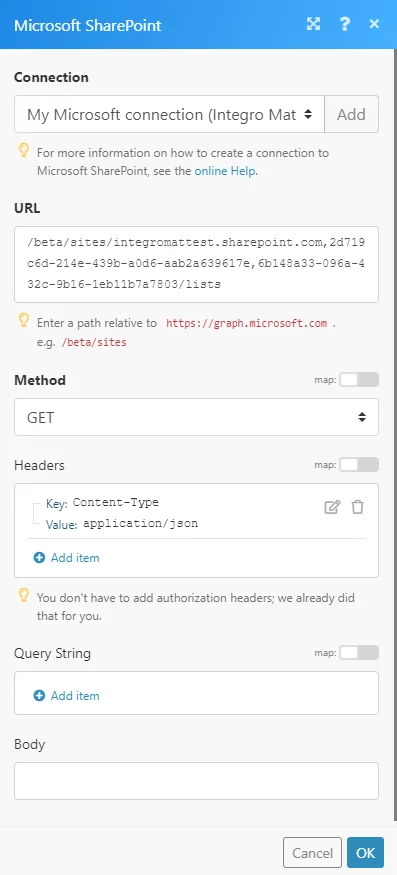
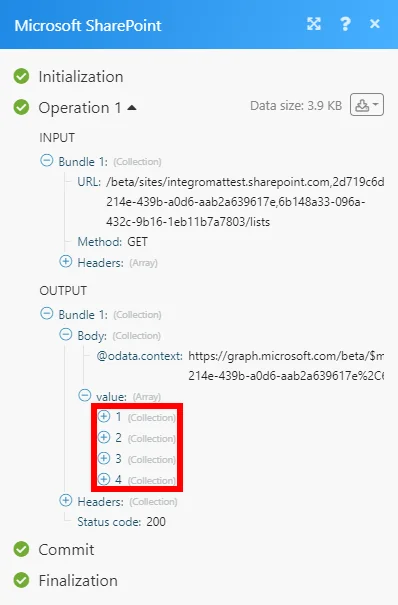
The result can be found in the module’s Output under Bundle > Body > value.
In our example, 4 lists were returned:
Permission information for Microsoft SharePoint Online
The Microsoft SharePoint Online module can have the following delegated permissions assigned in the Azure portal.
Even if you have assigned higher level permissions (e.g., ReadWrite) it is still necessary to set the lower permissions for the modules as listed below.
-
Create a List – User.Read, Sites.Manage.All, offline_access
-
Create a Folder – User.Read, offline_access
-
Create an Item – User.Read, Sites.ReadWrite.All, offline_access
-
Delete an Item– User.Read, Sites.ReadWrite.All, offline_access
-
Download a File – User.Read, Files.Read.All, Sites.Read.All, offline_access
-
Get a List – User.Read, Sites.Read.All, offline_access
-
Get an Item – User.Read, Sites.Read.All, offline_access
-
Get a Page – User.Read, Sites.Read.All, offline_access
-
Get a Site – User.Read, Sites.Read.All, offline_access
-
List Items – User.Read, Sites.Read.All, offline_access
-
List Lists – User.Read, Sites.Read.All, offline_access
-
List Pages – User.Read, Sites.Read.All, offline_access
-
Make an API Call – offline_access, User.Read
-
Publish a Page – User.Read, Sites.ReadWrite.All, offline_access
-
Search Sites – User.Read, Sites.Read.All, offline_access
-
Update an Item – User.Read, Sites.ReadWrite.All, offline_access
-
Upload a File – User.Read, Files.ReadWrite.All, Sites.ReadWrite.All, offline_access
-
Watch Files/Folders – User.Read, Files.Read.All, Sites.Read.All, offline_access
-
Watch Items – User.Read, Sites.Read.All, offline_access
-
Watch Lists – User.Read, Sites.Read.All, offline_access
-
Watch Pages – User.Read, Sites.Read.All, offline_access
Legacy article, imported from the original Boost.space knowledge base (/knowledge-base/applications/file-and-document-management/microsoft-sharepoint/).

