Lokalise
The Lokalise modules, Boost.space Integrator you can:
-
watch a task, an order, a project, and a language in triggers
-
create, update, retrieve, and delete a task
-
create, update, retrieve, and delete the projects
-
create a branch and update a branch name in the branches
-
create and retrieve the orders.
-
upload and download a file in documents
To get started with the Lokalise, create an account at lokalise.com.
The module dialog fields that are displayed in bold (in the Boost.space Integrator scenario, not in this documentation article) are mandatory!
Connect Lokalise with Boost.space Integrator
To connect the Lokalise app with the Boost.space Integrator:
-
Log in to your Lokalise account.
-
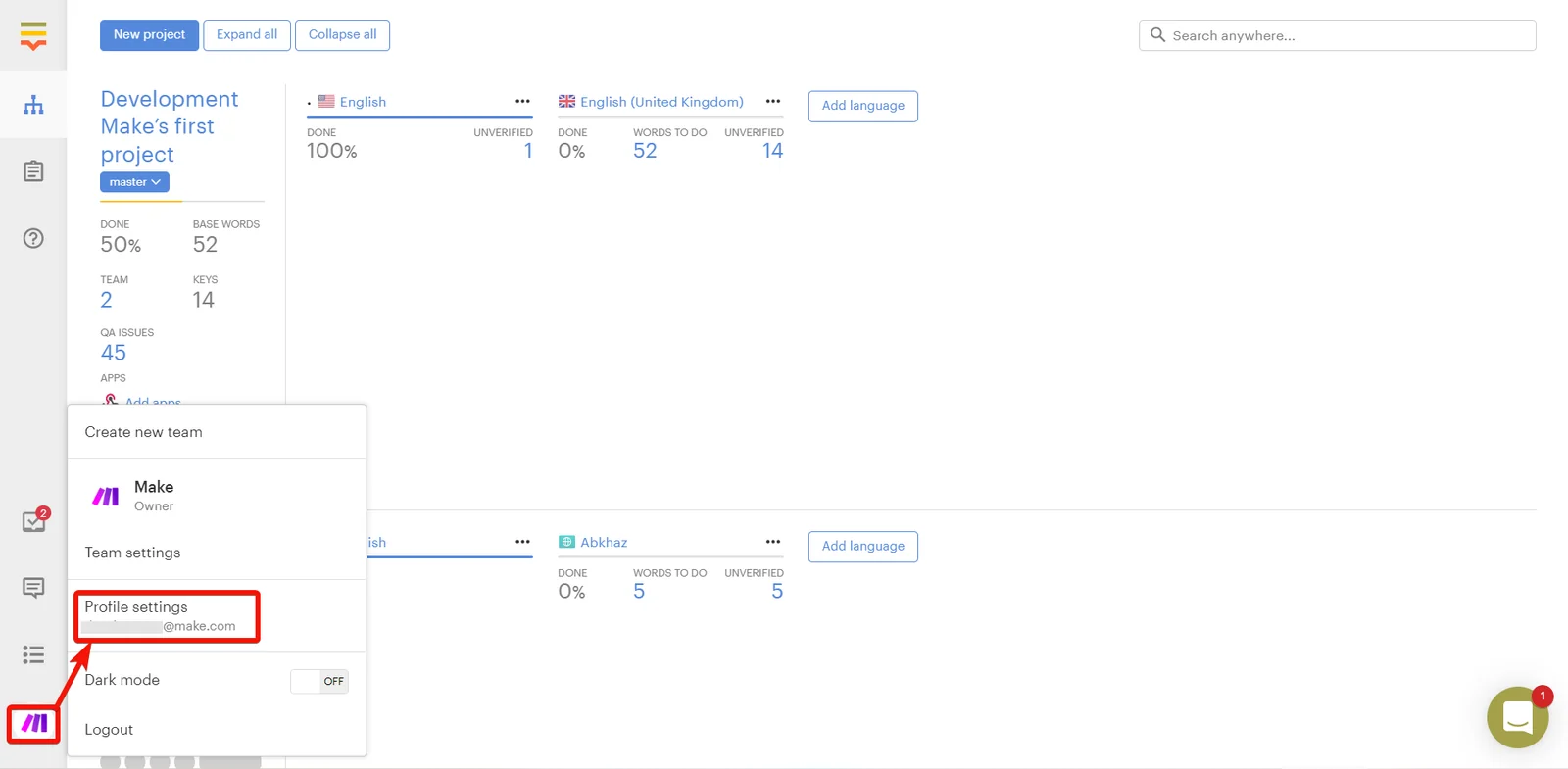
Click Profile > Profile Settings. Copy the Account ID to a safe place.
-
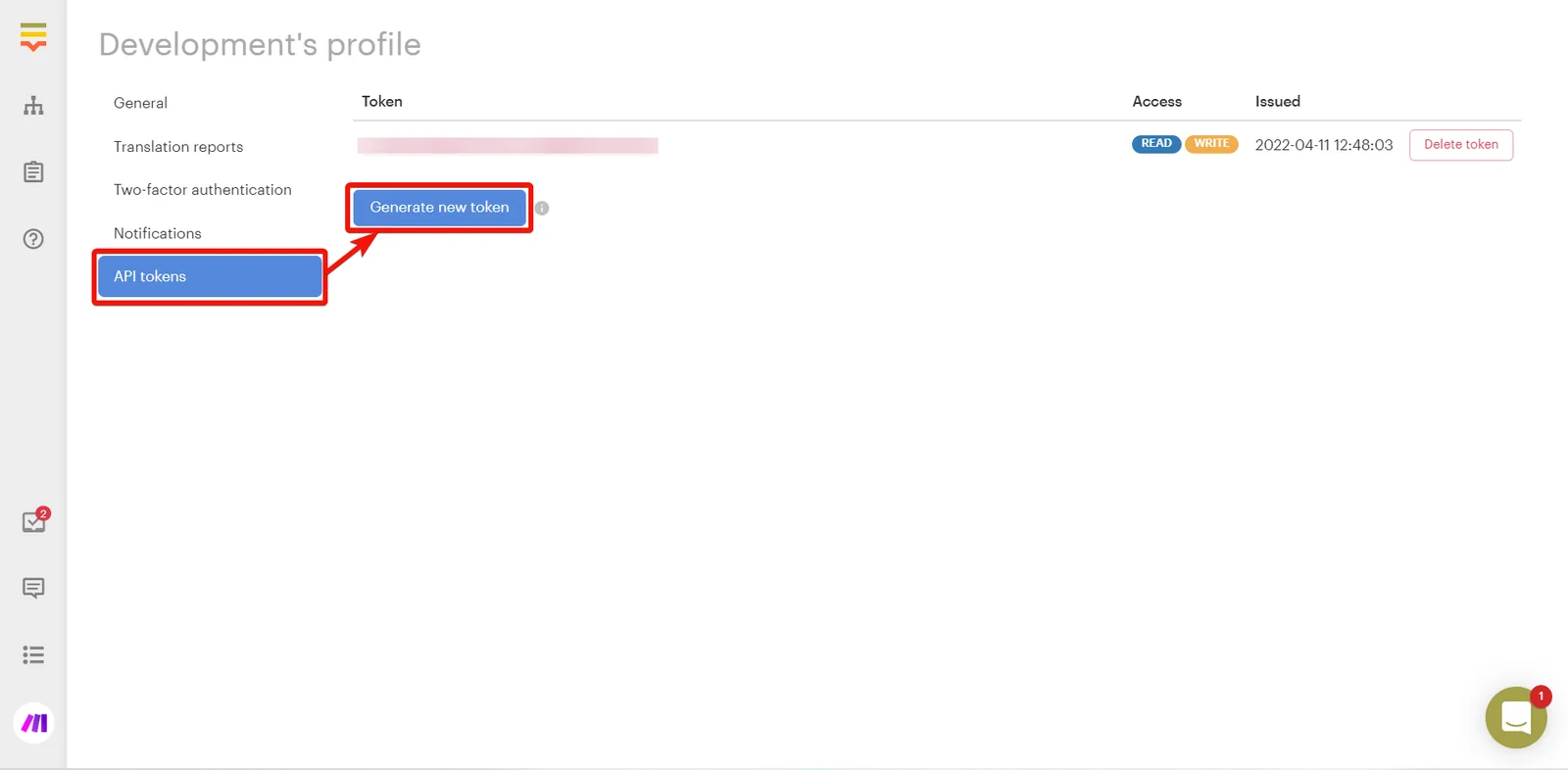
Click API tokens > Generate new token.
-
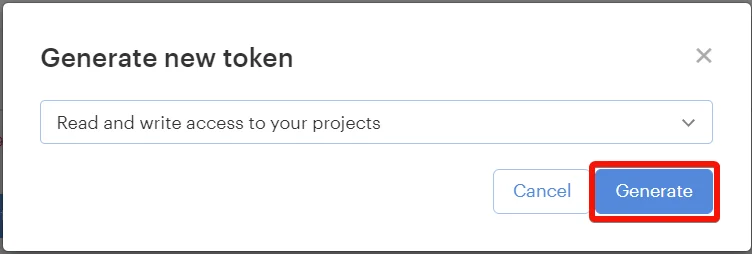
Select the access required for the token and click Generate.
-
Copy the API token to a safe place.
-

Log in to your Boost.space Integrator and add a module from the Lokalise into a Boost.space Integrator scenario.
-
Click Add next to the Connection field.
-
In the Connection name field, enter a name for the connection.
-
In the API Key field, enter the details copied in step 5 and click Save.
You have successfully connected the Lokalise app with Boost.space Integrator and can now build scenarios.
Triggers
You can watch tasks, orders, projects, and languages using the following modules.
Boost.space Integrator automatically creates a webhook in Lokalise once you add an instant trigger to your scenario.
Watch a Task
Triggers when a new task is created, closed, or deleted.
Webhook name
Enter a name for the webhook.
Connection
Establish a connection to your Lokalise account.
Project ID
Select or map a Project ID whose tasks you want to watch.
Event Type
Select the event type you want to watch:
-
Task Created
-
Task Closed
-
Task Deleted
Watch an Order
Triggers when an order is created, completed, or deleted.
Webhook name
Enter a name for the webhook.
Connection
Establish a connection to your Lokalise account.
Project ID
Select or map a Project ID whose orders you want to watch.
Event Type
Select the event type you want to watch:
-
Order Created
-
Order Completed
-
Order Deleted
Watch a Project
Triggers when a project is imported, exported, or deleted.
Webhook name
Enter a name for the webhook.
Connection
Establish a connection to your Lokalise account.
Project ID
Select or map a Project ID to watch.
Event Type
Select the event type you want to watch:
-
Project Imported
-
Project Exported
-
Project Deleted
Watch a Language
Triggers when a language is added, deleted or language settings are changed.
Webhook name
Enter a name for the webhook.
Connection
Establish a connection to your Lokalise account.
Project ID
Select or map a Project ID whose languages you want to watch.
Event Type
Select the event type you want to watch:
-
Languages Added
-
Language Deleted
-
Language Settings is Changed
Tasks
You can create, update, retrieve, and delete tasks using the following modules.
Create a Task
Creates a task in the project.
Connection
Establish a connection to your Lokalise account.
Project Name
Select or map the project for which you want to create the task.
Task Title
Enter (map) the task name.
Languages
Enter (map) a list of languages to the task. You can multiple languages.
Language ISO
Select or map the language applicable for the task.
Users
Enter (map) a list of users, assigned to work on the language. Alternatively, you can search for users.
Groups
Enter (map) a list of groups associated with the task. Alternatively, you can search for users.
Description
Enter (map) task details.
Due Date
Enter (map) the date by which the task must be completed. The supported format is Y-m-d H:i:s. For example, 2018-12-24 23:59:59.
Task Type
Select or map the task type:
-
Translation
-
Review
Parent Task ID
Enter (map) the Parent Task ID for this task. Applicable only if the task type is review. The current task will open when the parent task is closed.
Keys
Enter (map) a list of key identifiers, included in the task. This field is required if parent_task_id is not specified.
Source Language ISO
Enter (map) a source language code for the task. If no value is provided, it falls back to project base language.
Auto Close Languages
Select whether languages should be closed automatically upon completion of the last item.
Auto Close Task
Select whether you want to automatically close the task when all languages are completed.
Auto Close Items
Select whether the translation task items should be automatically marked as completed after editing them.
Closing Tags
Enter (map) the tags that will be added to affected keys when the task is closed.
Do Lock Translations
Select whether you want to restrict translations for non-assigned project members.
Custom Translation Status IDs
Enter (map) the IDs of custom translation statuses that will be applied to task items after the item is completed.
Get a Task
Gets information about a specific task.
Connection
Establish a connection to your Lokalise account.
Project ID
Select or map a Project ID whose task details you want to retrieve.
Task ID
Enter (map) a Task ID whose details you want to retrieve. Alternatively, you can also search the Task ID.
Delete a Task
Deletes a task from the project.
Connection
Establish a connection to your Lokalise account.
Project ID
Select or map a Project ID whose task you want to delete.
Task ID
Enter (map) a Task ID you want to delete. Alternatively, you can also search the Task ID.
Update a Task
Updates the properties of a task.
Connection
Establish a connection to your Lokalise account.
Enter a Task ID
Select or map the option to choose the task you want to update.
Select a Project
Select or map a project whose task details you want to update.
Project Name
Select or map a project to which the task belongs.
Task ID
Select or map a Task ID whose details you want to update.
Task Title
Enter (map) a new name for the task.
Languages
Enter (map) a list of languages to the task.
Language ISO
Select or map the Language code applicable to the task.
Users
Enter (map) a list of users, assigned to work on the language. Alternatively, you can search for users.
Groups
Enter (map) a list of groups associated with the task. Alternatively, you can search for users.
Description
Enter (map) the task details.
Due Date
Enter (map) the due date for the task in Y-m-d H:i:s format. For example, 2018-12-24 23:59:59.
Task Type
Select the task type:
-
Translation
-
Review
Keys
Enter (map) a list of key identifiers, included in the task. This field is required if Parent Task ID is not specified.
Source Language ISO
Enter (map) a source language code for the task. If no value is provided, falls back to project base language.
Auto Close Languages
Select whether languages should be closed automatically upon completion of the last item.
Auto Close Task
Select whether the task should be automatically closed upon completing all languages.
Auto Close Items
Select whether the translation task items should be automatically marked as completed on edit.
Closing Tags
Enter (map) tags that will be added to affected keys when the task is closed.
Do Lock Translations
Select whether to restrict the translations for non-assigned project members.
Projects
You can create, update, retrieve, and delete projects using the following modules.
Create a Project
Creates a project.
Connection
Establish a connection to your Lokalise account.
Project Name
Enter (map) a name for the project.
Team ID
Select or map a Team ID for which you want to create the project.
If this parameter is deleted, the project will be created in the current team of the user, whose API token is specified.
Description
Enter (map) the project details.
Languages
Enter (map) a list of languages to add:
Unique Language
Select or map a unique language code to be added to the project.
Custom ISO
Enter (map) a custom ISO code to override language or locale code.
Base Lang ISO
Enter (map) a language/locale code of the project base language.
Should be in the scope of the languages list. Use custom_iso code in case it was defined.
Project Type
Select or map the type of project:
-
Software localization (JSON, YAML, etc.)
-
Paged Documents (HTML, DOCX, etc.)
Segmentation Enabled
Select whether you want to enable the segmentation feature for the project.
Delete a Project
Deletes a project.
Connection
Establish a connection to your Lokalise account.
Project ID
Select or map a Project ID you want to delete.
List Projects
Lists all projects.
Connection
Establish a connection to your Lokalise account.
Limit
Set the maximum number of projects Boost.space Integrator will return during one execution cycle. The default value is 10.
Get a Project
Retrieves project details.
Connection
Establish a connection to your Lokalise account.
Project ID
Select or map a Project ID whose details you want to retrieve.
Branches
You can create and update branches using the following modules.
Create a Branch
Creates a new branch for the project.
Connection
Establish a connection to your Lokalise account.
Project ID
Select or map a Project ID for which you want to create the branch.
Branch Name
Enter (map) a name for the branch.
Update a Branch Name
Updates a branch name in the project.
Connection
.Establish a connection to your Lokalise account
Project ID
Select or map a Project ID whose branch name you want to update.
Branch ID
Enter (map) a Branch ID whose name you want to update. Alternatively, you can search the branch.
Branch Name
Enter (map) a new name for the branch.
Orders
You can create and retrieve the orders using the following modules.
Create an Order
Creates a translation order.
Connection
Establish a connection to your Lokalise account.
Team ID
Select or map a Team ID for which you want to create the order.
Project ID
Select or map a Project ID for which you want to create an order.
Briefing
Enter (map) the order details.
Source Language ISO
Select or map the source language code of the order.
Target Language ISOS
Select or map the list of target languages.
Keys
Enter (map) a list of key identifiers to include in the order. Alternatively, you can search for the keys.
Provider
Enter (map) a translation provider slug of the order. Alternatively, you can search the provider.
Translation Tier
Enter (map) a tier of the translation. The translation tiers depend on the provider.
Branch
Enter (map) a branch name of the order. Alternatively, you can search the branch.
Payment Method
Select or map the payment method:
-
Credit Card
-
Team Card
Card ID
Enter (map) the identifier of the card used for payment.
Saved to Translation Memory
Select whether to save to translation memory. The default value is true and can be set only with google and deepl providers.
Dry Run
Select whether to return the response without actually placing an order. Useful for price estimation. The card will not be charged.
Translation Style
Select or map the translational style:
-
Formal
-
Informal
-
Business
-
Friendly
Applicable only for gengo providers.
Get an Order
Retrieves information about a specific order.
Connection
Establish a connection to your Lokalise account.
Team ID
Select or map a Team ID whose order details you want to retrieve.
Order ID
Enter (map) an Order ID whose details you want to retrieve. Alternatively, you can search for the orders.
Documents
You can upload and download files using the following modules.
Upload a File
Uploads a file.
Connection
Establish a connection to your Lokalise account.
Project ID
Select or map a Project ID to which you want to upload a file.
File
Enter (map) the file details:
File Name
Enter (map) the file’s name.
You may optionally use a relative path in the filename. For example, admin/main.json, however, the path would become a unique part of the file.
Data
Enter (map) the base64 encoded file’s data.
Language Code
Enter (map) a language code of the translations in the file you are importing.
Convert Placeholders
Select whether you want to enable the setting to automatically convert placeholders to the Lokalise universal placeholders.
Detect ICU plurals
Select whether you want to automatically detect and parse ICU formatted plurals in your translations.
Tags
Enter (map) the specified tags to inserted keys. You can add multiple tags.
Tag Updated Keys
Select whether you want to add specified tags to updated keys. You can add multiple tags.
Tag Skipped Keys
Select whether you want to add specified tags to skipped keys. You can add multiple tags.
Replace Modified
Select whether you want to replace translations, that have been modified.
Convert Line Break
Select whether you want to replace /n with a line break.
Copy Keys To Values
Select whether to automatically replace values with key names.
Distinguish Keys By File
Select whether to allow keys with similar names to coexist, in case they are assigned to different filenames.
Apply TM Matches
Select whether to enable to automatically apply 100% translation memory matches. If you select Yes, this option will take priority over use_automations.
Use Automations
Select whether to run automation for this upload.
Hidden From Contributors
Select whether to automatically set newly created keys as Hidden from contributors.
Cleanup Mode
Select whether to delete all keys with all language translations that are not present in the uploaded file.
You may want to take a snapshot of the project before importing a new file.
Skip Language Detection
Select whether you want to skip automatic language detection by filename.
Custom Translation Status Inserted Keys
Select whether you want to add specified custom translation statuses to inserted keys.
Custom Translation Status Updated Keys
Select whether to add specified custom translation statuses to updated keys.
Download a File
Downloads project files.
Connection
Establish a connection to your Lokalise account.
Project ID
Select or map the Project ID whose file you want to download.
File Format
Select or map the file format for a file you want to download.
Original Filenames
Select whether you want to use original filenames and formats for the files you want to download. If set to false, all keys will be exported to a single file per language.
Bundle Structure
Enter (map) a bundle structure, This is used when original_filenames are set to false. Allowed placeholders are:
-
%LANG_ISO% -
%LANG_NAME% -
%FORMAT% -
%PROJECT_NAME%
All Platforms
Select whether you want to include all platform keys. If disabled, only the keys associated with the platform of the format will be exported.
Filter by Languages
Enter (map) a list of languages to export. You can add multiple languages.
Filter Data
Select or map the parameters to narrow the export data range. For example, Verified.
Filter by Filename
Enter (map) the name of the file to filter. Only keys attributed to selected files will be included. Leave empty for all.
Add Newline at EOF
Select whether to add a new line at end of the file (if supported by format).
Filter by custom translation status IDs
Enter (map) the custom translation Status IDs to filter the files.
Only translations attributed to selected custom statuses will be included. Leave empty for all.
Include Tags
Enter (map) the tags to narrow the export range to tags specified. For example, New.
Exclude Tags
Enter (map) the tags to be excluded.
Sort By
Select or map the parameters to sort. For example, first added.
Export Empty As
Select how to empty translations to be exported:
-
Keep empty
-
Replace with the base language value
-
Replace with null (YAML export only)
Include Comments
Select whether include any additional information about the keys in the exported file (if supported by the format).
Include Description
Select whether to include key details in the exported file (if supported by the format).
Include other Projects
Enter (map) the Projects IDs whose keys you want to include with this export.
Triggers for Integrations
Select or map the trigger for integration exports. The triggers must be enabled in project settings.
Filter By Repository
Enter (map) the repositories to filter. Pull requests will be created only for listed repositories (organization/repository format).
Leave empty array to process all configured integrations by platform only.
Replace Breaks
Select whether to replace the breaks in exported translations with a line break.
Disable References
Select whether to skip the automatic replacement of key reference placeholders with their corresponding translations. For example, [%key:hello_world%].
Plural Format
Select or map the plural format to override the default plural format for the file.
Placeholder Format
Select or map the placeholder format to override the default formats for the file.
Indentation
Select or map the indentation for the file.
Other
You can retrieve translations and call APIs using the following modules.
Get Translation
Get one translation for one key by lang.
Connection
Establish a connection to your Lokalise account.
Project ID
Enter (map) a Project ID whose translations you want to retrieve.
Key ID
Enter (map) an identifier of the key of the translation.
Lang ISO
Enter (map) a language code to retrieve a translation.
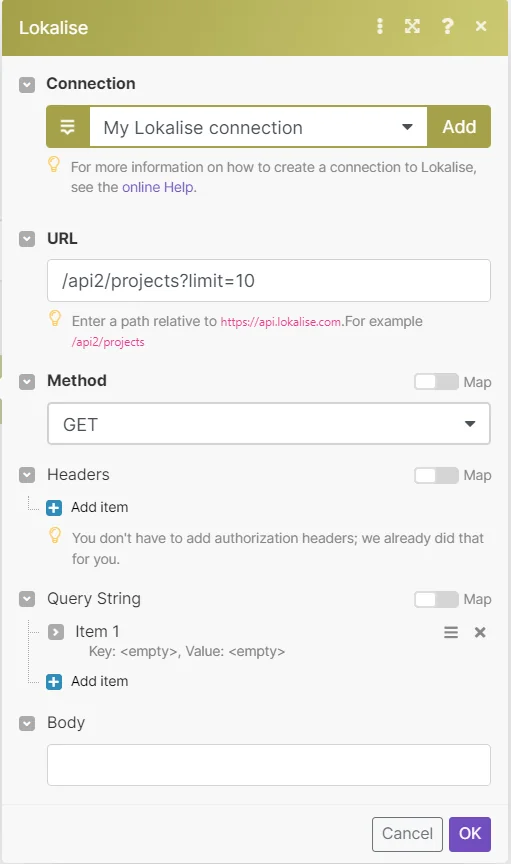
Make an API Call
Performs an arbitrary authorized API call.
Connection
Establish a connection to your Lokalise account.
URL
Enter a path relative to https://api.lokalise.com. For example /api2/projects.
For the list of available endpoints, refer to the Lokalise API documentation.
Method
GET
to retrieve information for an entry.
POST
to create a new entry.
PUT
to update/replace an existing entry.
PATCH
to make a partial entry update.
DELETE
to delete an entry.
Headers
Enter the desired request headers. You don’t have to add authorization headers; we already did that for you.
Query String
Enter the request query string.
Body
Enter the body content for your API call.
Example of Use – List all Projects
The following API call returns all the projects from your Loaklise account:
URL:
/api2/projects/
Method:
GET
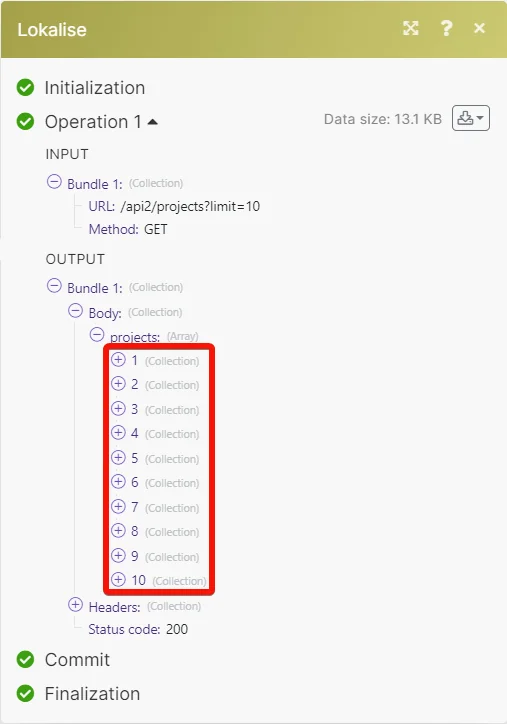
Matches of the search can be found in the module’s Output under Bundles > Body > projects.
In our example, 10 projects were returned:
Legacy article, imported from the original Boost.space knowledge base (/knowledge-base/applications/file-and-document-management/lokalise/).

