Printful
The Printful modules allow you to watch, create, update, retrieve, and delete the orders in your Printful account.
From September 30, 2022, Printful has disabled the creation of legacy API tokens.
Starting March 30, 2023, the Printful API will no longer be accessible using legacy API keys. To avoid losing access to the Printful API, customers will be required to migrate to the new API tokens. The new tokens are more secure and offer greater customization. For more information, see the Printful API key migration documentation.
To get started with Printful, create an account at printful.com/auth/register.
Connect Printful to Make
To connect to the Printful app:
-
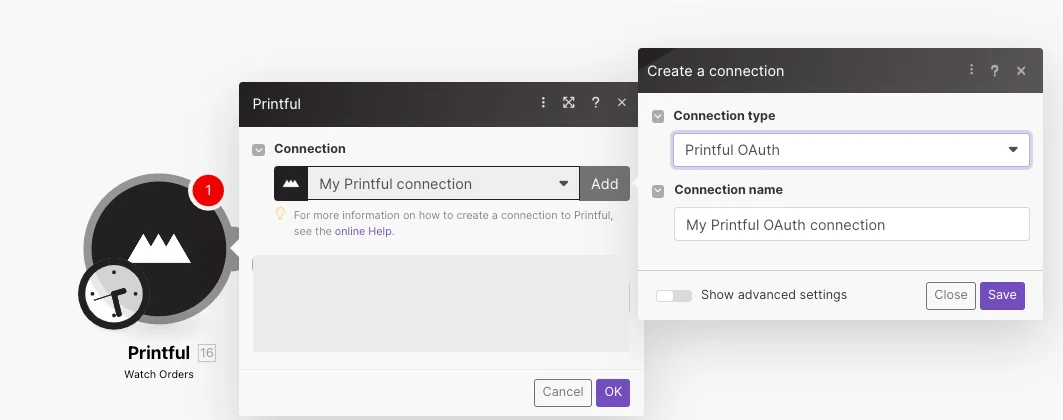
Log in to Boost.space Integrator, add any Printful module to the scenario, click the Add button next to the Connection field, and select the connection type as Printful OAuth.
-
Optional: In the Connection name field, enter a name for the connection.
-
Optional: Click Show Advanced Settings, and enter the client credentials of your custom app.
-
Click Save.
You have successfully established the connection. You can now edit your scenario and add more Printful modules. If your connection needs reauthorization at any point, follow the connection renewal steps here.
Obtain Client Credentials
You need to create a custom app to generate client credentials.
-
Log into Printful Developer website.
-
Click Create App.
-
Enter the details as mentioned below:
App name
Name of the application.
Contact email
Email address to reach out for any queries.
Access Level
Select Store level access.
URLs
Enter all the URL addresses to install the application.
Redirection Domains
Add,
https://www.integromat.com/cb/oauth/printful.Scopes
Select all the scopes required for users installing the application.
-
Click Create app.
-
Copy the Client ID and Secret Key to a safe place.
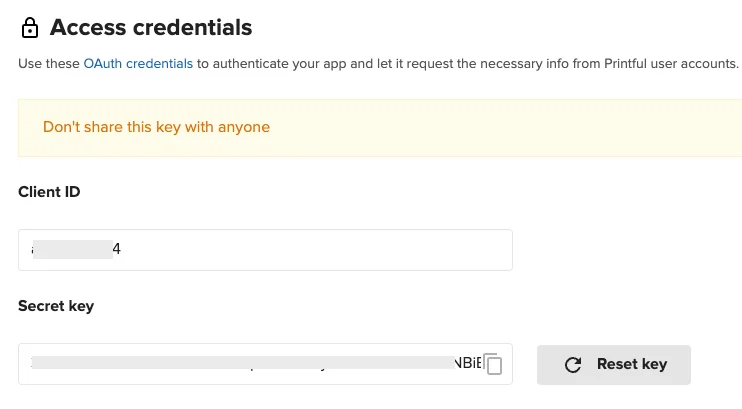
You have successfully retrieved the client credentials.
Orders
Watch Orders
Watches for new orders.
Connection
Establish a connection to your Printful account.Connecting Printful to Boost.space Integrator
Limit
Set the maximum number of new orders Boost.space Integrator should return during one scenario execution cycle.
Watch Fulfilled Orders
Watches for orders which have been fulfilled (all items shipped successfully).
Connection
Establish a connection to your Printful account.Connecting Printful to Boost.space Integrator
Limit
Set the maximum number of fulfilled orders Boost.space Integrator should return during one scenario execution cycle.
Watch Canceled Orders
Watches for new canceled orders.
Connection
Establish a connection to your Printful account.Connecting Printful to Boost.space Integrator
Limit
Set the maximum number of canceled orders Boost.space Integrator should return during one scenario execution cycle.
Get an Order
Returns information about an order.
Connection
Establish a connection to your Printful account.Connecting Printful to Boost.space Integrator
Order ID
Select the Order ID whose details you want to retrieve.
Create an Order
Creates an order.
Connection
Establish a connection to your Printful account.Connecting Printful to Boost.space Integrator
Product ID
Select the Product ID for which you are creating the order.
Quantity
Enter the number of product items being ordered.
URL
Enter the URL address of the Printfile being ordered.
Name
Enter the recipient’s name.
Address Line 1
Enter the recipient’s street address.
City
Enter the recipient’s city name.
Country Code
Enter the recipient’s two-letter country code. For example, the US for the United States.
ZIP (Postal Code)
Enter the recipient’s area postal code.
State Code
Enter the recipient’s two-digit state code. For example, AK for Alaska.
Company Name
Enter the recipient’s company name.
Address Line 2
Enter the recipient company’s street address.
State Name
Enter the recipient company’s state name.
Country Name
Enter the recipient company’s country name.
Phone
Enter the recipient’s phone number.
Enter the recipient’s email address.
Update an Order
Updates an unsubmitted order and optionally submits it for fulfillment.
Connection
Establish a connection to your Printful account.Connecting Printful to Boost.space Integrator
Order ID
Select the Order ID whose details you want to update.
Product ID
Select the Product ID for which you are creating the order.
Quantity
Enter the number of product items being ordered.
URL
Enter the URL address of the Printfile.
Name
Enter the recipient’s name.
Address Line 1
Enter the recipient’s street address.
City
Enter the recipient’s city name.
Country Code
Enter the recipient’s two-letter country code. For example, the US for United States.
ZIP (Postal Code)
Enter the recipient’s area postal code.
State Code
Enter the recipient’s two-digit state code. For example, AK for Alaska.
Company Name
Enter the recipient’s company name.
Address Line 2
Enter the recipient company’s street address.
State Name
Enter the recipient company’s state name.
Country Name
Enter the recipient company’s country name.
Phone
Enter the recipient’s phone number.
Enter the recipient’s email address.
Cancel an Order
Cancels a pending or draft order.
Connection
Establish a connection to your Printful account.Connecting Printful to Boost.space Integrator
Order ID
Select the Order ID you want to cancel.
Others
Make an API Call.
Performs an arbitrary authorized API call.
Connection
Establish a connection to your Printful account.Connecting Printful to Boost.space Integrator
URL
Enter a path relative to https://api.printful.com/. For example: /orders/estimate-costs
For the list of available endpoints, refer to the Printful API Documentation.
Method
Select the HTTP method you want to use:
GET
to retrieve information for an entry**.**
POST
to create a new entry.
PUT
to update/replace an existing entry.
PATCH
to make a partial entry update.
DELETE
to delete an entry.
Headers
Enter the desired request headers. You don’t have to add authorization headers; we already did that for you.
Query String
Enter the request query string.
Body
Enter the body content for your API call.
Example of Use – List Orders
The following API call returns all the orders from your Printfile account:
URL:
/orders
Method:
GET
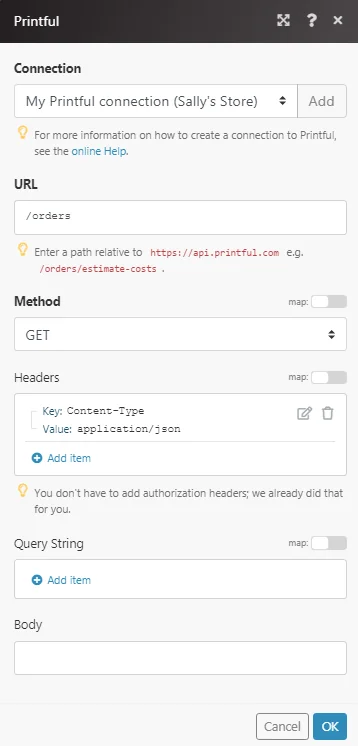
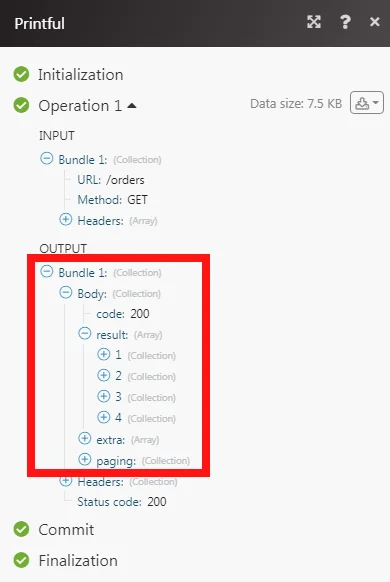
Matches of the search can be found in the module’s Output under Bundle > Body > result.
In our example, 4 orders were returned:
Legacy article, imported from the original Boost.space knowledge base (/knowledge-base/applications/internet-of-things/printful/).

