Apify
The Apify modules allow you to monitor and run actors and tasks or fetch dataset items in your Apify account.
To get started with APify, create an at my.apify.com.
Connect Apify to Boost.space Integrator
To connect your Apify account to Boost.space Integrator you need to obtain the API Token from your Apify account.
-
Log in to your Apify account.
-
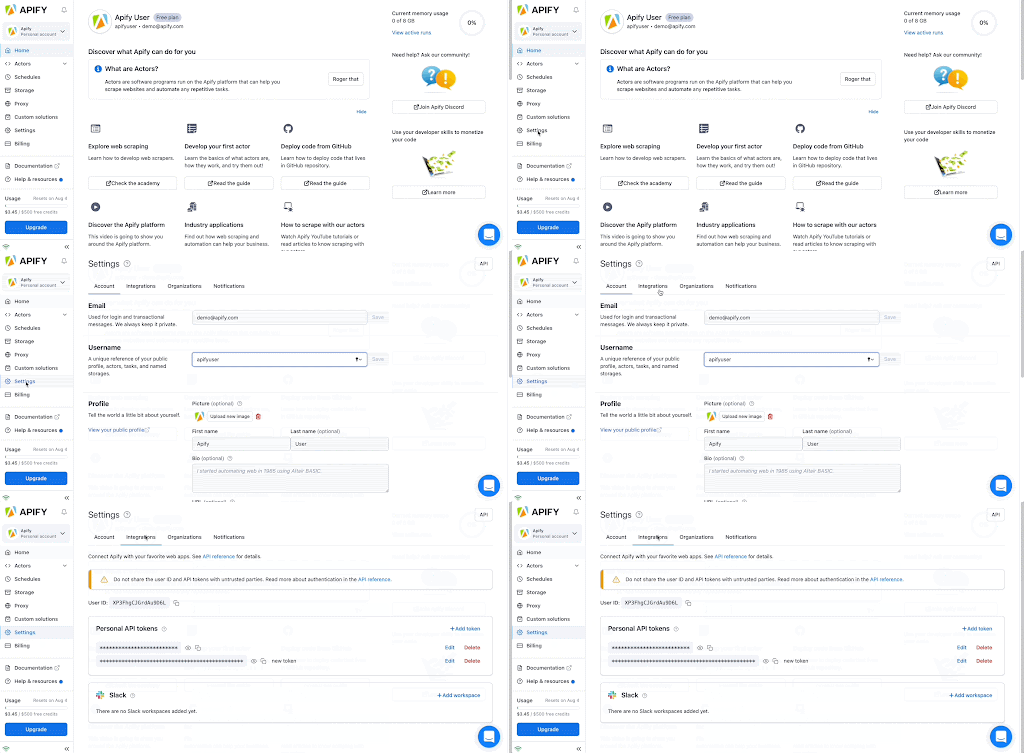
Click Settings > Integrations.
-
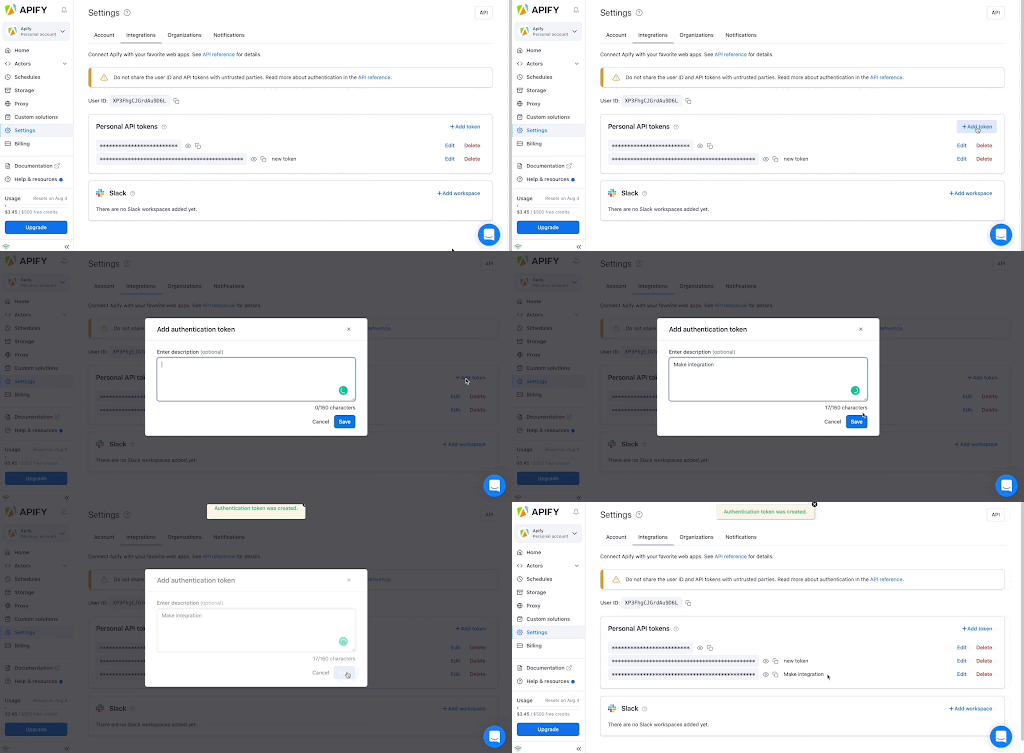
Click + Add token.
-
In the Add authentication token popup, enter a name for your token, and click Save.
-
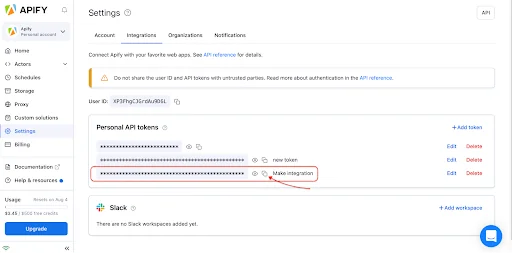
Copy the token by clicking the Copy button.
-
Go to Boost.space Integrator and open the Create a connection dialog of the desired Apify module.
-
In the API token field, enter the value copied in step 5 and click Save.
You have successfully connected the Apify app and can now build scenarios
Triggers
Watch Actor Runs
Triggers when a selected actor run is finished.
Webhook name
Enter the desired name for the webhook. E.g. Finished Web Scraper Run.
Connection
Establish a connection to your Apify account.
Actor
Select the Actor you want to monitor for finished runs.
Watch Task Runs
Triggers when a selected task run is finished.
Webhook name
Enter the desired name for the webhook. E.g. Finished Web Scraper Run.
Connection
Establish a connection to your Apify account.
Actor
Select the Actor you want to monitor for finished runs.
Actions
Run a Task
Runs a selected actor task.
Connection
Establish a connection to your Apify account.
Task

Select or map the task you want to run.
Run synchronously
Boost.space Integrator will wait until the task run is finished. Beware that the maximum timeout for the run is 120 seconds.
Input JSON overrides
Here you can enter a JSON object to override the task input configuration. Only the provided fields will be overridden, the rest will be left unchanged.
You can see the JSON task input configuration when you switch from Editor to Raw display of the input configuration.
Run an Actor
Runs a selected actor.
Connection
Establish a connection to your Apify account.
Actor
Select or map the ID of the actor you want to run.
Run synchronously
Boost.space Integrator will wait until the task run is finished. Beware that the maximum timeout for the run is 120 seconds.
Input JSON
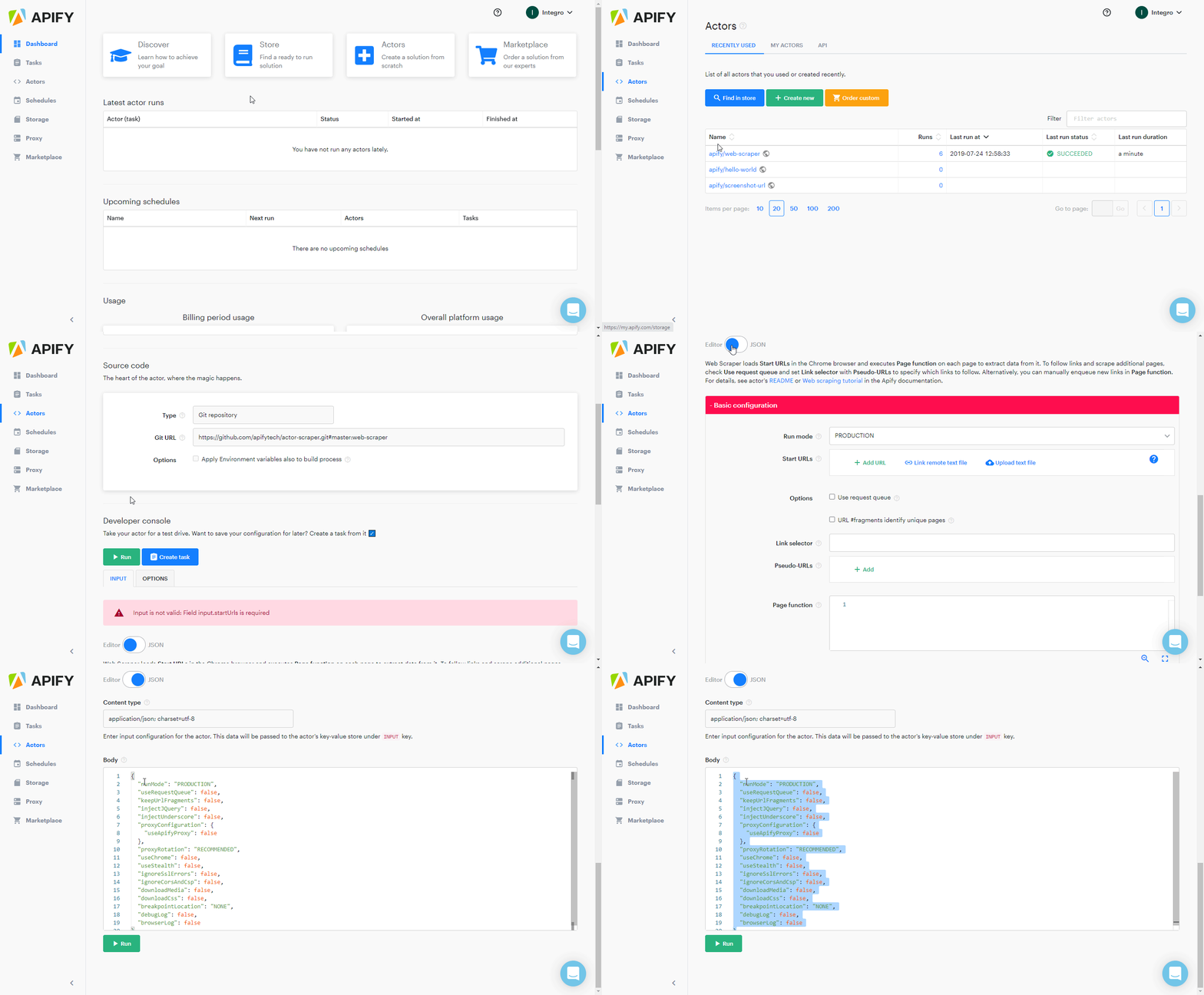
Here you can enter a JSON object to override the actor default configuration. Only the provided fields will be overridden, the rest will be left unchanged.
You can see the JSON actor input configuration when you switch from Editor to Raw display of the input configuration.
Build
Specify the actor build to run. It can be either a build tag or build number. By default, the run uses the build specified in the default run configuration for the actor (typically ‘latest’).
Timeout
Enter the timeout for the run in seconds. By default, the run uses a timeout specified in the default run configuration for the actor.
Memory
Select or enter memory limit for the run, in megabytes. By default, the run uses a memory limit specified in the default run configuration for the actor.
Searches
Get Dataset Items
Retrieves items from a dataset.
Connection
Establish a connection to your Apify account.
Dataset ID
Enter the ID of the dataset you want to retrieve items from.
Data transformation
Select a type of data transformation.
-
Clean – it returns only non-empty items and skips hidden fields (fields starting with the # character).
-
Simplified – it formats items to emulate simplified results provided by the Legacy Apify Crawler product.
Format
Select the format of the dataset items.
Limit
Set the maximum number of items Boost.space Integrator will return during one execution cycle.
Offset
Enter the number of items to skip.
For more detailed information about the rest of the module functions, please refer to the APIFY Docs.
Legacy article, imported from the original Boost.space knowledge base (/knowledge-base/applications/it-and-development/apify/).

