AWS S3
Any references to third-party products or services do not constitute Boost.space Product Documentation nor do they create any contractual obligations. This material is for informational purposes only and is subject to change without notice.
Boost.space does not warrant the availability, accuracy, reliability, completeness, or usefulness of any information regarding the subject of third-party services or systems.
The Boost.space Integrator AWS S3 modules let you perform operations on your S3 buckets. You’ll need an AWS S3 account for this feature.
Connect AWS to Boost.space Integrator
To connect AWS S3 to Boost.space Integrator you must connect your AWS account to Boost.space Integrator. To do so, you’ll first need to create an API user in AWS IAM.
-
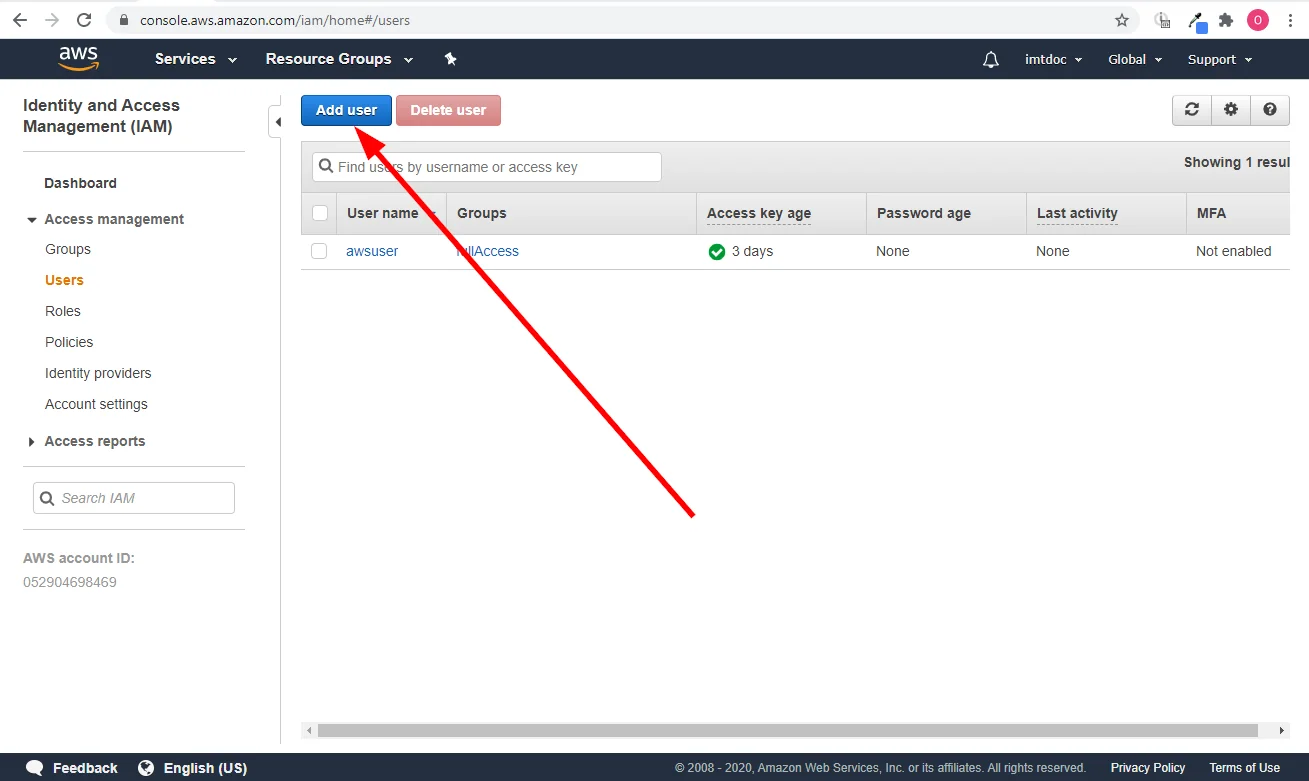
Go to Identity and Access Management > Access Management > Users.
-
Click the Add User button to add a new user.
-
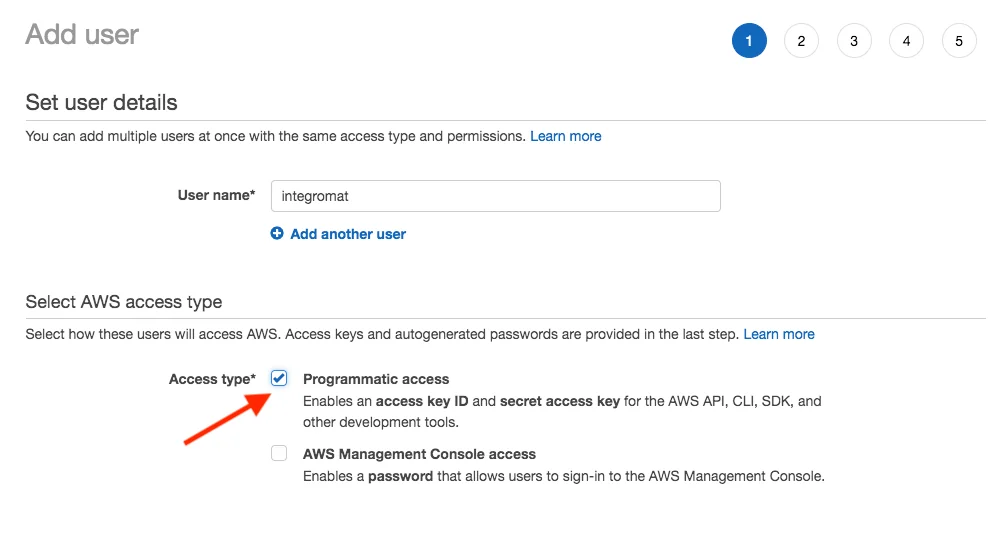
Enter the name of the new user and select the Programmatic access option in the _Access type_section.
-
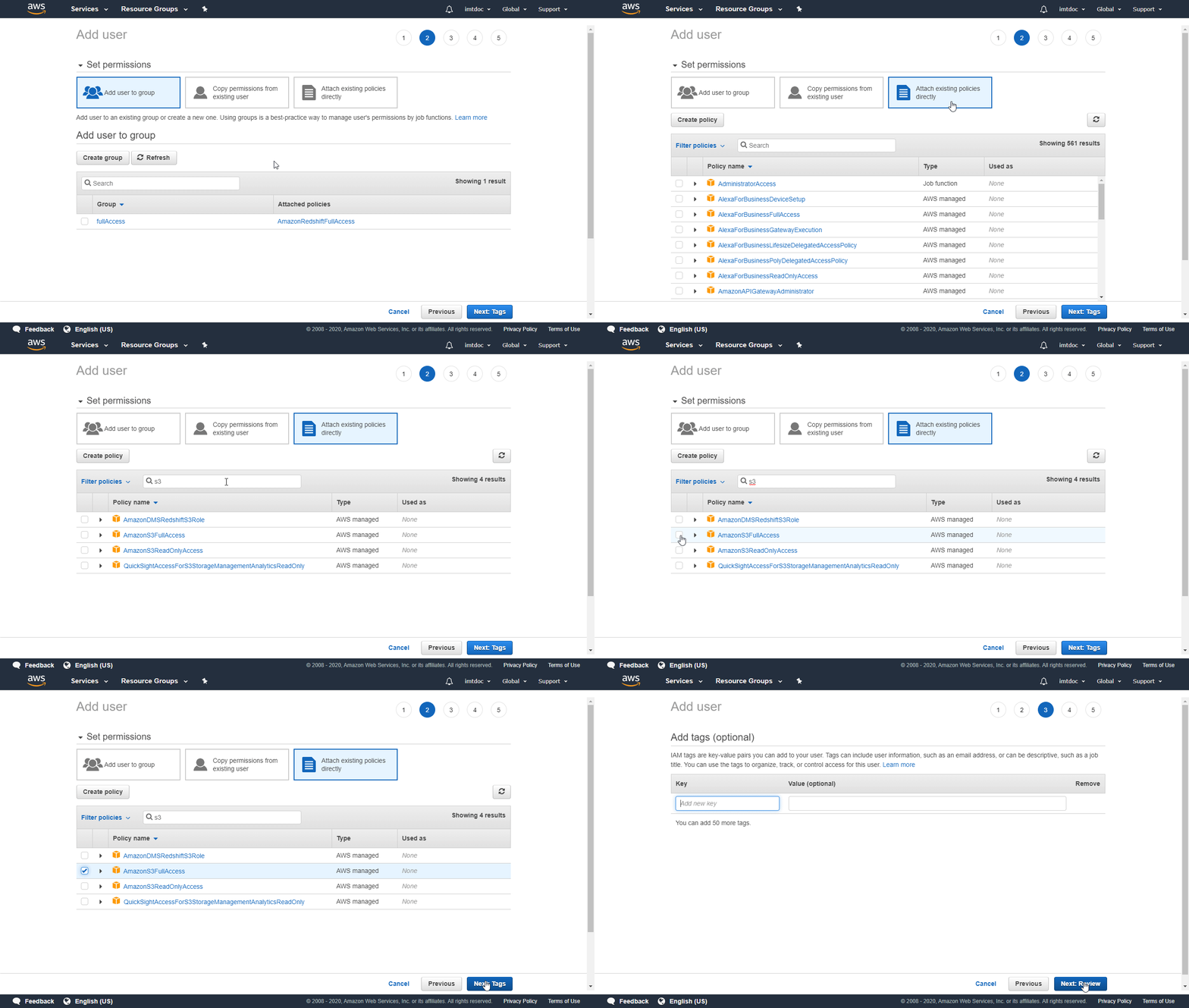
Add the _AmazonS3FullAccess_permission policy to the user using Attach existing policies directly and click Next.
-
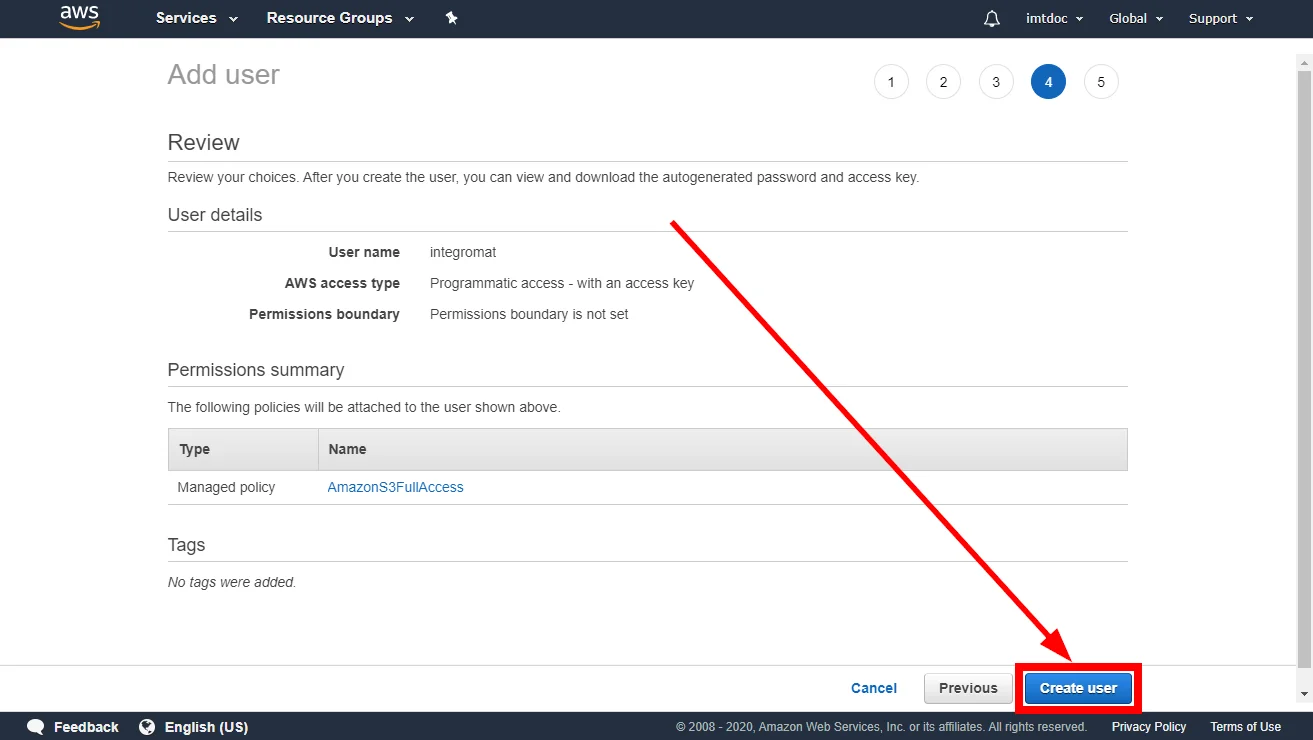
Go through the other dialog screens and click the Create User button.
-
Find the provided Access key ID and Secret access key.
-
Go to Boost.space Integrator and open the AWS S3 module’s Create a connection dialog.
-
Enter the Access key ID and Secret access key from step 5 to the respective fields and click the Continue button to establish the connection.
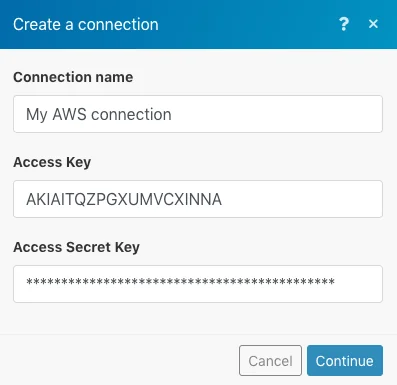
The connection has been established. You can proceed with setting up the module.
Actions
Create Bucket
Connection
Establish a connection to your AWS S3 account.
Name
Enter the name of the new bucket.
Region
Select your regional endpoint.
Get File
Downloads a file from a bucket.
Connection
Establish a connection to your AWS S3 account.
Region
Select the regional endpoint.
Bucket
Select the bucket you want to download the file from.
Path
Enter the path to the file, e.g. /photos/2019/February/image023.jpg.
Upload File
Connection
Establish a connection to your AWS S3 account.
Region
Select your regional endpoint.
Folder(optional)
Specify the target folder, e.g. work/Boost.space Integrator.
Source file
Provide the source file you want to upload to the bucket.
Headers(optional)
Insert request headers. Available headers can be found in the AWS S3 documentation – PUT object.
Make an API Call
For a detailed API description please refer to the Amazon S3 API Reference.
Connection
Establish a connection to your AWS S3 account.
Region
Select your regional endpoint.
URL
Enter a host URL. The path must be relative to https://s3.<selected-region>.amazonaws.com/.
Method
Select one of the HTTP methods you want to use in your API call.
Headers
Add a request header. You can use the following common request headers. For more request headers refer to AWS S3 API Documentation.
You don’t have to add authorization headers; Boost.space Integrator already did that for you.
Header Name
Description
Content-Length
Length of the message (without the headers) according to RFC 2616. This header is required for PUTs and operations that load XML, such as logging and ACLs.
Content-Type
The content type of the resource, in case the request content is in the body. Example: text/plain.
Content-MD5
The base64 encoded 128-bit MD5 digest of the message (without the headers) according to RFC 1864. This header can be used as a message integrity check to verify that the data is the same data that was originally sent. Although it is optional, we recommend using the Content-MD5 mechanism as an end-to-end integrity check. For more information about REST request authentication, go to REST Authentication in the Amazon Simple Storage Service Developer Guide.
Date
The current date and time according to the requester. Example: Wed, 01 Mar 2006 12:00:00 GMT. When you specify the Authorization header, you must specify either the x-amz-date or the Date header.
Expect
When your application uses 100-continue, it does not send the request body until it receives an acknowledgment. If the message is rejected based on the headers, the body of the message is not sent. This header can be used only if you are sending a body.
Valid Values: 100-continue
Host
For path-style requests, the value is s3.amazonaws.com. For virtual-style requests, the value is BucketName.s3.amazonaws.com. For more information, go to Virtual Hosting in the Amazon Simple Storage Service Developer Guide.
This header is required for HTTP 1.1 (most toolkits add this header automatically); optional for HTTP/1.0 requests.
x-amz-content-sha256
When using signature version 4 to authenticate the request, this header provides a hash of the request payload. For more information see Signature Calculations for the Authorization Header: Transferring Payload in a Single Chunk (AWS Signature Version 4). When uploading an object in chunks, set the value to STREAMING-AWS4-HMAC-SHA256-PAYLOAD to indicate that the signature covers only headers and that there is no payload. For more information, see Signature Calculations for the Authorization Header: Transferring Payload in Multiple Chunks (Chunked Upload) (AWS Signature Version 4).
x-amz-date
The current date and time according to the requester. Example: Wed, 01 Mar 2006 12:00:00 GMT. When you specify the Authorization header, you must specify either the x-amz-date or the Date header. If you specify both, the value specified for the x-amz-date header takes precedence.
x-amz-security-token
This header can be used in the following scenarios:
-
Provide security tokens for Amazon DevPay operations. Each request that uses Amazon DevPay requires two
x-amz-security-tokenheaders: one for the product token and one for the user token. When Amazon S3 receives an authenticated request, it compares the computed signature with the provided signature. Improperly formatted multi-value headers used to calculate a signature can cause authentication issues. -
Provide a security token when using temporary security credentials. When making requests using temporary security credentials you obtained from IAM, you must provide a security token using this header. To learn more about temporary security credentials, go to Making Requests.
This header is required for requests that use Amazon DevPay and requests that are signed using temporary security credentials.
Query strings
Add the desired query strings such as parameters or form fields.
Body
Enter the API call body content.
Searches
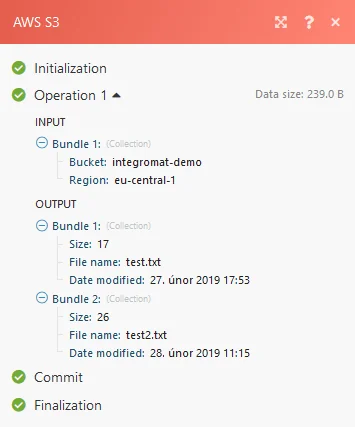
List Files
Returns a list of files from a specified location.
Connection
Establish a connection to your AWS S3 account.
Region
Select your regional endpoint.
Bucket
Select the Amazon S3 bucket you want to search for files.
Prefix(optional)
Path to a folder to lookup files in, e.g. Boost.space Integrator/work.
List Folders
Returns a list of folders from a specified location.
Connection
Establish a connection to your AWS S3 account.
Region
Select your regional endpoint.
Bucket
Select the Amazon S3 bucket you want to search for folders.
Prefix(optional)
Path to a folder to lookup folders in, e.g. Boost.space Integrator/work.
Legacy article, imported from the original Boost.space knowledge base (/knowledge-base/applications/it-and-development/aws-s3/).

