Docparser
The Docparser modules enable you to monitor, list, retrieve, or upload documents in your Docparser account.
To get started with the Docparser app, create an account at app.docparser.com.
For the list of available endpoints, refer to the Docparser API Documentation
Connect Docparser to Boost.space Integrator

To connect your Docparser account to Boost.space Integrator you need to obtain the API Key from your Docparser account.
-
Log in to your Docparser account.
-
Go to Settings > API Access tab.
-
Copy the provided API Key.
-
Go to Boost.space Integrator and open the Docparser module’s Create a connection dialog.
-
Enter the API Key you have copied in step 3 to the respective field and click the Continue button to establish the connection.
The connection has been established. You can proceed with setting up the module.
Documents
Watch Parsed Documents
Triggers when a new document is parsed.
To create a new webhook in your Docparser account, follow these steps:
-

Add the Watch Parsed Documents module to your scenario.
-
Open the module, and click the Add button, enter the name for the webhook and the connection.
-
Save the dialog and copy the provided hook URL.
-
Log in to your DocParser account.
-
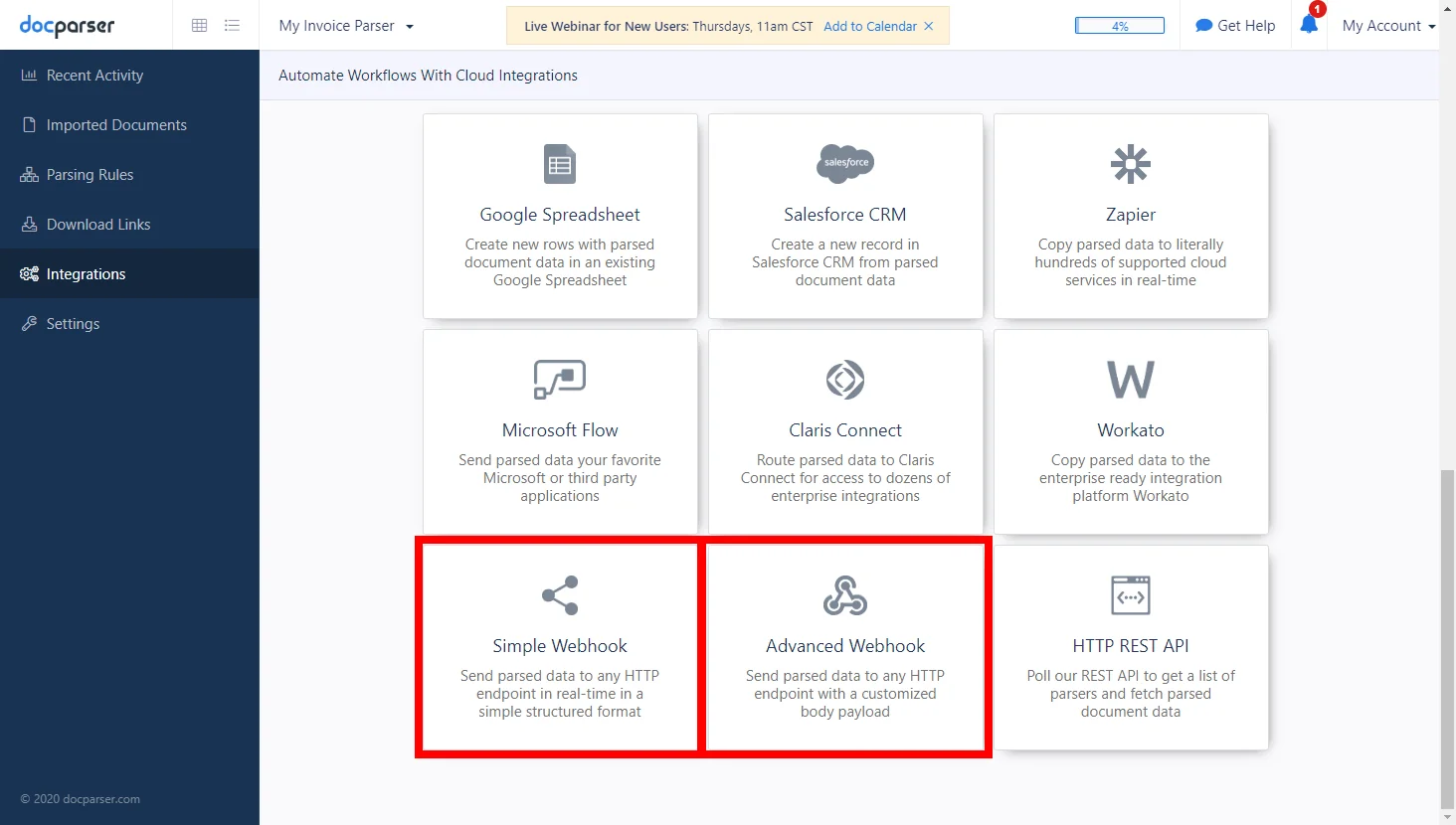
Go to Integrations > Export Parsed Data section.
-
Select Simple Webhook or Advanced Webhook.
-
Configure the webhook and paste the hook URL you have copied in step 3 above.
-
Click Save & Test button.
Webhook contains a default set of fields and not Docparser specific fields. If you select the Advanced Webhook and change the default set of fields, Boost.space Integrator will not support it either.
List Parsed Documents
Retrieves parsed document details by the defined filter settings.
List Parsed Documents
Retrieves parsed documents.
Connection
Establish a connection to your Docparser account.
Document parser ID
Select the document parser or map the ID of the parser you want to retrieve documents for.
Format
Select the format of the returned data. Setting this option to flat will return a simplified version of the parsed data which contains flat key/value pairs instead of nested objects. By default, parsed document data is returned as nested JSON objects.
List
Select the order of returned data.
Last uploaded
Data of the last uploaded documents in reverse chronological order is returned.
Uploaded after
Documents imported after a date specified in the field below are returned.
Processed after
Documents parsed after a date specified in the field below are returned.
Uploaded after date
Enter a date for the Uploaded After option. E.g. 2019-02-12T15:19:21+00:00. The list of supported date and time formats.
Processed after date
Enter a date for the Processed After option. E.g. 2019-02-12T15:19:21+00:00. The list of supported date and time formats.
Remote ID
Enter the Remote ID to filter parsed documents by. When this parameter is set, only documents that have the provided remote_id will be returned. The remote_id of a document can be set when uploading the file using the Upload a Document module or the Upload a Document from a URL module.
Include processing queue
Enable this option to also include files in the processing queue which are not entirely processed yet. By default, only documents that are fully processed (imported, preprocessed, parsed) are included in the results.
Limit
Set the maximum number of documents Integomat will return during one execution cycle.
Get Parsed Document
Retrieves parsed document details.
Connection
Establish a connection to your Docparser account.
Document parser ID
Select the document parser or map the ID of the parser you want to retrieve the document from.
Document ID
Map or select the ID of the document you want to retrieve details about.
Format
Select the format of the returned data. Setting this option to flat will return a simplified version of the parsed data which contains flat key/value pairs instead of nested objects. By default, parsed document data is returned as nested JSON objects.
Include children
If child documents were created during preprocessing (e.g. when splitting documents), enabling this option ensures that the parsed data of all child documents is returned.
List Document Parsers
Retrieves all document parsers in your Docparser account.
Connection
Establish a connection to your Docparser account.
Limit
Set the maximum number of document parsers Boost.space Integrator will return during one execution cycle.
Upload a Document
Imports a document to Docparser.
Connection
Establish a connection to your Docparser account.
Document parser ID
Select the document parser or map the ID of the parser you want to import the file to.
Source file
Map the file you want to upload from the previous module (e.g. HTTP > Get a File or Google Drive > Download a File), or enter the file name and file data manually.
Remote ID
The submitted value will be kept throughout the processing of the document and will be available later, once you obtain the parsed data with our API, as CSV/XLS/XML file; or through webhooks. This optional parameter makes it easy to relate the parsed data returned by Docparser with document records in your own system.
Upload a Document from a URL
Imports a document to Docparser from the specified URL.
Connection
Establish a connection to your Docparser account.
Document parser ID
Select the document parser or map the ID of the parser you want to import the file to.
Document URL
Enter a valid full URL of a publicly accessible document.
Remote ID
The submitted value will be kept throughout the processing of the document and will be available later, once you obtain the parsed data with our API, as CSV/XLS/XML file; or through webhooks. This optional parameter makes it easy to relate the parsed data returned by Docparser with document records in your own system.
Other
Make an API Call
Allows you to perform a custom API call.
Connection
Establish a connection to your Docparser account.
URL
Enter a path relative to https://api.docparser.com. For example, /v1/parsers.
For the list of available endpoints, refer to the Docparser API Documentation.
Method
Select the HTTP method you want to use:
GET
to retrieve information for an entry.
POST
to create a new entry.
PUT
to update/replace an existing entry.
PATCH
to make a partial entry update.
DELETE
to delete an entry.
Headers
Enter the desired request headers. You don’t have to add authorization headers; we already did that for you.
Query string
Enter the request query string.
Body
Enter the body content for your API call.
Example of Use – List Parser Documents
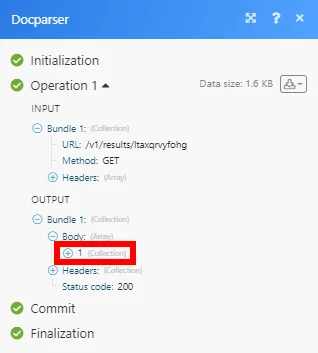
The following API call returns all documents in the specified document parser:
URL:
/v1/results/{{documentParserID}}
Method:
GET
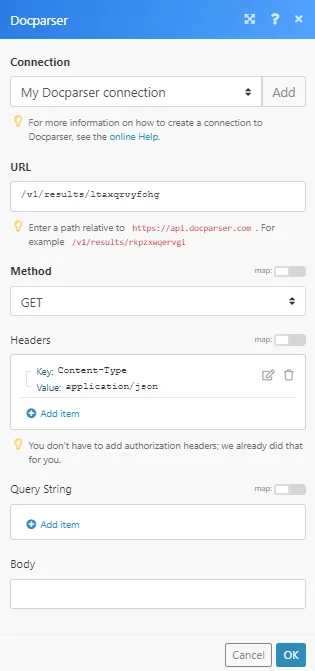
The result can be found in the module’s Output under Bundle > Body.
In our example, 1 parsed document was returned:
Legacy article, imported from the original Boost.space knowledge base (/knowledge-base/applications/it-and-development/docparser/).

