Filestack
With Filestack modules in Boost.space Integrator, you can manage your files and workflows in your Filestack account as well as make API calls.
To get started with Filestack, create an account at filestack.com.
The module dialog fields that are displayed in bold (in the Boost.space Integrator scenario, not in this documentation article) are mandatory.
Connecting Filestack to Boost.space Integrator
To connect Filestack to Boost.space Integrator you need to obtain an API Key and App Secret.
-
Log in to your Filestack account.
-
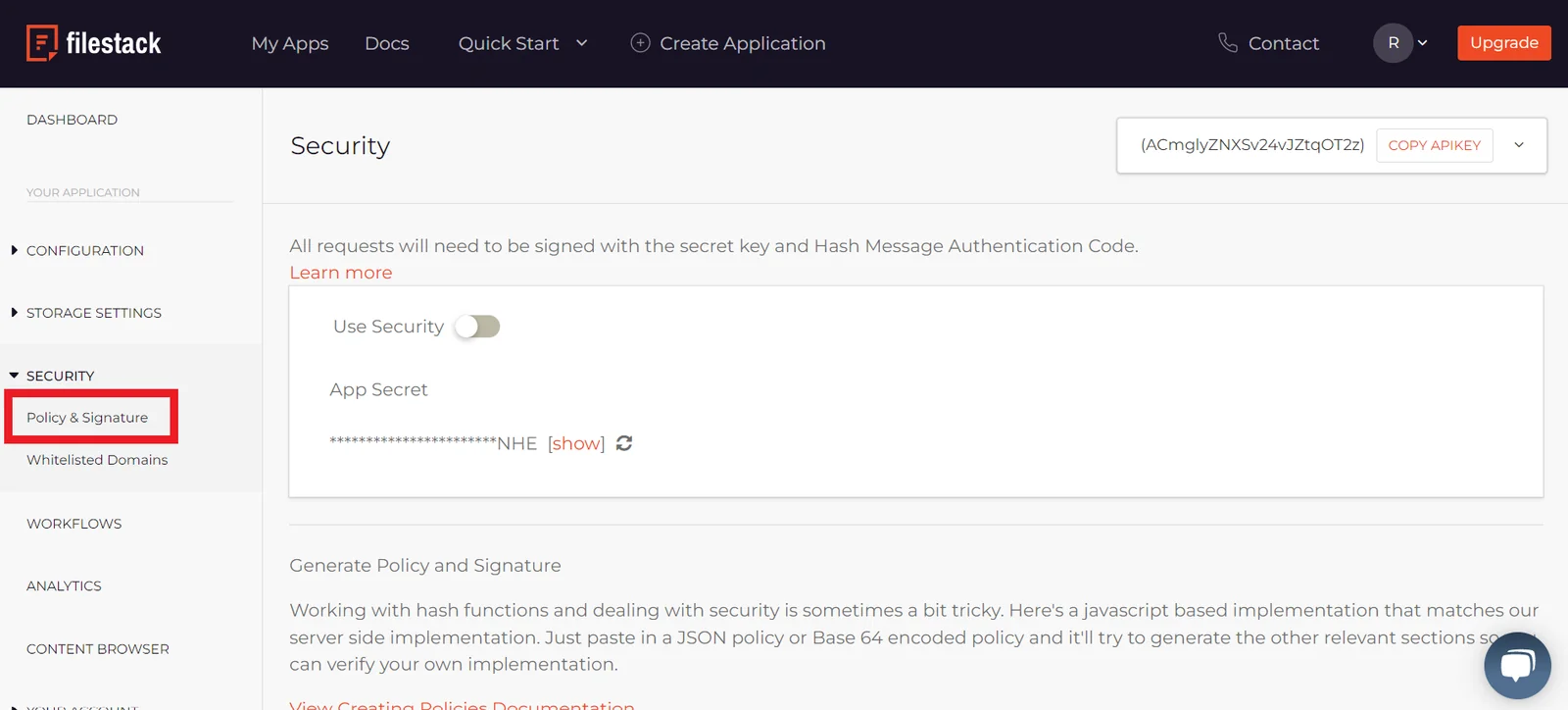
On the dashboard, click Security in the left-hand menu.
-
Click Policy & Signature.
-
Click Copy API Key in the top-right corner.
-
Reveal your App Secret by clicking Show, then copy the string to your clipboard.
-
Open your Boost.space Integrator scenario and select the Filestack module you want to use.
-
Next to Connection, click Add.
-
Choose a name for your new connection.
-
Paste your API Key and App Secret in the corresponding fields.
-
If you have security enabled in your Filestack account, you can enter any relevant information in the Connection box.
-
Click Save.
You have successfully established the connection.
Action
Upload a File
Uploads a file by URL/File Data.
Connection
Establish a connection to your Filestack account.
Upload a File
By URL Link
URL Link
Enter the URL link for the file.
File Name
Enter the name of the file, including the extension. For example, invoice.xml.
By File Data
File Name
Enter the name of the file, including the extension. For example, invoice.xml.
Data
Map the file data.
Download a File
Downloads a file by its handle.
Connection
Establish a connection to your Filestack account.
File Handle
Enter the handle of the file.
New File Name
Enter the new name of the file, including the extension. For example, invoice.xml.
Transformation
Create a Collage
Creates a collage from the passed file handles.
You can only use this module if your Filestack Security is turned off.
Connection
Establish a connection to your Filestack account.
Handle of the Base Image
Enter the handle of the base image.
You cannot use a URL in this field and the one below.
Files Handles
Enter the handles of the rest of the images in the collage.
The order in which files provided dictates how the images arrange. The first image in a collage is always the handle provided above.
File Name
Enter the name of the file, including the extension. For example, collage.jpeg.
Height
Enter the height of the collage.
Width
Enter the width of the collage.
Margin
Enter the margin of the collage.
Fit
Select the fit of the collage.
-
Auto
-
Crop
Color
Enter the color you want.
You can use the colors listed in Color Options.
Autorotate
Select whether to autorotate the collage.
Create a ZIP
Creates a ZIP file from passed file handles or external URLs.
You can only use this module if your Filestack Security is turned off.
Connection
Establish a connection to your Filestack account.
Handle
Enter the handle of the file.
You cannot use a URL in this field.
ZIP
Enter details of all files to be included in the ZIP file, either by handle or external URL.
File Name
Enter the name of the file, including the extension. For example, invoice.xml.
Workflow
Run a Workflow
Starts your Filestack Workflow.
You can only use this module if your Filestack Security is turned on.
Connection
Establish a connection to your Filestack account.
Handle
Enter the handle of the workflow.
You cannot use a URL in this field.
Workflow ID
Enter ID of the workflow you want to run.
Other
Make an API Call
Performs an arbitrary authorized API call.
For some API calls, you may either need a connection with security or one without security.
Connection
Establish a connection to your Filestack account.
URL
Enter a path relative to https://cdn.filestackcontent.com. For example: /api/file/YOUR_HANDLE/metadata
For the list of available endpoints, refer to the Filestack API documentation.
Method
Select the HTTP method you want to use:
GET to retrieve information for an entry.
POST to create a new entry.
PUT to update/replace an existing entry.
PATCH to make a partial entry update.
DELETE to delete an entry.
Headers
Enter the desired request headers. You don’t have to add authorization headers; we already did that for you.
Query String
Enter the request query string.
Body
Enter the body content for your API call.
Example of use – Get image size
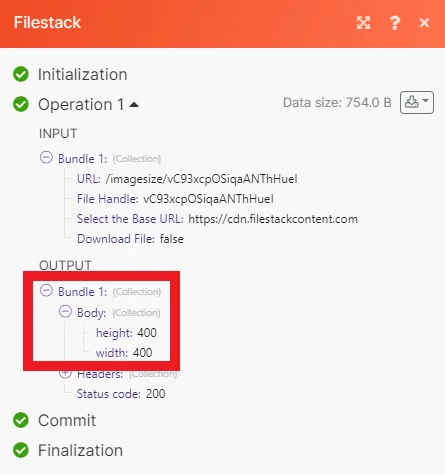
The following API call returns the image size information for a specific image in your Filestack account.
Base URL: https://cdn.filestackcontent.com
URL: /imagesize/vC93xcpOSiqaANThHueI
File Handle: vC93xcpOSiqaANThHueI
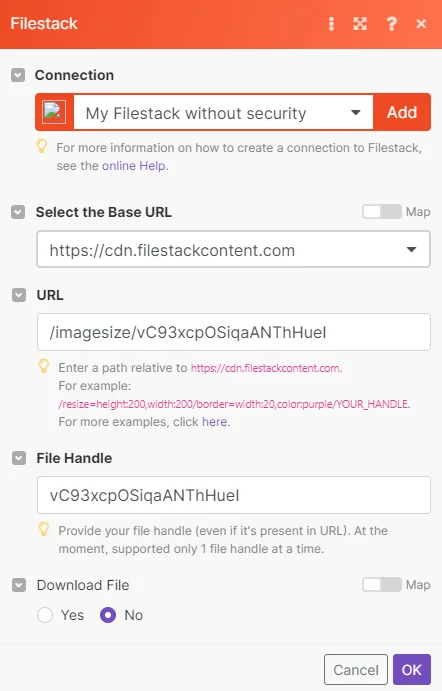
Matches of the search can be found in the module’s Output under Bundle > Body.
Legacy article, imported from the original Boost.space knowledge base (/knowledge-base/applications/it-and-development/filestack/).

