Google Workspace Admin
With the Google Workspace Admin modules in Boost.space Integrator, you can watch, list, create, update, retrieve, and delete users, roles, role assignments, and organizational units.
To get started with Google Workspace Admin, create an account at https://workspace.google.com.
Boost.space Integrator‘s use and transfer of information received from Google APIs to any other app will adhere to Google API Services User Data Policy.
Step-by-step guide
By following this tutorial you will be able to create your Gmail connection.
NOTE! – In the field “authorised domains” type: boost.space and celonis.com
NOTE! – In the field “Authorised redirect URLs” type:
- https://integrator.boost.space/oauth/cb/google-restricted for Gmail or Google Drive
- https://integrator.boost.space/oauth/cb/google/ for other Google apps
- https://integrator.boost.space/oauth/cb/google-custom for Google Text-to-Speech and Google Natural Language
- https://integrator.boost.space/oauth/cb/app for any app created via the Boost.space Integrator Developer Platform
Connect Google Workspace Admin to Boost.space Integrator
- Log in to your Boost.space Integrator account, add a Google Workspace Admin module to your scenario, and click Create a connection.
- Optional: In the Connection name field, enter a name for the connection.
- Optional: Click Show Advanced Settings field, and enter the client credentials from your custom application. See Connecting to Google services using Oauth2.
- Click the Sign in with Google button and select your Google account.
- Review the access information and click Allow.
You have successfully established the connection. You can now begin editing scenarios and adding more Google Workspace Admin modules. If your connection needs reauthorization at any point, follow the connection renewal steps here.
Connecting to Google services using Oauth2
Boost.space Integrator‘s modules’ advanced settings let you enter your own OAuth2 client credentials. OAuth is a security authorization protocol to interact with your protected data that does not require sending your login information.
In order to use OAuth2 with your Google apps, you need to create your own project and a custom OAuth client in Google Cloud Console. This is useful for connecting restricted Google services, like Google Drive or Gmail, to Boost.space Integrator.
The following procedure is intended for:
- Personal use (@gmail.com and @googlemail.com users)
- Organizational use (Internal use within a business or other organization_Google Workspace (formerly GSuite)_ users that prefer to use a custom OAuth client)
Prerequisites:
- a Google account
To create a custom OAuth client for Google service you must do the following:
- Create a project on the Google Cloud Platform.
- Enable APIs on the Google Cloud Platform.
- Configure your OAuth Consent Form on the Google Cloud Platform.
- Create credentials on the Google Cloud Platform.
- Enter your credentials on Boost.space Integrator.
Create a project
-
Sign in to Google Cloud Platform using your Google credentials.
-
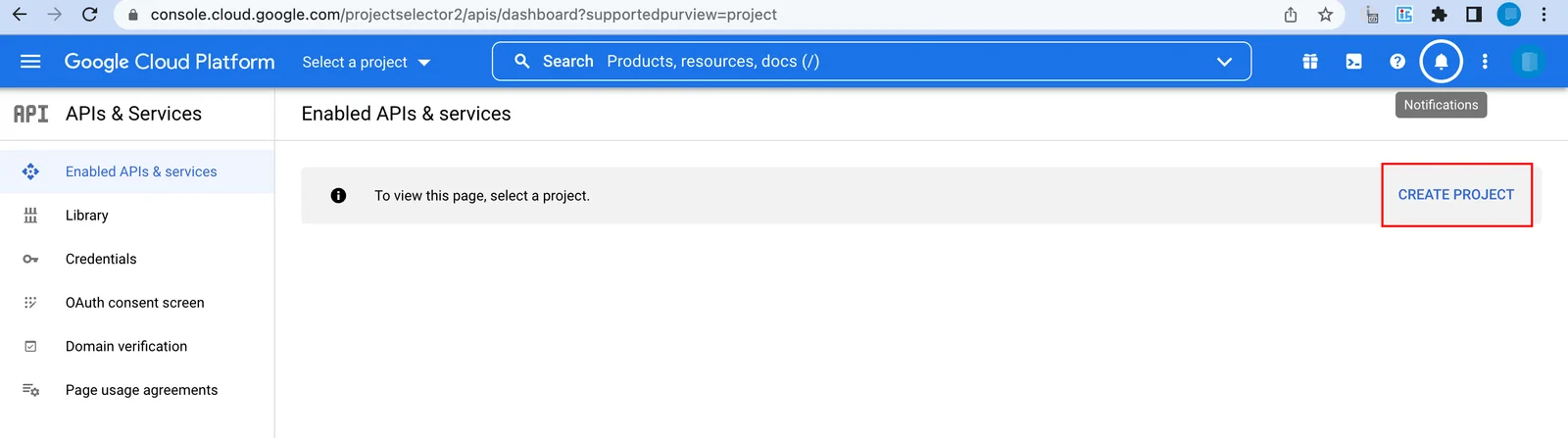
Open the Dashboard, and click the CREATE PROJECT button.
-
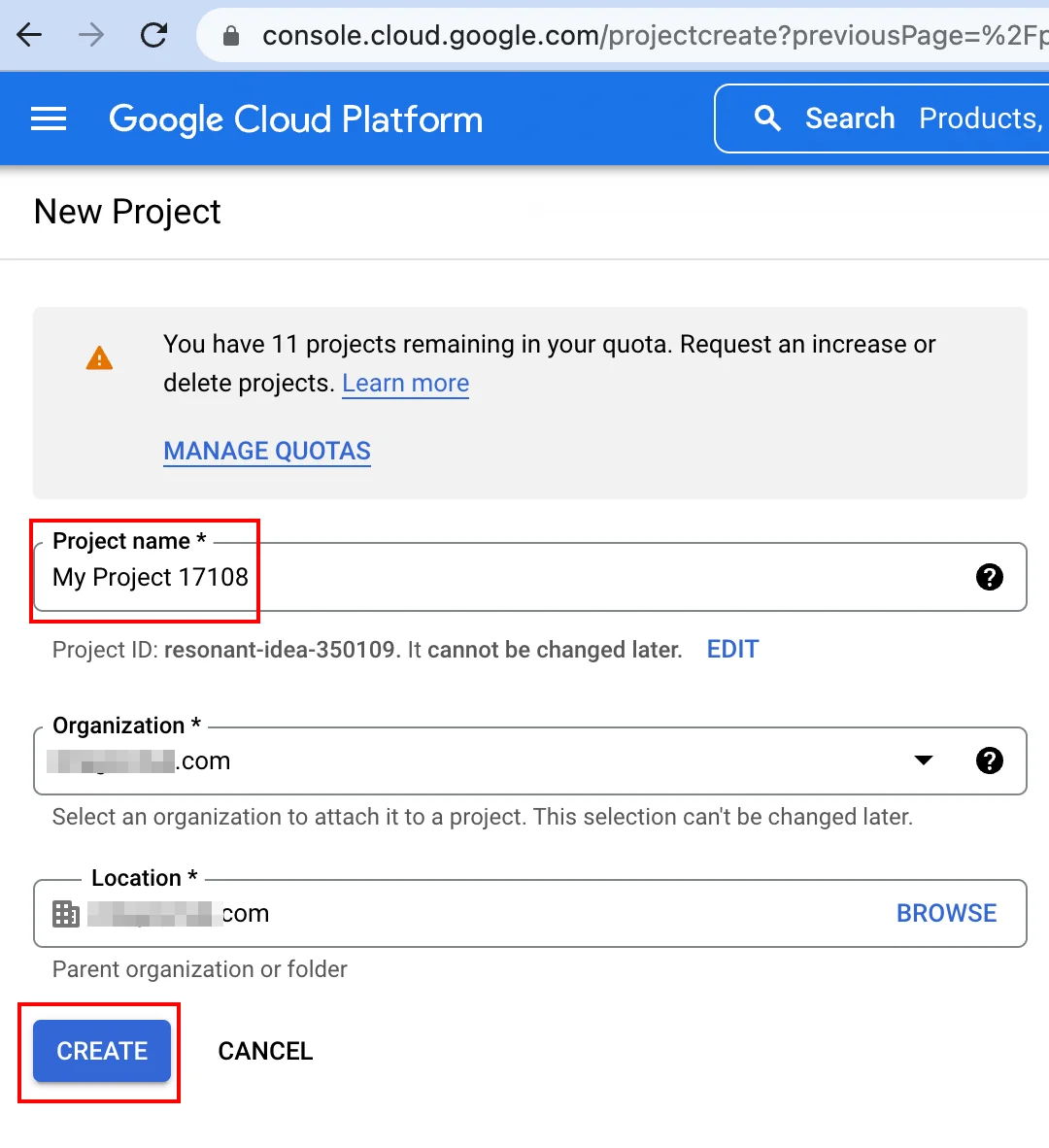
Choose a name for your project, then click Create.
Enable API
-
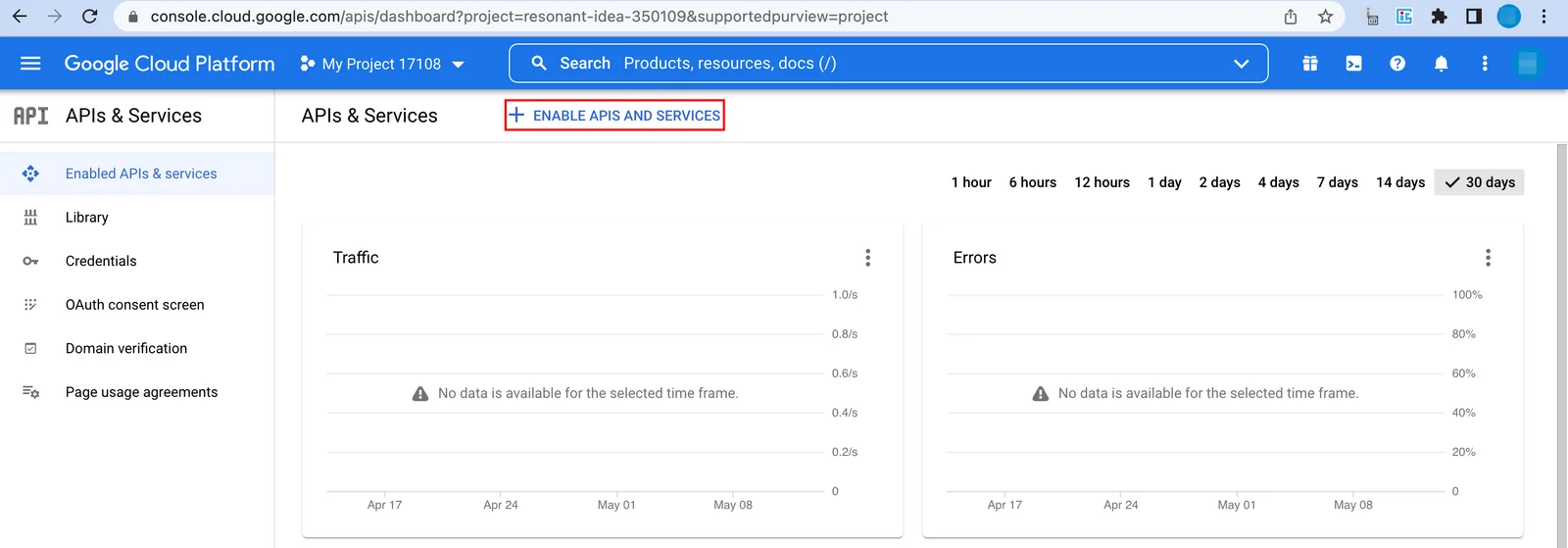
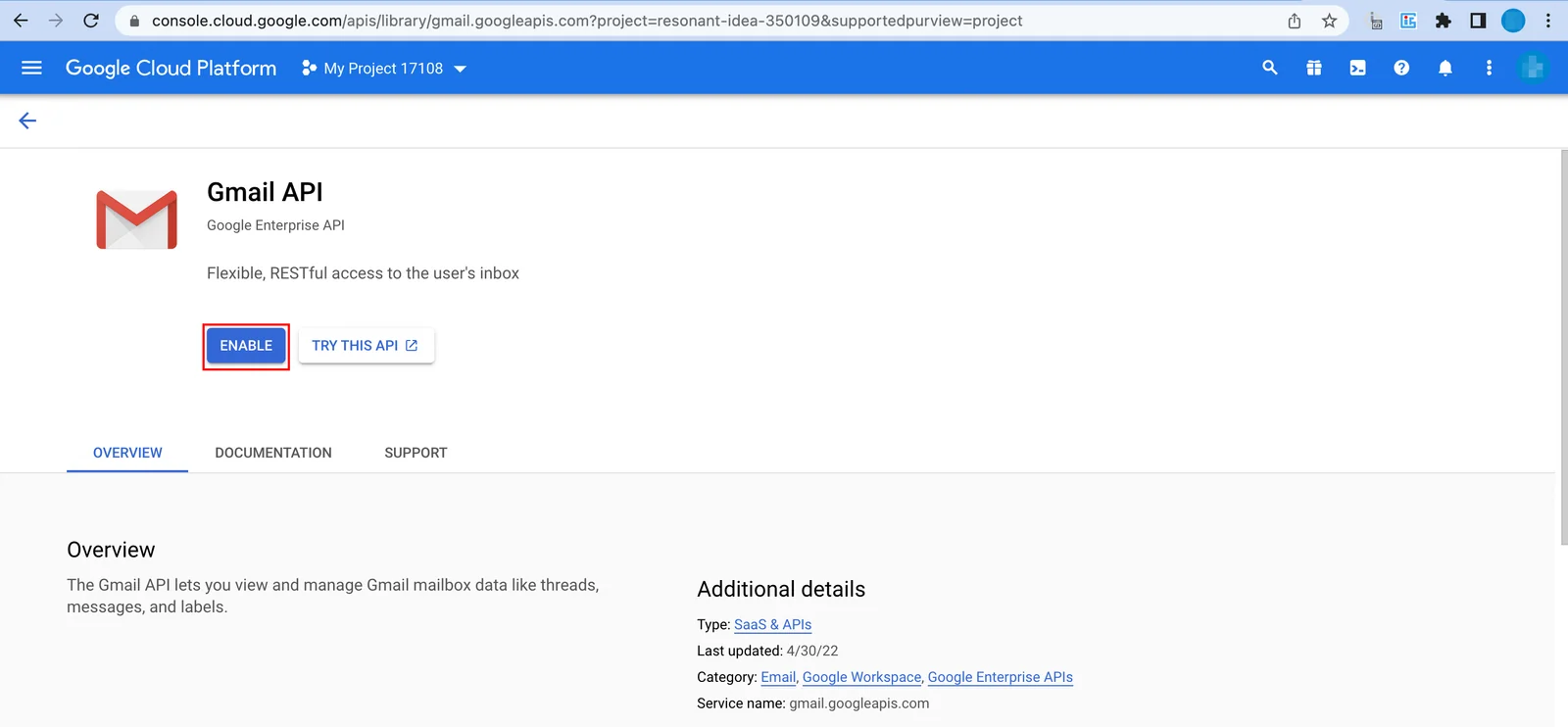
Click Enable APIs and services.
-
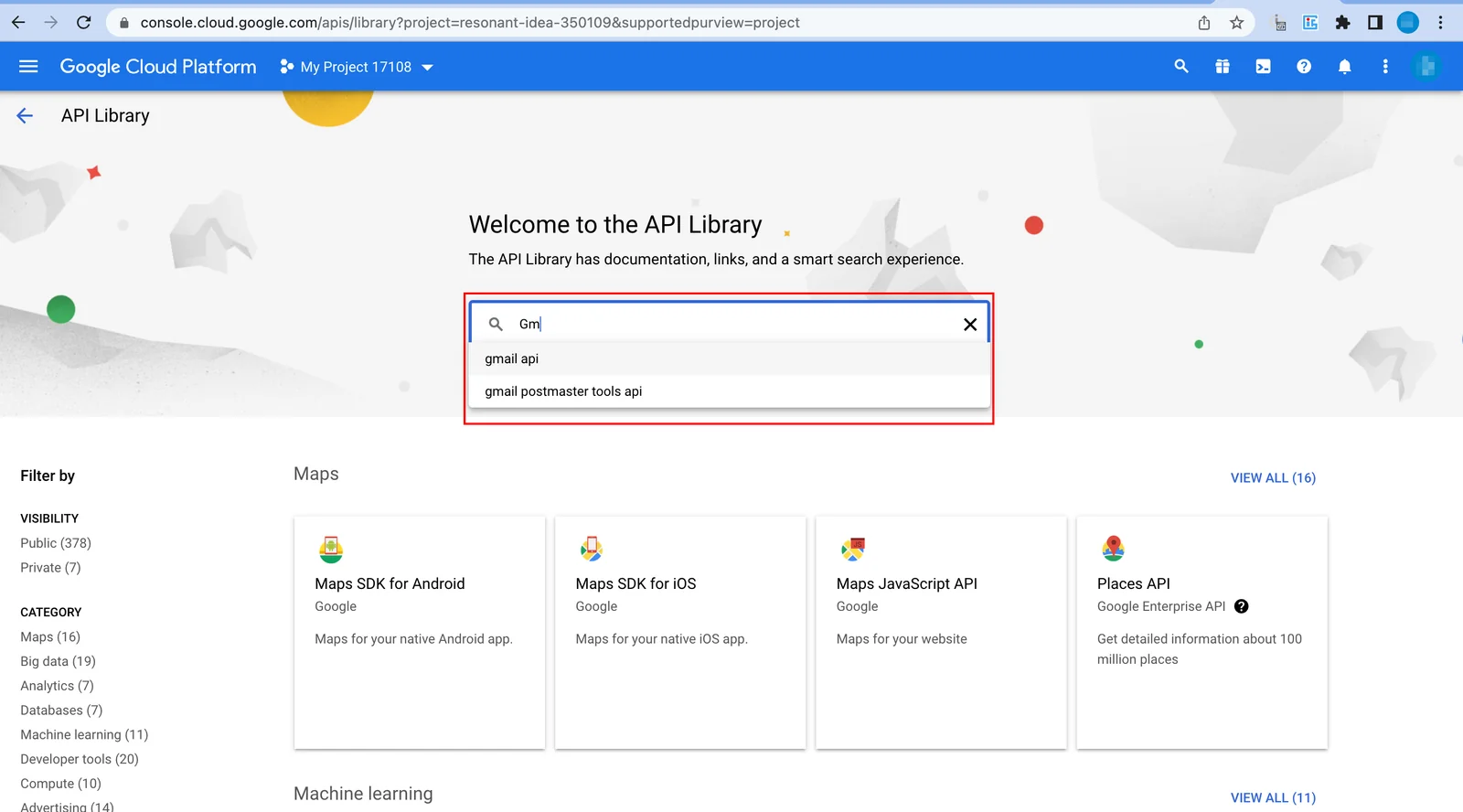
Enter the name of the service you want to use (for example, Gmail API or Google Drive API) in the Enable APIs and services field.
-
The desired service option should display as you type. Click on the API/service you want to connect to Boost.space Integrator.
-
Click Enable.
Configure your OAuth Consent Form
-
Go to APIs & Services > OAuth consent screen settings, choose the External option, then click Create.
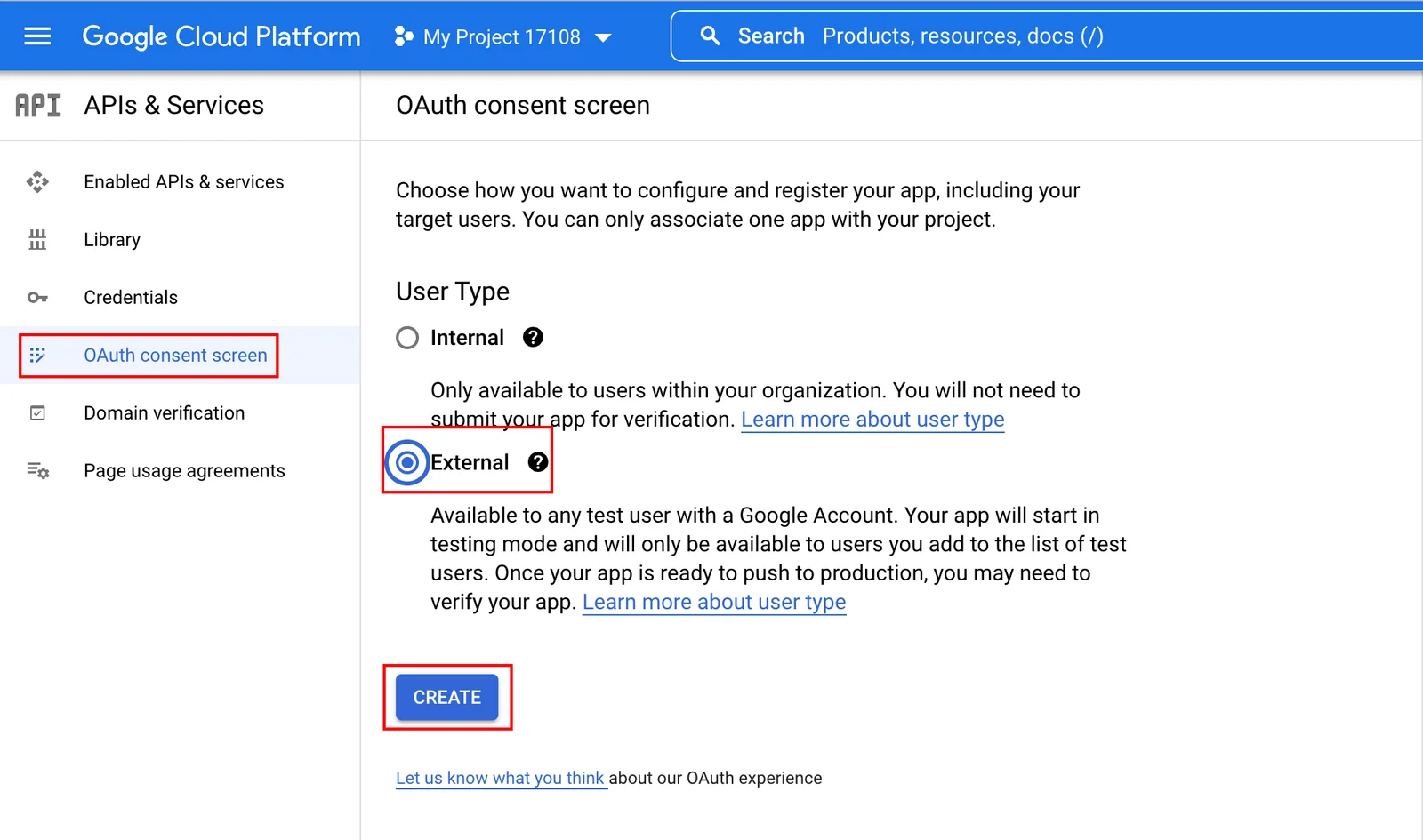
You will not be charged when selecting this option. For more details, please refer to Google’s Exceptions to verification requirements.
Fill in the required fields as follows:
Application name
Enter the name of the app asking for consent.
For example:
Boost.space Integrator.User Support Email
Select your email.
Authorized domains
integromat.com
make.comDeveloper contact information
Enter your email.
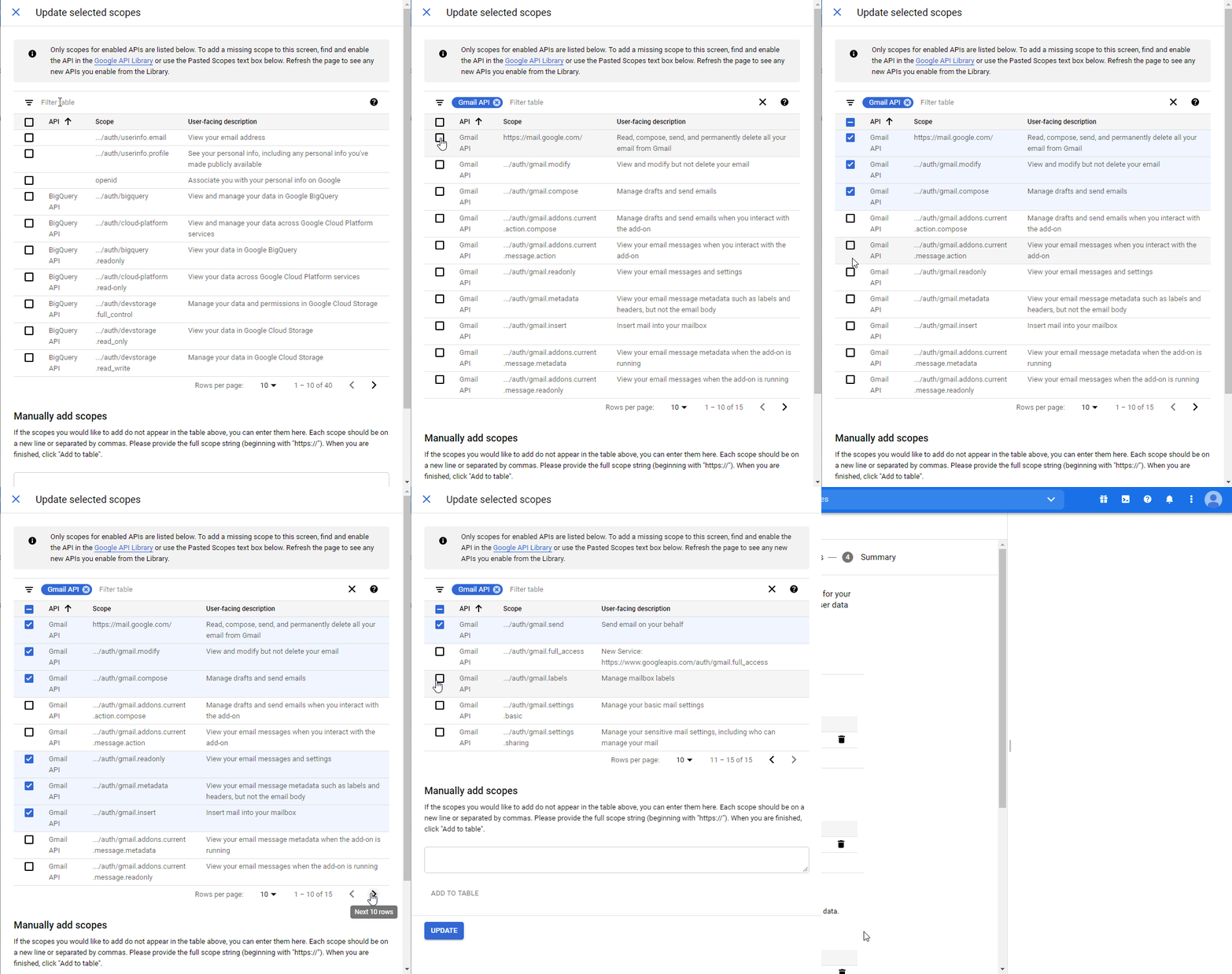
For the Scopes section:
Scopes for Google APIs
Add required scopes for the Google service you want to connect to Boost.space Integrator.
SERVICE/API
REQUIRED SCOPES
<scopes><scope>On the Test Users section, click Add users to add the email address associated with the Google account you want to connect to Boost.space Integrator.
�WARNING� This step is required, otherwise, you won’t be able to establish a connection with Boost.space Integrator.
�NOTE� The Optional Info section is displayed only for non-Google Workspace users and does not contain any required fields.
Create credentials
-
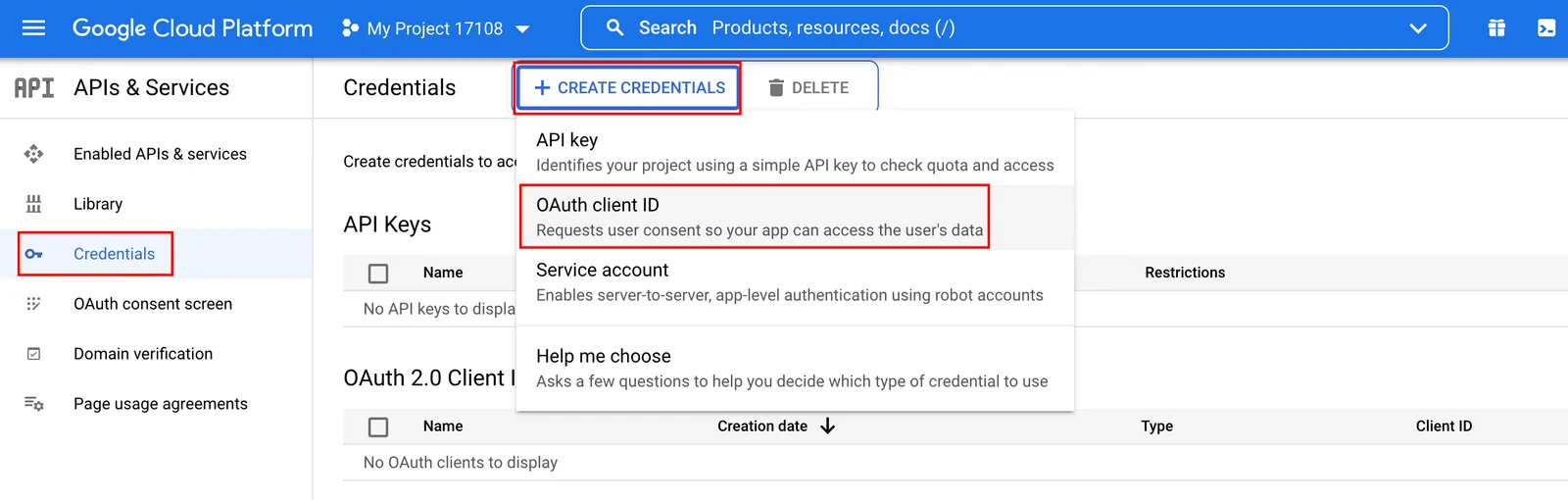
Open the Credentials settings page.
If this is not the first API/SERVICE (Gmail or Google Drive) you have enabled, you don’t have to create credentials, as you have already created the credentials previously.
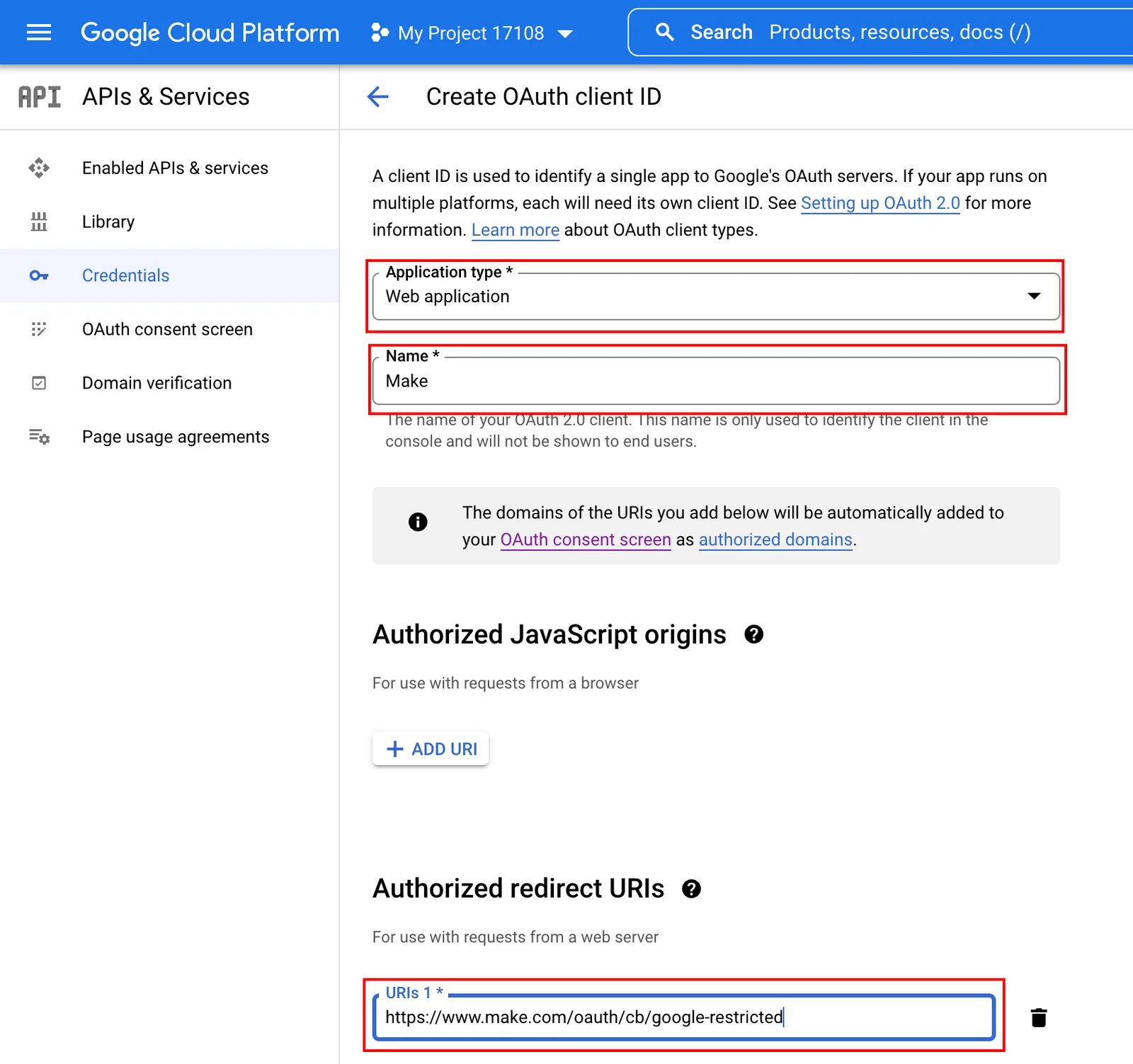
Click + Create credentials, and select the OAuth client ID option.
Fill in the required fields as follows, then click Create.
Application type
Web applicationName
e.g.
Boost.space IntegratorAuthorized redirect URIs
Add one of the following URIs:
- https://integrator.boost.space/oauth/cb/google-restricted for Gmail or Google Drive
- https://integrator.boost.space/oauth/cb/google/ for other Google apps
- https://integrator.boost.space/oauth/cb/google-custom for Google Text-to-Speech and Google Natural Language
- https://integrator.boost.space/oauth/cb/app for any app created via the Boost.space Integrator Developer Platform
�NOTE�OAuth redirect URI domain
Notice that the redirect URI starts with
https://www.integromat.cominstead ofhttps://boost.space. This is currently a known issue in Make.Make was formerly called Integromat, which means you can trust this URL as much as any Make URL.
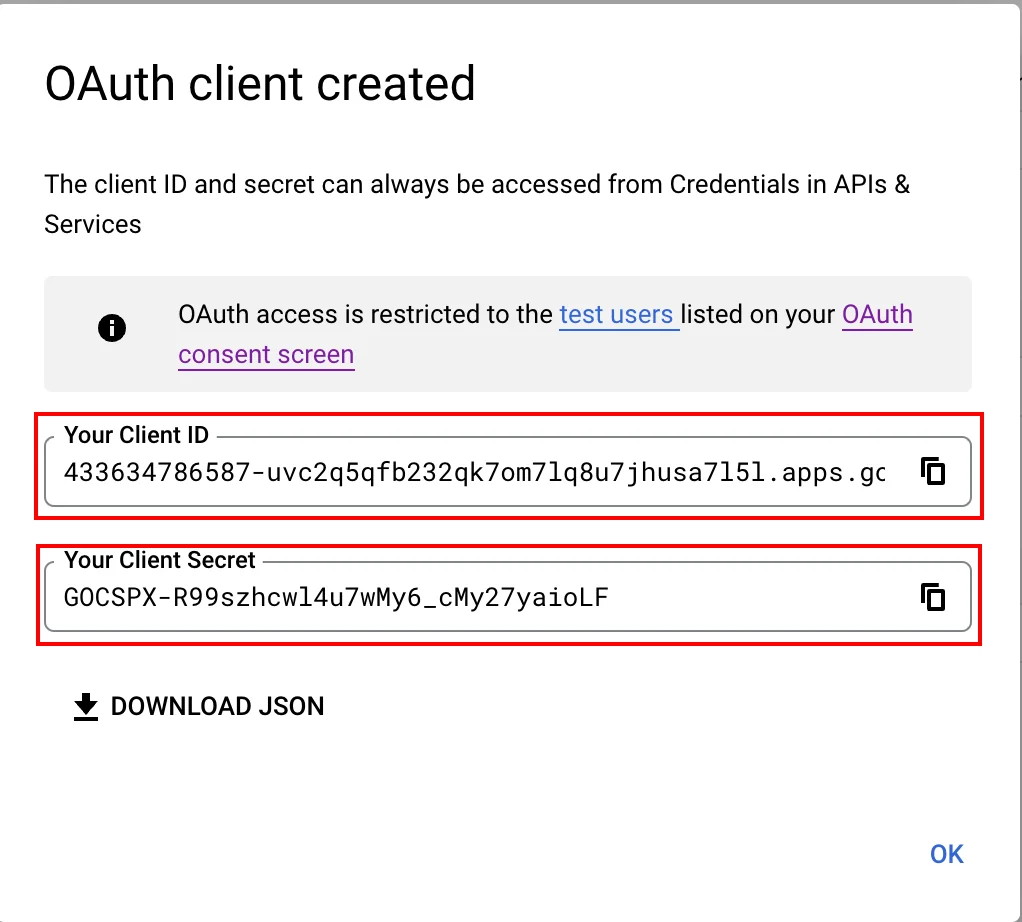
A dialog containing the app’s Client ID and Client Secret is displayed.
Enter your credentials
-
Go to your Boost.space Integrator scenario and choose the Google module you want to use.
-
Next to Connection, click Add.
-
Click Show advanced settings.
-
Enter the Client ID and Client Secret you retrieved in step 4 of the preceding procedure into the respective fields, then click Continue.Create credentials
-
Sign in with your Google account.
-
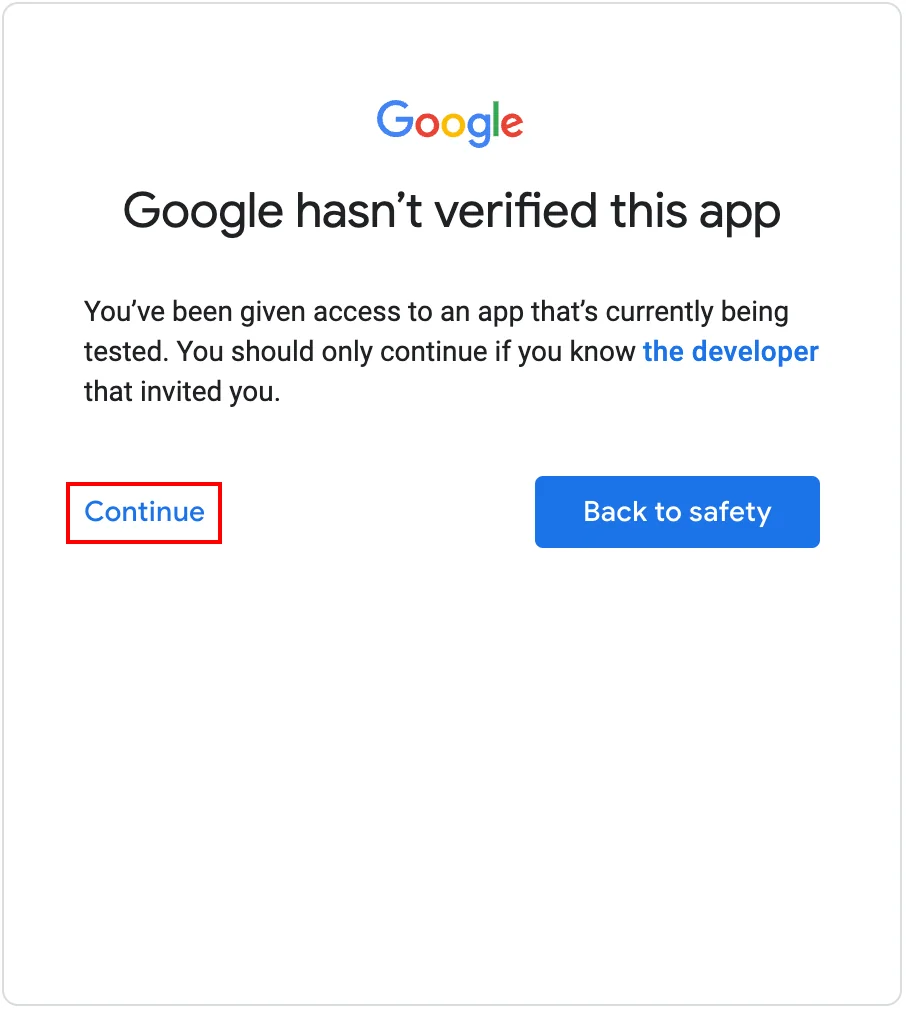
The This app isn’t verified window appears.
The app referred to in this window is your OAuth client.
Click on Continue.
Click the check box next to Google Product and click Allow to confirm your choices.
You have now established the connection to your chosen Google service using a custom OAuth client.
User
Using the following modules, you can watch, create, update, list, retrieve, and delete users and make users super admin.
Watch Users
Triggers when a new user is created.
Connection
Establish a connection to your G Suite Admin account.
Your Domain
Select the domain whose users you want to watch.
Query Search
Enter the search query. You can search the users with the following three attributes:
- Field: Specifies the user attribute to search. For example,
givenName. - Operator: Test is performed on this attribute. For example,
contains a value. - Value: Specifies the content to test. For example,
Andrew.
For more details, refer to the Search Query Documentation.
Projection
Select the subset to fetch the user details:
Basic: Do not include any custom fields for the user.Custom: Include custom fields from schemas requested in customFieldMask.Full: Include all fields associated with this user.
Custom Field Mask
Enter a comma-separated list of schema names.
Limit
The maximum number of users Boost.space Integrator should return during one scenario execution cycle.
List Users
Retrieves a list of users in a domain.
Connection
Establish a connection to your G Suite Admin account.
Your Domain
Select the domain whose users you want to list.
Query Search
Enter the search query. You can search the users with the following three attributes:
- Field: Specifies the user attribute to search. For example,
givenName. - Operator: Test is performed on this attribute. For example,
contains a value.. - Value: Specifies the content to test. For example,
Andrew.
For more details, refer to the Search Query Documentation.
Order By
Select the order in which you want to list the users:
- Family Name
- Given Name
Projection
Select the subset to fetch the user details:
Basic: Do not include any custom fields for the user.Custom: Include custom fields from schemas requested in customFieldMask.Full: Include all fields associated with this user.
Custom Field Mask
Enter a comma-separated list of schema names.
Show Deleted
When selected, lists the users who are deleted.
Sort Oder
Select the order in which you list the users:
- Ascending
- Descending
View Type
Select the option to view the users:
- Admin View
- Domain View
Limit
The maximum number of users Boost.space Integrator should return during one scenario execution cycle.
Get a User
Gets the details of a user.
Connection
Establish a connection to your G Suite Admin account.
User ID
Select the User ID whose details you want to retrieve.
Projection
Select the subset to fetch the user details:
Basic: Do not include any custom fields for the user.Custom: Include custom fields from schemas requested in customFieldMask.Full: Include all fields associated with this user.
Custom Field Mask
Enter a comma-separated list of schema names.
View Type
Select the view:
- Admin View
- Domain View
Create a User
Creates a new user.
Connection
Establish a connection to your G Suite Admin account.
First Name
Enter the first name of the user.
Last Name
Enter the last name of the user.
Password
Enter the password of the user.
Your Domain
Select the domain for the user.
Phones
Add the phone numbers of the user:
Phone Number
Enter the phone number.
Type
Select the phone number type.
Primary
Select whether this is the primary phone number of the user:
- Yes
- No
- Not defined
Secondary Email
Add the secondary email address:
Email Address
Enter the email address.
Type
Select the email address type:
- Home
- Work
- Other
Change Password at Next Login
When selected, it prompts the user to change the password when tried to login next time.
Update a User
Updates an existing user.
Connection
Establish a connection to your G Suite Admin account.
User ID
Select the User ID you want to update.
First Name
Enter the first name of the user.
Last Name
Enter the last name of the user.
Password
Enter the password of the user.
Your Domain
Select the domain for the user.
Phones
Add the phone numbers of the user:
Phone Number
Enter the phone number.
Type
Select the phone number type.
Primary
Select whether this is the primary phone number of the user:
- Yes
- No
- Not defined
Secondary Email
Add the secondary email address:
Email Address
Enter the email address.
Type
Select the email address type:
- Home
- Work
- Other
Delete a User
Deletes a user.
Connection
Establish a connection to your G Suite Admin account.
User ID
Select the User ID of the user you want to delete.
Make a User a Super Admin
Makes a user a super administrator.
Connection
Establish a connection to your G Suite Admin account.
User ID
Select the User ID of the user whom you make a super admin.
Organizational Unit
Using the following modules, you can list, retrieve, create, update, and delete organizational units.
List Organizational Units
Retrieves a list of all organizational units for an account.
Connection
Establish a connection to your Google Workspace Admin account.
Path
Select the path whose organizational units you want to list.
Type
Select the type of organizational units you want to list:
- All
- Children
Limit
The maximum number of organizational units Boost.space Integrator should return during one scenario execution cycle.
Get an Organizational Unit
Gets the details of an organizational unit.
Connection
Establish a connection to your Google Workspace Admin account.
Get Organizational Unit
Select the method by which you want to retrieve the organizational units:
- By Path
- By ID
Organizational Unit Path
Select the organizational path whose organizational unit details you want to retrieve.
Create an Organizational Unit
Creates a new organizational unit.
Connection
Establish a connection to your Google Workspace Admin account.
Name
Enter the name of the organizational unit.
Description
Enter the details of the organizational unit.
Parent Organizational Unit Path
Enter the path to the parent organizational unit if this organization is a subsidiary of any other organization.
Update an Organizational Unit
Updates an existing organizational unit.
Connection
Establish a connection to your Google Workspace Admin account.
Get Organizational Path
Select the method by which you want to retrieve the organizational units:
- By Path
- By ID
Organizational Unit Path
Select the organizational path whose organizational unit details you want to update.
Name
Enter a new name for the organizational unit.
Description
Enter the details of the organizational unit.
Delete an Organizational Unit
Deletes an organizational unit.
Connection
Establish a connection to your Google Workspace Admin account.
Get Organizational Path
Select the method by which you want to retrieve the organizational units:
- By Path
- By ID
Organizational Unit Path
Select the organizational path whose organizational unit details you want to delete.
Role
Using the following modules, you can create, update, list, retrieve, and delete roles.
List Roles
Retrieves a list of all roles in a domain.
Connection
Establish a connection to your G Suite Admin account.
Limit
The maximum number of roles Boost.space Integrator should return during one scenario execution cycle.
Get a Role
Gets the details of a role.
Connection
Establish a connection to your G Suite Admin account.
Role ID
Select the Role ID whose details you want to retrieve.
Create a Role
Creates a new role.
Connection
Establish a connection to your G Suite Admin account.
Role Name
Enter a name for the role.
Role Privileges
Add the permissions for the role:
Service ID
Select the service.
Privilege Name
Select the permission.
Role Description
Enter the details of the role.
Update a Role
Updates an existing role.
Connection
Establish a connection to your G Suite Admin account.
Role ID
Select the Role ID you want to update.
Role Name
Enter a name for the role.
Role Privileges
Add the permissions for the role:
Service ID
Select the service.
Privilege Name
Select the permission.
Role Description
Enter the details of the role.
Delete a Role
Deletes a role.
Connection
Establish a connection to your G Suite Admin account.
Role ID
Select the Role ID you want to delete.
Role Assignment
Using the following modules, you can list, retrieve, assign, and delete role assignments.
List Role Assignments
Retrieves a list of all role assignments.
Connection
Establish a connection to your G Suite Admin account.
Search Role Assignments
Select the option to search the role assignments you want to list:
- By User Email Name
- By User ID
- By Role ID
Your Domain
Select the domain whose role assignments you want to list.
Limit
The maximum number of role assignments Boost.space Integrator should return during one scenario execution cycle.
Get a Role Assignment
Gets the details of a role assignment.
Connection
Establish a connection to your G Suite Admin account.
Role Assignment ID
Select the Role Assignment ID whose details you want to retrieve.
Assign a User to a Role
Assigns a user to a specific role.
Connection
Establish a connection to your G Suite Admin account.
Role ID
Select the Role ID which you want to assign to the user.
Assign To
Select the user to whom you want to assign the role.
Delete a Role Assignment
Deletes a role assignment.
Connection
Establish a connection to your G Suite Admin account.
Role Assignment ID
Select the Role Assignment ID you want to delete.
Other
List Privileges
Retrieves a list of all privileges for a customer.
Connection
Establish a connection to your G Suite Admin account.
Limit
The maximum number of privileges Boost.space Integrator should return during one scenario execution cycle.
Make an API Call
Performs an arbitrary authorized API call.
Connection
Establish a connection to your G Suite Admin account.
URL
Enter a path relative to https://www.googleapis.com. For example: /admin/directory/v1/users
For the list of available endpoints, refer to the G Suite Admin API Documentation:
- Directory API
- Enterprise License Manager API
- Reports API
- G Suite Reseller API
- Groups Settings API
- Groups Migration API
- Data Transfer API
Method
Select the HTTP method you want to use:
GET
to retrieve information for an entry**.**
POST
to create a new entry.
PUT
to update/replace an existing entry.
PATCH
to make a partial entry update.
DELETE
to delete an entry.
Headers
Enter the desired request headers. You don’t have to add authorization headers; we already did that for you.
Query String
Enter the request query string.
Body
Enter the body content for your API call.
Example of Use – List Users in a Domain
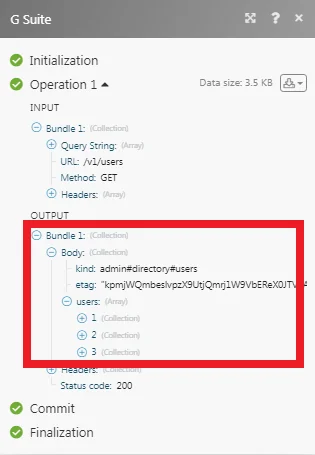
The following API call returns all the users in the same domain from your G Suite Admin account:
URL:
/admin/directory/v1/users
Method:
GET
Query String: Key: domain Value: {{domain you want to retrieve users from}}
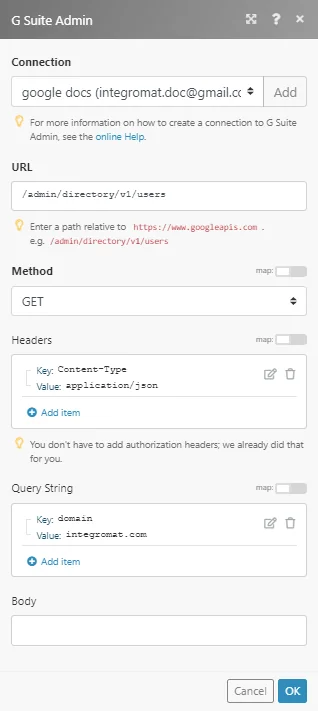
Matches of the search can be found in the module’s Output under Bundle > Body > users. In our example, 3 users were returned:
Legacy article, imported from the original Boost.space knowledge base (/knowledge-base/applications/it-and-development/google-workspace-admin/).

