Keboola
With the Keboola modules in Boost.space Integrator you can:
- Upload data into a table, preview data, export a table, and retrieve file URL’s from a run.
- Run and retrieve a queue job, unload data asynchronously, and start an orchestration.
- Call APIs
To get started with Keboola, create an account at keboola.com
The module dialog fields that are displayed in bold (in the Boost.space Integrator scenario, not in this documentation article) are mandatory!
Connect Keboola with Boost.space Integrator
-
Log in to your Keboola account.
-
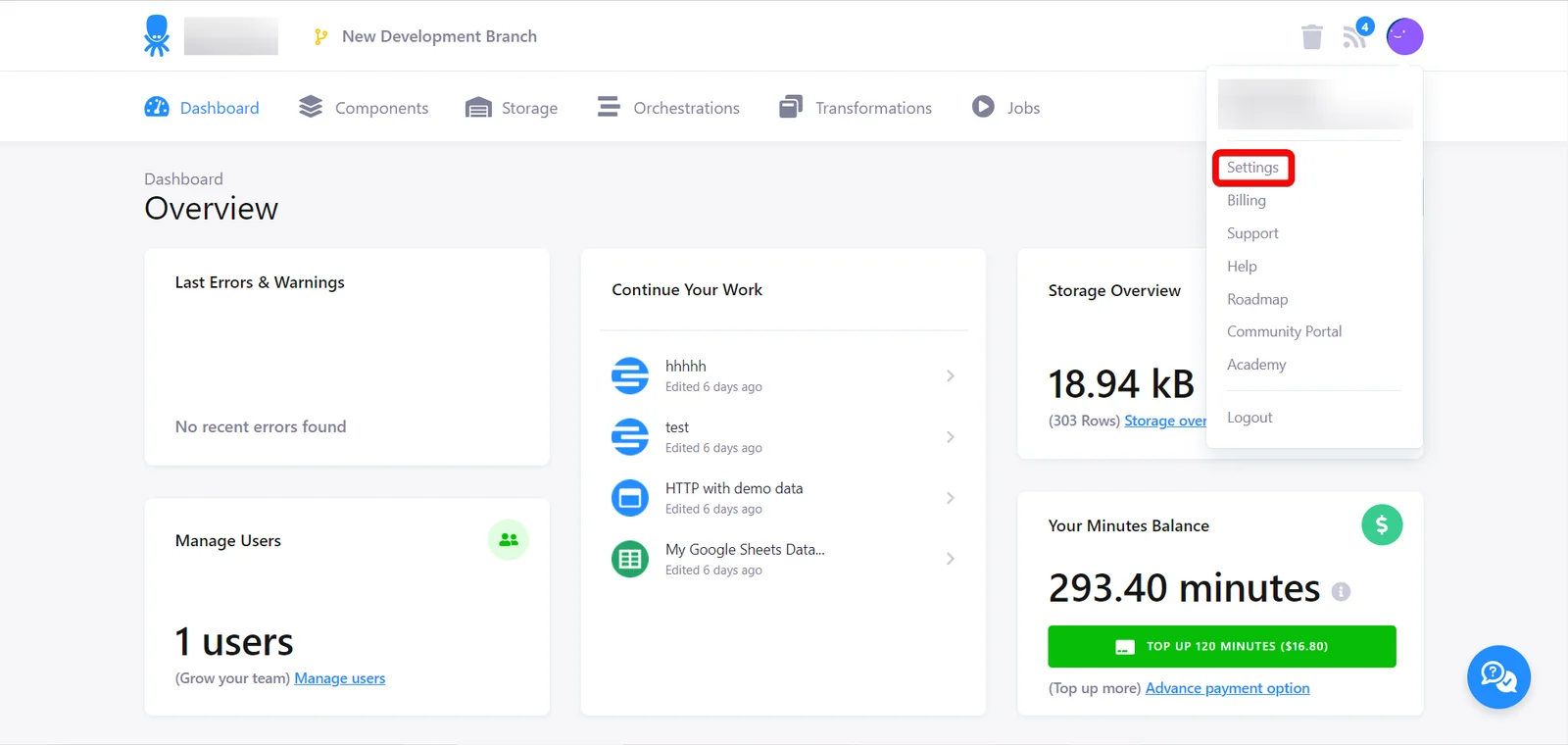
Click Profile picture on the top right and click Settings.
-
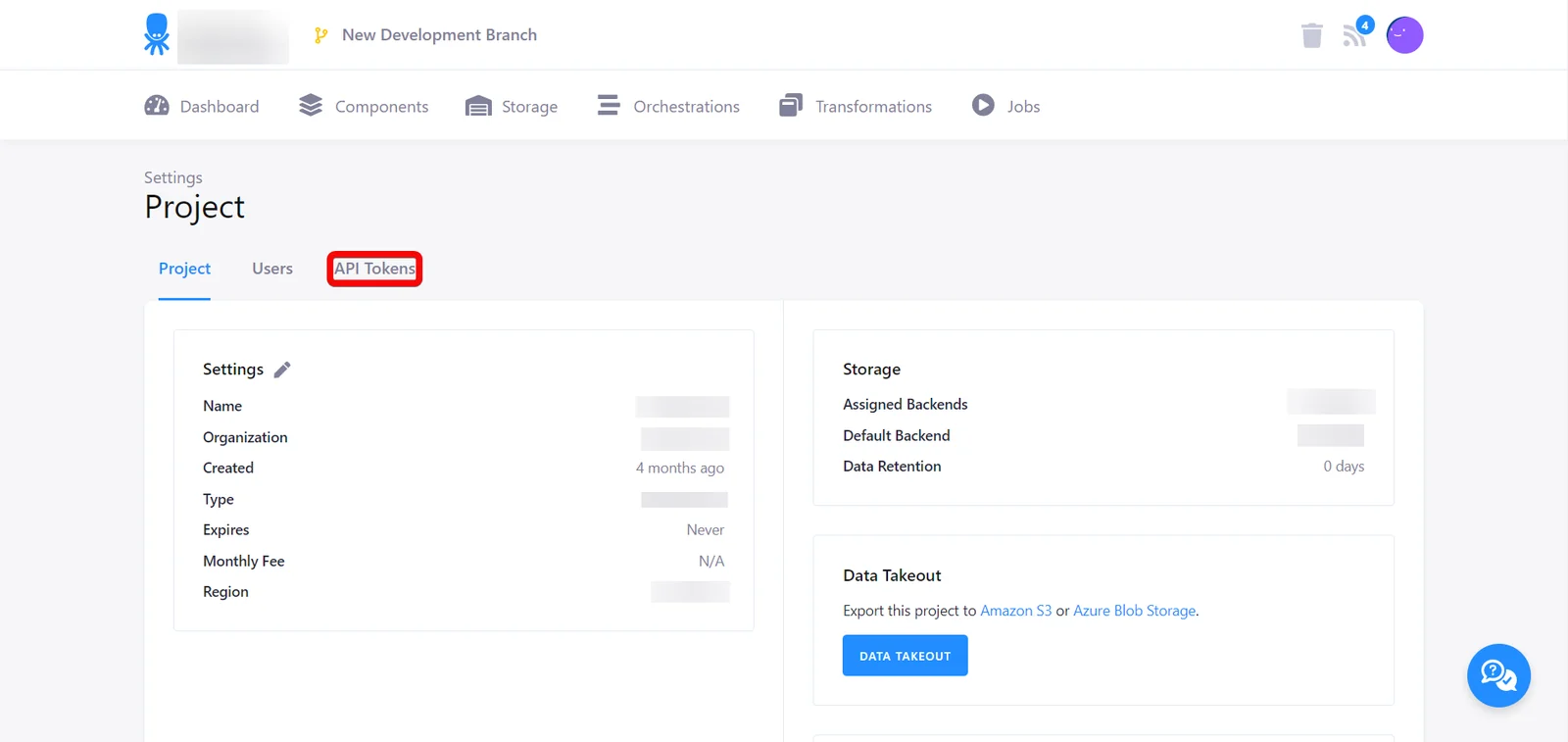
In the Settings tab, click API Tokens.
-
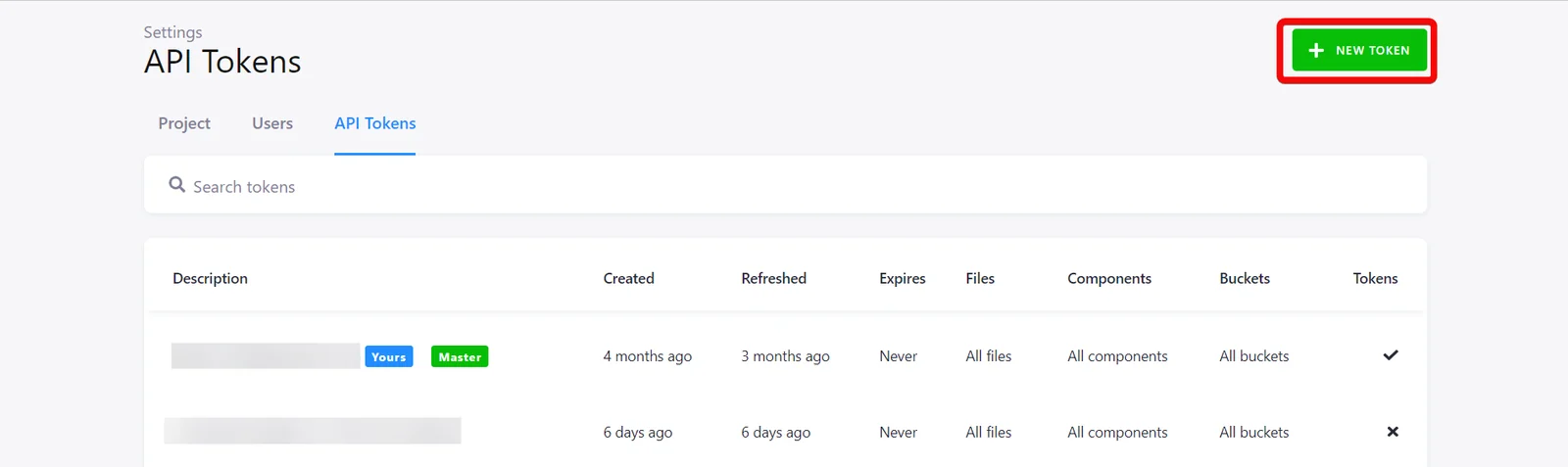
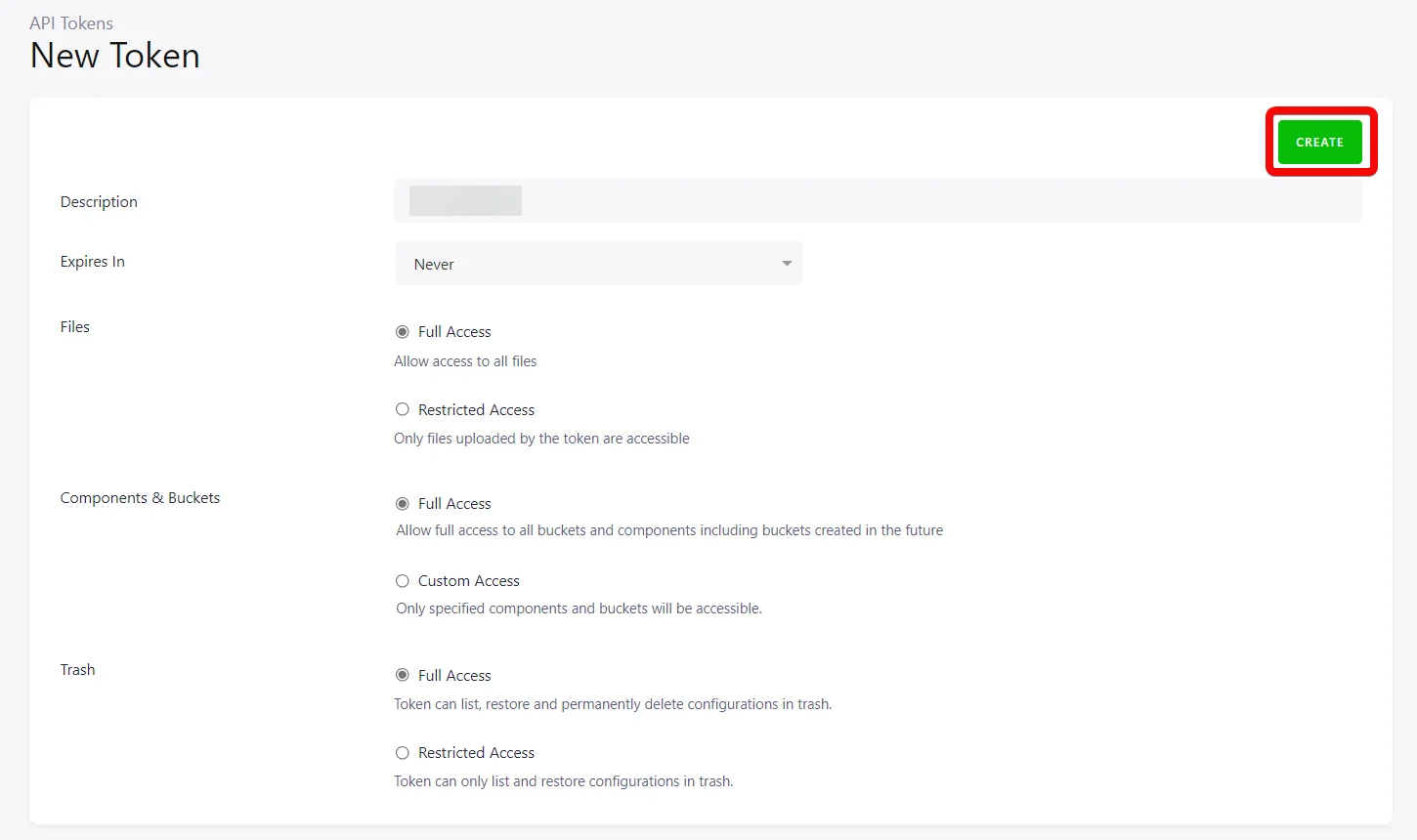
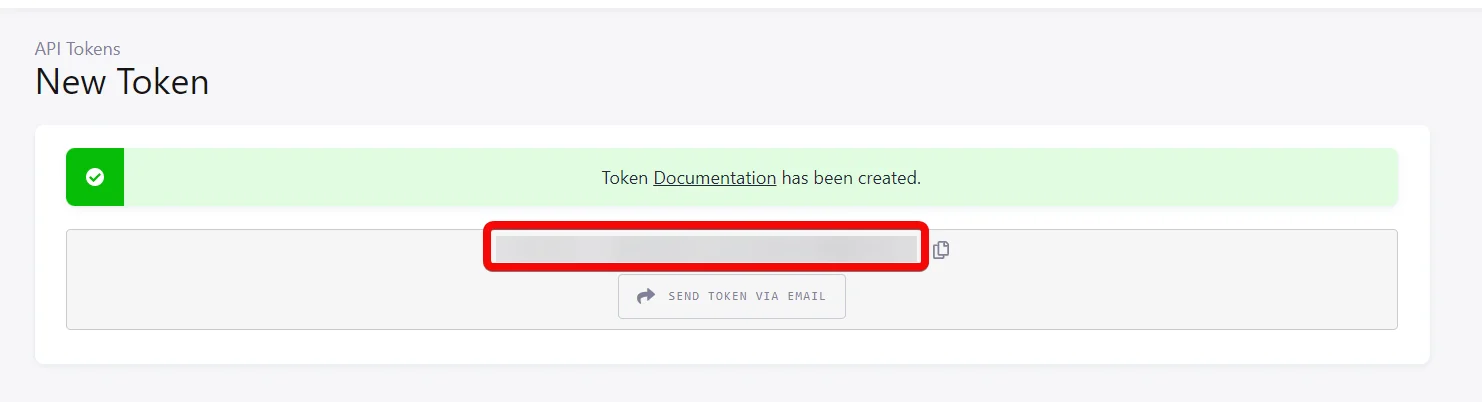
In the API Token tab, click NEW TOKEN, enter a description for the token, and click CREATE.
Ensure your token has the correct scopes assigned. Boost.space Integrator recommends to generate a Full Access token but consider the possible risks resulting from the ability to call any endpoint in the Keboola with this token.
 5. Copy the API Token to your clipboard.
6. Log in to your Boost.space Integrator and add a module from the Keboola app into a Boost.space Integrator scenario. 7. Click Add next to the Connection field.
8. In the Connection name field, enter a name for the connection. 9. In the API Token field, enter the token copied in step 5. 10. In the Stack field, enter your Keboola dashboard URL and click Save. For example, If your Keboola dashboard URL is
https://connection.north-europe.azure.keboola.com/admin/projects/5505/dashboard, then your stack isnorth-europe.azure.�NOTE� If your Keboola dashboard URL is `https://connection.keboola.com/admin/projects/5505/dashboard` then leave the **Stack** field blank.
You have successfully connected the Keboola app with Boost.space Integrator and can now build scenarios.

Import/Export Data
You can upload and preview the data, export the table, and retrieve the file details using the following modules.
Upload Data into a Table
Uploads data into a table.
Connection
Establish a connection to your Keboola account.
Upload Mode
Select or map the mode through which you want to upload the data:
- Incremental upload
- Truncate existing table before upload
The module uploads the data into Keboola via https://import.{{YOUR STACK}}.keboola.com/write-table.
Table ID
Select or map the Table ID to which you want to upload the data.
File
Add the file whose data you want to upload:
File Name
Enter (map) a name for the file including the extension. For example, invoices.xml.
File Data
Enter (map) the file data.
Delimiter
Enter (map) the delimiter value to apply to the sequence. The field is used in a CSV file. The default value is a comma.
Enclosure
Enter (map) field enclosure used in a CSV file. The default value is “.
Escaped by
Enter (map) a CSV escape character. For example, ". By default, this field is blank.
Preview Data
Previews data in an existing table.
Connection
Establish a connection to your Keboola account.
Table ID
Select or map the Table ID whose data you want to preview.
Limit
Set the maximum number of results Boost.space Integrator should return during one scenario execution cycle.
Changed Since
Enter (map) the date to filter the data that was modified on or after the specified date. See the list of supported date and time formats.
Changed Until
Enter (map) the date to filter the data modified on or before the specified date. See the list of supported date and time formats.
Columns
Enter (map) the columns separated by a comma to export. By default, all columns are exported.
Where Operator
Select or map the operator:
- Equals
- Now Equals
Format
Select or map the data format type:
- RFC
- JSON
Where Filters
Select or map the details to filter the data for preview. You can add multiple filters. For filter examples, refer to the Keboola’s documentation.
Order by
Select or map the options to sort the data for preview. You can add multiple options.
Full Text Search
Enter (map) the data to make a full-text search of all data in the table. You cannot combine this option with whereFilters. Allowed only Snowflake/Synapse.
Export a Table
Exports an existing table.
Connection
Establish a connection to your Keboola account.
Source Table
Enter (map) the table name whose data you want to export. For example, in.c-test-bucket.test-table.
- Ensure that your API token has the permissions to run the
keboola.sapi-merged-exportcomponent.
Name of the Exported File
Enter (map) the exported file name including the extension, .csv.
Get File URLs from a Run ID
Retrieves file URLs from a run ID.
Connection
Establish a connection to your Keboola account.
Run ID
Enter (map) the Run ID of the file whose details you want to retrieve.
Jobs and Orchestrations
You can run a queue job, retrieve the job details, start an orchestration, and unload the data asynchronously using the following details.
Run a Queue Job
Runs a new queue job.
Connection
Establish a connection to your Keboola account.
Component
Enter (map) a component name to run a queue job.
Mode
Select or map the mode:
- Run
- Debug
Config
Enter (map) the configuration name.
If a component has a single configuration in your project, the configuration name is not required. However, for components with multiple configurations, for example, configured with different credentials, the configuration names must be different from another.
Config Row IDs
Enter (map) the configuration row IDs.
Config Data
Enter the configuration details.
Parameters
Add the parameter details for configuration:
Key
Enter (map) the name of the key.
Value
Enter (map) the value of the parameter.
Storage
Add the details to store the configuration data:
Source
Enter (map) the source of the data.
Destination
Enter (map) the destination of the data.
Tag
Enter (map) a tag, if you want to run the component with a specific version of code.
Branch ID
Enter (map) a branch ID to run a job of a configuration in a branch.
Variable Values ID
Enter (map) the ID of the variable value to run a job with inline values.
Variable Values Data
Add the variable values data:
Name
Enter (map) a name for the variable.
Value
Enter (map) the value of the variable.
Get a Queue Job
Retrieves an existing queue job.
Connection
Establish a connection to your Keboola account.
Job ID
Enter (map) a queue Job ID whose details you want to retrieve.
Get a Job
Retrieves an existing job.
Connection
Establish a connection to your Keboola account.
Job ID
Enter (map) a Job ID whose details you want to retrieve.
Unload Data Asynchronously
Unloads data asynchronously.
Connection
Establish a connection to your Keboola account.
Table ID
Select or map the Table ID whose data you want to unload asynchronously.
Limit
Set the maximum number of rows Boost.space Integrator will return during one execution cycle.
Format
Select or map the data format to unload:
- RFC
- Escaped
- Raw
Changed Since
Enter (map) the date to filter the data that was modified on or from the specified date. See the list of supported date and time formats.
Changed Until
Enter (map) the date to filter the data that was modified on or before the specified date. See the list of supported date and time formats.
Columns
Enter (map) the columns separated by a comma whose data you want to unload. By default, all columns are exported.
Where Operator
Select or map the operator to filter the data that matches the specified columns:
GZIP
Select whether to ZIP the response.
Where Filters
Add the filter to sort the data that matches the specified value for unloading:
Order by
Select or map the option to sort the data
Start an Orchestration
Starts a new orchestration.
Connection
Establish a connection to your Keboola account.
Config
Enter (map) the Orchestration Configuration ID you want to start.
Other
You call APIs using the following module.
Make an API Call
Performs an arbitrary authorized API call.
Connection
Establish a connection to your Keboola account.
URL
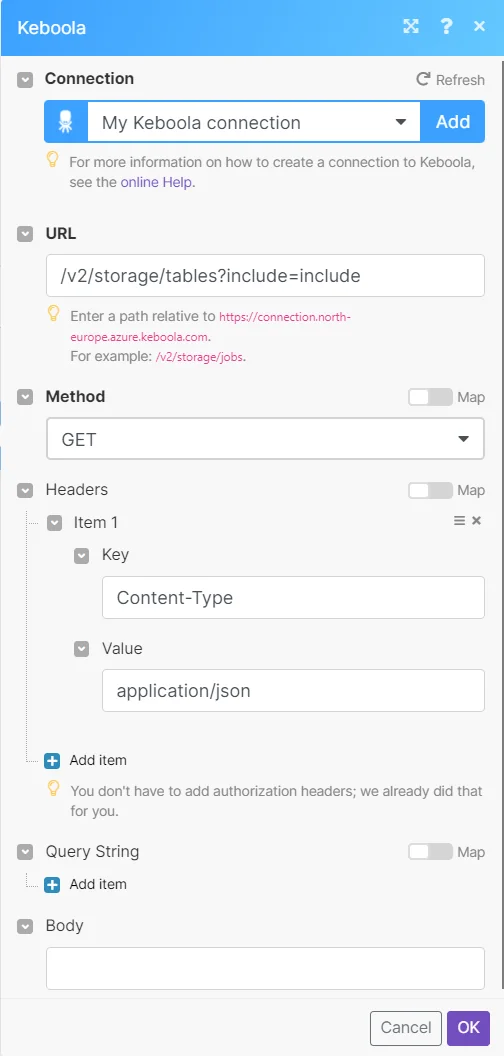
Enter a path relative to https://connection.north-europe.azure.keboola.com. For example, /v2/storage/jobs.
For the list of available endpoints, refer to the Keboola API documentation.
Method
Select the HTTP method you want to use:
GET
to retrieve information for an entry.
POST
to create a new entry.
PUT
to update/replace an existing entry.
PATCH
to make a partial entry update.
DELETE
to delete an entry.
Headers
Enter the desired request headers. You don’t have to add authorization headers; we already did that for you.
Query String
Enter the request query string.
Body
Enter the body content for your API call.
Example of Use – List Tables
The following API call returns all the tables from your Keboola account:
URL:
/v2/storage/tables
Method:
GET
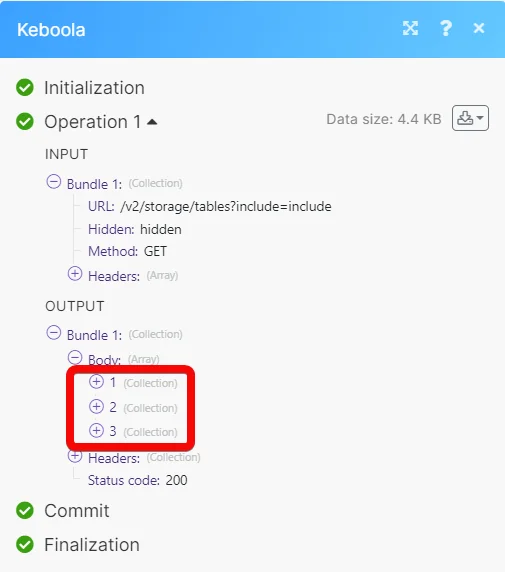
Matches of the search can be found in the module’s Output under Bundle > Body.
In our example, 3 tables were returned.
Legacy article, imported from the original Boost.space knowledge base (/knowledge-base/applications/it-and-development/keboola/).

