Okta
The Okta modules allow you to monitor create, update, list, retrieve, and delete the users in your Okta account.
Getting Started with Okta
Prerequisites
- An Okta account
In order to use Okta with Boost.space Integrator, it is necessary to have an Okta account. If you do not have one, you can create an Okta account at okta.com.
The module dialog fields that are displayed in bold (in the Boost.space Integrator scenario, not in this documentation article) are mandatory!
Connecting Okta to Boost.space Integrator
To connect your Okta account to Boost.space Integrator you need to obtain the API Token from your Okta account and insert it in the Create a connection dialog in the Boost.space Integrator module.
-
Log in to your Okta account.
-
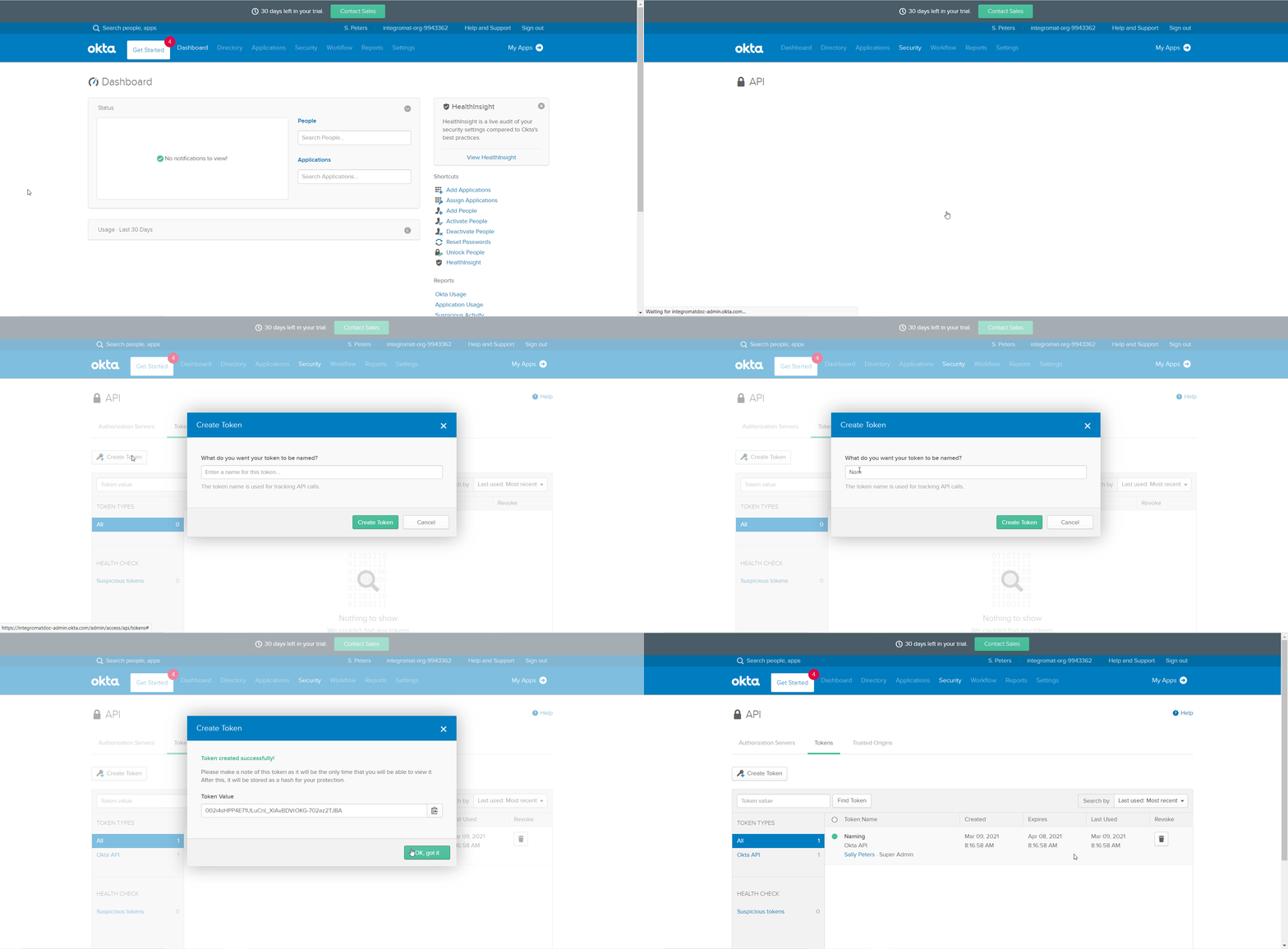
Click Security > API > Token > Create a Token. Enter a name for the token, and click Create Token.
-
Copy the Token to your clipboard and click Ok, got it.
-

Go toBoost.space Integrator and open the Okta module’s Create a connection dialog.
-
In the Connection name field, enter a name for the connection.
-
In the API Token field, enter the token copied in step 3.
-
In the Host field, enter your organization name. If your Okta account URL address is
www.xyz.okta.comthen your host isxyz. Click Continue.
The connection has been established.
Users
Watch New Events
Triggers when a new event has occurred.
Webhook Name
Enter a name for the webhook.
Connection
Establish a connection to your Okta account.
Webhook Name
Enter the webhook name in the Okta.
Webhook Event Type
Select the events you want to watch:
-
Users Created
-
User Deactivated
Search Users
Searches for users or lists them all.
Connection
Establish a connection to your Okta account.
Search Option
Select or map the option to search the users:
-
Search by Query
-
Search with Filter
-
Full Search
Query
Enter the query details to search the users that match the specified query. For example, ‘the user’s first name, last name, or email to search for.
Filter
Enter the user details to filter the users that match the specified information. For example, user status. Supports only the following properties:
-
Status
-
Last updated
-
ID
The filter syntax should be used according to SCIM Protocol Specification.
Search
Enter any of the user fields. For example, first name. The search syntax should be used according to SCIM Protocol Specification.
Sort By
Enter the option to sort the users. For example, by their first name, last name. This field is applicable only if Search is used.
Sort Order
Enter the order in which you want to sort the users. For example, ascending, and descending order. This field is applicable only if Search is used.
Limit
Set the maximum number of users Boost.space Integrator should return during one execution cycle.
Get a User
Gets a single user’s info.
Connection
Establish a connection to your Okta account.
Search Criteria
Select the option to choose the user whose details you want to retrieve:
-
User ID
-
User Login
User ID
Select or map the User ID whose details you want to retrieve.
User Login
Select or map the user login email address whose details you want to retrieve.
Create a User
Creates a new user.
Connection
Establish a connection to your Okta account–
Login
Enter the user login email address.
First Name
Enter the user’s first name.
Last Name
Enter the user’s last name.
Enter the user’s email address.
Middle Name
Enter the user’s middle name.
Honorific Prefix
Enter the user’s prefix.
Honorific Suffix
Enter the user’s suffix.
Title
Enter the user’s position in the company. For example, engineering manager.
Display Name
Enter the user’s display name in the Okta UI.
Nick Name
Enter the user’s nickname.
Second Email
Enter (map) the user’s alternative or secondary email address.
Profile URL
Enter (map) the user’s profile URL address. For example, LinkedIn.
Primary Phone
Enter (map) the user’s phone number.
Mobile Phone
Enter (map) the user’s mobile number. For example, +1-555-415-1337
Street Address
Enter (map) the user’s residence street name
City
Enter (map) the user’s city name.
State
Enter (map) the user’s state name.
ZIP Code
Enter (map) the user’s area ZIP code.
Country Code
Enter (map) the two-character country code. For Example, US.
Postal Address
Enter (map) the user’s postal address for communication.
Preferred Language
Enter (map) the user’s preferred language. For example, English.
Locale
Enter (map)the user’s local or native language. For example, en_US specifies the language English and country US.
Timezone
Select or map the user’s timezone.
User Type
Enter (map) the user type. For example, contractor, full-time.
Employee Number
Enter (map) company assigned employee number of the user.
Cost Center
Enter (map) the name of a cost center assigned to the user.
Organization
Enter (map) the user’s organization name.
Division
Enter (map) the company’s division to which the user belongs to. For example, Engineering.
Department
Enter (map) the department name to which the user belongs to. For example, Support.
Manager ID
Select or map the Manager ID of the user.
Manager Display Name
Enter Imap) the manager’s name that displays in the Okta UI.
Password Type
Select or map the option for password type and enter the password details of the user.
Question
Enter a secret question when a user forgets their password or unlocks their account. Ignored if no answer is specified.
Answer
Enter the answer to the above secret question that is validated when a user forgets their password or unlocks their account. Ignored if no question is specified. The field is case-sensitive.
Group IDs
Enter (map) the group IDs to which you want to add the user.
Activate
Select whether to execute activation lifecycle operation when creating the user.
Provider
Select whether to create a user with a specified authentication provider.
Next Login
Enter Change Password so that user must change the password next time they log in. You must select Activate as yes.
Update a User
Updates user’s profile and credentials.
Connection
Establish a connection to your Okta account.
User ID
Select or map the User ID whose details you want to update.
Type
Select or map the update you want to apply to the user:
-
Full Replacement
-
Partial Update
If you select a Full Replacement option, then any property not specified in the request will be deleted. If you need to only update some fields of the user, use a Partial Update option.
Login
Enter the user login email address.
First Name
Enter the user’s first name.
Last Name
Enter the user’s last name.
Enter the user’s email address.
Middle Name
Enter the user’s middle name.
Honorific Prefix
Enter the user’s prefix.
Honorific Suffix
Enter the user’s suffix.
Title
Enter the user’s position in the company. For example, engineering manager.
Display Name
Enter the user’s display name in the Okta UI.
Nick Name
Enter the user’s nickname.
Second Email
Enter (map) the user’s alternative or secondary email address.
Profile URL
Enter (map) the user’s profile URL address. For example, LinkedIn.
Primary Phone
Enter (map) the user’s phone number.
Mobile Phone
Enter (map) the user’s mobile number. For example, +1-555-415-1337
Street Address
Enter (map) the user’s residence street name
City
Enter (map) the user’s city name.
State
Enter (map) the user’s state name.
ZIP Code
Enter (map) the user’s area ZIP code.
Country Code
Enter (map) the two-character country code. For Example, US.
Postal Address
Enter (map) the user’s postal address for communication.
Preferred Language
Enter (map) the user’s preferred language. For example, English.
Locale
Enter (map)the user’s local or native language. For example, en_US specifies the language English and country US.
Timezone
Select or map the user’s timezone.
User Type
Enter (map) the user type. For example, contractor, full-time.
Employee Number
Enter (map) company assigned employee number of the user.
Cost Center
Enter (map) the name of a cost center assigned to the user.
Organization
Enter (map) the user’s organization name.
Division
Enter (map) the company’s division to which the user belongs to. For example, Engineering.
Department
Enter (map) the department name to which the user belongs to. For example, Support.
Manager ID
Select or map the Manager ID of the user.
Manager Display Name
Enter (map) the manager’s name that displays in the Okta UI.
Password Type
Select or map the option for password type and enter the password details of the user.
Question
Enter a secret question when a user forgets their password or unlocks their account. Ignored if no answer is specified.
Answer
Enter the answer to the above secret question that is validated when a user forgets their password or unlocks their account. Ignored if no question is specified. This field is case insensitive.
Group IDs
Enter (map) the group IDs to which you want to add the user.
Activate
Select whether to execute activation lifecycle operation when creating the user.
Provider
Select whether to create a user with a specified authentication provider.
Next Login
Enter Change Password so that user must change the password next time they log in. You must select Activate as yes.
Other
Make an API Call
Performs an arbitrary authorized API call.
Connection
Establish a connection to your Okta account.
URL
Enter a path relative to https://yourdomain.okta.com/api. For example: /v1/users
For the list of available endpoints, refer to the Okta API Documentation.
Method
Select the HTTP method you want to use:
GET
to retrieve information for an entry.
POST
to create a new entry.
PUT
to update/replace an existing entry.
PATCH
to make a partial entry update.
DELETE
to delete an entry.
Headers
Enter the desired request headers. You don’t have to add authorization headers; we already did that for you.
Query String
Enter the request query string.
Body
Enter the body content for your API call.
Example of Use – Get Users
The following API call returns all the users from your Okta account:
URL:
/v1/users
Method:
GET
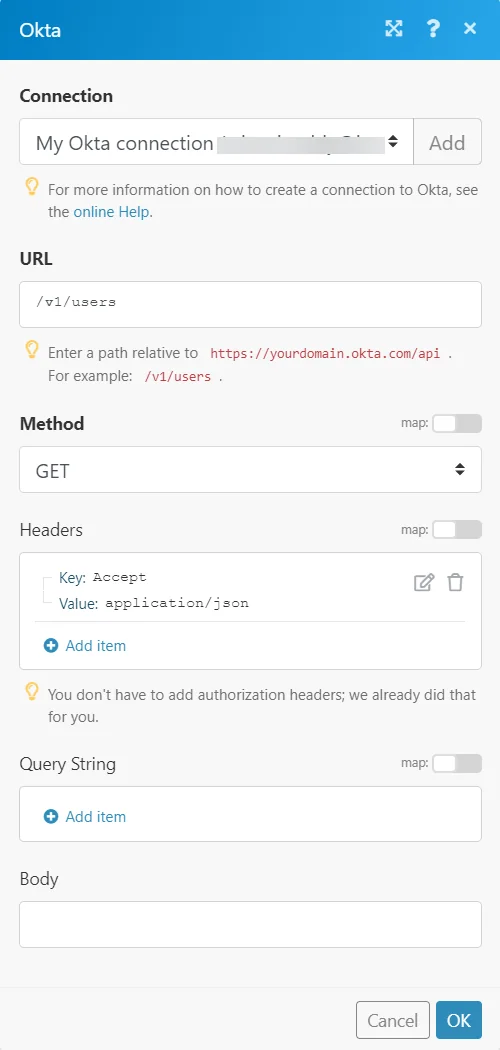
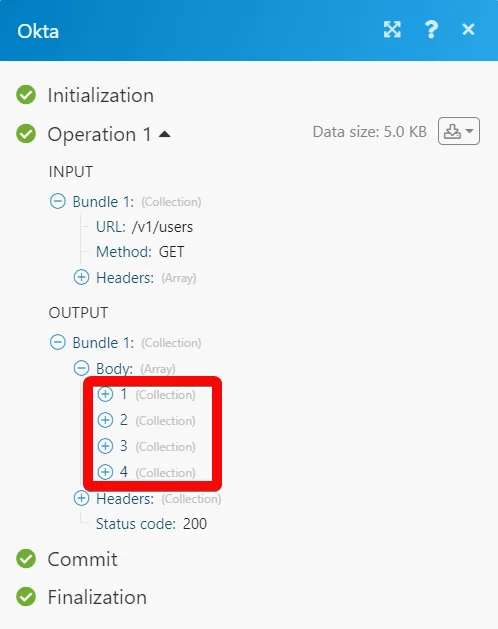
Matches of the search can be found in the module’s Output under Bundle > Body.
In our example, 4 users were returned:
Legacy article, imported from the original Boost.space knowledge base (/knowledge-base/applications/it-and-development/okta/).

