Snack Prompt
With Snack Prompt modules in Boost.space Integrator, you can manage the items and lists in your Snack Prompt account.
To use the Snack Prompt modules, you must have a Snack Prompt account. You can create an account at snackprompt.com.
Refer to the Snack Prompt API documentation for a list of available endpoints.
Connect Snack Prompt to Boost.space Integrator
To establish the connection, you must:
Obtain your API key in Snack Prompt
To obtain your API key from your Snack Prompt account:
-
Log in to your Snack Prompt account.
-
In the upper right corner, click on your profile icon > API Keys.
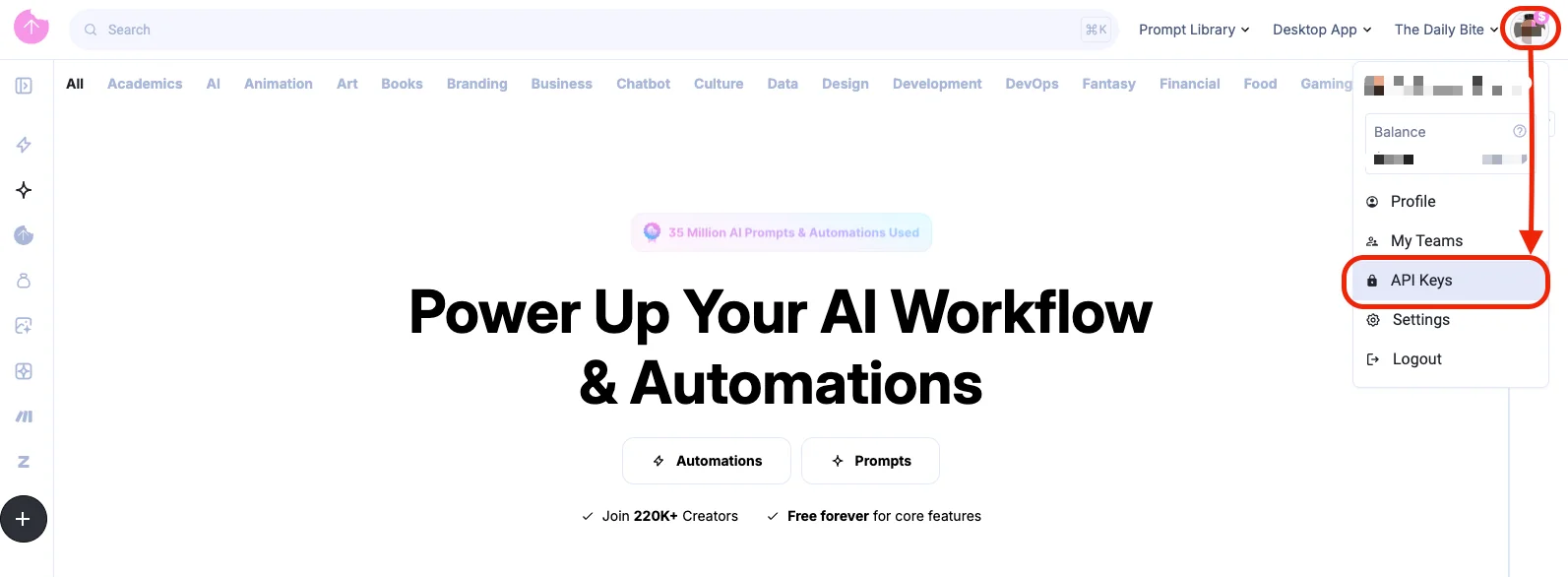
-
Click Create New API Key.
-
Enter a name for the API key and click Create API Key.
-
Copy the API key value shown and store it in a safe place.
You will use this value in the API Key field in Boost.space Integrator.
Establish the connection with Snack Prompt in Boost.space Integrator
To establish the connection in Boost.space Integrator:
-
Log in to your Boost.space Integrator account, add a Snack Prompt module to your scenario, and click Create a connection.
-
Optional: In the Connection name field, enter a name for the connection.
-
In the API Key field, enter the API key copied above.
-
Click Save.
-
If prompted, authenticate your account and confirm access.
You have successfully established the connection. You can now edit your scenario and add more Snack Prompt modules. If your connection requires reauthorization at any point, follow the connection renewal steps here.
Build Snack Prompt Scenarios
After connecting the app, you can perform the following actions:
Actions
Create a List
Creates a list.
Connection
Establish a connection to your Snack Prompt account.
Title
Enter (map) the title of the list.
Description
Enter (map) a description for the list.
Visibility
Select the visibility of the list:
-
Public: Anyone can view it.
-
Unlisted: Only people with the link can view it.
Create an Item
Creates a new item.
Connection
Establish a connection to your Snack Prompt account.
Type of Item
Select the type of the item:
-
Prompt
-
Snippet
-
Document
-
Automation
Category
Select the category of the item.
Topics
Select (map) a topic for the item. Multiple topics can be selected.
Title
Enter (map) the title for the item.
If the item is public, the title should be between 10 and 100 characters long and contain at least one letter.
Body Content
Enter (map) the body content of the item. For placeholder (variables), use #[something].
Description
Enter (map) a description for the item.
Visibility
Select the visibility of the list:
-
Public: Anyone can view it.
-
Unlisted: Only people with the link can view it.
Delete a List
Deletes a list.
Connection
Establish a connection to your Snack Prompt account.
Item ID
Enter (map) the list ID that you want to delete.
Delete an Item
Deletes an item.
Connection
Establish a connection to your Snack Prompt account.
Item ID
Enter (map) the item ID that you want to delete.
Delete files
Deletes file from an item.
Connection
Establish a connection to your Snack Prompt account.
Select Item or List
Select whether you want to delete files from an item or a list.
Enter an Item ID
Enter (map) the item ID that you want to delete.
Enter a List ID
Enter (map) the list ID that you want to delete.
File ID
Enter (map) the file ID that you want to remove.
Get a List
Gets a list.
Connection
Establish a connection to your Snack Prompt account.
List ID
Enter (map) the list ID that you want to retrieve.
Get an Item
Gets an item.
Connection
Establish a connection to your Snack Prompt account.
Item ID
Enter (map) the item ID that you want to retrieve. Use the item ID located on the item page.
Get free item by URL
Find a free item using the URL.
Connection
Establish a connection to your Snack Prompt account.
Elemental URL
Enter (map) the specific item URL you want to retrieve.
Make an API Call
Performs an arbitrary authorized API call.
Connection
Establish a connection to your Snack Prompt account.
URL
Enter a path relative to https://api-integrations.snackprompt.com.
Method
Select the method for your API call:
-
GET
-
POST
-
PUT
-
PATCH
-
DELETE
Body
Enter (map) the body content for your API call.
Remove Item from a List
Remove item(s) from a list.
Connection
Establish a connection to your Snack Prompt account.
List ID
Enter (map) the list ID that you want to remove.
Update a List
Updates a list.
Connection
Establish a connection to your Snack Prompt account.
List ID
Enter (map) the list ID that you want to update.
Title
Enter (map) the title of the list.
Description
Enter (map) a description for the list.
Visibility
Select the visibility of the list:
-
Public: Anyone can view it.
-
Unlisted: Only people with the link can view it.
Update an Item
Updates an item.
Connection
Establish a connection to your Snack Prompt account.
Item ID
Enter (map) the ID of the item to which you want to update.
Type of Item
Select the type of the item:
-
Prompt
-
Snippet
-
Document
-
Automation
Category
Select the category of the item.
Topic
Select (map) a topic for the item. Multiple topics can be selected.
Title
Enter (map) the title of the item.
Body Content
Enter (map) the body content of the item.
Description
Enter (map) a description for the list.
Visibility
Select the visibility of the list:
-
Public: Anyone can view it.
-
Unlisted: Only people with the link can view it.
Upload files
Uploads files to an item or a list.
Connection
Establish a connection to your Snack Prompt account.
Select Item or List
Select whether you want to upload files into an item or a list.
Enter an Item ID
Enter (map) the ID of the item to which you want to upload files.
Enter a List ID
Enter (map) the ID of the list to which you want to upload files.
Use a Dynamic Prompt
With this module, you can retrieve the prepared execution of a selected prompt, replacing the parameters as needed.
Connection
Establish a connection to your Snack Prompt account.
Enter a Prompt ID
Select the way of entering the prompt ID:
-
Enter manually
-
Select from your saved prompts
Prompt ID
Enter (map) the ID of the prompt. For premium prompts you need to buy it first.
Select a Prompt
Select a prompt that was saved before. For premium prompts you need to buy it first.
Searches
Search Items
Searches for specific items.
Connection
Establish a connection to your Snack Prompt account.
Search
Enter (map) the search term to look for specific items.
Limit
Enter (map) the maximum number of items to return in the search results.
Search Lists
Searches lists.
Connection
Establish a connection to your Snack Prompt account.
Search
Enter (map) the search term to look for specific lists.
Limit
Enter (map) the maximum number of lists to return in the search results.
Example of Use – User Elementals
The following API call returns the user elementals from your Snack Prompt account:
URL:
/v1/user/elementals
Method:
GET
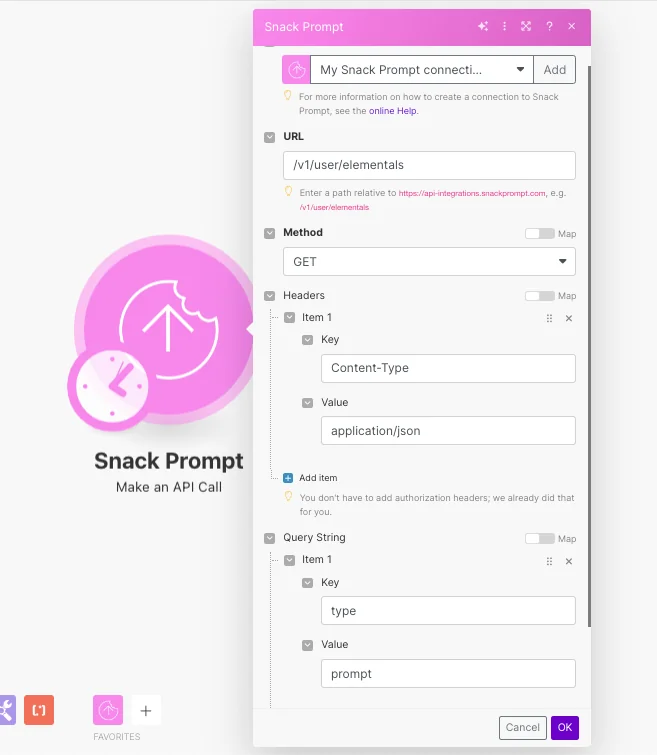
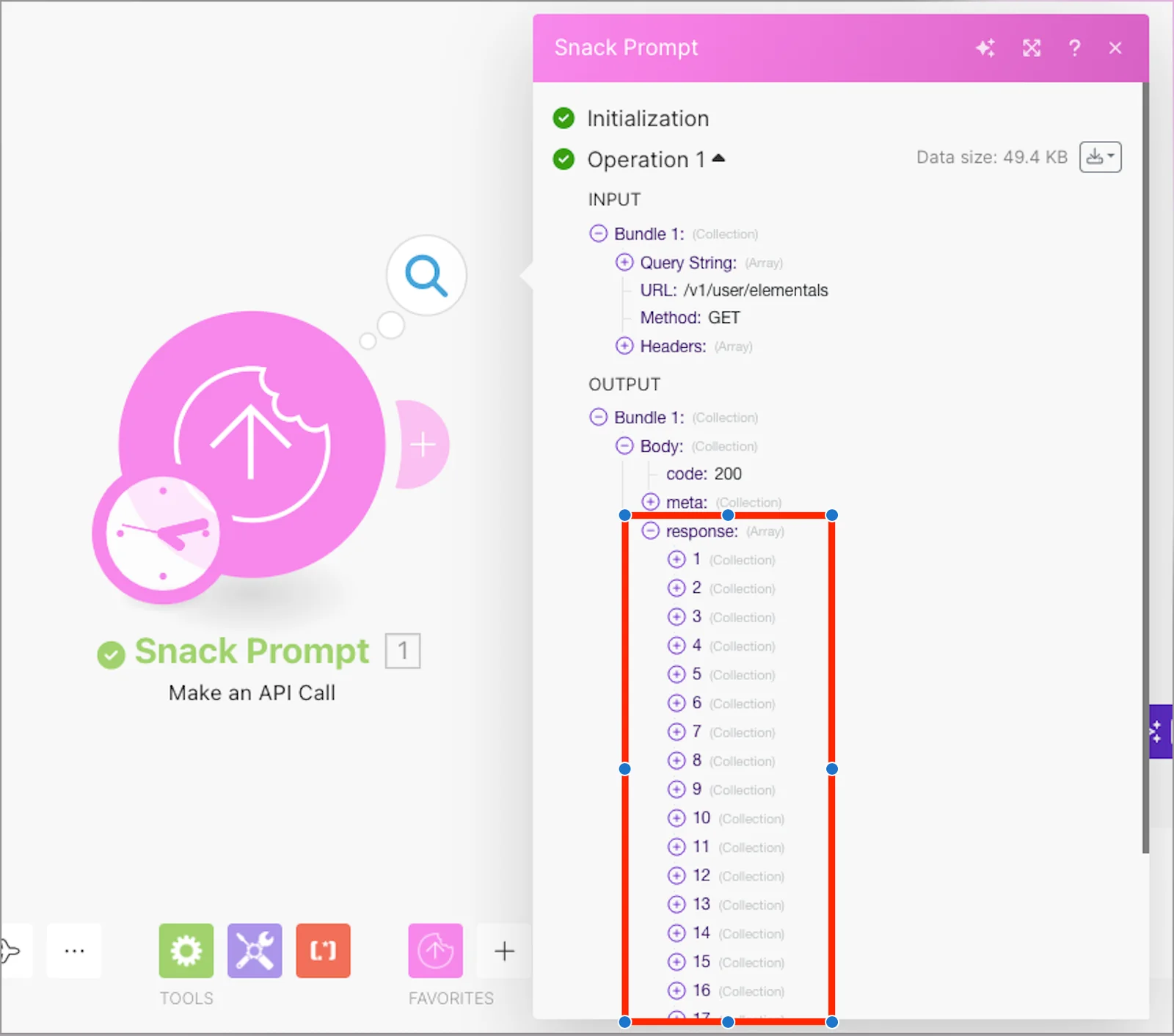
The search matches can be found in the module’s Output under Bundle > Body > response.
In our example, 18 items were returned:
Legacy article, imported from the original Boost.space knowledge base (/knowledge-base/applications/it-and-development/snack-prompt/).

