Temi
With Temi modules in Boost.space Integrator, you can create, manage, and monitor jobs and get transcript information from your Temi account.
To get started with Temi, create an account at temi.com.
Connecting Temi to Boost.space Integrator
-
Log in to your Temi account.
-
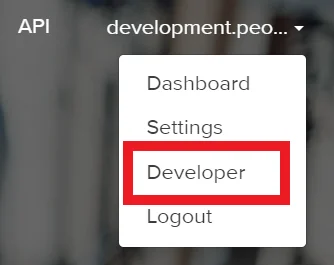
Click your username in the top-right corner, then click Developer.
-
Generate an API Key. If you have already done, you can click Re-generate to create a new one.
-
Copy the API key to your clipboard.
-
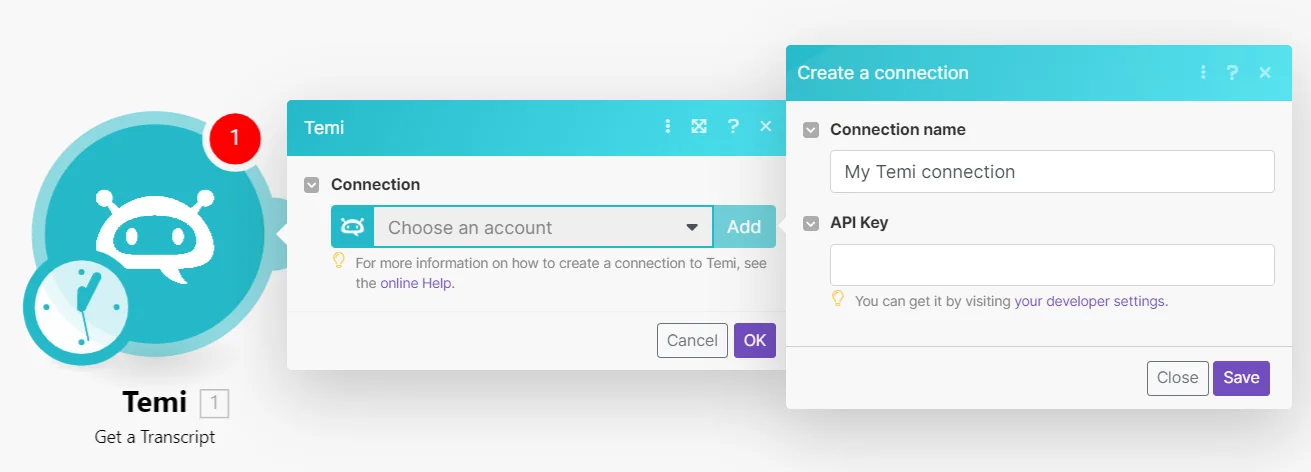
Go to your Boost.space Integrator scenario, add the Temi module you want to use, and click Add next to the Connection field.
-
Optional: In the Connection name field, enter a name for the connection.
-
In the API Key field, enter the API key copied in step 4 and click Save.
You have successfully established the connection.
Jobs
Using the following modules, you can watch, create, search, and delete jobs.
Watch Job Events
Triggers when a new job event occurs.
Webhook
Add a new webhook and save it to your clipboard.
Use this webhook in the Create a Job module Callback URL field. This will trigger the Watch Job Events module when a new job is created.
Create a Job
Creates a new job.
Connection
Establish a connection to your Temi account.
Media URL
Enter the media URL.
Callback URL
Enter the callback URL webhook.
Metadata
Enter any metadata to include.
Get a Job Status
Returns a job status.
Connection
Establish a connection to your Temi account.
Job ID
Select or map the Job ID whose status you want to retrieve
.
Search Jobs
Searches for jobs or lists them all.
Connection
Establish a connection to your Temi account.
Limit
Set the maximum number of jobs Boost.space Integrator returns during one scenario execution cycle.
Delete a Job
Deletes an existing job.
Connection
Establish a connection to your Temi account.
Job ID
Select or map the Job ID you want to delete.
Transcriptions
Get a Transcript
Returns information about a particular transcript.
Connection
Establish a connection to your Temi account.
Job ID
Select or enter the ID of the job you want to retrieve a transcript from.
Version
Select the version. The “Latest” version includes all changes made in the Temi editor, while “Machine” version is the original transcript produced by the Temi API.
Share a Transcript Editor URL
Shares a transcript editor URL.
Connection
Establish a connection to your Temi account.
Job ID
Select or enter the ID of the job.
Other
Make an API Call
Performs an arbitrary authorized API call.
For the list of available endpoints, refer to the Temi API documentation.
Example of use – List jobs
The following API call returns a list of jobs in your Temi account.
URL: /v1/jobs
Method: GET
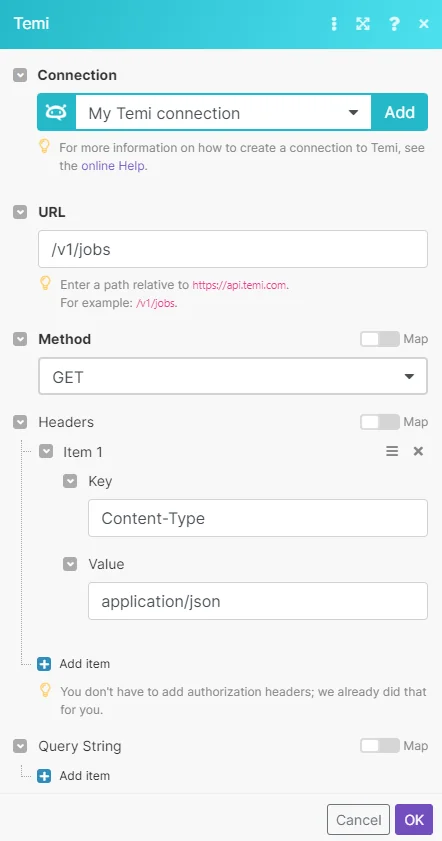
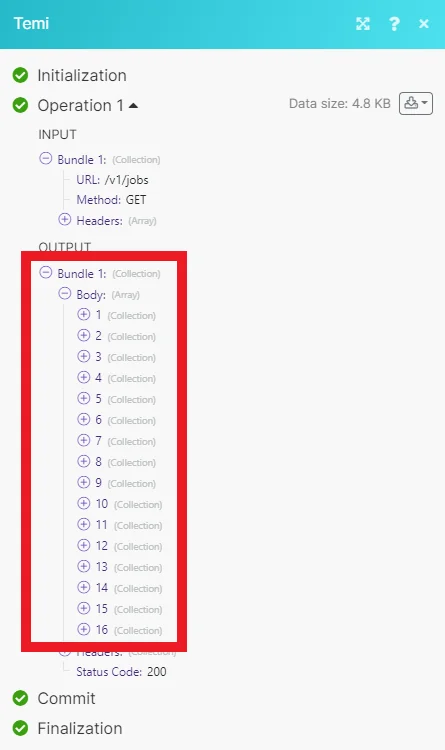
Matches of the search can be found in the module’s Output under Bundle > Body. Our example returned 16 jobs:
Legacy article, imported from the original Boost.space knowledge base (/knowledge-base/applications/language-tools/temi/).

