BigMarker
The BigMarker modules enable you to retrieve, search, create, update, or delete conferences, attendees, channels, and presenters in your BigMarker account.
Getting Started with BigMarker
Prerequisites
- A BigMarker account
In order to use BigMarker with Boost.space Integrator, it is necessary to have a BigMarker account. If you do not have one, you can create a BigMarker account at www.bigmarker.com/signup.
The module dialog fields that are displayed in bold (in the Boost.space Integrator scenario, not in this documentation article) are mandatory!
Connecting BigMarker to Boost.space Integrator
To connect your BigMarker account to Boost.space Integrator you need to obtain the API Key from your BigMarker account.
-
Log in to your BigMarker account.
-

Click on your profile icon in the top-right corner and Settings.
-

Open the API & White Label settings.
-
Click Request API Key.
-
Copy the provided API Key to the clipboard.
-
Go to Boost.space Integrator and open the BigMarker module’s Create a connection dialog.
-
Enter the API Key you have copied in step 5 to the respective field and click the Continue button to establish the connection.
The connection has been established. You can proceed with setting up the module.
Conferences
List Future Conferences
Does not list 24/7 webinars (not considered a meeting space)
Connection
Establish a connection to your BigMarker account.
Limit
Set the maximum number of conferences Boost.space Integrator will return during one execution cycle.
Search Conferences
Searches conferences in your channel based on filter settings.
Connection
Establish a connection to your BigMarker account.
Search by Title
Enter the title of your conference.
Conference IDs
Select conferences you want to search in.
Role
Select the member role to filter results by.
Type
Select the conference type to filter returned conferences by.
Start Time
Enter the beginning time of your time filter. Result conferences start time is after this parameter. The list of supported date and time formats.
End Time
Enter the ending time of your time filter. Result conferences end time is before this parameter. The list of supported date and time formats.
Limit
Set the maximum number of conferences Boost.space Integrator will return during one execution cycle.
Search Recurring Conferences
Searches for child conferences of recurring conferences.
Connection
Establish a connection to your BigMarker account.
Conference ID
Select the parent recurring conference you want to retrieve child conferences for.
Start Time
Enter the beginning time of your time filter. Result conferences start time is happening after this parameter. The list of supported date and time formats.
End Time
Enter the ending time of your time filter. Result conferences end time is before this parameter. The list of supported date and time formats.
Limit
Set the maximum number of conferences Boost.space Integrator will return during one execution cycle.
Get a Conference
Retrieves conference details.
Connection
Establish a connection to your BigMarker account.
Conference ID
Enter (map) or select the conference you want to retrieve details about.
Create a Conference
Create a new conference for your channel.
Connection
Establish a connection to your BigMarker account.
Channel ID
Enter (map) or select the channel you want to create a conference for.
Channel ID Admin
Enter (map) or select the ID of the main conference presenter; defaults to the original channel admin.
Copy Conference ID
Enter the ID or select the conference you want to copy.
You can copy a conference using the Conference Copy ID, but it’s not very clear (undocumented) which fields are copied and which are not.
The following fields were tested:
Not copied
-
title
-
Conference address
-
enable registration email (back to default value true)
-
enable knock to enter (back to default value false)
-
send reminder emails to presenters (back to default value true)
-
show reviews (back to default value true)
-
enable review emails (back to default value true)
-
can view poll results (back to default value true)
-
enable IE & Safari (back to default value false)
-
Enable Twitter (back to default value false)
-
Auto invite all channel members (back to default value true)
-
send cancellation email (back to default value true)
-
Start time (defaults to now)
-
Duration (back to default value 60)
-
Conference Dial-In enablement (defaults back to false)
-
Presenters (defaults back to the original default channel presenter)
-
Max_attendance (defaults back to 10)
-
Webhook URL is not copied
Copied
-
If the type is set, it is copied. When a type is not set (API made webinars), it will not be copied. So copying a 24/7 webinar (meeting space) API made webinar does become a normal webinar.
-
Purpose
-
Channel ID
-
Webcast mode
-
Exit URL
-
Recorded
-
Registration required to view the recording
-
Who can watch the recording
-
Show handout on page
Title
Enter the title of the new conference.
Schedule Type
Select whether you want to create a one-time webinar or a 24/7 meeting space.
Duration in Minutes
Enter the duration of the event in minutes. Range 1 to 240 minutes.The default is 60 minutes.
Start Time
Enter the start time of your conference (required if a one-time webinar is being created). For example: “2020-01-01 15:00”. The list of supported date and time formats.
If you do not submit a start time, the conference will be set at the closest upcoming half-hour rounded time. So e.g. if you send it at 06:47 PM it will be 07:00 PM, If it’s 09:13 PM it will be 09:30 PM.
Time Zone
Select the time zone of your start time. When sending a start time, we advise you to also send a time zone. If not, the BigMarker web platform will try to guess your time zone.
Purpose
Enter the description of your conference.
Privacy
Select Public if the event is to be listed publicly. Select Private if the event should be kept private.
Enable Knock to Enter
Enable this option to allow knocking to enter. Defaults to disabled so attendees do not have to knock to join the room.
Enable Conference Dial-In
Select the Yes option to enable the conference dial-in, defaults to disabled.
Webhook URL
Enter the URL to send new conference registration info to. BigMarker will send a POST request to this URL with new registration data.
Who Can Watch Recording
Select the view permission of the recordings.
Update a Conference
Updates an existing conference.
Connection
Establish a connection to your BigMarker account.
Conference ID
Enter (map) or select the conference you want to update.
Please find the descriptions of the fields in the Create a Conference section above.
Delete a Conference
Deletes a conference.
Connection
Establish a connection to your BigMarker account.
Conference ID
Enter (map) or select the conference you want to delete.
Conference Registrants/Attendees
List a Conference’s Registrants
Returns registrants (with details) of a specified conference.
Connection
Establish a connection to your BigMarker account.
Conference ID
Enter (map) or select the conference you want to retrieve registrants for.
Limit
Set the maximum number of registrants Boost.space Integrator will return during one execution cycle.
Register a User to a Conference
Registers a person to your existing conferences in your channel.
Connection
Establish a connection to your BigMarker account.
Conference ID
Enter (map) or select the conference you want to register a user to.
Email Address
Enter the email address of the registrant.
First Name
Enter the registrant’s first name.
Last Name
Enter the registrant’s last name.
Registrant’s UTM source code
Enter the registrant’s UTM source code.
Temporary Password for the registrant
Enter the temporary password for the registrant.
External Customer ID
Enter the external custom ID.
Unregister User from a Conference
Deletes a registrant from an existing conference.
Connection
Establish a connection to your BigMarker account.
Conference ID
Enter (map) or select the conference you want to unregister a registrant from.
Registrant Email Address
Enter the email address of the registrant.
List Conference’s Attendees
Retrieves attendees of a specified event.
Connection
Establish a connection to your BigMarker account.
Conference ID
Enter (map) or select the conference you want to retrieve attendees for.
Limit
Set the maximum number of attendees Boost.space Integrator will return during one execution cycle.
Channels
List Channels
Retrieves all channels in your account.
Connection
Establish a connection to your BigMarker account.
Limit
Set the maximum number of channels Boost.space Integrator will return during one execution cycle.
Get a Channel
Retrieves channel details.
Connection
Establish a connection to your BigMarker account.
Channel ID
Enter (map) or select the channel you want to retrieve details about.
List a Channel’s Conferences
Retrieves conferences from a channel.
Connection
Establish a connection to your BigMarker account.
Channel ID
Enter (map) or select the channel you want to retrieve conferences from.
Timing
Select the time frame the list of conferences should be in.
Limit
Set the maximum number of conferences Boost.space Integrator will return during one execution cycle.
List a Channel’s Subscribers
Retrieves all of the subscribers of a certain channel.
Connection
Establish a connection to your BigMarker account.
Channel ID
Enter (map) or select the channel you want to retrieve subscribers for.
Limit
Set the maximum number of subscribers Boost.space Integrator will return during one execution cycle.
Add a Channel Subscriber
Adds add a subscriber to a channel.
Connection
Establish a connection to your BigMarker account.
Channel URL
Enter (map) or select the channel you want to add a subscriber to.
First Name
Enter the subscriber’s first name.
Last Name
Enter the subscriber’s last name.
Email Address
Enter the email address of the subscriber.
Temporary Password
Enter the temporary password for the new member.
Delete a Channel Subscriber
Deletes a subscriber from the channel.
Connection
Establish a connection to your BigMarker account.
Channel URL
Enter (map) or select the channel you want to delete a subscriber from.
Subscriber Email
Enter the email address of the subscriber you want to delete.
Presenters
List a Presenter’s Conferences
Lists all of the conferences for a presenter.
Connection
Establish a connection to your BigMarker account.
Future Conference ID
Enter (map) or select the conference you want to find the presenter (below) by.
Presenter ID
Enter (map) or select the presenter you want to retrieve conferences for.
Limit
Set the maximum number of conferences Boost.space Integrator will return during one execution cycle.
Add a Presenter to a Conference
Adds a presenter to the specified conference.
Connection
Establish a connection to your BigMarker account.
Future Conference ID
Enter (map) or select the conference you want to add a presenter to.
Presenter Email Address
Enter the email address of the presenter you want to add.
Presenter Screen Name
Enter the name of the presenter, as it appears in the conference.
The URL of the presenter’s profile image
Enter the URL of the presenter’s profile image.
Presenter First Name
Enter the presenter’s first name, optional if the presenter already exists.
Presenter Last Name
Enter the presenter’s last name, optional if the presenter already exists.
Temporary Password for the registrant
Enter the temporary password for the presenter, optional if the presenter already exists.
Presenter Bio
Enter the presenter’s bio.
Presenter Title
Enter the presenter’s title.
Presenter Can Manage
Select the Yes option if the presenter can manage the event.
Presenter Is Moderator?
Select the Yes option if the presenter is the moderator and can access the host control panel.
Send an Email Invite?
Select the Yes option if email invites should be sent.
Add to Channel Subscriber List
Select the Yes option if presenter should be added to a channel, No option if presenter should not be added.
Update a Conference Presenter
Updates an existing presenter in a conference.
Connection
Establish a connection to your BigMarker account.
Future Conference ID
Enter (map) or select the conference you want to update a presenter for.
Presenter ID
Enter (map) or select the presenter you want to update.
Presenter Email Address
Enter the email address of the presenter you want to update.
Presenter Screen Name
Enter the name of the presenter, as it appears in the conference.
The URL of the presenter’s profile image
Enter the URL of the presenter’s profile image.
Presenter Bio
Enter the presenter’s bio.
Presenter Title
Enter the presenter’s title.
Presenter Can Manage
Select the Yes option if the presenter can manage the event.
Presenter Is Moderator?
Select the Yes option if the presenter is the moderator and can access the host control panel.
Delete a Conference Presenter
Removes an existing presenter from a conference.
Connection
Establish a connection to your BigMarker account.
Future Conference ID
Enter (map) or select the conference you want to remove the presenter from.
Presenter ID
Enter (map) or select the presenter you want to remove from the conference.
Make an API Call
Allows you to perform a custom API call.
Connection
Establish a connection to your BigMarker account.
URL
Enter a path relative to https://www.bigmarker.com/api.For example: /v1/channels.
For the list of available endpoints, refer to the BigMarker API Documentation.
Method
Select the HTTP method you want to use:
GET
to retrieve information for an entry.
POST
to create a new entry.
PUT
to update/replace an existing entry.
PATCH
to make a partial entry update.
DELETE
to delete an entry.
Headers
Enter the desired request headers. You don’t have to add authorization headers; we already did that for you.
Query String
Enter the request query string.
Body
Enter the body content for your API call.
Example of Use – List Dashboards
The following API call returns all dashboards in your XXXXXX account:
URL:
v1/conferences/
Method:
GET
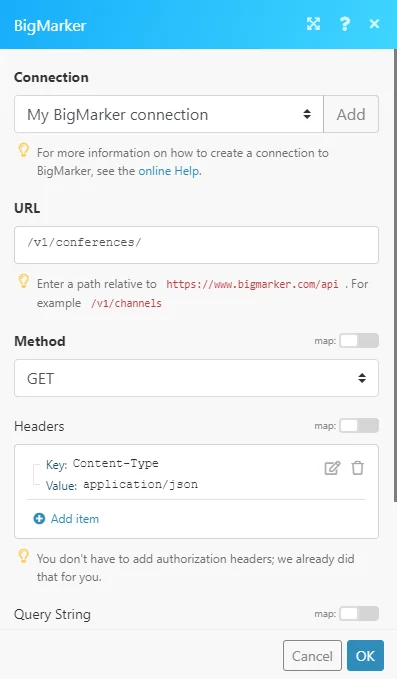
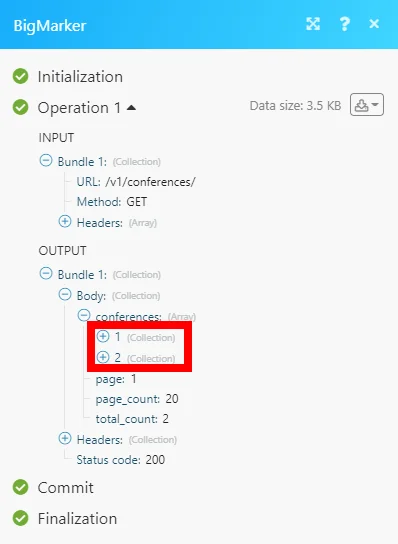
The result can be found in the module’s Output under Bundle > Body > dashboards.
In our example, 2 conferences were returned:
Legacy article, imported from the original Boost.space knowledge base (/knowledge-base/applications/marketing/bigmarker/).

