Canva
With Canva modules in Boost.space Integrator, you can manage the images, designs, folders, comments in your Canva account.
To use the Canva modules, you must have an account. You can create an account at canva.com. Images are available for paid accounts. For subscription information, refer to the Canva Pricing page.
Refer to the Canva API documentation for a list of available endpoints.
Establish the connection with Canva in Boost.space Integrator
To establish the connection in Boost.space Integrator:
-
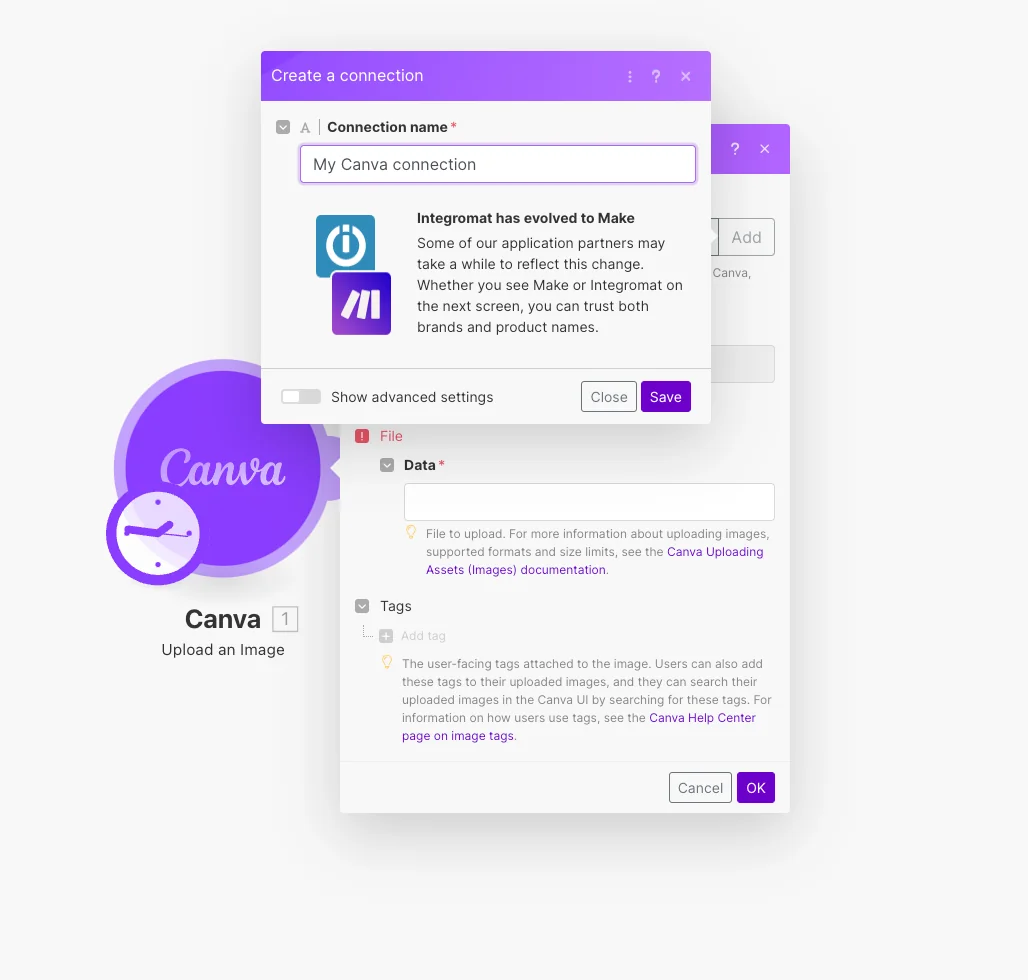
Log in to your Boost.space Integrator account, add a Canva module to your scenario, and click Create a connection.
-
Optional: In the Connection name field, enter a name for the connection.
-
Optional: Switch on the Show advanced settings toggle and enter your custom app client credentials. For more information, refer to Canva documentation.
If requested, use the following Redirect URI when creating your custom app:
https://www.integrator.boost.space/oauth/cb/canva. -
Click Save.
-
If prompted, authenticate your account and confirm access.
You have successfully established the connection. You can now edit your scenario and add more Canva modules. If your connection requires reauthorization at any point, follow the connection renewal steps here.
Build Canva Scenarios
After connecting the app, you can perform the following actions:
Images
Get an Image
Retrieves details about an existing image.
Connection
Establish a connection to Canva.
Folder ID
Select or map the folder that contains an image you want to get.
Image ID
Select or map an image you want to get.
Upload an Image
Uploads an image to a user’s library. When specifying an image that already exists, it’s renamed.
Connection
Establish a connection to Canva.
Name
Enter the name of a new image.
Data
Enter the data of a new image. Canva supports the following formats: JPEG, PNG, HEIC, Single-frame GIFs, TIFF, WEBP.
Refer to our Help Center to learn more about working with files.
Tags
Add or map a tag for a new image.
Update an Image
Updates the metadata for an image.
Connection
Establish a connection to Canva.
Folder ID
Select or map the folder that contains an image you want to update.
Image ID
Select or map an image you want to update.
Name
Enter the new name for an image.
Tags
Add or map a tag for an image.
Delete an Image
Deletes an Image. It doesn’t remove an image from designs that already use it.
Connection
Establish a connection to Canva.
Folder ID
Select or map the folder that contains an image you want to delete.
Image ID
Select or map an image you want to delete.
Designs
Create a Design
Creates a new design.
Connection
Establish a connection to Canva.
Folder ID
Select or map the folder that contains an image you want to insert into a new design.
Image ID
Select or map an image you want to insert into a new design.
Title
Enter the name of a new design.
Type
Select the design type.
Name
For Presets: Select or map the preset.
Width
For Custom design: Enter the width of a new design in pixels.
Height
**For Custom design:**Enter the height of a new design in pixels.
Import a Design
Imports a design.
Connection
Establish a connection to Canva.
Name
Enter the name of a design you want to import.
Data
Enter the data of a new design.
Refer to Canva documentation to know more about importing a design.
Refer to our Help Center to learn more about working with files.
Export a Design
Exports a design in a chosen format.
Connection
Establish a connection to Canva.
Folder ID
Select or map the folder that contains a design you want to export.
Design ID
Select or map a design you want to export.
Type
Select or map the format in which you want to export a design.
Page size
For PDF: Select or map the size of pages.
Compression quality
For JPG: Specify the quality level. The higher the number is, the better quality is.
Lossless
For PNG: Specify if you want the design to be compressed with a lossless compression algorithm.
Export as a single image
For PNG: Specify if you want to merge all pages of the design. The design will be exported as a whole page.
Height
For JPG, PNG, and GIF: Enter the height of a new design in pixels.
Width
For JPG, PNG, and GIF: Enter the width of a new design in pixels.
Quality
For MP4: Select the orientation and quality of the exported video.
Pages
Specify pages you want to export. Separate pages with a comma or define a range with a hyphen.
Folders
List Folder Items
Lists items in a folder
Connection
Establish a connection to Canva.
Folder ID
Select or map the folder that contains items you want to list.
Item Types
Select or map item types you want to list.
Limit
Set the maximum number of items Boost.space Integrator will return during one execution cycle.
Get a Folder
Retrieves details about an existing folder.
Connection
Establish a connection to Canva.
Folder ID
Select or map the ID of a folder you want to get.
Create a Folder
Creates a new folder.
Connection
Establish a connection to Canva.
Folder ID
Select or map the folder where you want to add a new folder.
Name
Enter the name of a new folder.
Move a Folder Item
Moves items from one folder to another.
Connection
Establish a connection to Canva.
Source Folder ID
Select or map the folder that contains an item you want to move.
Item ID
Select or map an item you want to move.
Destination Folder ID
Select or map the destination folder where you want to move an item to.
Update a Folder
Updates a folder.
Connection
Establish a connection to Canva.
Folder ID
Select or map the folder that you want to update.
Name
Enter a new name of the folder.
Delete a Folder
Deletes a folder.
Connection
Establish a connection to Canva.
Folder ID
Select or map the ID of a folder you want to delete.
Comments
Create a Comment
Creates a new top-level comment on a design.
Connection
Establish a connection to Canva.
Folder ID
Select or map the folder that contains a design you want to comment.
Design ID
Select or map a design you want to comment.
Message
Enter a text of your comment. You can mention a user or a team by specifying a User ID or a Team ID. An example: [user_id:team_id].
Create a Comment Reply
Replies to a top-level comment on a design.
Connection
Establish a connection to Canva.
Folder ID
Select or map the folder that contains a design whose comment you want to reply to.
Design ID
Select or map a design whose comment you want to reply to.
Comment ID
Enter the ID of the comment you want to reply to.
Message
Enter a text of your comment. You can mention a user or a team by specifying a User ID or a Team ID. An example: [user_id:team_id].
Other
Make an API Call
Performs an arbitrary authorized API call.
Connection
Establish a connection to Canva.
URL
Enter a path relative to https://api.canva.com/rest/. For example, /v1/models.
Method
Select or map the HTTP method you want to use:
GET to retrieve information for an entry.
POST to create a new entry.
PUT to update/replace an existing entry.
PATCH to update an existing entry.
DELETE to delete an entry.
Headers
Enter the desired request headers. You don’t have to add authorization headers; we already did that for you.
Query String
Enter the request query string.
Body
Enter the body content for your API call.
Legacy article, imported from the original Boost.space knowledge base (/knowledge-base/applications/marketing/canva/).

