Contentful
With Contentful modules in Boost.space Integrator, you can:
-
watch events
-
create, update, search, retrieve, publish, unpublish, archive, unarchive, and delete assets
-
create, update, search, retrieve, activate, deactivate, and delete content types, add, update, and delete fields from content types
-
create, update, search, retrieve, publish, unpublish, archive, unarchive, and delete entries, and retrieve entries with replacements
-
call APIs
To start with Contentful, create an account at contentful.com.
Connect Contentful to Boost.space Integrator
To connect to the Contentful app, you must obtain the Personal Access Token from your Contentful account and insert it into the scenario module.
-
Log in to your Contentful account.
-
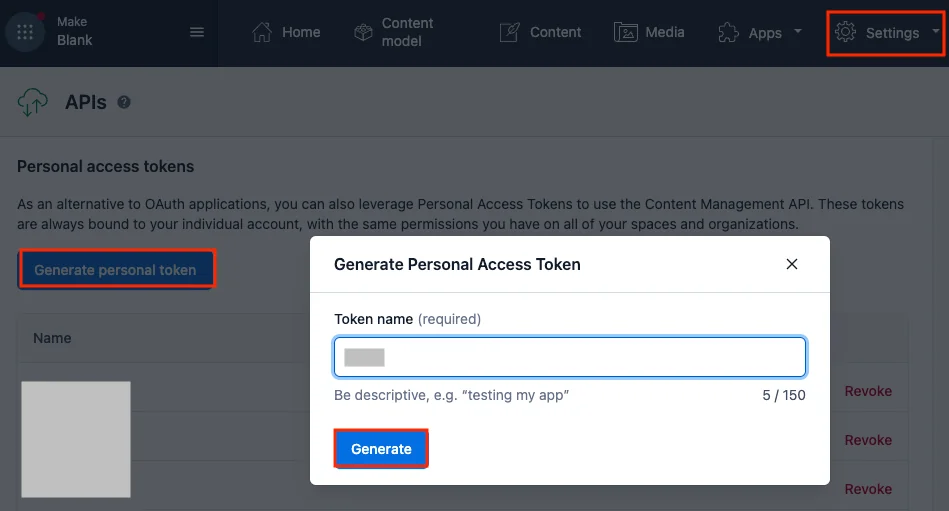
Click Settings > API Keys > Content Management Token > Generate Personal Token, enter a name for the token, and click Generate.
-
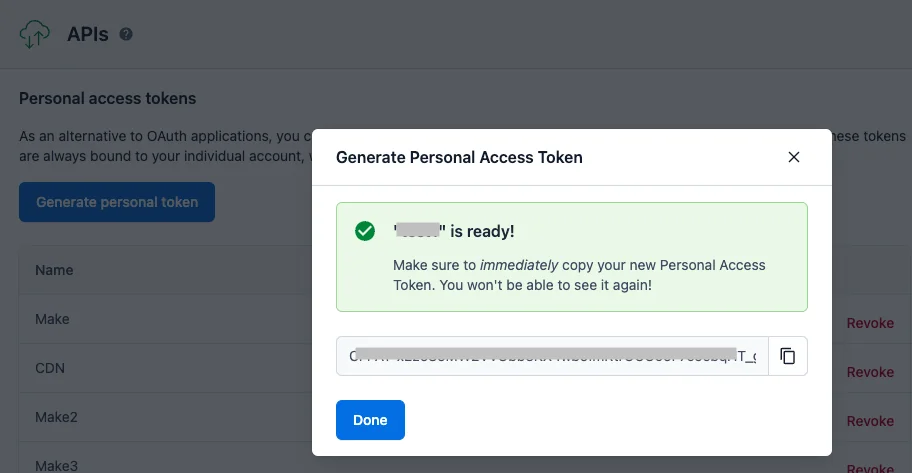
Copy the token to a safe place.
-
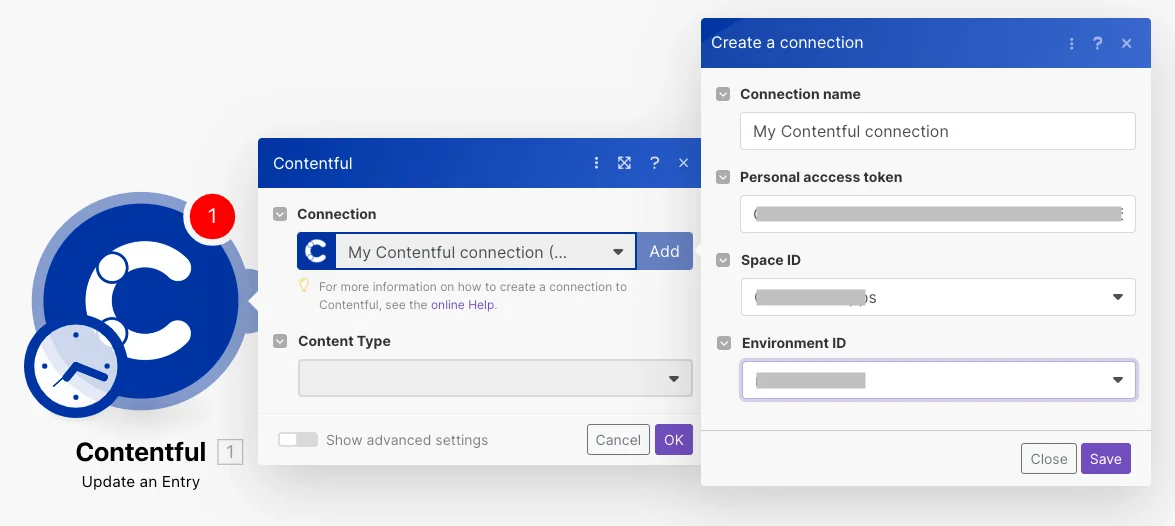
Log in to your Boost.space Integrator account, insert a Contentful module into a scenario, and click the Add button next to the Connection field.
-
Optional: In the Connection name field, enter a name for the connection.
-
In the Personal Access Token field, enter the token copied in step 3.
-
In the Space ID field, select the space you want to connect to Boost.space Integrator.
-
In the Environment ID field, select your Contentful environment and click Save.
You have successfully established the connection. You can now edit your scenario and add more Contentful modules. If your connection needs reauthorization at any point, follow the connection renewal steps here.
Triggers
Watch an Event
Triggers when a new event occurs.
You do not have to add the webhooks in Contentful, as it is automatically done once you add and save an instant trigger module to your scenario.
Webhook Name
Enter a name for the webhook.
Connection
Establish a connection to your Contentful account.
Event Topics
Select the events you want to watch.
Assets
Search Assets
Searches for assets.
Connection
Establish a connection to your Contentful account.
Search
Enter a query to search for a specific asset.
Status
Select the status:
-
Published
-
Changed
-
Draft
-
Archived
-
Not archived
Type
Select the type of asset.
Filter
Set the filter to search for the assets using the logical operators AND/OR in order to specify your selection.
Limit
Set the maximum number of assets Boost.space Integrator will return during one execution cycle. The default value is 10.
Get an Asset
Returns attributes of a specific asset.
Connection
Establish a connection to your Contentful account.
Asset ID
Select or map the Asset ID whose details you want to retrieve.
Create an Asset
Creates a new asset.
Connection
Establish a connection to your Contentful account.
Locale
Select the locale for the asset you want to create.
Title
Enter a title for the asset.
Description
Enter the asset’s description.
Upload a File
Select a method:
-
By URL Link
-
By File Data
URL Link
Enter the URL link of the file you want to upload.
Custom File Name
Enter the file name, including the extension, for example, image.png.
File
Enter the details of the file:
File Name
Enter the file name, including the extension, for example, invoice.xml.
Data
Enter the file’s data.
Custom Asset ID
Enter the custom Asset ID.
A random ID will be generated if the Asset ID is not specified. When specifying an ID, use camelCase format.
Tag
Select the tags you want to assign to the asset.
Update an Asset
Updates an asset by its ID.
Connection
Establish a connection to your Contentful account.
Asset ID
Select or map the Asset ID whose details you want to update.
Locale
Select the locale for the asset you want to create.
Title
Enter a title for the asset.
Description
Enter the asset’s description.
Upload a File
Select a method:
-
By URL Link
-
By File Data
URL Link
Enter the URL link of the file you want to upload.
Custom File Name
Enter the file name, including the extension, for example, image.png.
File
Enter the details of the file:
File Name
Enter the file name, including the extension, for example, invoice.xml.
Data
Enter the file’s data.
Tag
This will replace old tags. In case no tags are provided – tags will stay the same.
Publish an Asset
Changes asset status to published.
Connection
Establish a connection to your Contentful account.
Asset ID
Select or map the Asset ID you want to publish.
Unpublish an Asset
Puts an asset back into draft state.
Connection
Establish a connection to your Contentful account.
Asset ID
Select or map the Assset ID you want to unpublish.
Archive/Unarchive an Asset
Archives/Unarchives an unpublished asset.
Connection
Establish a connection to your Contentful account.
Select
Select whether you want to archive or unarchive an asset.
Asset ID
Select or map the Asset ID you want to archive or unarchive.
Delete an Asset
Permanently removes an unpublished asset.
Connection
Establish a connection to your Contentful account.
Asset ID
Select or map the Asset ID you want to delete.
Content Type
Search Content Types
Searches for content types.
Connection
Establish a connection to your Contentful account.
Search
Enter a query to search for specific entries.
Limit
Set the maximum number of content types Boost.space Integrator will return during one execution cycle. The default value is 10.
Get a Content Type
Returns attributes of a specific content type.
Connection
Establish a connection to your Contentful account.
Content Type ID
Select the Content Type ID whose details you want to retrieve.
Create a Content Type
Creates a new content type.
Connection
Establish a connection to your Contentful account.
Name
Enter a name for the content type.
ID (API Identifier)
Enter an ID for the content type in cameCase format. If the ID is not specified, a random ID will be generated.
Description
Enter a description for the content type.
Fields
Enter the fields.
Type
Select the content type.
Field Name
Enter a name for the field.
Field ID
Enter the Field ID in camelCase format.
Localized
Select whether the field is localized.
Disabled
Select whether the field editing is disabled.
Omitted
Select whether the field is disabled in response.
Required
Select whether this field is required.
Use Validations
Select whether to use validations.
Update a Content Type
Updates a specific content type by its ID.
Connection
Establish a connection to your Contentful account.
Content Type ID
Select or map the Content Type ID whose details you want to update.
Name
Enter an updated name for the content type.
Description
Enter the content type’s description.
Display Field
Select the display field, which will be displayed as an entry title.
Add a Field to a Content Type
Adds a new field to a specific content type.
Connection
Establish a connection to your Contentful account.
Content Type ID
Select or map the Content Type ID whose field you want to create.
Type
Select the type of content type field you want to add.
Field Name
Enter a name for the field.
Field ID
Enter the Field ID in the pattern /(^[a-z]|[A-Z0-9])[a-z]*/.
Localized
Select whether the field is localized.
Disabled
Select whether the field editing is disabled.
Omitted
Select whether the field is disabled in response.
Required
Select whether this field is required.
Use Validations
Select whether to use validations.
Update a Field of a Content Type
Updates a field inside a specific content type.
Connection
Establish a connection to your Contentful account.
Content Type ID
Select the Content Type ID whose field you want to update.
Field ID
Select the Field ID whose details you want to update.
Field Name
Enter an updated name for the field.
Localized
Select whether the field is localized.
Disabled
Select whether the field editing is disabled.
Omitted
Select whether the field is disabled in response.
Required
Select whether this field is required.
Update Validations
Select whether to replace old validations.
Delete a Field from a Content Type
Removes a field from a specific content type.
Connection
Establish a connection to your Contentful account.
Content Type ID
Select or map the Content Type ID whose field you want to delete.
Field ID
Select to map the Field ID you want to delete.
Activate a Content Type
Activates a content type by its ID. Use this module to apply new changes.
Connection
Establish a connection to your Contentful account.
Content Type
Select or map the Content Type whose details you want to activate.
Deactivate a Content Type
Changes a content type status to draft.
Connection
Establish a connection to your Contentful account.
Content Type
Select or map the Content Type whose details you want to deactivate.
Delete a Content Type
Permanently removes a deactivated content type.
Connection
Establish a connection to your Contentful account.
Content Type ID
Select or map the Content Type ID whose details you want to delete.
Entries
Search Entries
Searches for entries.
Connection
Establish a connection to your Contentful account.
Search
Enter a query to search for specific entries.
Order
Select an order:
-
Updated (new first)
-
Updated (old first)
Content Type
Select a content type whose entries you want to search.
Select
Enter the path to the needed key to return only selected of the response. For example, sys, fields, or fields.name and to return multiple fields, separate paths with, sign (sys.id, sys.createdBy).
Status
Select the status:
-
Published
-
Changed
-
Draft
-
Archived
-
Not archived
Filter
Set the filter to search for the assets using the logical operator AND in order to specify your selection.
Limit
Set the maximum number of entries Boost.space Integrator will return during one execution cycle. The default value is 10.
Get an Entry
Returns attributes of a specific entry.
Connection
Establish a connection to your Contentful account.
Entry ID
Enter the Entry ID whose details you want to retrieve. Alternatively, you can search for an Entry.
Search
Enter a query to search for specific entries.
Content Type
Select the content type whose entry you want to retrieve.
Create an Entry
Creates a new entry.
Connection
Establish a connection to your Contentful account.
Content Type
Select a content type whose entry you want to create.
Locale
Select a locale to define translatable content for an entry. For example, English (United States).
For field descriptions, see the Contentful Entries API reference.
Update an Entry
Updates a specific entry by its ID.
Connection
Establish a connection to your Contentful account.
Content Type
Select a content type whose entry you want to update.
Entry ID
Select or map the Entry ID whose details you want to update.
For field descriptions, see the Contentful Entries API reference.
Publish an Entry
Changes entry status to published.
Connection
Establish a connection to your Contentful account.
Entry ID
Enter the Entry ID whose details you want to publish. Alternatively, you can search for an Entry.
Search
Enter a query to search for specific entries.
Content Type
Select the content type whose entry you want to publish.
Unpublish an Entry
Puts an entry back into draft state.
Connection
Establish a connection to your Contentful account.
Entry ID
Enter the Entry ID whose details you want to publish. Alternatively, you can search for an Entry.
Search
Enter a query to search for specific entries.
Content Type
Select the content type whose entry you want to publish.
Archive/Unarchive an Entry
Archives/Unarchives an unpublished entry.
Connection
Establish a connection to your Contentful account.
Select
Select an option:
-
Archive
-
Unarchive
Entry ID
Enter the Entry ID whose details you want to archive/unarchive. Alternatively, you can search for an Entry.
Search
Enter a query to search for specific entries.
Content Type
Select the content type whose entry you want to archive/unarchive.
Delete an Entry
Permanently removes a specific entry.
Connection
Establish a connection to your Contentful account.
Entry ID
Enter the Entry ID whose details you want to delete. Alternatively, you can search for an Entry.
Search
Enter a query to search for specific entries.
Content Type
Select the content type whose entry you want to delete.
Get an Entry with a Replacement
Allows to replace text fields with new values by using specific tags ( e.g: {{name}}, {{email}} ). Returns new values as output.
Connection
Establish a connection to your Contentful account.
Content Type
Select or map the content type whose text fields you want to replace.
Entry ID
Select the Entry ID with specific tags ({{name}}) to replace with the text fields.
Locale
Select a locale to define translatable content for an entry. For example, English (United States).
Other
Make an API Call
Performs an arbitrary authorized API call.
For the list of available endpoints, refer to the Contentful API documentation.
Connection
Establish a connection to your Contentful account.
URL
Enter a path relative to https://api.contentful.com/spaces/a71abh0zqcdu/environments/master. For example /assets.
Method
Select the HTTP method you want to use:
GET
to retrieve information for an entry.
POST
to create a new entry.
PUT
to update/replace an existing entry.
PATCH
to make a partial entry update.
DELETE
to delete an entry.
Headers
Enter the desired request headers. You don’t have to add authorization headers; we already did that for you.
Query String
Enter the request query string.
Body
Enter the body content for your API call.
Example of use – Search Content Types
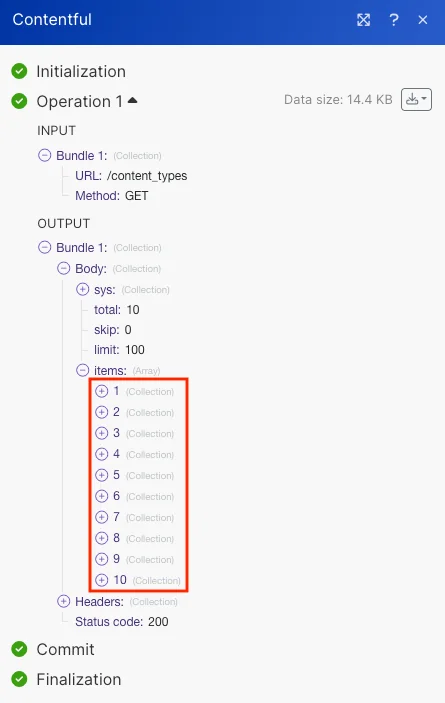
The following API call returns all the content types from your contentful account.
URL: /content_types
Method: GET
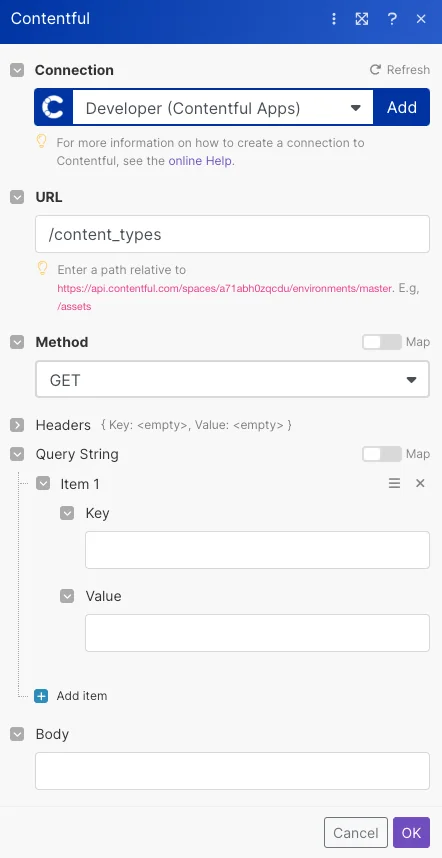
The search matches can be found in the module’s Output under Bundle > Body > items. Our example returned 10 content types.
Legacy article, imported from the original Boost.space knowledge base (/knowledge-base/applications/marketing/contentful/).

