Drip
The Drip modules allow you to watch, create, update, list, and/or delete accounts, broadcasts, campaigns, conversions, events, forms, orders, subscribers, workflow in your Drip account.
Prerequisites
- A Drip account
In order to use Drip with Boost.space Integrator, it is necessary to have a Drip account. If you do not have one, you can create a Drip account at https://www.getdrip.com/signup/basic.
The module dialog fields that are displayed in bold (in the Boost.space Integrator scenario, not in this documentation article) are mandatory!
Connecting Drip to Boost.space Integrator
-

Go to Boost.space Integrator and open the Drip module’s Create a connection dialog.
-
Enter the Connection name and click Continue.
-
Confirm the dialog by clicking the Authorize button.
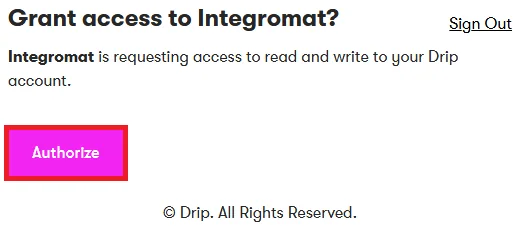
The connection has been established.
Campaigns
Activate a Campaign
Activates a selected campaign.
Connection
Establish a connection to your Drip account.
Account
Select the account whose campaign you want to activate.
Campaign
Select the campaign you want to activate.
Fetch a Campaign
Fetches a campaign linked to an account.
Connection
Establish a connection to your Drip account.
Account
Select the account whose campaign you want to fetch.
Campaign
Select the campaign you want to fetch.
Subscribe Someone to a Campaign
Subscribes a given email to a campaign.
Connection
Establish a connection to your Drip account.
Account
Select the account to whose campaign you want to add the subscriber.
Campaign
Select the campaign to which you want to add the subscriber.
Subscriber’s email
Enter the email address of the subscriber.
Timezone
Select the timezone of the subscriber you are adding to the campaign.
Double Opt In
Select Yes if you want to send a confirmation email to the subscriber:
-
Yes
-
No
-
Not defined
Custom Fields
Add the custom fields:
-
Key Enter the name of the key.
-
Value Enter the value of the key.
Tags
Add the tags which help to filter the user. For example, customer.
Reactivate If Removed
Select Yes if you want to re-subscribe the user if removed from the campaign:
-
Yes
-
No
-
Not defined
Prospect
Select Yes if you want to add the score to the subscriber:
-
Yes
-
No
-
Not defined
Base Lead Source
Enter the starting base score value for the subscriber. The default value of the score is 30.
List Campaigns
Retrieves a list of campaigns linked to an account.
Connection
Establish a connection to your Drip account.
Account
Select the account whose campaign you want to list.
Limit
The maximum number of campaigns Boost.space Integrator should return during one scenario execution cycle.
List Campaign Subscriptions
Retrieves a list of all campaign subscriptions.
Connection
Establish a connection to your Drip account.
Account
Select the account whose campaign subscriptions you want to list.
Subscriber ID
Select the Subscriber ID whose subscriptions you want to list
Limit
The maximum number of campaign subscriptions Boost.space Integrator should return during one scenario execution cycle.
List Everyone Subscribed to a Campaign
Retrieves a list of everyone subscribed to a selected campaign.
Connection
Establish a connection to your Drip account.
Account
Select the account whose campaign subscribers you want to list.
Campaign
Select the campaign whose subscribers you want to list.
Limit
The maximum number of subscribers Boost.space Integrator should return during one scenario execution cycle.
Status
Select the status of the subscribers:
-
All
-
Active
-
Unsubscribed
-
Removed
Sort
Select the option to sort the subscribers:
-
Created at
-
ID
Direction
Select the direction to sort the results of subscribers:
-
Asc – Ascending
-
Desc – Descending
Pause a Campaign
Pauses a selected campaign.
Connection
Establish a connection to your Drip account.
Account
Select the account whose campaign you want to pause.
Campaign
Select the campaign you want to pause.
Remove a Subscriber from Campaigns
Removes a subscriber from one or all campaigns.
Connection
Establish a connection to your Drip account.
Account
Select the account whose campaign’s subscriber you want to remove.
Campaign
Select the campaign whose subscriber you want to remove.
Subscriber’s Email
Enter the email address of the subscriber you want to remove.
Watch Subscribers in the Campaigns
Triggers when a new email is subscribed to the campaign.
Connection
Establish a connection to your Drip account.
Account
Select the account whose campaign’s subscribers you want to watch.
Campaign
Select the campaign whose subscribers you want to watch.
Limit
The maximum number of subscribers Boost.space Integrator should return during one scenario execution cycle.
Status
Select the status of the subscriber:
-
All
-
Active
-
Unsubscribed
-
Removed
Subscribers, Tags, and Custom Fields
Create/Update a Subscriber
Creates or updates a subscriber.
Connection
Establish a connection to your Drip account.
Subscriber’s Email
Enter the email address of the subscriber you want to create or update.
Account
Select the account to which you want to create or update the subscriber.
Custom Fields
Add the custom fields:
-
Key Enter the name of the key.
-
Value Enter the value of the key.
Tags
Add the tags which help to filter the user. For example, customer.
Tags to Remove
Add the tags you want to remove from the subscriber account.
Timezone
Select the timezone of the subscriber.
Prospect
Select Yes if you want to add the score to the subscriber:
-
Yes
-
No
-
Not defined
Base lead source
Enter the starting base score value for the subscriber. The default value of the score is 30.
Fetch a Subscriber
Fetches a subscriber.
Connection
Establish a connection to your Drip account.
Subscriber’s Email
Enter the email address of the subscriber whose details you want to fetch.
Account
Select the account of the subscriber.
Fetch a User
Fetches an authenticated user.
Connection
Establish a connection to your Drip account.
Update a Subscriber
Updates a subscriber.
Connection
Establish a connection to your Drip account.
Subscriber’s Email
Enter the email address of the subscriber you want to update.
Account
Select the account of the subscriber you want to update.
Custom Fields
Add the custom fields:
-
Key Enter the name of the key.
-
Value Enter the value of the key.
Tags
Add the tags which help to filter the user. For example, customer.
Tags to Remove
Add the tags you want to remove from the subscriber account.
New Email
Enter a new email address of the subscriber.
Timezone
Select the timezone of the subscriber. For example, UTC.
Prospect
Select Yes if you want to add the score to the subscriber:
-
Yes
-
No
-
Not defined
Base Lead Source
Enter the starting base score value for the subscriber. The default value of the score is 30.
Delete a Subscriber
Deletes a subscriber.
Connection
Establish a connection to your Drip account.
Subscriber’s Email
Enter the email address of the subscriber you want to delete.
Account
Select the account of the subscriber you want to delete.
Unsubscribe from All Mailings
Unsubscribes a subscriber from all mailings.
Connection
Establish a connection to your Drip account.
Account
Select the account of the subscriber you want to unsubscribe from all the mailings.
Subscriber’s Email
Enter the email address of the subscriber you want to unsubscribe from all the mailings.
Tag a Subscriber
Tags a subscriber.
Connection
Establish a connection to your Drip account.
Subscriber’s Email
Enter the email address of the subscriber you want to tag.
Account
Select the account of the subscriber.
Tag
Select the tag you want to add to the subscriber.
Remove a Subscriber Tag
Removes a subscriber tag.
Connection
Establish a connection to your Drip account.
Subscriber’s Email
Enter the email address of the subscriber whose tag you want to remove.
Account
Select the account of the subscriber.
Tag
Select the tag you want to remove from the subscriber.
List Subscribers
Retrieves a list of all subscribers.
Connection
Establish a connection to your Drip account.
Account
Select the account whose subscribers you want to list.
Tags
Add the tags to filter the subscribers you want to list. For example, customer.
Limit
The maximum number of subscribers Boost.space Integrator should return during one scenario execution cycle.
Status
Select the status of the subscribers you want to list:
-
All
-
Active
-
Unsubscribed
-
Undeliverable
List Tags
Retrieves a list of all tags used in an account.
Connection
Establish a connection to your Drip account.
Account
Select the account whose tags you want to list.
List Custom Fields
Retrieves a list of all custom fields.
Connection
Establish a connection to your Drip account.
Account
Select the account whose custom fields you want to list.
Watch Subscribers
Triggers when a new subscriber is added.
Connection
Establish a connection to your Drip account.
Account
Select the account whose subscribers you want to watch.
Tags
Add the tags which help to filter the subscriber you want to watch. For example, customer.
Limit
The maximum number of subscribers Boost.space Integrator should return during one scenario execution cycle.
Status
Select the status of the subscribers:
-
All
-
Active
-
Unsubscribed
-
Undeliverable
Workflows
Activate a Workflow
Activates a selected workflow.
Connection
Establish a connection to your Drip account.
Account
Select the account whose workflows you want to activate.
Workflow
Select the workflow you want to activate.
Pause a Workflow
Pauses a selected workflow.
Connection
Establish a connection to your Drip account.
Account
Select the account whose workflow you want to pause.
Workflow
Select the workflow you want to pause.
Fetch a Workflow
Fetches a workflow.
Connection
Establish a connection to your Drip account.
Account
Select the account whose workflow you want to fetch.
Workflow
Select the workflow you want to fetch.
Remove Someone from a Workflow
Removes a subscriber from a workflow.
Connection
Establish a connection to your Drip account.
Account
Select the account whose workflow subscriber you want to remove.
Workflow
Select the workflow whose subscriber you want to remove.
Subscriber’s Email
Enter the email address of the subscriber you want to remove from the workflow.
Start Someone on a Workflow
Adds a subscriber to a workflow.
Note: If the workflow is not active, the subscriber will not be added to the workflow.
Connection
Establish a connection to your Drip account.
Account
Select the account to whose workflow you want to add a subscriber.
Workflow
Select the workflow to add the subscriber.
Subscriber’s Email
Enter the email address of the subscriber you want to add to the workflow.
Timezone
Select the timezone of the subscriber.
Custom Fields
Add the custom fields:
-
Key Enter the name of the key.
-
Value Enter the value of the key.
Tags
Add the tags which help to filter the user. For example, customer.
Prospect
Select Yes if you want to add the score to the subscriber:
-
Yes
-
No
-
Not defined
List Workflows
Retrieves a list of all workflows.
Connection
Establish a connection to your Drip account.
Account
Select the account whose workflows you want to list.
Limit
The maximum number of workflows Boost.space Integrator should return during one scenario execution cycle.
Status
Select the status of the workflows:
-
All
-
Active
-
Draft
-
Paused
List Workflow Triggers
Retrieves a list of all workflow triggers.
Connection
Establish a connection to your Drip account.
Account
Select the account whose workflow triggers you want to list.
Workflow
Select the workflow whose triggers you want to list.
Accounts
Fetch an Account
Fetches an account.
Connection
Establish a connection to your Drip account.
Account
Select the account whose details you want to fetch.
List Accounts
Retrieves a list of all accounts.
Connection
Establish a connection to your Drip account.
Events
List Events in an Account
Retrieves a list of all events linked to an account.
Connection
Establish a connection to your Drip account.
Account
Select the account whose events you want to list.
Record an Event
Pushes an event to the Drip.
Notes: You can configure actions to be fired in the Drip on the event.
Connection
Establish a connection to your Drip account.
Account
Select the account whose events you want to record.
Subscriber’s Email
Enter the email address of the subscriber whose events you want to record.
Action
Select the action of the event you want to record.
Prospect
Select Yes if you want to add the score to the subscriber:
-
Yes
-
No
-
Not defined
Properties
Add the properties:
-
Key Enter the name of the key.
-
Value Enter the value of the key.
Watch Events
Triggers when there is a new event to process.
Webhook Name
Enter a name for the webhook.
Connection
Establish a connection to your Drip account.
Account
Select the account whose events you want to watch.
Include Received Email
Select Yes if you want to send a notification to the user whenever a subscriber receives an email:
-
Yes
-
No
-
Not defined
Events
Select the events you want to watch:
-
Subscriber Created
-
Subscriber Deleted
-
Marked as Deliverable
-
Marked_as_undeliverable
-
Subscribed to Campaign
-
Removed from Campaign
Forms
Fetch a Form
Fetches a form.
Connection
Establish a connection to your Drip account.
Account
Select the account whose forms you want to fetch.
Form
Select the form whose details you want to fetch.
List Forms
Retrieves a list of all forms linked to an account.
Connection
Establish a connection to your Drip account.
Account
Select the account whose forms you want to list.
Orders
Create/Update an Order
Creates or updates an order. If you receive errors, please check the required parameters in the documentation properly. A provider and an order ID are required. Either a person ID or an email must be included.
Connection
Establish a connection to your Drip account.
Account
Select the account whose order you want to create or update.
Order ID
Enter the Order ID you want to update.
Provider
Enter the provider from which the order data was received.
Action
Select the action for the order:
-
Placed
-
Updated
-
Paid
-
Fulfilled
-
Refunded
-
Canceled
Enter the email address of the contact for the order.
Person ID
Enter the Person ID associated with the order.
Occurred At
Enter the date on which the order created.
Order Public ID
Enter the Public ID of the order.
Grand Total
Enter the grand total price of the order.
Total Discounts
Enter the total discount amount on the order.
Total Taxes
Enter the total tax amount applicable on the order.
Total Fees
Enter the total fees on the order.
Total Shipping
Enter the shipping charges of the order.
Currency
Enter the currency applicable for the order.
Order URL
Enter the URL of the order.
Items
Add the items:
-
Product ID Enter the product ID.
-
Name Enter the product name.
-
Price Enter the item price.
-
Product Variant ID Enter the Variant ID of the item.
-
SKU Enter the number of stock keeping unit of the item.
-
Brand Enter the brand name of the item.
-
Categories Add the category of the item.
-
Sale price Enter the selling price of the item.
-
Quantity Enter the number of items ordered.
-
Discounts Enter the discount on the item.
-
Taxes Enter the tax applicable to the item.
-
Fees Enter the item fees.
-
Shipping Enter the shipping charges of the item.
-
Total Enter the total price of the item.
-
Product URL Enter the product website URL.
-
Image URL Enter the product image URL.
-
Product Tag Enter the tags to filter the product when searching.
Label
Enter the name on the billing address
First Name
Enter the first name of the contact of the billing address.
Last Name
Enter the first name of the contact of the billing address.
Company
Enter the company name on the billing address.
Address 1
Enter the street name of the billing address.
Address 2
Enter the street name of the billing address.
City
Enter the city name.
State
Enter the state name.
Postal Code
Enter the postal code.
Country
Enter the country name.
Phone
Enter the phone number of the billing address.
Label
Enter the name on the shipping address.
First Name
Enter the first name of the contact of the shipping address.
Last Name
Enter the last name of the contact of the shipping address.
Company
Enter the company name on the shipping address.
Address 1
Enter the street name of the shipping address.
City
Enter the city name.
State
Enter the state name.
Postal Code
Enter the postal code.
Country
Enter the country name.
Phone
Enter the phone number of the shipping address.
Other
List Broadcasts
Retrieves a list of all broadcasts.
Connection
Establish a connection to your Drip account.
Account
Select the account whose broadcasts you want to list.
Limit
The maximum number of broadcasts Boost.space Integrator should return during one scenario execution cycle.
Status
Select the status of the broadcasts you want to list:
-
All
-
Draft
-
Scheduled
-
Sent
List Conversions
Retrieves a list of all conversions.
Connection
Establish a connection to your Drip account.
Account
Select the account whose conversions you want to list.
Status
Select the status of the conversion you want to list:
-
All
-
Active
-
Disabled
List Webhooks
Retrieves a list of all webhooks.
Connection
Establish a connection to your Drip account.
Account
Select the account whose webhooks you want to list.
Generating your own Client ID and Client Secret values
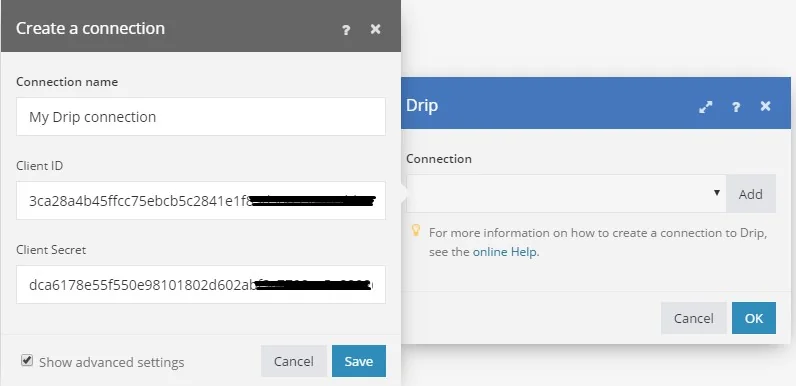
When creating a connection, you can display the advanced options and you will be requested to enter your Client ID and Client Secret. To get these values, you need to register your application (Boost.space Integrator) under your user settings in Drip.
To do this, go to https://www.getdrip.com/user/applications. Enter a name for your new application and click the Create Application button.

In the form that appears type https://integrator.boost.space/oauth/cb/app in the Callback URL field and click Save.
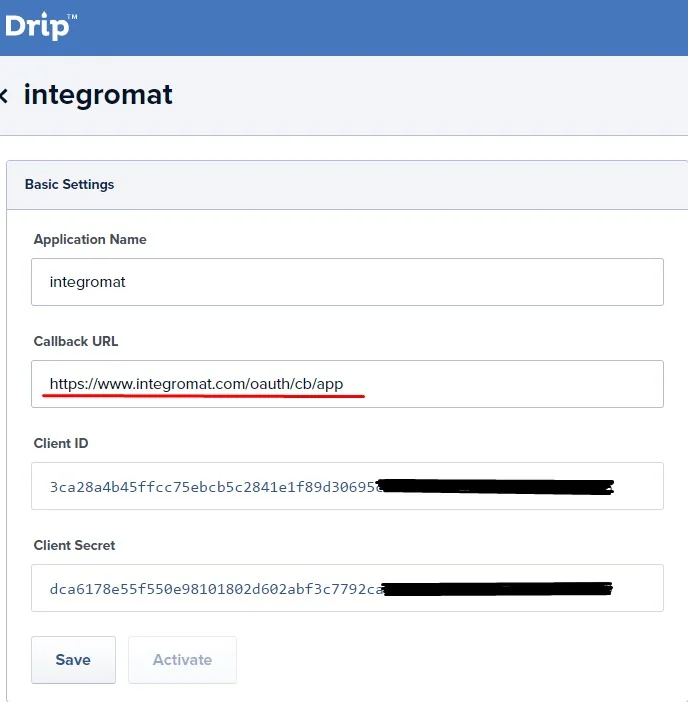
Go back to applications and activate your newly created application. Clicking the Edit button will display the requested Client ID and Client Secret.

Copy these values to Boost.space Integrator and click the Continue(Save) button.
Legacy article, imported from the original Boost.space knowledge base (/knowledge-base/applications/marketing/drip/).

