Emma
The Emma modules allow you to watch, create, update, search, delete, and groups, members, fields, and messages in your Emma account.
Getting Started with Emma
Prerequisites
- An Emma account
In order to use Emma with Boost.space Integrator, it is necessary to have an Emma account. If you do not have one, you can create an Emma account at myemma.com.
The module dialog fields that are displayed in bold (in the Boost.space Integrator scenario, not in this documentation article) are mandatory!
Connecting the Emma to Boost.space Integrator
To connect your Emma account to Boost.space Integrator you need to obtain the Account ID, and API Key from your Emma account and insert it in the Create a connection dialog in the Boost.space Integrator module.
-
Log in to your Emma account.
-

Click Your Profile Name > Profile > API Key > Generate API Key.
-
Copy the Public API Key, Private API Key, and Account ID details to a safe place.
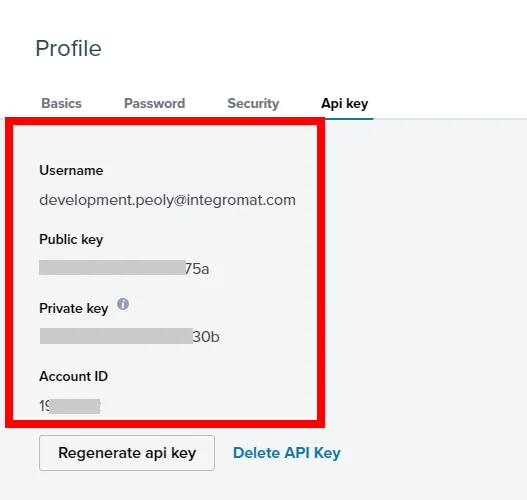
The Private API key is displayed only when initially generated. Copy and save this information for your private records.
-
Go toBoost.space Integrator and open the Emma module’s Create a connection dialog.
-
In the Connection name field, enter a name for the connection.
-
In the Account ID, Public API Key, and Private API Key fields, enter the details copied in step 3 and click Continue.
The connection has been established.
Groups

You do not have to add the webhooks in the Emma as it is automatically done for you once you add and save an instant trigger module to your scenario.
Watch New Group
Triggers when a new group is created.
Webhook Name
Enter the name of the webhook.
Connection
Establish a connection to your Emma account.
Watch Group Updated
Triggers when a group has been updated.
Webhook Name
Enter the name of the webhook.
Connection
Establish a connection to your Emma account.
Watch Group Deleted
Triggers when a group has been deleted.
Webhook Name
Enter the name of the webhook.
Connection
Establish a connection to your Emma account.
List Groups
Retrieves a list of all groups.
Connection
Establish a connection to your Emma account.
Group Types
Select the group type whose groups you want to list.
Limit
Set the maximum number of groups Boost.space Integrator should return during one scenario execution cycle.
Get a Member Group
Retrieves details of a member group specified by ID.
Connection
Establish a connection to your Emma account.
Group ID
Select the Group ID whose details you want to retrieve.
Create Member Groups
Creates new member groups.
Connection
Establish a connection to your Emma account.
Groups
Add the groups by entering their name.
Update a Member Group
Updates a member group specified by ID.
Connection
Establish a connection to your Emma account.
Group ID
Select the Group ID whose details you want to update.
Group Name
Enter a name for the group.
Delete a Member Group
Deletes a member group specified by ID.
Connection
Establish a connection to your Emma account.
Group ID
Select the Group ID you want to delete.
Members
You do not have to add the webhooks in the Emma as it is automatically done for you once you add and save an instant trigger module to your scenario.
Watch Member Added to Group
Triggers when a member has been added to a group.
Webhook Name
Enter the name of the webhook.
Connection
Establish a connection to your Emma account.
Watch New Member
Triggers when a member is created.
Webhook Name
Enter the name of the webhook.
Connection
Establish a connection to your Emma account.
Watch Member Opted Out
Triggers when a member has opted out.
Webhook Name
Enter the name of the webhook.
Connection
Establish a connection to your Emma account.
Watch Member Deleted
Triggers when a member has been deleted.
Webhook Name
Enter the name of the webhook.
Connection
Establish a connection to your Emma account.
Watch Member Removed from Group
Triggers when a member has been removed from a group.
Webhook Name
Enter the name of the webhook.
Connection
Establish a connection to your Emma account.
Watch Member Status Updated
Triggers when a member status has been updated.
Webhook Name
Enter the name of the webhook.
Connection
Establish a connection to your Emma account.
Watch Member Updated
Triggers when a member has been updated.
Webhook Name
Enter the name of the webhook.
Connection
Establish a connection to your Emma account.
Watch Member Signed Up
Triggers when a member has signed up.
Webhook Name
Enter the name of the webhook.
Connection
Establish a connection to your Emma account.
This module should always be associated with the Watch New Member module to trigger the alerts.
Search Audience Members
Searches audience members.
Connection
Establish a connection to your Emma account.
Deleted
Select whether you want to search the audience members.
Deleted Only
Select whether you want to search only the deleted audience members.
Exclude Fields
Select whether you want to view only the base attributes of a member.
Limit
Set the maximum number of members Boost.space Integrator should return during one scenario execution cycle.
Get an Audience Member
Retrieves details of an audience member specified by ID.
Connection
Establish a connection to your Emma account.
Member ID
Select the Member ID whose details you want to retrieve.
Create an Audience Member
Created a new audience member.
Connection
Establish a connection to your Emma account.
Enter the email address of the member.
First Name
Enter the member’s first name.
Last Name
Enter the member’s last name.
Fields
Add the custom fields and it’s value. For example, member's address.
Group IDs
Select the Group IDs to which you want to add the member.
Field Triggers
Select whether you want to receive the alerts for any changes in the member details.
Subscriber Consent Tracking
Select whether the member accepts any tracking and analysis.
Watch Import Contacts Finished
Triggers when contacts have been imported.
Webhook Name
Enter the name of the webhook.
Connection
Establish a connection to your Emma account.
Update an Audience Member
Updates an audience member specified by ID.
Connection
Establish a connection to your Emma account.
Member ID
Select the Member ID whose details you want to retrieve.
Enter the email address of the member.
Change Status To
Select the member status:
-
Active
-
Opt-out
-
Error
First Name
Enter the member’s first name.
Last Name
Enter the member’s last name.
Fields
Add the custom fields and it’s value. For example, member's address.
Group IDs
Select the Group IDs to which you want to add the member.
Field Triggers
Select whether you want to receive the alerts for any changes in the member details.
Subscriber Consent Tracking
Select whether the member accepts any tracking and analysis.
Delete an Audience Member
Deletes an audience member specified by ID. The member will be archived and will appear in the accounts archived items section.
Connection
Establish a connection to your Emma account.
Member ID
Select the Member ID you want to delete.
Fields
You do not have to add the webhooks in the Emma as it is automatically done for you once you add and save an instant trigger module to your scenario.
Watch New Field
Triggers when a new field is created.
Webhook Name
Enter the name of the webhook.
Connection
Establish a connection to your Emma account.
Watch Field Updated
Triggers when a field has been updated.
Webhook Name
Enter the name of the webhook.
Connection
Establish a connection to your Emma account.
Watch Field Deleted
Triggers when a field has been deleted.
Webhook Name
Enter the name of the webhook.
Connection
Establish a connection to your Emma account.
Messages
You do not have to add the webhooks in the Emma as it is automatically done for you once you add and save an instant trigger module to your scenario.
Watch Message Forwarded
Triggers when a message has been forwarded.
Webhook Name
Enter the name of the webhook.
Connection
Establish a connection to your Emma account.
Watch Message Opened
Triggers when a message has been opened.
Webhook Name
Enter the name of the webhook.
Connection
Establish a connection to your Emma account.
Watch Message Clicked
Triggers when a message share button has been clicked.
Webhook Name
Enter the name of the webhook.
Connection
Establish a connection to your Emma account.
Watch Message Share Clicked
Triggers when a message share button has been clicked.
Webhook Name
Enter the name of the webhook.
Connection
Establish a connection to your Emma account.
Watch Message Shared
Triggers when a message has been shared.
Webhook Name
Enter the name of the webhook.
Connection
Establish a connection to your Emma account.
Other
Trigger a Custom Event
Sends payload to Emma’s Event API that triggers an automated workflow.
Connection
Establish a connection to your Emma account.
Email Address
Select the email address to which you want to trigger a custom event.
Payload
Add the payload for the event by entering the key and its value.
Make an API Call
Performs an arbitrary API call.
Connection
Establish a connection to your Emma account.
URL
Enter a path relative to https://api.e2ma.net/<Account Id>. For example: /members
For the list of available endpoints, refer to the Emma API Documentation.
Method
Select the HTTP method you want to use:
GET
to retrieve information for an entry.
POST
to create a new entry.
PUT
to update/replace an existing entry.
PATCH
to make a partial entry update.
DELETE
to delete an entry.
Headers
Enter the desired request headers. You don’t have to add authorization headers; we already did that for you.
Query String
Enter the request query string.
Body
Enter the body content for your API call.
Example of Use – Get Responses
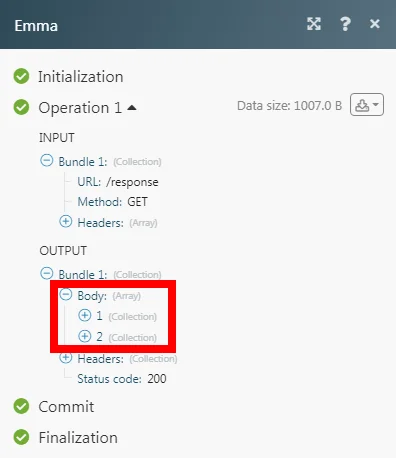
The following API call returns all the responses from your Emma account:
URL:
/response
Method:
GET
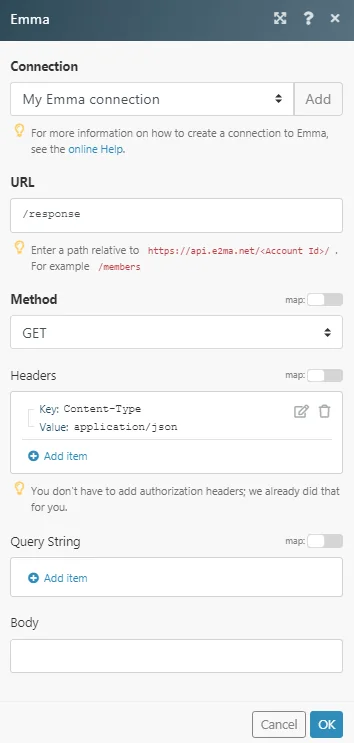
Matches of the search can be found in the module’s Output under Bundle > Body.
In our example, 2 responses were returned:
Legacy article, imported from the original Boost.space knowledge base (/knowledge-base/applications/marketing/emma/).

