Figma
Getting Started with Figma
The Figma modules allow you to post comments, list comments, file version history, project files and projects in your Figma account.
Prerequisites
- A Figma account
In order to use Figma with Boost.space Integrator, it is necessary to have a Figma account. If you do not have one, you can create a Figma account at www.figma.com.
The module dialog fields that are displayed in bold (in the Boost.space Integrator scenario, not in this documentation article) are mandatory!
Connecting Figma to Boost.space Integrator
To connect your Figma account to Boost.space Integrator follow the general instructions for Connecting to services.
After you click the Continue button, Boost.space Integrator will redirect you to the Figma website where you will be prompted to grant Boost.space Integrator access to your account.
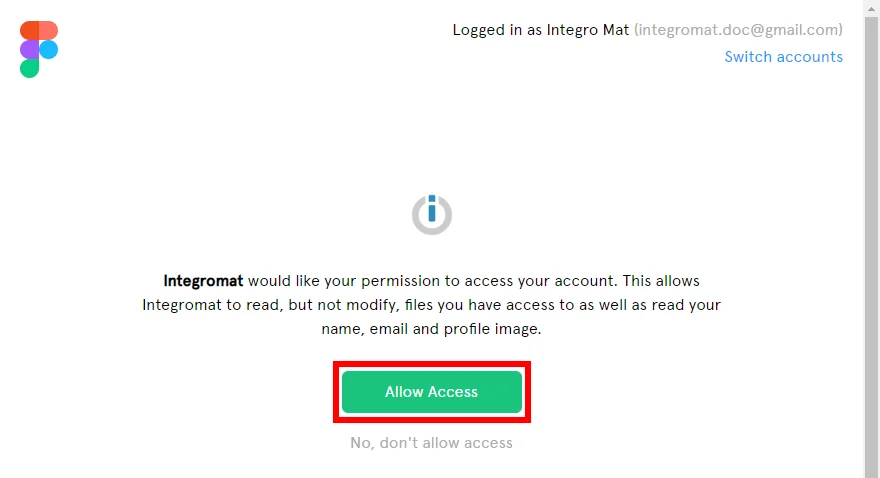
Confirm the dialog by clicking the Allow Access button.
Actions
Post a Comment
Adds a comment to a specified file.
Connection
Establish a connection to your Figma account.

File ID
Enter or map the File ID of the file you want to add a comment to.
You can retrieve the ID using the Find Files button. You have to enter the Team ID or Project ID.
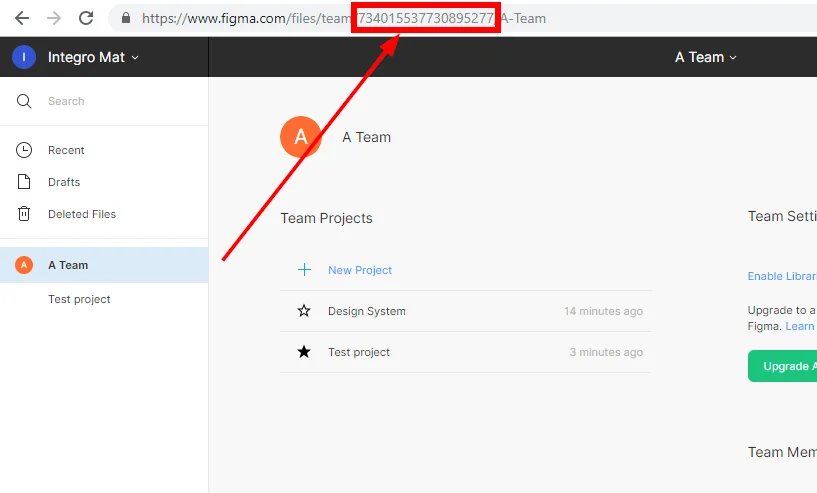
The Team ID can be found in the URL:
Enter the File ID using the Find buttons:
Comment
Enter the text of the comment.
Make an API Call
Allows you to perform a custom API call.
Connection
Establish a connection to your Figma account.
URL
Enter a path relative to https://api.figma.com/v1/. E.g. teams/734015537730895277/projects
Where _734015537730895277_is,replace with the desired Team ID.
For the list of available endpoints, refer to the Figma developer documentation.
Method
Select the HTTP method you want to use:
GET
to retrieve information for an entry.
POST
to create a new entry.
PUT
to update/replace an existing entry.
PATCH
to make a partial entry update.
DELETE
to delete an entry.
Headers
Enter the desired request headers. You don’t have to add authorization headers; we already did that for you.
Query String
Enter the request query string.
Body
Enter the body content for your API call.
Example of Use – List Projects
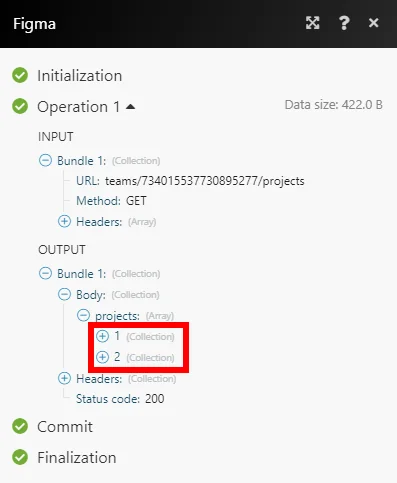
The following API call returns all of the team’s projects:
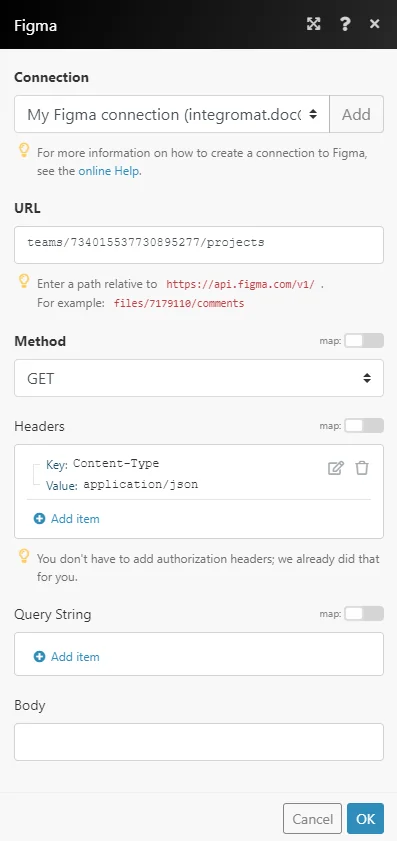
Matches of the search can be found in the module’s Output under Bundle > Body > projects.
In our example, 2 projects were returned:
Searches
List Comments
Retrieves all comments on the file.
Connection
Establish a connection to your Figma account.
File ID
Enter or map the File ID of the file you want to retrieve comments from.
You can retrieve the ID using the Find Files button. You have to enter the Team ID or Project ID.
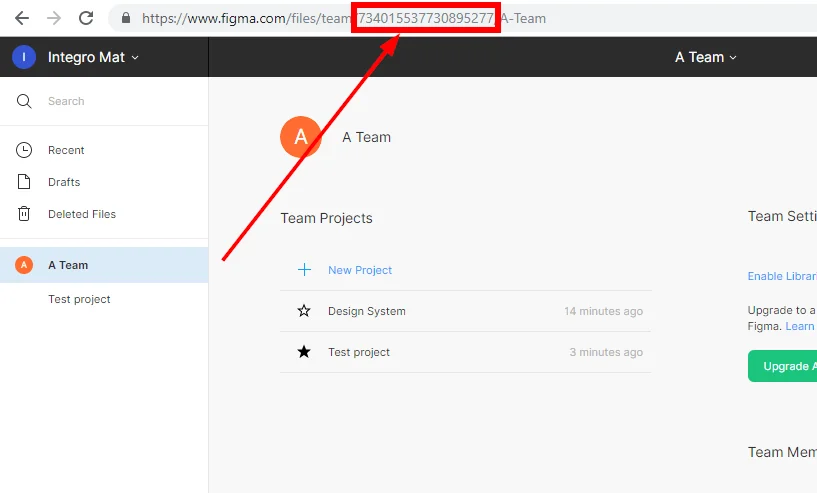
The Team ID can be found in the URL:
Enter the File ID using the Find buttons:
Limit
Set the maximum number of comments Boost.space Integrator will return during one execution cycle.
List File Version History
Lists the version history of a file.
Connection
Establish a connection to your Figma account.
File ID
Enter or map the File ID of the file you want to retrieve the version history from.
You can retrieve the ID using the Find Files button. You have to enter the Team ID or Project ID.
The Team ID can be found in the URL:
Entering the File ID using the Find buttons:
Limit
Set the maximum number of version history records Boost.space Integrator will return during one execution cycle.
List Project Files
Lists the files in a specified project.
Connection
Establish a connection to your Figma account.
File ID
Enter or map the Project ID of the project you want to retrieve the project files from.
You can retrieve the ID using the Find Files button. You need just the _Team ID_to get the Project ID.
The Team ID can be found in the URL:
Enter the Project ID using the Find buttons:
Limit
Set the maximum number of project files Boost.space Integrator will return during one execution cycle.
List Projects
Retrieves a list of all the projects within a specified team.
Connection
Establish a connection to your Figma account.
Team ID
Enter or map the Team ID of the team you want to retrieve projects from.
To obtain a Team ID, navigate to a team page of a team you are a part of. The Team ID will be present in the URL after the word “team” and before your team name:
Limit
Set the maximum number of projects Boost.space Integrator will return during one execution cycle.
Legacy article, imported from the original Boost.space knowledge base (/knowledge-base/applications/marketing/figma/).

