JustClick
The JustClick modules allow you to watch, add, update, and remove the leads, orders, and purchases in your JustClick account.
Getting Started with JustClick
Prerequisites
- A JustClick account
In order to use JustClick with Boost.space Integrator, it is necessary to have a JustClick account. If you do not have one, you can create a JustClick account at justclick.io.
The module dialog fields that are displayed in bold (in the Boost.space Integrator scenario, not in this documentation article) are mandatory!
Connecting JustClick to Boost.space Integrator
To connect your JustClick account to Boost.space Integrator you need to obtain the API Key from your JustClick account and insert it in the Create a connection dialog in the Boost.space Integrator module.
-
Log in to your JustClick account.
-

Click Your Profile Icon > Profile > Integration.
-
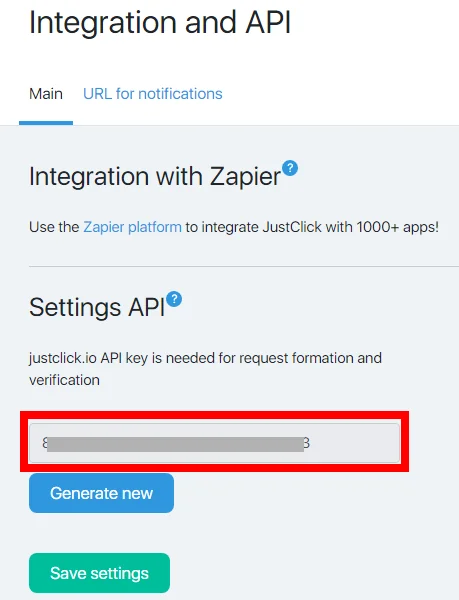
Copy the API Key to your clipboard.
-

Go to Boost.space Integrator and open the JustClick module’s Create a connection dialog.
-
In the Connection name field, enter a name for the connection.
-
In the Username field, enter your account’s login username.
-
In the API Key field, enter the API key copied in step 3 and click Continue.
The connection has been established.
Triggers
See Connecting to JustClick Webhook using Boost.space Integrator to add the webhooks in JustClick using Boost.space Integrator.
Watch Leads

Triggers when a customer subscribes to newsletters.
Webhook Name
Enter a name for the webhook.
Connection
Establish a connection to your JustClick account.
Watch Orders
Triggers when a new order is created.
Webhook Name
Enter a name for the webhook.
Connection
Establish a connection to your JustClick account.
Watch Purchases
Triggers when a product is purchased.
Webhook Name
Enter a name for the webhook.
Connection
Establish a connection to your JustClick account.
Actions
Add a Lead to a List
Adds a lead to a list.
Connection
Establish a connection to your JustClick account.
List
Add the List ID to which you want to add the lead.
Lead Email
Enter the lead’s email address.
Lead Name
(Optional) Enter the lead’s name.
Lead Phone
(Optional) Enter the lead’s phone number.
Lead City
(Optional) Enter the lead’s city name.
Tag
(Optional) Add the lead’s tags.
Done URL
(Optional) Enter the URL address to which the lead will be redirected after the subscription is confirmed.
Activation
(Optional) Select whether activation is required after the subscription is completed.Applicable only on the Guru tariff.
UTM Medium
(Optional) Enter the channel UTM parameter. If you want to send information that the subscriber has come from a partner use.
UTM Source
(Optional) Enter the source UTM parameter. If you want to send information that the subscriber has come from a partner use.
UTM Campaign
(Optional) Enter the campaign UTM parameter. If you want to send information that the subscriber has come from a partner use
UTM Content
(Optional) Enter the advertisement UTM parameter. If you want to send information that the subscriber has come from a partner use
UTM Term
(Optional) Enter the key UTM parameter. If you want to send information that the subscriber has come from a partner use.
AFF Medium
(Optional) Enter the channel affiliate parameter. If you want to send information that the subscriber has come from a partner use.
AFF Source
(Optional) Enter the source affiliate parameter. If you want to send information that the subscriber has come from a partner use.
AFF Campaign
(Optional) Enter the campaign affiliate parameter. If you want to send information that the subscriber has come from a partner use.
AFF Content
(Optional) Enter the advertisement affiliate parameter. If you want to send information that the subscriber has come from a partner use.
AFF Term
(Optional) Enter the key affiliate parameter. If you want to send information that the subscriber has come from a partner use.
Remove a Lead from a List
Removes lead from a list.
Connection
Establish a connection to your JustClick account.
Lead Email
Enter the lead’s email address.
List Name
Enter the list name from which you want to remove the lead.
Update a Lead
Updates a lead.
Connection
Establish a connection to your JustClick account.
Lead Email
Enter the lead’s email address.
Lead Name
Enter the lead’s name.
Lead Phone
Enter the lead’s phone.
Lead City
Enter the lead’s city.
Make an API Call
Performs an arbitrary authorized API call.
Connection
Establish a connection to your JustClick account.
API Action
Enter a request method. For example, GetAllGroups
For the list of available endpoints, refer to the JustClick API Documentation.
Method
Select the HTTP method you want to use:
GET
to retrieve information for an entry**.**
POST
to create a new entry.
PUT
to update/replace an existing entry.
PATCH
to make a partial entry update.
DELETE
to delete an entry.
Headers
Enter the desired request headers. You don’t have to add authorization headers; we already did that for you.
Query String
Enter the request query string.
Body
Enter the body content for your API call.
Example of Use – List Groups
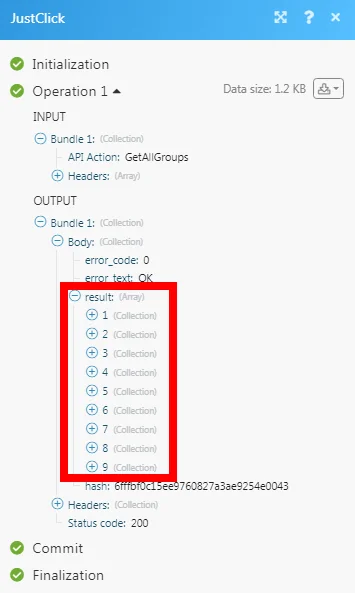
The following API call returns all the groups from your JustClick account:
API Action:
GetAllGroups
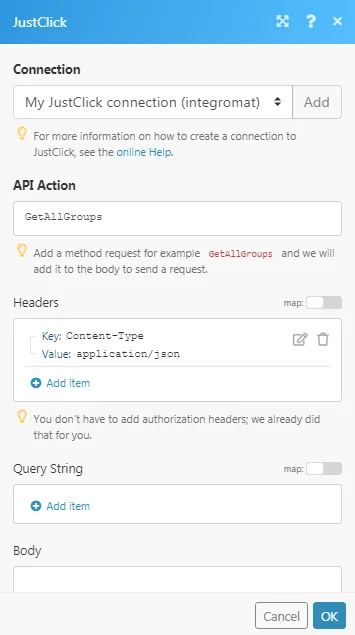
Matches of the search can be found in the module’s Output under Bundle > Body > result.
In our example, 9 groups were returned:
Connecting to JustClick Webhook using Boost.space Integrator
-
Open any Watch module, establish the connection as per the specific module descriptions, click Save, and copy the URL address to your clipboard.
-
Log in to your JustClick account.
-
Click Your Profile Icon > Integration > URL for notifications. Add the URL address copied in step 1 in the appropriate field.
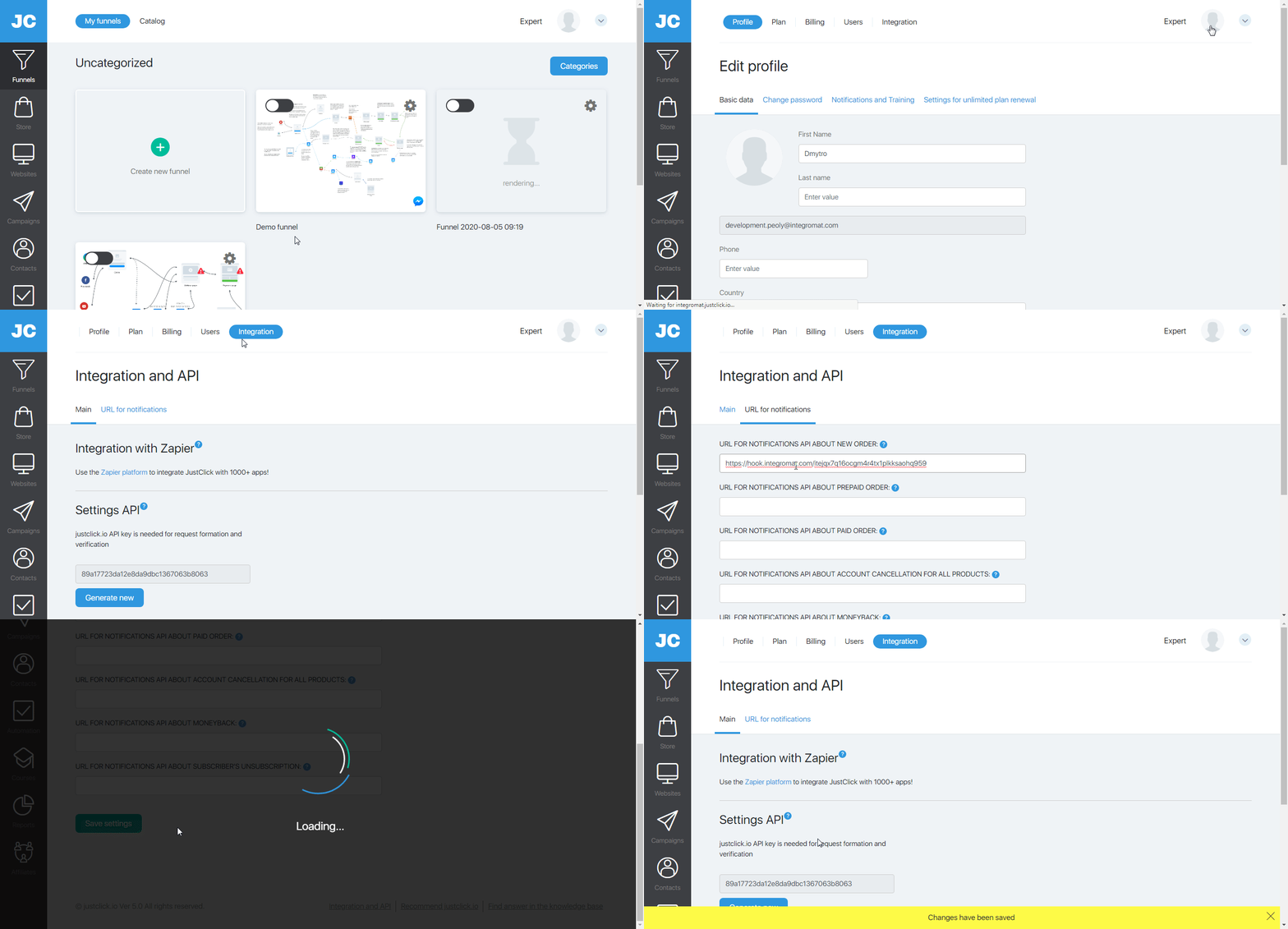
The webhook is added successfully.
Legacy article, imported from the original Boost.space knowledge base (/knowledge-base/applications/marketing/justclick/).

