Kartra
The Kartra modules allow you to create, add, remove, retrieve and list the leads, sequence, tags, subscriptions, and events in your Kartra account.
Getting Started with Kartra
Prerequisites
- A Kartra account
In order to use Kartra with Boost.space Integrator, it is necessary to have a Kartra account. If you do not have one, you can create a Kartra account at home.kartra.com/home.
The module dialog fields that are displayed in bold (in the Boost.space Integrator scenario, not in this documentation article) are mandatory!
Connecting Kartra to Boost.space Integrator
To connect your Kartra account to Boost.space Integrator you need to obtain the API Key from your Kartra account and insert it in the Create a connection dialog in the Boost.space Integrator module.
-
Login to your Kartra account.
-
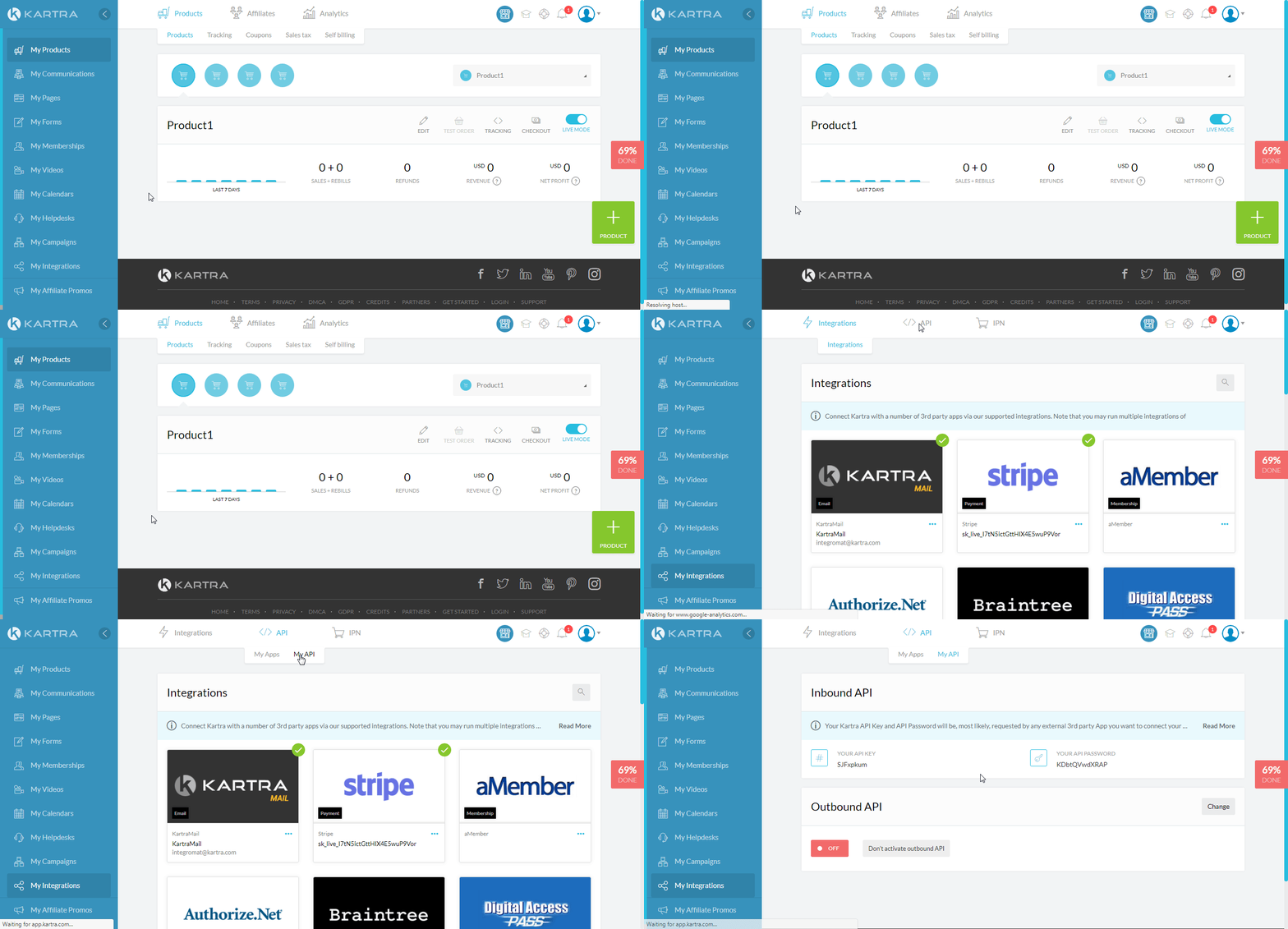
Click My Integrations > API > My API. Copy the API key and API password to a notepad or safe place
-

Go toBoost.space Integrator and open the Kartra module’s Create a connection dialog.
-
In the Connection name field, enter a name for the connection.
-
In the _API Key_and_API Password_fields, enter the API Key and password copied in step 2. Click Continue.
The connection has been established.
Leads
Create a Lead
Creates a new lead.
Connection
Establish a connection to your Kartra account.
Email Address
Enter the email address of the lead.
Phone
Enter the phone number of the lead.
Phone Country Code
Enter the country code of the lead.
First Name
Enter the first name of the lead.
Middle Name
Enter the middle name of the lead.
Last Name
Enter the last name of the lead.
Last Name 2
Enter any additional last name of the lead.
IP
Enter the IP address of the lead.
Address
Enter the contact company address of the lead.
Zip
Enter the lead’s or lead’s company area zip code.
City
Enter the lead’s or lead’s company city name.
State
Enter the lead’s or lead’s company state name.
Country
Enter the lead’s or lead’s company’s country name.
Company
Enter the lead’s company name.
Lead Picture
Enter the URL address of the lead’s profile image.
Website
Enter the lead’s company website URL address.
Enter the lead’s or lead’s company Facebook page URL address.
Enter the lead’s or lead’s company Twitter page URL address.
Enter the lead’s or lead’s company LinkedIn page URL address.
Google Plus
Enter the lead’s or lead’s company Google Plus page URL address.
Custom Fields
Add the custom fields.
Get a Lead
Retrieves a lead.
Connection
Establish a connection to your Kartra account.
Enter the email address of the lead whose details you want to retrieve.
Lead ID
Enter the Lead ID whose details you want to retrieve.
Check the Existence of a Lead
Removes points from a lead.
Connection
Establish a connection to your Kartra account.
Enter the email address of the lead whose details you want to search.
Lead ID
Enter the Lead ID whose details you want to retrieve.
Add Points from Lead
Adds points to a lead.
Connection
Establish a connection to your Kartra account.
Email Address
Enter the email address of the lead to whom you want to add the points.
Add Points
Enter the number of points you want to assign to the Lead.
Expiration (days)
Enter the number of days after which the points expire. A value of 0 means there is no expiry date for the points assigned to the lead.
Remove Points from Lead
Removes points from a lead.
Connection
Establish a connection to your Kartra account.
Email Address
Enter the email address of the lead whose points you want to remove.
Remove Points
Enter the number of points you want to remove from the Lead.
Add a Tag
Adds a tag to a lead.
Connection
Establish a connection to your Kartra account.
Email Address
Enter the email address of the lead to whom you want to add the tag.
Add Tag
Select the tag you want to add to the lead.
Remove a Tag
Removes a tag from a lead.
Connection
Establish a connection to your Kartra account.
Email Address
Enter the email address of the lead to whom you want to remove the tag.
Remove Tag
Select the tag you want to remove from the lead.
Add Lead To a List
Adds a lead to a subscription list.
Connection
Establish a connection to your Kartra account.
Email Address
Enter the email address of the lead whom you want to add to the list.
Add to the List
Select the list to which you want to add the lead.
Add a Lead to the Sequence
Adds a lead to a subscription list.
Connection
Establish a connection to your Kartra account.
Email Address
Enter the email address of the lead whom you want to add to the sequence.
Subscribe to the Sequence
Select the sequence to which you want to add the lead.
Step Order Number
Enter the order number where the lead will be placed in the sequence.
Add a Lead to a Calendar
Adds a lead to a calendar.
Connection
Establish a connection to your Kartra account.
Email Address
Enter the email address of the lead whom you want to add to the list.
Calendar Name
Enter the calendar name to which you want to add or subscribe to the lead.
Class Name
Enter the class name of the lead.
Starting Date
Enter the start date of the lead in the calendar.
Remove a Lead from a List
Removes lead from a list.
Connection
Establish a connection to your Kartra account.
Email Address
Enter the email address of the lead whom you want to remove from a list.
Remove from List
Select the list from which you want to remove the lead.
Remove a Lead from a Sequence
Removes a lead from a sequence.
Connection
Establish a connection to your Kartra account.
Email Address
Enter the email address of the lead whom you want to remove from the sequence.
Remove from Sequence
Select the sequence from which you want to remove the lead.
Removes a lead from a calendar
Removes a lead from a calendar.
Connection
Establish a connection to your Kartra account.
Email Address
Enter the email address of the lead whom you want to remove from the sequence.
Calendar Name
Enter the calendar name from which you want to remove the lead.
Class Name
Enter the class name from which you want to remove the lead.
Transactions
Get a Lead’s Transactions
Returns all lead’s transactions by lead’s e-mail.
Connection
Establish a connection to your Kartra account.
Email Address
Enter the email address of the lead whose transaction details you want to retrieve.
Limit
Set the maximum number of transactions Boost.space Integrator should return during one scenario execution cycle.
Check the Existence of a Transactions
Checks the existence of a transaction.
Connection
Establish a connection to your Kartra account.
Transaction ID
Enter (map) the Transaction ID which you check whether it exists or not.
Get Lead’s Subscriptions
Returns all lead subscriptions by lead’s e-mail.
Connection
Establish a connection to your Kartra account.
Email Address
Enter the email address of the lead whose subscription details you want to retrieve.
Advanced
Create a Lead (advanced)
Creates a new lead.
Connection
Establish a connection to your Kartra account.
Email Address
Enter the email address of the lead.
Phone
Enter the phone number of the lead.
Phone Country Code
Enter the country code of the lead.
First Name
Enter the first name of the lead.
Middle Name
Enter the middle name of the lead.
Last Name
Enter the last name of the lead.
Last Name 2
Enter any additional last name of the lead.
IP
Enter the IP address of the lead.
Address
Enter the contact company address of the lead.
Zip
Enter the lead’s or lead’s company area zip code.
City
Enter the lead’s or lead’s company city name.
State
Enter the lead’s or lead’s company state name.
Country
Enter the lead’s or lead’s company’s country name.
Company
Enter the lead’s company name.
Lead Picture
Enter the URL address of the lead’s profile image.
Website
Enter the lead’s company website URL address.
Enter the lead’s or lead’s company Facebook page URL address.
Enter the lead’s or lead’s company Twitter page URL address.
Enter the lead’s or lead’s company LinkedIn page URL address.
Google Plus
Enter the lead’s or lead’s company Google Plus page URL address.
Add Tag
Select the tags you want to add to the lead.
Add to List
Select the list to which you want to add to the list.
Add Points
Enter the number of points you want to add to the list.
Expiration (days)
Enter the number of days after which the points will be automatically detected from the lead.
Subscribe to Sequence
Select the Sequence to which you want to subscribe to the lead.
Step from Order
Enter the order in the sequence where you want to place the lead.
Calendar Name
Enter (map) the calendar name to which you want to add or subscribe to the lead.
Class Name
Enter the class name of the lead.
Starting Date
Enter the start date of the lead in the calendar.
Custom Fields
Add the custom fields Key-value pair for the lead.
Update a Lead (Advanced)
Updates a lead.
Connection
Establish a connection to your Kartra account.
Email Address
Enter the email address of the lead.
Lead ID
Select the Lead ID whose details you want to update.
Phone
Enter the phone number of the lead.
Phone Country Code
Enter the country code of the lead.
First Name
Enter the first name of the lead.
Middle Name
Enter the middle name of the lead.
Last Name
Enter the last name of the lead.
Last Name 2
Enter any additional last name of the lead.
IP
Enter the IP address of the lead.
Address
Enter the contact company address of the lead.
Zip
Enter the lead’s or lead’s company area zip code.
City
Enter the lead’s or lead’s company city name.
State
Enter the lead’s or lead’s company state name.
Country
Enter the lead’s or lead’s company’s country name.
Company
Enter the lead’s company name.
Lead Picture
Enter the URL address of the lead’s profile image.
Website
Enter the lead’s company website URL address.
Enter the lead’s or lead’s company Facebook page URL address.
Enter the lead’s or lead’s company Twitter page URL address.
Enter the lead’s or lead’s company LinkedIn page URL address.
Google Plus
Enter the lead’s or lead’s company Google Plus page URL address.
Add Tag
Select the tags you want to add to the lead.
Add to List
Select the list to which you want to add to the list.
Add Points
Enter the number of points you want to add to the list.
Expiration (days)
Enter the number of days after which the points will be automatically detected from the lead.
Subscribe to Sequence
Select the Sequence to which you want to subscribe to the lead.
Step from Order
Enter the order in the sequence where you want to place the lead.
Calendar Name
Enter (map) the calendar name to which you want to add or subscribe to the lead.
Class Name
Enter the class name of the lead.
Starting Date
Enter the start date of the lead in the calendar.
Unsubscribe from Calendar Name
Enter the calendar name from which you want to unsubscribe the lead.
Unsubscribe from Class Name
Enter the class name from which you want to unsubscribe the lead.
Custom Fields
Add the custom fields Key-value pair for the lead.
Other
Watch Events
Triggers when new events happen in Kartra.
Webhook Name
Enter a name for the webhook.
Connection
Establish a connection to your Kartra account.
-

Open the Watch Events module, establish a connection, and copy the URL address to your clipboard.
-
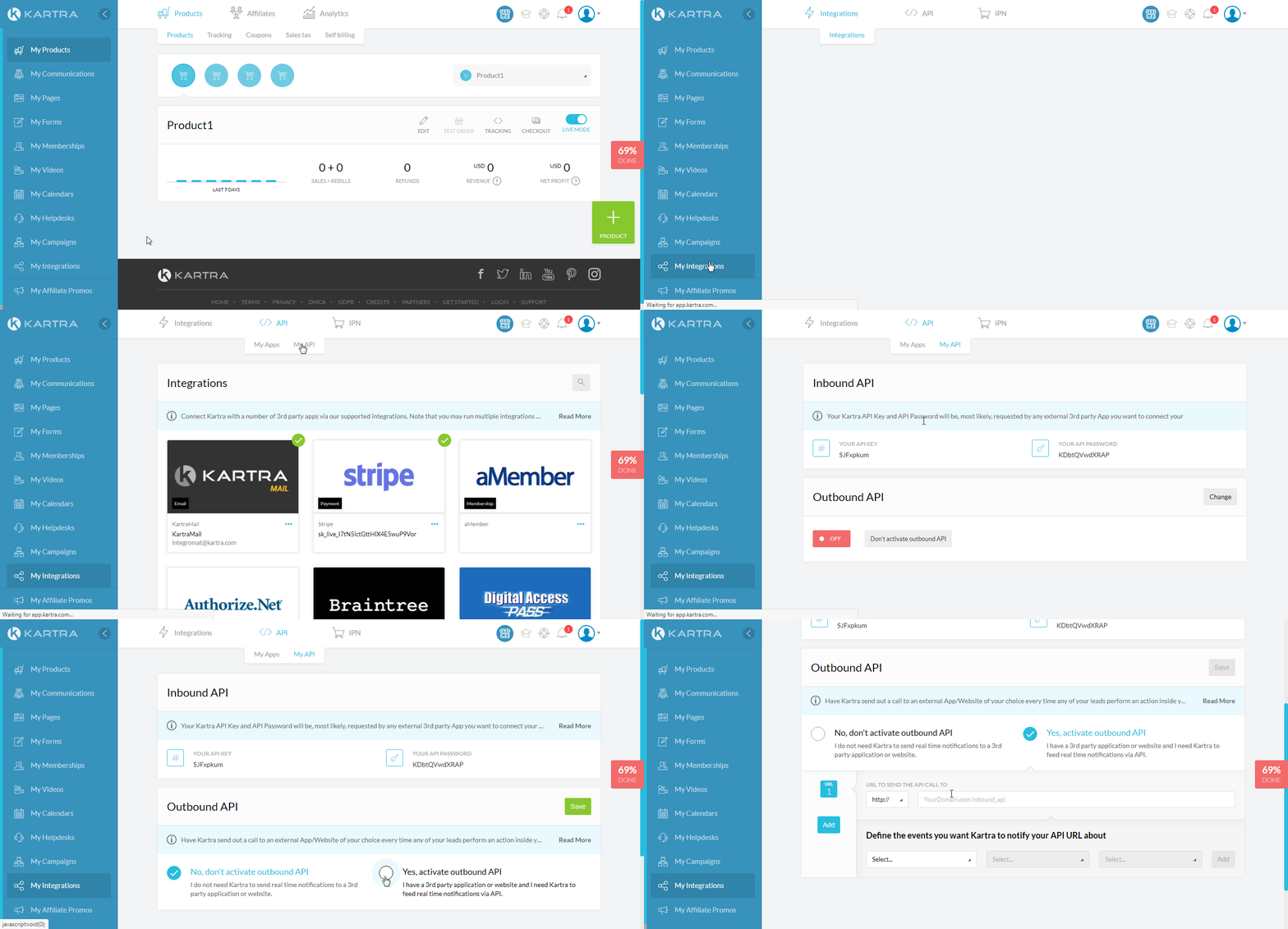
Log in to your Kartra account. Click My Integrations> API > My API > Change. Select Yes Activate Outbound API and Click Save.
-
In the URL TO SEND THE API CALL TO field, enter the URL address copied in step 1, and select the actions for which you want to receive the alerts, and click Add.
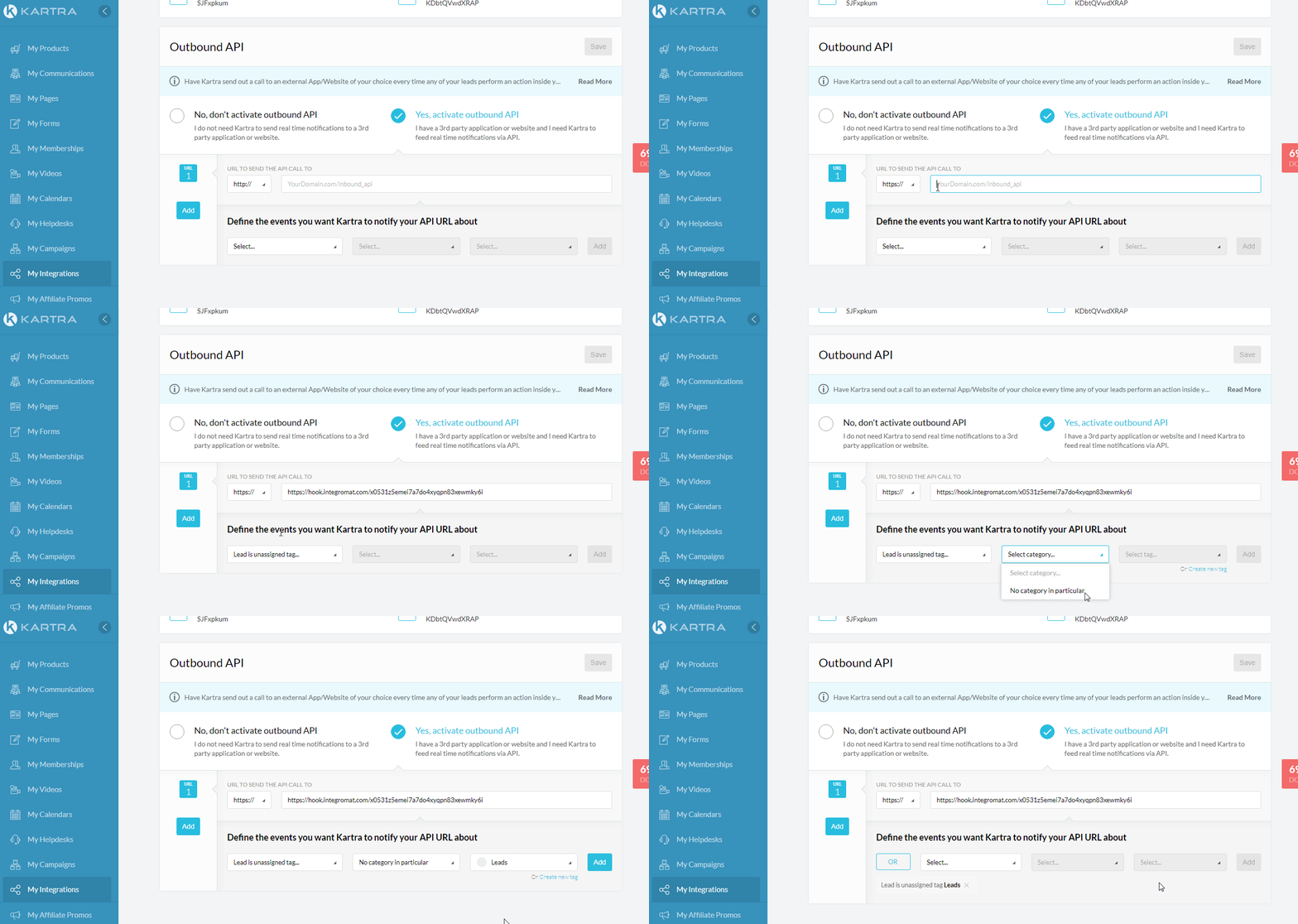
The webhook has been added.
Make an API Call
Performs an arbitrary authorized API call.
Connection
Establish a connection to your Kartra account.
Headers
Enter the desired request headers. You don’t have to add authorization headers; we already did that for you.
Query String
Enter the request query string.
Body
Enter the body content for your API call. For example, the following body to retrieve all pages in your account:
{ "actions[][cmd]": "retrieve_account_pages" }
For the list of available API calls please refer to the Kartra API documentation.
Example of Use – Get Lead
The following API call returns lead details from your Kartra account:
Body:
{
"get_lead[email]": "{lead_email}"
}
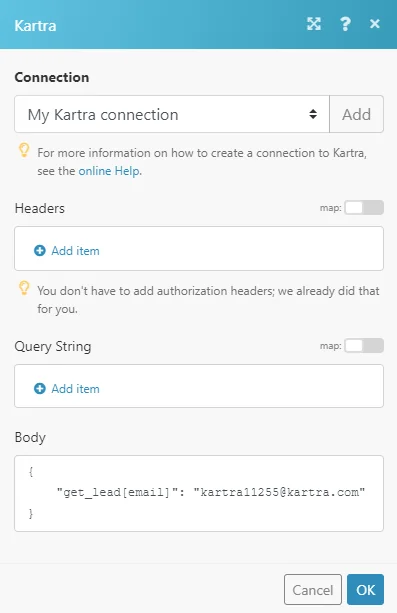
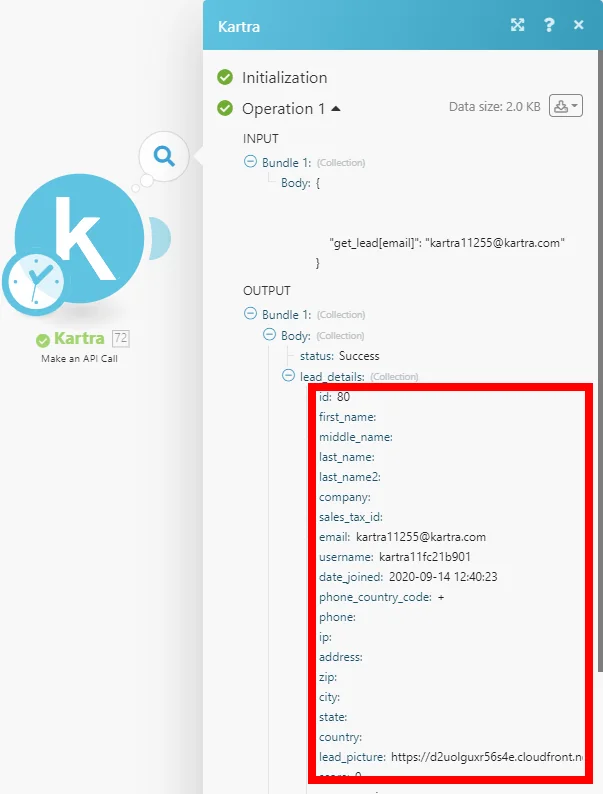
The result can be found in the module’s Output under Bundle > _Body > lead_details._In our example, lead details were returned:
Legacy article, imported from the original Boost.space knowledge base (/knowledge-base/applications/marketing/kartra/).

