LinkedIn Lead Gen Forms

With the LinkedIn Lead Gen Forms modules in Boost.space Integrator you can:
-
List, create, retrieve, and update the form and form status
-
Watch, list, retrieve, and deregister the form responses
To get started with the LinkedIn Lead Gen Forms create an account at linkedin.com.
The module dialog fields that are displayed in bold (in the Boost.space Integrator scenario, not in this documentation article) are mandatory!
Connect LinkedIn Lead Gen Forms to Boost.space Integrator
-
Log in to your Boost.space Integrator account.
-
Add a module from the LinkedIn Lead Gen Forms app into a Boost.space Integrator scenario.
-
Click Add next to the Connection field.
-
In the Connection name field, enter a name for the connection and click Save.
-
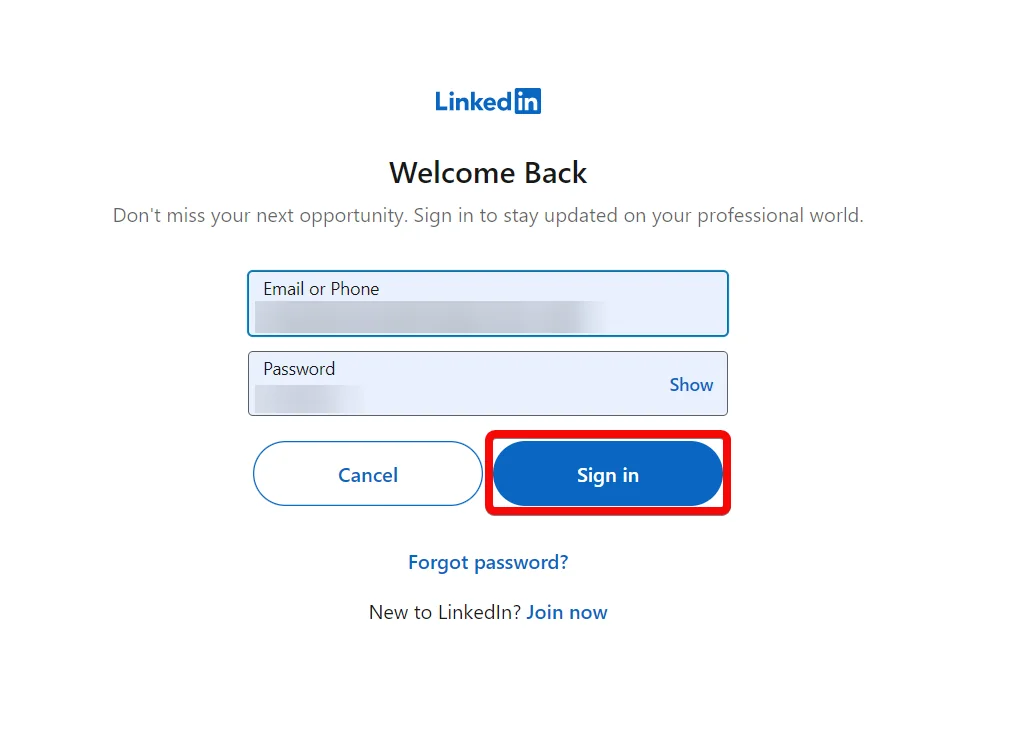
In the Email and Password fields, enter your LinkedIn account credentials and click Sign in.
-
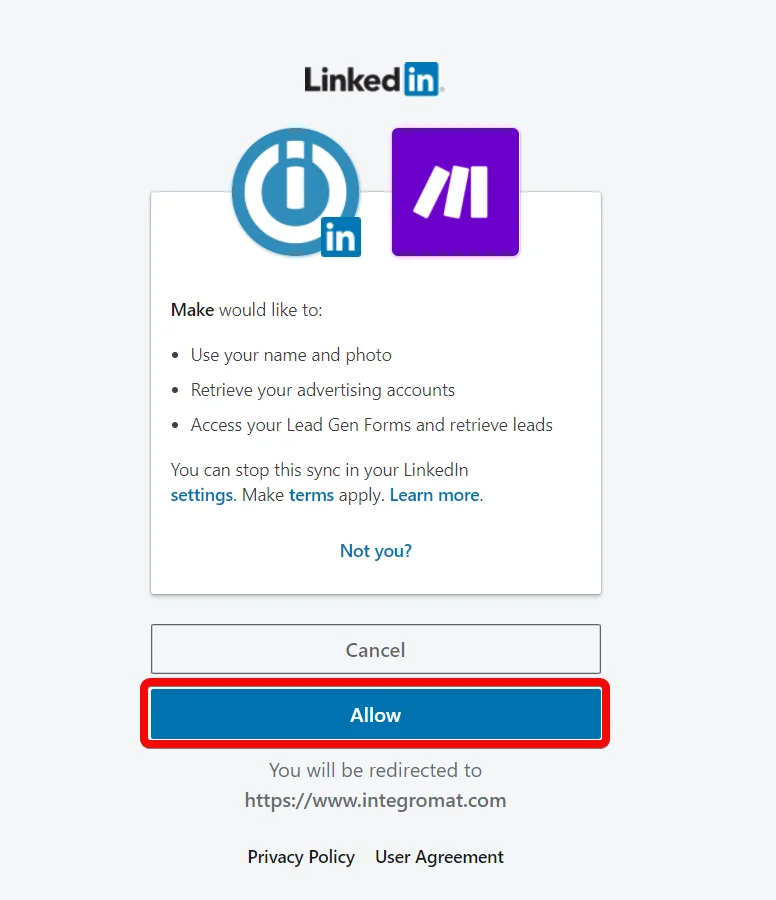
Confirm the access by clicking Allow.
You have successfully connected LinkedIn Lead Gen Form app with Boost.space Integrator and can now build scenarios.
Form
You can create, update, list, retrieve the forms, and form status
List Forms
Retrieves a list of Lead Gen Forms.
Connection
Establish a connection to your LinkedIn Lead Gen Forms account.
Ad Account URN
Select or map the account whose forms you want to list.
Limit
Set the maximum number of forms Boost.space Integrator will return during one scenario execution cycle. The default value is 10.
Create a Form
Creates a new Lead Gen Form.
Connection
Establish a connection to your LinkedIn Lead Gen Forms account.
Ad Account URN
Select or map the account for which you want to create the form.
Language
Select or map a language in which you want to create the form.
Form
Enter the form details:
Name
Enter (map) a name for the form. The maximum number of allowed characters is 256 characters.
Headline
Enter (map) the headline for the form. The maximum number of allowed characters is 60.
Privacy Policy URL
Enter (map) the privacy policy URL address applicable to the form.
Lead Profile Information
Select or map the lead profile information.
At least one custom question is required. A maximum of 12 questions in total are allowed.
Custom Questions
Enter the questions to add to the form. You can add multiple questions.
Description
Enter (map) the form details. The maximum number of allowed characters is 160.
Legal Disclaimer
Enter (map) the legal disclaimer content. The maximum number of allowed characters is 2000.
Custom Checkboxes
Enter the consent details for the form that are presented to the user:
Content
Enter (map) the consent text to display to the viewer. For example, this is a required checkbox. The maximum number of characters allowed is 500.
Consent Required
Select whether the consent is mandatory.
Thank You Message
Enter (map) the thank you message that appears when a user completes the form. The maximum number of allowed characters is 300.
Landing Page URL
Enter (map) the form’s landing page URL address to the user who is redirected after submitting the form.
Thank You Message****Call-to-action
Select the text that appears on the call to action button after the user submits the form:
-
Visit company website
-
Learn More
-
View Now
-
Download Now
-
Try Now
Hidden Fields
Add the hidden fields for tracking user attributes. You can add a maximum of 20 fields.
Name
Enter (map) the field name.
Value
Enter (map) the field value.
Get a Form
Retrieves the details of a Lead Gen Form.
Connection
Establish a connection to your LinkedIn Lead Gen Forms account.
Form ID or URN
Enter (map) the Form ID or URN whose details you want to retrieve the form. Alternatively, you can search for the form.
Update a Form
Updates an existing Lead Gen Form by its ID.
Connection
Establish a connection to your LinkedIn Lead Gen Forms account.
Form ID or URN
Select or map the Form ID or account URN whose details you want to update.
Form
Enter the form details to update:
Name
Enter (map) a new name for the form. The maximum number of allowed characters is 256.
Headline
Enter (map) a new headline for the form. The maximum number of allowed characters is 60.
Privacy Policy URL
Enter (map) the privacy policy URL address that covers any data passed to the owner of the form.
Lead Profile Information
Select or map the lead profile information.
At least one custom question is required.
Custom Questions
Enter the questions to add to the form. You can add multiple questions.
Description
Enter (map) the form details. The maximum number of allowed characters is 160.
Legal Disclaimer
Enter (map) the legal disclaimer content. The maximum number of allowed characters is 2000.
Custom Checkboxes
Enter the consent details for the form that are presented to the user:
Content
Enter (map) the consent text to display to the viewer. For example, this is a required checkbox. The maximum number of characters allowed is 500.
Consent Required
Select whether the consent is mandatory.
Thank You Message
Enter (map) the thank you message that appears when a user completes the form. The maximum number of allowed characters is 300.
Landing Page URL
Enter (map) the form’s landing page URL address to the user who is redirected after submitting the form.
Thank You Message Call-to-action
Select the text that appears on the call to action button after the user submits the form:
-
Visit company website
-
Learn More
-
View Now
-
Download Now
-
Try Now
Hidden Fields
Add the hidden field names and their values for tracking user attributes. You can add a maximum of 20 fields.
Update a Form Status
Updates the status of a Lead Gen Form by its ID.
Connection
Establish a connection to your LinkedIn Lead Gen Forms account.
Form ID or URN
Enter (map) the Form ID or URN whose status you want to update. Alternatively, you can search for the form.
Status
Select or map the form status to which you want to update:
-
Submitted
-
Paused
-
Archived
-
Canceled
Get a Form Question
Retrieves the details of a question of a Lead Gen Form by its ID.
Connection
Establish a connection to your LinkedIn Lead Gen Forms account.
Form ID or URN
Enter (map) the Form ID or URN whose questions you want to retrieve. Alternatively, you can search for the form question.
Question ID
Enter (map) a Question ID whose details you want to retrieve.
Response
You can watch, list, and retrieve the form responses.
Watch Form Responses
Triggers when a Lead Gen Form is submitted.
Webhook Name
Enter a name for the webhook
Connection
Establish a connection to your LinkedIn Lead Gen Forms account.
Ad Account URN
Select or map the Ad Account URN whose form responses you want to watch.
Campaign URN
Select or map the campaign URN to watch the form responses.
Watch Form Responses
Triggers when a Lead Gen Form is submitted.
Connection
Establish a connection to your LinkedIn Lead Gen Forms account.
Ad Account URN
Select or map the Ad Account URN whose form responses you want to watch.
Form URN
Select or map the Form URN to watch the form responses.
Campaign URN
Enter (map) a campaign URN. Alternatively, you can search the campaign URN.
Accounts
Select or map the account whose responses you want to watch.
Campaign Groups
Add the campaign groups whose responses you want to watch.
Accounts
Select or map the account whose campaign groups you want to select.
Statuses
Select the status to search the campaign groups:
-
Active
-
Archive
-
Canceled
-
Draft
-
Paused
Campaign Names
Enter or map the campaign names to search the campaign groups.
Is Test
Select whether the campaign was a test.
Associated Entities
Enter (map) an associated entity to search the campaign group.
Statuses
Select the status of the campaign:
-
Active
-
Paused
-
Archived
-
Completed
-
Canceled
-
Draft
Types
Select or map the campaign type:
-
Text Ad
-
Sponsored Updates
-
Sponsored InMails
-
Dynamic
Campaign Names
Enter (map) the campaign names whose responses you want to watch.
Is Test
Select whether the campaign was a test.
Creative URN
Enter (map) the creative URN. Alternatively, you can search for a creative URN.
Campaigns
Enter (map) a name for the campaign. You can also search for a campaign.
Accounts
Select or map the account whose creative URN you want to select.
Campaign Groups
Enter (map) the name of the campaign group. You can also search for a campaign group.
Accounts
Select or map the account whose campaign groups you want to select.
Statuses
Select the status to search the campaign groups:
-
Active
-
Archive
-
Cancelled
-
Draft
-
Paused
Campaign Names
Enter or map the campaign names to search the campaign groups.
Is Test
Select whether the campaign was a test.
Associated Entities
Enter (map) an associated entity to search the campaign group.
Statuses
Select the status to search the campaign groups:
-
Active
-
Archived
-
Completed
-
Canceled
-
Draft
Types
Types Select the type of campaign:
-
Text Ad
-
Sponsored Updates
-
Sponsored InMails
-
Dynamic
Campaign Names
Enter or map the campaign names to search the campaign groups.
Is Test
Select whether the campaign was a test
References
Enter (map) a reference share URN to watch the form responses.
Statuses
Select the status to search the campaign groups:
-
Active
-
Paused
-
Draft
-
Archive
-
Canceled
Is Test
Select whether the creative URN is a test.
Fields
Enter (map) fields associated with your query. You can enter multiple values by separating them with a comma.
See for more information on fields.
Limit
Enter the maximum number of results Boost.space Integratorshould return during one scenario execution cycle. The default value is 2.
List Form Responses
Retrieves a list of responses of a Lead Gen Form.
Connection
Establish a connection to your LinkedIn Lead Gen Forms account.
Ad Account URN
Select or map the Ad Account URN whose form responses you want to list.
Form URN
Select or map the Form URN to list the form response.
Campaign URN
Enter (map) a campaign URN. Alternatively, you can search for the campaign URN.
Accounts
Select or map the account whose campaign groups you want to select.
Campaign Groups
Enter (map) the campaign groups. You can also search campaign groups.
Accounts
Select or map the account whose campaign groups you want to select.
Statuses
Select the status to search the campaign groups:
-
Active
-
Archive
-
Canceled
-
Draft
-
Paused
Campaign Names
Enter or map the campaign names to search the campaign groups.
Is Test
Select whether the campaign was a test.
Associated Entities
Enter (map) an associated entity to search the campaign group.
Statuses
Select the status to search the campaign groups:
-
Active
-
Paused
-
Archived
-
Completed
-
Canceled
-
Draft
Types
Types Select the type of campaign:
-
Text Ad
-
Sponsored Updates
-
Sponsored InMails
-
Dynamic
Campaign Names
Enter or map the campaign names to search the campaign groups.
Is Test
Select whether the campaign is a test.
Creative URN
Enter (map) a creative URN to list the form response. You can also search for the creative URN.
Campaign
Enter (map) a campaign name to search for a creative URN.
Accounts
Select or map the account whose campaign groups you want to select.
Associated Entities
Enter (map) an associated entity to search the campaign group.
Statuses
Select the status to search the campaign groups:
-
Active
-
Paused
-
Archived
-
Completed
-
Canceled
Types
Select the type of campaign:
-
Text Ad
-
Sponsored Updates
-
Sponsored InMails
-
Dynamic
Campaign Names
Enter or map the campaign names to search the campaign groups.
Is Test
Select whether the campaign is a test.
Reference
Enter (map) the reference share URN.
Statuses
Select the status to search the creative URN:
-
Active
-
Paused
-
Draft
-
Archived
-
Canceled
Is Test
Select whether the campaign was a test.
Start Time
Enter (map) the start date and time to list the form responses. See the list of supported date and time formats.
End Time
Enter (map) the end date and time up to which the form responses should be listed. See the list of supported date and time formats.
Limit
Enter the maximum number of results Boost.space Integratorshould return during one scenario execution cycle. The default value is 10.
Get a Form Responses
Retrieves a response of a Lead Gen Form.
Connection
Establish a connection to your LinkedIn Lead Gen Forms account.
Ad Account URN
Select or map an Ad Account URN to retrieve form responses.
Response ID or URN
Enter (map) a response ID or URN to retrieve the form responses.
Deregister a Form Response Webhook
Deregisters an existing Lead Gen Form webhook by the entity ID.
This module should only be used against the “webhook already exist” error. Use with extreme caution.
Connection
Establish a connection to your LinkedIn Lead Gen Forms account.
Ad Account URN
Select or map an Ad Account URN to deregister a form response webhook.
Others
Make an API Call
Performs an arbitrary authorized API Call.
Connection
Establish a connection to your LinkedIn Lead Gen Forms account.
URL
Enter a path relative to https://api.linkedin.com/. For example, /v2/me.
For the list of available endpoints, refer to the LinkedIn Lead Gen Forms API.
Method
Select the HTTP method you want to use:
GET
to retrieve information for an entry.
POST
to create a new entry.
PUT
to update/replace an existing entry.
PATCH
to make a partial entry update.
DELETE
to delete an entry
Headers
Enter the desired request headers. You don’t have to add authorization headers; we already did that for you.
Query String
Enter the request query string
Body
Enter the body content for your API call.
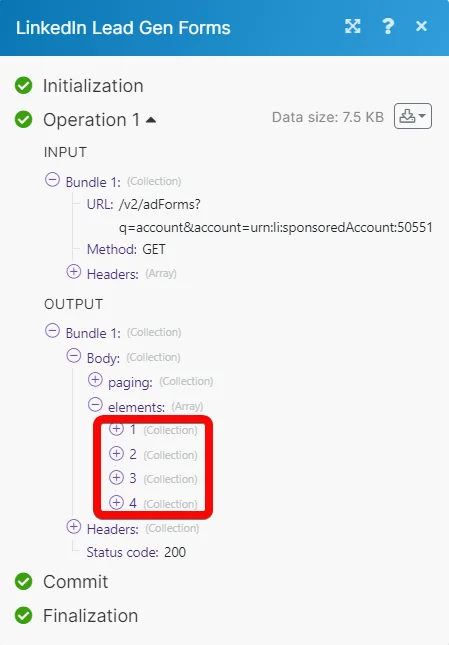
Example of use – List Forms
The following API call returns all the forms from your LinkedIn Lead Gen Forms account:
URL:
/v2/adForms/q=account&account=<accountid>
Method:
GET
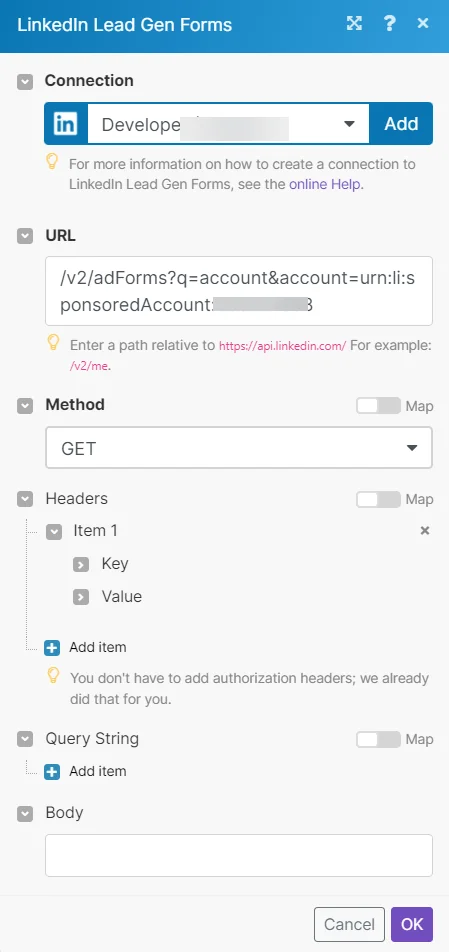
Matches of the search can be found in the module’s Output under Bundle > Body > elements.
In our example, 4 forms were returned:
Legacy article, imported from the original Boost.space knowledge base (/knowledge-base/applications/marketing/linkedin-lead-gen-forms/).

