LinkedIn Offline Conversions
The LinkedIn Offline Conversions allows you to create, search, list, and retrieve offline conversions. You can associate a conversion to a campaign, and generate offline conversion reports.
Getting Started with LinkedIn Offline Conversions
Prerequisites
-
A LinkedIn account: create an account at linkedin.com/signup
-
User permissions: rw_offlineConversions, rw_ads, r_ads_reporting
The module dialog fields that are displayed in bold (in the Boost.space Integrator scenario, not in this documentation article) are mandatory!
Connecting LinkedIn Offline Conversions with Boost.space Integrator
-
Log in to your Boost.space Integrator account.
-

Add a module from the LinkedIn Offline Conversions app into a Boost.space Integrator scenario.
-
Click Add next to the Connection field.
-
ClickSave and enter your LinkedIn account credentials.
-
Confirm the access by clicking Allow.
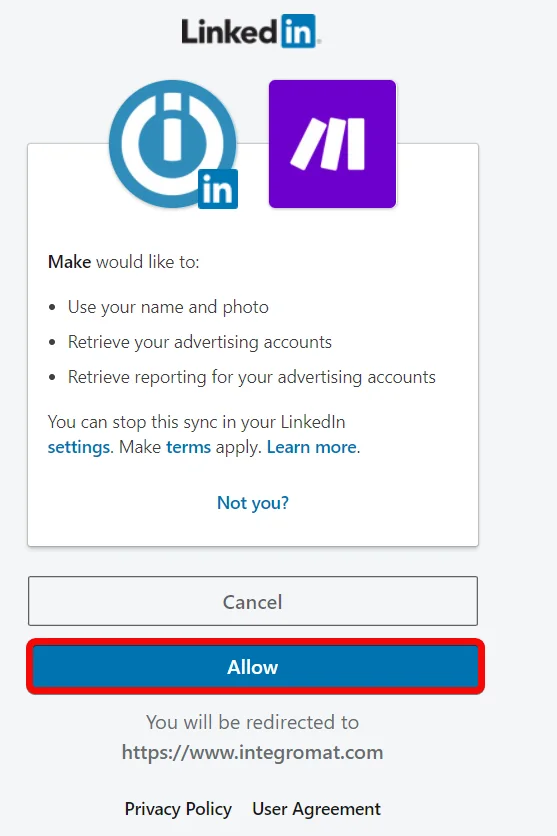
The connection has been established.
Actions
Create an offline Conversion Segment
Creates a new offline conversion segment.
Connection
Establish a connection to your LinkedIn Offline Conversions account.
Account
Select or map the account for which you want to create the offline conversion segment.
Name
Enter (map) a name for the segment.
Description
Enter (map) the details of the segment.
Send Offline Conversion Events
Sends multiple offline conversion events in a batch.
Connection
Establish a connection to your LinkedIn Offline Conversions account.
Account URN
Select or map the account to which you want to send the offline conversion events
Segment ID
Select or map the Segment ID used for conversion events.
Events
Enter (map) the event details. You can add multiple actions.
Action
Select or map the action you want to perform:
-
Add
-
Remove
User
Enter the user details:
User IDs
Enter (map) the user’s email address. You can add multiple email addresses by clicking Add item.
First Name
Enter (map) the user’s first name. The maximum number of allowed characters is 35.
Last Name
Enter (map) the user’s last name. The maximum number of allowed characters is 35.
Title
Enter (map) the user’s job title. The maximum number of allowed characters is 50.
Company
Enter (map) the user’s company name. The maximum number of allowed characters is 50.
Country
Enter (map) the user’s country. Enter a two-letter country code. For example, US.
Conversion
Enter the conversion details:
Conversion Happened At
Enter (map) the time at which the conversion happened. See the list of supported date and time formats.
Conversion Type
Select or map the conversion type. For example, download.
Money Amount
Enter the amount details.
Amount
Enter the amount applicable to the conversion.
Currency
Enter the applicable three-letter currency code.
Create a Conversion Rule
Creates a new conversion rule to track offline conversions.
Connection
Establish a connection to your LinkedIn Offline Conversions account.
Account URN
Select or map the account for which you want to create the conversion rule.
Segment URN
Select or map the segment to create the conversion rule.
Name
Enter (map) a name for the conversion rule.
Type
Select or map the offline conversion rule type to track this conversion rule. For example, Ad Click. See the complete list of conversion rule types.
Attribution Type
Select or map the attribution type that describes the process to count the conversion actions:
-
Last touch by campaign
-
Last touch by conversion
Post Click Attribution Window Size
Specifies a user’s settings on the post-click attribution window in days. For example, 5.
View through Attribution Window Size
Specifies a user’s settings on the view through (post view) attribution window in days. For example, 5.
Associate Campaign to Conversion
Associates a campaign to a conversion rule by their IDs.
Connection
Establish a connection to your LinkedIn Offline Conversions account.
Campaign ID
Select the Campaign ID which you want to associate with the conversion.
Conversion Rule ID
Select or map the Conversion Rule ID to which you want to associate the campaign.
Get an Offline Conversion Segment
Retrieves the details of an offline conversion segment by its ID.
Connection
Establish a connection to your LinkedIn Offline Conversions account.
Segment ID
Enter (map) the Segment ID whose details you want to retrieve.
Searches
Generate an Offline Conversion Report
Generates an offline conversion report.
Connection
Establish a connection to your LinkedIn Offline Conversions account.
Accounts
Select or map the accounts for which you want to generate the offline conversion report.
Time Granularity
Select or map the time for which you want to generate the report:
-
All
-
Daily
-
Monthly
-
Yearly
Start Date
Enter (map) the date to generate the report of the offline conversions that occurred on or after the specified date. See the list of supported date and time formats.
End Date
Enter (map) the date to generate the report of the offline conversions that occurred on or before the specified date. See the list of supported date and time formats.
Pivots
Select or map the pivots to include in the report. Conversion is the default pivot and you can add at the most two additional pivots to include in the report.
Fields
Select or map the fields to include in the report:
-
External Website Conversion
-
External Website Post Click Conversion
-
External Website Post View Conversion
-
Viral External Website Conversion
-
Viral External Website Post Click Conversion
-
Viral External Website Post View Conversion
Campaign Type
Select or map the campaign type for which you want to generate the report:
-
Text Ad
-
Sponsored Updates
-
Sponsored InMails
-
Dynamic
Limit
Set the maximum number of results Boost.space Integrator should return during one execution cycle.
List Conversion Rules
Retrieves a list of conversion rules by the ad account.
Connection
Establish a connection to your LinkedIn Offline Conversions account.
Account URN
Select or map the account whose conversion rules you want to list.
Limit
Set the maximum number of conversion rules Boost.space Integrator should return during one execution cycle.
List Offline Conversion Segments
Retrieves a list of offline conversion segments and filters by criteria.
Connection
Establish a connection to your LinkedIn Offline Conversions account.
Account
Select or map the account whose offline conversion segments you want to list.
Is from Integromat
Select whether you want to list only the offline conversion segments created from Integromat.
Limit
Set the maximum number of offline conversion segments Boost.space Integrator should return during one execution cycle.
Legacy article, imported from the original Boost.space knowledge base (/knowledge-base/applications/marketing/linkedin-offline-conversions/).

