Lob
The Lob modules allow you to send letters, postcards and verify the US and international addresses in your Lob account.
Getting Started with Lob
Prerequisites
- A Lob account
In order to use Lob with Boost.space Integrator, it is necessary to have a Lob account. You can use your Google account or create a Lob account at lob.com.
The module dialog fields that are displayed in bold (in the Boost.space Integrator scenario, not in this documentation article) are mandatory!
Connecting Lob to Boost.space Integrator
To connect your Lob account to Boost.space Integrator you need to obtain the API Key from your Lob account and insert it in the Create a connection dialog in the Boost.space Integrator module.
-
Login to your Lob account.
-
Click your profile icon > Settings > API Keys.
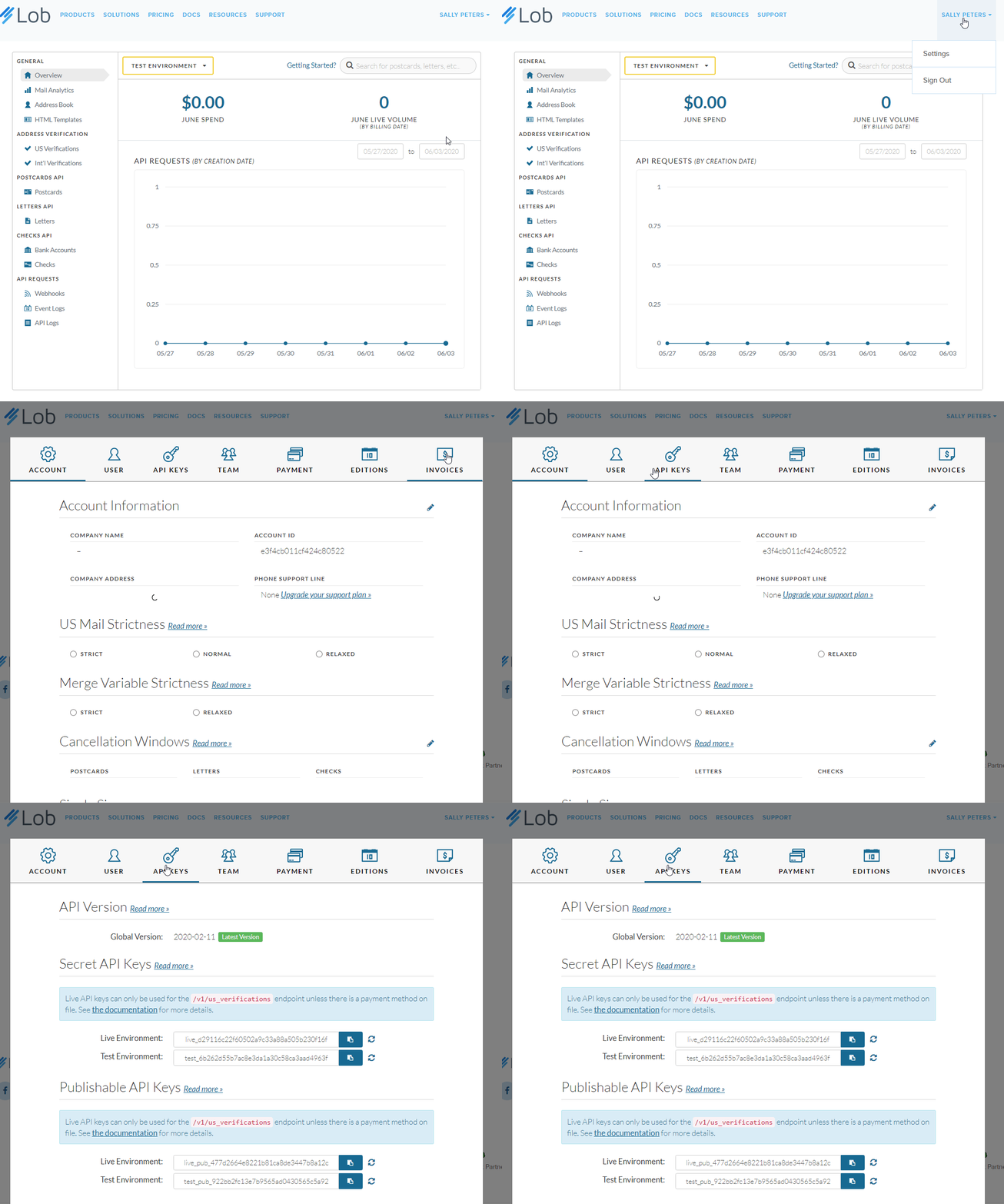
-
Copy the required API Key to establish the connection.
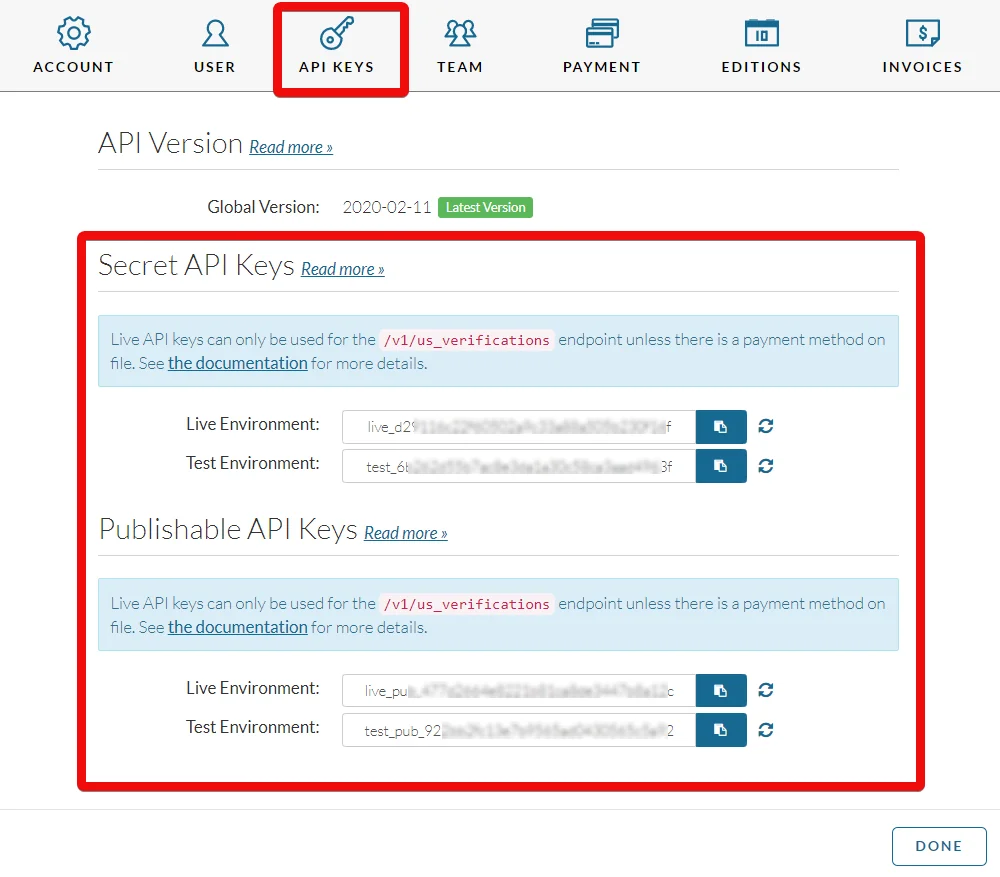
-
Go to Boost.space Integrator and open the Lob module’s Create a connection dialog.

-
In the Connection name field, enter a name for the connection.
-
In the API Key field, enter the API key copied in step 3 and click Continue.
The connection has been established.
Actions
Send a Letter
Creates a new letter.
Connection
Establish a connection to your Lob account.
File
Enter an HTML string or File ID of a saved HTML template or a remote URL or a local upload of an HTML or PDF file. The HTML string should be under 10000 characters.
Color
Select the color:
-
In Color
-
Black and White
Name
Enter the name of the person to whom you are sending the letter.
Address Line 1
Enter the street address.
Address Line 2
Enter the street address.
City
Enter the city name.
State
Enter the state name.
Zip Code
Enter the zip code of the area.
Company
Enter the name of the company where the person works.
Phone
Enter the phone number of the person to whom you are sending the letter.
Enter the email address of the person.
Name
Enter the name of the person who is sending the letter.
Address Line 1
Enter the street address.
Address Line 2
Enter the street address.
City
Enter the city name.
State
Enter the state name.
Zip Code
Enter the zip code of the area.
Company
Enter the name of the company where the person works.
Phone
Enter the phone number of the person who is sending the letter.
Enter the email address of the person.
Address Placement
Select the placement for address:
-
Insert Blank Page
-
Top of First Page
Double-Sided
Select whether you want to print the letter double-sided:
-
Yes
-
No
-
Not defined
Description
Enter the details of the letter.
Mail Type
Select the mail type:
-
USPS First Class
-
USPS Standard
Return Envelope
Select whether you want to include a return envelope in the letter:
-
Yes
-
No
-
Not define
Perforated Page
Enter the number of perforated pages to include with the return envelope.
Extra Service
Select the service:
-
Certified
-
Certified Return Receipt
-
Registered
Send Date
Enter the date when the letter should be sent.
Send a Postcard
Creates a new postcard.
Connection
Establish a connection to your Lob account.
Name
Enter the name of the person to whom you are sending the postcard.
Address Line 1
Enter the street address.
Address Line 2
Enter the street address.
City
Enter the city name.
State
Enter the state name.
Zip Code
Enter the zip code of the area.
Company
Enter the name of the company where the person works.
Phone
Enter the phone number of the person to whom you are sending the postcard.
Enter the email address of the person.
Name
Enter the name of the person who is sending the postcard.
Address Line 1
Enter the street address.
Address Line 2
Enter the street address.
City
Enter the city name.
State
Enter the state name.
Zip Code
Enter the zip code of the area.
Company
Enter the name of the company where the person works.
Phone
Enter the phone number of the person who is sending the postcard.
Enter the email address of the person.
Postcard Front
Enter an HTML string or File ID of a saved HTML template or a remote URL or a local upload of an HTML or PDF file that appears on the front side of the postcard. The HTML string should be under 10000 characters.
Postcard Back
Enter an HTML string or File ID of a saved HTML template or a remote URL or a local upload of an HTML or PDF file that appears on the backside of the postcard. The HTML string should be under 10000 characters.
Description
Enter the details of the postcard.
Postcard Size
Select the size of the postcard:
-
4×6
-
6×9
-
6×11
Mail Type
Select the mail type:
-
USPS First Class
-
USPS Standard
Send Date
Enter the date on which the postcard should be sent to the sender.
Verify a US Address
Corrects and standardizes a US address.
Connection
Establish a connection to your Lob account.
Primary Line
Enter the street address.
City
Enter the city name.
State
Enter the state name.
Recipient
Enter the recipient’s name.
Secondary Line
Enter the street or locality name.
Zip Code
Enter the area zip code.
Urbanization
Enter the urbanization code. Applicable only for addresses in Puerto Rico
Verify an International Address
Corrects and standardizes an international address.
Connection
Establish a connection to your Lob account.
Primary Line
Enter the street address.
Country
Enter the two-digit country code. For example, US.
Secondary Line
Enter the street or locality name.
Recipient
Enter the recipient’s name.
City
Enter the city name.
State
Enter the state name.
Postal Code
Enter the area postal code.
Make an API Call
Performs an arbitrary authorized API call.
Connection
Establish a connection to your Lob account.
URL
Enter a path relative to https://api.lob.com. For example: /v1/letters
For the list of available endpoints, refer to the Lob API Documentation.
Method
Select the HTTP method you want to use:
GET
to retrieve information for an entry.
POST
to create a new entry.
PUT
to update/replace an existing entry.
PATCH
to make a partial entry update.
DELETE
to delete an entry.
Headers
Enter the desired request headers. You don’t have to add authorization headers; we already did that for you.
Query String
Enter the request query string.
Body
Enter the body content for your API call.
Example of Use – List Letters
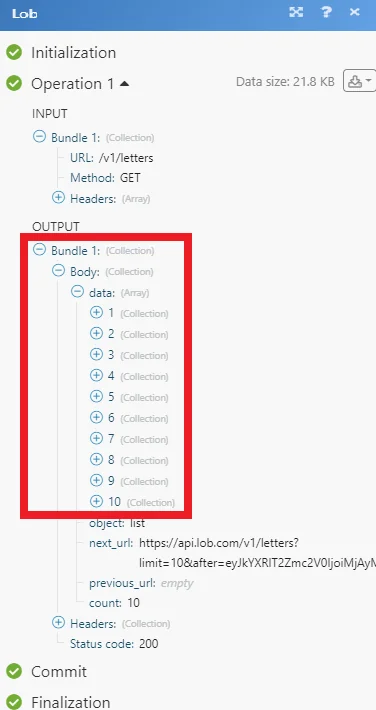
The following API call returns all the letters from your Lob account:
URL:
/v1/letters
Method:
GET
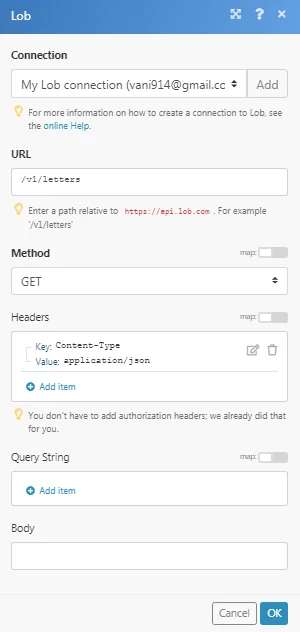
Matches of the search can be found in the module’s Output under Bundle > Body > data.
In our example, 10 were returned:
Legacy article, imported from the original Boost.space knowledge base (/knowledge-base/applications/marketing/lob/).

