Meetup Pro
Getting Started with Meetup
The Meetup Pro modules allow you to list, find, and retrieve groups, events, and pros in your Meetup Pro account.
Prerequisites
- A Meetup Pro account
To get started with Meetup Pro with Boost.space Integrator, create an account at www.meetup.com/pro.
Connecting Meetup to Boost.space Integrator
To connect your Meetup account to Boost.space Integrator, you need to create a Meetup OAuth app to obtain the Client ID and Client Secret.
-
Go to Meetup API, and log in using your Meetup credentials.
-
Open OAuth Clients > Create New Client.
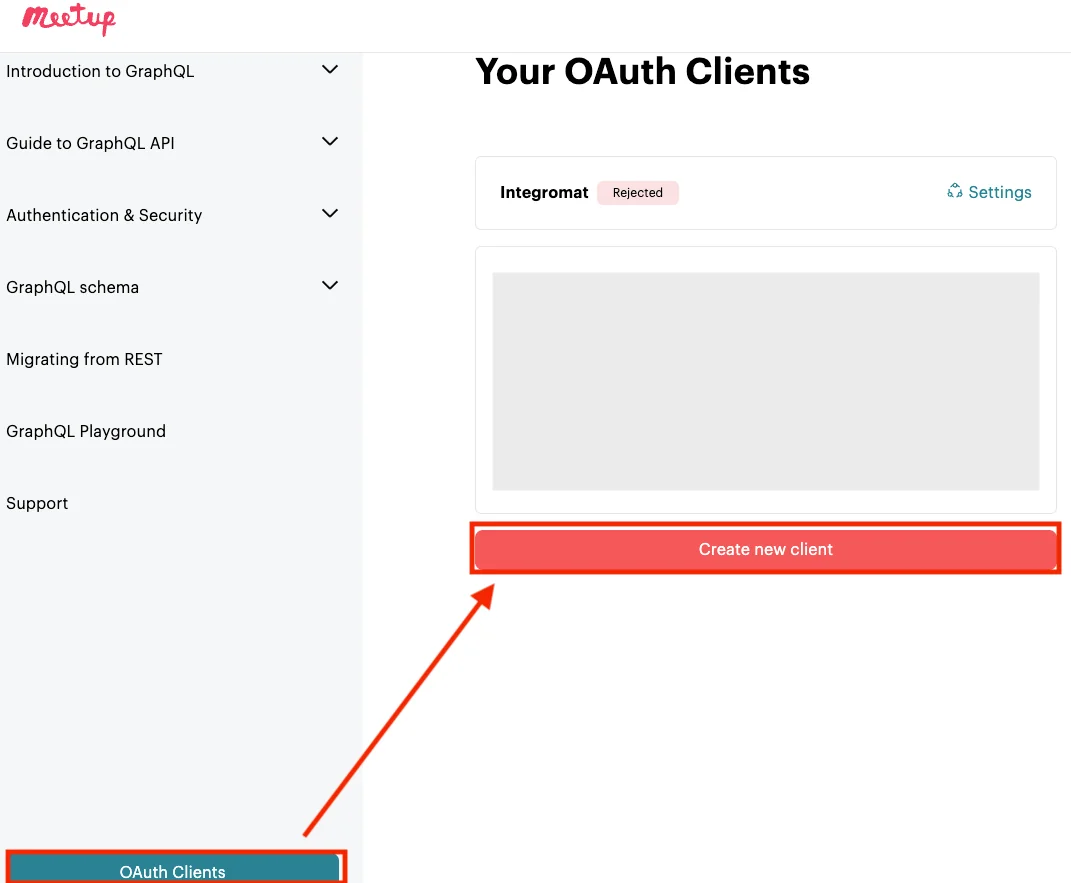
-
Complete the questionnaire that appears, agree to the terms and conditions policy,
and click Register. Some of the mandatory fields are listed below:
Client name
Enter the name of the application. For example, Boost.space Integrator
Application Website
A link to your application’s public home page. For example,
https://boost.space.Redirect URL
https://integrator.boost.space/oauth/cb/meetup -
Copy the Key and Secret values to a safe place.
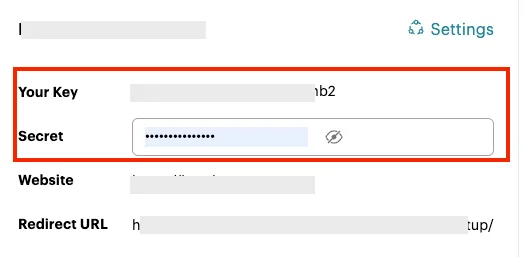
-
Go to Boost.space Integrator, and open the Meetup Pro module’s Create a connection dialog.
-
Enter the Client ID and Client Secret from step 4 to the respective fields, and click the Save.
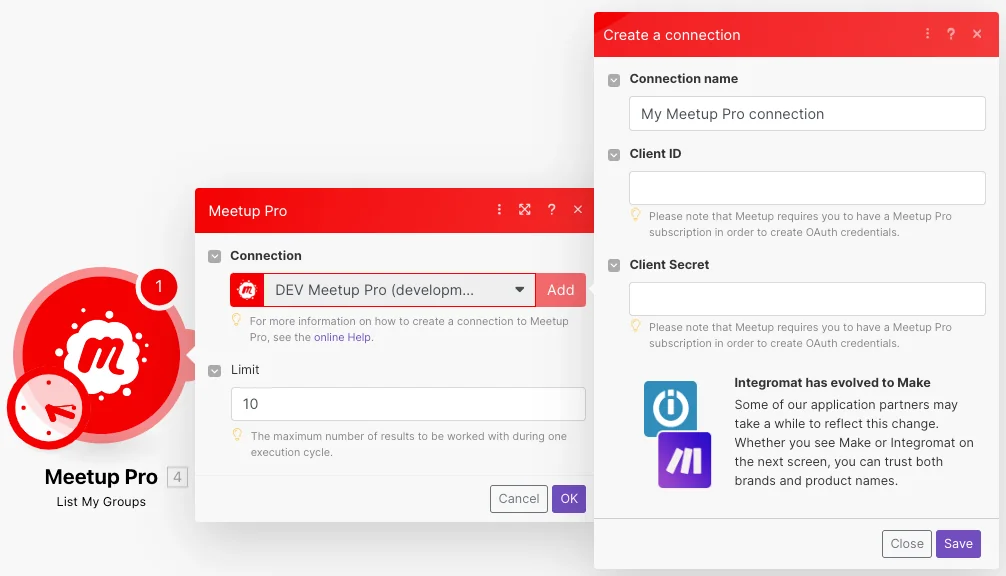
The connection has been established. You can proceed with setting up the module.
Groups
You can watch, update, retrieve, list, and search groups, group events, and group members using the following modules.
List My Groups
Returns the user’s groups.
Connection
Establish a connection to your Meetup account.
Limit
Set the maximum number of groups Boost.space Integrator will return during one execution cycle.
List Group Events
Returns events within a group.
Connection
Establish a connection to your Meetup account.
Search Group
Select or map the option to choose the group whose events you want to list.
Group ID
Select or map the Group ID whose events you want to list.
Group URL
Select or map the Group URL address whose events you want to list.
Limit
Set the maximum number of events Boost.space Integrator will return during one execution cycle.
Get a Group
Returns a requested group.
Connection
Establish a connection to your Meetup account.
Search Type
Select or map the option to choose the group whose details you want to retrieve.
Group ID
Select or map the Group ID whose details you want to retrieve.
Group URL
Select or map the Group URL address whose details you want to retrieve.
Update a Group
Updates information about the user’s group.
Required Permissions: group_edit
Connection
Establish a connection to your Meetup account.
Group ID
Select or map the Group ID whose details you want to update.
Name
Enter the new name of the group. It can be at most 60 characters.
Description
Enter the group description. You can use simple HTML formatting.
Logo ID
Enter the group Logo ID.
Custom Member Label
Enter the custom labels of the group.
Country
Enter the country name associated with the group.
City
Enter the city name associated with the group.
State
Enter the state name associated with the group.
ZIP
Enter the postal ZIP code of the region associated with the group.
URL Name
Enter the URL name used to identify the group on meetup.com.
Cover Photo ID
Enter the ID of the cover image.
Search Groups
Finds groups based on text and location.
Connection
Establish a connection to your Meetup account.
Text
Enter the text to search groups that match the specified text.
Latitude
Enter the location’s latitude to search groups that match the specified location.
Longitude
Enter the Longitude of the location to search groups that match the specified location.
Radius
Enter the distance to search the groups that match the specified radius.
Topic Category ID
Enter the Category ID to search groups that match the specified category.
Limit
Set the maximum number of groups Boost.space Integrator will return during one execution cycle.
List Group Members
Retrieves members of a specified group.
Connection
Establish a connection to your Meetup account.
Search Group
Select or map the option to choose the group whose members you want to list.
Group ID
Select or map the Group ID whose members you want to list.
Group URL
Select or map the Group URL address whose members you want to list.
Limit
Set the maximum number of members Boost.space Integrator will return during one execution cycle.
Events
Watch New Event Comments
Check whenever an event has new comments.
Connection
Establish a connection to your Meetup account.
Event ID
Enter the Event ID whose comments you want to watch.
Limit
Set the maximum number of comments Boost.space Integrator will return during one execution cycle.
Watch New RSVP
Checks whenever a new RSVP was created.
Connection
Establish a connection to your Meetup account.
Event ID
Enter the Event ID whose RSVPs you want to watch.
Limit
Set the maximum number of RSVPs Boost.space Integrator will return during one execution cycle.
Get an Event
Returns a requested event.
Connection
Establish a connection to your Meetup account.
Event ID
Enter (map) the Event ID whose details you want to retrieve.
Create an Event
Creates a Meetup group event.
Required Permissions: event_management
Connection
Establish a connection to your Meetup account.
Group URL Name
Enter the Group URL Name of the group you want to create the event for. The Group URL Name is the part of the URL after the slash: e.g., if the URL is https://www.meetup.com/Tech-Meetups-Prague/> then Tech-Meetups-Prague is the Group URL Name.
Title
Enter the name for the new event in 1 – 80 characters.
Description
Enter the description of the event. Simple HTML formatting is allowed. Maximum 50,000 characters.
Start Date
Enter the event start date and time. See the list of supported date and time formats.
Duration
Enter the event duration according to the ISO 8601 duration specified format. For example, PT5H.
RSVP Settings
Select whether to enable the RSVP for the event. If you select Yes, enter the following fields.
RSVP Open Time
Enter the time after which members will be allowed to RSVP to the event in milliseconds since the epoch. This can only be set if there is a start time for the event. This defaults to no RSVP open time restriction.
To remove the RSVP open time from an existing event, set rsvpOpenDuration to PT0S.
RSVP Close Time
Enter the time before which members will be allowed to RSVP to the event in milliseconds since the epoch. This can only be set if there is a start time for the event. This defaults to no RSVP close time restriction.
To remove the RSVP close time from an existing event, set rsvpCloseDuration to PT0S.
RSVP Open Duration
Enter the RSVP duration according to the ISO 8601 duration specified format To remove the RSVP open time from an existing event, set rsvpOpenDuration to PT0S.
RSVP Limit
Enter the maximum number of RSVPs allowed for the vent.
Guest Limit
Enter the maximum number of guests allowed for the event.
Event Hosts
List of valid member IDs who will be hosts of the event. This defaults to the authenticated member when self_rsvp is true or undefined.
Venue ID
Enter the venue ID. This can be retrieved only via the Ninox web platform by adding a location or venue to an event and then using the Boost.space Integrator modules to retrieve the event and see the ID.
Venue Visibility
Select whether the event venue and host location description will be visible to nonmembers of the hosting group. The default value is Public.
Self RSVP
Select whether the authenticated member will be RSVP’d to the event upon creation. The default value is Yes.
How to Find Us
The description of the location of the host(s) at the event venue.
For online events, this field is used for the event’s URL.
To unset this field, provide erase keyword.
Question
Enter the RSVP survey question for the event. To unset this field, provide erase keyword. The maximum number of allowed characters is 250.
Fee Option
Select whether you want to enable the fee payment option. If yes, enter the following details.
Payment Method
Select the payment method for the event fee if a fee is charged for the event. For example, PayPal.
Currency
Select the currency for the event fee if a fee is charged for the event. For example, USD.
Amount
Enter the amount of the event fee if a fee is charged for the event.
Refund Policy
Enter the refund policy information for the payment.
Paypal Email
If the Payment Method is selected as PayPal, enter the applicable email address.
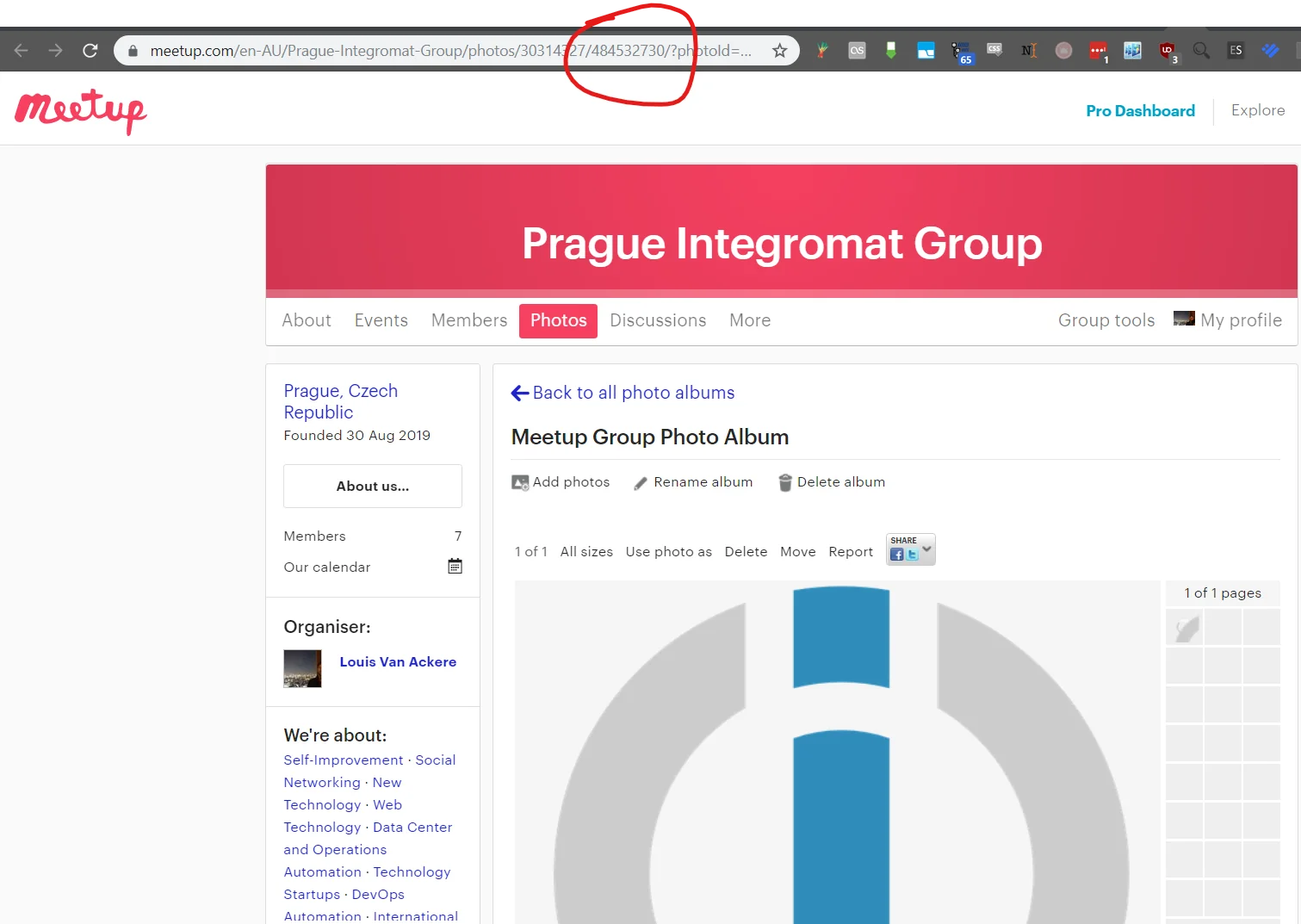
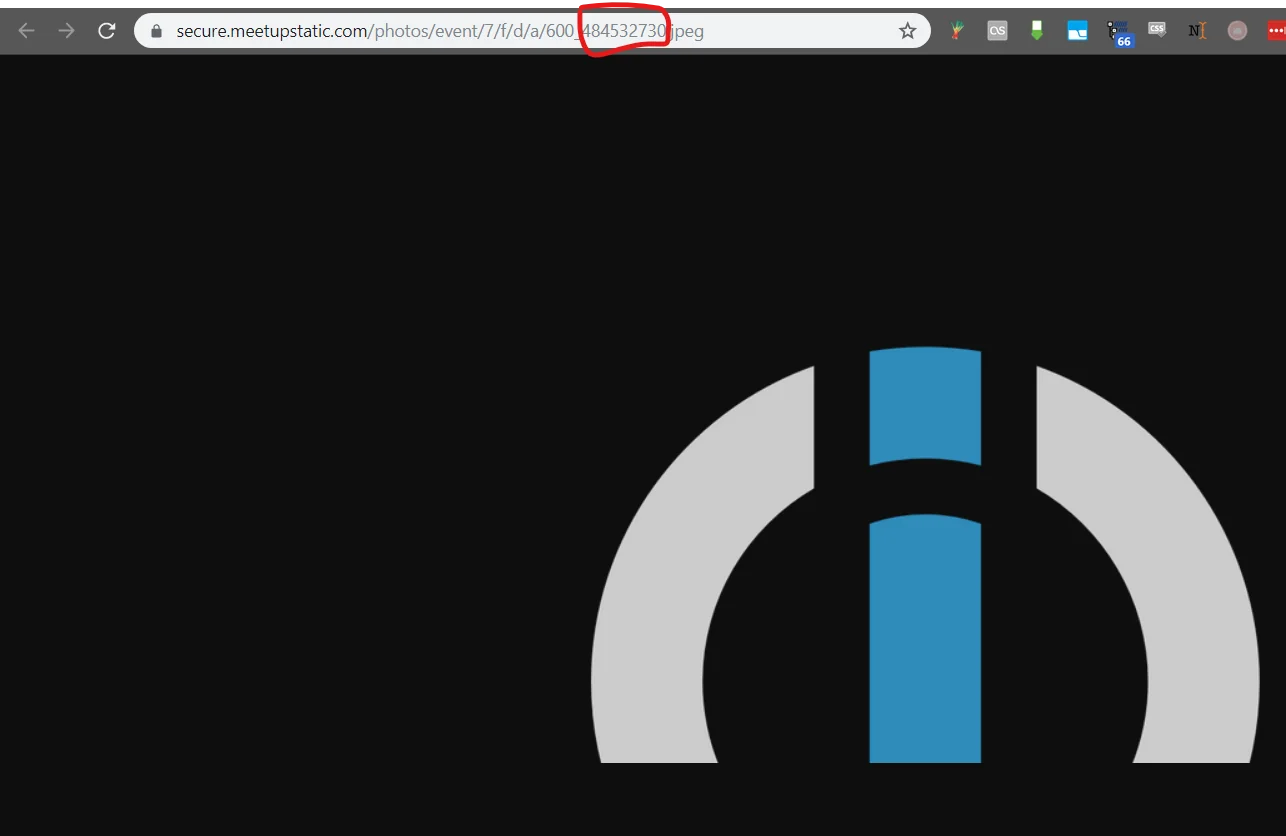
Feature Photo ID
Enter a positive integer representing a numeric identifier for a photo, which must be one associated with this group.
The photo must be associated with this group. The photo ID can be retrieved only via Ninox UI by uploading the photo to the group and then opening it.
RSVP Survey
Select whether the survey questions are available for Pro admins.
Topics
Add the event topics. You can add multiple topics.
Zoom Meeting ID
Enter a Zoom meeting ID if the event is online and uses Zoom integration.
Is Copy
Select whether this event is being copied from another event.
Template ID
Specified the Template ID to store a mapping between the event and the template.
Update an Event
Updates a Meetup group event.
Required Permissions: event_management
Connection
Establish a connection to your Meetup account.
Event ID
Select or map the event you want to update.
Please find the descriptions of the fields in the Create Event section above.
Delete an Event
Deletes a selected event.
Required Permissions: event_management
Connection
Establish a connection to your Meetup account.
Event ID
Select or map the Event ID you want to delete.
Remove From Calendar
Select whether to remove or cancel the event.
If you select Yes, the event will be removed from the calendar.
Update Series
Select the Yes option to delete all future recurrences of this event if this event belongs to an event series.
Requesting this for an event that doesn’t belong to an active series will result in an error.
List Event Attendance
Returns a list of users attending an event.
Connection
Establish a connection to your Meetup account.
Event ID
Enter (map) the Event ID whose attendance you want to list.
Limit
Set the maximum number of members Boost.space Integrator will return during one execution cycle.
List Event RSVPs
Returns a list of event RSVPs.
Connection
Establish a connection to your Meetup account.
Search Type
Select or map the search type option to choose the networks whose event RSVPs you want to list. For example, By ID.
Pro Network ID
Enter the Pro Network ID of the event.
Pro Network URL Name
Enter the event URL address. You can find this in the Pro Dashboard URL, https://www.meetup.com/pro/{Pro Network URL Name}/admin/analytics.
Limit
Set the maximum number of RSVPs Boost.space Integrator will return during one execution cycle.
Open an Event RSVP
Opens the RSVPs for an event.
Required Permissions: event_management
Connection
Establish a connection to your Meetup account.
Event ID
Select or map the Event ID for which you want to open the RSVPs.
Close an Event RSVP
Closes the RSVPs for an event.
Required Permissions: event_management
Connection
Establish a connection to your Meetup account.
Event ID
Enter (map) the Event ID for which you want to close the RSVPs.
List Event Hosts
Returns a list of event hosts.
Connection
Establish a connection to your Meetup account.
Event ID
Enter (map) the Event ID from which you want to retrieve hosts.
Limit
Set the maximum number of event hosts Boost.space Integrator will return during one execution cycle.
List Event Comments
Returns a list of event comments.
Connection
Establish a connection to your Meetup account.
Event ID
Enter (map) the ID of the event whose comments you want to list.
Limit
Set the maximum number of comments Boost.space Integrator will return during one execution cycle.
List My Events
Returns the user’s events.
Connection
Establish a connection to your Meetup account.
Event Type
Select or map the event type you want to list.
Limit
Set the maximum number of events Boost.space Integrator will return during one execution cycle.
Legacy article, imported from the original Boost.space knowledge base (/knowledge-base/applications/marketing/meetup/).

