Moosend
The Moosend modules enable you to monitor events or subscribers and create, update, retrieve, unsubscribe, or remove subscribers in your Moosend account.
Getting Started with Moosend
Prerequisites
- A Moosend account
In order to use Moosend with Boost.space Integrator, it is necessary to have a Moosend account. If you do not have one, you can create a Moosend account on Moosend.
The module dialog fields that are displayed in bold (in the Boost.space Integrator scenario, not in this documentation article) are mandatory!
Connecting Moosend to Boost.space Integrator
To connect your Moosend account to Boost.space Integrator you need to obtain an API Key from your account.
-
Log in to your Moosend account.
-

Click on the cog-wheel in the top-right corner and select the API Key option.
-
Click the Copy API Key button to copy the API key to your clipboard.
-
Go to Boost.space Integrator and open the Moosend module’s Create a connection dialog.
-
Enter the API Key you have copied in step 3 to the respective field and click the Continue button to establish the connection.
Triggers
Watch Events
Triggers when your Moosend automation sends data to the webhook URL.
Webhook Name
Enter the name of the webhook. E.g. Subscriber added to the list
Connection
Establish a connection to your Moosend account.
Registering a Webhook in your Moosend Automation
To trigger the Watch Events module, it is necessary to add the target address to the desired Moosend automation.
In our example, the Watch Events webhook is triggered when a new subscriber is added to the list. To set this up, you need to:
-
Add the Watch Events trigger to your Boost.space Integrator scenario, which listens for incoming webhook data.
-
Create a Moosend automation and add the webhook action to the automation.
Adding the Watch Events Trigger to the Scenario
To trigger the Watch Events module, you need the address that receives Moosend webhooks.
-

Add the Moosend > Watch Events module to your scenario.
-
Specify the webhook name and set up the connection.
-
Copy the provided address to your clipboard.
Creating the Automation That Triggers the Watch Events Module
-
Log in to your Moosend account.
-
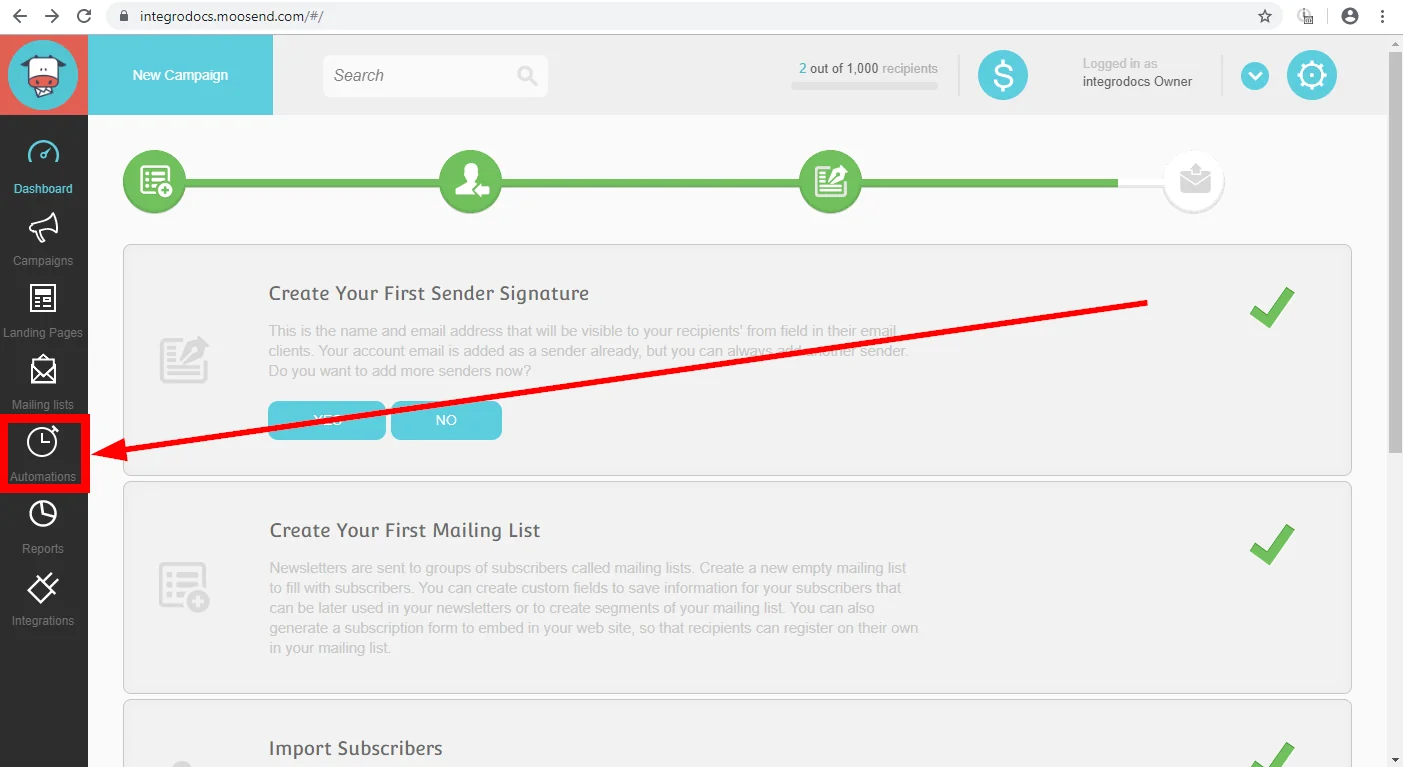

Go to Automations from the menu on the left.
-
Click on the Create new automation button.
-
Click on the Create a custom automation button.
-

Click on the Select your trigger box and select the event that triggers the automation, e.g. When someone subscribes to any list. Set the trigger and save the settings.
-
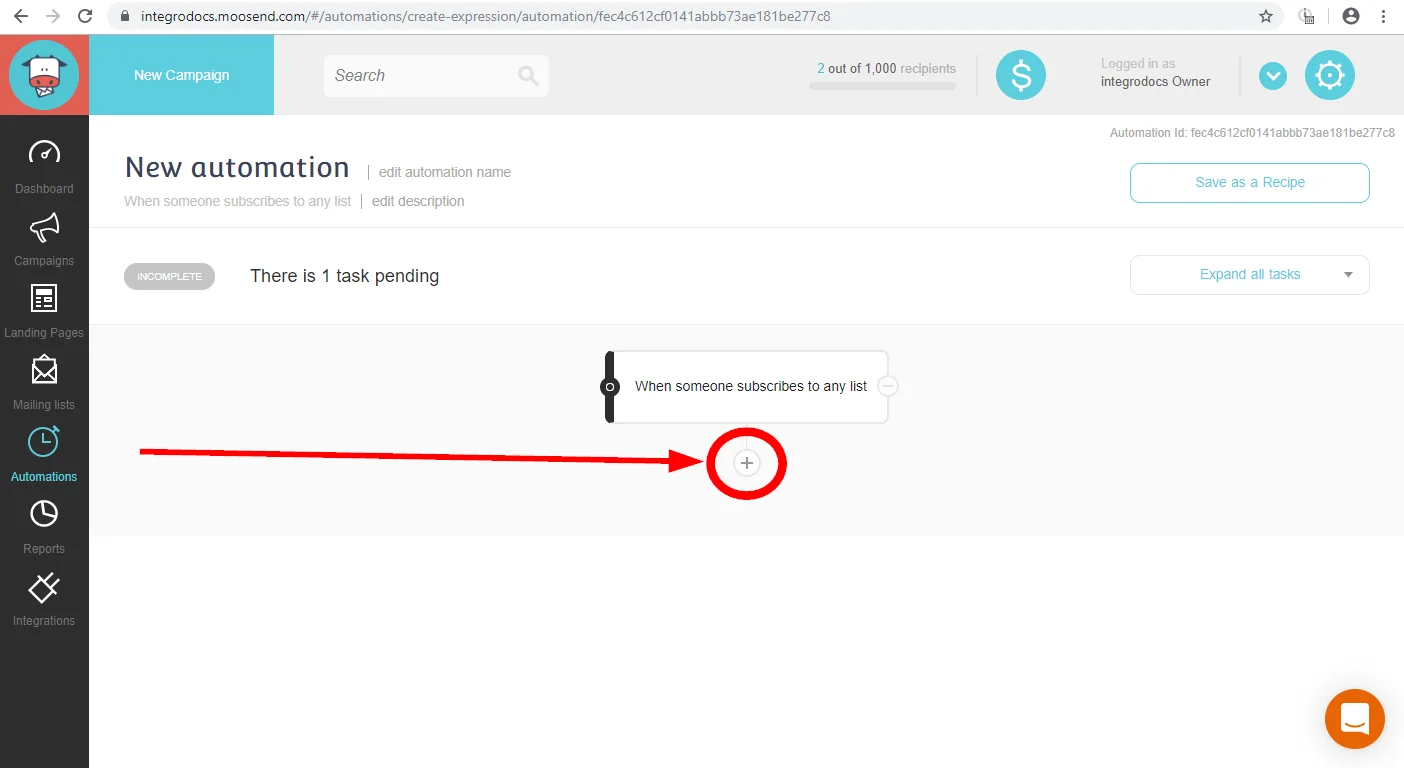
Click on the plus icon to add the next step to the automation.
-

Open the Actions tab and select the Then post a webhook action.
-
Paste the address copied in step 3 in the Adding the Watch Events Trigger to the Scenario section to the Webhook URL field and click the Save button.
-
Activate the created automation.

Now, when the subscriber is added to the list, the Watch Events module in your Boost.space Integrator scenario is triggered.
It may take a while to receive the data in the Boost.space Integrator scenario. This is not caused by Boost.space Integrator, but by the 3rd party (Moosend) servers.
Watch New Subscribers
Returns subscriber details when a new subscriber is added to the list.
Connection
Establish a connection to your Moosend account.
Mailing List ID
Select the mailing list you want to watch for new subscribers.
Limit
Set the maximum number of results Boost.space Integrator will return during one execution cycle.
Actions
Create a Subscriber
Adds a new subscriber to the specified mailing list.
When you add the already existing subscriber (the existing email) in the subscribed status, the subscriber details will be updated. When the existing subscriber has a different status, the validation error is returned.
Connection
Establish a connection to your Moosend account.
Mailing List ID
Select the mailing list you want to watch for new subscribers.
Email Address
Enter the email address of the subscriber (member).
Name
Enter the name of the subscriber.
Has External Double Opt-In
When this option is enabled, it flags the added subscriber as having given their subscription consent by other means.
Custom Fields
Enter the value for the custom fields.
Unsubscribe a Member
Unsubscribes a subscriber from the specified mailing list.
The subscriber is not deleted, but moved to the suppression list.
Connection
Establish a connection to your Moosend account.
Email Address
Enter the email address of the subscriber (member) you want to remove from the mailing list.
Mailing List ID
Select the mailing list you want to unsubscribe the subscriber from. If left empty, the subscriber is unsubscribed from all lists.
Update a Subscriber
Updates a specific subscriber.
Connection
Establish a connection to your Moosend account.
Mailing List ID
Select the mailing list you want to remove a subscriber from.
Subscriber ID
Enter (map) or select the subscriber you want to update.
Please find the descriptions of the fields in the Create a Subscriber section above.
Get a Subscriber
Retrieves subscriber details.
Connection
Establish a connection to your Moosend account.
Mailing List ID
Select the mailing list you want to remove a subscriber from.
Retrieve By
Select whether you want to specify the subscriber by email or ID.
Subscriber ID/Email
Enter (map) or select the subscriber you want to retrieve details about.
Remove a Subscriber
Removes a subscriber from the specified mailing list permanently (without moving to the suppression list).
Connection
Establish a connection to your Moosend account.
Mailing List ID
Select the mailing list you want to remove the subscriber from.
Enter the email address of the subscriber (member) you want to permanently remove from the mailing list.
Make an API Call
Allows you to perform a custom API call.
Connection
Establish a connection to your Moosend account.
URL
Enter a path relative to https://api.moosend.com. E.g. /v3/lists.json
For the list of available endpoints, refer to the Moosend API Documentation.
Method
Select the HTTP method you want to use:
GET
to retrieve information for an entry.
POST
to create a new entry.
PUT
to update/replace an existing entry.
PATCH
to make a partial entry update.
DELETE
to delete an entry.
Headers
Enter the desired request headers. You don’t have to add authorization headers; we already did that for you.
Query String
Enter the request query string.
Body
Enter the body content for your API call.
Example of Use – List Subscribers From the Mailing List
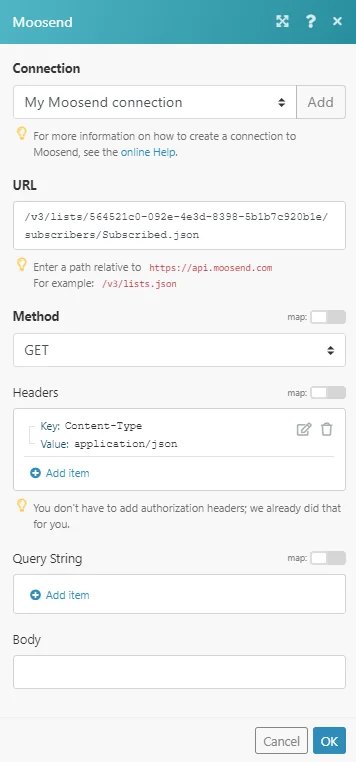
The following API call returns all subscribers from the specified mailing list in your Moosend account:
URL: /v3/lists/564521c0-092e-4e3d-8398-5b1b7c920b1e/subscribers/Subscribed.json (replace the 564521c0-092e-4e3d-8398-5b1b7c920b1e by the ID of the mailing list you want to retrieve subscribers from.)
Method:
GET
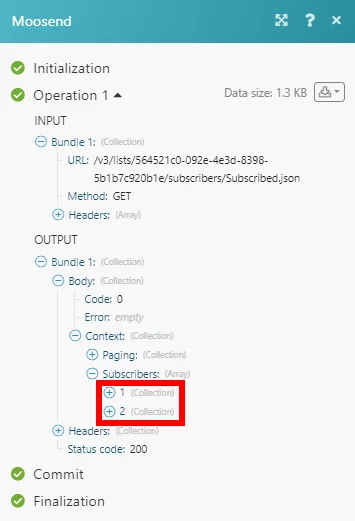
Matches of the search can be found in the module’s Output under Bundle > Body > Context > Subscribers.
In our example, 2 subscribers were returned:
Searches
List Subscribers
Retrieves subscribers from the specified mailing list.
Connection
Establish a connection to your Moosend account.
Mailing List ID
Select the mailing list you want to retrieve subscribers from.
Status
Select the status of the subscribers that you want to retrieve.
Number of subscribers to return
Set the maximum number of subscribers Boost.space Integrator will return during one execution cycle.
List Mailing Lists
Returns all mailing lists in your account.
Connection
Establish a connection to your Moosend account.
Number of mailing lists to return
Set the maximum number of mailing lists Boost.space Integrator will return during one execution cycle.
Legacy article, imported from the original Boost.space knowledge base (/knowledge-base/applications/marketing/moosend/).

