Postmark
The Postmark modules enable you to monitor emails, send and list emails or retrieve bounces and manage statistics in your Postmark account.
Getting Started with Postmark
Prerequisites
- A Postmark account
In order to use Postmark with Boost.space Integrator, it is necessary to have a Postmark account. If you do not have one, you can create a Postmark account at Postmark.
The module dialog fields that are displayed in bold (in the Boost.space Integrator scenario, not in this documentation article) are mandatory!
Connecting Postmark to Boost.space Integrator
To connect your Postmark account to Boost.space Integrator you need to obtain your Server API token for most of the modules and Account API token for the Watch Inbound Emails module.
Retrieving the Server API Token
-
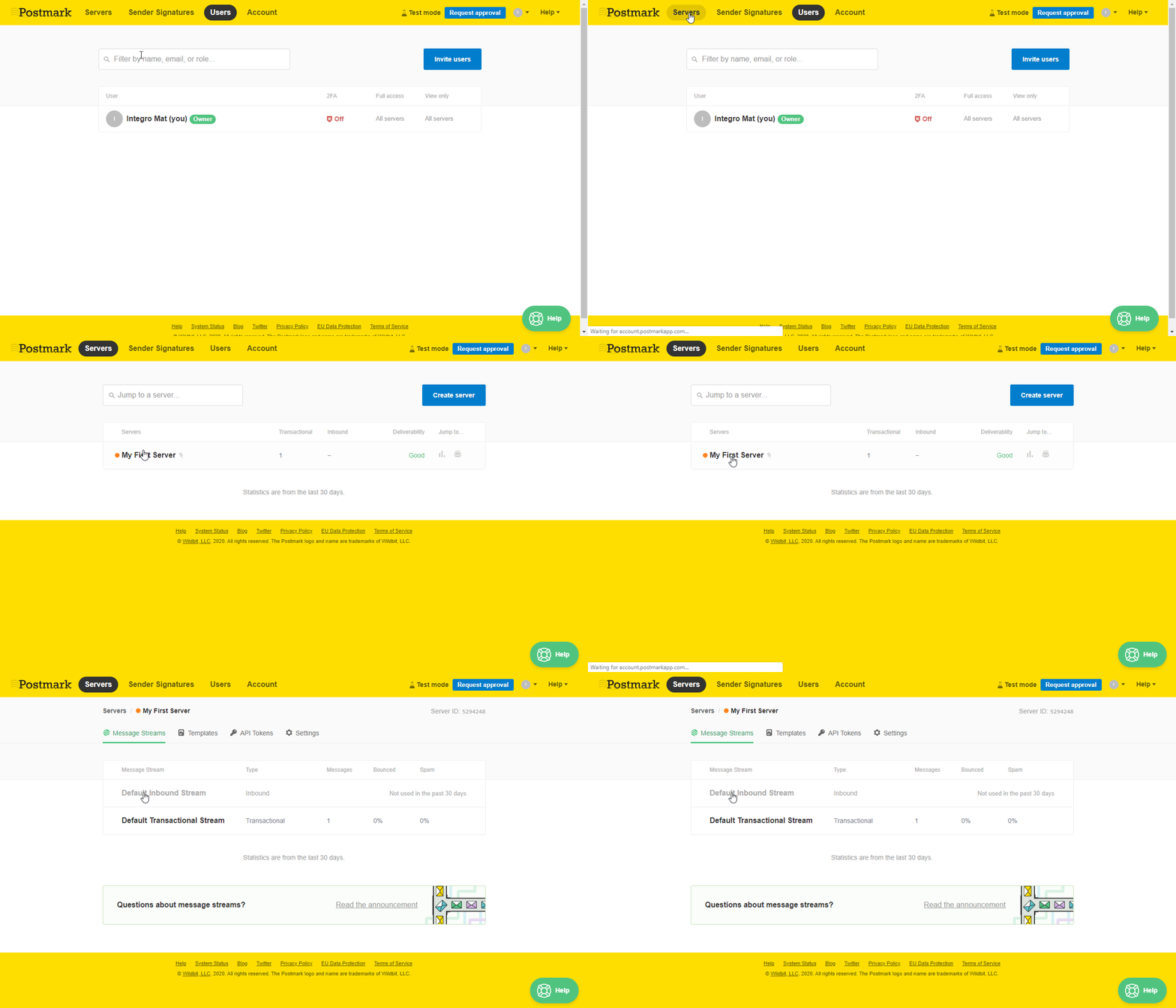
Log in to your Postmark account.
-
Go to Servers and select the server you want to use.
-
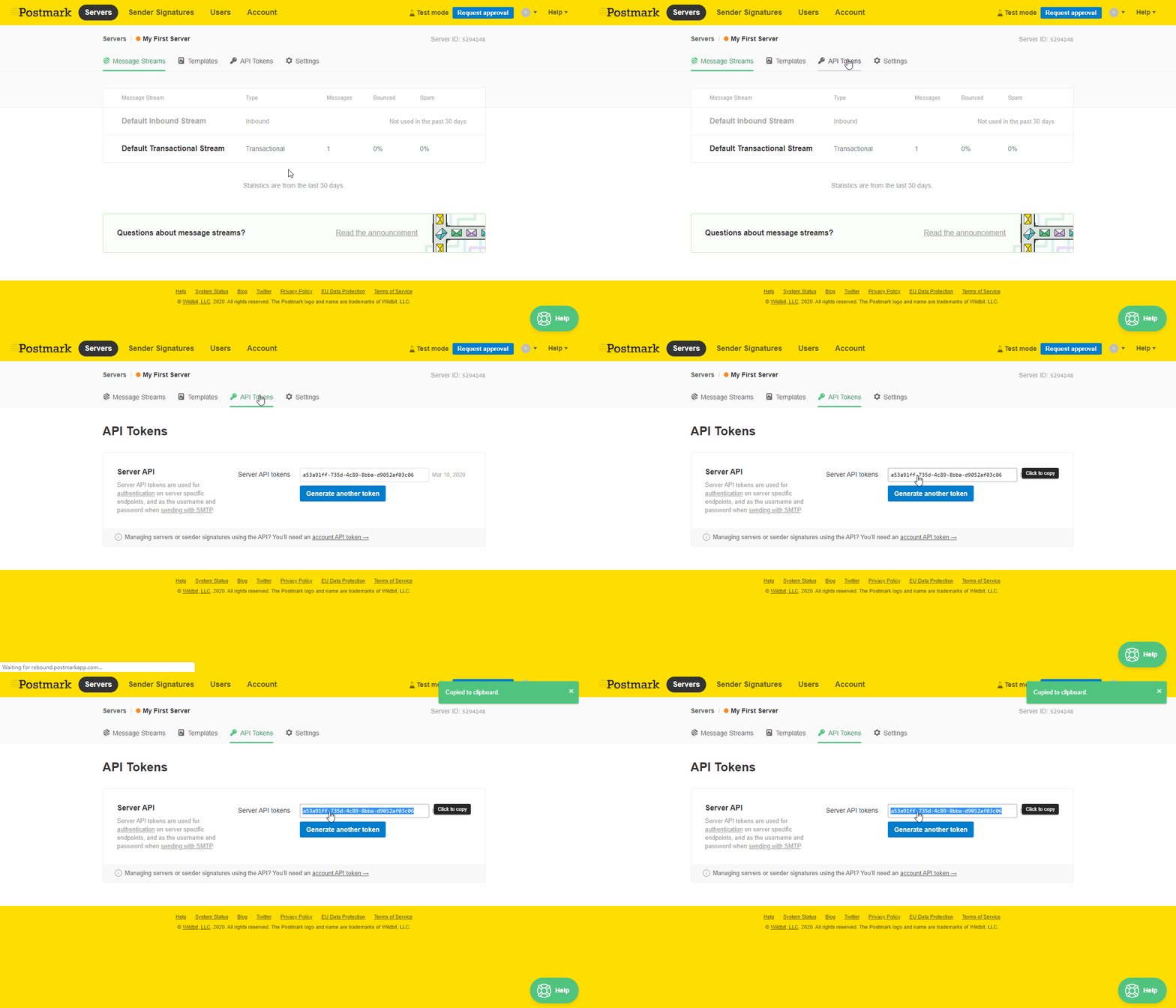
Go to the API Tokens tab and copy the provided Server API Token.
Retrieving the Account API Token (for the Watch Inbound Emails module)
-
Log in to your Postmark account.
-
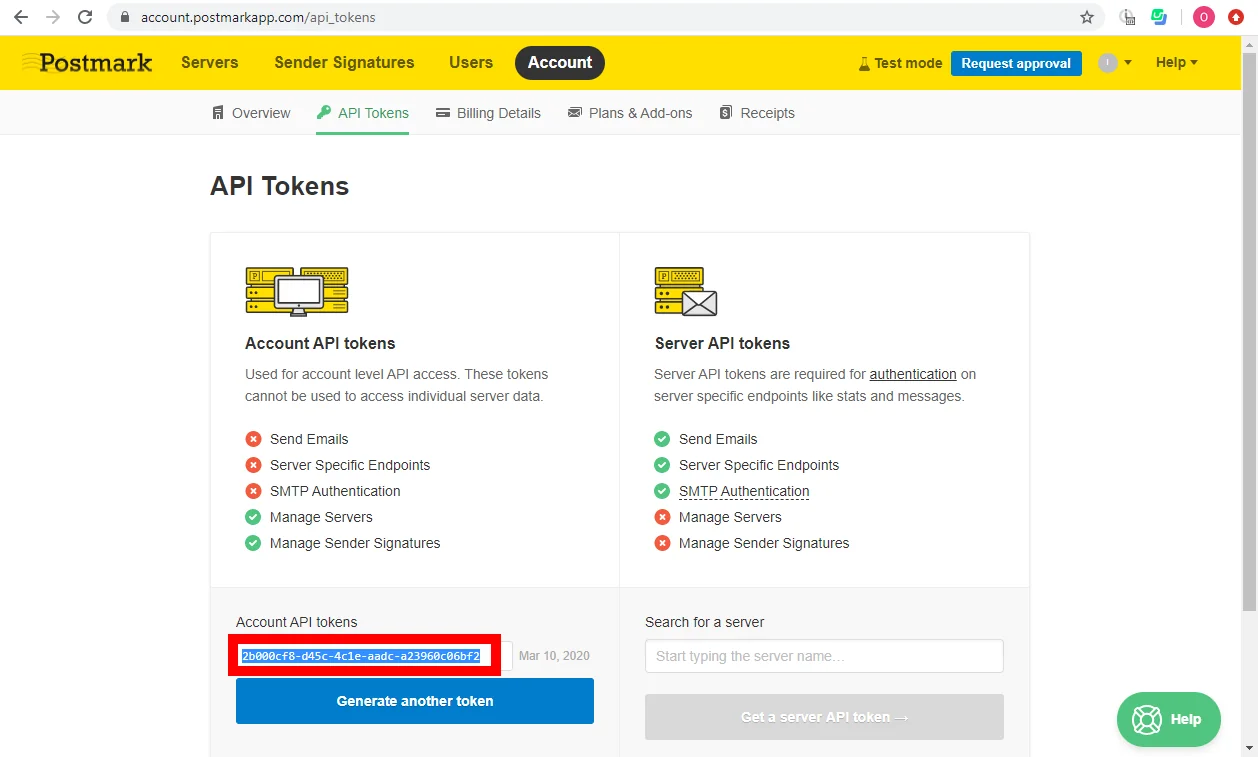
Go to Account and open the API Tokens tab.
-
Copy the provided Account API Token.
Emails
Watch Inbound Emails
Triggers when a new inbound email is received.
Webhook Name
Enter the name for the webhook.
Connection
Establish a connection to your Postmark account using the Account API Token.
API or Web Platform
Select whether you want set the webhook automatically using the API or manually using the Postmark web platform.
-
API The URL will be added to the server selected below automatically.
When a new webhook is created, the URL is overwritten in the server settings.
Web PlatformYou have to add the URL to the Postmark manually. 1.
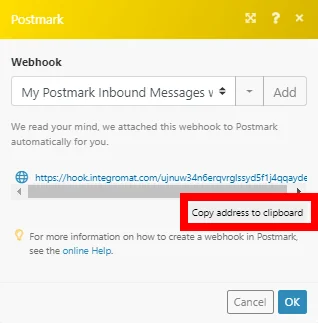
1. Click the Show address button (
) and copy the provided URL.
2. Log in to Postmark.
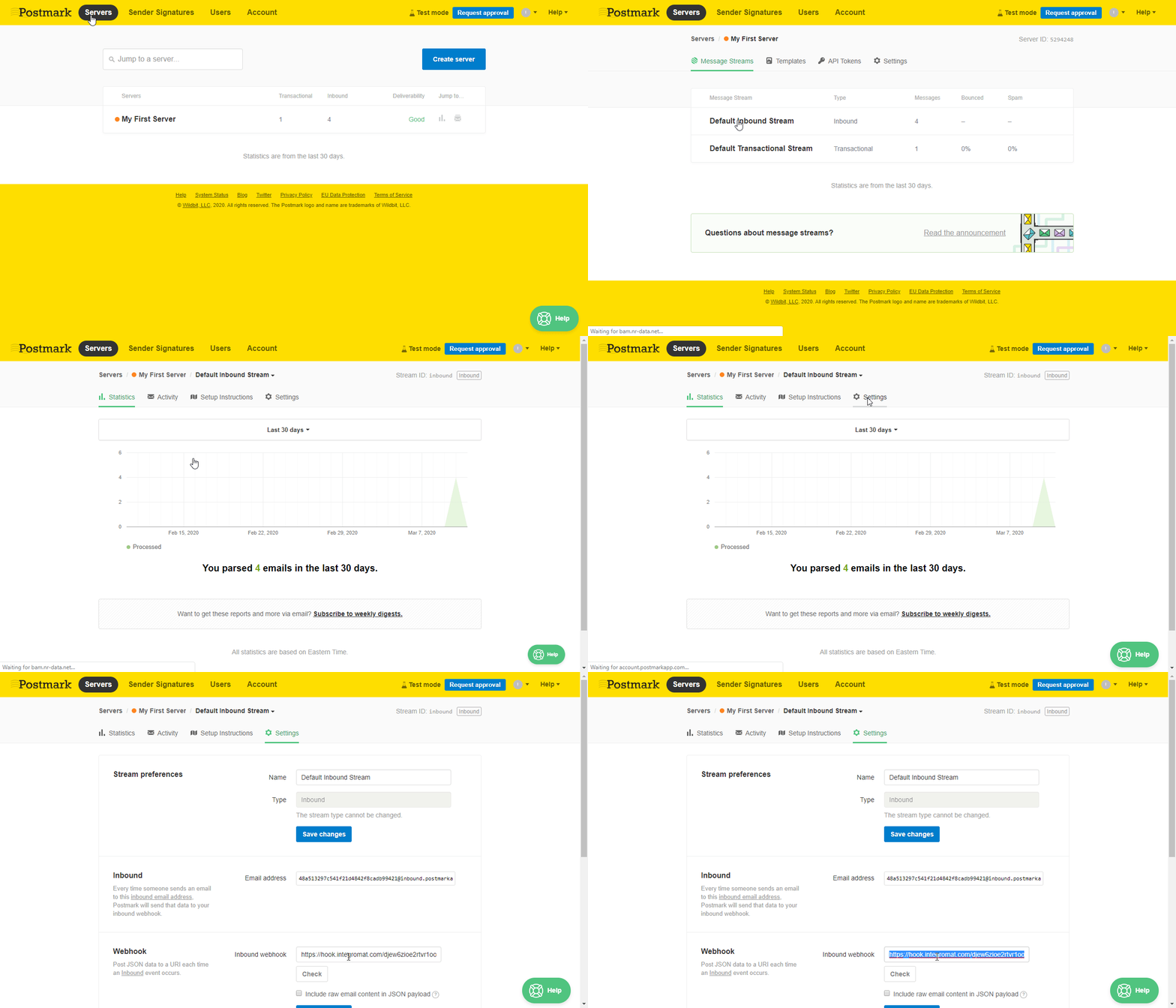
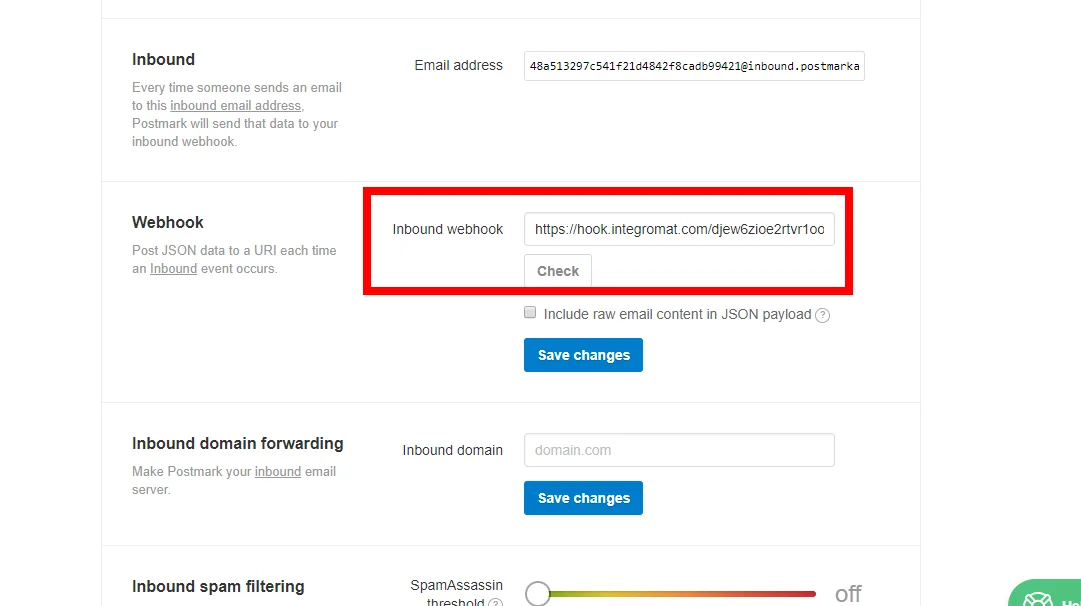
3. Go to Servers > your server > Inbound Stream > Settings tab.
4. Enter the URL copied in step 1 to the Inbound webhook field and click the Save changes button.
Select Server
Select the server where you want to add the hook URL to.
Watch Outbound Events
Triggers when a specified event occurs.
Webhook Name
Enter the name for the webhook.
Connection
Establish a connection to your Postmark account.
API or Web Platform
Select whether you want set the webhook automatically using the API or manually using the Postmark web platform.
-
API The URL will be added to the server automatically.
When a new webhook is created, the URL is overwritten in the server settings. Select events that will trigger the module.
Web PlatformYou have to add the URL to the Postmark manually.
1. Click the Show address button (
2. Log in to Postmark.
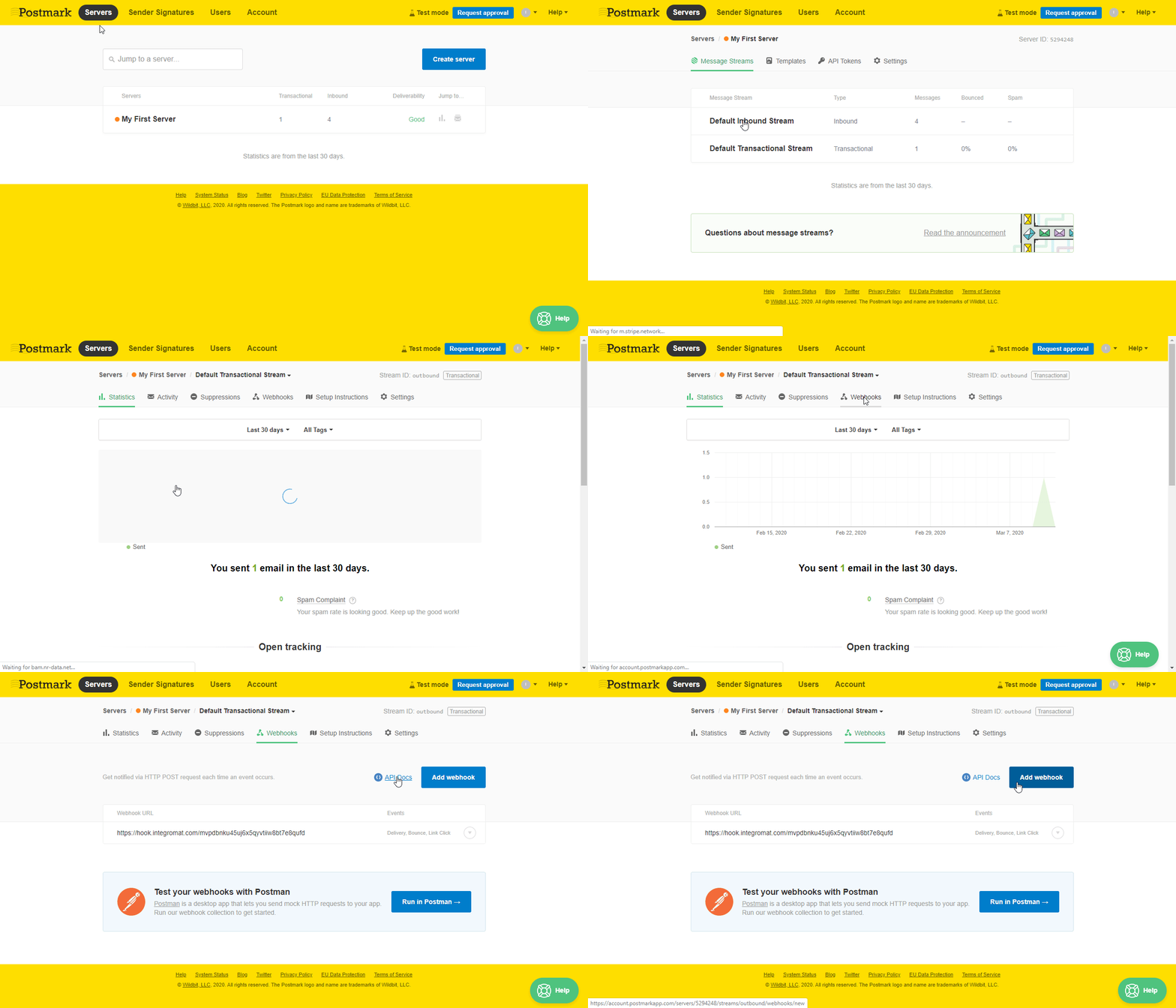
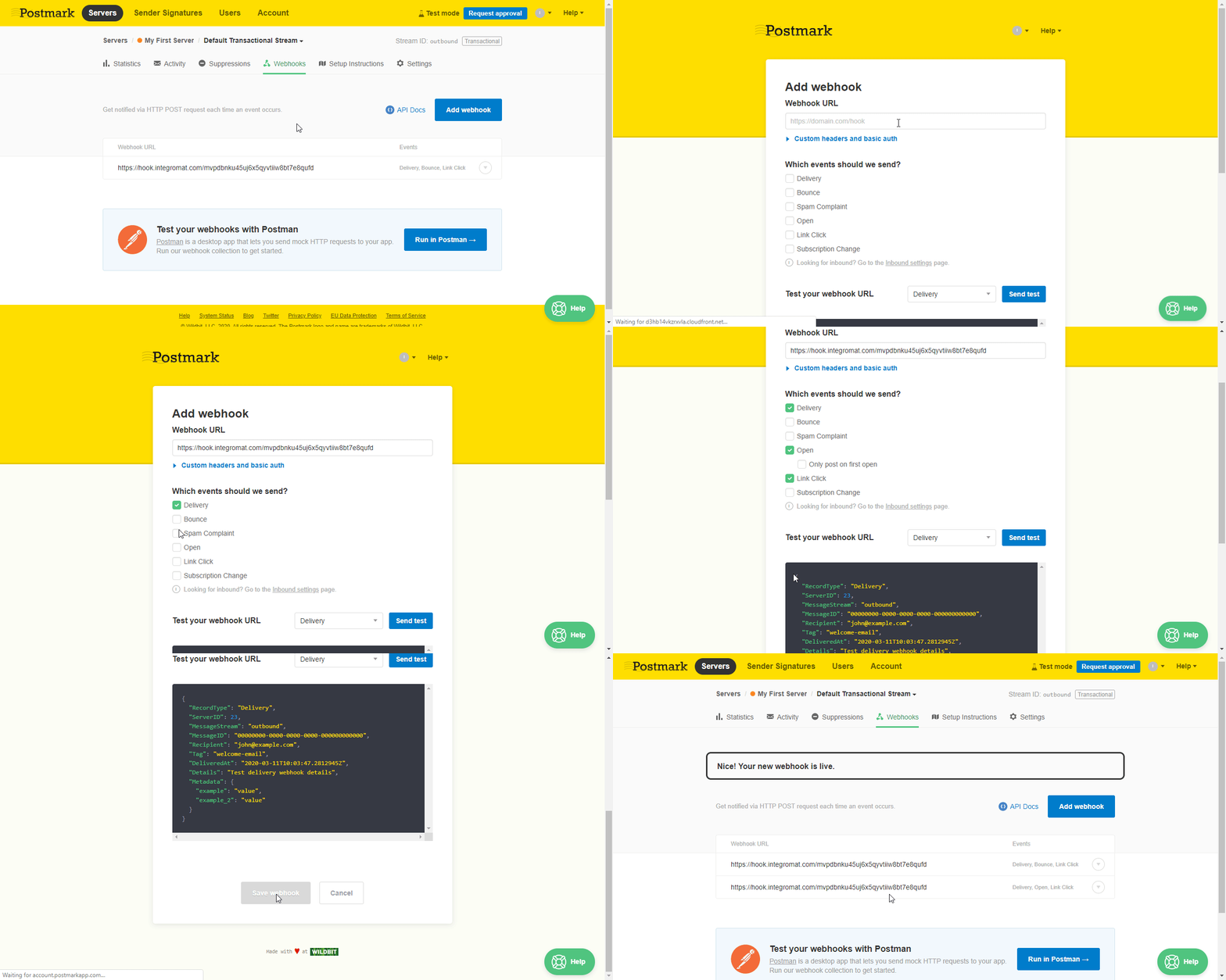
3. Go to Servers > your server > Transactional Stream > Webhooks tab.
4. Enter the URL copied in step 1 to the Webhook URL field, select events that will trigger the module and click the Save webhook button.
Watch Bounced Emails
Triggers when bounces are received.
Webhook Name
Enter the name for the webhook.
Connection
Establish a connection to your Postmark account.
API or Web Platform
Select whether you want set the webhook automatically using the API or manually using the Postmark web platform.
-
API The URL will be added to the server automatically.
When a new webhook is created, the URL is overwritten in the server settings. Select events that will trigger the module.
Web PlatformAdd the URL to the Postmark manually.
1. Click the Show address button (
2. Log in to Postmark.
3. Go to Servers > your server > Transactional Stream > Webhooks tab.
4. Enter the URL copied in step 1 to the Webhook URL field, select events that will trigger the module and click the Save webhook button.
Include bounce content
Includes the message content to the sent data set.
Watch Opened Emails
Triggers when a sent email is opened by recipients.
Webhook Name
Enter the name for the webhook.
Connection
Establish a connection to your Postmark account.
API or Web Platform
Select whether you want set the webhook automatically using the API or manually using the Postmark web platform.
-
API The URL will be added to the server automatically.
When a new webhook is created, the URL is overwritten in the server settings. Select events that will trigger the module.
Web PlatformAdd the URL to the Postmark manually.
1. Click the Show address button (
2. Log in to Postmark.
3. Go to Servers > your server > Transactional Stream > Webhooks tab.
4. Enter the URL copied in step 1 to the Webhook URL field, select events that will trigger the module and click the Save webhook button.
Post First Open Only
Select the Yes option to send only the first open to the webhook. Defaults: No (all opens).
Watch Delivered Emails
Triggers when an email has been delivered successfully.
Webhook Name
Enter the name for the webhook.
Connection
Establish a connection to your Postmark account.
API or Web Platform
Select whether you want set the webhook automatically using the API or manually using the Postmark web platform.
-
API The URL will be added to the server automatically.
When a new webhook is created, the URL is overwritten in the server settings. Select events that will trigger the module.
Web PlatformAdd the URL to the Postmark manually.
1. Click the Show address button (
2. Log in to Postmark.
3. Go to Servers > your server > Transactional Stream > Webhooks tab.
4. Enter the URL copied in step 1 to the Webhook URL field, select events that will trigger the module and click the Save webhook button.
Watch Clicked Emails
Triggers when a tracked link is clicked.
Webhook Name
Enter the name for the webhook.
Connection
Establish a connection to your Postmark account.
API or Web Platform
Select whether you want set the webhook automatically using the API or manually using the Postmark web platform.
-
API The URL will be added to the server automatically.
When a new webhook is created, the URL is overwritten in the server settings. Select events that will trigger the module.
Web Platform Add the URL to the Postmark manually.
1. Click the Show address button (
2. Log in to Postmark.
3. Go to Servers > your server > Transactional Stream > Webhooks tab.
4. Enter the URL copied in step 1 to the Webhook URL field, select events that will trigger the module and click the Save webhook button.
Watch Spam Complaints
Triggers when a user marks the email as a spam in his/her email client.
Webhook Name
Enter the name for the webhook.
Connection
Establish a connection to your Postmark account.
API or Web Platform
Select whether you want set the webhook automatically using the API or manually using the Postmark web platform.
-
API The URL will be added to the server automatically.
When a new webhook is created, the URL is overwritten in the server settings. Select events that will trigger the module.
Web PlatformAdd the URL to the Postmark manually. 1. Click the Show address button (
2. Log in to Postmark.
3. Go to Servers > your server > Transactional Stream > Webhooks tab.
4. Enter the URL copied in step 1 to the Webhook URL field, select events that will trigger the module and click the Save webhook button.
Include Spam Content
Includes the message content.
Watch Subscription Change
Triggers when an email address is added or removed from the suppression list. Recipients on the suppression list cannot receive emails on this message stream. Recipients who unsubscribe, hard bounce, or mark your emails as spam are automatically added to this list.
Webhook Name
Enter the name for the webhook.
Connection
Establish a connection to your Postmark account.
API or Web Platform
Select whether you want set the webhook automatically using API or manually using the Postmark web platform.
-
API The URL will be added to the server automatically.
When a new webhook is created, the URL is overwritten in the server settings. Select events that will trigger the module.
Web PlatformAdd the URL to the Postmark manually.
1. Click the Show address button (
2. Log in to Postmark.
3. Go to Servers > your server > Transactional Stream > Webhooks tab.
4. Enter the URL copied in step 1 to the Webhook URL field, select events that will trigger the module and click the Save webhook button.
List Outbound Emails
Retrieves outbound emails from the server by filter settings.
Connection
Establish a connection to your Postmark account.
Recipient
Enter the recipient’s email address to filter by the user who was receiving the email.
Sender
Enter the email address to filter emails by the sender.
Subject
Enter the subject you want to filter emails by.
Tag
Enter the tag you want to filter emails by.
Status
Select whether you want to return sent or queued emails.
From Date
Filter messages starting from the date specified (inclusive). E.g. 2014-02-01
To Date
Filter messages up to the date specified (inclusive). e.g. 2014-02-01
Limit
Set the maximum number of emails Boost.space Integrator will return during one execution cycle.
Get an Outbound Email’s Details
Retrieves outbound message details.
Connection
Establish a connection to your Postmark account.
Email ID
Enter (map) or select the email you want to retrieve details about.
Send an Email
Sends an email. You can use the template while sending the email.
Connection
Establish a connection to your Postmark account.
Default Email or Template
Select whether you want to send a default email or email using a template.
Select Template By
Select if you want to specify template by ID or by Alias.
Enter (map) the template ID or template alias in the field below.
Template Model
The model to be applied to the specified template to generate Html Body, Text Body, and Subject. This can be done by entering the dynamically retrieved fields or entering the individual key-value pairs or enter a complete JSON.
Dynamic Template/Template Variables/Template Collection
Enter the values to the template.
Inline CSS
By default, if the specified template contains an HTMLBody, we will apply the style blocks as inline attributes to the rendered HTML content. You may opt-out of this behavior by selecting the No option.
Email Subject
Enter the subject of the email.
HTML Body
Enter the email body content in HTML format. Either Text Body or HTML Body needs to be filled in. Both are allowed too.
Text Body
Enter the email body content in plain text format. Either Text Body or HTML Body needs to be filled in. Both are allowed too.
From
Enter the sender’s email address. It must have a registered and confirmed Sender Signature.
To
Enter the recipient’s email address. You can enter up to 50 comma-separated email addresses.
Cc
Enter the carbon copy email address. You can enter up to 50 comma-separated email addresses.
Bcc
Enter the blind carbon copy email address. You can enter up to 50 comma-separated email addresses.
Tag
Enter the tag you want to tag the email with. Email tag allows you to categorize outgoing emails and get detailed statistics. Only one tag can be added to an email.
Reply To
Enter the Reply To email address.
Overrides the ‘Reply To’ email address. Defaults to the ‘Reply To’ set in the sender signature.
Track Opens
Select the Yes option to enable tracking of opened emails.
Track Links
Select an option to activate link tracking for links in the HTML or Text bodies of this email. Possible options: None Html And Text Html Only Text Only
Meta Data
Enter the key-value pairs to specify the meta data.
You can associate up to 10 meta data fields per message. The field name is limited to 20 characters, while the value field is limited to 80 characters.
Attachments
Add attachments. Max 10 MB. Please see Postmark Attachment Documentation.
Map the file you want to upload from the previous module (e.g. HTTP > Get a File or Dropbox > Get a file), or enter the file name and file data manually.
Inline Attachment Content ID
To have an inline attachment, fill in the Content ID (CID) used in the HTML. For example if the HTML contains cid:integromatlogo1645. Enter integromatlogoid1645 in this field.
If you are referring to an attached image more than once in your message, it is only required to attach the image one time. Postmark will use the image as often as it is referred to in your HTML markup. This will save bandwidth against the attachment size limit.
List an Email’s Opens
Retrieves details about an email open.
Opens tracking must be enabled. Only HTML emails can be tracked.
If the selected email has not been opened, an error ‘This message was not found.’ is returned.
Connection
Establish a connection to your Postmark account.
Email ID
Enter (map) or select the email you want to track.
Limit
Set the maximum number of opens Boost.space Integrator will return during one execution cycle.
List an Email’s Clicks
Retrieves details about an email click.
Click tracking must be enabled. Only HTML emails can be tracked. If the selected email has not been clicked, an error ‘This message was not found.’ is returned.
Connection
Establish a connection to your Postmark account.
Email ID
Enter (map) or select the email you want to track.
Limit
Set the maximum number of clicks Boost.space Integrator will return during one execution cycle.
List Inbound Emails
Retrieves all inbound emails to the server in the last 45 days by the filter settings.
Connection
Establish a connection to your Postmark account.
Recipient
Enter the recipient’s email address to filter by the user who was receiving the email.
Sender
Enter the email address to filter emails by the sender.
Subject
Enter the subject you want to filter emails by.
Tag
Enter the tag you want to filter emails by.
Mailbox Hash
Filter by mailbox hash.
Status
Select whether you want to return sent or queued emails.
From Date
Filter messages starting from the date specified (inclusive). E.g. 2014-02-01
To Date
Filter messages up to the date specified (inclusive). e.g. 2014-02-01
Limit
Set the maximum number of emails Boost.space Integrator will return during one execution cycle.
Get an Inbound Email’s Details
Retrieves inbound email details.
Connection
Establish a connection to your Postmark account.
Email ID
Enter (map) or select the email message you want to retrieve details about.
Bounces
List Bounces
Retrieves bounces based on filter settings.
Connection
Establish a connection to your Postmark account.
Filter By Type
Filter returned bounces by type. See the list of types.
Filter by Inactivity
Filter by emails that were deactivated by Postmark due to the bounce. Select the Yes option to retrieve the also inactive emails.
If this isn’t specified it will return both active and inactive.
Filter by the ‘To’ Email Address
Filter by email address that bounced.
Filter by Tag
Enter the tag name you want to filter bounced emails by.
Filter by Email ID
Filter ID of the message.
From Date
Filter messages starting from the date specified (inclusive). E.g. 2014-02-01. SeeThe list of supported date formats. Time elements will be ignored.
To Date
Filter messages up to the date specified (inclusive). E.g. 2020-02-01. See the list of supported date formats.
Limit
Set the maximum number of bounces Boost.space Integrator will return during one execution cycle.
Get a Bounce
Retrieves bounce details.
Connection
Establish a connection to your Postmark account.
Bounce ID
Enter (map) or select the bounce you want to retrieve details about.
Get a Bounce Dump
Retrieves a raw source of the specified bounce.
Connection
Establish a connection to your Postmark account.
Bounce ID
Enter (map) or select the bounce whose dump you want to retrieve details about.
Activate a Bounce
Reactivates a Bounce
Connection
Establish a connection to your Postmark account.
Bounce ID
Enter (map) or select the bounce you want to activate.
Statistics
Get Delivery Statistics
Retrieves bounce statistics of the server.
Connection
Establish a connection to your Postmark account.
Get Outbound Emails Statistics
Retrieves a brief overview of statistics for all of your outbound emails.
Connection
Establish a connection to your Postmark account.
Tag
Enter the tag to filter results by.
From Date
Filter stats starting from the date specified (inclusive). E.g. 2014-02-01. See the list of supported date formats.
To Date
Filter stats starting from the date specified (inclusive). E.g. 2020-01-01. See the list of supported date formats.
Get Sent Emails Statistics
Retrieves the total count of emails you’ve sent out.
Connection
Establish a connection to your Postmark account.
Tag
Enter the tag to filter results by.
From Date
Filter stats starting from the date specified (inclusive). E.g. 2014-02-01. See the list of supported date formats.
To Date
Filter stats starting from the date specified (inclusive). E.g. 2020-01-01. See the list of supported date formats.
Get Bounced Emails Statistics
Retrieves total counts of emails you’ve sent out that have been returned as bounced.
Connection
Establish a connection to your Postmark account.
Tag
Enter the tag to filter results by.
From Date
Filter stats starting from the date specified (inclusive). E.g. 2014-02-01. See the list of supported date formats.
To Date
Filter stats starting from the date specified (inclusive). E.g. 2020-01-01. See the list of supported date formats.
Get Spam Complaints Statistics
Retrieves a total count of recipients who has marked your email as spam.
Connection
Establish a connection to your Postmark account.
Tag
Enter the tag to filter results by.
From Date
Filter stats starting from the date specified (inclusive). E.g. 2014-02-01. See the list of supported date formats.
To Date
Filter stats starting from the date specified (inclusive). E.g. 2020-01-01. See the list of supported date formats.
Get Tracked Emails Statistics
Retrieves a total count of emails you’ve sent with open tracking or link tracking enabled.
Connection
Establish a connection to your Postmark account.
Tag
Enter the tag to filter results by.
From Date
Filter stats starting from the date specified (inclusive). E.g. 2014-02-01. See the list of supported date formats.
To Date
Filter stats starting from the date specified (inclusive). E.g. 2020-01-01. See the list of supported date formats.
Get Opened Emails Statistics
Retrieves total counts of recipients who opened your emails. This is only recorded when open tracking is enabled for that email.
Connection
Establish a connection to your Postmark account.
Tag
Enter the tag to filter results by.
From Date
Filter stats starting from the date specified (inclusive). E.g. 2014-02-01. See the list of supported date formats.
To Date
Filter stats starting from the date specified (inclusive). E.g. 2020-01-01. See the list of supported date formats.
Get Email Platform Usage Statistics
Retrieves an overview of the platforms used to open your emails. This is only recorded when open tracking is enabled for that email.
Connection
Establish a connection to your Postmark account.
Tag
Enter the tag to filter results by.
From Date
Filter stats starting from the date specified (inclusive). E.g. 2014-02-01. See the list of supported date formats.
To Date
Filter stats starting from the date specified (inclusive). E.g. 2020-01-01. See the list of supported date formats.
Get Email Client Usage Statistics
Retrieves an overview of the email clients used to open your emails. This is only recorded when open tracking is enabled for that email.
Connection
Establish a connection to your Postmark account.
Tag
Enter the tag to filter results by.
From Date
Filter stats starting from the date specified (inclusive). E.g. 2014-02-01. See the list of supported date formats.
To Date
Filter stats starting from the date specified (inclusive). E.g. 2020-01-01. See the list of supported date formats.
Get Link Clicks Statistics
Retrieves total counts of unique links that were clicked.
Connection
Establish a connection to your Postmark account.
Tag
Enter the tag to filter results by.
From Date
Filter stats starting from the date specified (inclusive). E.g. 2014-02-01. See the list of supported date formats.
To Date
Filter stats starting from the date specified (inclusive). E.g. 2020-01-01. See the list of supported date formats.
Get Browser Usage Statistics
Retrieves an overview of the browsers used to open links in your emails. This is only recorded when Link Tracking is enabled for that email.
Connection
Establish a connection to your Postmark account.
Tag
Enter the tag to filter results by.
From Date
Filter stats starting from the date specified (inclusive). E.g. 2014-02-01. See the list of supported date formats.
To Date
Filter stats starting from the date specified (inclusive). E.g. 2020-01-01. See the list of supported date formats.
Get Browser Platform Usage Statistics
Retrieves an overview of the browser platforms used to open your emails. This is only recorded when Link Tracking is enabled for that email.
Connection
Establish a connection to your Postmark account.
Tag
Enter the tag to filter results by.
From Date
Filter stats starting from the date specified (inclusive). E.g. 2014-02-01. See the list of supported date formats.
To Date
Filter stats starting from the date specified (inclusive). E.g. 2020-01-01. See the list of supported date formats.
Get Click Location Statistics
Retrieves an overview of which part of the email links were clicked from (HTML or Text). This is only recorded when Link Tracking is enabled for that email.
Connection
Establish a connection to your Postmark account.
Tag
Enter the tag to filter results by.
From Date
Filter stats starting from the date specified (inclusive). E.g. 2014-02-01. See the list of supported date formats.
To Date
Filter stats starting from the date specified (inclusive). E.g. 2020-01-01. See the list of supported date formats.
Make an API Call
Allows you to perform a custom API call.
Connection
Establish a connection to your Postmark account.
URL
Enter a path relative to https://api.postmarkapp.com. For example, /messages/outbound/
For the list of available endpoints, refer to the Postmark API Documentation.
Method
Select the HTTP method you want to use:
GET to retrieve information for an entry**.**
POSTto create a new entry.
PUT to update/replace an existing entry.
PATCHto make a partial entry update.
DELETEto delete an entry.
Headers
Enter the desired request headers. You don’t have to add authorization headers; we already did that for you.
Query String
Enter the request query string.
Body
Enter the body content for your API call.
Example of Use – List Outbound Messages
The following API call returns outbound emails in your Postmark account:
URL: /messages/outbound
Method: GET
Query String:
Key: count Value: 10
Key: offset Value: 0
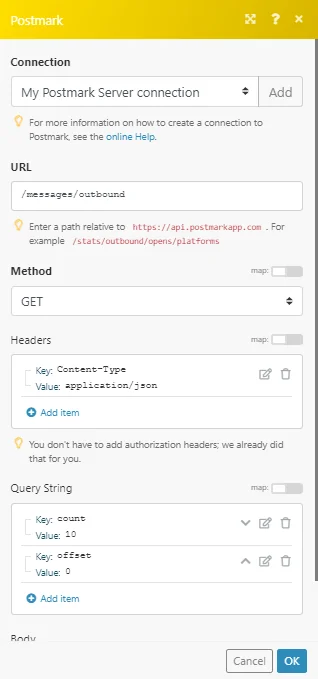
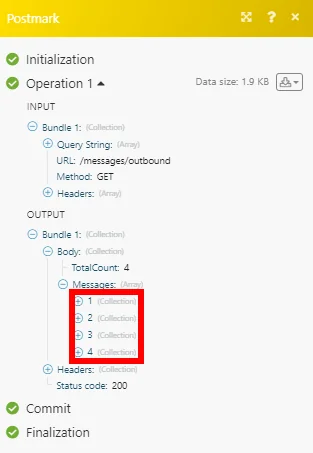
The result can be found in the module’s Output under Bundle > Body > Messages. In our example, 4 messages were returned:
Legacy article, imported from the original Boost.space knowledge base (/knowledge-base/applications/marketing/postmark/).

