Semrush
The Semrush modules allow you to retrieve the overview reports, domain reports, keyword reports, URL reports, backlinks, and projects API in your Semrush account.
Getting Started with Semrush
Prerequisites
- A Semrush account – create an account at semrush.com/.
The module dialog fields that are displayed in bold (in the Boost.space Integrator scenario, not in this documentation article) are mandatory!
Connecting Semrush to Boost.space Integrator
To connect your Semrush account to Boost.space Integrator you need to obtain the API Key from your Semrush account and insert it in the Create a connection dialog in the Boost.space Integrator module.
-
Log in to your Semrush.
-
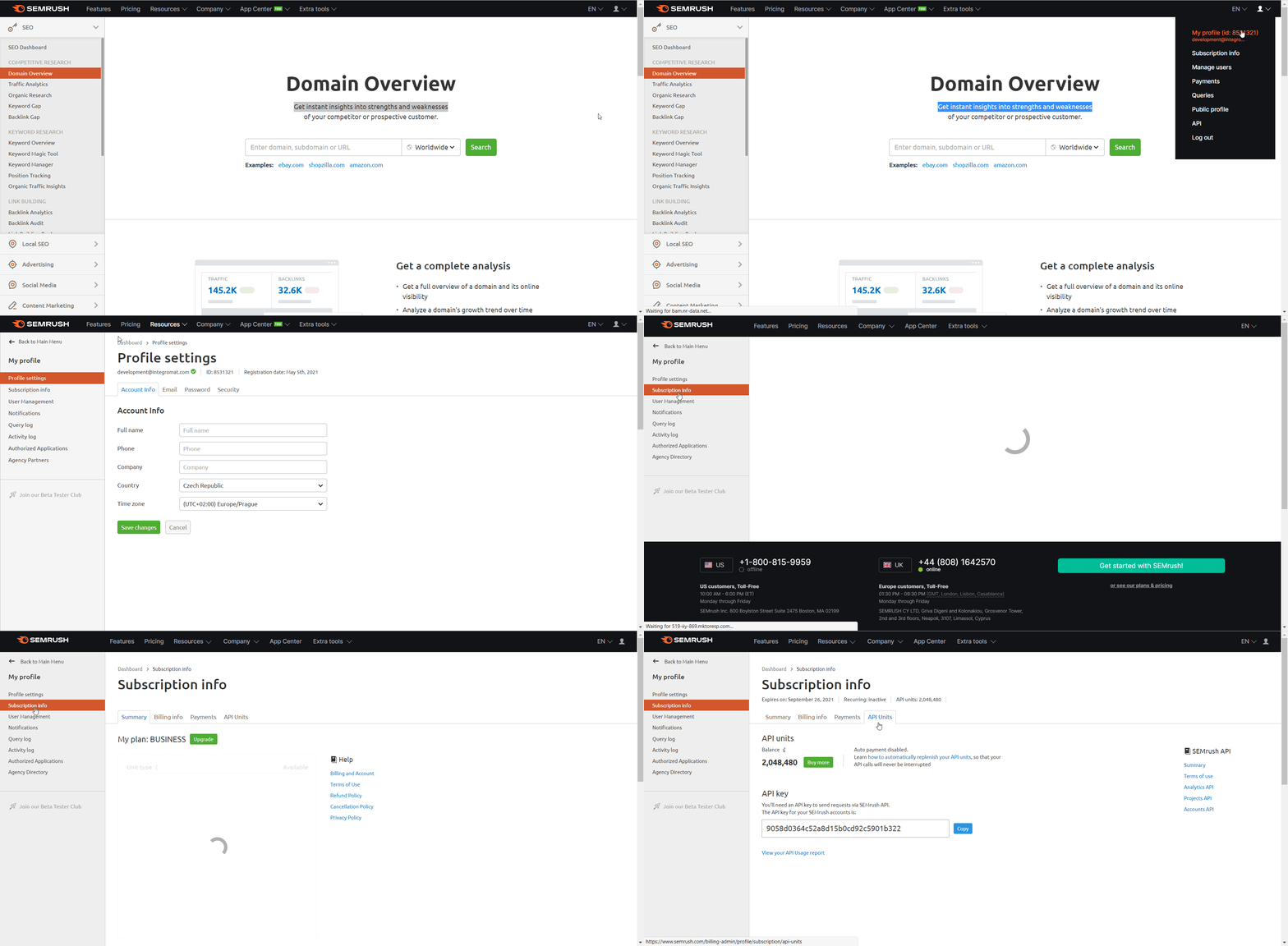
Click Your Profile Icon > My Profile > Subscription Info > API Units.
-
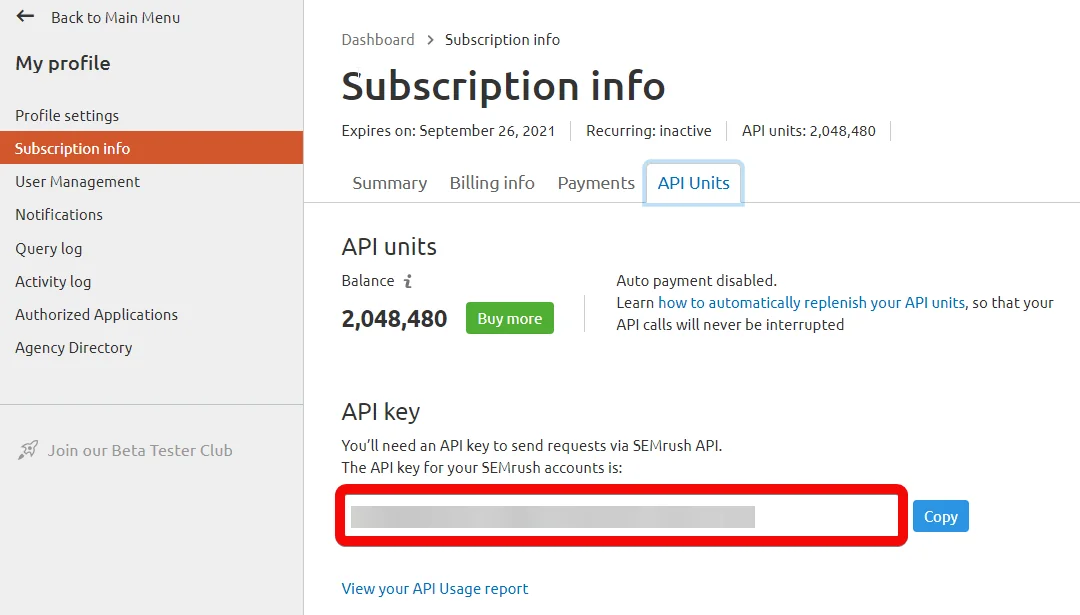
Copy the API Key to your clipboard.
-

Go to Boost.space Integrator and open the Semrush module’s Create a connection dialog.
-
In the Connection name field, enter a name for the connection.
-
In the API Key field, enter the API key copied in step 3, and click Continue.
The connection has been established.
Overview Reports
Get Domain Overview (All Databases)
Provides live or historical data on a domain’s keyword rankings in both organic and paid searches in all regional databases.
Connection
Establish a connection to your Semrush account.
Domain
Enter (map) the domain whose data overview report you want to retrieve. For example, google.com.
Database
Select or map the database whose data you want to retrieve. If no domain is specified, your request will be sent to all regional databases.
Display Date
Enter (map) the date on which you want the report to be shown. For example, 20201215.
Export Columns
Enter (map) the columns separated by a comma that you want to include in the report. For example, Db, Dt, Dn, Rk, Or, Ot, Oc, Ad, At, Ac, Sh, Sv, FKn, FPn.
SERP Features to Rank in
Select or map the SERP features triggered by the keywords that your domain ranks in, to include inExport Columns.
Triggered SERP Features
Select or map the features triggered by the keywords that your domain ranks for to include inExport Columns.
Display Sort
Enter (map) the order by which column you would like to sort your results. Either in ascending or descending order. For example, rk_desc, or_asc, or_desc, ot_asc, ot_desc, oc_asc.
Limit
Set the maximum number of reports Boost.space Integrator should return during one execution cycle.
Get Domain Overview (One Database)
Provides live or historical data on a domain’s keyword rankings in both organic and paid search in a chosen regional database.
Connection
Establish a connection to your Semrush account.
Domain
Enter (map) the domain whose data overview report you want to retrieve. For example, google.com.
Database
Select or map the database whose data you want to retrieve. If no domain is specified, your request will be sent to all regional databases.
Export Code
Select whether you want the response to be sent as a URL-encoded string.
Display Date
Enter (map) the date on which you want the report to be shown. For example, 20201215.
Export Columns
Enter (map) the columns separated by a comma that you want to include in the report. For example, Db, Dt, Dn, Rk, Or, Ot, Oc, Ad, At, Ac, Sh, Sv, FKn, FPn.
SERP Features to Rank in
Select or map the SERP features triggered by the keywords that your domain ranks in, to include inExport Columns.
Triggered SERP Features
Select or map the features triggered by the keywords that your domain ranks for to include inExport Columns.
Display Sort
Enter (map) the order by which column you would like to sort your results. Either in ascending or descending order. For example, rk_desc, or_asc, or_desc, ot_asc, ot_desc, oc_asc.
Limit
Set the maximum number of reports Boost.space Integrator should return during one execution cycle.
Domain Reports
Get Display Organic Search Keywords
Lists keyword that brings users to a domain via Google’s top 100 organic search results.
Connection
Establish a connection to your Semrush account.
Domain
Enter (map) the domain to search based on the keyword provided. For example, google.com.
Database
Select or map the database to search for the keyword provided. If no domain is specified, your request will be sent to all regional databases.
Export Decode
Select whether you want the response to be sent as a URL-encoded string.
Display Date
Enter (map) the date on which you want the report to be shown. For example, 20201215.
Display Positions
Select or map the position to list the results based on the specified position:
-
New: indicates keywords with which a domain entered Google’s top 100 organic or paid search results
-
Lost: indicates keywords that no longer bring a domain to Google’s top 100 organic or paid search results
-
Rise: indicates keywords that helped a domain to get a higher ranking in Google’s top 100 organic or paid search results
-
Fall: indicates keywords that are currently helping a domain remain in the Google top 100, though its ranking may have decreased.
Export Columns
Enter (map) the columns separated by a comma that you want to include in the search results. For example, Title.
Display Sort
Enter (map) the order by which column you would like to sort your results. Either in ascending or descending order. For example, Position Ascending (Po).
Limit
Set the maximum number of keywords Boost.space Integrator should return during one execution cycle.
Get Display Paid Search Keywords
Lists keywords that bring users to a domain via Google’s paid search results.
Connection
Establish a connection to your Semrush account.
Domain
Enter (map) the domain to search based on the keyword provided. For example, google.com.
Database
Select or map the database to search for the keyword provided. If no domain is specified, your request will be sent to all regional databases.
Export Decode
Select whether you want the response to be sent as a URL-encoded string.
Display Date
Enter (map) the date on which you want the report to be shown. For example, 20201215.
Display Positions
Select or map the position to list the results based on the specified position:
-
New: indicates keywords with which a domain entered Google’s top 100 organic or paid search results
-
Lost: indicates keywords that no longer bring a domain to Google’s top 100 organic or paid search results
-
Rise: indicates keywords that helped a domain to get a higher ranking in Google’s top 100 organic or paid search results
-
Fall: indicates keywords that are currently helping a domain remain in the Google top 100, though its ranking may have decreased.
Export Columns
Enter (map) the columns separated by a comma that you want to include in the search results. For example, Title.
Display Sort
Enter (map) the order by which column you would like to sort your results. Either in ascending or descending order. For example, Position Ascending (Po).
Display Filter
Add the filters you want to include or exclude in the results:
Sign
Select or map whether you want to include or exclude the fields.
Field Type
Select or map the field type, field, operator, and the value that you want to include or exclude in the results.
Limit
Set the maximum number of keywords Boost.space Integrator should return during one execution cycle.
Get Competitors in Organic Search
Lists a domain’s competitors in organic search results.
Connection
Establish a connection to your Semrush account.
Domain
Enter (map) the domain to search the keywords based on the keyword provided. For example, google.com.
Database
Select or map the database to search for the keyword provided. If no domain is specified, your request will be sent to all regional databases.
Export Decode
Select whether you want the response to be sent as a URL-encoded string.
Display Date
Enter (map) the date on which you want the report to be shown. For example, 20201215.
Export Columns
Enter (map) the columns separated by a comma that you want to include in the search results. For example, Title.
Display Sort
Enter (map) the order by which column you would like to sort your results. Either in ascending or descending order. For example, .
Limit
Set the maximum number of users Boost.space Integrator should return during one execution cycle.
Get Competitors Paid Search
Lists a domain’s competitors in paid search results.
Connection
Establish a connection to your Semrush account.
Domain
Enter (map) the domain to search the competitors based on the keyword provided. For example, google.com.
Database
Select or map the database to search for the keyword provided. If no domain is specified, your request will be sent to all regional databases.
Export Decode
Select whether you want the response to be sent as a URL-encoded string.
Display Date
Enter (map) the date on which you want the report to be shown. For example, 20201215.
Export Columns
Enter (map) the columns separated by a comma that you want to include in the search results. For example, Adwords cost.
Display Sort
Enter (map) the order by which column you would like to sort your results. Either in ascending or descending order. For example, Common Keywords Descending (Np).
Limit
Set the maximum number of competitors Boost.space Integrator should return during one execution cycle.
Get Domain Organic Pages
Show unique pages of the analyzed domain ranking in Google’s top 100 organic search results.
Connection
Establish a connection to your Semrush account.
Domain
Enter (map) the domain to search the pages based on the keyword provided. For example, google.com.
Database
Select or map the database to search for the keyword provided. If no domain is specified, your request will be sent to all regional databases.
Export Decode
Select whether you want the response to be sent as a URL-encoded string.
Display Date
Enter (map) the date on which you want the report to be shown. For example, 20201215.
Display Positions
Select or map the
Export Columns
Enter (map) the columns separated by a comma that you want to include in the search results. For example, URL.
Display Sort
Enter (map) the order by which column you would like to sort your results. Either in ascending or descending order. For example, rk_desc, or_asc, or_desc, ot_asc, ot_desc, oc_asc.
Display Filter
Add the filters you want to include or exclude in the results:
Sign
Select or map whether you want to include or exclude the fields.
Field Type
Select or map the field type, field, operator, and the value that you want to include or exclude in the results.
Limit
Set the maximum number of users Boost.space Integrator should return during one execution cycle.
Get Domain Organic Subdomains
Shows subdomains of the analyzed domain ranking in Google’s top 100 organic search results.
Connection
Establish a connection to your Semrush account.
Domain
Enter (map) the domain to search the subdomains based on the keyword provided. For example, google.com.
Database
Select or map the database to search for the keyword provided. If no domain is specified, your request will be sent to all regional databases.
Export Code
Select whether you want the response to be sent as a URL-encoded string.
Display Date
Enter (map) the date on which you want the report to be shown. For example, 20201215.
Export Columns
Enter (map) the columns separated by a comma that you want to include in the search results. For example, URL.
Limit
Set the maximum number of organic subdomains Boost.space Integrator should return during one execution cycle.
Keyword Reports
Get Keyword Overview (All Databases)
Provides a summary of a keyword including its volume, CPC, competition, and the number of results in all regional databases.
Connection
Establish a connection to your Semrush account.
Phrase
Enter (map) the phrase to search based on the keyword provided.
Database
Select or map the database to search for the keyword provided. If no domain is specified, your request will be sent to all regional databases.
Export Decode
Select whether you want the response to be sent as a URL-encoded string.
Export Columns
Enter (map) the columns separated by a comma that you want to include in the search results. For example, Date.
Limit
Set the maximum number of users Boost.space Integrator should return during one execution cycle.
Get Keyword Overview (One Database)
Provides a keyword summary, including its volume, CPC, competition, and the number of results in a chosen regional database.
Connection
Establish a connection to your Semrush account.
Phrase
Enter (map) the phrase to search based on the keyword provided.
Database
Select or map the database to search for the keyword provided. If no domain is specified, your request will be sent to all regional databases.
Export Decode
Select whether you want the response to be sent as a URL-encoded string.
Display Date
Enter (map) the date on which you want the report to be shown. For example, 20201215.
Export Columns
Enter (map) the columns separated by a comma that you want to include in the search results. For example, Search Volume.
Get Organic Results
Lists domains ranking in Google’s top 100 organic search results with a requested keyword.
Connection
Establish a connection to your Semrush account.
Phrase
Enter (map) the phrase to search the domains based on the specified phrase.
Database
Select or map the database to search for the keyword provided. If no domain is specified, your request will be sent to all regional databases.
Export Decode
Select whether you want the response to be sent as a URL-encoded string.
Display Date
Enter (map) the date on which you want the report to be shown. For example, 20201215.
Export Columns
Enter (map) the columns separated by a comma that you want to include in the search results. For example, URL.
Limit
Set the maximum number of results Boost.space Integrator should return during one execution cycle.
Get Paid Results
Lists domains ranking in Google’s paid search resulted with a requested keyword.
Connection
Establish a connection to your Semrush account.
Phrase
Enter (map) the phrase to search the domains based on the specified phrase.
Database
Select or map the database to search for the keyword provided. If no domain is specified, your request will be sent to all regional databases.
Export Decode
Select whether you want the response to be sent as a URL-encoded string.
Display Date
Enter (map) the date on which you want the report to be shown. For example, 20201215
Export Columns
Enter (map) the columns separated by a comma that you want to include in the search results. For example, URL.
Limit
Set the maximum number of domains Boost.space Integrator should return during one execution cycle.
Get Related Keywords
Provides an extended list of related keywords, synonyms, and variations relevant to a queried term in a chosen database.
Connection
Establish a connection to your Semrush account.
Phrase
Enter (map) the phrase to search the keywords based on the specified phrase.
Database
Select or map the database to search for the keyword provided. If nothing4 is specified, your request will be sent to all regional databases.
Export Decode
Select whether you want the response to be sent as a URL-encoded string.
Export Columns
Enter (map) the columns separated by a comma that you want to include in the search results. For example, Trends.
Display Sort
Enter (map) the order by which column you would like to sort your results. Either in ascending or descending order. For example, CPC Ascending (Cp).
Display Filter
Add the filters you want to include or exclude in the results:
Sign
Select or map whether you want to include or exclude the fields.
Field Type
Select or map the field type, field, operator, and the value that you want to include or exclude in the results.
Limit
Set the maximum number of keywords Boost.space Integrator should return during one execution cycle.
Get Board Match Keywords
Provides a list of board matches and alternate search queries, including particular keywords or keyword expressions.
Connection
Establish a connection to your Semrush account.
Phrase
Enter (map) the phrase to search the keywords based on the specified phrase.
Database
Select or map the database to search for the keyword provided. If no domain is specified, your request will be sent to all regional databases.
Export Decode
Select whether you want the response to be sent as a URL-encoded string.
Export Columns
Enter (map) the columns separated by a comma that you want to include in the search results. For example, CPC.
Display Sort
Enter (map) the order by which column you would like to sort your results. Either in ascending or descending order. For example, CPC Ascending (Cp).
Display Filter
Add the filters you want to include or exclude in the results:
Sign
Select or map whether you want to include or exclude the fields.
Field Type
Select or map the field type, field, operator, and the value that you want to include or exclude in the results.
Limit
Set the maximum number of board match keywords Boost.space Integrator should return during one execution cycle.
Get Keyword Difficulty
Provides keyword difficulty, an index that helps to estimate how difficult it would be to seize competitor’s positions in organic search within Google’s top 100 with an indicted search term.
Connection
Establish a connection to your Semrush account.
Phrase
Enter (map) the phrase to search the keywords based on the specified phrase.
Database
Select or map the database to search for the keyword provided. If no domain is specified, your request will be sent to all regional databases.
Export Columns
Enter (map) the columns separated by a comma that you want to include in the search results. For example, Keyword.
URL Reports
Get URL Organic Search Keywords
Lists keywords that bring users to a URL via Google’s top 100 organic search results.
Connection
Establish a connection to your Semrush account.
URL
Enter (map) the landing page you want to investigate. For example, https://www.google.com.
Database
Select or map the database to search for the keyword provided. If no domain is specified, your request will be sent to all regional databases.
Export Decode
Select whether you want the response to be sent as a URL-encoded string.
Display Date
Enter (map) the date on which you want the report to be shown. For example, 20201215.
Export Columns
Enter (map) the columns separated by a comma that you want to include in the search results. For example, Position.
Display Sort
Enter (map) the order by which column you would like to sort your results. Either in ascending or descending order. For example, traffic ascending.
Display Filter
Add the filters you want to include or exclude in the results:
Sign
Select or map whether you want to include or exclude the fields.
Field Type
Select or map the field type, field, operator, and the value that you want to include or exclude in the results.
Limit
Set the maximum number of URLs Boost.space Integrator should return during one execution cycle.
Get URL Paid Search Keywords
Lists keywords that bring users to a URL via Google’s paid search results.
Connection
Establish a connection to your Semrush account.
URL
Enter (map) the landing page you want to investigate. For example, https://www.google.com.
Database
Select or map the database to search for the keyword provided. If no domain is specified, your request will be sent to all regional databases.
Export Decode
Select whether you want the response to be sent as a URL-encoded string.
Display Date
Enter (map) the date on which you want the report to be shown. For example, 20201215.
Export Columns
Enter (map) the columns separated by a comma that you want to include in the search results. For example, Position.
Display Sort
Enter (map) the order by which column you would like to sort your results. Either in ascending or descending order. For example, Position Ascending (Po).
Display Filter
Add the filters you want to include or exclude in the results:
Sign
Select or map whether you want to include or exclude the fields.
Field Type
Select or map the field type, field, operator, and the value that you want to include or exclude in the results.
Limit
Set the maximum number of URLs Boost.space Integrator should return during one execution cycle.
Backlinks
Get Backlinks
Lists backlinks for a domain, root domain, or URL.
Connection
Establish a connection to your Semrush account.
Target Type
Select or map the target type whose backlink information you want to retrieve:
-
Domain
-
Root Domain
-
URL
Target
Enter (map) the domain or website address whose backlink information you want to retrieve.
Export Columns
Select or map the columns separated by a comma that you want to include in the search results. For example,Response Code.
Display Sort
Enter (map) the order by which column you would like to sort your results. Either in ascending or descending order. For example, Page Ascore Ascending.
Display Filter
Add the filters you want to include or exclude in the results:
Sign
Select or map whether you want to include or exclude the fields.
Field Type
Select or map the field type, field, operator, and the value that you want to include or exclude in the results.
Limit
Set the maximum number of backlinks Boost.space Integrator should return during one execution cycle.
Get Referring Domains
List domains pointing to the queried domain, root domain, or URL.
Connection
Establish a connection to your Semrush account.
Target Type
Select or map the target type whose referring domains you want to retrieve:
-
Domain
-
Root Domain
-
URL
Target
Enter (map) the domain or website address whose referring domains you want to retrieve.
Export Decode
Select whether you want the response to be sent as a URL-encoded string.
Export Columns
Enter (map) the columns separated by a comma that you want to include in the search results. For example, IP.
Display Sort
Enter (map) the order by which column you would like to sort your results. Either in ascending or descending order.
Display Filters
Add the filters you want to include or exclude in the results:
Sign
Select or map whether you want to include or exclude the fields.
Field Type
Select or map the field type, field, operator, and the value that you want to include or exclude in the results.
Limit
Set the maximum number of referring domains Boost.space Integrator should return during one execution cycle.
Get Indexed Pages
Shows indexed pages of the queried domain.
Connection
Establish a connection to your Semrush account.
Target Type
Select or map the target type whose referring domains you want to retrieve:
-
Domain
-
Root Domain
-
URL
Target
Enter (map) the domain or website address whose indexed pages you want to retrieve.
Export Columns
Enter (map) the columns separated by a comma that you want to include in the search results. For example,Source URL, Source Title.
Display Sort
Enter (map) the order by which column you would like to sort your results. Either in ascending or descending order.
Limit
Set the maximum number of indexed pages {integromat}} should return during one execution cycle.
Projects API
Get Information About an Existing Project
Allows you to get information regarding a project, including its ID, project name, and domain name as well as tools that have been activated for this project.
Connection
Establish a connection to your Semrush account.
Project ID
Select or map the Project ID whose details you want to retreive.
Add Keywords to an Existing Project
Allows you to add keywords to track to an existing project and group them with tags.
Connection
Establish a connection to your Semrush account.
Project ID
Select or map the Project ID to which you want to add the keywords.
Keyword
Add the keywords and their tag details. You can add multiple tags.
Remove Keywords From an Existing Project
Allows you to remove tracked keywords from an existing project.
Connection
Establish a connection to your Semrush account.
Project ID
Select or map the Project ID whose keyword details you want to remove.
Keyword
Add the keywords and their tag details. You can add multiple tags.
Enable the Position Tracking Tool in Project
Enables the position tracking tool in a project to get daily updates on keywords rankings for the project domain and its competitors.
Connection
Establish a connection to your Semrush account.
Project ID
Select or map the Project ID whose position tracking tool you want to enable.
Tracking URL Type
Select or map the tracking URL type:
-
Root Domain
-
Subdomain
-
Subfolder
-
URL
Weekly Notification
Select the checkbox if you want to receive weekly notifications.
Country ID
Select or map the Country ID of the project.
Region ID
Select or map the Region ID applicable for the project.
City ID
Select or map City ID.
First Letter
Select or map the first letter of the project for the project tracking tool.
Timezone
Enter (map) the timezone triggered by the keywords that your domain ranks for to include in
Device
Select or map the device in which you want to enable the tracking tool. For example, phone, desktop, tablet.
Get Organic Positions Report
Lists all keywords from a tracking campaign, Google’s top 100 rankings of the specified URLs for these keywords, and position changes over the selected time period.
Connection
Establish a connection to your Semrush account.
Project ID
Select or map the Project ID whose Adwords position report you want to retrieve.
URLs
Add the URL address whose Adwords position you want to retrieve.
Note: URLs with a trailing slash (/) and those without it are different ones. The positions of these URLs may also differ in search engine results.
Top Filter
Select or map the option to search the position as specified.
Date Begin
Enter (map) the start date to search the Adwords added from the specified date.
Date End
Enter (map) the end date to search the Adwords added until the specified date.
Display Tags
Add the tags to search Adwords based on the specified tags.
Display Filter
Add the filters you want to include or exclude in the results:
Sign
Select or map whether you want to include or exclude the fields.
Field Type
Select or map the field type, field, operator, and the value that you want to include or exclude in the results.
Display
Select or map the option to sort the results. For example, By Position Change, ascending.
Domain Number
Enter (map) the domain number to sort the search results.
Link Type Filter
Select the option to filter the results
-
0 – Include local pack and hotels rankings. This is the default value;
-
1 – Include only local pack and hotels rankings (organic rankings are excluded);
-
2 – Exclude local pack rankings;
-
524288 – Exclude hotels rankings;
-
524290 – Exclude local pack and hotels rankings.
User Volume
Select or map the for user volume to apply to the report:
-
National
-
International
-
Regional
Business Name
Enter (map) the business name associated with the domain. It should match that from the Google My Business profile.
SERP Feature Filter
Select or map the SERP feature filter to apply to the report. For example,Flights.
Limit
Set the maximum number of Adwords searches Boost.space Integrator should return during one execution cycle.
Get Adwords Position Report
Lists all keywords from a tracking campaign, Google’s paid search rankings of the specified URLs for these keywords, and position changes over the selected time period.
Connection
Establish a connection to your Semrush account.
Project ID
Select or map the Project ID whose Adwords position report you want to retrieve.
URLs
Add the URL address whose Adwords position you want to retrieve.
Note: URLs with a trailing slash (/) and those without it are different ones. The positions of these URLs may also differ in search engine results.
Date Begin
Enter (map) the start date to search the Adwords added from the specified date.
Date End
Enter (map) the end date to search the Adwords added until the specified date.
Display Tags
Add the tags to search Adwords based on the specified tags.
Display Filter
Add the filters you want to include or exclude in the results:
Sign
Select or map whether you want to include or exclude the fields.
Field Type
Select or map the field type, field, operator, and the value that you want to include or exclude in the results.
Display
Select or map the option to sort the results. For example, By Position Change, ascending.
Domain Number
Enter (map) the domain number to sort the search results.
Limit
Set the maximum number of Adwords searches Boost.space Integrator should return during one execution cycle.
Other
Make an API Call
Performs an arbitrary authorized API call.
Connection
Establish a connection to your Semrush account.
URL
Enter a path relative to https://api.semrush.com For example: /management/v1/projects
For the list of available endpoints, refer to the Semrush API Documentation.
Method
Select the HTTP method you want to use:
GET
to retrieve information for an entry.
POST
to create a new entry.
PUT
to update/replace an existing entry.
PATCH
to make a partial entry update.
DELETE
to delete an entry.
Headers
Enter the desired request headers. You don’t have to add authorization headers; we already did that for you.
Query String
Enter the request query string.
Body
Enter the body content for your API call.
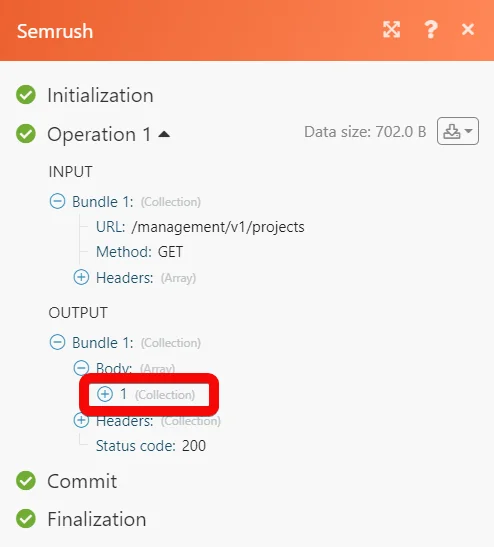
Example of Use – Get Projects
The following API call returns all the projects from your Semrush account:
URL:
/manangement/v1/projects
Method:
GET
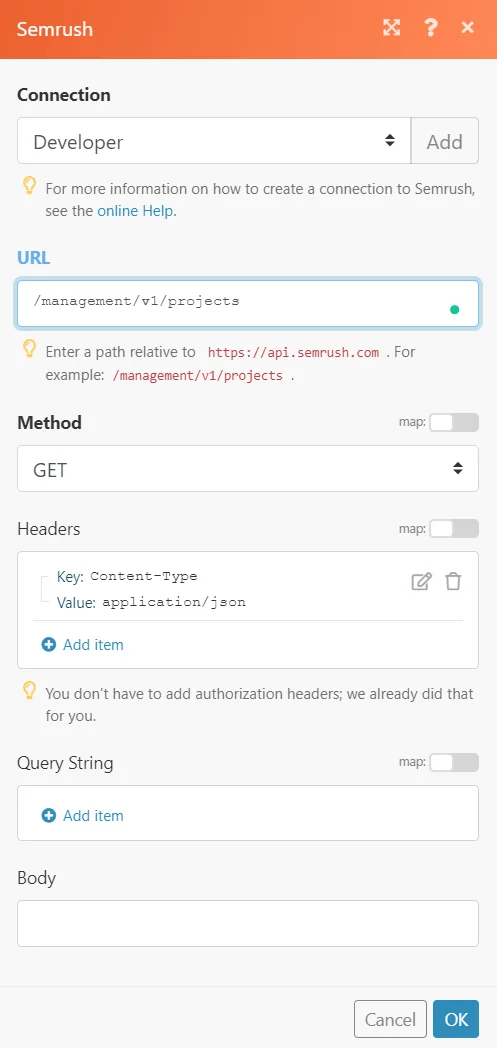
Matches of the search can be found in the module’s Output under Bundle > Body.
In our example, 1 project was returned:
Legacy article, imported from the original Boost.space knowledge base (/knowledge-base/applications/marketing/semrush/).

