SendGrid
Any references to third-party products or services do not constitute Boost.space Product Documentation nor do they create any contractual obligations. This material is for informational purposes only and is subject to change without notice.
Boost.space does not warrant the availability, accuracy, reliability, completeness, or usefulness of any information regarding the subject of third-party services or systems.
Getting started with SendGrid
To use any of the modules, you need to connect your SendGrid account to Boost.space Integrator. If you do not have a SendGrid account yet, you can create one at SendGrid.com
Connecting SendGrid to Boost.space Integrator
To connect your SendGrid account to Boost.space Integrator, follow the general instructions for connecting to any web service. When creating a scenario, you will be asked to provide an API Key. To get your API Key, log in to your SendGrid account and follow the instructions below.
1. Go to Settings in the menu on the left, and open the API Keys dialog.
2. Click on the Create API Key button in the top-right corner.
3. Create the API Key with Full Access permissions.
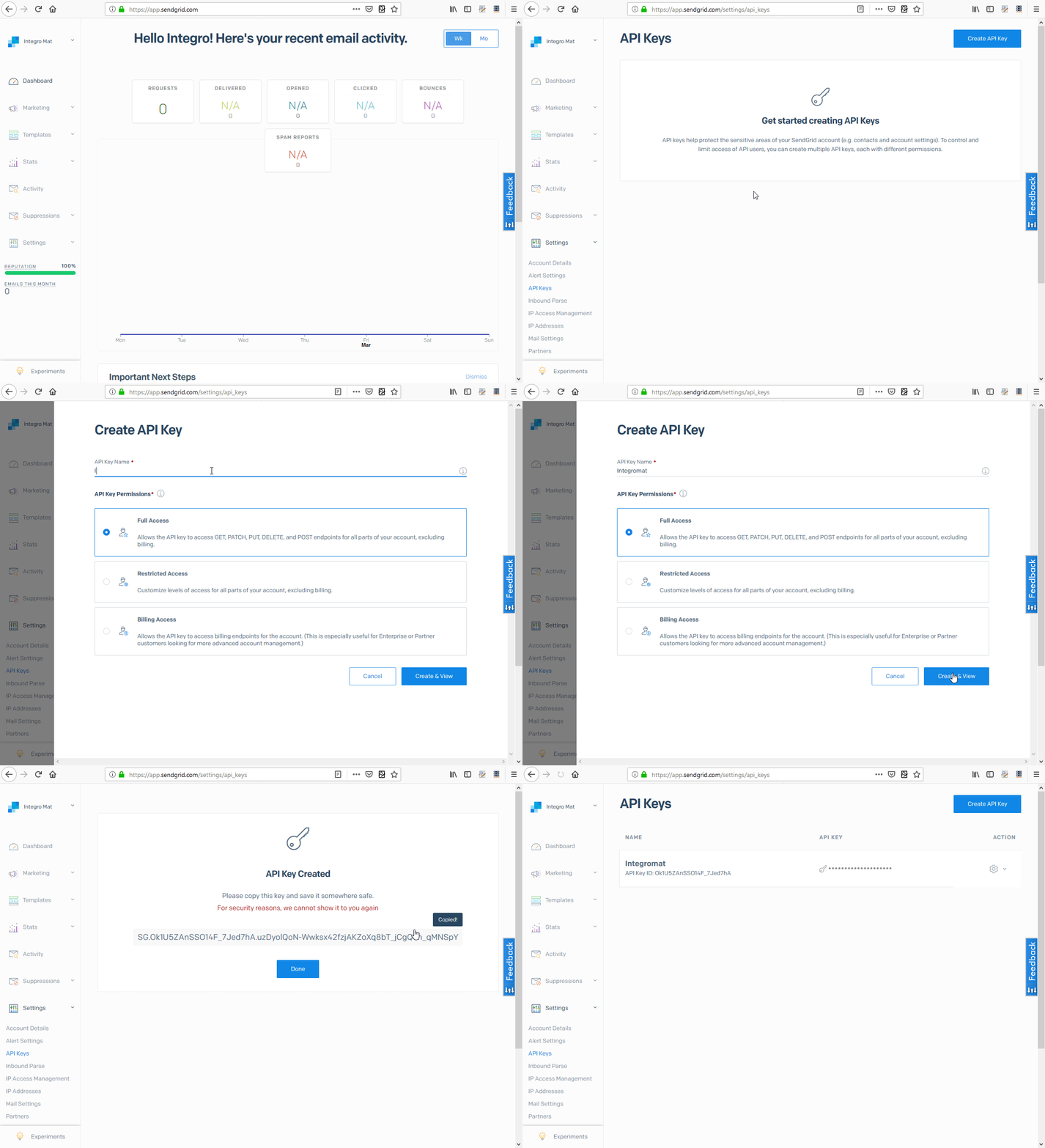
4. Copy the API Key to the clipboard and save it somewhere else.
5. Paste the API Key to the API Key field in the Create a connection dialog of the desired module and click the Continue button.

6. The connection is now established. You can continue creating your scenario.
Contacts (New)
Watch Contacts (New)
Returns contact details when a new contact is created or an existing contact is updated.
Connection
Establish a connection to your SendGrid account.
Watch
Create + Update
Triggers when a contact is created or update.
Create
Triggers when a contact is created.
Limit
Set the maximum number of contacts Boost.space Integrator will return during one execution cycle.
Create a List (New)
Creates a new contact list.
Connection
Establish a connection to your SendGrid account.
Name
Enter the name for your new list.
Add or Update a Contact (New)
This module adds or updates a contact.
Connection
Establish a connection to your SendGrid account.
List
Select the lists you want to add the contact to.
Email address
Enter the email address of the new contact or the contact you want to update.
If the contact with the entered email address is found, it will be updated.
First name
Enter the new/updated recipient’s first name.
Last name
Enter the new/updated recipient’s last name.
Alternate Emails
Add at most 5 additional email addresses.
Address Line 1
Enter the first lines of the address.
Address Line 2
Enter the second, optional, line of the address.
City
Enter the city of the contact.
State Province Region
Enter the state, province, or region of the contact’s address.
Postal code
Enter the postal code, Eircode, PIN code or ZIP code of the contact’s address.
Country
Enter the country of the contacts address. It can be full name or abbreviation.
Phone number
Enter the contact’s phone number.
Enter a Whatsapp account of the contact.
Line
Enter the landline phone number.
Enter the contact’s Facebook address.
Unique Name
Enter the unique name for the contact.
Contact ID
Enter or select the contact whose email you want to update.
Get All Lists (New)
The module retrieves all of your contact lists.
Connection
Establish a connection to your SendGrid account.
Number of lists
Set the number of returned contact lists.
Get All Contacts (New)
Retrieves all of your marketing campaigns’ contacts.
Connection
Establish a connection to your SendGrid account.
Number of contacts to return
Set the number of returned contacts.
Delete a List (New)
Deletes the list and optionally also deletes contacts associated with the list.
Connection
Establish a connection to your SendGrid account.
List ID
Map or select the list you want to delete.
Delete Contacts
Enable this option to also delete the contacts that are in the list you want to delete.
Delete Contacts (New)
Deletes specified contacts or all contacts at once.
Connection
Establish a connection to your SendGrid account.
Delete all or Specific contacts
Select whether you want to specify the contact(s) to be deleted or delete all contacts.
Contact IDs
Add (and map) IDs of contacts you want to delete.
Delete All Contacts
Enable this option to delete all contacts.
Remove Contacts from a List (New)
Removes contacts from the specified list. It does not delete the contact.
Connection
Establish a connection to your SendGrid account.
List ID
Map or select the list you want to remove the contact(s) from.
Contact IDs
Add the IDs of contacts you want to remove from the list.
Contacts (Legacy)
Legacy modules are for users, who started to use these SendGrid modules before July 2019. Legacy modules do not work for new users as they don’t have the required scopes within the API key.
Watch New Lists (Legacy)
When a new list is created, the List ID, Name, and Recipient Count are returned.
Connection
Establish a connection to your SendGrid account.
Limit
Set the maximum number of lists Boost.space Integrator will work with during one execution cycle.
Watch New Recipients (Legacy)
Retrieves contact details when a new contact is created in the selected list.
Connection
Establish a connection to your SendGrid account.
List ID
Select the list you want to watch for new recipients.
Limit
Set the maximum number of lists Boost.space Integrator will work with during one execution cycle.
Create a List (Legacy)
This module allows you to create a list for your contacts.
Connection
Establish a connection to your SendGrid account.
Name
Enter the name for your new list.
Add or Update Recipient (Legacy)
This module adds or updates a _Marketing Campaign’s_contact.
The rate limit is three requests every 2 seconds. You can upload 1000 contacts per request. So the maximum upload rate is 1500 recipients per second.
Connection
Establish a connection to your SendGrid account.
Email address
Enter the email address of the new contact or the contact you want to update.
If the contact with the entered email address is found, it will be updated.
First name
Enter the new/updated recipient’s first name.
Last name
Enter the new/updated recipient’s last name.
Add Recipients to a List (Legacy)
Adds a contact to a list.
Connection
Establish a connection to your SendGrid account.
List ID
Enter (select from the drop-down menu or map) the ID of the list you want to add the contact to. The List ID can be retrieved, for example, using the Get All Lists search module.
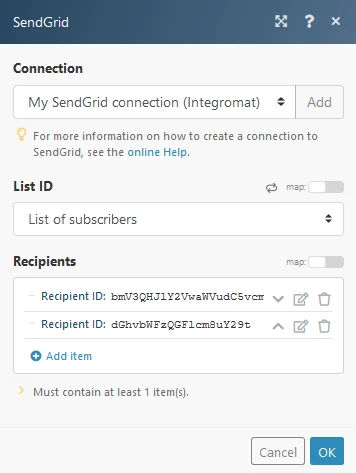
Recipients
Add (select from the drop-down menu or map) the contacts you want to add to the list. The Recipient ID can be retrieved, for example, using the Get All Recipients search module.
Get All Lists (Legacy)
The module retrieves all of your contact lists.
Connection
Establish a connection to your SendGrid account.
Number of lists
Set the number of returned contact lists.
Get All Recipients (Legacy)
Retrieves all of your marketing campaigns’ contacts.
Connection
Establish a connection to your SendGrid account.
List ID
Select the list you want to retrieve recipients from.
Number of recipients
Set the number of returned contacts.
Delete a List (Legacy)
Deletes a contact list.
Connection
Establish a connection to your SendGrid account.
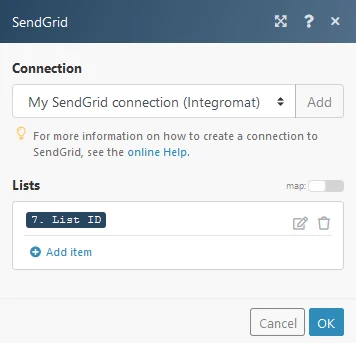
Lists
Add the IDs of the list(s) you want to delete. The List ID can be retrieved, for example, using the Get All Lists search module.
Delete Recipients (Legacy)
This module allows you to delete one or more recipients.
Connection
Establish a connection to your SendGrid account.
Recipients
Select the recipient you want to delete.
Delete Recipients from a List (Legacy)
Deletes recipient from a selected list.
Connection
Establish a connection to your SendGrid account.
List ID
Select the list you want to delete the recipient from.
Recipient ID
Select the recipient or enter (map) the ID of the recipient you want to delete from the list.
Bounces
Get All Bounces
Connection
Establish a connection to your SendGrid account.
Start time
Set the start of the time range when a bounce was created (inclusive).
End time
Set the end of the time range when a bounce was created (inclusive).
Number of bounces
Set the number of returned bounces.
Delete Bounces
Removes a specific email address from your bounce list.
A bounced email is when the message is undeliverable and then returned to the server that sent it.
Connection
Establish a connection to your SendGrid account.
Emails
Add the emails you want to remove from the _Bounces_list.
Delete All Bounces
Deletes all email addresses from the bounce list.
Connection
Establish a connection to your SendGrid account.
Blocks
There are several causes for blocked emails, for example: your mail server IP address is on an ISP block list or blocked by an ISP, or if the receiving server flags the message content.
List Blocks
Retrieves all email addresses that are currently on your block list.
Connection
Establish a connection to your SendGrid account.
Start Time
Enter the start date and time of the range when a blocked email was created (inclusive).
End Time
Enter the end date and time of the range when a blocked email was created (inclusive).
Number of blocked emails to return
Set the maximum number of email addresses Boost.space Integrator will return during one execution cycle.
Get a Block
Retrieves block details.
Connection
Establish a connection to your SendGrid account.
Email address
Enter the blocked email address you want to retrieve details about.
Delete Blocks
Removes all or specified emails from the block list.
Connection
Establish a connection to your SendGrid account.
Delete All or Specific
Select whether you want to delete all or specific emails.
If the Delete Specific Emails option is selected, specify email addresses you want to delete in the Email address field below.
Global Suppressions
List Global Suppressions
Returns all globally suppressed email addresses.
Connection
Establish a connection to your SendGrid account.
Start Time
Enter the start date and time of the range when a suppressed email was created (inclusive).
End Time
Enter the end date and time of the range when a suppressed email was created (inclusive).
Number of emails to return
Set the maximum number of email addresses Boost.space Integrator will return during one execution cycle.
Get a Global Suppression
Checks whether a specified email belongs to global suppressions.
Connection
Establish a connection to your SendGrid account.
Enter the email you want to check.
Add Emails to Global Suppression
Adds email addresses to the global suppressions.
Connection
Establish a connection to your SendGrid account.
Recipient Emails
Enter the emails you want to add to global unsubscribes.
Delete a Global Suppression
Removes an email from global suppressions.
Connection
Establish a connection to your SendGrid account.
Enter the email you want to delete from global unsubscribes.
Other
Send an Email
Connection
Establish a connection to your SendGrid account.
From
Email Address
Enter the email address of the sender.
Name
Enter the name of the sender.
Send to
Add recipient email addresses. The maximum number of email addresses is 1000.
Use SendGrid Transactional template?
Select whether you want to use the SendGrid template or not.
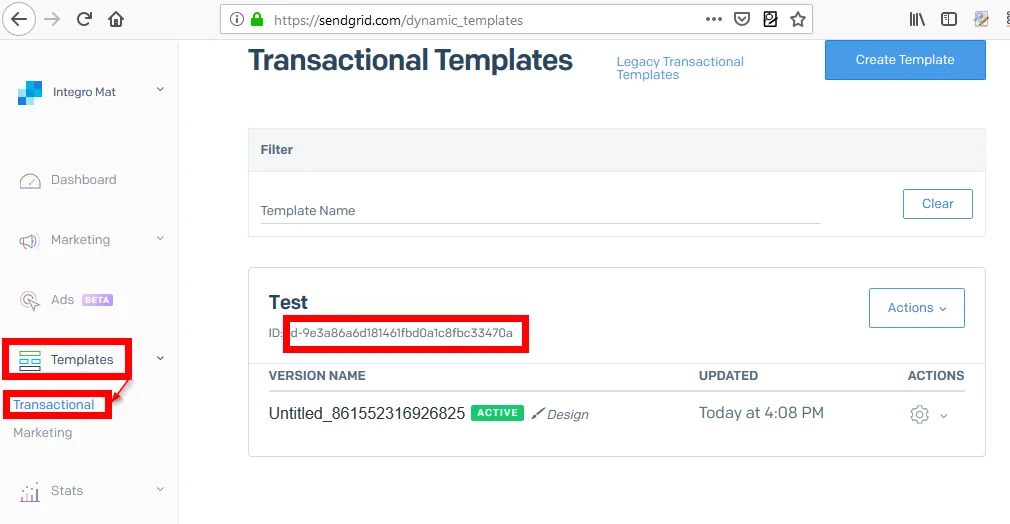
If you select _Yes,_the _Template ID_must be provided. You can retrieve the Template ID via SendGrid – Templates – Transactional.
Map JSON or fill Keys and Values
Enables you to enter data in the template dynamically.
Select whether you want to specify data using JSON or by entering Key and Value pairs.
Dynamic Template Data
Enter JSON or define key and value pairs.
For more information about specifying dynamic template data please refer to the Using Handlebars documentation.
Subject
Enter the subject for the email.
Content type
Select the MIME type of the email content.
Content
Enter the content of the email you want to send.
Attachments
Add the file(s) you want to attach. For inline images enter the Content ID.
Send at
Enter the time and date when the email should be sent.
Scheduling more than 72 hours in advance is not allowed.
Copy recipient
Enter the copy recipient(s). CC – carbon copy. The maximum is 999 recipients.
Blind copy recipient
Enter the blind copy recipient(s). BCC – blind carbon copy. The maximum is 999 recipients.
Reply To
Enter the email address and name that will be used for the email reply.
Headers
Add custom headers if needed.
Make an API Call
Allows you to perform a custom API call.
Connection
Establish a connection to your SendGrid account.
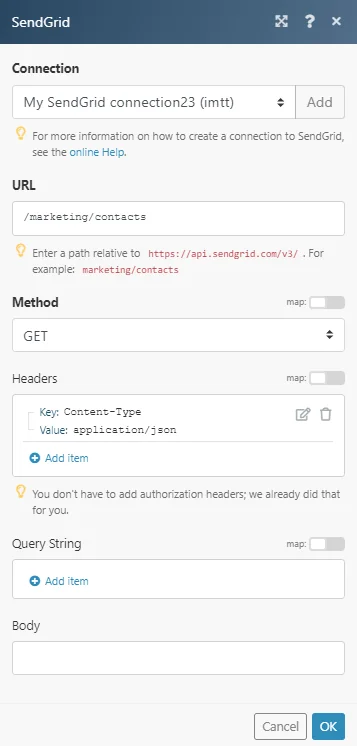
URL
Enter a path relative to https://api.sendgrid.com/v3/. E.g. /marketing/contacts
For the list of available endpoints, refer to the Sendgrid API Documentation.
Method
Select the HTTP method you want to use:
-
GET: to retrieve information for an entry.
-
POST: to create a new entry.
-
PUT: to update/replace an existing entry.
-
PATCH: to make a partial entry update.
-
DELETE: to delete an entry.
Headers
Enter the desired request headers. You don’t have to add authorization headers; we already did that for you.
Query String
Enter the request query string.
Body
Enter the body content for your API call.
Example of Use – List Contacts
The following API call returns all marketing contacts in your Sendgrid account:
URL:
/marketing/contacts
Method:
GET
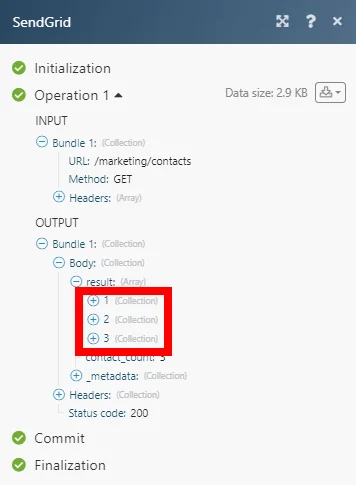
Matches of the search can be found in the module’s Output under Bundle > Body > result.
In our example, 3 contacts were returned:
Legacy article, imported from the original Boost.space knowledge base (/knowledge-base/applications/marketing/sendgrid/).

