SendPulse
The SendPulse modules allow you to add, retrieve, and search contacts or list, retrieve, and send emails in your SendPulse account.
Getting Started with SendPulse
Prerequisites
- A SendPulse account
In order to use SendPulse with Boost.space Integrator, it is necessary to have a SendPulse account. If you do not have one, you can create a SendPulse account at sendpulse.com/register.
The module dialog fields that are displayed in bold (in the Boost.space Integrator scenario, not in this documentation article) are mandatory!
Connecting SendPulse to Boost.space Integrator
To connect your SendPulse account to Boost.space Integrator you need to enable the REST API first.
-
Log in to your SendPulse account.
-

Click on your profile icon in the top-right corner and select the Account settings option.
-

Click on the API tab, turn the Activate Rest API button on, and click the Save button.
-
Go to Boost.space Integrator and open the SendPulse module’s Create a connection dialog.
-
After you click the Continue button, Boost.space Integrator will redirect you to the SendPulse website.
-
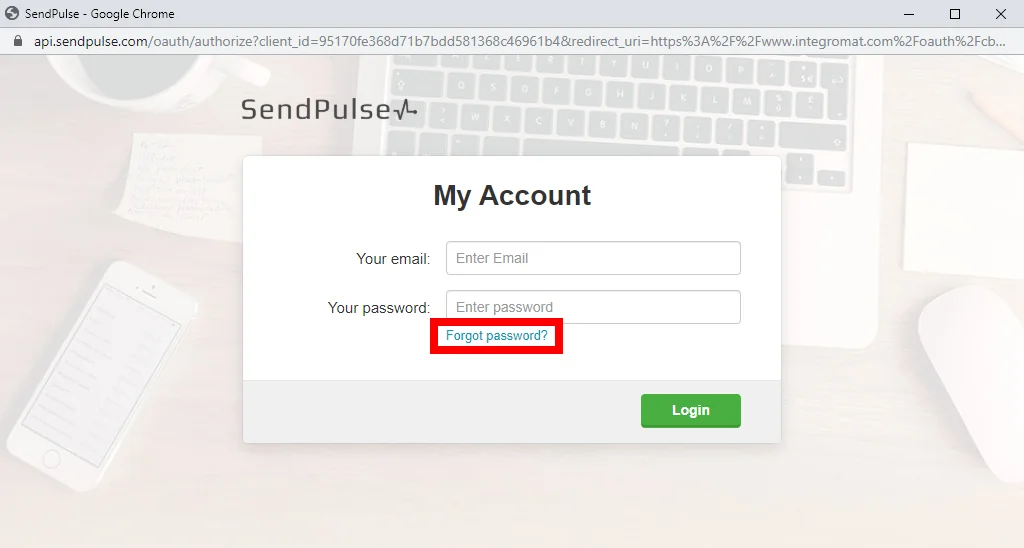
Enter your credentials and click the Login button to establish the connection.n
If you do not have a password (if you have signed up using Google or Facebook) you must create one by clicking the Forgot password? link.
Contacts
Add a Contact
Adds an email address to the mailing list.
Connection
Establish a connection to your SendPulse account.
Option
Select whether you want to add Single opt-in or Double opt-in (requires a user to confirm the email).
List ID
Select the mailing list you want to add a new email address to.
Emails
Add emails and specify the variables (e.g. Name or Phone) that will be added together with the email address to the mailing list.
Confirmation
The parameter required by the SendPulse service for double opt-in contacts. Please do not change.
Sender Email
Specify the sender email for the confirmation email.
List Contacts
Retrieves all contacts from the specified mailing list.
Connection
Establish a connection to your SendPulse account.
List ID
Select the mailing list you want to retrieve contacts from.
Limit
Set the maximum number of contacts Boost.space Integrator will return during one execution cycle.
Search a Contact by Variable
Retrieves all contacts in the mailing list by the specified value of a variable.
Connection
Establish a connection to your SendPulse account.
List ID
Select the mailing list you want to search for the specified value.
Variable
Select or map the variable you want to specify the value for.
Value
Enter the variable you want to search the mailing list for.
Limit
Set the maximum number of contacts Boost.space Integrator will return during one execution cycle.
Search a Contact by Email
Retrieves a contact with the specified email address.
Connection
Establish a connection to your SendPulse account.
List ID
Select the mailing list you want to search for the specified value.
Enter the email address you want to search the mailing list for.
Limit
Set the maximum number of contacts Boost.space Integrator will return during one execution cycle.
Get a Contact
Retrieves contact details.
Connection
Establish a connection to your SendPulse account.
Enter the email address you want to retrieve details about.
Unsubscribe a Contact
Deletes an email address from the mailing list.
Connection
Establish a connection to your SendPulse account.
List ID
Select the mailing list you want to remove the email address from.
Emails
Enter email addresses you want to delete from the mailing list.
Email/SMTP
List Campaigns
Retrieves information about campaigns in your account.
Connection
Establish a connection to your SendPulse account.
Limit
Set the maximum number of campaigns Boost.space Integrator will return during one execution cycle.
Get a Campaign
Retrieves campaign details.
Connection
Establish a connection to your SendPulse account.
Campaign ID
Enter (map ID) or select the campaign you want to retrieve information about.
Send an Email
Sends Email.
Connection
Establish a connection to your SendPulse account.
From
Name Enter the sender’s name.
Email Enter the sender’s email.
To
Enter the recipient’s email address and name.
Subject
Enter the subject of the email.
Html
Enter the html-formatted version of the email.
Text
Enter the text version of the email.
Send an Email from Template
Sends an email using the selected template.
Connection
Establish a connection to your SendPulse account.
Template ID
Select or map the template you want to use for the email.
From
Name Enter the sender’s name.
Email Enter the sender’s email.
To
Enter the recipient’s email address and name.
Subject
Enter the subject of the email.
Variables
Enter variables’ names and values (e.g. phone, name, code, etc.)
Create a Template
Allows you to create a template using the html code.
Connection
Establish a connection to your SendPulse account.
Name
Enter the name for the new template.
If not specified, the name will be displayed as Template yyyy-MM-dd HH:mm
HTML
Enter the html formatted template. Use the curly brackets {{}} to define a variable. E.g. Hello {{name}}!
List Bounces
Returns all bounces for the last 24 hours.
Connection
Establish a connection to your SendPulse account.
Day
Enter the day you want to get information about in the YYYY-MM-DD format. E.g. 2019-10-18 14:34:00. You can get bounces only for the last 24 hours starting from this moment. Example: today is – 2019-04-28 14:34:00, you will get entries from 2019-04-27 14:34:00 till 2019-04-28 14:34:00
Limit
Set the maximum number of bounces Boost.space Integrator will return during one execution cycle
Push
List Website Subscriptions
Retrieves a list of web push subscribers for a certain website.
Connection
Establish a connection to your SendPulse account.
Website ID
Enter or select the ID of the website you want to retrieve push subscriptions for.
Limit
Set the maximum number of subscribers Boost.space Integrator will return during one execution cycle
Day From
Enter the date you want to filter subscribers from. E.g. 2019-08-13 14:27:11
Day to
Enter the date you want to filter subscribers to. E.g. 2020-08-13 14:27:11
Get a Website
Retrieves website details.
Connection
Establish a connection to your SendPulse account.
Website ID
Enter (map ID) or select the website you want to retrieve information about.
Activate/deactivate a website subscriber
Sets the subscriber as activated or deactivated.
Connection
Establish a connection to your SendPulse account.
Subscriber ID
Enter (map) the ID of the website subscriber.
State
Set subscriber as activated or deactivated (disabled).
Create a Push Campaign
Creates a new push campaign.
The limit is 1 message per 15 minutes for each website.
Connection
Establish a connection to your SendPulse account.
Title
Enter the name of the new push campaign.
Website ID
Enter (map) the ID of the website you want to create a push campaign for.
Body
Enter the content for the push notification.
Ttl
“time to live”. Enter the push notification lifetime in seconds.
Link
Enter the web push navigation link; if it’s not specified, the website URL will be used.
Lang
Enter the language code to filter subscribers by language. E.g. en.
Browser
Enter the browser name to filter subscribers by the browser; this parameter can take multiple values separated by commas (e.g. – Chrome, Safari)
Region
Enter the country code to filter subscribers by the country. E.g. UK.
URL
Subscription from
Use “YYYY-MM-DD” format to specify the start date of the interval to filter subscribers by the date they were added to the list.
Subscription to
Use “YYYY-MM-DD” format to specify the end date of the interval to filter subscribers by the date they were added to the list.
Filter
Add up to 10 filters for 1 campaign.
Stretch time
Enter the timespan (in seconds) during which the campaign must be completed. If not specified, the default time (5 hours) applies.
Send date
Enter the date in YYYY-MM-DD hh:mm
Buttons
Insert buttons in the campaign, maximum two buttons.
Image
Enter the name and data of the image that is inserted into the web-push notification. It can be mapped from the previous module (e.g. Dropbox > Get a file). The image must be in JPG, PNG, GIF format and within 200KB.
Icon
Enter the name and data of the image that is inserted into the web-push notification. It can be mapped from the previous module (e.g. Dropbox > Get a file). The image must be in JPG, PNG, GIF format and within 200KB.
Make an API Call
Allows you to perform a custom API call.
Connection
Establish a connection to your SendPulse account.
URL
Enter a path relative to https://api.sendpulse.com. E.g. /addressbooks/{{MailingListId}}/emails
For the list of available endpoints, refer to the SendPulse API Documentation.
Method
Select the HTTP method you want to use:
GET
to retrieve information for an entry.
POST
to create a new entry.
PUT
to update/replace an existing entry.
PATCH
to make a partial entry update.
DELETE
to delete an entry.
Headers
Enter the desired request headers. You don’t have to add authorization headers; we already did that for you.
Query String
Enter the request query string.
Body
Enter the body content for your API call.
Example of Use – List Contacts From the Mailing List
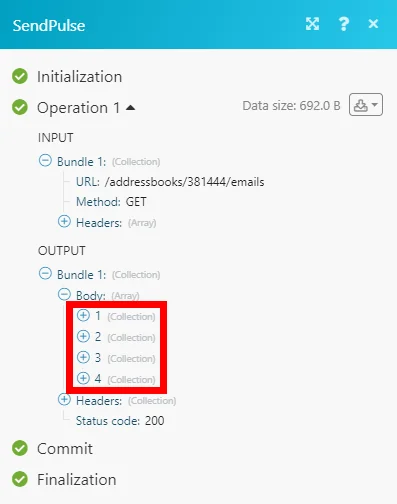
The following API call returns the list of all contacts in the specified mailing list:
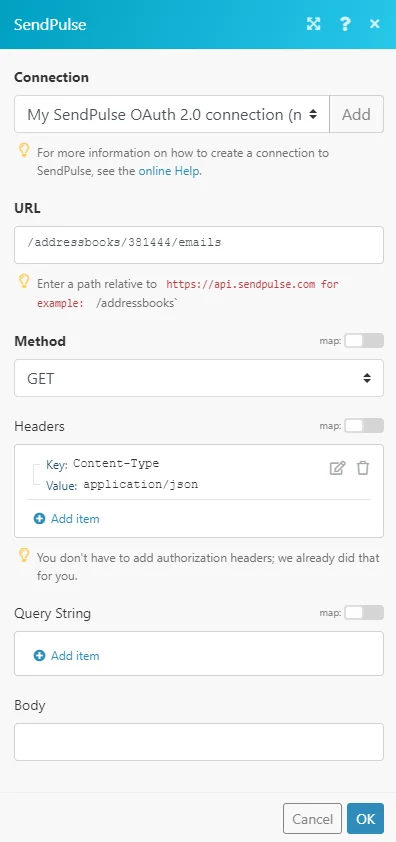
Matches of the search can be found in the module’s Output under Bundle > Body.
In our example, 4 contacts were returned:
Legacy article, imported from the original Boost.space knowledge base (/knowledge-base/applications/marketing/sendpulse/).

