Short.io
The Short.io modules allow you to monitor and list domains, and retrieve, create, update, archive, expire, or delete links in your Short.io account.
Getting Started with Short.io
Prerequisites
- A Short.io account
In order to use Short.io with Boost.space Integrator, it is necessary to have a Short.io account. If you do not have one, you can create a Short.io account at app.short.cm/public/register.
The module dialog fields that are displayed in bold (in the Boost.space Integrator scenario, not in this documentation article) are mandatory!
Connecting Short.io to Boost.space Integrator
To connect your Short.io account to Boost.space Integrator you need to obtain the API key from your Short.io account.
-

Log in to your Short.io account.
-
Open the menu in the top-left corner and select the Integrations & API option.
-
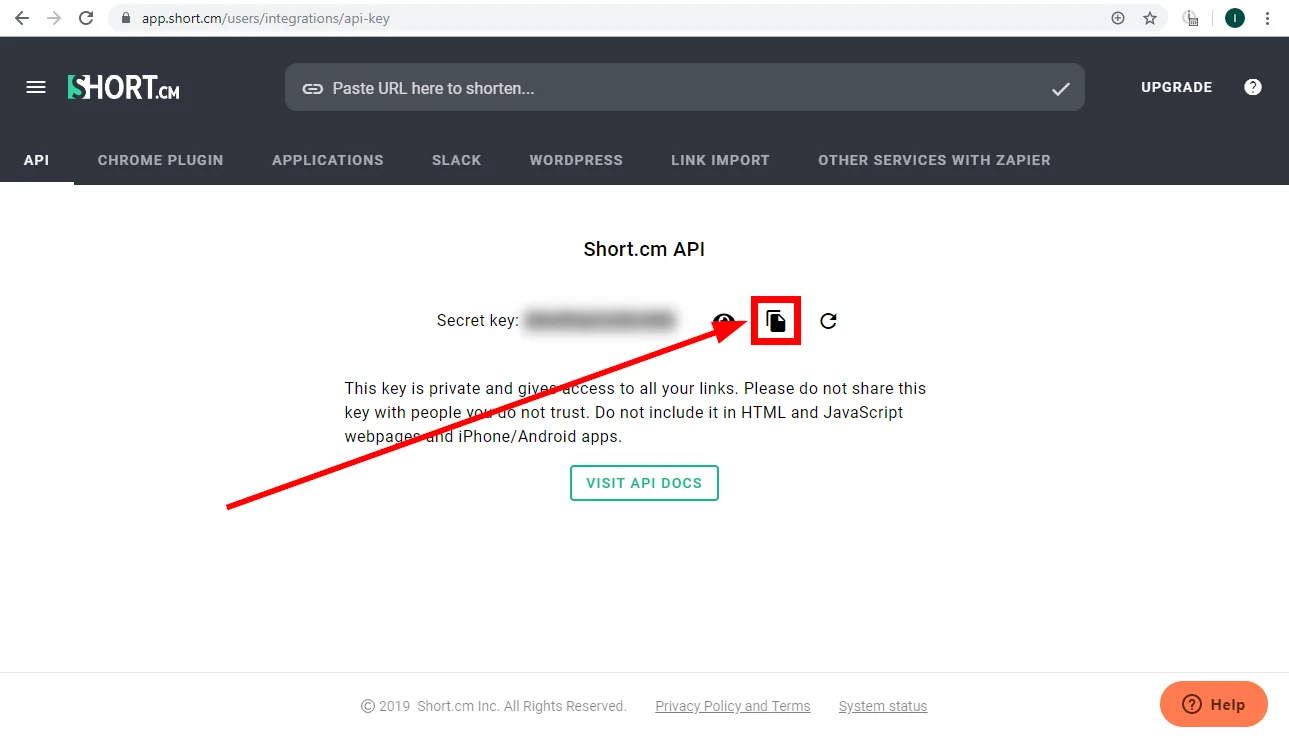
Copy the provided Secret key by clicking on the copy icon next to the blurred key.
-
Go to Boost.space Integrator and open the Short.io module’s Create a connection dialog.
-
Enter the API Key you have copied in step 3 to the respective field and click the Continue button to establish the connection.
Domain
Watch Domains
Retrieve domain setting details for when a new domain is created or domain settings are updated.
Connection
Establish a connection to your Short.io account.
Watch
Select whether you want to monitor your account for new domains or for changes in domain settings.
Limit
Set the maximum number of domains Boost.space Integrator will return during one execution cycle.
List Domains
Retrieves details of all domains in your account.
Connection
Establish a connection to your Short.io account.
Limit
Set the maximum number of domains Boost.space Integrator will return during one execution cycle.
Link
Get Link
Retrieves link details.
Connection
.
Domain
Select the domain you want to retrieve the link from.
Find a Link
Select whether you want to specify the link by Original URL or Path.
Path
Enter the link path of the link you want to retrieve details about.
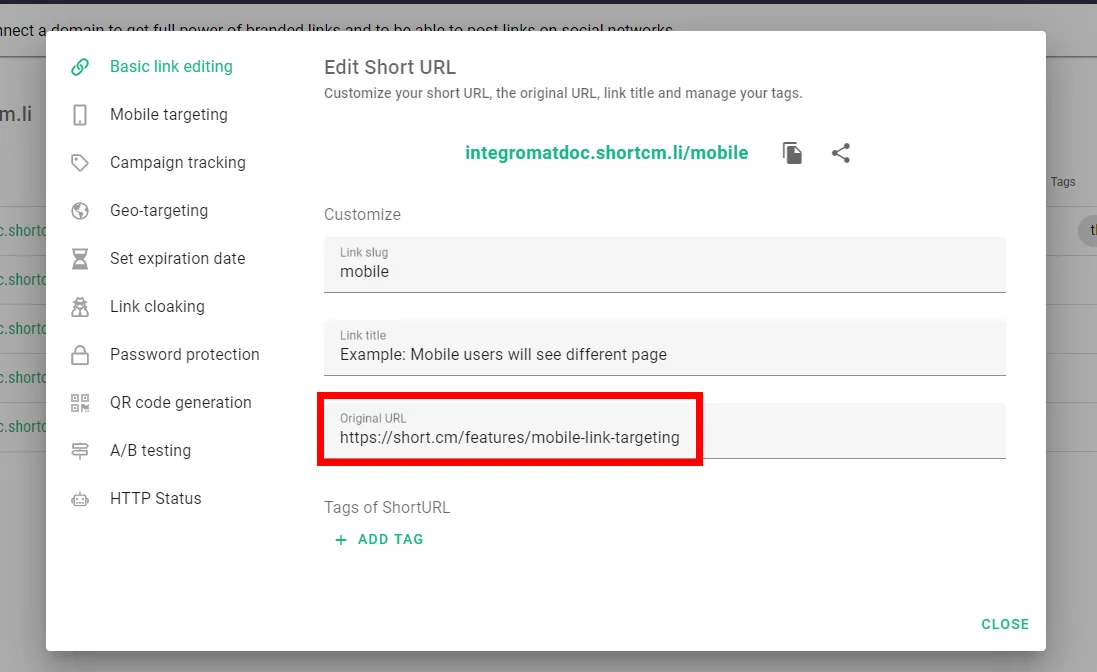
E.g when the link is https://makedoc.shortcm.li/mobile then the path is mobile.
Original URL
Enter the original link URL.
Create Link
Creates a new link.
Connection
Establish a connection to your Short.io account.
Domain
Select the domain you want to create a new link for.
Original Long URL
Enter the original long URL you want to shorten.
Link Title
Enter the link title, that will be displayed in the short.cm admin panel.
Path
Enter the link path of the link.
E.g when the link is https://makedoc.shortcm.li/mobile then the path is mobile.
If the field is left empty, the path is generated automatically.
Tags
Add tags to the new link.
Expires at
Enter the link expiration date if needed. The list of supported date and time formats.
Expired URL
Enter the URL where the user is redirected after the URL expires.
Mobile URL
Send visitors to the right location based on their mobile device/operating system.
iPhone URL
Enter the URL where iPhone users will be redirected after opening the link.
Android URL
Enter the URL where Android users will be redirected after opening the link.
Password
Enter a password to protect your short URL by.
Campaign Tracking
UTM Source
Enter the source where the user comes from, e.g. Twitter.
UTM Medium
Enter the marketing medium, e.g. banner.
UTM Campaign
Enter the name of the campaign, e.g. feature launch.
UTM Term
Enter the term to track specific keywords for paid organic campaigns.
UTM Content
Fill in this field to differentiate ads within the campaign.
Cloak
Select the Yes option to hide the original URL so that your customers can see only the short URL in their browser’s address bar.
Redirect Type
Select the HTTP status you want to use for redirection. Please find descriptions of redirection codes on Wikipedia.
Update Link
Updates link settings.
Connection
Establish a connection to your Short.io account.
Link ID
Map the ID of the link you want to update. The ID can be mapped, for example, using the Get Link module.
Please find the descriptions of the fields in the Create Link section above.
Archive Link
Archives a link. The link will be hidden from the dashboard, but will still work.
Connection
Establish a connection to your Short.io account.
Link ID
Map the ID of the link you want to archive. The ID can be mapped, for example, using the Get Link module.
Expire Link
Expires a link. Users will not be able to follow this link after expiration.
Connection
Establish a connection to your Short.io account.
Link ID
Map the ID of the link you want to set as expired. The ID can be mapped, for example, using the Get Link module.
Expires at
Enter the link expiration date and time. The list of supported date and time formats.
Expired URL
Enter the URL where the user is redirected after the URL expires.
Delete Link
Deletes a link.
Connection
Establish a connection to your Short.io account.
Link ID
Map the ID of the link you want to delete. The ID can be mapped, for example, using the Get Link module.
Make an API Call
Allows you to perform a custom API call.
Connection
Establish a connection to your Short.io account.
URL
Enter a path relative to https://api.short.cm. E.g. links/expand
For the list of available endpoints, refer to the Short.io API documentation.
Method
Select the HTTP method you want to use:
GET
to retrieve information for an entry.
POST
to create a new entry.
PUT
to update/replace an existing entry.
PATCH
to make a partial entry update.
DELETE
to delete an entry.
Headers
Enter the desired request headers. You don’t have to add authorization headers; we already did that for you.
Query String
Enter the request query string.
Body
Enter the body content for your API call.
Example of Use – Get Link Details by Domain and Path
The following API call returns link details:(see the Query String field. Domain and Path are the required parameters for this API call.)
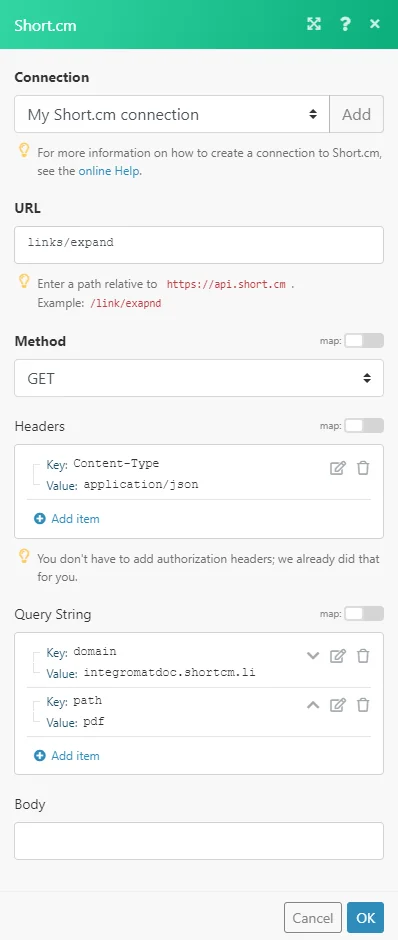
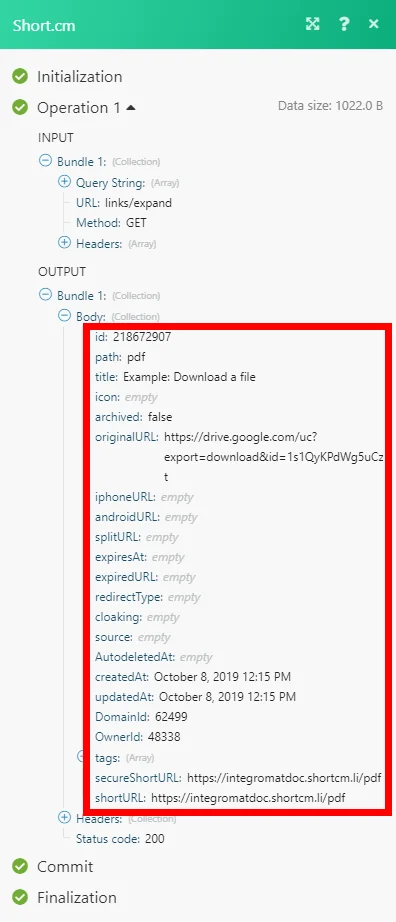
Matches of the search can be found in the module’s Output under Bundle > Body.
In our example, these link details were returned:
Legacy article, imported from the original Boost.space knowledge base (/knowledge-base/applications/marketing/short-cm/).

