Shortcut
Any references to third-party products or services do not constitute Boost.space Product Documentation nor do they create any contractual obligations. This material is for informational purposes only and is subject to change without notice.
Boost.space does not warrant the availability, accuracy, reliability, completeness, or usefulness of any information regarding the subject of third-party services or systems.
The Shortcut modules allow you to manage the stories in your Shortcut account.
Getting Started with Shortcut
Prerequisites
- A Shortcut account
In order to use Shortcut with Boost.space Integrator, it is necessary to have a Shortcut account. If you do not have one, you can create a Shortcut account at shortcut.com.
The module dialog fields that are displayed in bold (in the Boost.space Integrator scenario, not in this documentation article) are mandatory!
Connecting Shortcut to Boost.space Integrator
To connect your Shortcut account to Boost.space Integrator you need to obtain the API Key from your Shortcut account and insert it in the Create a connection dialog in the Boost.space Integrator module.
-
Login to your Shortcut account.
-
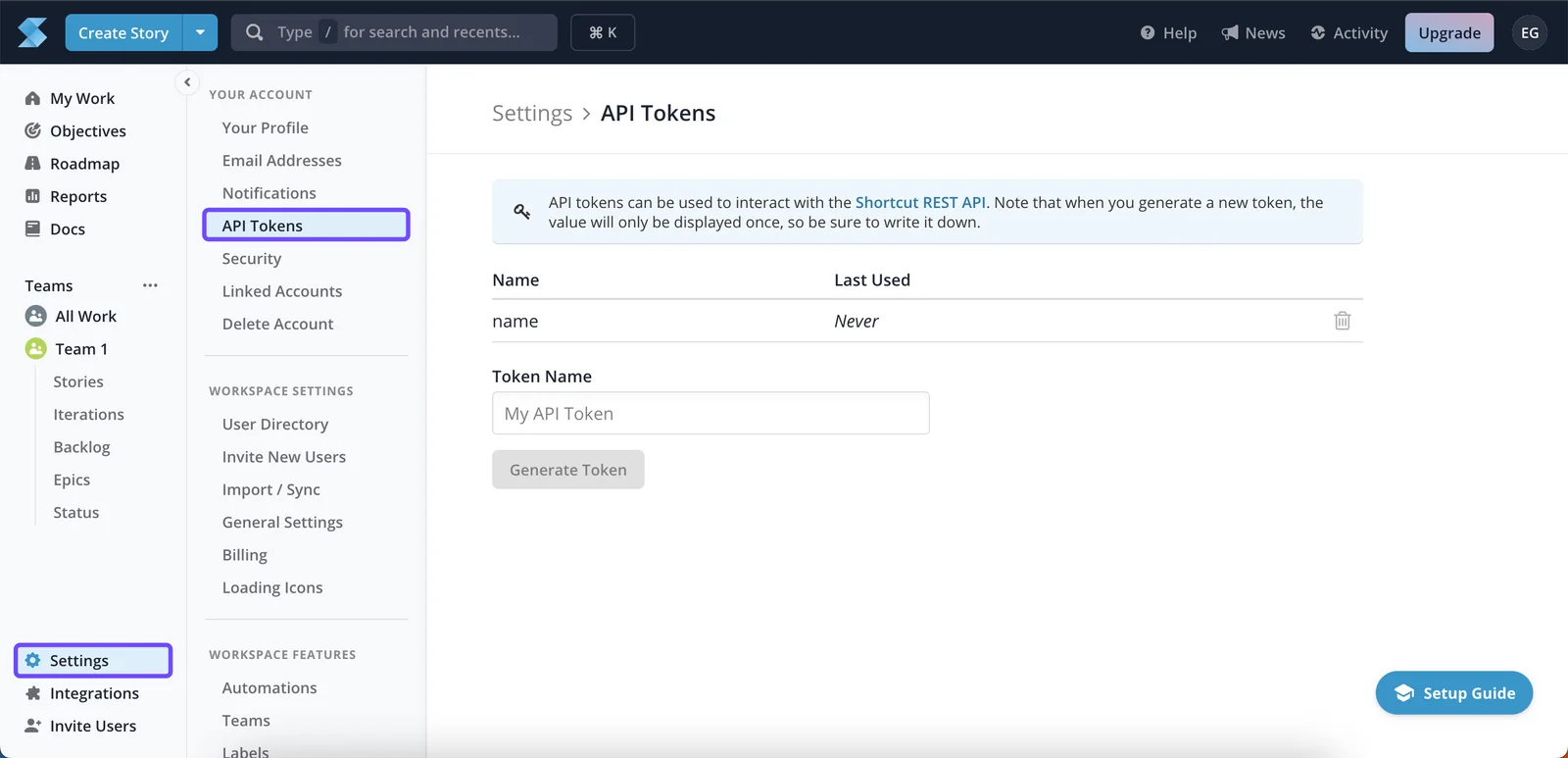
Click Your Profile Icon > Settings > API Tokens. Enter a name for the token and click Generate Token.
-
In the Token Name field, enter a name for your API token and click Generate Token.
-
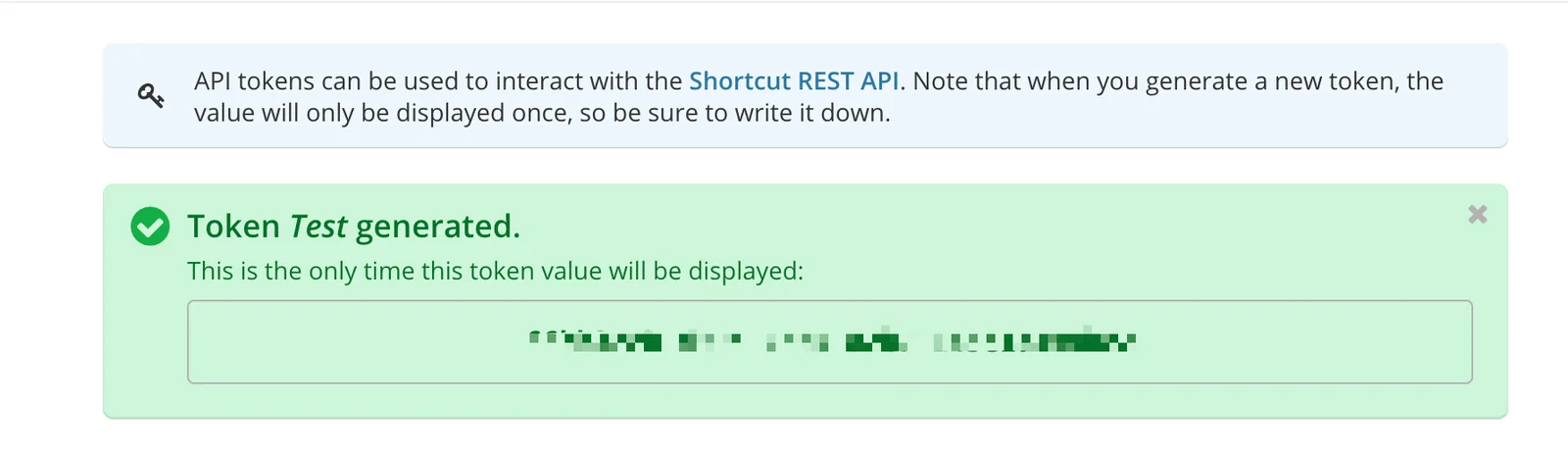
Copy the API Token to your clipboard.
-
Go toBoost.space Integrator and open the Shortcut module’s Create a connection dialog.
-
In the Connection name field, enter a name for the connection.
-
In the API Key field, enter the API token copied in step 4 and click Continue.
The connection has been established.
Stories
Watch Stories or Epics
Triggers when stories or epics are created, updated or deleted.
Webhook Name
Enter a name for the webhook.
Connection
Establish a connection to your Shortcut account.
-

Open the Watch Stories or Epic module, establish a connection, click Save, and copy the URL address to your clipboard. Click OK and save the trigger.
-
Log in to your Shortcut account. Click Your Profile Icon > Integrations > Webhooks > Add New Webhook. In the Payload URL field, enter the URL address copied in step 1 and click Add New Webhook.

The webhook is added successfully.
Search Stories
Search stories based on desired parameters.
Connection
Establish a connection to your Shortcut account.
Search Parameters
Select the option to search the stories based on the selected parameter. When you select a parameter, the selection auto-populates the related fields which you need to select or map to get the results. For example, if you select the parameter, Story Type, field, Type Story auto-populates which you need to select.
Limit
Set the maximum number of stories Boost.space Integrator should return during one scenario execution cycle.
Get a Story
Returns information about a chosen story.
Connection
Establish a connection to your Shortcut account.
Project ID
Select the Project ID whose story details you want to retrieve.
Story Public ID
Select the Public ID of the story whose details you want to retrieve.
Create a Story
Creates a new story.
Connection
Establish a connection to your Shortcut account.
Name
Enter a name for the story.
Project ID
Select the Project ID to which the story belongs to.
Archived
Select whether this is story is archived.
Comments
Add the comments:
Author ID
Select the Author ID who is adding the comment.
Created At
Enter the date or time when the comment is added.
External ID
Enter the external ID associated with the comment. It could be another app or tool’s ID from which the comment is taken.
Text
Enter the comment text.
Updated At
Enter the date or time when the comment is last updated.
Completed at Override
Enter the date and time to override the story completion date.
Created At
Enter the date and time when the story was created.
Deadline
Enter the date and time when the story must be completed.
Description
Enter the details of the story.
Epic ID
Select the Epic ID to which the story belongs.
Estimate
(Optional) Enter the estimated days for the story to complete.
External ID
Enter a unique External ID. Here, the Story could have been imported from another tool, the ID in the other tool can be indicated here.
External Tickets
Add the external tickets related to the story:
External ID
Enter the External ID of the ticket in another tool.
External URL
Enter the ticket’s URL address in the external system.
File IDs
Add the File IDs related to the story.
Follower IDs
Add the followed IDs you want to watch the story and receive notifications about the story.
Iteration ID
Enter the Iteration ID of the story.
Labels
Add the labels to the story:
Color
Enter the color code to display the label. For example, #ff0000.
Description
Enter the details of the label.
External ID
This field can be set to another unique ID. In the case that the Label has been imported from another tool, the ID in the other tool can be indicated here.
Name
Enter a name for the label.
Linked File IDs
Add the linked File IDs related to the story.
Owner IDs
Add the Owner ID to whom the story is assigned.
Requested by ID
Enter the member ID who has requested the story.
Started at Override
Enter a date and time to override the date the Story was started.
Story Links
Add the story links:
Project ID
Select the Project ID to which the story belongs to.
Object ID
Select the unique ID defined as the object of the story. The story link must contain a subject or an object but not both.
Subject ID
Select the unique ID defined as the subject of the story. The story link must contain a subject or an object but not both.
Verb
Select the action of the subject or object of the story:
-
Blocks
-
Duplicates
-
Relates to
Story Type
Select the story type:
-
Bug Bug
-
Chore
-
Feature
Tasks
Add the tasks for the story:
Complete
Select whether the task is completed.
Created At
Enter the date when the task is created.
Description
Enter the details of the task.
External ID
Enter a unique ID of the task from the external tool or system.
Owner ID
Select the Owner IDs to whom the task is assigned.
Updated At
Enter the date when the task is last updated.
Updated At
Enter the date and time when the story was updated.
Workflow
Select the workflow for the story. For example, feature request, engineering.
Workflow State ID
Select the workflow status. For example, ready for review, in development.
Update a Story
Updates a story.
Connection
Establish a connection to your Shortcut account.
Project ID
Select the Project ID whose story you want to update.
Story Public ID
Select the Story ID whose details you want to update.
Branch ID
Add the Branch IDs attached to this story.
Commit ID
Add the Commit IDs attached to this story.
Pull Request IDs
Add the Pull Request IDs attached to this story.
After ID
Enter the story ID after which you want to place this story in the sequence.
Before ID
Enter the story ID before which you want to place this story in the sequence
Name
Enter a new name for the story.
Archived
Select whether this is story is archived.
Comments
Add the comments:
Author ID
Select the Author ID who is adding the comment.
Created At
Enter the date or time when the comment is added.
External ID
Enter the external ID associated with the comment. It could be another app or tool’s ID from which the comment is taken.
Text
Enter the comment text.
Updated At
Enter the date or time when the comment is last updated.
Completed at Override
Enter the date and time to override the story completion date.
Deadline
Enter the date and time when the story must be completed.
Description
Enter the details of the story.
Epic ID
Select the Epic ID to which the story belongs.
Estimate
(Optional) Enter the estimated days for the story to complete.
External ID
Enter a unique External ID. Here, the story could have been imported from another tool, the ID in the other tool can be indicated here.
External Tickets
Add the external tickets related to the story:
External ID
Enter the External ID of the ticket in another tool.
External URL
Enter the ticket’s URL address in the external system.
File IDs
Add the File IDs related to the story.
Follower IDs
Add the followed IDs you want to watch the story and receive notifications about the story.
Iteration ID
Enter the Iteration ID of the story.
Labels
Add the labels to the story:
Color
Enter the color code to display the label. For example, #ff0000.
Description
Enter the details of the label.
External ID
This field can be set to another unique ID. In the case that the Label has been imported from another tool, the ID in the other tool can be indicated here.
Name
Enter a name for the label.
Linked File IDs
Add the linked File IDs related to the story.
Owner IDs
Add the Owner ID to whom the story is assigned.
Requested by ID
Enter the member ID who has requested the story.
Started at Override
Enter a date and time to override the date the Story was started.
Story Type
Select the story type:
-
Bug
-
Chore
-
Feature
Workflow
Select the workflow for the story. For example, feature request, engineering.
Workflow State ID
Select the workflow status. For example, ready for review, in development.
Delete a Story
Deletes a story,
Connection
Establish a connection to your Shortcut account.
Project ID
Select the Project ID whose story details you want to delete.
Story Public ID
Select the Public ID of the story you want to delete.
Other
Make an API Call
Performs an arbitrary authorized API call.
Connection
Establish a connection to your Shortcut account.
URL
Enter a path relative to https://api.clubhouse.io/api/v3. For example: /stories
For the list of available endpoints, refer to the Shortcut API Documentation.
Method
Select the HTTP method you want to use:
GET
to retrieve information for an entry.
POST
to create a new entry.
PUT
to update/replace an existing entry.
PATCH
to make a partial entry update.
DELETE
to delete an entry.
Headers
Enter the desired request headers. You don’t have to add authorization headers; we already did that for you.
Query String
Enter the request query string.
Body
Enter the body content for your API call.
Example of Use – List Projects
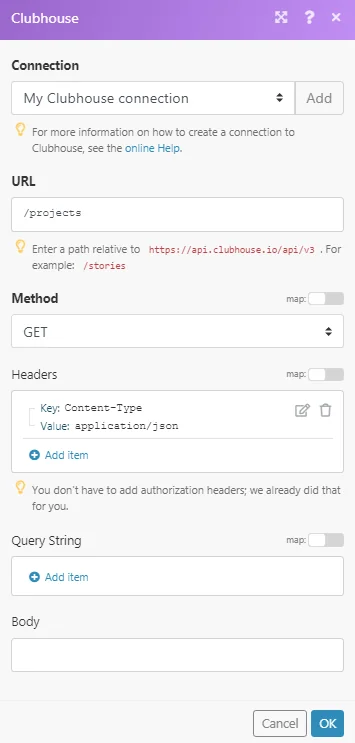
The following API call returns all the projects from your Shortcut account:
URL:
/projects
Method:
GET
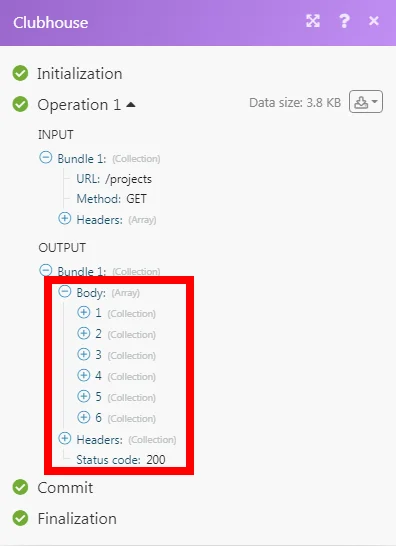
Matches of the search can be found in the module’s Output under Bundle > Body.
In our example, 6 projects were returned:
Legacy article, imported from the original Boost.space knowledge base (/knowledge-base/applications/marketing/shortcut/).

