Tumblr
The Tumblr modules enable you to watch, create, update, list, and delete posts in your Tumblr account.
Getting Started with Tumblr
Prerequisites
- A Tumblr account
In order to use Tumblr with Boost.space Integrator, it is necessary to have a Tumblr account. If you do not have one, you can create a Tumblr account at www.tumblr.com.
Connecting Tumblr to Boost.space Integrator
1. Go to Boost.space Integrator and open the Tumblr module’s Create a connection dialog.
2. Enter the name of the connection to the Connection name field and click Continue.
After you click the Continue button, Boost.space Integrator will redirect you to the Tumblr website where you will be prompted to grant Boost.space Integrator access to your account.
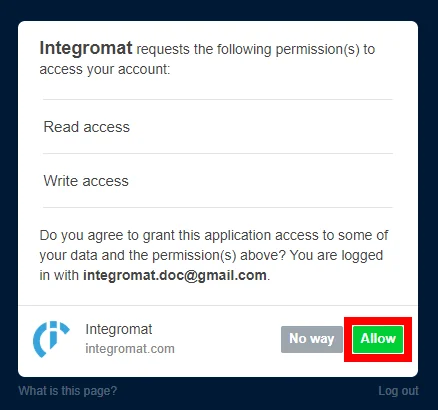
3. Confirm the dialog by clicking the Allow button.
Posts
Watch Posts
Retrieves post details when a new post is posted.
Connection
Establish a connection to your Tumblr account.
Blog
Select the blog you want to watch for new posts.
Type
Select the type of post you want to return. No option selected – returns all types.
Limit
Set the maximum number of posts Boost.space Integrator will return during one execution cycle.
Watch Liked Posts
Retrieves details of the posts that you liked.
Connection
Establish a connection to your Tumblr account.
Limit
Set the maximum number of posts Boost.space Integrator will return during one execution cycle.
Watch Tagged Posts
Retrieves details of a post that is tagged with a specified tag.
Connection
Establish a connection to your Tumblr account.
Tag
Enter the tag you want to filter returned posts by.
Limit
Set the maximum number of posts Boost.space Integrator will return during one execution cycle.
Create a Post
Creates a new post.
Connection
Establish a connection to your Tumblr account.
Blog
Select or map the blog you want to create a new post for.
Type
Select the type of the new post.
Text
Title
Enter the post title.
Body
Enter the text content of the post. HTML supported.
Quote
Quote
Enter the text content of the quotation.
Source
Specify the source of the quote. HTML supported.
Chat
Title
Enter the chat title
Conversation
Enter the text content of the conversation.
Link
Title
Enter the title of the page the link points to.
URL
Enter the link.
Description
Enter the description of the link. HTML supported.
Thumbnail
Enter the URL of an image to use as a thumbnail for the post.
Excerpt
Enter an excerpt from the page the link points to.
Author
Enter the name of the author from the page the link points to.
Photo
Caption
Enter the caption for the photo.
Link
Enter the “click-through URL” for the photo.
Upload Photo
Select whether you want to upload the photo from an external URL or map the image data.
External URL
Enter the source URL of the photo.
Source File / Photos
Map the file you want to upload from the previous module (e.g. HTTP > Get a File or Google Drive > Download a File), or enter the file name and file data manually.
Audio
Caption
Enter the caption for the audio.
Upload Audio
Select whether you want to upload the audio file from an external URL or map the audio data.
External URL
Enter the source URL of the audio.
Source File
Map the file you want to upload from the previous module (e.g. HTTP > Get a File or Google Drive > Download a File), or enter the file name and file data manually.
Video
Caption
Enter the caption for the video.
Upload Video
Select whether you want to provide a video file from the embed code or map the video data.
Embed
Enter the HTML embed code for the video or a URI to the video. If you provide an unsupported service’s URI, you may receive a 400 response.
Source File
Map the file you want to upload from the previous module (e.g. HTTP > Get a File or Google Drive > Download a File), or enter the file name and file data manually.
State
Select the new post state. Default is Published.
-
Publishedmeans the post should be publicly published immediately. -
Queuemeans the post should be added to the end of the blog’s post queue. -
Draftmeans the post should be saved as a draft. -
Privatemeans the post should be privately published immediately.
Tags
Enter tags you want to associate with the post.
Send to Twitter
Select Yes to share the post via any connected Twitter account when the post is published. Defaults to the blog’s global setting.
Publish On
Enter the exact date and time (ISO 8601 format) to publish the post, if desired. This parameter will be ignored unless the State field is Queue. The list of supported date and time formats.
Format
Select the format type of the post.
Slug
Enter a short text summary to the end of the post URL.
Native inline images
Select the Yes option to Convert any external image URLs to Tumblr image URLs.
Update a Post
Updates an existing post.
Connection
Establish a connection to your Tumblr account.
Blog
Select or map the blog you want to update the post for.
Post ID
Enter (map) the ID of the post you want to update.
Please find the descriptions of the fields in the Create a Post section above.
Delete a Post
Connection
Establish a connection to your Tumblr account.
Blog
Select or map the blog you want to delete the post from.
Post ID
Enter (map) the ID of the post you want to delete.
Other
Get User Info
Retrieves user account details.
Connection
Establish a connection to your Tumblr account.
Make an API Call
Allows you to perform a custom API call.
Connection
Establish a connection to your Tumblr account.
URL
Enter a path relative to https://api.tumblr.com/
For example: /v2/user/info
For the list of available endpoints, refer to the Tumblr API Documentation.
Method
Select the HTTP method you want to use:
-
GET
to retrieve information for an entry.
-
POST
to create a new entry.
-
PUT
to update/replace an existing entry.
-
PATCH
to make a partial entry update.
-
DELETE
to delete an entry.
Headers
Enter the desired request headers. You don’t have to add authorization headers; we already did that for you.
Query String
Enter the request query string.
Body
Enter the body content for your API call.
Example of Use – List Published Posts
The following API call returns all published posts in your Tumblr account:
URL:
/v2/blog/{your-blog-url}/posts/
Method:
GET
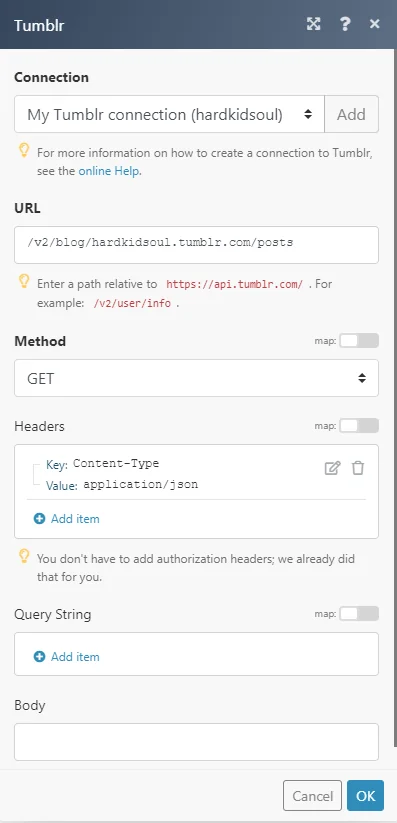
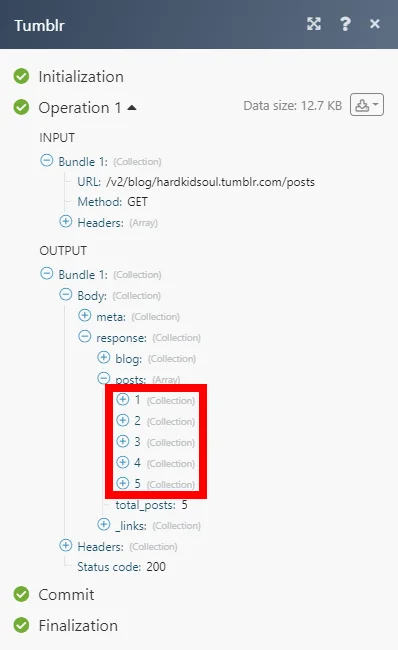
The result can be found in the module’s Output under Bundle > Body > dashboards.
In our example, 5 posts were returned:
Legacy article, imported from the original Boost.space knowledge base (/knowledge-base/applications/marketing/tumblr/).

