Asana
The Asana modules enable you to monitor and manage tasks, projects, teams, users, workspaces, stories, or attachments in your account.
Getting Started with Asana
Prerequisites
- An Asana account
In order to use Asana with Boost.space Integrator, it is necessary to have an Asana account. If you do not have one, you can create an Asana account at asana.com/create-account.
Connecting Asana to Boost.space Integrator
To connect your Asana account to Boost.space Integrator, follow the general instructions for Connecting to services.
After you click the Continue button, Boost.space Integrator will redirect you to the Asana website.
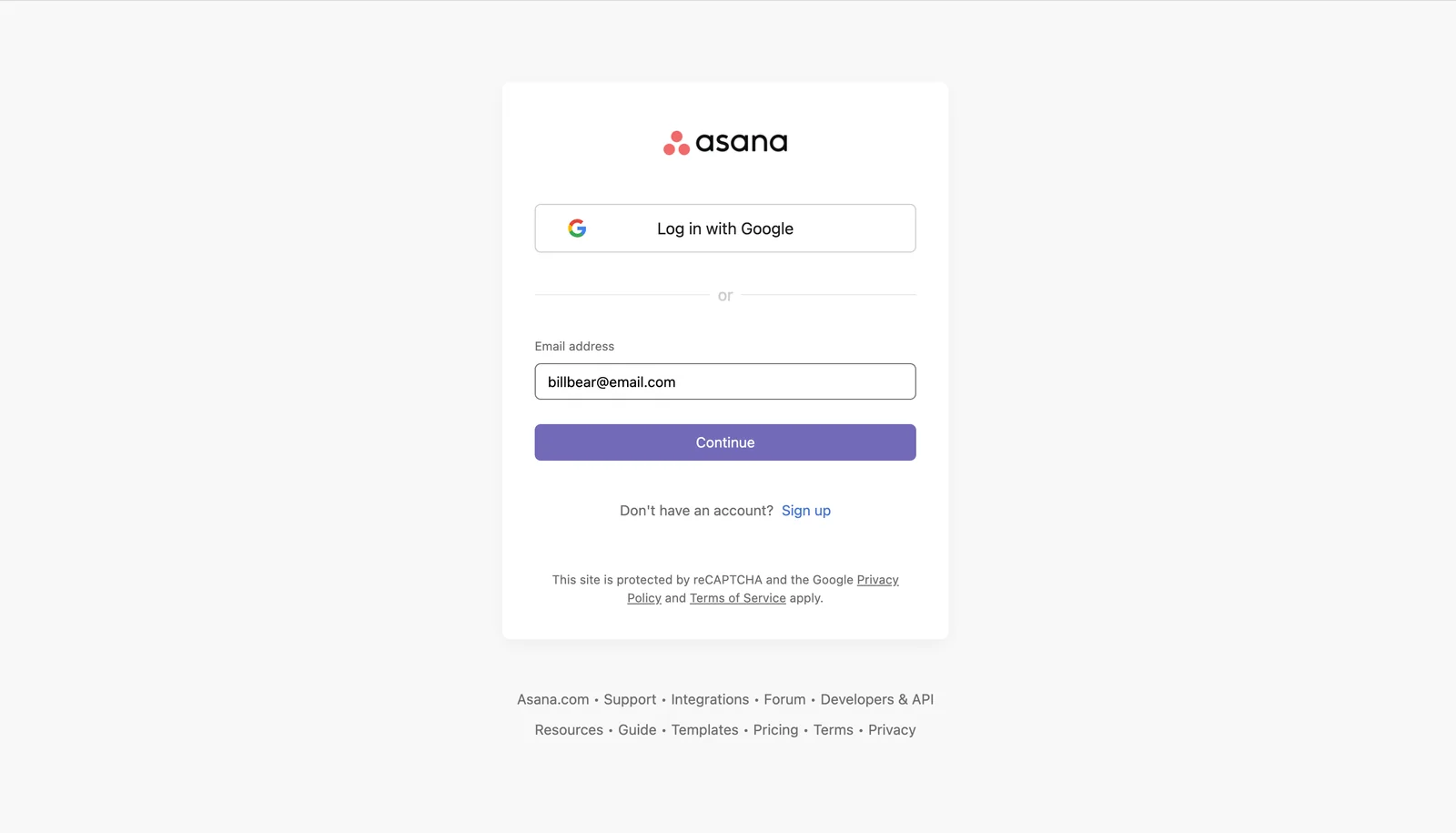
If you are already logged into Asana, the connection will be automatically established. If not, log into your Asana account.
If everything went right, you can now continue creating your scenario.
Tasks
Watch Tasks or Subtasks
Checks whether new tasks or subtasks have been made.
This module is available only for users with a subscription plan.
If Asana is unable to deliver a webhook for 24 hours, the webhook will be deactivated.
Connection
Establish a connection to your Asana account.
Watch
Select the task type you want to watch. For example, completed tasks.
Resource Subtype
Select the resource you want to watch. For example, milestone.
Workspace
Select the workspace whose tasks you want to watch and select the relevant options for the autopopulated fields.
Limit
Set the maximum number of tasks Boost.space Integrator will return during one execution cycle.
Watch New Tasks
Retrieves task details when a new task is created.
Connection
Establish a connection to your Asana account.
Filter
Select the corresponding object you want to specify the task by.
-
Workspace and assignee: Enter the workspace to filter tasks by. Note: If you specify Workspace, you must also specify the Assignee to filter by.
-
Project: Select the project you want to filter results by.
-
Section
-
Tag ID: Select the tag you want to filter results by.
Completed since
Enter the date in the MM/DD/YYYY h:mm format to only return tasks that are either incomplete or that have been completed since this time.
Modified since
Enter the date in the MM/DD/YYYY h:mm format to only return tasks that have been modified since the given time.
Limit
Set the maximum number of tasks Boost.space Integrator will return during one execution cycle.
Watch New Subtasks in a Task
Checks whether new subtasks have been made.
Connection
Establish a connection to your Asana account.
Enter a Task ID
Select an option:
-
Enter manually
-
Select from the list
Find Task through
Select the corresponding object you want to specify the task by.
-
Workspace and assignee: Enter the workspace to filter tasks by. Note: If you specify Workspace, you must also specify the Assignee to filter by.
-
Project: Select the project you want to filter results by.
-
Section: Enter the workspace to filter tasks by.
-
Tag: Select the tag you want to filter results by.
Task ID
Enter the Task ID whose subtasks you want to watch.
Limit
Set the maximum number of subtasks Boost.space Integrator will return during one execution cycle. The default value is 10.
List Tasks
Retrieves tasks based on filter settings.
Connection
Establish a connection to your Asana account.
Filter
Select the corresponding object you want to specify the task by.
-
Workspace and assignee: Enter the workspace to filter tasks by.
If you specify Workspace, you must also specify the Assignee to filter by.
Project: Select the project you want to filter results by.
Section: Select the Project ID first. Then you can select the Project Section ID you want to filter results by.
Tag ID: Select the tag you want to filter results by.
Completed since
Enter the date in the MM/DD/YYYY h:mm format to only return tasks that are either incomplete or that have been completed since this time.
Modified since
Enter the date in the MM/DD/YYYY h:mm format to only return tasks that have been modified since the given time.
Limit
Set the maximum number of tasks Boost.space Integrator will return during one execution cycle.
Get a Task
Retrieves task details.
Connection
Establish a connection to your Asana account.
Enter a task ID
Select whether you want to map the Task ID or select the task manually using drop-down menus.
Task ID
Select or map the ID of the task you want to retrieve details about.
Create a Task or a Subtask
Creates a task or a subtask.
Connection
Establish a connection to your Asana account.
Task destination
Select the corresponding object where you want to create a task.
-
Workspace: Enter the workspace where you want to create a task.
-
Projects: Select the projects you want to create a task for.
-
Projects and sections: Select sections of the project you want to create a task for.
-
Parent tasks: Creates a new subtask and adds it to the parent task.
Custom fields
Enter values to custom fields if needed.
Custom fields can only be added to a task when the task is added to a project, or as a subtask to a task. If you just add it to a workspace, it is not possible to add custom fields. No project -> no custom fields. Also, if you add it under a parent task, then it automatically belongs to the project of that parent task.
Task name
Enter the name of the new task.
Notes
Enter more detailed, free-form textual information associated with the task.
This field will be overwritten if the HTML Notes field (below) is filled.
HTML notes
Enter notes of the text with formatting as HTML.
Overwrites the Notes field (above), if filled.
Task assignee
Select the user or map the user ID of the user you want to assign the task to.
Due
Select whether to specify just a due date or a due date and time combination.
-
Date: For example: 2020-01-01
-
Date time combination: For example: 2020-01-01T12:00:00.000Z
Due on
Enter the date (or date and time, depending on your selection in the Due field above) on which this task is due.
Start on
Enter the date (or date and time, depending on your selection in the Due field above) on which the task starts. The due date must be set in order to set the Start On field.
Resource subtype
Select the subtype of this resource.
The Resource Subtype Milestone represents a single moment in time. This means tasks with this subtype cannot have a Start Date.
Approvals are only available for users in an Enterprise or Business plan.
Liked
Enable this option if the task is liked by you.
Task completed?
Enable this option to mark the task as completed.
External
Allows you to add app-specific metadata.
-
External ID: The external gid. Max size is 1024 characters. Can be a URI.
-
External Data: Enter the data of the BLOB (binary large object).
Followers
Select the users you want to add as followers of the task.
When no followers are submitted, the task assignee and the task creator are added as followers by default. When submitting followers, the creator and task assignee are not added by default. This also means that the creator can’t see the task afterward unless specifically added.
Tags
Select tags you want to assign to the task.
Update a Task
Updates a task.
Connection
Establish a connection to your Asana account.
Enter a task ID
Select whether you want to map the Task ID or select the task manually using drop-down menus.
Task ID
Select or map the ID of the task you want to update.
Workspace ID
Select the workspace to display custom fields from.
Custom fields
Enter values to custom fields if needed.
When mapping, we can only generate the workspace custom fields for the user. You have to select the correct custom fields (i.e. not submit any custom fields that are not used by the task; a task only has access to custom fields when it belongs to projects using those custom fields).
The displayed custom fields might be disabled; you should not try to use any disabled custom fields.
It’s impossible to filter out the disabled fields on Boost.space Integrator‘s side as we can’t retrieve the enabled field.
Task name
Enter the name of the new task.
Notes
Enter more detailed, free-form textual information associated with the task.
This field will be overwritten if the HTML Notes field (below) is filled.
HTML notes
Enter notes of the text with formatting as HTML.
Overwrites the Notes field (above), if filled.
Task assignee
Select the user or map the user ID of the user you want to assign the task to.
Due
Select whether to specify just a due date or a due date and time combination.
-
Date: for example: 2020-01-01
-
Date Time Combination: for example: 2020-01-01T12:00:00.000Z
Due on
Enter the date (or date and time, depending on your selection in the Due field above) on which this task is due.
Start on
Enter the date (or date and time, depending on your selection in the Due field above) on which the task starts. The due date must be set in order to set the Start On field.
Resource subtype
Select the subtype of this resource.
The Resource Subtype Milestone represents a single moment in time. This means tasks with this subtype cannot have a Start Date. Approvals are only available for users in an Enterprise or Business plan
Í
Liked
Enable this option if the task is liked by you.
Task completed?
Enable this option to mark the task as completed.
External
Allows you to add app-specific metadata.
-
External ID: The external
gid. Max size is 1024 characters. Can be a URI. -
External Data: Enter the data of the BLOB (binary large object).
Followers
Select the users you want to add as followers of the task.
When no followers are submitted, the task assignee and the task creator are added as followers by default. When submitting followers, the creator and task assignee are not added by default. This also means that the creator can’t see the task afterward unless specifically added.
Tags
Select tags you want to assign to the task.
Delete a Task
Deletes a task.
Connection
Establish a connection to your Asana account.
Enter a task ID
Select whether you want to map the Task ID or select the task manually using drop-down menus.
Task ID
Select or map the ID of the task you want to delete.
Duplicate a Task
Duplicates a task.
Connection
Establish a connection to your Asana account.
Enter a task ID
Select whether you want to map the Task ID or select the task manually using drop-down menus.
Task ID
Select or map the ID of the task you want to duplicate.
Name
Enter the name of the new task.
Include
Select fields that will be duplicated to the new task. Tasks are always included.
List a Task’s Subtasks
Retrieves subtasks.
Connection
Establish a connection to your Asana account.
Enter a task ID
Select whether you want to map the Task ID or select the task manually using drop-down menus.
Task ID
Select or map the ID of the task you want to retrieve subtasks for.
Limit
Set the maximum number of subtasks Boost.space Integrator will return during one execution cycle.
Update a Task’s Parent
Updates a parent task.
Connection
Establish a connection to your Asana account.
Enter a task ID
Select whether you want to map the Task ID or select the task manually using drop-down menus.
Task ID
Select or map the ID of the task you want to retrieve subtasks for.
Parent task
Specify the parent task you want to update.
Enter a task ID
Select whether you want to map the Task ID or select the task manually using drop-down menus.
Task ID
Select or map the ID of the parent task you want to update.
Update a Task’s Followers
Adds or removes followers of a task.
Connection
Establish a connection to your Asana account.
Add or remove
Select whether you want to add or remove followers of the existing task.
Enter a task ID
Select whether you want to map the Task ID or select the task manually using drop-down menus.
Task ID
Select or map the ID of the task you want to retrieve subtasks for.
Followers
Select the followers you want to add or remove.
List a Task’s Projects
Retrieves projects of a task.
Connection
Establish a connection to your Asana account.
Enter a task ID
Select whether you want to map the Task ID or select the task manually using drop-down menus.
Task ID
Select or map the ID of the task you want to retrieve projects for.
Limit
Set the maximum number of projects Boost.space Integrator will return during one execution cycle.
Add a Task to a Project
Adds a task to a project or section.
Connection
Establish a connection to your Asana account.
Task
Specify the task you want to add to a project.
Enter a task ID
Select whether you want to map the Task ID or select the task manually using drop-down menus.
Task ID
Select or map the ID of the task you want to add to the project.
Project ID
Select or map the project you want to add the task to.
Location
Select the location where to place the task.
Task ID
Select or enter (map) the task you specified above to be placed after/before.
Section ID
Select the section you want to place the task into.
Remove a Task from a Project
Removes a task from the specified project.
Connection
Establish a connection to your Asana account.
Enter a task ID and project ID
Select whether you want to map the Task ID and Project ID or select the task and project manually using drop-down menus.
Task ID
Select or map the ID of the task you want to remove from the project.
Project ID
Select or map the project you want to remove the task from.
List a Task’s Dependencies
Retrieves dependencies of a task.
Connection
Establish a connection to your Asana account.
Select a task ID
Select whether you want to map the Task ID or select the task manually using drop-down menus.
Task ID
Select or map the ID of the task you want to retrieve dependencies for.
Limit
Set the maximum number of dependencies Boost.space Integrator will return during one execution cycle.
Update a Task’s Dependencies
Adds or removes dependencies of a task.
Returns an error if you try to remove a dependency that is not a dependency.
Connection
Establish a connection to your Asana account.
Add or remove
Select whether you want to add or remove the dependencies of the existing task.
Enter a task ID
Select whether you want to map the Task ID or select the task manually using drop-down menus.
Task ID
Select or map the ID of the task you want to add or remove dependencies for.
Dependencies
Select dependencies you want to add or remove.
List a Task’s Dependents
Retrieves the compact representations of all of the dependents of a task.
Connection
Establish a connection to your Asana account.
Select a task ID
Select whether you want to map the Task ID or select the task manually using drop-down menus.
Task ID
Select or map the ID of the task you want to retrieve dependents for.
Limit
Set the maximum number of dependents Boost.space Integrator will return during one execution cycle.
Update a Task’s Dependents
Adds or removes a set of tasks as dependents. A task can have at most 30 dependents.
Returns an error if you try to remove a dependent that is not a dependent.
Connection
Establish a connection to your Asana account.
Add or remove
Select whether you want to add or remove the dependents of the existing task.
Enter a task ID
Select whether you want to map the Task ID or select the task manually using drop-down menus.
Task ID
Select or map the ID of the task you want to add or remove dependents for.
Dependents
Select dependents you want to add or remove.
Projects
Watch New Projects
Retrieves project details when a new project is created.
Connection
Establish a connection to your Asana account.
Workspace ID
Select the workspace to filter results by.
Archived
Enable if you want to return only archived projects.
Limit
Set the maximum number of projects Boost.space Integrator will return during one execution cycle.
List Projects
Retrieves the projects in your account.
Connection
Establish a connection to your Asana account.
Workspace ID
Select the workspace to filter results by.
Archived
Enable if you want to return only archived projects.
Limit
Set the maximum number of projects Boost.space Integrator will return during one execution cycle.
Get a Project
Retrieves project details.
Connection
Establish a connection to your Asana account.
Project ID
Select or map the ID of the project you want to retrieve details about.
Create a Project
Creates a new project in a workspace or team.
Connection
Establish a connection to your Asana account.
Workspace ID
Select the workspace where you want to create a project.
Team ID
If the workspace for your project is an organization, select or map the team with which this project is shared.
Name
Enter the name of the new project.
Notes
Enter more detailed, free-form textual information associated with the project.
Color
Select the color of the project.
Default view
Select a project’s default view (list, board, calendar, or timeline).
Due on
Enter the date on which this project is due in the YYYY-MM-DD format.
Start on
Enter the date on which the project starts in the YYYY-MM-DD format. The due date (above) must be set to set the field, Start On.
Is template
Enable setting the project as a template. This is not possible for archived projects, personal projects, or user task lists.
Public
Select the Yes option if the project is public to the organization. If you select No, do not share this project with other users in this organization without explicitly checking to see if they have access.
Update a Project
Updates an existing project.
Connection
Establish a connection to your Asana account.
Project ID
Select or map the project you want to update.
Name
Enter the name of the new project.
Notes
Enter more detailed, free-form textual information associated with the project.
Color
Select the color of the project.
Current status
-
Color Select the color associated with the status update. -
Text Enter the text content of the status update.
Archived
Enable this option if the project is archived. Archived projects do not show in the UI by default and may be treated differently for queries.
Default view
Select the default view (list, board, calendar, or timeline) of a project.
Due on
Enter the date on which this project is due in the YYYY-MM-DD format.
Start on
Enter the date on which the project starts in the YYYY-MM-DD format. The due date (above) must be set in order to set the Start On field.
Is template
Enable to set the project as a template. This is not possible for archived projects, personal projects, or user task lists.
Public
Select the Yes option if the project is public to the organization. If you select No, do not share this project with other users in this organization without explicitly checking to see if they have access.
Delete a Project
Deletes a project.
Connection
Establish a connection to your Asana account.
Project ID
Select or map the project you want to delete.
Duplicate a Project
Duplicates a project.
Connection
Establish a connection to your Asana account.
Project ID
Enter or select the project you want to duplicate.
Name
Enter the name of the new project.
Workspace ID
Select the workspace that contains the team you want to assign to the new project.
Team ID
Select or map the team for the new project. If the team is not defined, the new project will be in the same team as the original project.
Include
Select the elements that will be duplicated in the new project. Tasks are always included.
Schedule dates
-
Should skip weekends: Enable auto-shifted dates should skip weekends.
-
Start on: Enter the first start date in the YYYY-MM-DD format in the duplicated project to the given date. The rest of the start dates will be offset by the same amount as the start dates in the original project.
-
Due on: Enter the last due date in the YYYY-MM-DD format in the duplicated project to the given date. The rest of the due dates will be offset by the same amount as the due dates in the original project.
Get a Project’s Task Count
Returns the number of tasks in the specified project.
This module is the subject of Asana’s rate limits.
Connection
Establish a connection to your Asana account.
Project ID
Enter or select the project you want to retrieve a task count.
List a Project’s Sections
Returns sections in the specified project.
Connection
Establish a connection to your Asana account.
Project ID
Enter or select the project you want to retrieve sections for.
Limit
Set the maximum number of sections Boost.space Integrator will return during one execution cycle.
Get a Project Section
Retrieves project section details.
Connection
Establish a connection to your Asana account.
Enter a project section ID
Select whether you want to map the Project Section ID or select the section manually using drop-down menus.
Project section ID
Select or map the ID of the section you want to retrieve details about.
Create a Project Section
Creates a new section in a project.
Connection
Establish a connection to your Asana account.
Project ID
Select whether you want to map the Project Section ID or select the section manually using drop-down menus.
Section name
Enter the text that will be displayed as the section name.
Update a Project Section
Updates a project section name.
Connection
Establish a connection to your Asana account.
Enter a project section ID
Select whether you want to map the Project Section ID or select the section manually using drop-down menus.
Project section ID
Select or map the ID of the section you want to update.
Section name
Enter the new text that will be displayed as the section name.
Move a Project Section
Moves a section in a board view within a project.
Connection
Establish a connection to your Asana account.
Project ID
Select the project that contains the section you want to reorder.
Project section ID
Select or map the ID of the section you want to move.
Before section ID
Select the section to insert the given section immediately before this section.
After section ID
Select the section to insert the given section immediately after this section.
Delete a Project Section
Deletes an existing section.
Sections must be empty to be deleted.
The last remaining section in a board view cannot be deleted.
Connection
Establish a connection to your Asana account.
Enter a project section ID
Select whether you want to map the Project Section ID or select the section manually using drop-down menus.
Project section ID
Select or map the ID of the section you want to delete.
List Project’s Statuses
Retrieves the project status history.
Connection
Establish a connection to your Asana account.
Project ID
Select the project you want to retrieve statuses from.
Limit
Set the maximum number of statuses Boost.space Integrator will return during one execution cycle.
Get a Project Status
Retrieves the specified project statuses.
Connection
Establish a connection to your Asana account.
Enter a project status ID
Select whether you want to map the Project Status ID or select the status manually using drop-down menus.
Project status ID
Select or map the ID of the status you want to retrieve.
Create a Project Status
Creates a new status update on the project.
Connection
Establish a connection to your Asana account.
Project ID
Select the project for which you want to create a status.
Color
Select the color of the new status update.
Text
Enter the text content of the status update.
Delete a Project Status
Deletes a project status.
Connection
Establish a connection to your Asana account.
Enter a project status ID
Select whether you want to map the Project Status ID or select the status manually using drop-down menus.
Project status ID
Select or map the ID of the status you want to delete.
Workspaces, Teams, Users
List Workspaces
Retrieves all workspaces in your account.
Connection
Establish a connection to your Asana account.
Limit
Set the maximum number of workspaces Boost.space Integrator will work with during one execution cycle.
Get a Workspace
Retrieves workspace details.
Connection
Establish a connection to your Asana account.
Workspace ID
Select or map the ID of the workspace you want to retrieve details about.
List a Workspace’s Teams
Returns the details of all teams in the specified organization.
Connection
Establish a connection to your Asana account.
Organization ID
Select or map the ID of the workspace or organization you want to retrieve teams for.
Limit
Set the maximum number of teams Boost.space Integrator will return during one execution cycle.
List a Workspace’s Users
Returns the details of all users in the specified workspace or organization.
Connection
Establish a connection to your Asana account.
Workspace ID
Select or map the ID of the workspace or organization you want to retrieve users for.
Limit
Set the maximum number of users Boost.space Integrator will return during one execution cycle.
Update a Workspace’s Users
Adds or removes a user in the workspace.
Connection
Establish a connection to your Asana account.
Add or remove
Select whether you want to add a user to the workspace or remove a user from the workspace.
Enter a workspace ID and user ID
Select whether you want to map the Workspace ID and User ID or select the Workspace ID and User ID manually using drop-down menus.
Workspace
Select or map workspace or organization ID.
User
Select or map the user you want to add to the workspace or remove from the workspace.
Create a Team
Creates a team.
Connection
Establish a connection to your Asana account.
Name
Enter a name for the team.
Organization
Select or map the organization whose team you want to create.
Description
Enter the team’s description.
HTML Description
Enter the team’s HTML description.
Get a Team
Retrieves team details.
Connection
Establish a connection to your Asana account.
Enter a team ID
Select whether you want to map the Team ID or select the Team manually using drop-down menus.
Team ID
Select or map the ID of the team you want to retrieve.
List a Team’s Users
Retrieves members of the specified team.
Connection
Establish a connection to your Asana account.
Enter a team ID
Select whether you want to map the Team ID or select the Team manually using drop-down menus.
Team ID
Select or map the ID of the team you want to retrieve members of.
Limit
Set the maximum number of team members Boost.space Integrator will return during one execution cycle.
Add a User to a Team
Adds a user to a team.
Connection
Establish a connection to your Asana account.
Enter a team ID
Select whether you want to map the Team ID and User ID or select the team and user manually using drop-down menus.
Team ID
Select or map the team you want to add a user to.
User ID
Select or map the user you want to add to the team.
Remove a User from a Team
Removes a user from a team.
Connection
Establish a connection to your Asana account.
Enter a team ID
Select whether you want to map the Team ID and User ID or select the team and user manually using drop-down menus.
Team ID
Select or map the team you want to remove a user from.
User ID
Select or map the user you want to remove from the team.
List Users
Retrieves all users in your account.
Connection
Establish a connection to your Asana account.
Workspace ID
If you want to filter users by workspace, select the workspace.
Limit
Set the maximum number of users Boost.space Integrator will return during one execution cycle.
Get a User
Retrieves user details.
Connection
Establish a connection to your Asana account.
User ID
Select or map the user you want to retrieve details about.
List a User’s Teams
Retrieves all teams a user is a member of.
Connection
Establish a connection to your Asana account.
User ID
Select or map the user you want to retrieve teams for.
Workspace/Organization ID
Select or map the workspace or organization you want to filter teams by.
Limit
Set the maximum number of teams Boost.space Integrator will return during one execution cycle.
Stories
Watch New Stories
Retrieves story details when a new story is created for the task.
Connection
Establish a connection to your Asana account.
Find task through
Select the corresponding object you want to specify the task by.
Task ID
Select the task you want to watch for new stories.
List a Task’s Stories
Retrieves all stories for a task.
Connection
Establish a connection to your Asana account.
Enter a task ID
Select whether you want to map the Task ID or manually select the task from which you want to retrieve stories using drop-down menus.
Task ID
Enter (map) or select the task ID from which you want to retrieve stories.
Limit
Set the maximum number of stories Boost.space Integrator will return during one execution cycle.
Get a Story
Retrieves story details.
Connection
Establish a connection to your Asana account.
Enter a story ID
Select whether you want to map the Story ID or manually select the story using drop-down menus.
Story ID
Enter (map) or select the story ID you want to retrieve details about.
Add a Story Comment
Updates a story with a comment.
Connection
Establish a connection to your Asana account.
Enter a task ID
Select whether you want to map the Task ID or select the task manually using drop-down menus.
Task ID
Enter (map) or select the task ID to which you want to add the story comment.
Comment
Enter the plain text content of the comment.
Update a Story
Updates a story.
Connection
Establish a connection to your Asana account.
Enter a story ID
Select whether you want to map the Task ID or manually select the task using drop-down menus.
Story ID
Enter (map) or select the task ID to add to the story comment.
Comment
Enter the plain text content of the comment.
Is pinned
Enable this option to pin the story on the resource.
Delete a Story
Deletes a story
Connection
Establish a connection to your Asana account.
Enter a story ID
Select whether you want to map the Story ID or select the story manually using drop-down menus.
Story ID
Enter (map) or select the story ID you want to delete.
Attachments
List a Task’s Attachments
Retrieves all attachments of a task.
Connection
Establish a connection to your Asana account.
Enter a Task ID
Select a method:
-
Enter manually
-
Select from the list
Find Task through
Select the corresponding object you want to specify the task by.
-
Workspace and assignee: Enter the workspace to filter tasks by.
If you specify Workspace, you must also specify the Assignee to filter by.
Project: Select the project you want to filter results by.
Section: Select the Project ID first. Then you can select the Project Section ID by which you want to filter results.
Tag: Select the tag you want to filter results by.
Task ID
Enter the Task ID whose attachments you want to list.
Limit
Set the maximum number of attachments Boost.space Integrator will return during one execution cycle. The default value is 10.
Get an Attachments
Retrieves an attachment.
Connection
Establish a connection to your Asana account.
Enter an Attachment ID
Select a method:
-
Enter manually
-
Select from the list
Find Task through
Select the corresponding object you want to specify the task by.
-
Workspace and assignee: Enter the workspace to filter tasks by.
If you specify Workspace, you must also specify the Assignee to filter by.
Project: Select the project you want to filter results by.
Section: Select the Project ID first. Then you can select the Project Section ID by which you want to filter results.
Tag: Select the tag you want to filter results by.
Attachment ID
Enter an Attachment ID whose details you want to retrieve.
Upload an Attachment
Uploads an attachment to a task.
Connection
Establish a connection to your Asana account.
Enter a Task ID
Select a method:
-
Enter manually
-
Select from the list
Find Task through
Select the corresponding object you want to specify the task by.
-
Workspace and assignee: Enter the workspace to filter tasks by.
If you specify Workspace, you must also specify the Assignee to filter by.
Project: Select the project you want to filter results by.
Section: Select the Project ID first. Then you can select the Project Section ID by which you want to filter results.
Tag: Select the tag you want to filter results by.
Task ID
Enter the Task ID whose attachment you want to upload.
File
Enter the file’s details:
Name
Enter a name for the file being uploaded without containing the special characters \,/,*,?,>,<,|,".
Data
Enter the file data.
Delete an Attachment
Deletes an attachment.
Connection
Establish a connection to your Asana account.
Enter an Attachment ID
Select a method:
-
Enter manually
-
Select from the list
Find Task through
Select the corresponding object you want to specify the task by.
-
Workspace and assignee: Enter the workspace to filter tasks by.
If you specify Workspace, you must also specify the Assignee to filter by.
Project: Select the project you want to filter results by.
Section: Select the Project ID first. Then you can select the Project Section ID by which you want to filter results.
Tag: Select the tag you want to filter results by.
Attachment ID
Enter an Attachment ID you want to delete.
Tags
Watch New Tags
Retrieves tag details when a new tag is created for the task.
Connection
Establish a connection to your Asana account.
Workspace ID
Select the workspace to filter tags by.
Limit
Set the maximum number of tags Boost.space Integrator will return during one execution cycle.
List Tags
Retrieves all tags in your account.
Connection
Establish a connection to your Asana account.
Workspace ID
Select the workspace to filter tags by.
Limit
Set the maximum number of tags Boost.space Integrator will return during one execution cycle.
Get a Tag
Retrieves tag details.
Connection
Establish a connection to your Asana account.
Tag ID
Select or map the tag you want to retrieve details about.
Create a Tag
Creates a tag
Connection
Establish a connection to your Asana account.
Workspace ID
Select the workspace if you want to create a tag in a particular workspace.
Tag name
Enter the name of the tag.
Color
Enter the color of the tag.
Update a Tag
Updates a tag.
Connection
Establish a connection to your Asana account.
Tag ID
Map or select the tag you want to update.
Tag name
Enter the new name of the tag.
Color
Enter the new color of the tag.
List a Task’s Tags
Retrieves all tags of a task.
Connection
Establish a connection to your Asana account.
Enter a task ID
Select whether to map the Task ID or manually select the task you want to retrieve tags using drop-down menus.
Task ID
Enter (map) or select the ID of the task you want to retrieve tags for.
Limit
Set the maximum number of tags Boost.space Integrator will return during one execution cycle.
Update a Task’s Tag
Adds or removes a tag from a task.
Connection
Establish a connection to your Asana account.
Add or remove
Select whether you want to add or remove the tag of the existing task.
Enter a task ID
Select whether you want to map the Task ID or select the task manually using drop-down menus.
Task ID
Select or map the ID of the task you want to update the tag for.
Tag
Select the tag you want to add or remove.
Custom Fields
List a Workspace’s Custom Fields
Retrieves custom fields in a workspace.
Connection
Establish a connection to your Asana account.
Workspace ID
Select the workspace to filter custom fields.
Limit
Set the maximum number of custom fields Boost.space Integrator will return during one execution cycle.
Get a Custom Field
Retrieves custom field details.
Connection
Establish a connection to your Asana account.
Enter a custom field ID
Select whether you want to map the Custom Field ID or manually select the custom field using drop-down menus.
Custom fields ID
Enter (map) or select the ID of the custom field you want to retrieve details about.
Create a Custom Field
Creates a new custom field in a workspace.
Connection
Establish a connection to your Asana account.
Workspace ID
Select or enter (map) the workspace ID for which you want to create a custom field.
Name
Enter the name of the custom field.
Description
Enter the description of the custom field.
Custom field type
Select the type of the custom field.
Enumeration options
-
Option name: The name of the enum option.
-
Option color: Select the color of the enum option.
Has notifications enabled?
This option defines whether a follower of a task with this field should receive inbox notifications about changes to this field.
Update a Custom Field
Updates a custom field.
Connection
Establish a connection to your Asana account.
Custom field ID
Select or enter (map) the ID of the custom field you want to edit.
Name
Enter the name of the custom field.
Description
Enter the description of the custom field.
Number precision
Select the number of places. Only relevant for custom fields of type Number. This field dictates the number of places after the decimal to round to, i.e., 0 is the integer value, 1 round to the nearest tenth, and so on. It must be between 0 and 6, inclusive.
Format
Select the format of the custom field.
Delete a Custom Field
Deletes a custom field.
Connection
Establish a connection to your Asana account.
Enter a custom field ID
Select whether you want to map the Custom Field ID or manually select the custom field using drop-down menus.
Custom field ID
Enter (map) or select the ID of the custom field you want to delete.
Add an Option to a Custom Field
Creates an enum option and adds it to this custom field’s list of enum options.
A custom field can have at most 50 enum options (including disabled options).
Connection
Establish a connection to your Asana account.
Enter a custom field option ID
Select whether you want to map the Custom Field Option ID or manually select the custom field option using drop-down menus.
Custom field ID
Enter (map) or select the ID of the custom field option you want to insert the enum option to.
Insert before enumeration option (ID)
Select an existing enum option within this custom field before the new enum option is inserted. It cannot be provided together with Insert After.
Insert after enumeration option (ID)
Select an existing enum option within this custom field, after which the new enum option should be inserted. It cannot be provided together with Insert Before.
Option name
Enter the name of the enum option.
Option color
Select the color of the enum option.
Update a Custom Field Option
Updates an existing enum option. The name, description, and number precision/format (will be ignored if the type is not a number) can be updated.
The user who locked the field can only update those custom fields.
Connection
Establish a connection to your Asana account.
Enter a custom field option ID
Select whether you want to map the Custom Field Option ID or manually select the custom field option using drop-down menus.
Enumeration option
Enter (map) or select the ID of the Enumeration Option you want to update.
Option name
Enter the name of the enum option.
Option color
Select the color of the enum option.
Enabled
Select whether or not the enum option is a selectable value for the custom field.
List a Project’s Custom Fields
Retrieves custom field settings (that contain custom fields) of the project.
Not available for Free Users
Connection
Establish a connection to your Asana account.
Project ID
Select or map the project you want to retrieve custom field settings for.
Limit
Set the maximum number of custom field settings Boost.space Integrator will return during one execution cycle.
Update a Project’s Custom Fields
Adds or removes custom fields in a project.
Connection
Establish a connection to your Asana account.
Add or remove
Select whether you want to add or remove the custom field.
Enter a custom fields ID
Select whether you want to map the Custom Field ID or select the custom field manually using drop-down menus.
Custom field ID
Select or map the custom field ID you want to add or remove.
Insert before (Custom field setting ID)
The ID of the Custom Field Setting before which the new Custom Field Setting will be added. It cannot be provided together with Insert After.
Insert after (Custom field setting ID)
The ID of the Custom Field Setting, after which the new Custom Field Setting will be added. It cannot be provided together with Insert Before.
Is important
Select whether this field should be considered important to this container (for instance, to display in the list view of items in the container).
Goals
List Goals
Retrieves all goals.
Connection
Establish a connection to your Asana account.
Filter
Select the corresponding object you want to specify the goal by.
-
Workspace
-
Team
-
Project
-
Portfolio
Workspace ID
Select or map the Workspace ID whose goals you want to list.
Project
Select or map the project whose goals you want to list.
Team
Select or map the Team ID whose goals you want to list.
User
Select the user whose portfolios you want to retrieve.
Portfolio
Select the portfolio whose goals you want to list. Note that portfolios are only available for Enterprise or Business plan users.
Time Periods
Select the time periods to list the goals within.
Limit
Set the maximum number of goals Boost.space Integrator will return during one execution cycle. The default value is 10.
Get a Goal
Retrieves a goal.
Connection
Establish a connection to your Asana account.
Filter
Select the corresponding object you want to specify the goal by.
-
Workspace
-
Team
-
Project
-
Portfolio
Workspace ID
Select or map the Workspace ID whose goal you want to retrieve.
Team ID
Select or map the ID whose goal you want to retrieve.
Project ID
Select or map the Project ID whose goal you want to retrieve.
User
Select or map the Workspace ID whose goal you want to retrieve.
Portfolio
Select the portfolio whose goals you want to retrieve. Note that portfolios are only available for Enterprise or Business plan users.
Goal ID
Select the Goal ID you want to retrieve.
Portfolio
Create a Portfolio
Creates a portfolio.
Connection
Establish a connection to your Asana account.
Name
Enter a name for the portfolio.
Workspace ID
Select or map the Workspace ID whose portfolio you want to create.
Color
Select the color of the portfolio.
Public
Select whether the portfolio is public to its workspace members.
Add Users to a Portfolio
Adds the specified list of users as members of the portfolio.
Connection
Establish a connection to your Asana account.
Workspace ID
Select or map the Workspace ID whose users you want to add to a portfolio.
Portfolio
Select or map the portfolio whose users you want to add.
Members
Select the users to add them as members.
These can be the string me, an email, or the ID of a user.
Update a Portfolio
Updates a portfolio.
Connection
Establish a connection to your Asana account.
Workspace ID
Select or map the Workspace ID whose portfolio you want to update.
Portfolio
Select or map the portfolio whose details you want to update.
Name
Enter an updated name for the portfolio.
Color
Select an updated color for the portfolio.
Public
Select whether the portfolio is public to its workspace members.
Get a Portfolio
Retrieves a portfolio.
Connection
Establish a connection to your Asana account.
Workspace ID
Select or map the Workspace ID whose portfolio you want to retrieve.
Portfolio
Select or map the portfolio you want to retrieve.
List Portfolios
Retrieves all portfolios.
Connection
Establish a connection to your Asana account.
Workspace
Select or map the Workspace ID whose portfolios you want to list.
Limit
Set the maximum number of portfolios Boost.space Integrator will return during one execution cycle. The default value is 10.
Delete a Portfolio
Deletes a portfolio.
Connection
Establish a connection to your Asana account.
Workspace
Select or map the Workspace ID whose portfolios you want to delete.
Portfolio
Select or map the portfolio you want to delete.
Remove Users from a Portfolio
Removes the specified list of users from members of the portfolio.
Connection
Establish a connection to your Asana account.
Workspace ID
Select or map the Workspace ID whose users you want to remove from the portfolio.
Portfolio
Select or map the portfolio whose users you want to remove.
Members
Enter an array of strings to identify users. These can be the string me, an email, or the ID of a user.
Other
List Webhooks
Retrieves all registered webhooks for the specified workspace in your account.
Connection
Establish a connection to your Asana account.
Workspace ID
Select the workspace to retrieve webhooks from.
Limit
Set the maximum number of webhooks Boost.space Integrator will return during one execution cycle.
Make an API Call
Allows you to perform a custom API call.
Connection
Establish a connection to your Asana account.
URL
Enter a path relative to https://app.asana.com/api. For example, /1.0/projects/9886448865
For the list of available endpoints, refer to the Asana API Documentation.
Method
Select the HTTP method you want to use:
-
GET: to retrieve information for an entry.
-
POST: to create a new entry.
-
PUT: to update/replace an existing entry.
-
PATCH: to make a partial entry update.
-
DELETE: to delete an entry.
Headers
Enter the desired request headers. You don’t have to add authorization headers; we already did that for you.
Query string
Enter the request query string.
Body
Enter the body content for your API call.
Example of Use – List Users
The following API call returns all the users in your account.
URL:
/1.0/users
Method:
GET
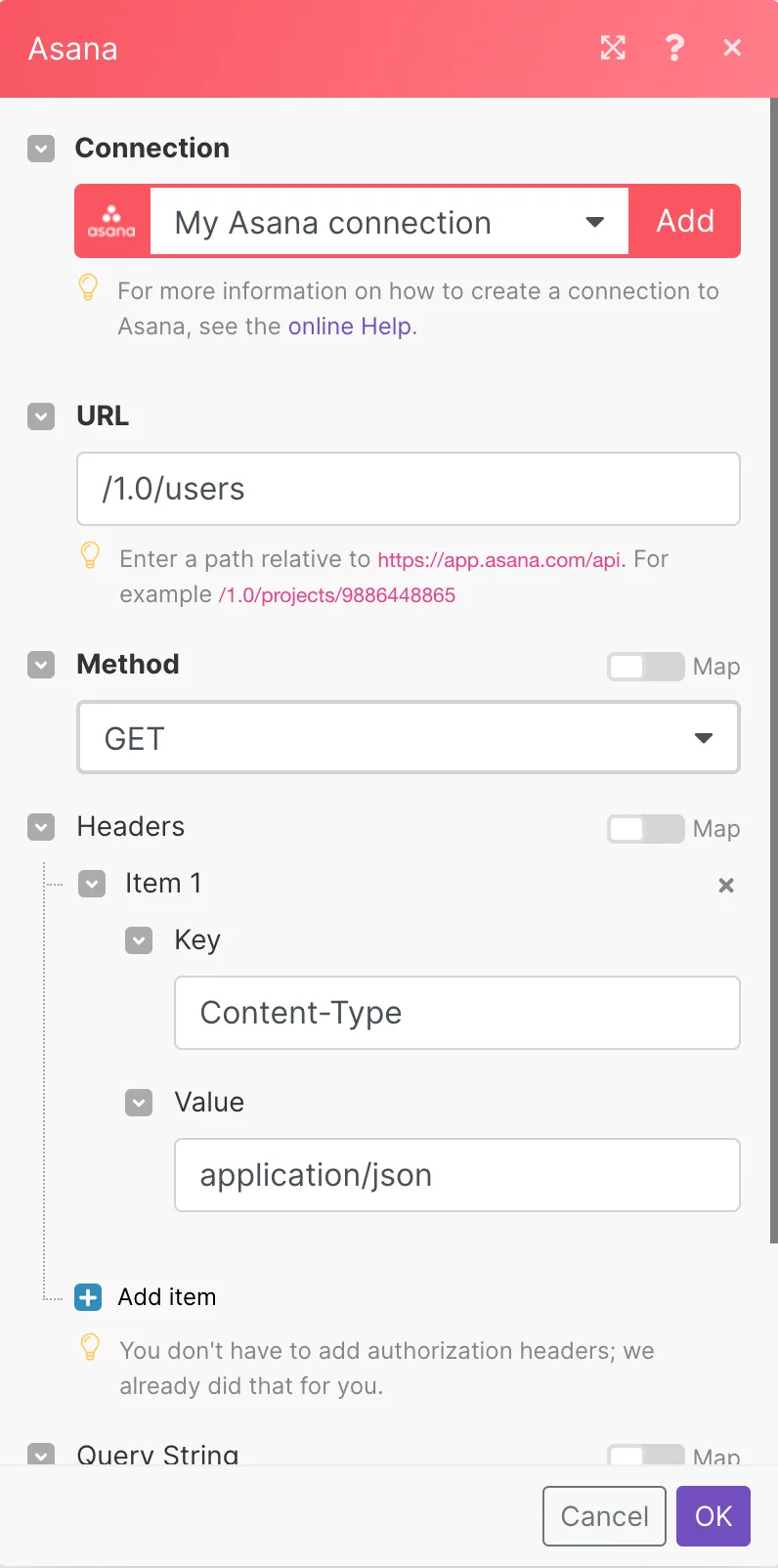
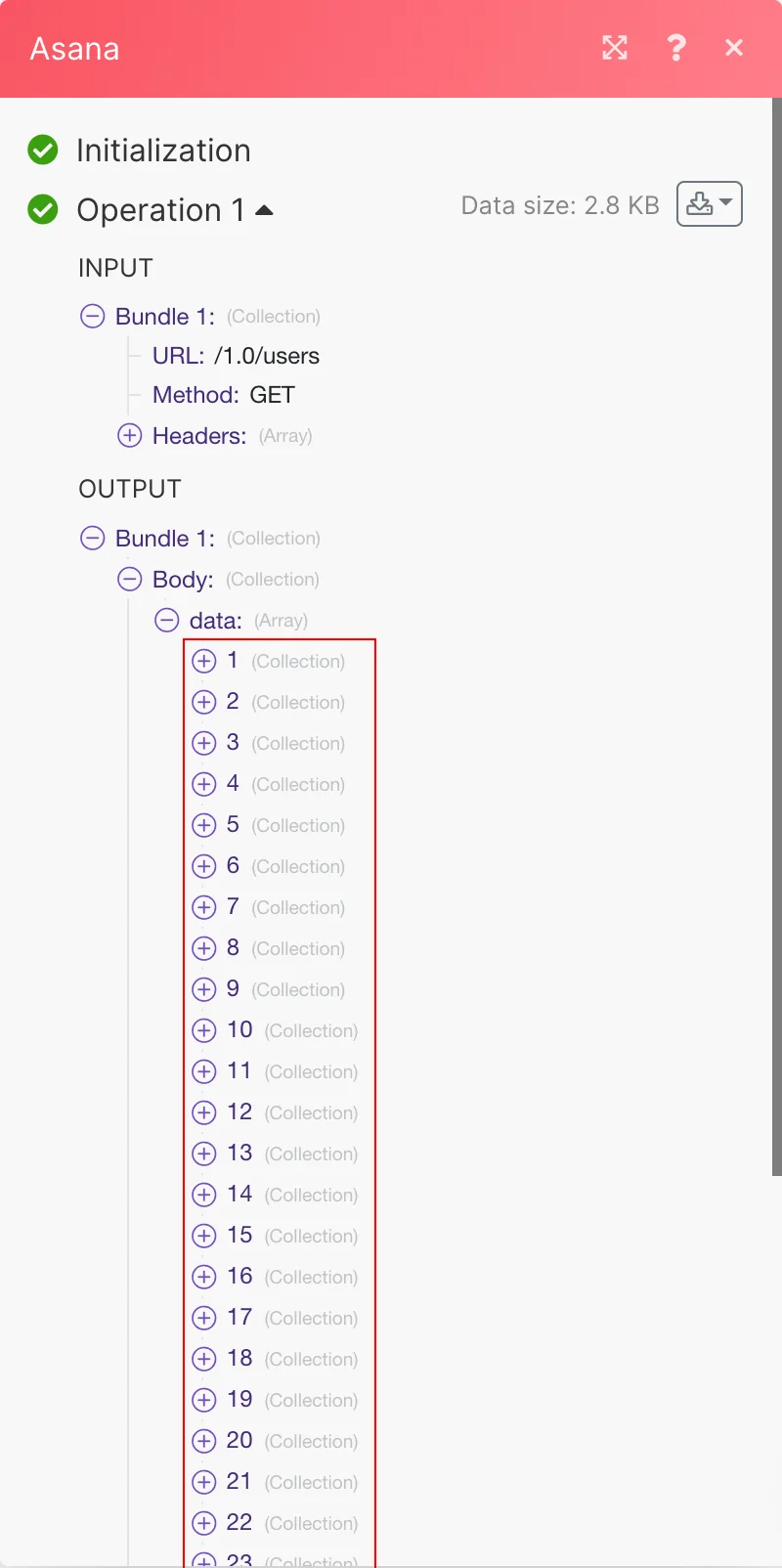
The result can be found in the module’s Output under Bundle > Body > data.
In our example, 30 users were returned:
Legacy article, imported from the original Boost.space knowledge base (/knowledge-base/applications/productivity/asana/).

