Basecamp 2
The Basecamp 2 modules allow you to watch, create, update, list, and/or delete documents, calendar, calendar events, events, messages, to-dos, to-do lists, and files in your Basecamp 2 account.
Prerequisites
- A Basecamp 2 account
In order to use Basecamp 2 with Boost.space Integrator, it is necessary to have a Basecamp 2 account. If you do not have one, you can create a Basecamp 2 account at https://basecamp.com/signup.
Connecting Basecamp 2 to Boost.space Integrator
To connect your Basecamp 2 account to Boost.space Integrator, you first need Client ID and Client Secret.
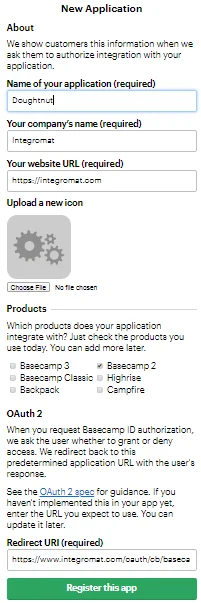
1. Create a client here and in the Integration section, under Which products does your application integrate with?, select Basecamp 2 .
2. In the OAuth 2 authorization section enter the Redirect URI, https://integrator.boost.space/oauth/cb/basecamp/ and click Register the app.
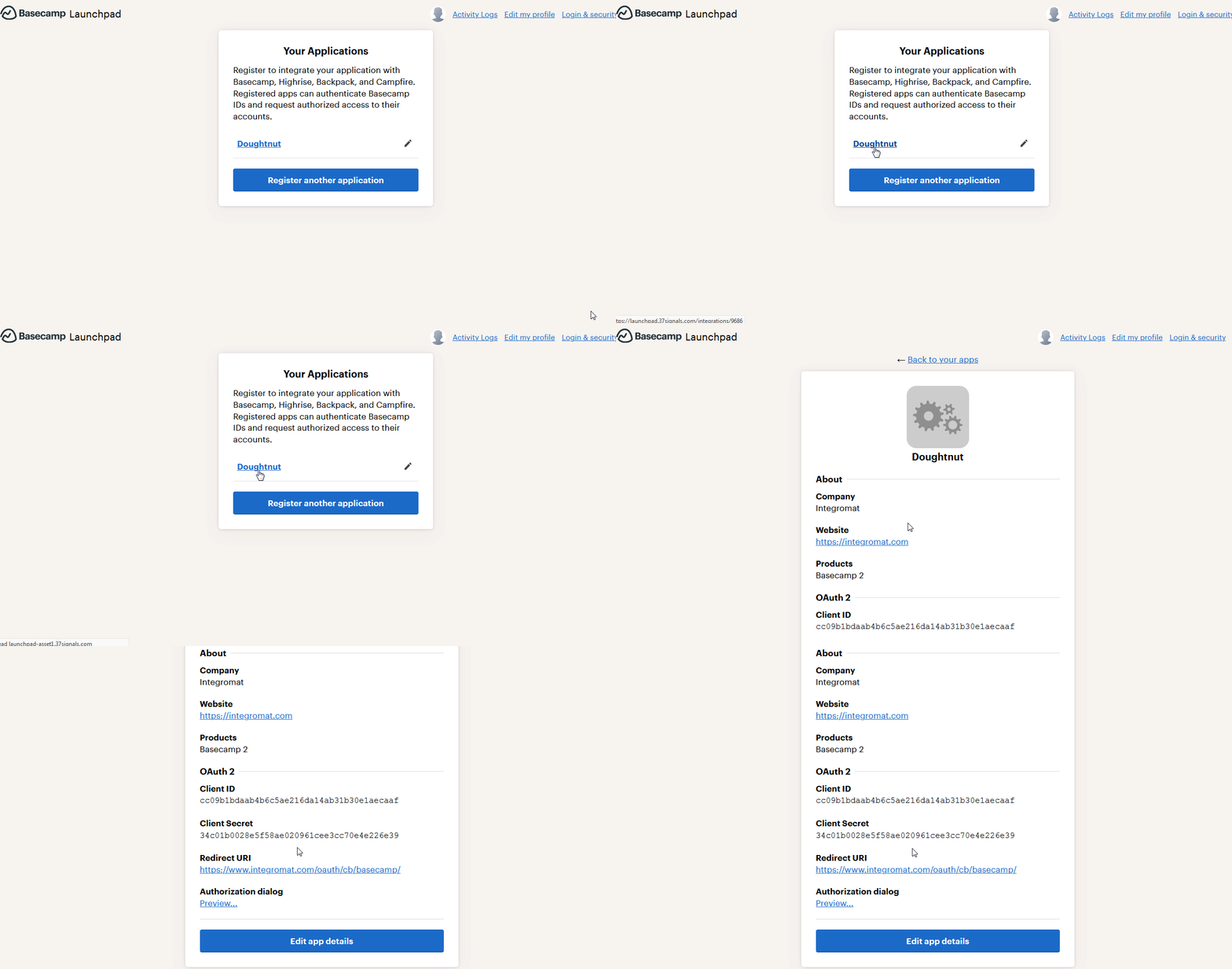
3. The client is successfully created. Click the client link and copy the Client ID and Client Secret.
4. Go to Boost.space Integrator and open the Basecamp 2 module’s_Create a connection dialog_.

5. Enter the Client ID and Client Secret that you have copied in the step 3.
6. Click Continue.
The connection has been established.
Triggers
Watch Documents
Triggers when a new document is added or an existing document is updated in a project being watched.
Connection
Establish a connection to your Basecamp 2 account.
Company
Select the company whose documents you want to watch.
Maximum number of returned documents
The maximum number of documents Boost.space Integrator should return during one scenario execution cycle.
I want to watch
Select the documents you want to watch:
- New documents only
- New documents and all changes
Watch Calendars
Triggers when a new is added or an existing calendar is updated in a project being watched.
Connection
Establish a connection to your Basecamp 2 account.
Company
Select the company whose calendars you want to watch.
Maximum number of returned documents
The maximum number of calendars Boost.space Integrator should return during one scenario execution cycle.
Watch Calendar Events
Triggers when a new calendar event is added or an existing calendar event is updated in a calendar being watched.
Connection
Establish a connection to your Basecamp 2 account.
Company
Select the company whose calendar events you want to watch.
Maximum number of returned events
The maximum number of calendar events Boost.space Integrator should return during one scenario execution cycle.
I want to watch
Select the calendar events you want to watch:
- New calendar events only
- New calendar events and all changes
Watch To-Do lists
Triggers when a new To-Do list is added or an existing To-Do list is updated in a project being watched.
Connection
Establish a connection to your Basecamp 2 account.
Company
Select the company whose To-Do lists you want to watch.
Maximum number of returned To-Do Lists
The maximum number of To-Do lists Boost.space Integrator should return during one scenario execution cycle.
I want to watch
Select the To-Do lists you want to watch:
- New To-Do lists only
- New To-Do lists and all changes
Watch To-Dos
Triggers when a new To-Do is added or an existing To-Do is updated in a project being watched.
Connection
Establish a connection to your Basecamp 2 account.
Company
Select the company whose To-Dos you want to watch.
Maximum number of returned To-Dos
The maximum number of To-Dos Boost.space Integrator should return during one scenario execution cycle.
I want to watch
Select the To-Dos you want to watch:
- New To-Dos only
- New To-Dos and all changes
Watch Files
Triggers when a new file is added to a project being watched.
Connection
Establish a connection to your Basecamp 2 account.
Company
Select the company whose files you want to watch.
Maximum number of returned files
The maximum number of files Boost.space Integrator should return during one scenario execution cycle.
Watch Events
Triggers when a new event is added to a project being watched.
Connection
Establish a connection to your Basecamp 2 account.
Company
Select the company whose events you want to watch.
Maximum number of returned events
The maximum number of events Boost.space Integrator should return during one scenario execution cycle.
Actions
Create a Document
Creates a document.
Connection
Establish a connection to your Basecamp 2 account.
Company
Select the company to which you want to create the document.
Title
Enter the name of the document.
Content
Enter the text in the document.
This document is private.
Select if you want this document to mark as private.
Update a Document
Updates a document.
Connection
Establish a connection to your Basecamp 2 account.
Company
Select the company whose document you want to update.
Document ID
Enter the Document ID you want to update.
Title
Enter a new name for the document.
Content
Enter the document text to update.
This document is private.
Select Yes if you want to mark the document as private:
- Yes
- No
- Not defined
Delete a document
Deletes a document.
Connection
Establish a connection to your Basecamp 2 account.
Company
Select the company whose document you want to delete.
Document ID
Enter the Document ID you want to delete.
Create a Calendar
Creates a calendar.
Connection
Establish a connection to your Basecamp 2 account.
Company
Select the company to which you want to create the calendar.
Name
Enter a name for the calendar.
Update a Calendar
Updates a calendar.
Connection
Establish a connection to your Basecamp 2 account.
Company
Select the company whose calendar you want to update.
Calendar ID
Enter the Calendar ID you want to update.
Name
Enter a new name for the calendar.
Delete a Calendar
Deletes a calendar.
Connection
Establish a connection to your Basecamp 2 account.
Company
Select the company whose calendar you want to delete.
Calendar ID
Enter the Calendar ID you want to delete.
Create a New Calendar Event
Creates a new calendar event.
Connection
Establish a connection to your Basecamp 2 account.
Company
Select the company to which you want to create the new calendar event.
Summary
Enter the summary of the event.
Type
Select the event type:
- All day event
- Events with set start date/time and end date/time
Start date
Enter the event start date.
Description
Enter the details of the event.
This event is private
Select if this is a private event.
Update a Calendar Event
Updates a calendar event.
Connection
Establish a connection to your Basecamp 2 account.
Company
Select the name of the company whose calendar event you want to update.
Calendar ID
Enter the Calendar ID you want to update.
Name
Enter a new name for the calendar event.
Delete a Calendar Event
Deletes a calendar event.
Connection
Establish a connection to your Basecamp 2 account.
Company
Select the company whose calendar events you want to delete.
Event ID
Enter the Event ID you want to delete.
Create a To-Do list
Creates a To-Do list.
Connection
Establish a connection to your Basecamp 2 account.
Company
Select the company whose To-Do list you want to create.
Name
Enter the name of the To-Do list.
Description
Enter the details of the To-Do list.
This To-Do list is private.
Select if you want this To-Do list to be private.
Update a To-Do List
Updates a To-Do list.
Connection
Establish a connection to your Basecamp 2 account.
Company
Select the company whose To-Do list you want to update.
To-Do List ID
Enter the To-Do List ID you want to update.
Name
Enter the name of the To-Do list.
Description
Enter the details of the To-Do list.
This To-Do list is private.
Select Yes if you want this To-Do list to be private:
- Yes
- No
- Not defined
Delete a To-Do List
Deletes a To-Do list.
Connection
Establish a connection to your Basecamp 2 account.
Company
Select the company whose To-Do list you want to delete.
To-Do List ID
Enter the To-Do List ID you want to delete.
Create a To-Do
Creates a To-Do.
Connection
Establish a connection to your Basecamp 2 account.
Company
Select the company whose To-Do you want to update.
Content
Enter the details of the To-Do.
Date Due At
Enter the date by which the To-Do must be complete.
Attachments
Add the attachments:
- File nameEnter the file name. For example, Filename:
test.txt. - DataEnter the data of the file which you need to either get from some source like Dropbox, or you can simply upload a text file.
This To-Do is private.
Select if this To-Do is private.
Update a To-Do
Updates a To-Do.
Connection
Establish a connection to your Basecamp 2 account.
Company
Select the company whose To-Do you want to update.
To-Do ID
Enter the To-Do ID you want to update.
Mark as completed.
Select Yes if this To-Do is completed:
- Yes
- No
- Not defined
Content
Enter the details of the To-Do.
Date due at
Enter the date by which the To-Do must be complete.
Attachments
Add the attachments:
- File nameEnter the file name. For example, Filename:
test.txt. - DataEnter the data of the file which you need to either get from some source like Dropbox, or you can simply upload a text file.
This To-Do is private.
Select Yes if this To-Do is private:
- Yes
- No
- Not defined
Delete a To-Do
Deletes a To-Do.
Connection
Establish a connection to your Basecamp 2 account.
Company
Select the company whose To-Do you want to delete.
To-Do ID
Enter To-Do ID you want to delete.
Upload a File
Uploads a file.
Connection
Establish a connection to your Basecamp 2 account.
Company
Select the company name to which you want to upload the file.
Description
Enter the details of the file.
File name
Enter the file name. For example, Filename: test.txt.
Data
Enter the data of the file which you need to either get from some source like Dropbox, or you can simply upload a text file.
This file is private.
Select if you want to make this file as private.
Delete a File
Deletes a file.
Connection
Establish a connection to your Basecamp 2 account.
Company
Select the company name whose file you want to delete.
File ID
Enter the File ID you want to delete.
Create a Message
Creates a message.
Connection
Establish a connection to your Basecamp 2 account.
Company
Select the company for which you want to create the message.
Subject
Enter the message subject.
Content
Enter the message text.
Attachments
Add the attachments:
- File nameEnter the file name. For example, Filename:
test.txt. - DataEnter the data of the file which you need to either get from some source like Dropbox, or you can simply upload a text file.
This message is private.
Select if you want make the message as private.
Update a Message
Updates a message.
Connection
Establish a connection to your Basecamp 2 account.
Company
Select the company for which you want to create the message.
Message ID
Enter the Message ID you want to update.
Subject
Enter the message subject.
Content
Enter the message text.
Attachments
Add the attachments:
- File nameEnter the file name. For example, Filename:
test.txt. - DataEnter the data of the file which you need to either get from some source like Dropbox, or you can simply upload a text file.
This message is private.
Select Yes if you want make the message as private:
- Y_es_
- No
- Not defined
Delete a Message
Deletes a message.
Connection
Establish a connection to your Basecamp 2 account.
Company
Select the company whose message you want to delete.
Message ID
Enter the Message ID you want to delete.
Legacy article, imported from the original Boost.space knowledge base (/knowledge-base/applications/productivity/basecamp/).

