Coda
The Coda API is in beta. As Coda updates and releases newer versions of the API, they reserve the right to remove older APIs and functionality with a 4-week deprecation notice.
Getting Started with Coda
The Coda modules allow you to monitor docs and tables, create docs and rows, and search or retrieve details about doc structures, tables, docs, formulas, and controls in your Coda account.
Prerequisites
- A Coda account
In order to use Coda with Boost.space Integrator, it is necessary to have a Coda account. If you do not have one, you can create a Coda account at coda.io/signin.
Connecting Coda to Boost.space Integrator
To connect your Coda account to Boost.space Integrator you need to generate an API token and provide it to Boost.space Integrator.
1. Sign in to your Coda account and open Account settings.
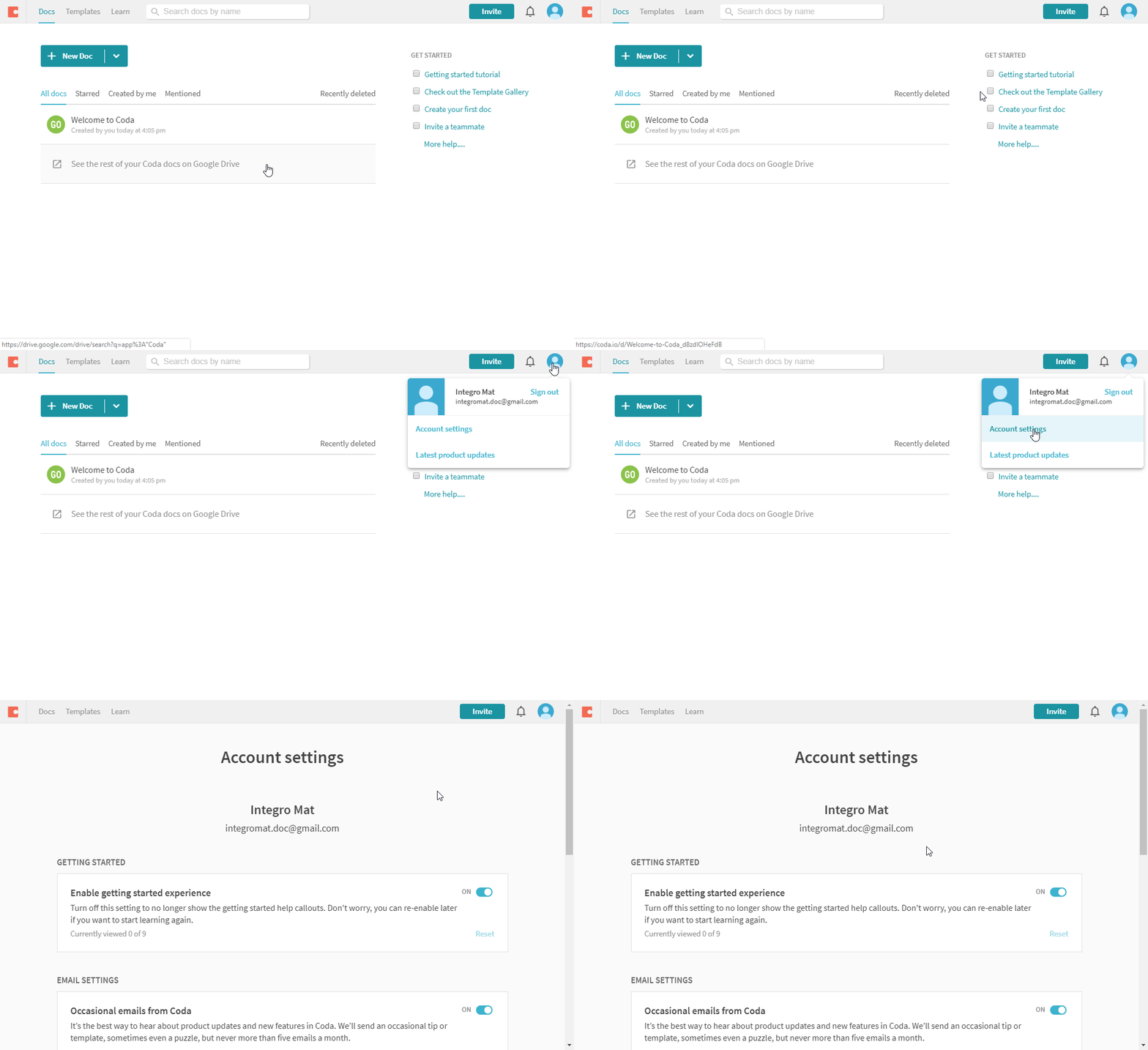
2. Navigate to the API SETTINGS section and click on the Generate API token button.
3. Give your API token a name and generate the token by clicking the Generate API token button.
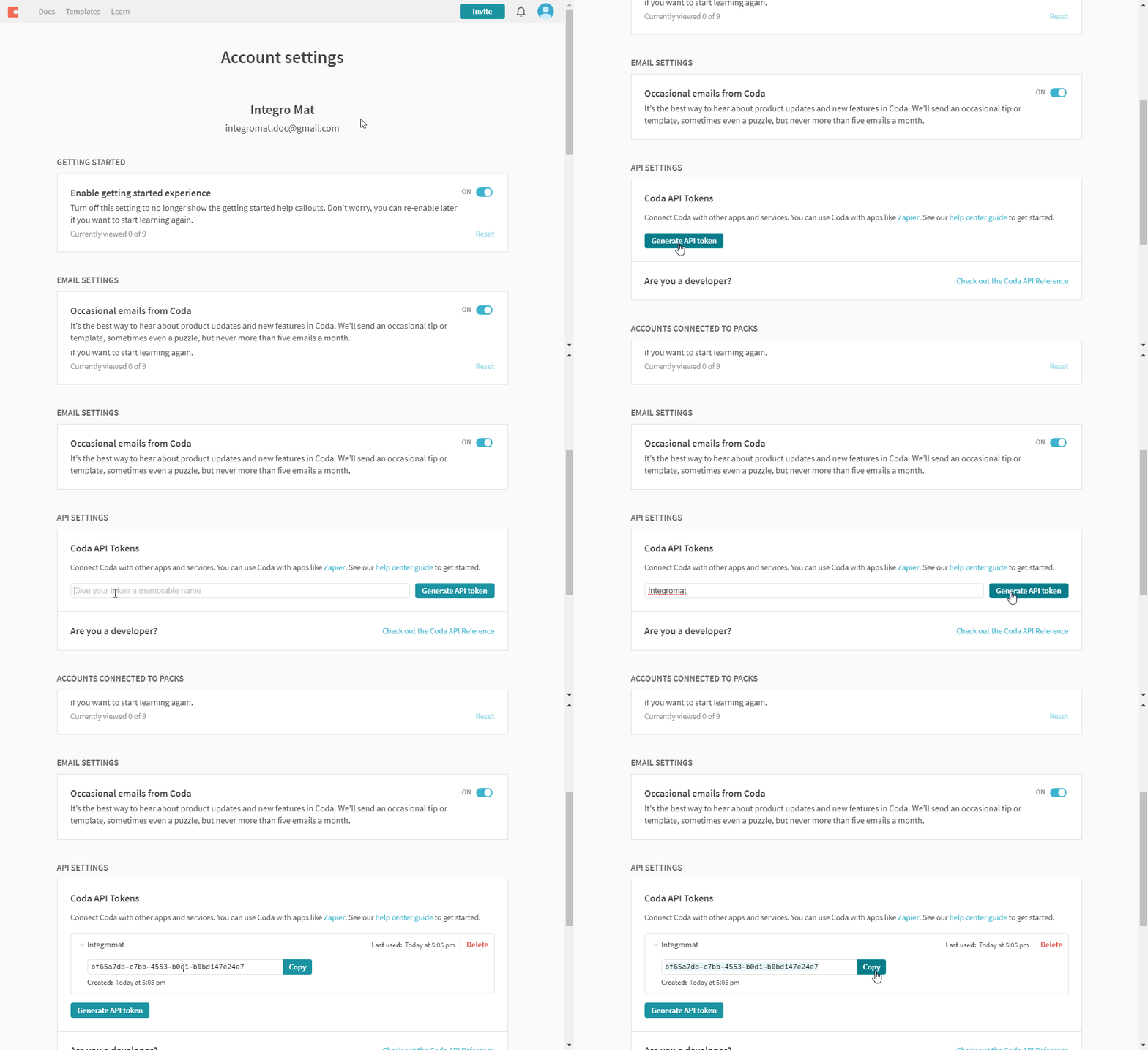
4. Copy the generated API token.
5. Go to Boost.space Integrator and open the Create a connection dialog.
6. Paste the generated API token to the API token field and click on the Continue button.
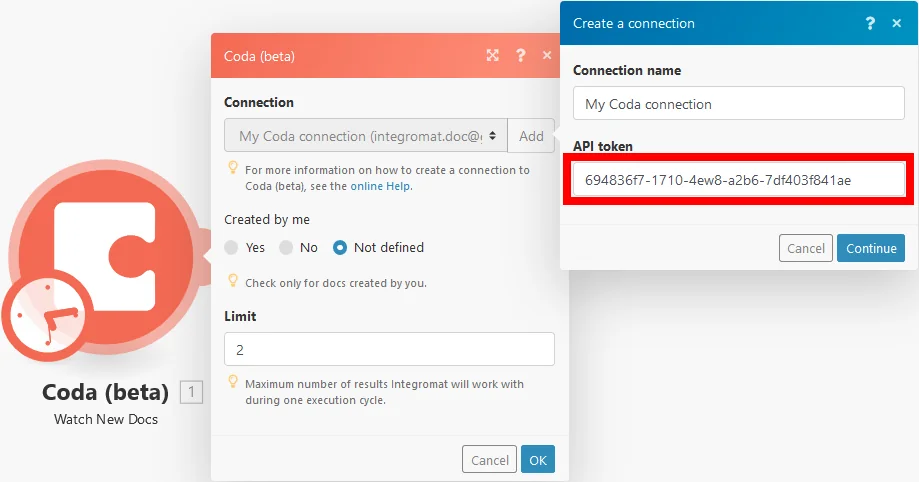
The connection has been established.
Docs
Watch New Docs
The module is triggered when a new doc is created.
Connection
Establish a connection to your Coda account.
Created by me
Retrieves only docs created by the account owner.
Limit
The maximum number of docs Boost.space Integrator will return during one cycle.
Create a Doc
Creates a new Coda doc. An existing doc can be used as a source doc for a new doc.
Connection
Establish a connection to your Coda account.
Title
Enter the title for a new doc. If left empty, the doc name will be set to “Untitled”.
Source doc ID
If you want to create a copy of an existing doc, map the ID of the source doc or select the source doc from the drop-down menu.
List Docs
Connection
Establish a connection to your Coda account.
Limit
The maximum number of docs Boost.space Integrator will return during one cycle.
Query
Enter the term you want to filter the results by.
Created by me
Retrieves only docs created by the account owner (you).
Source document ID
Select the doc or map the doc ID to show only docs copied by the specified document.
Get a Doc
Returns metadata for a specified doc.
Connection
Establish a connection to your Coda account.
Doc ID
Select or map the ID of the doc you want to retrieve information about.
Doc Structure
List Sections
Returns a list of sections in a Coda doc.
Connection
Establish a connection to your Coda account.
Doc ID
Select or map the ID of the doc you want to retrieve information about.
Limit
The maximum number of sections Boost.space Integrator will return during one cycle.
Get a Section
Connection
Establish a connection to your Coda account.
Doc ID
Select or map the ID of the doc you want to retrieve section details from.
Section ID or Name
Enter the ID or name of the section. Names are discouraged because they’re easily prone to being changed by users.
List Folders
Returns a list of folders in a Coda doc.
Connection
Establish a connection to your Coda account.
Doc ID
Select or map the ID of the doc you want to list folders from.
Limit
The maximum number of folders Boost.space Integrator will return during one cycle.
Get a Folder
Returns details about a folder.
Connection
Establish a connection to your Coda account.
Doc ID
Select or map the ID of the doc you want to retrieve folder details from.
Folder ID or Name
Enter the ID or name of the folder. Names are discouraged because they’re easily prone to being changed by users.
Tables
Watch New Rows
The module is triggered when a new row is created in a selected table.
Connection
Establish a connection to your Coda account.
Doc
Select the doc that contains the table you want to watch for new rows.
Table
Select the table you want to watch for new rows.
Create a Row
Inserts a row into a selected table.
Connection
Establish a connection to your Coda account.
Doc
Select the doc that contains the table you want to add a row to.
Table
Select the table where you want to add a row.
Columns
Enter the desired values for the table columns.
Update a Row
Updates a specified row in a table.
Connection
Establish a connection to your Coda account.
Doc
Select the doc that contains the table you want to update.
Table
Select the table where you want to add a row.
Row ID or Name
Select or map the row you want to update.
Columns
Enter values for the table columns you want to update.
Upsert a Row
Creates or updates a row.
The new row is created (inserted) if the key column doesn’t contain the specified value.
The row is updated if the key column does contain the specified value.
Connection
Establish a connection to your Coda account.
Doc
Select the doc that contains the table you want to update.
Table
Select the table where you want to add a row.
Key columns
Select the key column. The row is created or updated depending on the key column selection.
Example:
If the selected key column contains the value 123 and you specify the value 123 as the column value (see Columns section below), then all rows containing the value 123 in the specified key column are updated.
OR
If the selected key column does not contain the value 123 and you specify the value 123 as the column value (see Columns section below), then a new row is created.
Columns
Enter the desired values for the new or updated row.
Delete a Row
Deletes a selected row.
Connection
Establish a connection to your Coda account.
Doc ID
Select the doc that contains the table with the row you want to delete.
Table ID or Name
Select or map the table that contains the row you want to delete.
Row ID or Name
Select or map the row you want to delete.
List Rows
Returns a list of rows in a selected table.
Connection
Establish a connection to your Coda account.
Doc ID
Select the doc that contains the table you want to list.
Table ID or Name
Select or map the table that contains the rows you want to list.
Limit
The maximum number of rows Boost.space Integrator will return during one cycle.
Query
Example: “c-tuVwxYz:\”Apple\””
Query used to filter returned rows, specified as <column_id_or_name>:<value>. If you’d like to use a column name instead of an ID, you must quote it (e.g., "My Column":123). Also, note that value is a JSON value; if you’d like to use a string, you must surround it in quotes (e.g., "groceries").
Use column names
Select the Yes option if you want to use column names instead of column IDs in the returned output.
Get a Row
Returns details about a row in a table.
Connection
Establish a connection to your Coda account.
Doc ID
Map or select the doc that contains the table with the row you want to retrieve.
Table ID or Name
Select or map the table that contains the row you want to get details about.
Row ID or Name
Select or map the row you want to retrieve details about.
Use column names
Select the Yes option if you want to use column names instead of column IDs in the returned output.
List Tables
Returns a list of tables in a Coda doc.
Connection
Establish a connection to your Coda account.
Doc ID
Map or select the doc you want to list tables from.
Limit
The maximum number of tables Boost.space Integrator will return during one cycle.
Get a Table
Returns details about a specific table.
Connection
Establish a connection to your Coda account.
Doc ID
Map or select the doc you want to retrieve table details from.
Table ID or Name
Select or map the table you want to retrieve information about.
List Columns
Returns a list of columns in a table.
Connection
Establish a connection to your Coda account.
Doc ID
Map or select the doc you want to list the table columns from.
Limit
The maximum number of columns Boost.space Integrator will return during one cycle.
Get a Column
Returns details about a column in a table.
Connection
Establish a connection to your Coda account.
Doc ID
Map or select the doc you want to retrieve the table column details from.
Table ID or Name
Map or select the table you want to retrieve the table column details from.
Column ID or Name
Map or select the column you want to retrieve.
Formulas & Controls
List Formulas
Returns a list of named formulas in a Coda doc.
Connection
Establish a connection to your Coda account.
Doc ID
Map or select the doc you want to retrieve named formulas from.
Limit
The maximum number of named formulas Boost.space Integrator will return during one cycle.
Get a Formula
Connection
Establish a connection to your Coda account.
Doc ID
Map or select the doc you want to retrieve formula details from.
Formula ID or Name
Map or select the formula you want to retrieve information about.
List Controls
Controls provide a user-friendly way to input a value that can affect other parts of the doc. Boost.space Integrator lets you list controls and get their current values.
The module retrieves controls from the document, not controls from the table.
Connection
Establish a connection to your Coda account.
Doc ID
Map or select the doc you want to retrieve the list of controls from.
Limit
The maximum number of controls Boost.space Integrator will return during one cycle.
Get a Control
Returns info on a control.
The module retrieves controls from the document, not controls from the table.
Connection
Establish a connection to your Coda account.
Doc ID
Map or select the doc you want to retrieve the control details from.
Control ID or Name
Map or select the control you want to retrieve information about.
Other
Make an API Call
Allows you to perform a custom API call.
Connection
Establish a connection to your Coda account.
URL
Enter a path relative to https://coda.io/apis.For example: /v1/docs.
For the list of available endpoints, refer to the Coda API Documentation.
Method
Select the HTTP method you want to use:
GET to retrieve information for an entry.
POST to create a new entry.
PUT to update/replace an existing entry.
PATCH to make a partial entry update.
DELETE to delete an entry.
Headers
Enter the desired request headers. You don’t have to add authorization headers; we already did that for you.
Query String
Enter the request query string.
Body
Enter the body content for your API call.
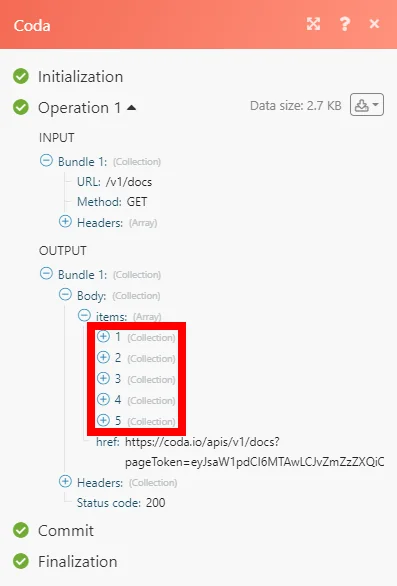
Example of Use – List Available Docs
The following API call returns all available docs in your Coda account:
URL:
/v1/docs
Method:
GET
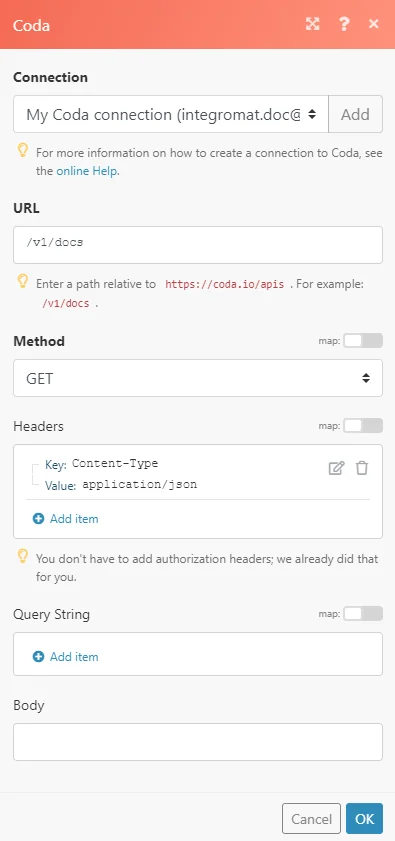
The result can be found in the module’s Output under Bundle > Body > items.
In our example, 5 docs were returned:
Legacy article, imported from the original Boost.space knowledge base (/knowledge-base/applications/productivity/coda/).

