Dynalist
The Dynalist modules enable you to edit, retrieve or move documents and folders, and insert, edit, retrieve, delete, or move document content in your Dynalist account.
Getting Started with Dynalist
Prerequisites
- A Dynalist account
In order to use Dynalist with Boost.space Integrator, it is necessary to have a Dynalist account. If you do not have one, you can create a Dynalist account at dynalist.io/signup.
Connecting Dynalist to Boost.space Integrator
To connect your Dynalist account to Boost.space Integrator you need to retrieve the API Key from your Dynalist account.
1. Log in to your Dynalist account.
2. Go to the Dynalist Developer page at dynalist.io/developer.
3. Click the Generate button.
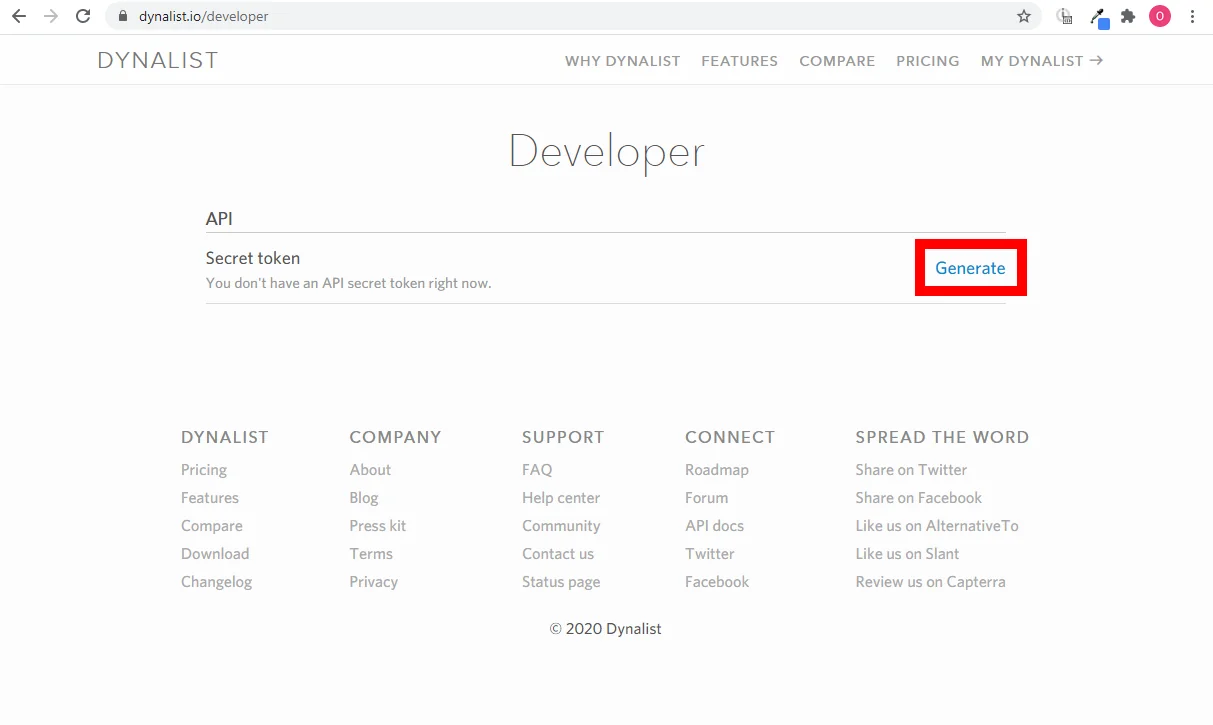
4. Copy the provided Secret token.

5. Go to Boost.space Integrator and open the Dynalist module’s Create a connection dialog.
6. Enter the API Key you have copied in step 4 to the respective field and click the Continue button to establish the connection.
The connection has been established. You can proceed with setting up the module.
Documents
Edit a Document
Allows you to change the title of the specified document.
Connection
Establish a connection to your Dynalist account.
File ID
Enter (map) the ID of the document you want to update.
Title
Enter a new title of the document.
Move a Document
Moves a document to a specified folder.
Connection
Establish a connection to your Dynalist account.
File ID
Enter (map) the ID of the document you want to move to another folder.
Parent ID
Enter the ID of the folder you want to move the file to.
Index
This field is a number that’s the zero-indexed position you want the file to land in the parent folder, enter -1 to place it at the end, and 0 to place it at the top.
List Documents
Retrieves the list of all documents in your account.
Connection
Establish a connection to your Dynalist account.
Limit
Set the maximum number of documents Boost.space Integrator will return during one execution cycle.
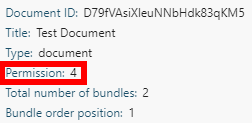
The permission parameter value in the module’s output corresponds to the following meanings:
Value
Meaning
0
No access
1
Read only
2
Edit rights
3
Manage
4
Owner
Document Content
Insert Content to a Document
Inserts an item to a specified document under a parent item.
Connection
Establish a connection to your Dynalist account.
File ID
Enter (map) the ID of the document you want to create an item in.
Parent ID
Enter the ID of the item you want to insert the item under.
Content
Enter the title of the new item.
Note
Enter the note for the new item.
Checked
Enable this option to set the item as checked off.
Checkbox
Enable this option to create a checkbox.
Heading
Select the size of the item’s font.
Color
Select the item’s background color.
-
0 – transparent (none)
-
1 – red
-
2 – orange
-
3 – yellow
-
4 – green
-
5 – blue
-
6 – purple
Get the Content of a Document
Retrieves the content of a specified document.
Connection
Establish a connection to your Dynalist account.
File ID
Enter (map) the ID of the document you want to retrieve the content from.
Edit the Content of a Document
Updates an item in a specified document.
Connection
Establish a connection to your Dynalist account.
File ID
Enter (map) the ID of the document that contains the item you want to update.
Node ID
Enter (map) the Node ID of the item you want to update.
Please find the descriptions of the fields in the Insert Content to a Document section.
Delete the Content of a Document
Deletes an item from a specified document.
Connection
Establish a connection to your Dynalist account.
File ID
Enter (map) the ID of the document that contains the item you want to delete.
Node ID
Enter (map) the Node ID of the item you want to delete.
Move the Content of a Document
Moves an item from a specified parent item.
Connection
Establish a connection to your Dynalist account.
File ID
Enter (map) the ID of the document that contains the item you want to move.
Node ID
Enter (map) the Node ID of the item you want to move.
Parent ID
Map or select the ID of the parent item you want to move the specified item under.
Index
Enter a number that’s the zero-indexed position you want the file to land in the parent folder, enter -1 to place it at the end, and 0 to place it at the top.
Folder
Edit a Folder
Allows you to edit a title of a specified folder.
Connection
Establish a connection to your Dynalist account.
File ID
Enter (map) the ID of the folder you want to update.
Title
Enter a new title of the folder.
Move a Folder
Moves a folder to a specified parent folder.
Connection
Establish a connection to your Dynalist account.
File ID
Enter (map) the ID of the folder you want to move.
Parent ID
Map or select the ID of the parent folder you want to move the folder to.
Index
Enter a number that’s the zero-indexed position you want the file to land in the parent folder, enter -1 to place it at the end, and 0 to place it at the top.
List Folders
Retrieves a list of all folders in your account.
Connection
Establish a connection to your Dynalist account.
Limit
Set the maximum number of folders Boost.space Integrator will return during one execution cycle.
The permission parameter value in the module’s output corresponds to the following meanings:
Value
Meaning
0
No access
1
Read only
2
Edit rights
3
Manage
4
Owner
Inbox
Send to Inbox
Sends a new item to your inbox location.
The inbox destination needs to be defined before using this module.
Specify the inbox destination in Settings > Preferences tab > Your inbox.
Connection
Establish a connection to your Dynalist account.
Index
Enter a number that’s the zero-indexed position you want the file to land in the parent folder, enter -1 to place it at the end, and 0 to place it at the top.
Content
Enter the title of the new item.
Note
Enter the note for the new item.
Checked
Enable this option to set the item as checked off.
Checkbox
Enable this option to create a checkbox.
Heading
Select the size of the item’s font.
Color
Select the item’s background color.
0
transparent (none)
1
red
2
orange
3
yellow
4
green
5
blue
6
violet
Other
Make an API Call
Allows you to perform a custom API call.
Connection
Establish a connection to your Dynalist account.
URL
Enter a path relative to https://dynalist.io/api. For example: /v1/file/edit.
For the list of available endpoints, refer to the Dynalist API Documentation.
Method
Select the HTTP method you want to use:
GET to retrieve information for an entry.
POST to create a new entry.
PUT to update/replace an existing entry.
PATCH to make a partial entry update.
DELETE to delete an entry.
Headers
Enter the desired request headers. You don’t have to add authorization headers; we already did that for you.
Query String
Enter the request query string.
Body
Enter the body content for your API call.
Example of Use – List Files and Folders
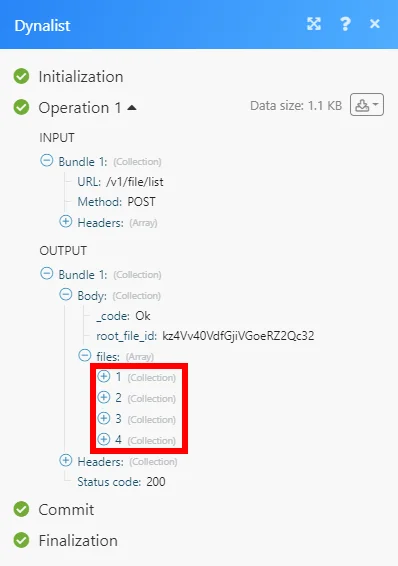
The following API call returns all the files and folders in your Dynalist account:
URL:
/v1/file/list/
Method:
POST
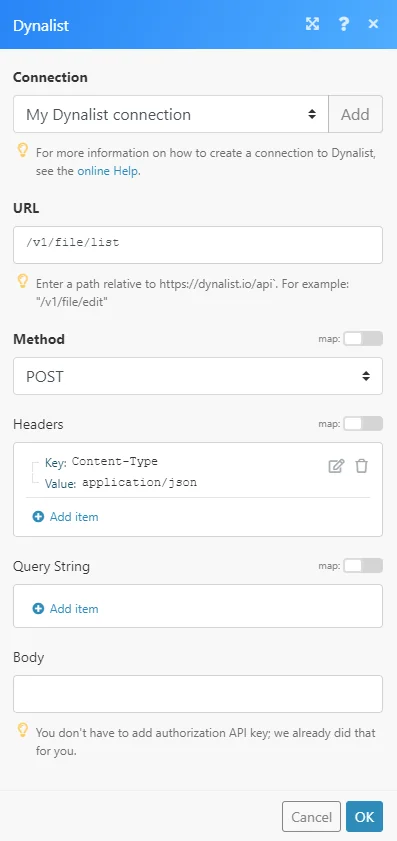
The result can be found in the module’s Output under Bundle > Body > files.
In our example, 4 files and/or folders were returned:
Legacy article, imported from the original Boost.space knowledge base (/knowledge-base/applications/productivity/dynalist/).

