Front
With Front modules in Boost.space Integrator, you can manage the teams, teammates, inboxes, conversations, messages, contacts, and contact groups in your Front account.
To use the Front modules, you must have a Front account. You can create an account at frontapp.com/signup.
Refer to the Front API documentation for a list of available endpoints.
Connect Front to Boost.space Integrator
To establish the connection, you must:
Obtain your API token in Front
To obtain your API token from your Front account:
-
Log in to your Front account.
-
In the upper right, click Settings.
-
In the left sidebar, click Developers.
-
Go to API Tokens section.
-
Click Create API Token.
-
Enter a token name and select the necessary scopes. To grant access to all team resources, select Shared Resources.
-
Click Create.
-
Copy the API token value shown and store it in a safe place.
You will use this value in the API Token field in Boost.space Integrator.
Establish the connection with Front in Boost.space Integrator
To establish the connection in Boost.space Integrator:
-
Log in to your Boost.space Integrator account, add a Front module to your scenario, and click Create a connection.
-
Optional: In the Connection name field, enter a name for the connection.
-
In the API token field, enter the API key copied above.
-
Click Save.
-
If prompted, authenticate your account and confirm access.
You have successfully established the connection. You can now edit your scenario and add more Front modules. If your connection requires reauthorization at any point, follow the connection renewal steps here.
Webhook
Watch Events
Triggers when an event occurs in the inboxes of your company by the rules you have set.
Connection
Establish a connection to your Front account.Connecting Front to Boost.space Integrator
Webhook
Allows you to automatically be notified of any incidents occurring in Front without having to constantly poll the API.
Teams
List Teams
Lists the teams in your company.
Connection
Establish a connection to your Front account.Connecting Front to Boost.space Integrator
Limit
Set the maximum number of teams Boost.space Integrator can return during one execution cycle.
Get Teams
Displays the details of the team.
Connection
Establish a connection to your Front account.Connecting Front to Boost.space Integrator
Team ID
Enter the ID of the requested team.
Teammates
List Teammates
Lists the teammates in your company.
Connection
Establish a connection to your Front account.Connecting Front to Boost.space Integrator
Limit
Set the maximum number of teammates Boost.space Integrator must return during one execution cycle.
Add Teammates to Team
Adds teammates as members of a team.
Connection
Establish a connection to your Front account.Connecting Front to Boost.space Integrator
Team ID
Enter the ID of the team to add the teammate(s) to.
Teammates ID
Enter the ID(s) of all the teammate(s) to add
Get Teammate
Fetches the information of a teammate.
Connection
Establish a connection to your Front account.Connecting Front to Boost.space Integrator
Teammates ID or
Alternative Teammate Email
Enter the ID or email of the requested teammate.
Update Teammate
Updates the information of a teammate.
Connection
Establish a connection to your Front account.Connecting Front to Boost.space Integrator
Teammates ID or Alternative Teammate Email
Enter the ID or email of the requested teammate.
Username
New username. It must be unique and can only contain lowercase letters, numbers, and underscores.
First Name
Enter the new first name of the teammate.
Last Name
Enter the new last name of the teammate.
Is Available
Availability Status. Choose one of the following status:
-
Yes
-
No
-
Not Defined
Delete Teammates from Team
Removes teammates from a team. Removing teammates also removes them from inboxes owned by the team.
Connection
Establish a connection to your Front account.Connecting Front to Boost.space Integrator
Team ID
Enter the ID of the team that has the teammates you want to delete.
Teammate IDs
Enter the ID or email of the teammates to delete.
Inbox
List Inboxes
List all the inboxes.
Connection
Establish a connection to your Front account.Connecting Front to Boost.space Integrator
Team ID
Enter the ID of the team of the inboxes you want to list.
Limit
Maximum number of the inboxes Boost.space Integrator can return during the execution of one cycle.
Create Inbox
Creates a team inbox.
Connection
Establish a connection to your Front account.Connecting Front to Boost.space Integrator
Team ID
Enter the ID of the team that you want to create the inbox for.
Teammate IDs
Enter the teammates IDs to give access to this inbox.
Get Inbox
Fetches the information of an inbox.
Connection
Establish a connection to your Front account.Connecting Front to Boost.space Integrator
Inbox ID
Enter the ID of the requested inbox.
Add Teammates to Inbox
Adds teammates to an inbox. The selected teammates must not already have access to the inbox and must be in the team that owns the inbox. Teammates cannot be added to private inboxes.
Connection
Establish a connection to your Front account.Connecting Front to Boost.space Integrator
Teammates ID or
Alternative Teammate Email
Enter the IDs or emails of all the teammates to add to the inbox.
Username
New username of the teammate.
First Name
First name of the teammate.
Last Name
Last name of the teammate.
Is Available
Availability Status. Choose one of the following status:
-
Yes
-
No
-
Not Defined
Delete Teammates from Inbox
Removes teammates from a team. Selected teammates must currently have access to the inbox to be removed. You cannot remove teammates from private inboxes.
Connection
Establish a connection to your Front account.Connecting Front to Boost.space Integrator
Team ID
Enter the ID of the team from which you want to remove teammates.
Teammates ID
Enter the ID of all the teammates to be deleted from the inbox.
Channel
List Channels
Lists all the channels.
Connection
Establish a connection to your Front account.Connecting Front to Boost.space Integrator
Team ID
Enter the ID of the team to list the channels for.
Limit
Maximum number of channels Boost.space Integrator will return during one execution cycle.
Create Channel
Creates a custom channel linked to the requested inbox.
Connection
Establish a connection to your Front account.Connecting Front to Boost.space Integrator
Channel ID
Enter the ID of the channel to be created.
Name
Name for the channel to be created.
Settings
Webhook URL
Only custom type. Enter the URL to which the custom message replies are sent.
Reply Mode
The way the channel can be used to reply a message.
Compose Mode
Enter one of the following:
-
normal: Allows to compose new messages from this channel. -
unsupported: Prevents composing a new message.
Default is unsupported.
Contact Type
The contact type channel uses. It can be only set when creating a channel.
Choose one from:
-
custom -
email -
phone
Default is custom.
Get Channel
Fetches the information of a channel.
Connection
Establish a connection to your Front account.Connecting Front to Boost.space Integrator
Inbox ID
Enter the ID of the requested channel.
Update Channel
Updates the settings of only a custom channel.
Connection
Establish a connection to your Front account.Connecting Front to Boost.space Integrator
Channel ID
Enter the ID of the channel to be updated.
Name
Name of the channel.
Settings
Webhook URL
Only custom type. Enter the URL to which the custom message replies are sent.
Reply Mode
The way the channel can be used to reply a message.
Compose Mode
Enter one of the following:
-
normal: Allows to compose new messages from this channel. -
unsupported: Prevents composing a new message
Default is unsupported.
Conversations
List Conversations
Lists all the conversations in your company in reverse chronological order (most recently updated first).
Connection
Establish a connection to your Front account.Connecting Front to Boost.space Integrator
Limit
Maximum number of results per page.
The default results per page is 50.
Maximum results per page is 100.
Get Conversations
Fetches the information of a conversation.
Connection
Establish a connection to your Front account.Connecting Front to Boost.space Integrator
Conversation ID
Enter the ID of the requested conversation.
Update Conversations
Updates a conversation.
Connection
Establish a connection to your Front account.Connecting Front to Boost.space Integrator
Conversation ID
Enter the ID of the conversation to be updated.
Assignee ID
Enter the ID of the teammate to assign the conversation to.
Set it to null to unassign.
Inbox ID
Enter the ID of the inbox to move the conversation to.
Status
Enter the new status of the conversation.
List Comments
Lists all the comments written in a conversation in reverse chronological order (newest first).
Connection
Establish a connection to your Front account.Connecting Front to Boost.space Integrator
Conversation ID
Enter the ID of the requested conversation you want to list.
Limit
Maximum number of comments Boost.space Integrator can list during the execution of one cycle.
Get Comment
Fetches the information of a comment.
Connection
Establish a connection to your Front account.Connecting Front to Boost.space Integrator
Enter Comment ID
Select one option for the Comment ID.
-
**Manually:**Auto populates the Comment IDfield. Enter the ID in the field.
-
By Selecting: Auto populates the Conversation field. Select the conversation from the drop-down list.
Create Comment
Adds a comment to a conversation.
Connection
Establish a connection to your Front account.Connecting Front to Boost.space Integrator
Conversation ID
Enter the ID of the requested conversation. When selected, auto populates the Author ID field.
Author ID
Enter the ID of the teammate creating the comment.
Body
Enter the content of the comment.
Message
Get Message
Fetches the information of a message.
Connection
Establish a connection to your Front account.Connecting Front to Boost.space Integrator
Enter Message ID
Select one option for the message ID.
-
**Manually:**Auto populates the Message IDfield. Enter the ID in the field.
-
By Selecting: Auto populates the Conversation field. Select the conversation from the drop-down list. Once you select the conversation, it auto populates the Message field, and enters the message.
Create Message
Sends a new message from a channel. It will create a new conversation.
Connection
Establish a connection to your Front account.Connecting Front to Boost.space Integrator
Conversation ID
Enter the ID of the requested conversation. When selected, it auto populates the Author ID.
To
Enter the ID of the member to receive the message.
Author ID
Enter the ID of the teammate creating the message.
Sender Name
Name of the sender.
Subject
Specifies the message heading.
Body
Enter the complete message text.
Attachments
Binary data of the attached files.
Options
Sending options.
Tags
Label used to classify the conversations.
Archive or Not
Select one of the following:
-
Yes
-
No
-
Not defined
Reply Message
Replies to a conversation by sending a message and appending it to the conversation.
Connection
Establish a connection to your Front account.Connecting Front to Boost.space Integrator
Conversation ID
Enter the ID of the conversation.
To
Select the sender’s name.
Author ID
Enter the ID of the teammate on behalf of whom the answer is sent.
Sender Name
The name used for the sender info of the message.
Subject
Subject of the message for the email message.
Body
Message text.
Attachments
Binary data of the attached files.
Options
Sending options.
Tags
List of tag names to add to the conversation.
Unknown tags will automatically be created.
Archive or Not
Choose one of the following status:
-
Yes
-
No
-
Not Defined
Contact
List Contact
Lists all the contacts.
Connection
Establish a connection to your Front account.Connecting Front to Boost.space Integrator
Updated After
Select a date after which the contacts are to be listed.
Updated Before
Select a date before which the contacts are to be listed.
Limit
Maximum number of contacts Boost.space Integrator will list during the execution of one cycle.
Get Contact
Fetches the information of a contact.
Connection
Establish a connection to your Front account.Connecting Front to Boost.space Integrator
Contact ID
Enter the ID or alias of the requested contact.
Create Contact
Creates a new contact for the default team.
Connection
Establish a connection to your Front account.Connecting Front to Boost.space Integrator
Contact ID
Enter the ID or alias of the requested contact.
Name
Contact name.
Handles
Add contact handles that are used to deal with the contact.
Description
Contact description.
Is Spammer
Whether or not the contact is marked as a spammer.
-
Yes
-
No
-
Not defined
Links
List of the contact’s links.
Group Names
List of all the group names the contact belongs to. It automatically creates missing groups.
Source file
Image File Name
Name of the image.
Data
Any other data about the contact.
Update Contact
Updates the information of a contact.
Connection
Establish a connection to your Front account.Connecting Front to Boost.space Integrator
Contact ID
Enter the ID of the contact to be updated.
Name
New contact name.
Description
New contact description.
Is Spammer
Whether or not the contact is marked as a spammer.
-
Yes
-
No
-
Not defined
Links
List of all the links of the contact.
Group Names
List of all the group names the contact belongs to. It automatically creates missing groups.
Source file
Enter or map image file from the previous module (e.g. Dropbox > Get a File).
Image File Name
Enter the name of the image file.
Data
Enter or map the file data.
Delete Contact
Deletes a contact.
Connection
Establish a connection to your Front account.Connecting Front to Boost.space Integrator
Contact ID
Enter the ID of the contact you want to delete.
Add Note to Contact
Adds a new note to a contact.
Connection
Establish a connection to your Front account.Connecting Front to Boost.space Integrator
Contact ID
Enter the ID of the contact that you want to add the note.
Author ID
Enter the ID of the teammate who added the note.
Note
Enter the Note text.
Contact Groups
List Contact Groups
Lists all the contact groups.
Connection
Establish a connection to your Front account.Connecting Front to Boost.space Integrator
Limit
Maximum number of results per page.
The default list of contact groups per page is 50.
Maximum number of contact groups per page is 100.
Create Contact Groups
Creates a new contact group in the default team.
Connection
Establish a connection to your Front account.Connecting Front to Boost.space Integrator
Name
Name of the contact group.
Delete Contact Group
Deletes a contact group. Will not delete the contacts in this group.
Connection
Establish a connection to your Front account.Connecting Front to Boost.space Integrator
Group ID
Enter the ID of all the contact groups to delete.
Add Contact into Group
Adds a list of contacts in the requested group.
Connection
Establish a connection to your Front account.Connecting Front to Boost.space Integrator
Group ID
Enter the ID of the requested group.
Contact IDs
Enter the list of IDs or aliases of the contacts to add in the requested group.
Rule
List Rules
Lists all the rules.
Connection
Establish a connection to your Front account.Connecting Front to Boost.space Integrator
Team ID
Enter the ID of the team to add the rules to.
Limit
Maximum number of rules Boost.space Integrator can return during one execution cycle.
Get Rule
Fetches the information of a tag.
Connection
Establish a connection to your Front account.Connecting Front to Boost.space Integrator
Rule ID
Enter the ID of the requested rule.
Tags
List Tag
Lists all the tags.
Connection
Establish a connection to your Front account.Connecting Front to Boost.space Integrator
Limit
Enter the maximum number of tags Boost.space Integrator must list during the execution of one cycle.
Get Tag
Fetches the information of a tag.
Connection
Establish a connection to your Front account.Connecting Front to Boost.space Integrator
Tag ID
Enter the ID of the requested tag.
Other
List Responses
Lists the responses in your company.
Connection
Establish a connection to your Front account.Connecting Front to Boost.space Integrator
Limit
Maximum number of responses Boost.space Integrator must list during the execution of one cycle.
Get Response
Fetches the information of an individual response.
Connection
Establish a connection to your Front account.Connecting Front to Boost.space Integrator
Response ID
Enter the ID of the requested response.
Make an API Call
Allows you to perform a custom API call.
Connection
Establish a connection to your Front account.Connecting Front to Boost.space Integrator
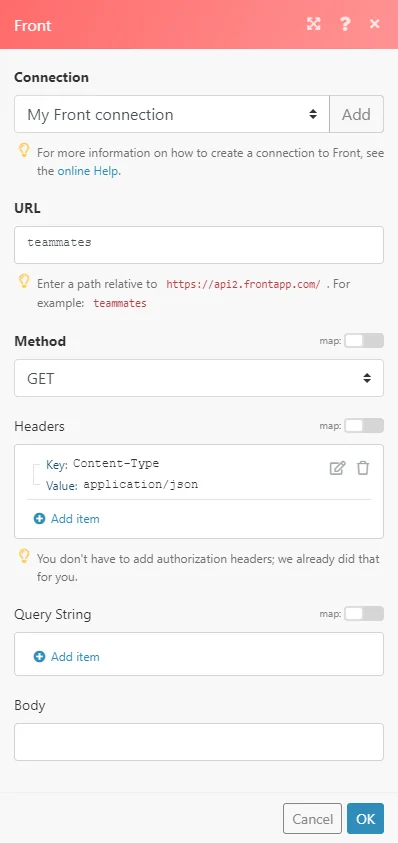
URL
Enter a path relative to https://api2.frontapp.com/. E.g. teammates
For the list of available endpoints, refer to the Front API Reference.
Method
Select the HTTP method you want to use:
GET to retrieve information for an entry.
POST to create a new entry.
PUT to update/replace an existing entry.
PATCH to make a partial entry update.
DELETE to delete an entry.
Headers
Enter the desired request headers. You don’t have to add authorization headers; we already did that for you.
Query String
Enter the request query string.
Body
Enter the body content for your API call.
Example of Use – List Teammates
The following API call returns all teammates:
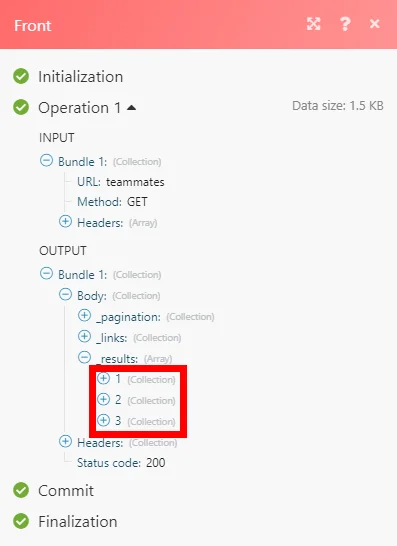
Matches of the search can be found in the module’s Output under Bundle > Body > _results_._
In our example, 3 teammates were returned:
Legacy article, imported from the original Boost.space knowledge base (/knowledge-base/applications/productivity/front/).

