Habitica
The Habitica modules allow you to monitor, create, update, send, retrieve, list, and delete the groups, tags, messages, and challenges in your Habitica account.
Getting Started with Habitica
Prerequisites
- A Habitica account – create an account at habitica.com.
Connecting Habitica to Boost.space Integrator

To connect your Habitica account to Boost.space Integrator you need to obtain the User ID and API Token from your Habitica account and insert them in the Create a connection dialog in the Boost.space Integrator module.
1. Log in to your Habitica account.
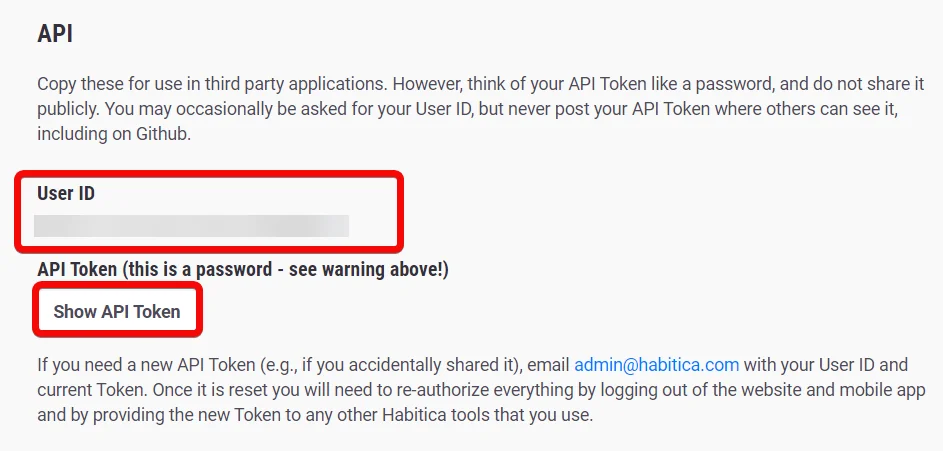
2. Click Your Profile Icon > Settings > API.
3. Copy the User ID. Click Show API Token and copy the token to a safe place.

4. Log in to your Boost.space Integrator account and add a module from the Habitica app into an Boost.space Integrator scenario.
5. Click Add next to the Connection field.
6. In the Connection name field, enter a name for the connection.
7. In the User ID and API Key field, enter the details copied in step 3 in the respective fields and click Continue.
The connection has been established.
Groups
Search Groups
Searches group by criteria.
Connection
Establish a connection to your Habitica account.
Type
Add the type details:
Party
Select whether you want to search the party groups.
Guilds
Select whether you want to search the guild groups.
Private Guilds
Select whether you want to search the private guild groups.
Public Guilds
Select whether you want to search the public guild groups.
Tavern
Select whether you want to search the tavern groups.
Note: At least one type must be selected.
Limit
Set the maximum number of groups Boost.space Integrator should return during one execution cycle. The default value is 10.
Get a Group
Get a group.
Connection
Establish a connection to your Habitica account.
Group ID
Select or map the Group ID whose details you want to retrieve.Note: Public guilds groups are not displayed in the list.
Create a Group
Creates a group.
Connection
Establish a connection to your Habitica account.
Name
Enter (map) a name for the group.
Type
Select or map the group type you want to create.
-
Guild
-
Party
Privacy
Select or map the privacy settings for the group.
-
Private
-
Public
**Note:**For the group-type party, the privacy should be set to private_._
Update a Group
Modifies a group. (Only for the group leader)
Connection
Establish a connection to your Habitica account.
Group ID
Select or map the Group ID whose details you want to update.
Group Name
Enter (map) a new name for the group.
Leave a Group
Leaves a group.
Connection
Establish a connection to your Habitica account.
Group ID
Select or map the Group ID which you want to leave.Note: Public guild groups are not displayed in the list.
Keep
Select whether you want to keep all the challenges belonging to the group being left.
-
Keep All
-
Remove All
Keep Changes
Select whether you want to leave or remain in the challenges of the group.
-
Leave Challenges
-
Remain in Challenges
Join a Group
Joins a group.
Connection
Establish a connection to your Habitica account.
Group ID
Enter (map) the Group ID you want to join.
Reject a Group Invite
Rejects a group invite.
Connection
Establish a connection to your Habitica account.
Group ID
Enter (map) the Group ID whose invite you want to reject.
Remove a Member From a Group
Remove a member from a group. (only for the group leader)
Connection
Establish a connection to your Habitica account.
Group ID
Select or map the Group ID from which you want to remove the member.
Member ID
Select or map the Member ID whom you want to remove from the group.
Invite Users to a Group
Invites users to a group.
Connection
Establish a connection to your Habitica account.
Group ID
Select or map the Group ID to which you want to invite the users.
Emails
Add the email addresses of the users:
Enter (map) the email ID of the user.
Name
Enter (map) the name of the user.
User IDs
Add the User IDs of the users:
Value
Enter (map) the User ID of the user.
Tags
List Tags
List all tags
Connection
Establish a connection to your Habitica account.
Limit
Set the maximum number of tags Boost.space Integrator should return during one execution cycle. The default value is 10.
Get a Tag
Gets a tag.
Connection
Establish a connection to your Habitica account.
Tag ID
Select or map the Tag ID whose details you want to retrieve.
Create a New Tag
Creates a new tag.
Connection
Establish a connection to your Habitica account.
Name
Enter (map) a name for the tag.
Update a Tag
Modifies a tag.
Connection
Establish a connection to your Habitica account.
Tag ID
Select or map the Tag ID whose details you want to update.
Name
Enter (map) a new name for the tag.
Delete a Tag
Deletes a tag.
Connection
Establish a connection to your Habitica account.
Tag ID
Select or map the Tag ID you want to delete.
Tasks
Boost.space Integrator automatically creates a webhook in Habitica once you add an instant trigger to your scenario.
Watch Task Activity
Watches for a task activity.
Webhook name
Enter the name of the webhook.
Connection
Select the connection for the webhook.
Options
Select or map the following options:
-
Created
-
Updated
-
Deleted
-
Scored
Enabled
Select whether you want to enable the webhook.
Label
Enter (map) the label for the webhook.
List Tasks
Lists all tasks.
Connection
Establish a connection to your Habitica account.
Limit
Set the maximum number of tasks Boost.space Integrator should return during one execution cycle. The default value is 10.
Get a Task Belonging to User
Gets a task belonging to the user.
Connection
Establish a connection to your Habitica account.
Task ID
Select or map the Task ID of the user whose detail you want to retrieve.
Create a Task Belonging to User
Creates a task belonging to the user.
Connection
Establish a connection to your Habitica account.
Text
Enter (map) the text to be displayed for the task.
Task Type
Select or map the task type:
-
Habit
-
Daily
-
To Do
-
Reward
Habit
Up
Select, if the task is a habit to enable the + under the directions/action in the good habits.
Down
Select, if the task is a habit to enable the _–_under the directions/action in the bad habits.
Daily
Select the day on which you want the task to be repeated:
Monday
Select if you want to repeat the task on Monday.
Tuesday
Select if you want to repeat the task on Tuesday.
Wednesday
Select if you want to repeat the task on Wednesday.
Thursday
Select if you want to repeat the task on Thursday.
Friday
Select if you want to repeat the task on Friday.
Saturday
Select if you want to repeat the task on Saturday.
Sunday
Select if you want to repeat the task on Sunday.
Streak
Enter (map) the number of days that the task needs to be consecutively been checked off. This is valid only for type daily.
Days of Month
Enter (map) the days of the month.
Weeks of Month
Enter (map) the weeks of the month.
Start Date
Enter (map) the start date of the task.
Date
Enter (map) the due date to be shown in the task list.
Value
Enter (map) the value of the reward. This value should be greater than or equal to 0.
Tags
Select or map the type of tag you want to create.
Alias
Enter (map) the alias name to be displayed for the task.
Attributes
Select or map the task attributes:
-
Strength
-
Intelligence
-
Perception
-
Constitution
Collapse Checklist
Select whether to collapse the checklist.
Notes
Enter (map) any additional information about the task.
Priority
Select or map the task priority:
-
Trivial
-
Easy
-
Medium
-
Hard
Reminders
Enter (map) the fields for setting reminders:
UUID
Enter (map) the Task UUID.
Start Date
Enter (map) the start date to send the reminder for the task.
Start Time
Enter (map) the start time to send the reminder.
Frequency
Select or map the frequency level:
-
Daily
-
Weekly
-
Monthly
-
Yearly
_Note:_Values Weekly and Monthly enable the use of the Repeat field. All frequency values enable the use of the Every X field. Value Monthly enables the use of the Weeks of Month and _Days of Month_fields. Frequency is only valid for the type Daily.
Update a Task Belonging to User
Update a task belonging to the user.
Connection
Establish a connection to your Habitica account.
Task ID
Select or map the task ID of the user you want to update.
Text
Enter (map) the text to be displayed for the task.
Up
Select, if the task is a habit to enable the + under the directions/action in the good habits.
Down
Select, if the task is a habit to enable the – under the directions/action in the bad habits.
Repeat
Select the day on which you want the task to be repeated:
Monday
Select if you want to repeat the task on Monday.
Tuesday
Select if you want to repeat the task on Tuesday.
Wednesday
Select if you want to repeat the task on Wednesday.
Thursday
Select if you want to repeat the task on Thursday.
Friday
Select if you want to repeat the task on Friday.
Saturday
Select if you want to repeat the task on Saturday.
Sunday
Select if you want to repeat the task on Sunday.
Streak
Enter (map) the number of days that the task needs to be consecutively been checked off. This is valid only for type daily.
Days of Month
Enter (map) the days of the month.
Weeks of Month
Enter (map) the weeks of the month.
Start Date
Enter (map) the start date of the task.
Date
Enter (map) the due date of the task. This is valid only for type to do.
Value
Enter (map) the value. This is valid only for type reward. The value should be greater than or equal to 0.
Attribute
Select or map the task attribute:
-
Strength
-
Intelligence
-
Perception
-
Constitution
Collapse Checklist
Select whether to collapse the checklist.
Notes
Enter (map) any additional information about the task.
Priority
Select or map the task priority:
-
Trivial
-
Easy
-
Medium
-
Hard
Reminders
Enter (map) the fields for setting reminders:
UUID
Enter (map) the Task UUID.
Start Date
Enter (map) the start date to send the reminder for the task.
Start Time
Enter (map) the start time to send the reminder.
Frequency
Select or map the frequency level:
-
Daily
-
Weekly
-
Monthly
-
Yearly
_Note:_Values Weekly and Monthly enable the use of the Repeat field. All frequency values enable the use of the Every X field. Value Monthly enables the use of the Weeks of Month and _Days of Month_fields. Frequency is only valid for the type Daily.
Delete a Task Belonging to User
Delete a task belonging to the user.
Connection
Establish a connection to your Habitica account.
Task ID
Select or map the Task ID you want to delete.
Messages
Send a Private Message
Sent a private message.
Connection
Establish a connection to your Habitica account.
To User ID
Enter (map) the User ID to whom you want to send the message.
Message
Enter (map) the message text.
Mark Private Message as Read
Mark private messages as read.
Connection
Establish a connection to your Habitica account.
Post Chat Message to a Group
Posts chat Message to a group.
Connection
Establish a connection to your Habitica account.
Group ID
Select or map the Group ID to which you want to post the message.
Message
Enter (map) the message text.
Previous Message
Enter (map) the previous chat Message UUID that will force a return of the full group chat.
Mark All Messages as Read
Marks all messages as read for a group.
Connection
Establish a connection to your Habitica account.
Group ID
Select or map the Group ID whose messages you want to mark as read.**Note:**The public guild groups are not displayed in the list.
Challenges
List Challenges
Lists all challenges.
Connection
Establish a connection to your Habitica account.
Group ID
Select or map the Group ID whose challenges you want to list.Note: The public guild groups are not displayed in the list.
Limit
Set the maximum number of challenges Boost.space Integrator should return during one execution cycle. The default value is 10.
Get a Challenge
Get a challenge.
Connection
Establish a connection to your Habitica account.
Group ID
Select or map the Group ID whose challenge details you want to retrieve.Note: The public guild groups are not displayed in the list.
Challenge ID
Select or map the Challenge ID whose details you want to retrieve.
Create a Challenge
Create a challenge.
Connection
Establish a connection to your Habitica account.
Group ID
Select or map the Group ID for which you want to create a challenge.Note: The public guild groups are not displayed in the list.
Name
Enter (map) the full name of the challenge you want to create.
Short Name
Enter (map) the shortened name for the challenge you want to create, to be used as a tag.
Summary
Enter (map) the summary advertising the main purpose of the challenge you want to create. If not supplied, the challenge name will be used. Must be at most 250 characters long.
Description
Enter (map) the detailed description of the challenge you want to create.
Prize
Enter (map) the number of gems offered as a prize to the winner of the challenge.
Official
Select whether the challenge is an official Habitica challenge. This requires admin permissions.
Update a Challenge
Updates a challenge. (For challenge leaders only)
Connection
Establish a connection to your Habitica account.
Group ID
Select or map the Group ID whose challenge details you want to update.
Challenge ID
Select or map the Challenge ID whose details you want to update.
Name
Enter (map) the new name for the challenge you want to update.
Short Name
Enter (map) the shortened name for the challenge you want to update, to be used as a tag.
Summary
Enter (map) the summary advertising the main purpose of the challenge you want to update. If not supplied, the challenge name will be used. Must be at most 250 characters long.
Description
Enter (map) the detailed description of the challenge you want to update.
Delete a Challenge
Removes a challenge.
Connection
Establish a connection to your Habitica account.
Group ID
Select or map the Group ID for whose challenge you want to delete.Note: The public guild groups are not displayed in the list.
Challenge ID
Select or map the Challenge ID you want to delete.
Join a Challenge
Joins a challenge.
Connection
Establish a connection to your Habitica account.
Group ID
Select or map the Group ID whose challenges you want to join.
Challenge ID
Select or map the Challenge ID which you want to join.
Leave a Challenge
Leaves a challenge.
Connection
Establish a connection to your Habitica account.
Group ID
Select or map the Group ID whose challenge you want to leave.Note: The public guild groups are not displayed in the list.
Challenge ID
Select or map the Challenge ID you want to leave.
Others
Performs an arbitrary authorized API call.
Connection
Establish a connection to your Habitica account.
URL
Enter a path relative to https://habitica.com/api For example: /v3/tags
For the list of available endpoints, refer to the Habitica API Documentation.
Method
Select the HTTP method you want to use:
GET to retrieve information for an entry.
POST to create a new entry.
PUT to update/replace an existing entry.
PATCH to make a partial entry update.
DELETE to delete an entry.
Headers
Enter the desired request headers. You don’t have to add authorization headers; we already did that for you.
Query String
Enter the request query string.
Body
Enter the body content for your API call.
Example of Use – List Groups
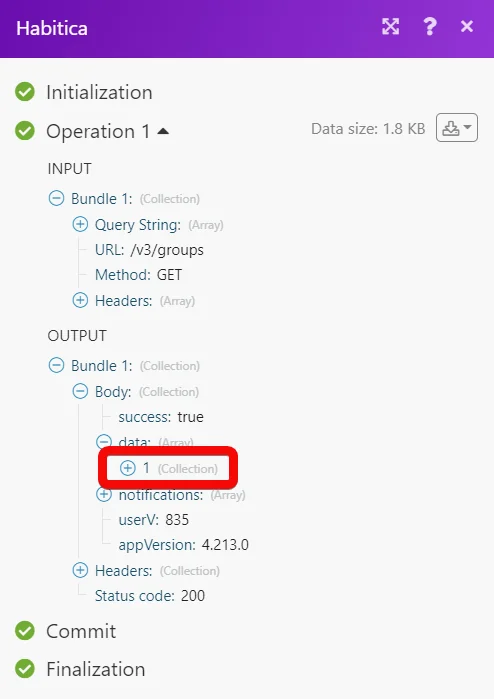
The following API call returns all the groups from your Habitica account:
URL:
/v3/groups
Method:
GET
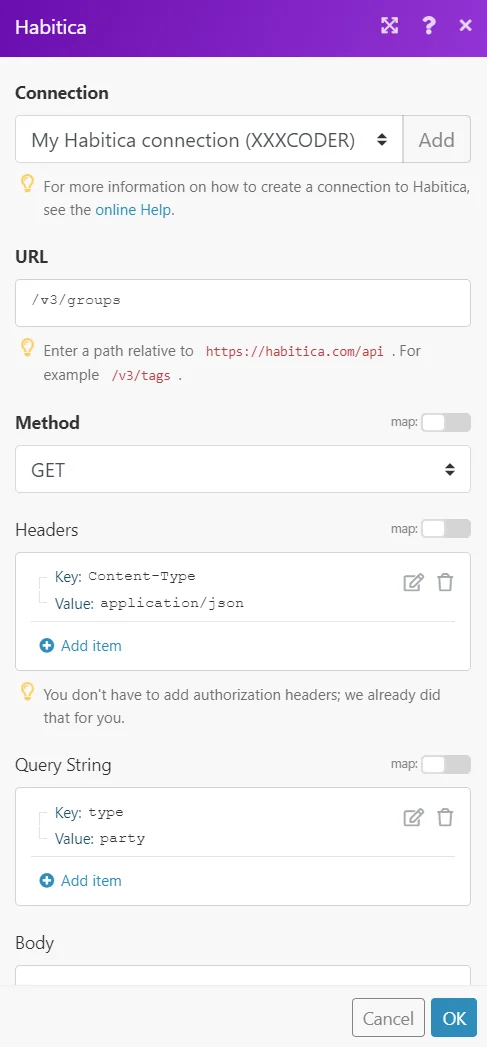
Matches of the search can be found in the module’s Output under Bundle > Body > data.
In our example, 1 group was returned:
Legacy article, imported from the original Boost.space knowledge base (/knowledge-base/applications/productivity/habitica/).

