Harvest
Getting Started with Harvest
The Harvest modules allow you to monitor, create, edit, or delete clients, contacts, projects, invoices, expenses, tasks, time entries and users in your Harvest account.
Prerequisites
- A Harvest account
In order to use Harvest with Boost.space Integrator, it is necessary to have a Harvest account. If you do not have one, you can create a Harvest account at www.getharvest.com/signup.
Connecting Harvest to Boost.space Integrator
To connect your Harvest account to Boost.space Integrator follow the general instructions for Connecting to services.Connecting Boost.space Integrator to any web service
After you click the Continue button, Boost.space Integrator will redirect you to the Harvest website where you will be prompted to grant Boost.space Integrator access to your account.
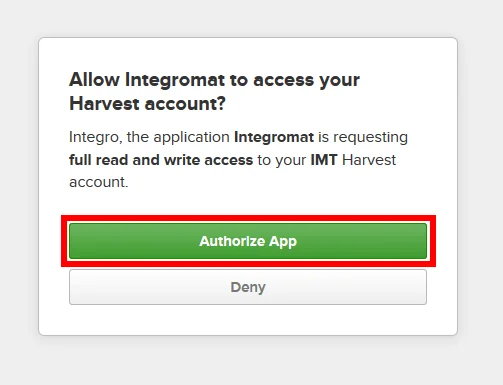
Confirm the dialog by clicking the Authorize App button.
Clients
Watch Clients
Triggers when a new client is added.
Connection
Establish a connection to your Harvest account.
Watch
Select whether you want to watch all changes or newly added clients only.
Limit
Set the maximum number of clients Boost.space Integrator will return during one execution cycle.
List Clients
Returns a list of your clients. The clients are returned sorted by creation date, with the most recently created clients appearing first.
Connection
Establish a connection to your Harvest account.
Number of Clients to Return
Set the maximum number of clients Boost.space Integrator will return during one execution cycle.
Active or Inactive
Select whether you want to return only active, only inactive, or both clients.
Updated Since
Returns only clients that have been updated since the entered date and time. The list of supported date and time formats.
Get a Client
Retrieves details about a desired client.
Connection
Establish a connection to your Harvest account.
Client ID
Map or select the Client ID of the client you want to retrieve information about.
Create a Client
Creates a new client.
Connection
Establish a connection to your Harvest account.
Name
Enter the name of the client.
Address
Enter the client’s physical address. May include new line characters.
Currency
ISO 4217 currency code. Example: USD. If not provided, the company’s currency will be used. List of supported currencies.
Active
Set whether the client is active or archived.
Edit a Client
Updates the specific client by setting the provided values.
Connection
Establish a connection to your Harvest account.
Client ID
Select or map the Client ID of the client you want to update.
Name
Enter the new name of the client.
Address
Enter the client’s new physical address. May include new line characters.
Currency
ISO 4217 currency code. Example: USD. If not provided, the company’s currency will be used. List of supported currencies.
Active
Set whether the client is active or archived.
Delete a Client
Deletes a selected client.
Connection
Establish a connection to your Harvest account.
Client ID
Select or map the Client ID of the client you want to delete.
Contacts
Watch Contacts
Triggers when a new contact is created.
Connection
Establish a connection to your Harvest account.
Client ID
Appears when the Filter by Client option is enabled.
Allows you to return contacts that belong to the client with the provided Client ID.
Watch
Select whether you want to watch all changes or newly added contacts only.
Limit
Set the maximum number of contacts Boost.space Integrator will return during one execution cycle.
List Contacts
Returns a list of your contacts. The contacts are returned sorted by creation date, with the most recently created contacts appearing first.
Connection
Establish a connection to your Harvest account.
Number of Contacts to Return
Set the maximum number of contacts Boost.space Integrator will return during one execution cycle.
Client ID
Map or select the client ID to return contacts belonging to that client only.
Updated Since
Returns only contacts that have been updated since the entered date and time. The list of supported date and time formats.
Get a Contact
Retrieves the details of a specified contact.
Connection
Establish a connection to your Harvest account.
Client ID
Map or select the Contact ID of the contact you want to retrieve information about.
Create a Contact
Creates a new contact.
Connection
Establish a connection to your Harvest account.
Client ID
Map or select the ID of the client associated with this contact.
First Name
Enter the client’s first name.
Last Name
Enter the client’s last name.
Title
Enter the title of the contact.
Enter the contact’s email address.
Office Number
Enter the contact’s office phone number.
Mobile Number
Enter the contact’s mobile phone number.
Fax
Enter the contact’s fax number.
Edit a Contact
Updates a specified contact.
Connection
Establish a connection to your Harvest account.
Contact ID
Select or map the contact you want to update.
Client ID
Map or select the ID of the client associated with this contact.
First Name
Enter the client’s first name.
Last Name
Enter the client’s last name.
Title
Enter the title of the contact.
Enter the contact’s email address.
Office Number
Enter the contact’s office phone number.
Mobile Number
Enter the contact’s mobile phone number.
Fax
Enter the contact’s fax number.
Delete a Contact
Deletes a specified contact.
Connection
Establish a connection to your Harvest account.
Contact ID
Map or select the contact you want to delete.
Projects
Watch Projects
Triggers when a new project is created.
Connection
Establish a connection to your Harvest account.
Watch
Select whether you want to watch all changes or newly added projects only.
Limit
Set the maximum number of projects Boost.space Integrator will return during one execution cycle.
List Projects
Returns a list of projects in your Harvest account.
Connection
Establish a connection to your Harvest account.
Number of Projects to Return
Set the maximum number of projects Boost.space Integrator will return during one execution cycle.
Active or inactive
Select whether you want to return only active, only inactive, or both project statuses.
Client ID
Map or select the client ID to return projects belonging to that client only.
Updated Since
Returns only projects that have been updated since the entered date and time. The list of supported date and time formats.
Get a Project
Retrieves details about a specified project.
Connection
Establish a connection to your Harvest account.
Project ID
Map or select the Project ID of the project you want to retrieve information about.
Create a Project
Creates a new project.
Connection
Establish a connection to your Harvest account.
Client ID
Select or map the ID of the client to associate this project with.
Name
Enter the name of the project.
Bill by
Enter the method by which the project is invoiced.
Budget by
Select the method by which the project is budgeted.
Notes
Enter notes for the project.
You can see notes when creating an invoice for Fixed Fee projects.
Code
Enter the project code.
The Project Code helps identify your project. You can use any combo of numbers or letters.
Active
Select whether the project is active or archived.
Edit a Project
Connection
Establish a connection to your Harvest account.
Project ID
Select or map the ID of the project you want to update.
New name
Enter the name of the project.
Bill by
Enter the method by which the project is invoiced.
Budget by
Select the method by which the project is budgeted.
Notes
Enter notes for the project.
You can see notes when creating an invoice for Fixed Fee projects.
Client ID
Select or map the ID of the client to associate this project with.
Code
Enter the project code.
The Project Code helps identify your project. You can use any combo of numbers or letters.
Active
Select whether the project is active or archived.
Delete a Project
Deletes a project and any time entries or expenses tracked to it.
Invoices associated with the project will not be deleted. If you don’t want the project’s time entries and expenses to be deleted, you should archive the project using the Edit a Project module.
Connection
Establish a connection to your Harvest account.
Project ID
Map or select the project you want to delete.
List Task Assignments
Returns a list of your task assignments. The task assignments are returned sorted by creation date, with the most recently created task assignments appearing first.
Connection
Establish a connection to your Harvest account.
Number of Task Assignments to Return
Set the maximum number of task assignments Boost.space Integrator will return during one execution cycle.
Project ID
Map or select the project ID you want to filter results by.
Active or inactive
Select whether you want to return only active, only inactive, or both task assignment statuses.
Updated Since
Returns only task assignments that have been updated since the entered date and time. The list of supported date and time formats.
Get a Task Assignment
Retrieves details about a specified task assignment.
Connection
Establish a connection to your Harvest account.
Project ID
Enter or map the ID of the project associated with the task assignment you want to retrieve.
Task Assignment ID
Enter (map) the ID of the task assignment you want to retrieve information about.
List User Assignments
Returns a list of your project’s user assignments, active and archived.
Connection
Establish a connection to your Harvest account.
Number of User Assignments to Return
Set the maximum number of user assignments Boost.space Integrator will return during one execution cycle.
Project ID
Map or select the project ID you want to filter results by.
User ID
Returns only user assignments belonging to the user with the entered ID.
Active or inactive
Select whether you want to return only active, only inactive, or both user assignment statuses.
Updated Since
Returns only user assignments that have been updated since the entered date and time. The list of supported date and time formats.
Invoices
Watch Invoices
Triggers when a new invoice is created.
Connection
Establish a connection to your Harvest account.
Client ID
Appears when the Filter by Client option is enabled.
Allows you to return invoices that belong to the client with the provided Client ID.
Watch
Select whether you want to watch all changes or newly added invoices only.
Limit
Set the maximum number of invoices Boost.space Integrator will return during one execution cycle.
List Invoices
Returns a list of your invoices. The invoices are returned sorted by issue date, with the most recently issued invoices appearing first.
Connection
Establish a connection to your Harvest account.
Number of Invoices to Return
Set the maximum number of invoices Boost.space Integrator will return during one execution cycle.
Updated Since
Returns only invoices that have been updated since the entered date and time. The list of supported date and time formats.
Client ID
Returns only user assignments belonging to the client with the entered ID.
Project ID
Map or select the project ID you want to filter results by.
From
Enter the date in order to return invoices with an issue_date on or after the entered date. The list of supported date and time formats.
To
Enter the date in order to return invoices with an issue_date on or before the entered date.
State
Select the state of the invoices you want to return.
Get an Invoice
Retrieves details about a specified invoice.
Connection
Establish a connection to your Harvest account.
Invoice ID
Enter (map) or select the ID of the invoice you want to retrieve information about.
Create a free-form invoice
Creates a new invoice.
Connection
Establish a connection to your Harvest account.
Client ID
Select or map the ID of the client this invoice belongs to.
Number
Enter the invoice number. If no number is entered, the number will be automatically generated.
Purchase Order Number
Enter the purchase order number.
Tax
Enter the tax (percentage). This percentage is applied to the subtotal, including line items and discounts. Example: use 10.0 for 10.0%
Tax 2
Apply another tax. This percentage is applied to the subtotal, including line items and discounts. Example: use 10.0 for 10.0%
Discount
Enter the discount (percentage). This percentage is subtracted from the subtotal. Example: use 10.0 for 10.0%.
Subject
Enter the invoice subject.
Notes
Enter additional notes that will be included on the invoice.
Currency
Enter the currency used by the invoice. If not provided, the client’s currency will be used. See a list of supported currencies.
Issue Date
Enter the date when the invoice was issued. Default date = today’s date. The list of supported date and time formats.
Due Date
Enter the invoice’s due date. Defaults to the Issue date if no Payment Term is specified.
Payment Term
Select the timeframe in which the invoice should be paid. Defaults to custom. Options: upon receipt, net 15, net 30, net 45, or net 60. Net 15, for example, means that payment is due fifteen days after the invoice issue date.
Line Items
Add desired line items.
Project ID
Enter the ID of the project associated with this line item.
Kind
Enter the name of an invoice item category.
Description
Text description of the line item.
Quantity
The unit quantity of the item. Defaults to 1.
Unit Price
The individual price per unit.
Taxed
Select whether the invoice’s tax percentage applies to this line item. Defaults to No.
Taxed2
Select whether the invoice’s tax2 percentage applies to this line item. Defaults to No.
Retainer ID
Enter the retainer ID in order to create a retainer invoice.
Estimate ID
Enter the ID of the estimate associated with this invoice.
Delete an Invoice
Deletes a specified invoice.
Connection
Establish a connection to your Harvest account.
Invoice ID
Enter (map) or select the ID of the invoice you want to delete.
List Payments
Returns a list of payments associated with the selected invoice.
Connection
Establish a connection to your Harvest account.
Invoice ID
Select or map the ID of the invoice that the payments belongs to.
Number of Invoices to return
Set the maximum number of invoices Boost.space Integrator will return during one execution cycle.
Updated Since
Enter the date to return invoice payments that have been updated since the date and time. The list of supported date and time formats.
Create Invoice Payments
Creates a new invoice payment.
Connection
Establish a connection to your Harvest account.
Invoice ID
Enter the invoice you want to create a payment for.
Amount
Enter the amount of the payment.
Payment date
Select whether to set time and date or the date only.
Date
Enter the payment date (and time). The list of supported date and time formats.
Expenses
List expenses
Returns a list of your expenses.
Connection
Establish a connection to your Harvest account.
Number of Expenses to Return
Set the maximum number of expenses Boost.space Integrator will return during one execution cycle.
User ID
Returns only expenses belonging to the client with the entered ID.
Client ID
Returns only expenses belonging to the client with the entered ID.
Project ID
Map or select the project ID you want to filter expenses by.
Updates Since
Returns only expenses that have been updated since the entered date and time. The list of supported date and time formats.
From
Enter the date in order to return expenses with a Spent Date on or after the entered date. The list of supported date and time formats.
To
Enter the date in order to return expenses with a Spent date on or before the entered date.
Invoiced
Select whether to return expenses that were invoiced, not invoiced, or both.
Get an Expense
Retrieves a specified expense.
Connection
Establish a connection to your Harvest account.
Expense ID
Enter (map) or select the ID of the expense you want to retrieve information about.
Create an Expense
Creates a new expense.
Connection
Establish a connection to your Harvest account.
Spent date
Enter the date the expense occurred. The list of supported date and time formats.
Project ID
Select the ID of the project associated with this expense.
Category ID
Enter the ID of the expense category this expense is being tracked against.
Total Cost
Enter the total amount of the expense.
Notes
Enter the expense description.
Billable
Set whether this expense is billable or not.
Edit an Expense
Updates an existing expense.
Connection
Establish a connection to your Harvest account.
Expense ID
Select or map the ID of the expense ID you want to update.
Spent date
Enter the date the expense occurred. The list of supported date and time formats.
Project ID
Select the ID of the project associated with this expense.
Category ID
Enter the ID of the expense category this expense is being tracked against.
Units
The quantity of units to use in calculating the Total Cost of the expense.
Total Cost
Enter the total amount of the expense.
Notes
Enter the expense description.
Billable
Set whether this expense is billable or not.
Delete receipt
Define whether an attached expense receipt should be deleted or not. Select Yes to delete the expense receipt.
Delete an Expense
Deletes an expense.
Connection
Establish a connection to your Harvest account.
Expense ID
Enter (map) or select the ID of the expense you want to delete.
Tasks
Watch Tasks
Triggers when a new task is created.
Connection
Establish a connection to your Harvest account.
Watch
Select whether you want to watch all changes or newly added tasks only.
Limit
Set the maximum number of tasks Boost.space Integrator will return during one execution cycle.
List Tasks
Returns a list of your tasks.
Connection
Establish a connection to your Harvest account.
Number of Tasks to Return
Set the maximum number of tasks Boost.space Integrator will return during one execution cycle.
Active or inactive
Select whether you want to return only active, only inactive, or both task statuses.
Updated Since
Returns only tasks that have been updated since the entered date and time. The list of supported date and time formats.
Get a Task
Retrieves information about a specific task.
Connection
Establish a connection to your Harvest account.
Task ID
Enter (map) or select the ID of the task you want to retrieve information about.
Create a Task
Creates a new task.
Connection
Establish a connection to your Harvest account.
Name
Enter the name for the task.
Default hourly rate
The default hourly rate to use for this task when it is added to a project. Defaults to 0.
Billable by default
Set whether default tasks should be marked billable when creating a new project.
Default
Set whether this task should be automatically added to future projects.
Edit a Task
Updates an existing task.
Connection
Establish a connection to your Harvest account.
Task ID
Select the task you want to update.
New Name
Enter the new name for the task.
Default hourly rate
The default hourly rate to use for this task when it is added to a project. Defaults to 0.
Billable by default
Set whether default tasks should be marked billable when creating a new project.
Default
Set whether this task should be automatically added to future projects.
Delete a Task
Deletes an existing task.
Connection
Establish a connection to your Harvest account.
Task ID
Enter (map) or select the ID of the task you want to delete.
Time Entries
Watch Time Entries
Triggers when a new time entry is created.
Connection
Establish a connection to your Harvest account.
Name
Enter the name for the task.
Filter By
Select the user, client, or project you want to filter time entries by.
Watch
Select whether you want to watch all changes or newly added time entries only.
Limit
Set the maximum number of time entries Boost.space Integrator will return during one execution cycle.
List Time Entries
Returns a list of time entries based on the filter settings.
Connection
Establish a connection to your Harvest account.
Number of time entries to return
Set the maximum number of time entries Boost.space Integrator will return during one execution cycle.
Invoiced or not invoiced
Select whether you want to return only invoiced, only not invoiced, or both time entry states.
Running or Non-running
Select whether you want to return only running, only non-running, or both time entry states.
User ID
Returns only time entries belonging to the user with the entered ID.
Client ID
Returns only time entries belonging to the client with the entered ID.
Project ID
Returns only time entries belonging to the project with the entered ID.
Updated Since
Returns only tasks that have been updated since the entered date and time. The list of supported date and time formats.
From
Returns only time entries with a spent date on or after the entered date. The list of supported date and time formats.
To
Returns only time entries with a spent date on or before the entered date.
Get a Time Entry
Retrieves details about a time entry.
Connection
Establish a connection to your Harvest account.
Time entry ID
Enter (map) or select the ID of the time entry you want to retrieve information about.
Create a Time Entry
Creates a new time entry.
Connection
Establish a connection to your Harvest account.
Project ID
Select the ID of the project to associate with the time entry.
Task ID
Select the ID of the task to associate with the time entry.
Spent at
Enter the datewhen the time entry was spent. The list of supported date and time formats.
Notes
Enter a description of the time entry.
Hours
The current amount of time tracked. If provided, the time entry will be created with the specified hours and is_running will be set to false. If not provided, hours will be set to 0.0 and is_running will be set to true.
Edit a Time Entry
Updates an existing time entry.
Connection
Establish a connection to your Harvest account.
Time entry ID
Enter (map) the time entry you want to update.
Project ID
Select the ID of the project to associate with the time entry.
Notes
Enter a description of the time entry.
Hours
The current amount of time tracked. If provided, the time entry will be created with the specified hours and is_running will be set to false. If not provided, hours will be set to 0.0 and is_running will be set to true.
Spent at
Enter the datewhen the time entry was spent. The list of supported date and time formats.
Delete a Time Entry
Deletes an existing time entry.
Connection
Establish a connection to your Harvest account.
Time Entry ID
Enter (map) or select the ID of the time entry you want to delete.
Users
Watch users
Triggers when a new user is created.
Connection
Establish a connection to your Harvest account.
Watch
Select whether you want to watch all changes or newly added users only.
Limit
Set the maximum number of users Boost.space Integrator will return during one execution cycle.
List Users
Returns a list of users. The users are returned sorted by creation date, with the most recently created users appearing first.
Connection
Establish a connection to your Harvest account.
Number of users to return
Set the maximum number of users Boost.space Integrator will return during one execution cycle.
Active or inactive
Select whether you want to return only active, only inactive, or both time entry states.
Updated Since
Returns only users that have been updated since the entered date and time. The list of supported date and time formats.
Get a User
Retrieves details about a specified user.
Connection
Establish a connection to your Harvest account.
User ID
Enter (map) or select the ID of the user you want to retrieve information about.
Create a User
Creates a new user.
Connection
Establish a connection to your Harvest account.
First name
Enter the new user’s first name. Can’t be updated if the user is inactive.
Last name
Enter the new user’s last name. Can’t be updated if the user is inactive.
Email address
Enter the new user’s email address. Can’t be updated if the user is inactive.
Telephone
Enter the new user’s phone number.
Timezone
The user’s timezone. Defaults to the company’s timezone. See a list of supported time zones.
Roles
Enter the role names assigned to this person.
Administrator
Select the Yes option to set the new user as the administrator with admin permissions.
Edit a User
Updates an existing user.
Connection
Establish a connection to your Harvest account.
User ID
Select or map the user ID of the user you want to update.
First name
Enter the new user’s first name. Can’t be updated if the user is inactive.
Last name
Enter the new user’s last name. Can’t be updated if the user is inactive.
Email address
Enter the new user’s email address. Can’t be updated if the user is inactive.
Telephone
Enter the new user’s phone number.
Timezone
The user’s timezone. Defaults to the company’s timezone. See a list of supported time zones.
Roles
Enter the role names assigned to this person.
Administrator
Select the Yes option to set the new user as the administrator with admin permissions.
Delete a User
Deletes an existing user.
Deleting a user is only possible if they have no time entries or expenses associated with them.
Connection
Establish a connection to your Harvest account.
User ID
Enter (map) or select the ID of the user you want to delete.
Make an API Call
Allows you to perform a custom API call.
Connection
Establish a connection to your Harvest account.
URL
Enter a path relative to https://api.harvestapp.com/v2/. E.g. projects
For the list of available endpoints, refer to the Harvest API V2 documentation.
Method
Select the HTTP method you want to use:
GETto retrieve information for an entry**.**
POSTto create a new entry.
PUTto update/replace an existing entry.
PATCHto make a partial entry update.
DELETEto delete an entry.
Headers
Enter the desired request headers. You don’t have to add authorization headers; we already did that for you.
Query String
Enter the request query string.
Body
Enter the body content for your API call.
Example of Use – List Users
The following API call returns all users:
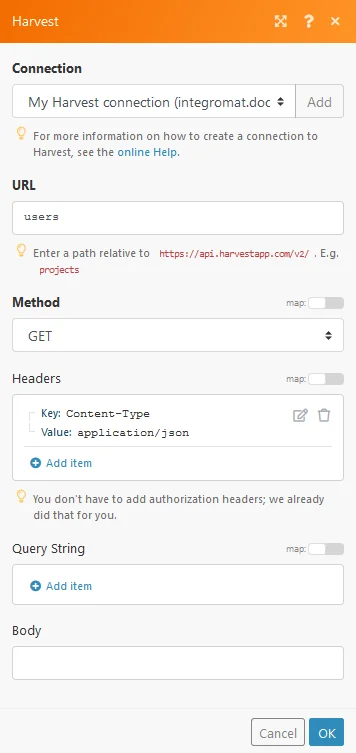
Matches of the search can be found in the module’s Output under Bundle > Body > _users._In our example, 4 users were returned:
Legacy article, imported from the original Boost.space knowledge base (/knowledge-base/applications/productivity/harvest/).

