Kantree
The Kantree modules allow you to create, update, list, retrieve, and delete the cards, organizations, projects, and project members from your Kantree account.
Getting Started with Kantree
Prerequisites
- A Kantree account – create an account at kantree.io.
The module dialog fields that are displayed in bold (in the Boost.space Integrator scenario, notin this documentation article) are mandatory!
Connect Kantree to Boost.space Integrator
To connect your Kantree account to Boost.space Integrator you need to obtain the API Key from your Kantree account and insert it in the Create a connection dialog in the Boost.space Integrator module.
-
Log in to your Kantree account.
-
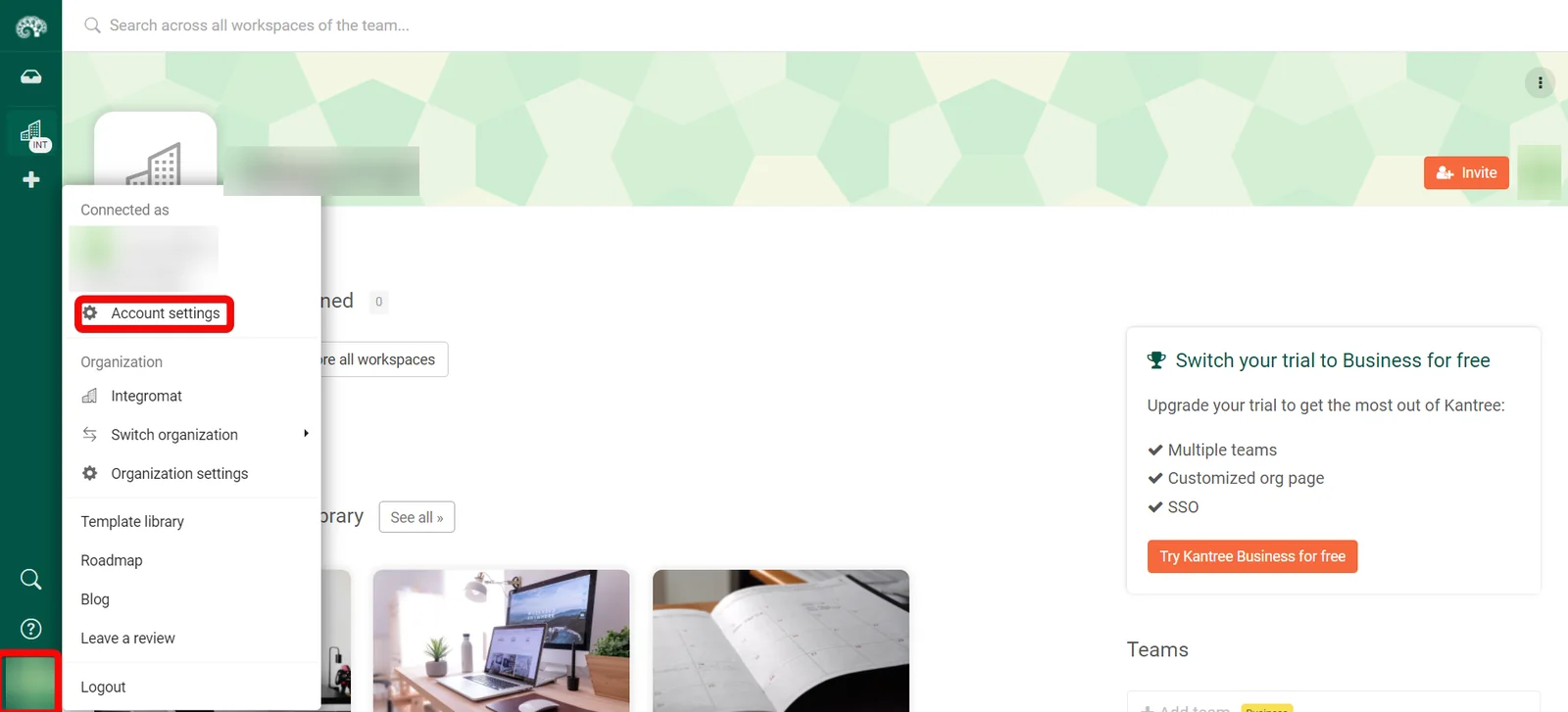
Click the Profile Icon> Account Settings.
-
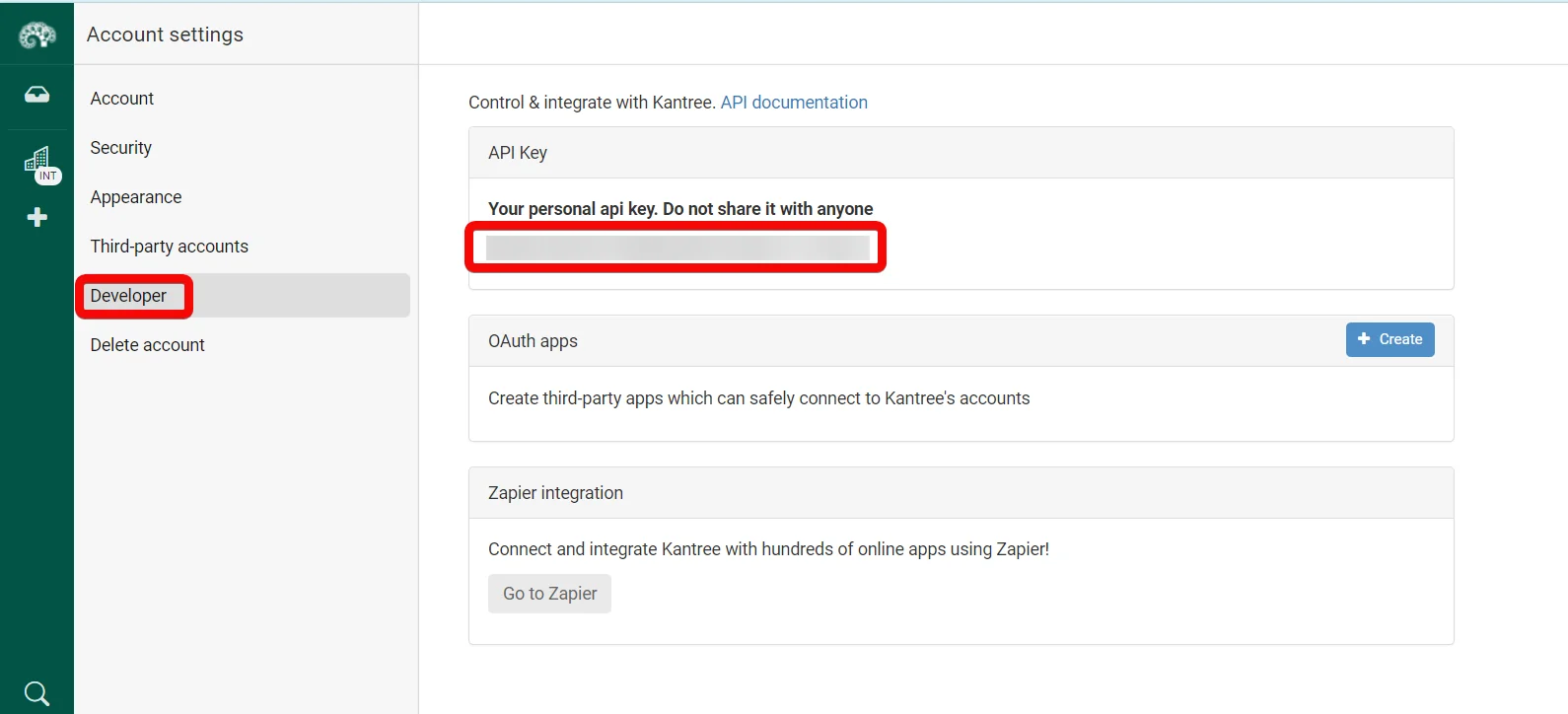
Click _Develope_r and then copy the API Key to your clipboard.
-

Log in to your Boost.space Integrator account, add a module from the Kantree app into an Boost.space Integrator scenario.
-
Click Add next to the Connection field.
-
In the Connection name field, enter a name for the connection.
-
In the API Key field, enter the details copied in step 3 and click Continue.
The connection has been established.
Cards
Search Cards
Searches for specific cards or lists them all.
Connection
Establish a connection to your Kantree account.
Organization ID
Select or map the Organization ID whose project cards you want to search.
Project ID
Select or map the Project ID whose cards you to search.
With Archived
Select whether you want to include the archive cards in the search.
Filter
Enter (map) the filter to search the cards that match the specified. For example, card name.
Exclude Children of
Enter (map) the card name whose children you want to exclude in the search results.
Sort
Enter (map) the sorting order for searching the cards.
Limit
Set the maximum number of cards Boost.space Integrator should return during one execution cycle. The default value is 10.
Get a Card
Returns information about the selected card.
Connection
Establish a connection to your Kantree account.
Organization ID
Select or map the Organization ID whose project’s card details you want to retrieve.
Project ID
Select or map the Project ID whose card details you want to retrieve.
Card ID
Enter (map) the Card ID whose details you want to retrieve.
Update a Card
Updates the selected card.
Connection
Establish a connection to your Kantree account.
Organization ID
Select or map the Organization ID whose project’s card details you want to update.
Project ID
Select or map the Project ID whose card details you want to update.
Card ID
Enter (map) the Card ID whose details you want to update.
Image Cover
Enter (map) a card image cover name.
Image Cover URL
Enter (map) the image cover URL address.
State
Select or map the card status:
-
Undecided
-
Dropped
-
Accepted
-
In Progress
-
Waiting
-
Completed
-
Closed
Title
Enter (map) a new card name.
Delete a Card
Deletes the selected card.
Connection
Establish a connection to your Kantree account.
Organization ID
Select or map the Organization ID whose project’s card you want to delete.
Project ID
Select or map the Project ID whose card you want to delete.
Card ID
Enter (map) the Card ID you want to delete.
Organizations
List Organizations
Lists all organizations.
Connection
Establish a connection to your Kantree account.
With Empty Organizations
Select whether you want to list the empty organizations.
Limit
Set the maximum number of organizations Boost.space Integrator should return during one execution cycle. The default value is 10.
Get an Organization
Returns information about the selected organization.
Connection
Establish a connection to your Kantree account.
Organization ID
Select or map the Organization ID whose details to retrieve.
Create an Organization
Creates a new organization.
Connection
Establish a connection to your Kantree account.
Name
Enter (map) a name for the organization.
Update an Organization
Updates the selected organization.
Connection
Establish a connection to your Kantree account.
Organization ID
Select or map the Organization ID whose details you want to update.
Default Organization Member Role ID
Select or map the default member role for the organization:
-
Admin
-
Member
-
Observer allowed to comment
-
Observer
Default Template iD
Select (map) the default Template ID for the organization.
Name
Enter (map) a new name for the organization.
Default Guest Role ID
Enter (map) the default Guest Role ID of the organization.
Default Public Role ID
Enter (map) the default Public Role ID of the organization.
Logo
Enter (map) the URL address of the organization logo.
Image Cover
Enter (map) hte URL address of the organization’s image cover. This field is available only for the business plan.
Cover Color
Enter (map) the color code of the organization’s cover. This field is available only for the business plan.
Description
Enter (map) the organization details. This field is available only for the business plan.
Delete an Organization
Deletes the selected organization.
Connection
Establish a connection to your Kantree account.
Organization ID
Select or map the Organization ID you want to delete.
Projects
List Projects
Lists all projects.
Connection
Establish a connection to your Kantree account.
Organization ID
Select or map the Organization ID whose projects you want to list.
WIth Archived
Select whether you want to list the archive projects.
Limit
Set the maximum number of projects Boost.space Integrator should return during one execution cycle. The default value is 10.
Get a Project
Returns information about the selected project.
Connection
Establish a connection to your Kantree account.
Organization ID
Select or map the Organization ID whose project details you want to retrieve.
Project ID
Enter (map) the Project ID whose details you want to retrieve.
Create a Project
Creates a new project.
Connection
Establish a connection to your Kantree account.
Organization ID
Select or map the Organization ID for which you want to create the project.
Title
Enter (map) the project name.
Default Organization Member Role ID
Select the default Organization Member Role ID of the project:
-
Admin
-
Member
-
Observer allowed to comment
-
Observer
Team ID
Select or map the Team ID associated with the project.
Team Members Can Autojoin
Select whether the team members can autojoin into the project.
Team Members Can Observe
Select whether the team members can observe the project.
Default View Mode
Select the default view mode of the project:
-
Kanban
-
Table
-
List
Ignore Base Template
Select whether you want to ignore the base template for this project.
Include Cards
Select whether you want to include the cards for this project.
Is Public
Select whether this project is public and visible to all members.
Template ID
Select or map the Template ID for the project.
Update a Project
Updates the selected project.
Connection
Establish a connection to your Kantree account.
Organization ID
Select or map Organization ID whose project details you want to update.
Project ID
Select or map Project ID whose details you want to update.
Default Organization Member Role ID
Select the default organization member role of this project:
-
Admin
-
Member
-
Observer allowed to comment
-
Observer
Team ID
Select or map the Team ID associated with the project.
Team Members Can Autojoin
Select whether the team members can autojoin the project.
Team Members Can Observe
Select whether the team members can watch or view the project information.
Title
Enter (map) a name for the project.
Allow Anon Inbound Emails
Select whether to allow the inbound emails for this project.
Color
Enter (map) the project color in HEX format. For example, #3be36d.
Default Child Card Model ID
Enter (map) the default Child Card Model ID for this project.
Image Cover
Enter (map) the URL address of the project’s image cover.
Is Public
Select whether this project is public and visible to all members.
Send Emails
Select whether you want to send emails in this project.
Keep Failed Import
Select whether you want to keep the files that are failed when importing.
Use Organization Attributes
Select whether you want to apply the organization attributes.
Include in Template Library
Select whether you want to include this project in the template library.
Template Author
Enter (map) the template author name.
Template Description
Enter (map) the template details.
Template Locale
Enter (map) the language applicable to the template. For example, EN.
Template Preview Media
Enter (map) the template’s preview media information.
Template Tags
Enter (map) the tags applicable to teh template separated by a comma.
PII Identifier Attribute ID
Enter (map) the project’s PII identifier Attribute ID.
Public Role ID
Enter (map) the project’s public role ID.
Delete a Project
Deletes the selected project.
Connection
Establish a connection to your Kantree account.
Organization ID
Select or map the Organization ID whose project you want to delete.
Project ID
Select or map the Project ID you want to delete.
Project Members
List Project Members
Lists project members.
Connection
Establish a connection to your Kantree account.
Organization ID
Select or map the Organization ID whose project members you want to list.
Project ID
Select or map Project ID whose member you want to list.
Limit
Set the maximum number of project members Boost.space Integrator should return during one execution cycle. The default value is 10.
List Invited Project Members
Lists invited project members.
Connection
Establish a connection to your Kantree account.
Organization ID
Select or map Organization ID who projects invited members you want to list.
Project ID
Select or map Project ID whose invited members you want to list.
Limit
Set the maximum number of project members Boost.space Integrator should return during one execution cycle. The default value is 10.
Invite a Project Member
Invites an email address or an existing user via its username.
Connection
Establish a connection to your Kantree account.
Organization ID
Select or map the Organization ID of the project to which you want to invite the member.
Project ID
Select or map the Project ID to which you want to invite the member.
Email or Username
Enter (map) the member’s email address or username.
Message
Enter (map) the message text.
Role ID
Select or map the member’s role:
-
Admin
-
Member
-
Observer allowed to comment
-
Observer
Other
Make an API Call
Performs an arbitrary authorized API call.
Connection
Establish a connection to your Kantree account.
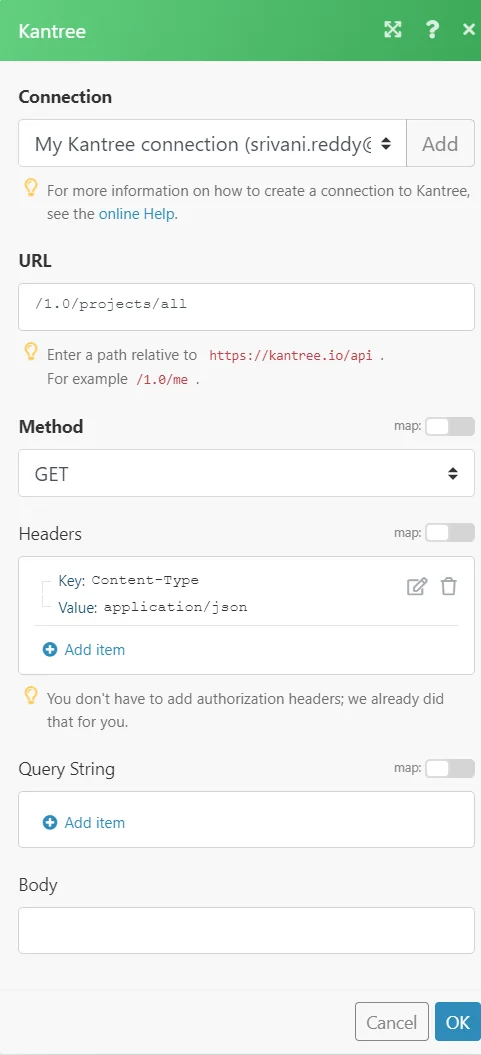
URL
Enter a path relative to https://kantree.io/help/api For example: /1.0/projects/all.
For the list of available endpoints, refer to the Kantree API Documentation.
Method
Select the HTTP method you want to use:
GET
to retrieve information for an entry.
POST
to create a new entry.
PUT
to update/replace an existing entry.
PATCH
to make a partial entry update.
DELETE
to delete an entry.
Headers
Enter the desired request headers. You don’t have to add authorization headers; we already did that for you.
Query String
Enter the request query string.
Body
Enter the body content for your API call.
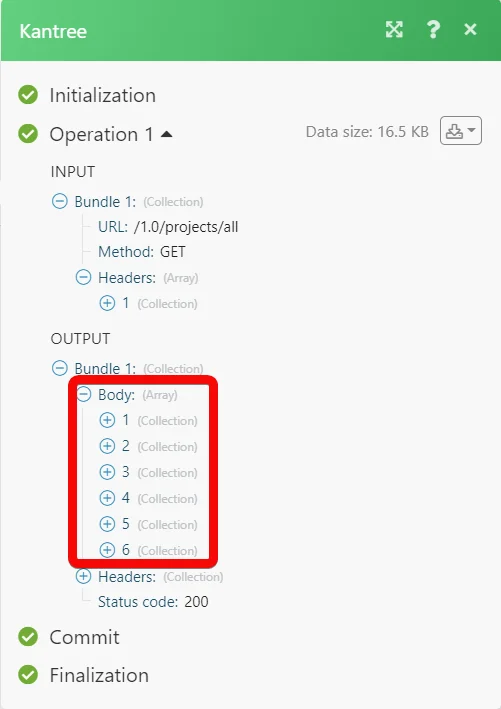
Example of Use – List Projects
The following API call returns all the projects from your Kantree account:
URL:
/1.0/projects/all
Method:
GET
Matches of the search can be found in the module’s Output under Bundle > Body.
In our example, 6 projects were returned:
Legacy article, imported from the original Boost.space knowledge base (/knowledge-base/applications/productivity/kantree/).

