Microsoft To Do
The Microsoft To Do modules enable you to monitor, search, retrieve, create, edit or delete tasks and lists in your Microsoft To Do account.
Getting Started with Microsoft To Do
Prerequisites
- A Microsoft account
In order to use Microsoft To Do with Boost.space Integrator, it is necessary to have a Microsoft To Do account. If you do not have one, you can create a Microsoft To Do account at todo.microsoft.com.
Connect Microsoft To Do to Boost.space Integrator
To connect your Microsoft To Do account to Boost.space Integrator follow the general instructions for Connecting to services.Connecting Boost.space Integrator to any web service
After you click the Continue button, Boost.space Integrator will redirect you to the Microsoft To Do website where you will be prompted to grant Boost.space Integrator access to your account.
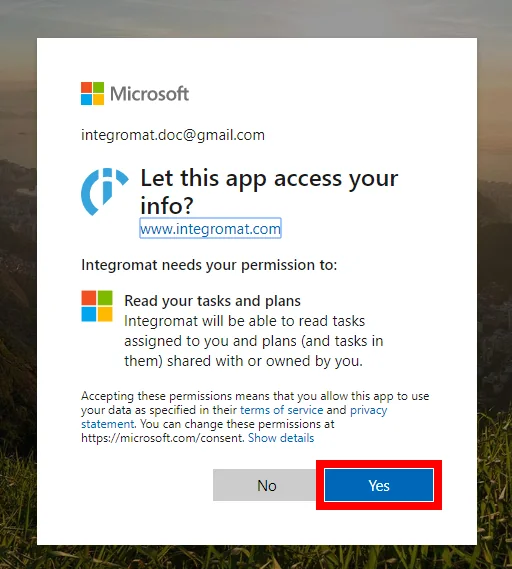
Confirm the dialog by clicking the _Yes_button.
Task
Watch Tasks
Retrieves task details when a task is created, edited, due, or completed.
Connection
Establish a connection to your Microsoft account.
Watch Tasks
-
By Created Time Retrieves created tasks.
-
By Modified Time Retrieves edited tasks.
-
By Due Date Time Retrieves tasks when a due date is changed.
-
By Completed Date Time Retrieves tasks when the completed date is changed.
Filter
Set the filter. Retrieved tasks can be filtered by the tasks subject (name).
List
Select the list you want to monitor tasks from.
Limit
Set the maximum number of tasks Boost.space Integrator will return during one execution cycle.
Search Tasks
Retrieves tasks by the filter settings.
Connection
Establish a connection to your Microsoft account.
Filter
Set the filter. Retrieved tasks can be filtered by the task’s:
-
subject (name)
-
created date
-
last modified date
List
Select the list you want to monitor tasks from.
Order by
Select the sort order of returned tasks.
Limit
Set the maximum number of tasks Boost.space Integrator will return during one execution cycle.
Search Overdue Tasks
Retrieves overdue tasks by the filter settings.
Connection
Establish a connection to your Microsoft account.
Filter
Set the filter. Retrieved tasks can be filtered by the task’s:
-
subject (name)
-
created date
-
last modified date
List
Select the list you want to monitor tasks from.
Order by
Select the sort order of returned tasks.
Limit
Set the maximum number of overdue tasks Boost.space Integrator will return during one execution cycle.
Get a Task
Retrieves task details.
Connection
Establish a connection to your Microsoft account.
Task ID
Enter (map) or select the task you want to retrieve details about.
Create a Task
Creates a new task.
Connection
Establish a connection to your Microsoft account.
Subject
Enter the subject/name of the task.
Start Date Time
Enter the date in the specified time zone when the task is to begin in the ISO 8601 format. E.g. 2020-04-16T09:00:00. The list of supported date and time formats.
Due Date Time
Enter the date in the specified time zone that the task is to be finished in the ISO 8601 format. E.g. 2020-04-16T09:00:00. The list of supported date and time formats.
Reminder Date Time
Enter the date and time for a reminder alert of the task to occur in the ISO 8601 format. E.g. 2020-04-16T09:00:00. The list of supported date and time formats.
List ID
Enter (map) or select the task’s parent folder.
Importance
Set the importance of the new task.
Note
Enter the text content of the note for the task.
Categories
Select the categories associated with the task. This is compatible only with the on-premise version. i.e. Outlook.
Source File
Map the file to add the attachment to the task. Max size 3 MB.
Map the file you want to upload from the previous module (e.g. HTTP > Get a File or Dropbox > Get a file), or enter the file name and file data manually.
Update a Task
Edits an existing task.
Connection
Establish a connection to your Microsoft account.
Task ID
Enter (map) or select the task you want to update.
Please find the descriptions of the fields in the Create a Task section above.
Delete a Task
Deletes a specified task.
Connection
Establish a connection to your Microsoft account.
Task ID
Enter (map) or select the task you want to delete.
Complete a Task
Sets a task status to completed.
Connection
Establish a connection to your Microsoft account.
Task ID
Enter (map) or select the task you want to complete.
List
Search Lists
Retrieves lists by the filter settings from your account.
Connection
Establish a connection to your Microsoft account.
Filter
Set the filter. Retrieved lists can be filtered by the list’s:
- name
Limit
Set the maximum number of lists Boost.space Integrator will return during one execution cycle.
Get a List
Retrieve list details.
Connection
Establish a connection to your Microsoft account.
List ID
Enter (map) or select the list you want to retrieve details about.
Create a List
Creates a new list.
Connection
Establish a connection to your Microsoft account.
List Name
Enter (map) or select the list you want to retrieve details about.
Update a List
Edits an existing list’s name.
Connection
Establish a connection to your Microsoft account.
List ID
Enter (map) or select the list whose name you want to update.
Name
Enter the new name for the list.
Delete a List
Deletes a specified list.
Connection
Establish a connection to your Microsoft account.
List ID
Enter (map) or select the list you want to delete.
Attachment
List Attachments
Retrieves a list of files attached to the task.
Connection
Establish a connection to your Microsoft account.
Task ID
Enter (map) or select the task you want to retrieve files from.
Limit
Set the maximum number of files Boost.space Integrator will return during one execution cycle.
Add an Attachment
Adds a file to the task.
Connection
Establish a connection to your Microsoft account.
Task ID
Enter (map) or select the task you want to attach the file to.
Source File
Map the file to add the attachment to the task. Max size 3 MB.
Map the file you want to upload from the previous module (e.g. HTTP > Get a File or Dropbox > Get a file), or enter the file name and file data manually.
Other
Make an API Call
Allows you to perform a custom API call.
Connection
Establish a connection to your Microsoft account.
URL
Enter a path relative to https://graph.microsoft.com. e.g./beta/me/outlook/tasks or /v1.0/me/events
For the list of available endpoints, refer to the Microsoft Graph REST API documentations: Beta or v1.0
Method
Select the HTTP method you want to use:
GET to retrieve information for an entry.
POST to create a new entry.
PUT to update/replace an existing entry.
PATCH to make a partial entry update.
DELETE to delete an entry.
Headers
Enter the desired request headers. You don’t have to add authorization headers; we already did that for you.
Query String
Enter the request query string.
Body
Enter the body content for your API call.
Example of Use – List Tasks
The following API call returns all tasks in your Microsoft To Do account:
URL:
/beta/me/outlook/tasks
Method:
GET
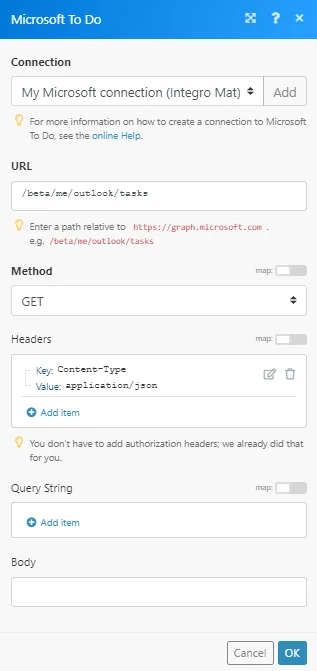
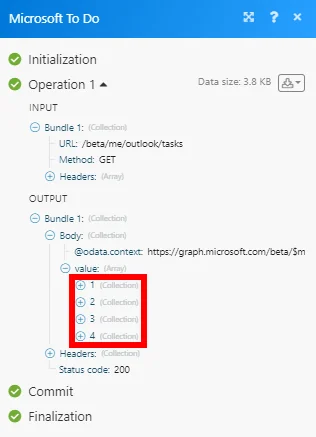
Results can be found in the module’s Output under Bundle > Body > value.
In our example, 4 tasks were returned:
Permissions Information for Microsoft To Do
-
Watch Tasks – offline_access, User.Read, Tasks.Read
-
Search Tasks – offline_access, User.Read, Tasks.Read
-
Search Overdue Tasks – offline_access, User.Read, Tasks.Read
-
Get a Task – offline_access, User.Read, Tasks.Read
-
Create a Task – offline_access, User.Read, MailboxSettings.Read, Tasks.ReadWrite
-
Update a Task – offline_access, User.Read, MailboxSettings.Read, Tasks.ReadWrite
-
Delete a Task – offline_access, User.Read, Tasks.ReadWrite
-
Complete a Task – offline_access, User.Read, Tasks.ReadWrite
-
Search Lists – offline_access, User.Read, Tasks.Read
-
Get a List – offline_access, User.Read, Tasks.Read
-
Create a List – offline_access, User.Read, Tasks.ReadWrite
-
Update a List – offline_access, User.Read, Tasks.ReadWrite
-
Delete a List – offline_access, User.Read, Tasks.ReadWrite
-
List Attachments – offline_access, User.Read, Tasks.Read
-
Add an Attachment – offline_access, User.Read
-
Make an API Call – offline_access, User.Read
Legacy article, imported from the original Boost.space knowledge base (/knowledge-base/applications/productivity/microsoft-to-do/).

