Odyssee Field Service
The Odyssee Field Service modules allow you to watch, create, update, list, retrieve, and delete the tasks, articles, contacts, and companies, in your Odyssee Field Service account.
Getting Started with Odyssee Field Service
Prerequisites
- An Odyssee Field Service account
In order to use Odyssee Field Service with Boost.space Integrator, it is necessary to have an Odyssee Field Service account. If you do not have one, you can create an Odyssee Field Service account at odysseefieldservice.com.
Connect Odyssee Field Service to Boost.space Integrator
To connect your Odyssee Field Service account to Boost.space Integrator you need to obtain the API Key from your Odyssee Field Service account and insert it in the Create a connection dialog in the Boost.space Integrator module.
1. Log in to your Odyssee Field Service account.
2. Click Connectors (
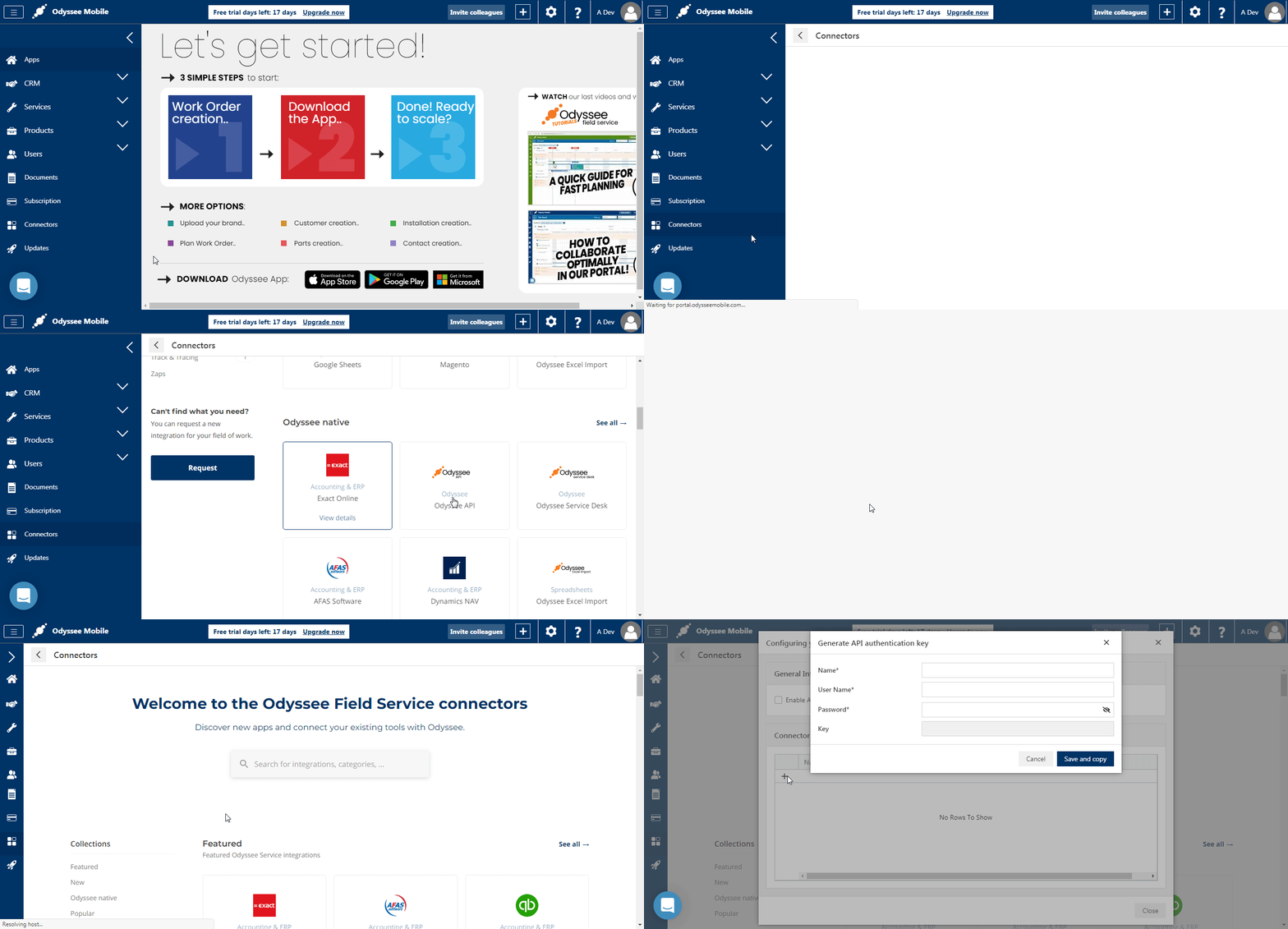
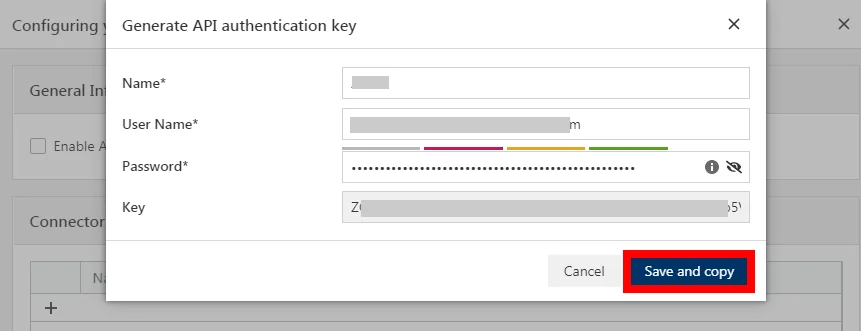
3. Enter the details for API Key. Click Save and Copy.
Name
Enter the name you provided when creating the Odyssee Field Service account.
User Name
Enter your Odyssee Field Account’s username.
Password
Enter your Odyssee Field Account’s username.
Key
This field auto-populates when you enter the above details.
4. Go toBoost.space Integrator and open the Odyssee Field Service module’s Create a connection dialog.

5. In the Connection name field, enter a name for the connection.
6. In the API Key field, enter the API key copied in step 3, and click Continue.
The connection has been established.
Tasks
Watch Tasks
Triggers when a new task is created.
Connection
Establish a connection to your Odyssee Field Service account.
Limit
Set the maximum number of new tasks Boost.space Integrator should return during one scenario execution cycle.
List Tasks
Fetches all of the tasks.
Connection
Establish a connection to your Odyssee Field Service account.
Limit
Set the maximum number of tasks Boost.space Integrator should return during one scenario execution cycle.
Get a Task
Retrieves a task.
Connection
Establish a connection to your Odyssee Field Service account.
Task ID
Select the Task ID whose details you want to retrieve.
Create a Task
Creates a new task.
Connection
Establish a connection to your Odyssee Field Service account.
Task Type
Select the task type you want to create:
-
Task Type ID
-
Task Type Code
-
Task Type Object
Task Type ID
Select the Task Type ID:
-
Follow up order
-
Repair Request
-
Information Request
-
Customer Remark
-
Rescheduling
-
Order Parts
Task Type Code
Select the task type code. For example, order parts.
Task Type Object
Add the task type objects:
Name
Enter the task type name. For example, repair.
Description
Enter the task details.
Code
Enter the task code.
Is Default
Select whether this is the default task type.
Sequence
Enter details to sort the task type.
Only for E-service
Select whether this task type is only used on the e-service.
Sales Organization
Select the sales organization to which this task belongs to:
-
Sales Organisation ID
-
Sales Organisation Code
-
Sales Organisation Object
Email Notification
Select whether you want to send an email to the assigned user or user/group when the task is created or assigned.
Task Priority
Select the Task priority:
-
Task Priority ID
-
Task Priority Code
-
Task Priority Object
Task Priority ID
Select the Task Priority ID:
-
Low
-
Normal
-
High
-
Critical
-
Not Critical
-
Medium-High
Task Priority Code
Select the task priority code. For example, normal.
Task Priority Object
Add the task type objects:
Name
Enter the task priority name. For example, high.
Code
Enter the task priority code.
Is Default
Select whether this is the default task priority.
Sequence
Enter details to sort the task priority.
Only for E-service
Select whether this task type is only used on the e-service.
Sales Organization
Select the sales organization to which this task belongs to:
-
Sales Organisation ID
-
Sales Organisation Code
-
Sales Organisation Object
Sales Organization ID
Select the sales organization ID.
Sales Organiation Code
Select the sales organization Code.
Sales Organization Object
Add the sales organization object:
Name
Enter the organization name.
Code
Enter the organization code.
Description
Enter the details of the organization.
Country ID
Select the organization’s Country ID.
Currency ID
Select the applicable Currency ID for the organization.
Language ID
Select the Language ID applicable to the organization.
Accountancy Code
Select the organization’s accountancy code details.
Archived
Select whether the organization is archived.
Default System of Measure Type
Select the measuring system of the organization. For example, Metric.
Street
Enter the organization’s street name.
Street Number
Enter the organization’s street address.
Zip Code
Enter the organization’s area postal code.
City
Enter the organization’s city name.
Enter the organization’s email address.
Phone
Enter the organization’s phone number.
Fax
Enter the organization’s fax number.
Website URL
Enter the organization’s website URL address.
VAT Reg Code
Enter the organization’s VAT code details.
Company
Select the option for the company details and enter the information:
-
Company ID
-
Company Code
-
Company Object
Sales Territory
Select the option for the sales territory and enter the information:
-
Sales Territory ID
-
Sales Territory Code
-
Sales Territory Object
Sales Organization
Select the option for the sales territory and enter the information:
-
Sales Territory ID
-
Sales Territory Code
-
Sales Territory Object
Is Client
Select whether this task is for a client.
Is Supplier
Select whether this task is for a supplier.
Archived
Select whether this task is archived.
Notes
Enter any additional information about the task.
Marketing Segment
Select the option for entering the marketing segment details and enter the information:
-
Marketing Segment ID
-
Marketing Segment Code
-
Marketing Segment Object
Company Sales Status Code
Select the company sales status code for the task:
-
Normal
-
Credit Risk
-
Blocked by CM
-
Order Blocked
VAT Reg Code
Enter the organization’s VAT Reg Code.
Is Working Address
Select whether this is the working address.
Parent Company
Select the option for the parent company details and enter the information:
-
Parent Company ID
-
Parent Company Code
Phone
Enter the company’s phone number.
Fax
Enter the company’s fax number.
Website URL
Enter the company’s website URL address.
Enter the company’s email address.
Street
Enter the company’s street name.
Street Number
Enter the company’s street number.
City
Enter the company’s city name.
ZIP Code
Enter the company’s area ZIP or postal code.
Country ID
Select the country ID of the company.
Fee List Select
Select the fee list applicable to the task.
Company Type Select
Select the option for the company sector and enter the information:
-
Company Sector ID
-
Company Sector Code
-
Company Sector Object
Language ID
Select the Language ID applicable to the company.
Language Code
Enter the language code applicable to the company.
Code
Enter the task code for the company.
Article Price List Select
Select the option for the article price list details and enter the information:
-
Article Price List ID
-
Article Price List Code
-
Article Price List Object
Article Price Label Code
Select the option for the article price label details and enter the information:
-
Article Price Label ID
-
Article Price Label Code
-
Article Price Label Object
Payment Method Select
Select the option for the payment method and enter the information:
-
Payment Method ID
-
Payment Method Code
-
Payment Method Object
Company Sector Select
Select the option for the company sector and enter the information:
-
Company Sector ID
-
Company Sector Code
-
Company Sector Object
Is Lead
Select whether this task from a lead.
Is Subcontractor
Select whether this task from a subcontractor.
Latitude
Enter the company’s location latitude details.
Longitude
Enter the company’s location longitude details.
Street 2
Enter the company’s street address.
BIC Code
Enter the company’s BIC code details.
Specialties
Enter the company specialties into which does its business.
Register Number
Enter the company’s registration number details.
Register City
Enter the city in which the company is registered.
Bank Account
Enter the company’s bank account details.
Mobile
Enter the company’s mobile number.
Service Manager Select
Select the option for the service manager and enter the information:
-
Service Manager ID
-
Service Manager Code
-
Service Manager Object
Finance Manager Select
Select the option for the finance manager and enter the information:
-
Finance Manager ID
-
Finance Manager Code
-
Finance Manager Object
Account Manager Select
Select the option for the account manager and enter the information:
-
Account Manager ID
-
Account Manager Code
-
Account Manager Object
Subject
Enter the subject line of the task.
Task Status
Select the option to choose task status:
-
Completed
-
In Progress
-
Escalated to WO
-
Waiting 4 parts
-
Open
-
Waiting4Approval
Table ID
Foreign key to the table that is linked to this task using GUID.
Table Name
Foreign key to the table that is linked to this task using table name.
Table
Foreign key of the object that is linked to this task using GUID Primary Key.
Remark
Enter any comments you would like to mention for the task.
Customer Reference
Enter the customer reference details for the task.
Assigned to User ID
Enter the User ID to whom the task is assigned.
Assigned to User Group ID
Enter the User Group ID to which the task is assigned.
Date Start
Enter the date when the work on the task started. See the list of supported date and formats.
Due Date
Enter the date when the task must be completed. See the list of supported date and formats.
Date Closed
Enter the date when the task is completed. See the list of supported date and formats.
Archived
Select whether the task is archived.
Date Assigned
Enter the date and time when the task has been assigned to a specific user. See the list of supported date and formats.
Date Suggested by Company
Enter the date suggested by the company to start working on this task. See the list of supported date and formats.
Internal ID
Enter the Internal ID of the task for internal reference.
Reference Back Office
Enter the back office reference details for the task.
Contact Select
Select the option to choose the contact for the task and enter the details:
-
Contact ID
-
Contact Code
-
Contact Object
Request by Company
Select the option to choose the company which has requested the task:
-
Company ID
-
Company Code
Company ID
Select the company ID which has requested the task.
Company Code
Enter the company code which has requested the task.
Bill to Party
Select the company to which the task will be billed.
Update a Task
Updates a task.
Connection
Establish a connection to your Odyssee Field Service account.
Task ID
Select the Task ID whose details you want to update.
See the Create a Task for field descriptions.
Articles
Watch Articles
Triggers when a new article is created.
Connection
Establish a connection to your Odyssee Field Service account.
Limit
Set the maximum number of new articles Boost.space Integrator should return during one scenario execution cycle.
List Articles
Fetches all of the articles.
Connection
Establish a connection to your Odyssee Field Service account.
Limit
Set the maximum number of articles Boost.space Integrator should return during one scenario execution cycle.
Get an Article
Retrieves an article.
Connection
Establish a connection to your Odyssee Field Service account.
Article ID
Select the Article ID whose details you want to retrieve.
Create an Article
Creates a new article.
Connection
Establish a connection to your Odyssee Field Service account.
Name
Enter the article name.
Article Category
Select the option for the Article Category details and enter the information:
-
Article Category ID
-
Article Category Code
-
Article Category Object
Article Group 1 Select
Select the option for the Article Group details and enter the information:
-
Article Group ID
-
Article Group Code
-
Article Group Object
Article Group 2 Select
Select the option for the Article Group details and enter the information:
-
Article Group ID
-
Article Group Code
-
Article Group Object
Article Group 3 Select
Select the option for the Article Group details and enter the information:
-
Article Group ID
-
Article Group Code
-
Article Group Object
Article Group 4 Select
Select the option for the Article Group details and enter the information:
-
Article Group ID
-
Article Group Code
-
Article Group Object
Article Group 5 Select
Select the option for the Article Group details and enter the information:
-
Article Group ID
-
Article Group Code
-
Article Group Object
Article Group 6 Select
Select the option for the Article Group details and enter the information:
-
Article Group ID
-
Article Group Code
-
Article Group Object
Physical Stock
Enter the physical stock details of the article from the ERP (used for Eco Stock).
Back Order Client
Enter the number of pieces reserved for clients (used for Eco Stock).
Back Order Supplier
Enter the number of pieces that should arrive from the supplier (used for Eco stock if expected delivery is in the past).
Expected Delivery Date BO Supplier
Enter the date when the delivery from the supplier should arrive (used for Eco stock).
Article Increment
Enter the article increment details used by the sales team. Increment used to order (by 2, by 4, etc).
Min Article Quantity
Enter the minimum number of articles to be ordered. This information is used by the sales team.
Entered Price
Enter the standard article price.
Cost Price
Enter the article’s cost price details.
No Stock
Select whether the sales team has access to the stock.
Archived
Select whether the article is archived.
Is Travel Free
Select whether the article will be used to compute the fee based on the car travel time.
Is Mileage Free
Select whether the article will be used to compute the fee based on the distance.
Code
Enter the article ID or reference number of the back office.
Description Short
Enter the short description of the article.
Description Long
Enter the details of the article.
Barcode
Enter the article barcode details.
Notes
Enter any additional information about the article you would like to mention.
Article Color Select
Select the option for the Article Color and enter the information:
-
Article Color ID
-
Article Color Code
-
Article Color Object
Warranty Period NB Months
Enter the article’s warranty period in months.
Use Serial
Select whether to use the article serial number.
Replace Article Select
Select the option for the replacing article and enter the information:
-
Article ID
-
Article Code
Update an Article
Updates an article.
Connection
Establish a connection to your Odyssee Field Service account.
Article ID
Select the Article ID whose details you want to update.
See the Create an Article for field descriptions.
Companies
Watch Companies
Triggers when a new company is created.
Connection
Establish a connection to your Odyssee Field Service account.
Limit
Set the maximum number of new companies Boost.space Integrator should return during one scenario execution cycle.
List Companies
Fetches all of the companies.
Connection
Establish a connection to your Odyssee Field Service account.
Limit
Set the maximum number of companies Boost.space Integrator should return during one scenario execution cycle.
Get a Company
Retrieves a company.
Connection
Establish a connection to your Odyssee Field Service account.
Company ID
Select the Company ID whose details you want to retrieve.
Create a Company
Creates a new company.
Connection
Establish a connection to your Odyssee Field Service account.
Name
Enter the company name.
Sales Territory
Select the option for the sales territory and enter the information:
-
Sales Territory ID
-
Sales Territory Code
-
Sales Territory Object
Sales Organization
Select the option for the sales organization and enter the information:
-
Sales Organization ID
-
Sales Organization Code
-
Sales Organization Object
Is Client
Select whether the company is a client.
Is Supplier
Select whether the company is a supplier.
Archived
Select whether the company account is archived.
Marketing Agent
Select the option for the marketing segment and enter the information:
-
Marketing Segment ID
-
Marketing Segment Code
-
Marketing Segment Object
Company Sales Status Code
Select the company sales status code for the task:
-
Normal
-
Credit Risk
-
Blocked by CM
-
Order Blocked
VAT Reg Code
Enter the organization’s VAT Reg Code.
Is Working Address
Select whether this is the working address.
Parent Company
Select the parent company details for the task and enter the information:
-
Parent Company ID
-
Parent Company Code
Phone
Enter the company’s phone number.
Fax
Enter the company’s fax number.
Website URL
Enter the company’s website URL address.
Enter the company’s email address.
Street
Enter the company’s street name.
Street Number
Enter the company’s street number.
City
Enter the company’s city name.
ZIP Code
Enter the company’s area ZIP or postal code.
Country ID
Select the country ID of the company.
Country Code
Select the country code of the company.
Fee List Select
Select the fee list applicable to the task.
Company Type Select
Select the option for the company sector and enter the information:
-
Company Sector ID
-
Company Sector Code
-
Company Sector Object
Language ID
Select the Language ID applicable to the company
Language Code
Enter the language code applicable to the company.
Code
Enter the company code details.
Article Price Label Select
Select the option for article price label details and enter the information:
-
Article Price Label ID
-
Article Price Label Code
-
Article Price Label Object
Payment Method Select
Select the option for the payment method and enter the information:
-
Payment Method ID
-
Payment Method Code
-
Payment Method Object
Company Sector Select
Select the option for the company sector and enter the information:
-
Company Sector ID
-
Company Sector Code
-
Company Sector Object
Is Lead
Select whether the company is a lead.
Is Subcontractor
Select whether the company is a subcontractor.
Latitude
Enter the company’s location latitude details.
Longitude
Enter the company’s location longitude details.
Street 2
Enter the company’s street address.
BIC Code
Enter the company’s BIC code details.
Specialties
Enter the company specialties into which does its business.
Register Number
Enter the company’s registration number details.
Register City
Enter the city in which the company is registered.
Bank Account
Enter the company’s bank account details.
Mobile
Enter the company’s mobile number.
Service Manager Select
Select the option for the service manager and enter the information:
-
Service Manager ID
-
Service Manager Code
-
Service Manager Object
Finance Manager Select
Select the option for the finance manager and enter the information:
-
Finance Manager ID
-
Finance Manager Code
-
Finance Manager Object
Account Manager Select
Select the option for the account manager and enter the information:
-
Account Manager ID
-
Account Manager Code
-
Account Manager Object
Update a Company
Updates a company.
Connection
Establish a connection to your Odyssee Field Service account.
Company ID
Select the Company ID whose details you want to update.
See the Create a Company for field descriptions.
Contacts
Watch Contacts
Triggers when a new contact is created.
Connection
Establish a connection to your Odyssee Field Service account.
Limit
Set the maximum number of new contacts Boost.space Integrator should return during one scenario execution cycle.
List Contacts
Fetches all of the contacts.
Connection
Establish a connection to your Odyssee Field Service account.
Limit
Set the maximum number of contacts Boost.space Integrator should return during one scenario execution cycle.
Get a Contact
Retrieves a contact.
Connection
Establish a connection to your Odyssee Field Service account.
Contact ID
Select the Contact ID whose details you want to retrieve.
Create a Contact
Creates a new contact.
Connection
Establish a connection to your Odyssee Field Service account.
Company Select
Select the option to choose the company for which you want to create the contact:
-
Company ID
-
Company Code
Company ID
Select the Company ID for which you want to create the contact.
Company Code
Select the company code for which you want to create the contact.
Last Name
Enter the contact’s last name.
First Name
Enter the contact’s first name.
Language ID
Select the contact’s preferred Language ID.
Language Code
Select the contact’s preferred language code.
Archived
Select whether the contact is archived.
Functions
Enter the contact’s job responsibilities.
Login
Enter the login details of the contact.
Password
Enter the contact’s login password.
Notes
Enter any additional details about the contact that you would like to mention.
Birthdate
Enter the contact’s date of birth.
Phone
Enter the contact’s phone number.
Mobile
Enter the contact’s mobile number.
Enter the contact’s email address.
Skype
Enter the contact’s Skype ID details.
Private Phone
Enter the contact’s private phone number.
Private Mobile
Enter the contact’s private mobile number.
Private Email
Enter the contact’s private email address.
Reference Back Office
Enter the contact’s back-office reference details.
Update a Contact
Updates contact.
Connection
Establish a connection to your Odyssee Field Service account.
Contact ID
Select the Contact ID whose details you want to update.
See the Create a Contact for the field descriptions.
Other
Make an API Call
Performs an arbitrary authorized API call.
Connection
Establish a connection to your Odyssee Field Service account.
URL
Enter a path relative to https://developers.odysseemobile.com/api. For example: /company
For the list of available endpoints, refer to the Odyssee Field Service API Documentation.
Method
Select the HTTP method you want to use:
GET to retrieve information for an entry.
POST to create a new entry.
PUT to update/replace an existing entry.
PATCH to make a partial entry update.
DELETE to delete an entry.
Headers
Enter the desired request headers. You don’t have to add authorization headers; we already did that for you.
Query String
Enter the request query string.
Body
Enter the body content for your API call.
Example of Use – List Articles
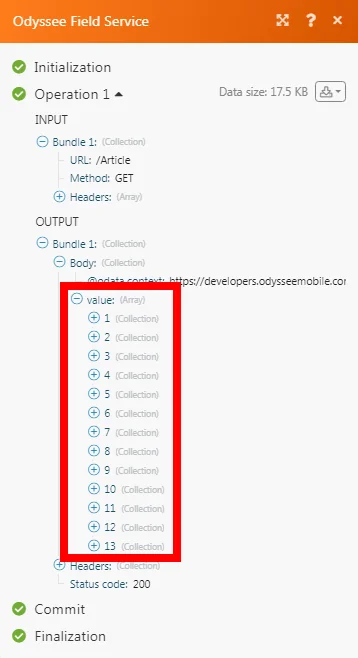
The following API call returns all the articles from your Odyssee Field Service account:
URL:
/Article
Method:
GET
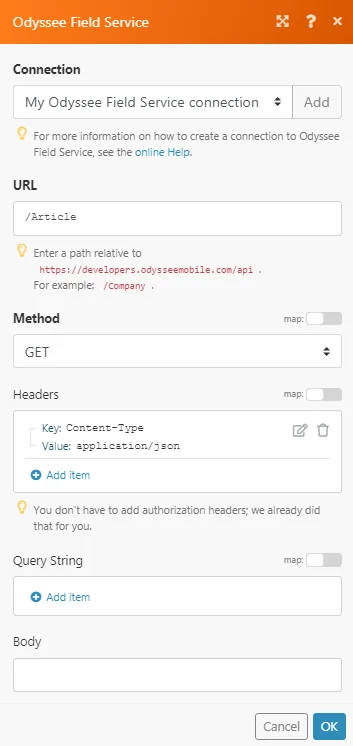
Matches of the search can be found in the module’s Output under Bundle > Body > value.
In our example, 13 articles were returned:
Legacy article, imported from the original Boost.space knowledge base (/knowledge-base/applications/productivity/odyssee-field-service/).

