Onfleet
The Onfleet modules allow you to watch, create, update, list, and delete the tasks in your Onfleet account.
Getting Started with Onfleet
Prerequisites
- An Onfleet account
In order to use Onfleet with Boost.space Integrator, it is necessary to have an Onfleet account. You can create an Onfleet account at onfleet.com/signup.
Connecting Onfleet to Boost.space Integrator
To connect your Onfleet account to Boost.space Integrator you need to obtain the API Key from your Onfleet account and insert it in the Create a connection dialog in the Boost.space Integrator module.
1. Log in to your Onfleet account.

2. Click Settings (
 ) > API & Webhooks. In the API Keys section, click (
 ) icon.
3. Enter a name for the API Key and click Create Key.
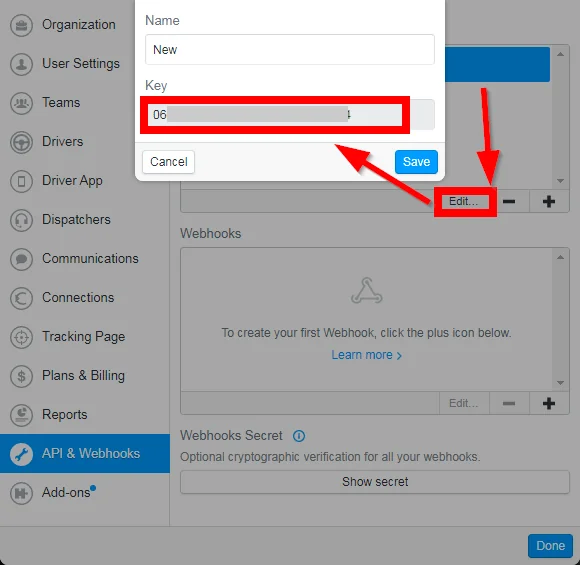
4. Select the API Key, click Edit, and copy the API Key to your clipboard.
5. Go to Boost.space Integrator and open the Onfleet module’s Create a connection dialog.
6. In the Connection name field, enter a name for the connection.
7. In the API Key field, enter the API key details copied in step 4, and click Continue.
The connection has been established.
Tasks
You do not have to add the webhooks in the Onfleet as it is automatically done for you once you add and save an instant trigger module to your scenario.

Watch Task Started
Triggers when a task has been started by a worker.
Webhook Name
Enter a name for the webhook.
Connection
Establish a connection to your Onfleet account.
Watch Task ETA
Triggers when worker ETA is less than or equal to the threshold value provided in seconds.
Webhook Name
Enter a name for the webhook.
Connection
Establish a connection to your Onfleet account.
Watch Task Arrival
Triggers when a worker is arriving at or closer than the threshold value provided in meters.
Webhook Name
Enter a name for the webhook.
Connection
Establish a connection to your Onfleet account.
Watch Task Completed
Triggers when a task has been completed by the worker.
Webhook Name
Enter a name for the webhook.
Connection
Establish a connection to your Onfleet account.
Watch Task Failed
Triggers when a new task has failed.
Webhook Name
Enter a name for the webhook.
Connection
Establish a connection to your Onfleet account.
Watch Task Created
Triggers when a new task is created.
Webhook Name
Enter a name for the webhook.
Connection
Establish a connection to your Onfleet account.
Watch Task Updated
Triggers when a task has been updated including assignment feedback and attachment (photo, signature) changes.
Webhook Name
Enter a name for the webhook.
Connection
Establish a connection to your Onfleet account.
Watch Task Deleted
Trigger when a task is deleted.
Webhook Name
Enter a name for the webhook.
Connection
Establish a connection to your Onfleet account.
Watch Task Assigned
Triggers when a task has been assigned to a worker.
Webhook Name
Enter a name for the webhook.
Connection
Establish a connection to your Onfleet account.
Watch Task Unassigned
Triggers when a task has been unassigned from a worker.
Webhook Name
Enter a name for the webhook.
Connection
Establish a connection to your Onfleet account.
Watch Task Delayed
Triggers when the delay time is greater than or equal to the threshold value provided in seconds.
Webhook Name
Enter a name for the webhook.
Connection
Establish a connection to your Onfleet account.
Watch Task Cloned
Triggers when a task has been cloned.
Webhook Name
Enter a name for the webhook.
Connection
Establish a connection to your Onfleet account.
Search Tasks
Returns a task’s information by its ID.
Connection
Establish a connection to your Onfleet account.
From
Enter the date to search the task started from the specified date. See the list of supported date and time formats.
To
Enter the date to search the task started until the specified date. See the list of supported date and time formats.
Last ID
Enter the ID to search the tasks
State
Select the status of the task you were searching for:
-
Assigned
-
Unassigned
-
Active
-
Completed
Worker
Select the worker ID of a worker who is currently assigned to the tasks or has previously completed the tasks.
Complete Before
Enter the date to search the tasks completed before the specified date. See the list of supported date and time formats.
Complete After
Enter the date to search the tasks completed after the specified date. See the list of supported date and time formats.
Dependencies
Enter the Task IDs that are dependent on the task you are searching for.
Limit
Set the maximum number of tasks Boost.space Integrator should return during one scenario execution cycle.
Get a Task
Returns a task’s information by its ID.
Connection
Establish a connection to your Onfleet account.
Task ID
Select the Task ID whose details you want to retrieve.
Create a Task
Creates a new task in the Onfleet dashboard.
Connection
Establish a connection to your Onfleet account.
Destination
Select the option to provide the destination details:
-
Destination ID
-
Destination Object
Destination ID
Select the Destination ID for the task.
Number
Enter the house number.
Street
Enter the street name.
City
Enter the city name.
Country
Enter the country name.
Name
Enter the contact person’s name.
Apartment
Enter the apartment name or number.
State
Enter the state name.
Postal Code
Enter the area postal code.
Unparsed
Enter the complete address specified in a single, unparsed string where the various elements are separated by commas.
Longitude
Enter the location’s longitude details.
Latitude
Enter the location’s latitude details.
Notes
Enter the notes about the task.
Recipients
Select the option to choose the recipients.
Recipient ID
Select the Recipient ID of the task.
Name
Enter the recipient’s name.
Phone
Enter the recipient’s phone number.
Notes
Enter the notes for the recipient.
Skip SMS Notifications
Select whether to skip the SMS notifications for the recipient.
Skip Phone Number Validation
Select whether to skip the validation of the recipient’s phone number.
Pickup Task
Select whether this task is picked up from another recipient.
Notes
Enter the details about the task.
Complete After
Enter the date and time the task should be completed. See the list of supported date and time formats.
Complete Before
Enter the date and time the task should be completed. See the list of supported date and time formats.
Quantity
Enter the number of units to be dropped off while completing this task for route optimization purposes.
Service Time
Enter the number of minutes to be spent by the worker on arrival at this task’s destination for route optimization purposes.
Signature
Select whether the recipient’s signature is required.
Photo
Select whether a photo is required.
Notes
Select whether the delivery note is required.
Minimum Age
Enter the minimum age of the recipient’s ID must be scanned and their age verified to be greater than or equal to the minimum age in order to complete the task. Must be in a plan that supports ID verification.
Mode
Select the assignment mode of the task:
-
Distance
-
Load
Team
Select the ID of a team from which to pick the workers to consider for automatic assignment.
Max Assigned Task Count
Enter the maximum number of tasks a worker can have assigned after the automatic assignment is made.
Consider Dependencies
Select whether you want to include the target task’s dependency family (parent and child tasks) in the resulting assignment operation.
Worker ID
Enter the worker IDs separated by comma whom you do not want to include in the task assignment calculations.
Merchant
Select the ID of the organization that appears to the recipient of the task.
Executor
Select the ID of the organization responsible for fulfilling the task.
Dependencies
Enter the dependent task IDs which must be completed before the main task.
Type
Select the container to which you want to append this task. By default, this will be a creator organization container.
-
Team
-
Worker
Team ID
Select the Team ID to which you want to append this task.
Worker ID
Select the Worker ID to which you want to append this task.
Recipient Name
Enter the recipient’s name.
Recipient Notes
Enter the information about the recipient.
Recipient Skip SMS Notifications
Select whether you want to skip SMS notifications for recipients.
Use Merchant For Proxy
Select whether you want to override the Organization ID to use the Merchant org ID.
Scan Only Required Barcode
Select whether you want to scan only the required barcodes.
Triangle Color
Select the color for triangle colored pins on the map.
Update a Task
Updates a task by its ID.
Connection
Establish a connection to your Onfleet account.
Task ID
Select the Task ID whose details you want to update.
Notes
Enter the details or any other additional information about the task.
Type
Select the container to which you want to append this task. By default, this will be a creator organization container.
-
Team
-
Worker
Team ID
Select the Team ID to which you want to append this task.
Worker ID
Select the Worker ID to which you want to append this task.
Delete a Task
Deletes a task by its ID.
Connection
Establish a connection to your Onfleet account.
Task ID
Select the Task ID you want to delete.
Workers
Watch Worker Duty
Triggers when a worker status has changed (0 for off-duty 1 for on-duty)
Webhook Name
Enter a name for the webhook.
Connection
Establish a connection to your Onfleet account.
Recipients
Watch Recipient SMS Response Missed
Triggers when the recipient responds to a notification via SMS but the organization is unable to handle it at that time.
Webhook Name
Enter a name for the webhook.
Connection
Establish a connection to your Onfleet account.
Other
Make an API Call
Performs an arbitrary authorized API call
Connection
Establish a connection to your Onfleet account.
URL
Enter a path relative to https://api.onfleet.com/api. For example: /v2/workers
For the list of available endpoints, refer to the Onfleet API Documentation.
Method
Select the HTTP method you want to use:
GET to retrieve information for an entry.
POST to create a new entry.
PUT to update/replace an existing entry.
PATCH to make a partial entry update.
DELETE to delete an entry.
Headers
Enter the desired request headers. You don’t have to add authorization headers; we already did that for you.
Query String
Enter the request query string.
Body
Enter the body content for your API call.
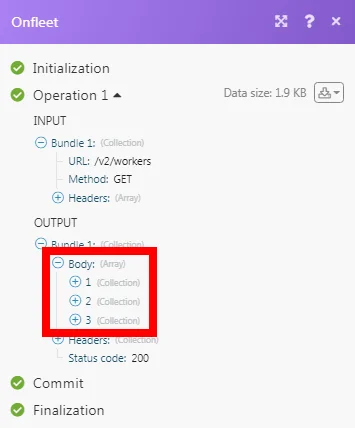
Example of Use – List Workers
The following API call returns all the workers from your Onfleet account:
URL: /v2/workers
Method: GET
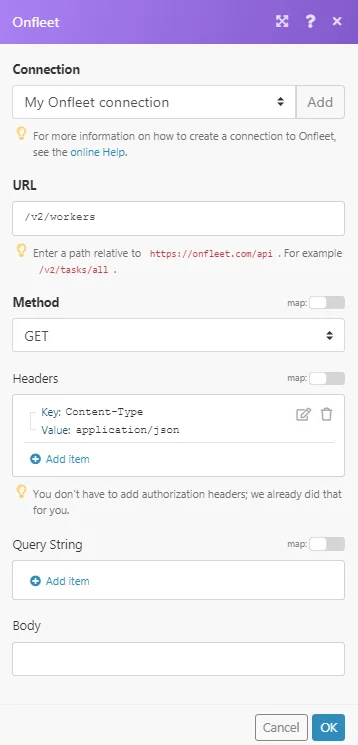
Matches of the search can be found in the module’s Output under Bundle > Body.
In our example, 3 workers were returned:
Legacy article, imported from the original Boost.space knowledge base (/knowledge-base/applications/productivity/onfleet/).

