Pivotal Tracker
The Pivotal Tracker modules allow you to monitor, create, update, list, retrieve, and delete the projects, and stories in your Pivotal Tracker account.
Getting Started with Pivotal Tracker
Prerequisites
- A Pivotal Tracker account
In order to use Pivotal Tracker with Boost.space Integrator, it is necessary to have a Pivotal Tracker account. If you do not have one, you can create a Pivotal Tracker account at pivotaltracker.com.
Connecting Pivotal Tracker to Boost.space Integrator
To connect your Pivotal Tracker account to Boost.space Integrator you need to obtain the API Key from your Pivotal Tracker account and insert it in the Create a connection dialog in the Boost.space Integrator module.
1. Log in to your Pivotal Tracker account.
2. Click Your Account Name > Profile.
3. Navigate to the API Token section and copy the token to your clipboard.

4. Go to Boost.space Integrator and open the Pivotal Tracker module’s Create a connection dialog.

5. In the Connection name field, enter a name for your connection.
6. In the Pivotal Tracker API Token field, enter token copied in step 3, and click Continue.
The connection has been established.
Project
Watch Project
Triggers when a new project is created.
Connection
Establish a connection to your Pivotal Tracker account.
Limit
Set the maximum number of projects Boost.space Integrator should return during one execution cycle.
Output Properties
Select or map the property details you want to retrieve.
List Projects
Retrieves a list of all your active projects.
Connection
Establish a connection to your Pivotal Tracker account.
Limit
Set the maximum number of projects Boost.space Integrator should return during one execution cycle.
Output Properties
Select or map the property details you want to retrieve.
Account IDs
Add the accounts whose projects you want to list.
Create a Project
Creates a new project.
Connection
Establish a connection to your Pivotal Tracker account.
Project Title
Enter (map) the name of the project.
Description
Enter (map) the project details.
Account
Select or map the account to which the project belongs to.
Output Properties
Select or map the properties you want to retrieve for the project.
Get a Project
Gets the information of a project.
Connection
Establish a connection to your Pivotal Tracker account.
Project ID
Select or map the Project ID whose details you want to retrieve.
Output Properties
Select or map the properties you want to retrieve for the project.
Update a Project
Updates the settings of a project.
Connection
Establish a connection to your Pivotal Tracker account.
Project Title
Enter (map) the name of the project.
Description
Enter the project details.
Account
Select or map the account to which the project belongs to.
Enable Tasks
Select whether you want to enable the tasks.
Public Access
Select whether the project can be accessed publicly.
Start Iteration on
Select or map the day in the week on which the project’s iterations start.
Enter (map) the date on which the project work begins.
Iteration Length
Enter (map) the number of weeks in the project iteration. For example, 2 weeks.
Point Scale
Enter (map) the specification available for entering story estimates within the project. You can specify a comma-delimited series of values on the _Project Settings_page of the Tracker web application.
-
Linear (0,1,2,3)
-
Powers of 2 (0,1,2,4,8)
-
Fibonacci (0,1,2,3,5,8)
If another comma-separated point-scale string is passed, it will be treated as a custom point scale.
Initial Velocity
Enter (map) the number that will be used as the project’s velocity when there are not enough recent iterations with Done stories for an actual velocity to be computed.
Velocity Strategy
Select or map the number of iterations that should be used when averaging the number of points of Done stories when calculating the project’s velocity.
Number of Done Iterations to Show
Enter (map) the maximum number of done iterations that will be loaded/shown/included in these areas. There are areas within the Tracker UI and the API in which sets of stories automatically exclude the Done stories contained in older iterations.For example, in the web UI, the DONE panel does not show all the Done stories by default and provides a link to click to cause the full story set to be loaded/displayed.
Plan Current Iteration Automatically
Select whether you want the Tracker to perform the project iteration planning based on the project’s velocity, and allow users to manually control the set of unstarted stories included in the current iteration. For more information, see the FAQ.
Enable Incoming Emails
Select whether you want the project to accept the incoming email responses to Tracker notification emails and convert them to comments on the appropriate stories. For more information, see the FAQ.
Bugs and Chores May Be Given Points
Select whether the tracker should allow the estimates to be set on the bug and chore-type stories. Pivotal Tracker does not recommend the user to set true for this option. For more information, see the FAQ.
Output Properties
Select or map the properties you want to retrieve for the project.
Delete a Project
Deletes a project.
Connection
Establish a connection to your Pivotal Tracker account.
Project ID
Select or map the Project ID you want to delete permanently.
Story
Watch Stories
Triggers when a new story is added to a project.
Connection
Establish a connection to your Pivotal Tracker account.
Project ID
Select or map the Project ID whose stories you want to watch.
Limit
Set the maximum number of stories Boost.space Integrator should return during one execution cycle.
Output Properties
Select or map the property details you want to retrieve.
List Stories
Retrieves a list of the stories of a project.
Connection
Establish a connection to your Pivotal Tracker account.
Limit
Set the maximum number of projects Boost.space Integrator should return during one execution cycle.
Project ID
Select or map the Project ID whose stories you want to list.
Output Properties
Select or map the property details you want to retrieve.
Create a Story
Create a new story in a project.
Connection
Establish a connection to your Pivotal Tracker account.
Project ID
Select or map the Project ID for which you are creating the story.
Name
Enter (map) the project name.
Description
Enter (map) the details of the project.
Estimate
Select or map the number of points for the story.
Story Type
Select or map the story type. For example, Feature.
Labels
Add the labels for the story. For example, new.
Requested By
Select or map the user who requested this story. For example, customer name.
Linked Project Integration
Select or map the link of this story to other tools, such as Jira. For more information, see the Pivotal Tracker documentation about using project integrations.
Output Properties
Select or map the properties you want to retrieve for the project.
Get a Story
Gets the information of a story.
Connection
Establish a connection to your Pivotal Tracker account.
Project ID
Select or map the Project ID for which you are creating the story.
Story ID
Select or map the Story ID whose details you want to retrieve.
Output Properties
Select or map the properties you want to retrieve in the story details.
Update a Story
Updates the parameters of a story.
Connection
Establish a connection to your Pivotal Tracker account.
Project ID
Select or map the Project ID for which you are creating the story.
Story ID
Select or map the Story ID whose details you want to update.
Project ID
Select or map the new Project ID with which you want to associate the story.
Name
Enter (map) the new name for the story.
Description
Enter (map) the details of the project.
Story Type
Select or map the story type. For example, Feature.
State
Select or map the status of the story. For example, Accepted.
Estimate
Select or map the number of points for the story.
Labels
Add the labels for the story. For example, new.
Requested By
Select or map the user who requested this story. For example, customer name.
Integration
Select or map the linked integration of this story to other tools, such as Jira. For more information, see the Pivotal Tracker documentation about using project integrations.
Output Properties
Select or map the properties you want to retrieve for the project.
Delete a Story
Deletes a story.
Connection
Establish a connection to your Pivotal Tracker account.
Project ID
Select or map the Project ID whose story you want to delete
Story ID
Select or map the Story ID you want to delete.
Other
Watch Activities
Triggers when any new activity happens within a project.
You do not have to add the webhooks in the Pivotal Tracker as it is automatically done for you once you add and save an instant trigger module to your scenario.
Webhook Name
Enter a name for the webhook.
Connection
Establish a connection to your Pivotal Tracker account.
Project ID
Select or map the Project ID whose story you want to delete
Make an API Call
Performs an arbitrary API call.
Connection
Establish a connection to your Pivotal Tracker account.
URL
Enter a path relative to https://www.pivotaltracker.com/services. For example: /v5/projects
For the list of available endpoints, refer to the Pivotal Tracker API Documentation.
Method
Select the HTTP method you want to use:
GETto retrieve information for an entry**.**
POSTto create a new entry.
PUTto update/replace an existing entry.
PATCHto make a partial entry update.
DELETEto delete an entry.
Headers
Enter the desired request headers. You don’t have to add authorization headers; we already did that for you.
Query String
Enter the request query string.
Body
Enter the body content for your API call.
Example of Use – List Stories
The following API call returns all the stories from your Pivotal Tracker account:
URL:/v5/projects/{projects_id}/stories
Method:GET
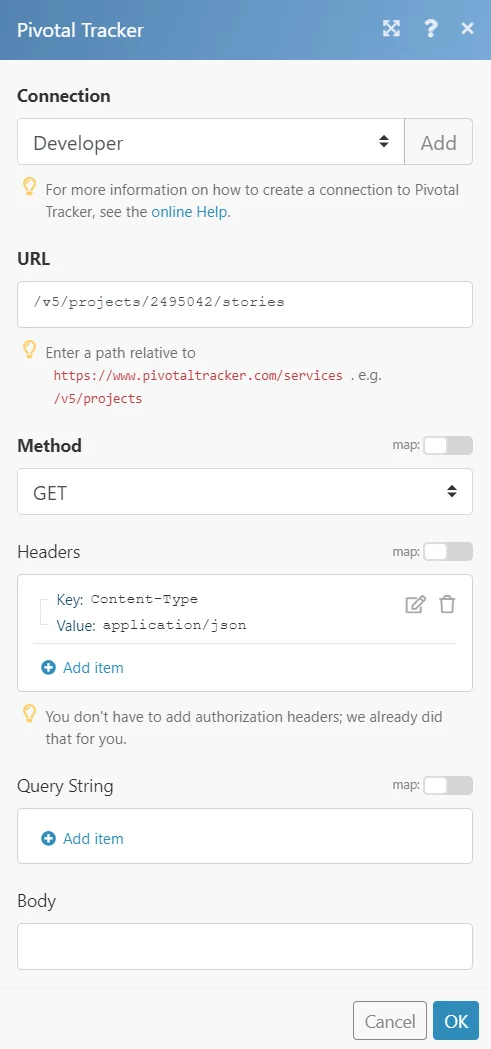
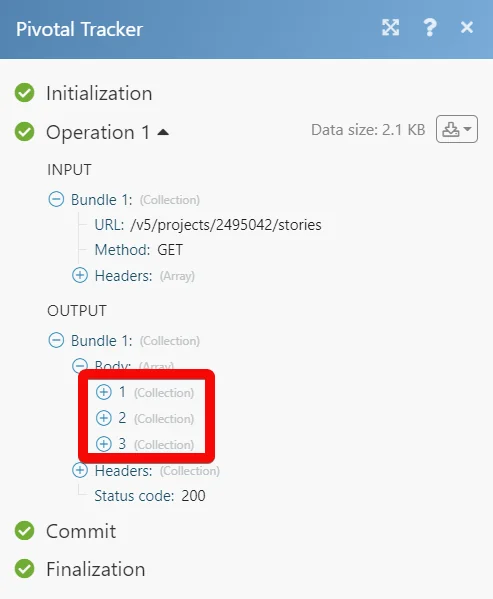
Matches of the search can be found in the module’s Output under Bundle > _Body._In our example, 3 stories were returned:
Legacy article, imported from the original Boost.space knowledge base (/knowledge-base/applications/productivity/pivotal-tracker/).

