Stackby

The Stackby modules allow you to watch, create, update, and search the rows in your Stackby account.
Getting Started with Stackby
Prerequisites:
- A Stackby account
In order to use Stackby with Boost.space Integrator, it is necessary to have a Stackby account. If you do not have one, you can create a Stackby account at stackby.com/signup.
Connecting Stackby to Boost.space Integrator
To connect your Stackby account to Boost.space Integrator you need to obtain the API Key from your Stackby account and insert it in the Create a connection dialog in the Boost.space Integrator module.

1. Login to your Stackby account.
2. Click your Profile Icon > Account > Create API Key.
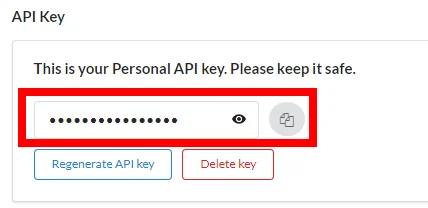
3. Copy the API Key to your clipboard.
4. Go to Boost.space Integrator and open the Stackby module’s Create a connection dialog.
5. In the _Connection nam_e field, enter a name for the connection
6. In the API Key field, enter the API key copied in step 3 and click Continue.
The connection has been established.
Triggers
Watch Records
Returns all newly created rows in a view.
Connection
Establish a connection to your Stackby account.
Workspace
Select the workspace whose stack records you want to watch.
Stack
Select the stack whose records you want to watch.
Table
Select the table whose records you want to watch.
View
Select the type of records you want to watch.
Limit
Set the maximum number of records Boost.space Integrator should return during one scenario execution cycle.
Actions
Create a Row
Creates a new row in any table in Stackby.
Connection
Establish a connection to your Stackby account.
Workspace
Select the workspace whose table you want to add a row.
Stack
Select the stack whose table you want to add a row.
Table
Select the table where you want to add a row. For example, Contacts. When you select a table type, the field auto-populates the fields which you need to fill for adding the row.
Update a Row
Updates a row by its ID.
Connection
Establish a connection to your Stackby account.
Workspace
Select the workspace whose table’s row details you want to update.
Stack
Select the stack whose table’s row details you want to update.
Table
Select the table whose row details you want to update. For example, Contacts. When you select a table type, the field auto-populates the fields which you need to update.
Row ID
Select the Row ID whose details you want to update.
Searches
Search Rows
Searches for any specific row or returns all rows.
Connection
Establish a connection to your Stackby account.
Workspace
Select the workspace whose table’s rows you want to search.
Stack
Select the stack whose table’s rows you want to search.
Table
Select the table whose rows you want to search for.
Search Formula
Enter the formula to search the specific rows. For example, columnName = sample.
Sort
Add the options to sort the rows:
Field
Select the field to sort. For example, Phone.
Direction
Select the order in which you want to list the rows:
-
Ascending
-
Descending
View
Select the table type whose rows you want to list.
Max Record
Set the maximum number of rows Boost.space Integrator should return during one scenario execution cycle.
Legacy article, imported from the original Boost.space knowledge base (/knowledge-base/applications/productivity/stackby/).

