Wrike
Getting Started with Wrike
The Wrike modules allow you to monitor, modify, create or delete tasks, attachments, comments, folders, projects and retrieve lists in your Wrike account.
Prerequisites
- A Wrike account
In order to use Wrike with Boost.space Integrator, it is necessary to have a Wrike account. If you do not have one, you can create a Wrike account at wrike.com.
Connecting Wrike to Boost.space Integrator
To connect your Wrike account to Boost.space Integrator follow the general instructions for Connecting to services.Connecting Boost.space Integrator to any web service
After you click the Continue button, Boost.space Integrator will redirect you to the Wrike website where you will be prompted to grant Boost.space Integrator access to your account.
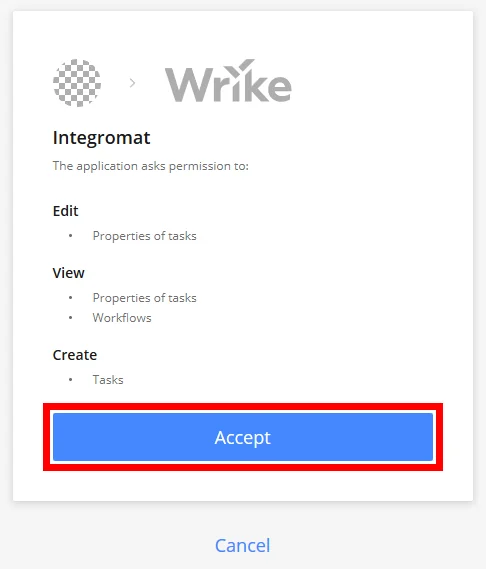
Confirm the dialog by clicking the Accept button.
Events
Watch Events
Triggers when the selected action is performed.
Webhook name
Enter the name for the webhook. E.g. Created Task Webhook
Connection
Establish a connection to your Wrike account.
Folder ID
Select the folder you want to watch for performed actions.
If no folder is selected, all account folders will be monitored for the events.
Events
Select one or more events that will trigger the module.
Tasks
Watch Tasks
Triggers when a task is created or updated.
Required Permissions: Default, wsReadOnly, wsReadWrite
Connection
Establish a connection to your Wrike account.
Folder ID
Select the folder you want to watch for performed actions.
If no folder is selected, all account folders will be monitored for the events.
Limit
Set the maximum number of tasks Boost.space Integrator will return during one cycle.
Find Tasks
Searches tasks based on the specified filter.
Required Permissions: Default, wsReadOnly, wsReadWrite
Connection
Establish a connection to your Wrike account.
Limit
Set the maximum number of results Boost.space Integrator will return during one cycle.
Title
Enter a title you want to filter the results by.
Include subtasks
Select Yes if you want to search also in subtasks.
Status
Enter the task status you want to filter the results by.
Importance
Enter the task importance you want to filter the results by.
Authors
Enter authors of the task you want to filter the results by.
Responsibles
Enter responsible contacts for the task you want to filter the results by.
Descendants
Select Yes if you want to search also in sub-folders.
Sort field
Select the field you want to sort by the result.
Sort order
Select ascending sort order or descending sort order of the results.
Task type
Select the task type you want to filter the results by.
Get Task(s)
Retrieves details about single or multiple tasks.
Required Permissions: Default, wsReadOnly, wsReadWrite
Connection
Establish a connection to your Wrike account.
Task ID
Enter (map) the ID of the task you want to retrieve details about.
List Tasks from a Folder
Gets tasks from the selected folder based on the specified filter.
Required Permissions: Default, wsReadOnly, wsReadWrite
Folder ID
Select or map the folder you want to retrieve tasks from.
Find the descriptions of the other fields in the Find Tasks section.
Create a Task
Creates a task in the specified folder.
Required Permissions: Default, wsReadWrite
Connection
Establish a connection to your Wrike account.
Folder ID
Select a folder you want to create the task in.
Additional Parent Projects/Folders
Select parent folders/projects for newly created task.
Title
Enter the title of the new task.
Description
Enter the description for the task.
Status
Enter the task status of the new task.
Importance
Select the importance of the task.
Dates
Task dates. If not specified, a backlogged task is created.
Backlog Duration (optional) – enter the duration in minutes [0 – 1800000]
Milestone Due – enter the task due date in the format yyyy-MM-dd'T'HH:mm:ss.
PlannedStart – enter the task start date in the format yyyy-MM-dd'T'HH:mm:ss. Due – enter the task due date in the format yyyy-MM-dd'T'HH:mm:ss. Duration – enter the duration in minutes [0 – 1800000]
Work on weekends
If this option is enabled then weekends are included in the task scheduling.
Share task with
Specify the users you want to share the new task with.
Responsibles
Select the users that are responsible for the task.
Supertasks
Add the task as a subtask to selected tasks.
Followers
Add specified users as task followers.
Follow task
Enable this option if you want to follow the task.
Metadata
Enter the key-value metadata to the new task.
Custom fields
Add a custom field to the task. The custom field must be already created.
Follow these instructions to create a custom field.
Custom status ID
Enter (map) the ID of the custom status.
Cannot be set when the Status field is filled.
Modify a Task
Updates a selected task.
Required Permissions: Default, wsReadWrite
Connection
Establish a connection to your Wrike account.
Task ID
Select or map the task you want to update.
Find the descriptions of the other fields in the Create a Task section.
Delete a Task
Deletes a selected task.
Required Permissions: Default, wsReadWrite
Connection
Establish a connection to your Wrike account.
Task ID
Select or map the task you want to delete.
Folders
Create a Folder
Creates a folder in the selected parent folder.
Required Permissions: Default, wsReadWrite
Connection
Establish a connection to your Wrike account.
Folder ID
Select a folder you want to create the new folder in.
Title
Enter the title of the new folder.
Description
Enter the description of the folder.
Share task with
Specify the users you want share the new folder with.
Metadata
Enter the key-value metadata to the new folder.
Custom fields
Add a custom field to the folder. The custom field must be already created.
Follow these instructions to create a custom field.
Custom columns
Add custom fields associated with the folder.
Project
Project settings in order to create a project.
OwnersSelect the owners of the project.
StatusSelect the project status.
Start dateEnter the project start date. Format yyyy-MM-dd.
End dateEnter the project end date. Format yyyy-MM-dd.
Delete a Folder
Moves a folder and all sub-folders and tasks to the Recycle Bin unless they have parents outside of deletion scope.
Required Permissions: Default, wsReadWrite
Connection
Establish a connection to your Wrike account.
Folder ID
Select or map the folder you want to delete.
Timelogs
Create a Timelog
Creates a timelog record for the selected task.
Required Permissions: Default, wsReadWrite
Connection
Establish a connection to your Wrike account.
Task ID
Select the task you want to track the timelog for.
Comment
Enter the timelog record comment.
Hours
Time to log in hours (0-24).
Tracked Date
Enter the date you want to register time. Format yyyy-MM-dd.
Plain text
Retrieves Comment text as plain text, HTML otherwise.
Category ID
Select the category of the timelog record.
Other
Make an API Call
Allows you to perform a custom API call.
Connection
Establish a connection to your Wrike account.
URL
Enter a path relative to https://www.wrike.com/api/v4. E.g. /folders
For the list of available endpoints, refer to the Wrike API documentation.
Method
Select the HTTP method you want to use:
GET to retrieve information for an entry.
POST to create a new entry.
PUT to update/replace an existing entry.
PATCH to make a partial entry update.
DELETE to delete an entry.
Headers
Enter the desired request headers. You don’t have to add authorization headers; we already did that for you.
Query String
Enter the request query string.
Body
Enter the body content for your API call.
Search Criteria
Set the search criteria. Required when the GET method is used without ID.
Example of Use – List Folders
The following API call returns all folders:
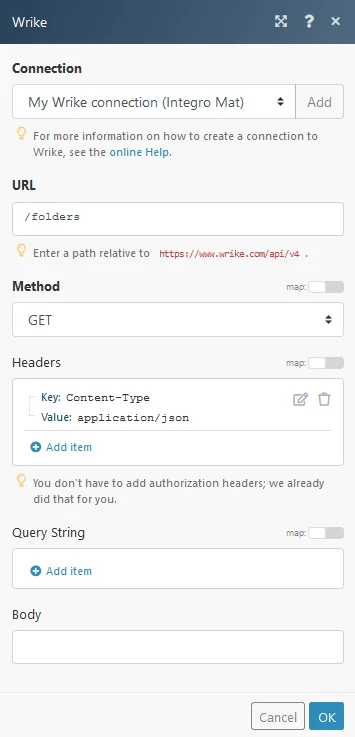
Matches of the search can be found in the module Output under Bundle > Body > data.
Webhooks
If you stop using an instant trigger, Boost.space Integrator will automatically start to reject new incoming messages from the service. After three unsuccessful delivery attempts, the service itself will stop sending new notifications. So if you have a webhook that you have not used for a long time, it may happen that Wrike deactivates it and you will have to create a new one.
Troubleshooting
Errors encountering with multiple scenarios running simultaneously
If you have multiple active scenarios using the same connection and running simultaneously, it may happen that some of those scenarios stop unexpectedly. The reason for that is Wrike uses a refresh-token based OAuth 2 connection. If this connection is shared by multiple scenarios and is about to expire, one of the scenarios will ask Wrike to refresh the expiring token. Wrike then returns a new access-token, but in turn also instantly invalidates the previous one, which can still be used in any other currently running scenario. The running scenario tries to access Wrike with the old access-token, and it gets refused. That’s how this error occurs. But, there’s an easy fix for this problem – use a unique connection for each Wrike scenario. Then one scenario won’t be affected by another.
Legacy article, imported from the original Boost.space knowledge base (/knowledge-base/applications/productivity/wrike/).

