Sendcloud
The Sendcloud modules allow you to watch, create, list, retrieve, and delete the parcel, returns, invoices, brands, and integrations in your Sendcloud account.
Getting Started with Sendcloud
Prerequisites
- A Sendcloud account
In order to use Sendcloud with Boost.space Integrator, it is necessary to have a Sendcloud account. If you do not have one, you can create a Sendcloud account at sendcloud.com.
Connecting Sendcloud to Boost.space Integrator
To connect your Sendcloud account to Boost.space Integrator you need to obtain the API Key from your Sendcloud account and insert it in the Create a connection dialog in the Boost.space Integrator module.

1. Log in to your Sendcloud account.
2. Click Settings (
 ) > Integrations > Sendcloud API.
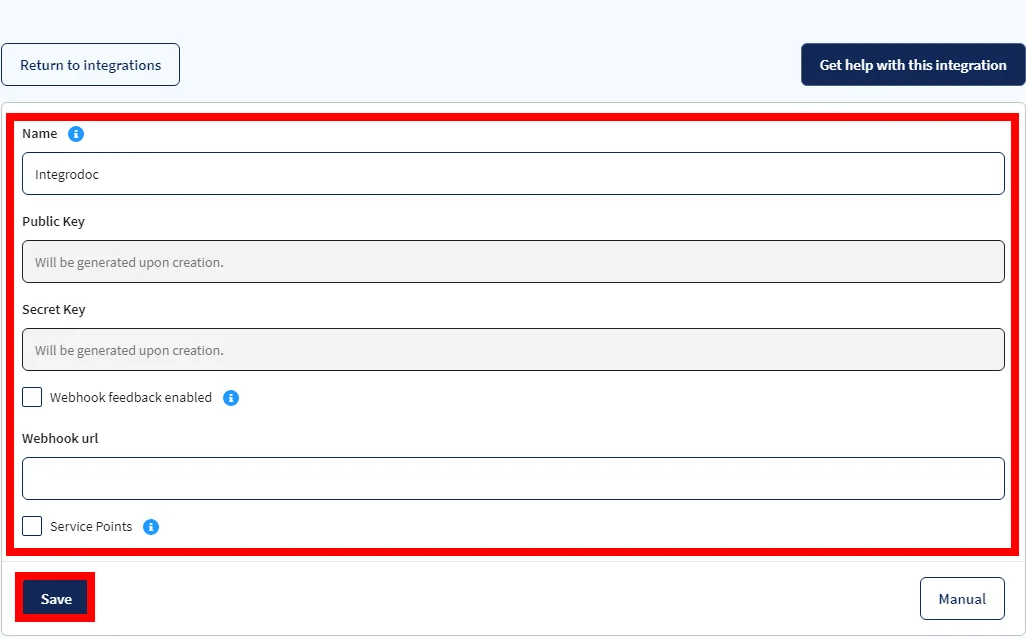
3. Enter a name for the API and click Save.
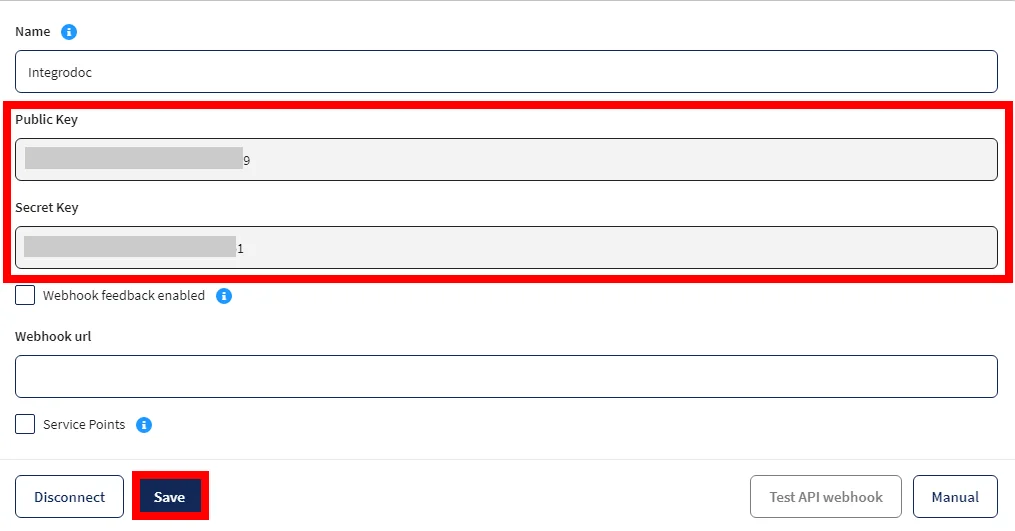
4. Copy the Public Key and Secret Key details to a safe place and Click Save.
5. Go to Boost.space Integrator and open the Sendcloud module’s Create a connection dialog.

6. In the Connection name field, enter a name for the connection.
7. In the Public Key and Secret Key fields, enter the details copied in step 4 respectively, and click Continue.
The connection has been established.
Parcel

Watch Parcel Status
Triggers when a parcel status is changed.
Webhook Name
Enter a name for the webhook.
Connection
Establish a connection to your Sendcloud account.
See Connecting to Sendcloud Webhook using Boost.space Integratorto add the webhook to your Sendcloud account.
List Parcels
Returns a list of parcels.
Connection
Establish a connection to your Sendcloud account.
Parcel Status
Select the parcel status whose details you want to list. For example, delivered.
Tracking Number
Select the parcel tracking number to list the parcels with the specified number.
Order Number
Select the parcel’s order number whose details you want to list.
Announced After
Enter the date to list all the parcels announced after the specified date. See the list of supported formats.
Updated After
Enter the date to list all the parcels updated after the specified date. See the list of supported formats.
Parcel IDs
Select the Parcel IDs whose details you want to list.
Limit
Set the maximum number of parcels Boost.space Integrator should return during one scenario execution cycle.
Get a Parcel
Returns a specified parcel.
Connection
Establish a connection to your Sendcloud account.
Parcel ID
Select the Parcel ID whose details you want to retrieve.
Create a Parcel
Creates a new parcel.
Connection
Establish a connection to your Sendcloud account.
Name
Enter the recipient’s name.
Address
Enter the recipient’s address.
House Number
Enter the recipient’s house number.
City
Enter the recipient’s city name.
Postal Code
Enter the recipient’s area postal code.
Country
Enter the recipient’s country name.
Company Name
Enter the recipient’s company name to which the parcel will be shipped to.
Additional Address
Enter the recipient’s alternative address.
Country State
Enter the recipient’s two-character state code. For example, NY for New York.
Telephone
Enter the recipient’s phone number.
Enter the recipient’s email address.
Sender Address
Enter the sender’s address who is sending the parcel.
Custom Invoice Number
Enter the parcel’s invoice number if it is shipped outside the EU region.
Custom Shipment Type
Select the parcel type:
-
Gift
-
Documents
-
Commercial Address
-
Returned Goods
External Reference
Enter the unique external reference number with which you can identify a parcel.
Request Label
Select whether a label is requested for the parcel.
Request Label Async
Select whether a label is requested asynchronously for the parcel.
To Service Point
Enter the parcel’s Service Point ID.
Insured Value
Enter the Sendcloud Insurance amount to add to the parcel. The entered value must be a multiple of 100 and maxes out at 2500 or 5000 depending on the carrier. This field does not take the carrier/shipping method insurance into consideration
Total Insured Value
Enter the parcel’s total insurance amount. The entered value must be a multiple of 100 and maxes out at 2500 or 5000 depending on the carrier.
This field automatically calculates the Sendcloud Insurance you need to add and your shipping method’s insurance so it matches the exact value you have given. As an example, DPD insures all their shipments by 520€ by default. If you pass the total insured value, 5000, then your shipment will have total insurance coverage of 5000€, but you are only paying for 4480€.
Order Number
Enter the parcel order number.
Integration ID
Select the integration option for the parcel. You must create integrations in your Sendcloud account.
Shipment UUID
Enter the unique identifier assigned to the shipment with the Sendcloud system.
Parcel Items
Add the parcel items:
Description
Enter the item’s details.
Quantity
Enter the number of items.
Weight
Enter the single item weight in kilograms.
Value
Enter the single item price.
Harmonized System Code
Enter the item’s Harmonized System Code.
Origin Country
Enter the two-character country code if the parcel is shipped outside the EU region.
SKU
Enter the item’s stock-keeping unit number.
Product ID
Enter the item’s Product ID.
Key
Enter custom key details for the item.
Value
Enter the key value.
Weight
Enter the weight of the parcel in kilograms. If no weight is specified, the default weight in settings is used.
Is Return
Select whether the item is returnable.
Total Order Value
Enter the amount paid by the buyer through various payment methods. For example, 99.9.
Update a Parcel
Updates a parcel with the option to request a label – it hasn’t been requested before.
Connection
Establish a connection to your Sendcloud account.
Parcel ID
Select the Parcel ID whose details you want to update.
Name
Enter the recipient’s name.
Address
Enter the recipient’s address.
House Number
Enter the recipient’s house number.
City
Enter the recipient’s city name.
Postal Code
Enter the recipient’s area postal code.
Country
Enter the recipient’s country name.
Company Name
Enter the recipient’s company name to which the parcel will be shipped to.
Additional Address
Enter the recipient’s alternative address.
Country State
Enter the recipient’s two-character state code. For example, NY for New York.
Telephone
Enter the recipient’s phone number.
Enter the recipient’s email address.
Sender Address
Enter the sender’s address who is sending the parcel.
Custom Invoice Number
Enter the parcel’s invoice number if it is shipped outside the EU region.
Custom Shipment Type
Select the parcel type:
-
Gift
-
Documents
-
Commercial Address
-
Returned Goods
External Reference
Enter the unique external reference number with which you can identify a parcel.
Request Label
Select whether a label is requested for the parcel.
Request Label Async
Select whether a label is requested asynchronously for the parcel.
To Service Point
Enter the parcel’s Service Point ID.
Insured Value
Enter the Sendcloud Insurance amount to add to the parcel. The entered value must be a multiple of 100 and maxes out at 2500 or 5000 depending on the carrier. This field does not take the carrier/shipping method insurance into consideration
Total Insured Value
Enter the parcel’s total insurance amount. The entered value must be a multiple of 100 and max out at 2500 or 5000 depending on the carrier.
This field automatically calculates the Sendcloud Insurance you need to add and your shipping method’s insurance so it matches the exact value you have given. As an example, DPD ensures all their shipments by 520€ by default. If you pass the total insured value, 5000, then your shipment will have total insurance coverage of 5000€, but you are only paying for 4480€.
Order Number
Enter the parcel order number.
Integration ID
Select the integration option for the parcel. You must create integrations in your Sendcloud account.
Parcel Items
Add the parcel items:
Description
Enter the item’s details.
Quantity
Enter the number of items.
Weight
Enter the single item weight in kilograms.
Value
Enter the single item price.
Harmonized System Code
Enter the item’s Harmonized System Code.
Origin Country
Enter the two-character country code if the parcel is shipped outside of the EU region.
SKU
Enter the item’s stock-keeping unit number.
Product ID
Enter the item’s Product ID.
Key
Enter custom key details for the item.
Value
Enter the key value.
Weight
Enter the weight of the parcel in kilograms. If no weight is specified, the default weight in settings is used.
Is Return
Select whether the item is returnable.
Total Order Value
Enter the amount paid by the buyer through various payment methods. For example, 99.9.
Download Parcel Document
Downloads a parcel document.
Connection
Establish a connection to your Sendcloud account.
Mapping
Select the option to choose the parcel document you want to download:
-
Map
-
Choose from List
Parcel ID
Select the Parcel ID whose documents you want to download.
Document Type
Select the document type you want to download.
Format
Select the format in which you want to download the document:
-
PDF
-
ZPL
-
PNG
Cancels a Parcel
Cancels or deletes a parcel depending on its status and other parameters.
Connection
Establish a connection to your Sendcloud account.
Parcel ID
Select the Parcel ID you want to delete. The cancellation is not guaranteed and may be asynchronous depending on the state of the parcel.
Invoices
List Invoices
Returns a list of invoices.
Connection
Establish a connection to your Sendcloud account.
Limit
Set the maximum number of invoices Boost.space Integrator should return during one scenario execution cycle.
Get an Invoice
Returns a specified invoice.
Connection
Establish a connection to your Sendcloud account.
Invoice ID
Select the Invoice ID whose details you want to retrieve.
Shipping Methods
List Shipping Methods
Returns a list of shipping methods.
Connection
Establish a connection to your Sendcloud account.
Sender Address
Select the Sender ID to where you plan to ship your parcels from. If you want to retrieve all available shipping methods, enter all.
Service Point ID
Enter the Service Point ID to list the shipping methods available with the specified service point.
Is Return
Select whether the shipping method you want to list includes a return policy.
Limit
Set the maximum number of shipping methods Boost.space Integrator should return during one scenario execution cycle.
Get a Shipping Method
Returns a specified shipping method.
Connection
Establish a connection to your Sendcloud account.
Shipping Method
Select the shipping method whose details you want to retrieve.
Brands
List Brands
Returns a list of brands.
Connection
Establish a connection to your Sendcloud account.
Limit
Set the maximum number of brands Boost.space Integrator should return during one scenario execution cycle.
Get a Brand
Returns a specified brand.
Connection
Establish a connection to your Sendcloud account.
Brand ID
Select the Brand ID whose details you want to retrieve.
Sender Addresses
List Sender Addresses
Returns a list of sender addresses.
Connection
Establish a connection to your Sendcloud account.
Limit
Set the maximum number of sender addresses Boost.space Integrator should return during one scenario execution cycle.
Get a Sender Addresses
Gets a specified sender address.
Connection
Establish a connection to your Sendcloud account.
Sender Address ID
Select the Sender Address ID whose details you want to retrieve.
Integrations
Watch Connected Integrations
Triggers when integration is connected.
Webhook Name
Enter a name for the webhook.
Connection
Establish a connection to your Sendcloud account.
See Connecting to Sendcloud Webhook using Boost.space Integratorto add the webhook to your Sendcloud account.
Watch Deleted Integrations
Triggers when integration is deleted.
Webhook Name
Enter a name for the webhook.
Connection
Establish a connection to your Sendcloud account.
See Connecting to Sendcloud Webhook using Boost.space Integratorto add the webhook to your Sendcloud account.
Watch Updated Integrations
Triggers when integration is updated.
Webhook Name
Enter a name for the webhook.
Connection
Establish a connection to your Sendcloud account.
See Connecting to Sendcloud Webhook using Boost.space Integratorto add the webhook to your Sendcloud account.
List Integration’s Shipments
Returns a list of shipments from an integration.
Connection
Establish a connection to your Sendcloud account.
Integration ID
Select the Integration ID whose shipments you want to list.
Start Date
Enter the date to list the integrations started on the specified date.
End Date
Enter the date to list the integrations that ended on the specified date.
Limit
Set the maximum number of integration shipments Boost.space Integrator should return during one scenario execution cycle.
List Integrations
Returns a list of integrations.
Connection
Establish a connection to your Sendcloud account.
Limit
Set the maximum number of integrations Boost.space Integrator should return during one scenario execution cycle.
Update an Integration’s Settings
Updates a specified integration’s settings.
Connection
Establish a connection to your Sendcloud account.
Integration ID
Select the Integration ID whose settings you want to update.
Webhook URL
Enter the webhook endpoint URL address.
Shop Name
Enter the shop name.
Shop URL
Enter the shop’s URL address.
Service Point Enabled
Select the service point that is enabled in the integration.
Webhook Active
Select whether the webhook is active in the integration.
Service Point Carriers
Add the service point carriers to the integration.
Delete Integration’s Order
Delete an order from an Integration.
Connection
Establish a connection to your Sendcloud account.
Integration ID
Select the Integration ID whose order you want to delete.
Shipment UUID
Select the Unique Shipment ID you want to delete.
Returns
Watch Refund Requests
Triggers when a refund is requested.
Webhook Name
Enter a name for the webhook.
Connection
Establish a connection to your Sendcloud account.
See Connecting to Sendcloud Webhook using Boost.space Integrator to add the webhook to your Sendcloud account.
Other
Make an API Call
Performs an arbitrary authorized API call.
Connection
Establish a connection to your Sendcloud account.
URL
Enter a path relative to https://panel.sendcloud.sc. For example, api/v2/user
For the list of available endpoints, refer to the Sendcloud API Documentation.
Method
Select the HTTP method you want to use:
GET to retrieve information for an entry.
POST to create a new entry.
PUT to update/replace an existing entry.
PATCH to make a partial entry update.
DELETE to delete an entry.
Headers
Enter the desired request headers. You don’t have to add authorization headers; we already did that for you.
Query String
Enter the request query string.
Body
Enter the body content for your API call.
Example of Use – Get All Shipping Methods
The following API call returns all the shipping methods from your Sendcloud account:
URL:api/v2/shipping_methods
Method:GET
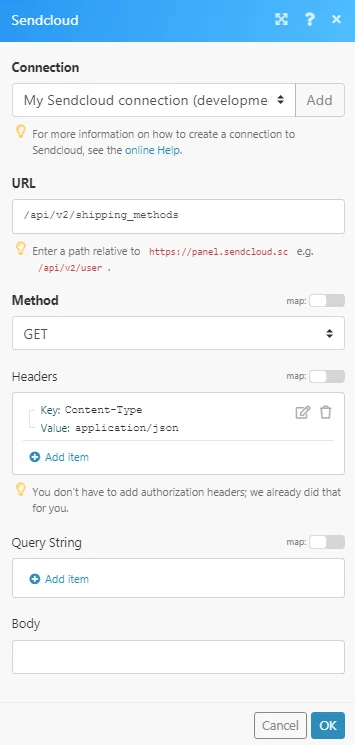
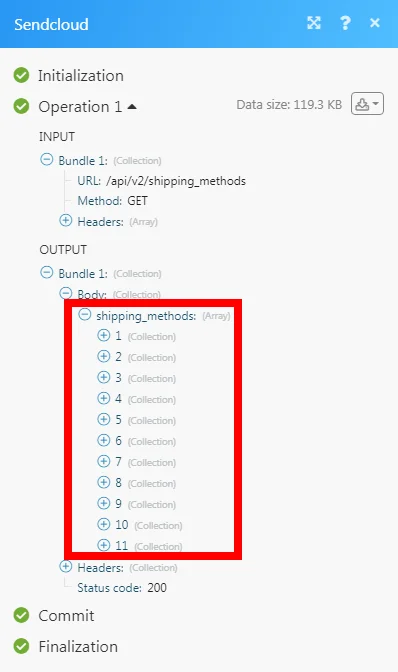
Matches of the search can be found in the module’s Output under Bundle > _Body > shipping_methods._In our example, 11 shipping methods were returned:
Connecting to Sendcloud Webhook using Boost.space Integrator
1. Open any Watch module, establish the connection as mentioned in the respective module, click Save, and copy the URL address to your clipboard. Click OK and save the trigger.

2. Log in to your Sendcloud account.
3. Click Settings (
 ) > Integrations.4. Click Edit in the Integration to which you want to add the webhook. In the Webhook URL address field, enter the URL address copied in step 1.
5. (Optional) Select the Service Points for the trigger.
6. Click Save.
The webhook is added successfully.
Legacy article, imported from the original Boost.space knowledge base (/knowledge-base/applications/travel/sendcloud/).

