HTTP
The HTTP app provides modules for communication based on the Hypertext Transfer Protocol (HTTP). HTTP is the fundamental component of data transfer for the World Wide Web. As the backbone of information exchange between web servers and clients, HTTP allows you to download web pages, access files, make API calls, and trigger webhooks.
Overview of the HTTP modules
Select a module of the HTTP app based on the authentication requirements of the resource you want to use. To use modules that require authentication, you have to create a connection first.
- Make a request: universal module, best to use for resources that do not require authentication.
- Make a Basic Auth request: for resources that require basic authentication.
- Make an API key Auth request: for resources that require API key authentication.
- Make an OAuth 2.0 request: for resources that require OAuth 2.0 authorization.
- Make a Client Certificate Auth request: for resources that require client-side certificate authentication.
- Get a file: download a file from the URL.
- Resolve a target URL: retrieve the target URL from a chain of HTTP redirects.
- Retrieve headers: to get headers from the HTTP request module in separate bundles.
![[Note]](/img/chrome/note.png)
Note
The module dialog fields that are displayed in bold (in the Boost.space Integratorscenario, not in this documentation article) are mandatory!
Make a request
The Make a request module allows you to create an HTTP request and send it to a server. The output bundle contains the HTTP response.
Evaluate all states as errors (except for 2xx and 3xx)
Use the response status to detect errors. Otherwise, the module reports only Boost.space Integrator related errors (like mapping errors or missing required values).
URL
Enter the request URL.
Serialize URL
Encodes the API call URL with the URL encoding (encoding special characters for example).
Method
Select the HTTP method you want to use:
- GET: to retrieve information for an entry.
- POST: to create a new entry.
- PUT: to update/replace an existing entry.
- PATCH: to make a partial entry update.
- DELETE: to delete an entry.
Headers
Enter request headers. For example, the response content type.
![[Caution]](/img/chrome/caution.webp)
Caution
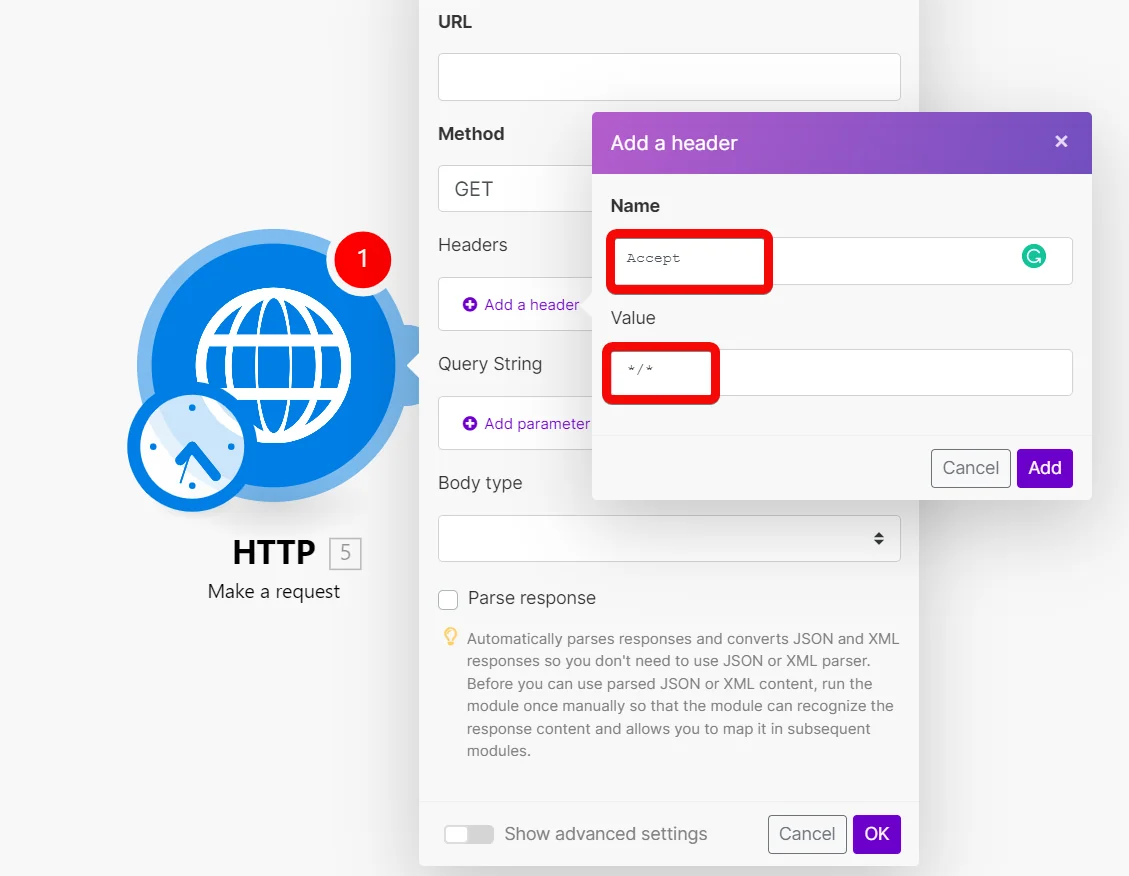
The HTTP app requests do not have the Accept header. If the HTTP request returns an unexpected response, try adding the Accept: */* header.
Query String
Enter the query key-value pairs.
Body type
HTTP body contains the data transferred in an HTTP request.
Raw
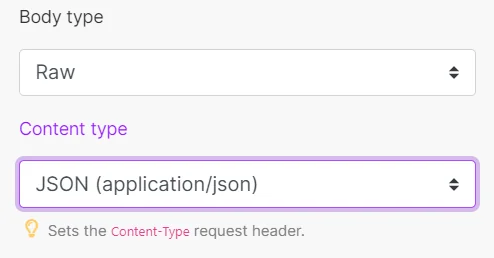
The Rawbody type is suitable for most HTTP requests, even if the service documentation does not specify the data type.
Specify the data format of the body content in the Content type field.
Application/x-www-form-urlencoded
This body type is to POST data using application/x-www-form-urlencoded.
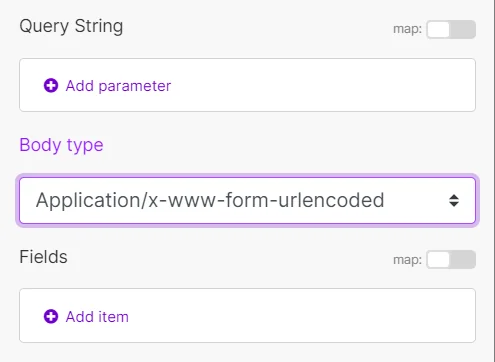
For application/x-www-form-urlencoded, the body of the HTTP request sent to the server is one query string. The keys and values are encoded in key-value pairs separated by & and with a = between the key and the value. For binary data, use the multipart/form-data body type instead.
Example of the resulting HTTP request format: field1=value1&field2=value2
Multipart/form-data
Use the multipart/form-data content type to send files in the HTTP request.
Add fields to the request. Each field must contain a key-value pair:
Text: Enter the key and value to send in the request body.
File: Enter the key, and specify the source file you want to send in the request body. Map the file you want to upload from the previous module (for example: HTTP > Get a File or Google Drive > Download a File), or enter the file name and file data manually.
Parse response
Enable to parse HTTP responses into bundles. With this option, you don’t need to add the Parse JSON or Parse XML modules. Otherwise, the HTTP module returns the raw response data.
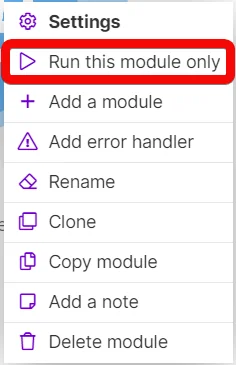
Before you can use parsed JSON or XML content, run the module once manually so that the module can recognize the response content and allow you to map it in subsequent modules.
User name
Enter the user name to send the request with the basic auth.
Password
Enter the password to send the request with the basic auth.
Timeout
Specify the request timeout in seconds (1-300). Default: 40 seconds.
Share cookies with other HTTP modules
Enable to share cookies from the server with all HTTP modules in your scenario.
Self-signed certificate
Upload your certificate if you want to use TLS using your self-signed certificate.
Reject connections that use unverified (self-signed) certificates
Enable to reject connections that use unverified TLS certificates.
Follow redirect
Enable to follow URL redirects that return 3xx response statuses.
Follow all redirect
Enable to follow URL redirects regardless of response statuses.
Disable serialization of multiple same query string keys as arrays
Boost.space Integrator handles multiple values for the same URL query string parameter key as arrays (e.g., www.test.com?foo=bar&foo=baz will be converted to www.test.com?foo[0]=bar&foo[1]=baz). Enable to deactivate this behavior.
Request compressed content
Enable to request compression of the response data. Adds the [Accept-Encoding](https://developer.mozilla.org/en-US/docs/Web/HTTP/Headers/Accept-Encoding) header.
Example HTTP request with the Make a request module
Check the following screenshot to see how to set up the Make a request module to send a POST request with the body in the JSON data format:
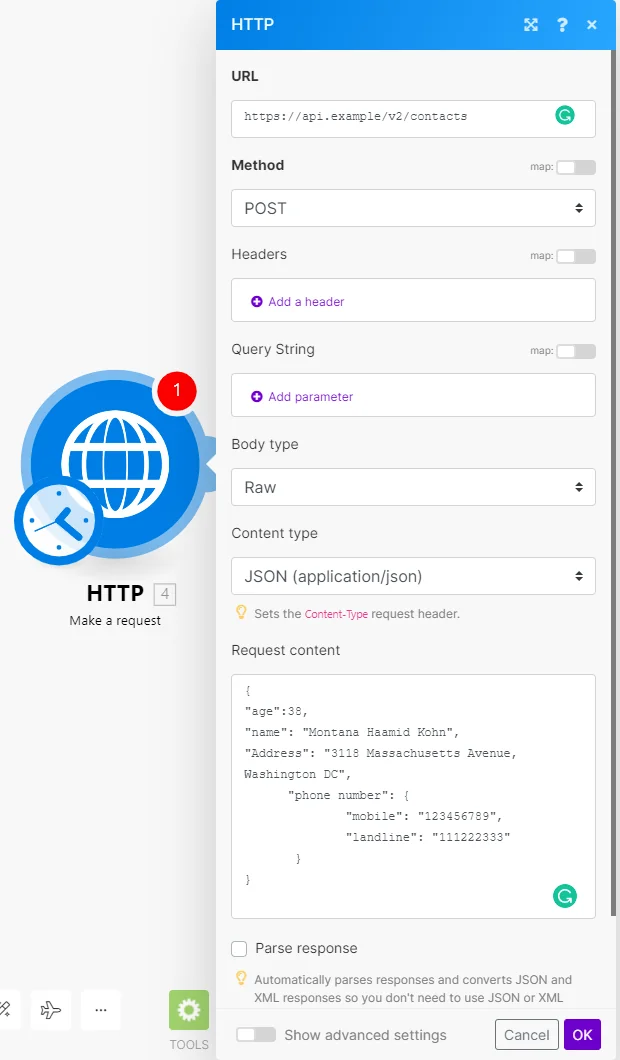
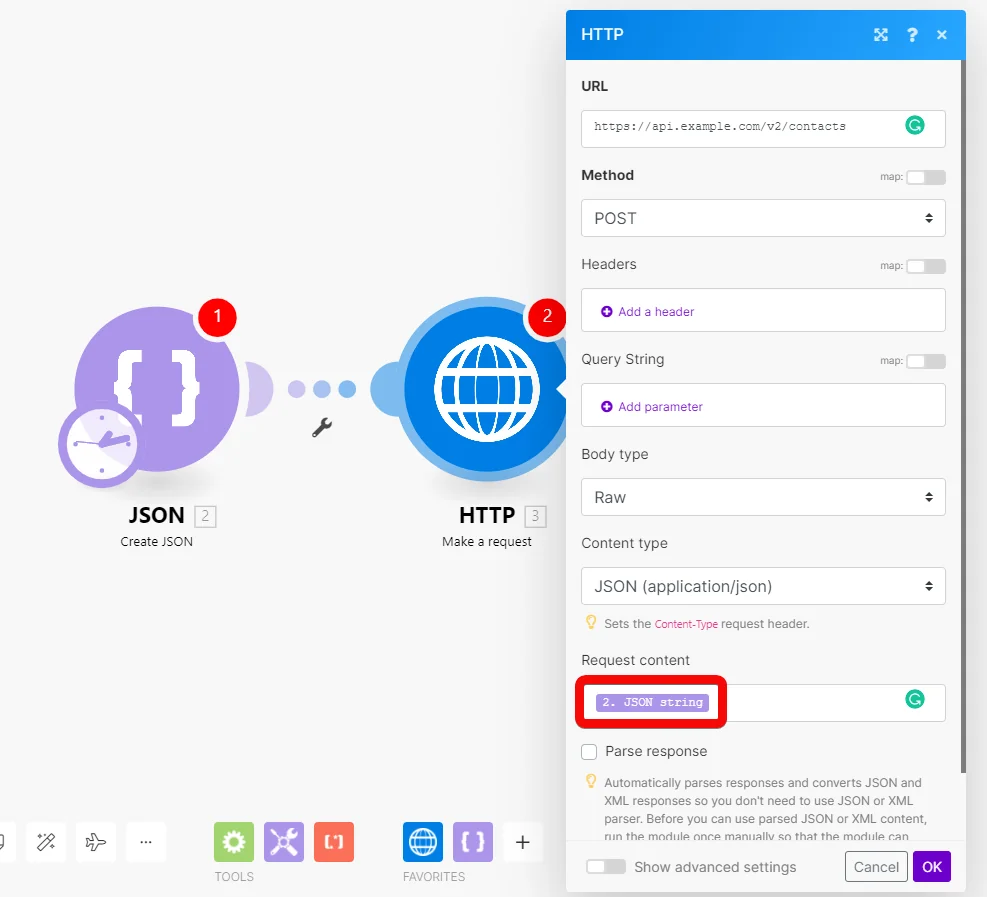
To make sure your JSON is valid, use a JSON validator (for example: https://jsonlint.com/) or use a Create JSON module to create the JSON.
Caution
Be careful when combining JSON data with mapping variables or function directly in the Request content field. Mixing JSON with mapping can lead to an invalid JSON structure.
Make a Basic Auth request
The Make a Basic Auth request module allows you to send an HTTP request with the basic authentication. The output bundle contains the HTTP response.
Credentials
Click Add to add your credentials (user name and password) for basic authentication.
Evaluate all states as errors (except for 2xx and 3xx)
Use the response status to detect errors. Otherwise, the module reports only Make related errors (like mapping errors or missing required values).
URL
Enter the request URL.
Serialize URL
Encodes the API call URL with the URL encoding (encoding special characters for example).
Method
Select the HTTP method you want to use:
- GET – to retrieve information for an entry.
- POST – to create a new entry.
- PUT – to update/replace an existing entry.
- PATCH – to make a partial entry update.
- DELETE – to delete an entry.
Headers
Enter request headers. For example, the response content type.
Caution
The HTTP app requests do not have the Accept header. If the HTTP request returns an unexpected response, try adding the Accept: */* header.
Query String
Enter the query key-value pairs.
Body type
HTTP body contains the data transferred in an HTTP request.
Raw
The Rawbody type is suitable for most HTTP requests, even if the service documentation does not specify the data type.
Specify the data format of the body content in the Content type field.
Application/x-www-form-urlencoded
This body type is to POST data using application/x-www-form-urlencoded.
For application/x-www-form-urlencoded, the body of the HTTP request sent to the server is one query string. The keys and values are encoded in key-value pairs separated by & and with a = between the key and the value. For binary data, use the multipart/form-data body type instead.
Example of the resulting HTTP request format: field1=value1&field2=value2
Multipart/form-data
Use the multipart/form-data content type to send files in the HTTP request.
Add fields to the request. Each field must contain Key–Value pair:
Text: Enter the key and value to be sent within the request body.
File: Enter the key, and specify the source file you want to send in the request body. Map the file you want to upload from the previous module (for example: HTTP > Get a File or Google Drive > Download a File), or enter the file name and file data manually.
Parse response
Enable to parse HTTP responses into bundles. With this option, you don’t need to add the Parse JSON or Parse XML modules. Otherwise, the HTTP module returns the raw response data.
Before you can use parsed JSON or XML content, run the module once manually so that the module can recognize the response content and allow you to map it in subsequent modules.
Timeout
Specify the request timeout in seconds (1-300). Default: 40 seconds.
Share cookies with other HTTP modules
Enable to share cookies from the server with all HTTP modules in your scenario.
Self-signed certificate
Upload your certificate if you want to use TLS using your self-signed certificate.
Reject connections that use unverified (self-signed) certificates
Enable to reject connections that use unverified TLS certificates.
Follow redirect
Enable to follow URL redirects that return 3xx response statuses.
Follow all redirect
Enable to follow URL redirects regardless of response statuses.
Disable serialization of multiple same query string keys as arrays
Boost.space Integrator handles multiple values for the same URL query string parameter key as arrays (e.g., www.test.com?foo=bar&foo=baz will be converted to www.test.com?foo[0]=bar&foo[1]=baz). Enable to deactivate this behavior.
Request compressed content
Enable to request compression of the response data. Adds the [Accept-Encoding](https://developer.mozilla.org/en-US/docs/Web/HTTP/Headers/Accept-Encoding) header.
Make an API key Auth request
The Make an API key Auth request module allows you to send API calls to services that require API key authorization. The module also supports “Bearer” authorization.
The output bundle contains the HTTP response.
Create an API key connection for the Make an API key Auth request module
Check out the following example if you want to set up a connection for the Make an API key Auth request module:
-
In the Make an API key Auth request module settings, click the Add button. The Add a new keychain window pops up.
-
Fill in:
-
Name: The label for your API key connection.
-
Key: The API key to authorize the HTTP calls. If the API uses “Bearer” or “Token” authorization, add the word before the API key.Example:
Bearer 1234-5678-abcd-efghNote
You can use the eye icon at the edge of the box to reveal the API key and the text you add to it. If you do, make sure that you are the only one viewing the content.
-
API key placement: Select if you want the authorization in the request header or query string.
-
API key parameter name: The name of the parameter that contains the API key.
-
-
Click Create to create the connection.
You created an API key connection. You can now use the connection in the Make an API key Auth request module.
Evaluate all states as errors (except for 2xx and 3xx)
Use the response status to detect errors. Otherwise, the module reports only Boost.space Integrator related errors (like mapping errors or missing required values).
URL
Enter the request URL.
Serialize URL
Encodes the API call URL with the URL encoding (encoding special characters for example).
Method
Select the HTTP method you want to use:
- GET: to retrieve information for an entry.
- POST: to create a new entry.
- PUT: to update/replace an existing entry.
- PATCH: to make a partial entry update.
- DELETE: to delete an entry.
Headers
Enter request headers. For example, the response content type.
Caution
The HTTP app requests do not have the Accept header. If the HTTP request returns an unexpected response, try adding the Accept: */* header.
Query String
Enter the query key-value pairs.
Body type
HTTP body contains the data transferred in an HTTP request.
Raw
The Raw body type is suitable for most HTTP requests, even if the service documentation does not specify the data type.
Specify the data format of the body content in the Content type field.
Application/x-www-form-urlencoded
This body type is to POST data using application/x-www-form-urlencoded.
For application/x-www-form-urlencoded, the body of the HTTP request sent to the server is one query string. The keys and values are encoded in key-value pairs separated by & and with a = between the key and the value. For binary data, use the multipart/form-data body type instead.
Example of the resulting HTTP request format: field1=value1&field2=value2
Multipart/form-data
Use the multipart/form-data content type to send files in the HTTP request.
Add fields to the request. Each field must contain a key-value pair:
Text: Enter the key and value to be sent within the request body.
File: Enter the key, and specify the source file you want to send in the request body. Map the file you want to upload from the previous module (for example: HTTP > Get a File or Google Drive > Download a File), or enter the file name and file data manually.
Parse response
Enable to parse HTTP responses into bundles. With this option, you don’t need to add the Parse JSON or Parse XML modules. Otherwise, the HTTP module returns the raw response data.
Before you can use parsed JSON or XML content, run the module once manually so that the module can recognize the response content and allow you to map it in subsequent modules.
Timeout
Specify the request timeout in seconds (1-300). Default: 40 seconds.
Share cookies with other HTTP modules
Enable to share cookies from the server with all HTTP modules in your scenario.
Self-signed certificate
Upload your certificate if you want to use TLS using your self-signed certificate.
Reject connections that use unverified (self-signed) certificates
Enable to reject connections that use unverified TLS certificates.
Follow redirect
Enable to follow URL redirects that return 3xx response statuses.
Follow all redirect
Enable to follow URL redirects regardless of response statuses.
Disable serialization of multiple same query string keys as arrays
Boost.space Integrator handles multiple values for the same URL query string parameter key as arrays (e.g., www.test.com?foo=bar&foo=baz will be converted to www.test.com?foo[0]=bar&foo[1]=baz). Enable to deactivate this behavior.
Request compressed content
Enable to request compression of the response data. Adds the [Accept-Encoding](https://developer.mozilla.org/en-US/docs/Web/HTTP/Headers/Accept-Encoding) header.
Module settings reference:
Evaluate all states as errors (except for 2xx and 3xx)
Use the response status to detect errors. Otherwise, the module reports only Boost.space Integrator related errors (like mapping errors or missing required values).
URL
Enter the request URL.
Serialize URL
Encodes the API call URL with the URL encoding (encoding special characters for example).
Method
Select the HTTP method you want to use:
- GET: to retrieve information for an entry.
- POST: to create a new entry.
- PUT: to update/replace an existing entry.
- PATCH: to make a partial entry update.
- DELETE: to delete an entry.
Headers
Enter request headers. For example, the response content type.
Caution
The HTTP app requests do not have the Accept header. If the HTTP request returns an unexpected response, try adding the Accept: */* header.
Query String
Enter the query key-value pairs.
Body type
HTTP body contains the data transferred in an HTTP request.
Raw
The Raw body type is suitable for most HTTP requests, even if the service documentation does not specify the data type.
Specify the data format of the body content in the Content type field.
Application/x-www-form-urlencoded
This body type is to POST data using application/x-www-form-urlencoded.
For application/x-www-form-urlencoded, the body of the HTTP request sent to the server is one query string. The keys and values are encoded in key-value pairs separated by & and with a = between the key and the value. For binary data, use the multipart/form-data body type instead.
Example of the resulting HTTP request format: field1=value1&field2=value2
Multipart/form-data
Use the multipart/form-data content type to send files in the HTTP request.
Add fields to the request. Each field must contain a key-value pair:
Text: Enter the key and value to be sent within the request body.
File: Enter the key, and specify the source file you want to send in the request body. Map the file you want to upload from the previous module (for example: HTTP > Get a File or Google Drive > Download a File), or enter the file name and file data manually.
Parse response
Enable to parse HTTP responses into bundles. With this option, you don’t need to add the Parse JSON or Parse XML modules. Otherwise, the HTTP module returns the raw response data.
Before you can use parsed JSON or XML content, run the module once manually so that the module can recognize the response content and allow you to map it in subsequent modules.
Timeout
Specify the request timeout in seconds (1-300). Default: 40 seconds.
Share cookies with other HTTP modules
Enable to share cookies from the server with all HTTP modules in your scenario.
Self-signed certificate
Upload your certificate if you want to use TLS using your self-signed certificate.
Reject connections that use unverified (self-signed) certificates
Enable to reject connections that use unverified TLS certificates.
Follow redirect
Enable to follow URL redirects that return 3xx response statuses.
Follow all redirect
Enable to follow URL redirects regardless of response statuses.
Disable serialization of multiple same query string keys as arrays
Boost.space Integrator handles multiple values for the same URL query string parameter key as arrays (e.g., www.test.com?foo=bar&foo=baz will be converted to www.test.com?foo[0]=bar&foo[1]=baz). Enable to deactivate this behavior.
Request compressed content
Enable to request compression of the response data. Adds the [Accept-Encoding](https://developer.mozilla.org/en-US/docs/Web/HTTP/Headers/Accept-Encoding) header.
Make a client certificate authentication request
Sends an HTTP(S) request to services that require a client certificate authorization.
Evaluate all states as errors (except for 2xx and 3xx)
Use the response status to detect errors. Otherwise, the module reports only Boost.space Integrator related errors (like mapping errors or missing required values).
URL
Enter the request URL.
Serialize URL
Encodes the API call URL with the URL encoding (encoding special characters for example).
Method
Select the HTTP method you want to use:
- GET: to retrieve information for an entry.
- POST: to create a new entry.
- PUT: to update/replace an existing entry.
- PATCH: to make a partial entry update.
- DELETE: to delete an entry.
Headers
Enter request headers. For example, the response content type.
Caution
The HTTP app requests do not have the Accept header. If the HTTP request returns an unexpected response, try adding the Accept: */* header.
Query String
Enter the query key-value pairs.
Body type
HTTP body contains the data transferred in an HTTP request.
Raw
The Raw body type is suitable for most HTTP requests, even if the service documentation does not specify the data type.
Specify the data format of the body content in the Content type field.
Application/x-www-form-urlencoded
This body type is to POST data using application/x-www-form-urlencoded.
For application/x-www-form-urlencoded, the body of the HTTP request sent to the server is one query string. The keys and values are encoded in key-value pairs separated by & and with a = between the key and the value. For binary data, use the multipart/form-data body type instead.
Example of the resulting HTTP request format: field1=value1&field2=value2
Multipart/form-data
Use the multipart/form-data content type to send files in the HTTP request.
Add fields to the request. Each field must contain a key-value pair:
Text: Enter the key and value to be sent within the request body.
File: Enter the key, and specify the source file you want to send in the request body. Map the file you want to upload from the previous module (for example: HTTP > Get a File or Google Drive > Download a File), or enter the file name and file data manually.
Parse response
Enable to parse HTTP responses into bundles. With this option, you don’t need to add the Parse JSON or Parse XML modules. Otherwise, the HTTP module returns the raw response data.
Before you can use parsed JSON or XML content, run the module once manually so that the module can recognize the response content and allow you to map it in subsequent modules.
Timeout
Specify the request timeout in seconds (1-300). Default: 40 seconds.
Share cookies with other HTTP modules
Enable to share cookies from the server with all HTTP modules in your scenario.
Self-signed certificate
Upload your certificate if you want to use TLS using your self-signed certificate.
Reject connections that use unverified (self-signed) certificates
Enable to reject connections that use unverified TLS certificates.
Follow redirect
Enable to follow URL redirects that return 3xx response statuses.
Follow all redirect
Enable to follow URL redirects regardless of response statuses.
Disable serialization of multiple same query string keys as arrays
Boost.space Integrator handles multiple values for the same URL query string parameter key as arrays (e.g., www.test.com?foo=bar&foo=baz will be converted to www.test.com?foo[0]=bar&foo[1]=baz). Enable to deactivate this behavior.
Request compressed content
Enable to request compression of the response data. Adds the [Accept-Encoding](https://developer.mozilla.org/en-US/docs/Web/HTTP/Headers/Accept-Encoding) header.
Get a file
Downloads a file from a URL.
URL
Enter the URL of the file you want to download. You can use the file (map the file data) in other modules in the scenario.
Resolve a target URL
Enter the URL you want to resolve. The output bundle contains the link to which the original URL redirects in the location response header.
This module helps you to get a direct URL to a resource instead of a redirect URL. For example, links for sharing files in storage services like Dropbox redirect you before you reach the target file. The module navigates through the redirect chain and returns the target URL.
URL
Enter the URL you want to resolve.
Method
Select the method you want to use.
Retrieve Headers
Returns each header (name and value) from the specified HTTP module in a separate bundle.
Source Module
Select the module you want to retrieve headers from.
How to generate JSON Web Tokens (JWT)
You can generate JWT tokens using the HS256 algorithm with built-in functions:
Header:

Code for copy & paste:
{{replace(replace(replace(base64("{""alg"":""HS256"",""typ"":""JWT""}"); "/=/g"; emptystring); "/\+/g"; "-"); "/\//g"; "_")}}
Payload:

Code for copy & paste:
{{replace(replace(replace(base64("{""iss"":""key"",""exp"":" + (timestamp + 60) + "}"); "/=/g"; emptystring); "/\+/g"; "-"); "/\//g"; "_")}}
Token:

Code for copy & paste:
{{11.header}}.{{12.payload}}.{{replace(replace(replace(sha256(11.header + "." + 12.payload; "base64"; 16.secret); "/=/g"; emptystring); "/\+/g"; "-"); "/\//g"; "_")}}

