MonkeyLearn
The MonkeyLearn modules allow you to create, update, and delete the classifiers, and extractors in your MonkeyLearn account.
Getting Started with MonkeyLearn
Prerequisites
- A MonkeyLearn account
In order to use MonkeyLearn with Boost.space Integrator, it is necessary to have a MonkeyLearn account. If you do not have one, you can create a MonkeyLearn account at app.monkeylearn.com/accounts/register.
The module dialog fields that are displayed in bold (in the Boost.space Integrator scenario, not in this documentation article) are mandatory!
Connecting MonkeyLearn to Boost.space Integrator
To connect your MonkeyLearn account to Boost.space Integrator you need to obtain the API Key from your MonkeyLearn account and insert it in the Create a connection dialog in the Boost.space Integrator module.
1. Log in to your MonkeyLearn account.
2. Open the model you want to create or use and then click API. Copy the API Key to your clipboard.
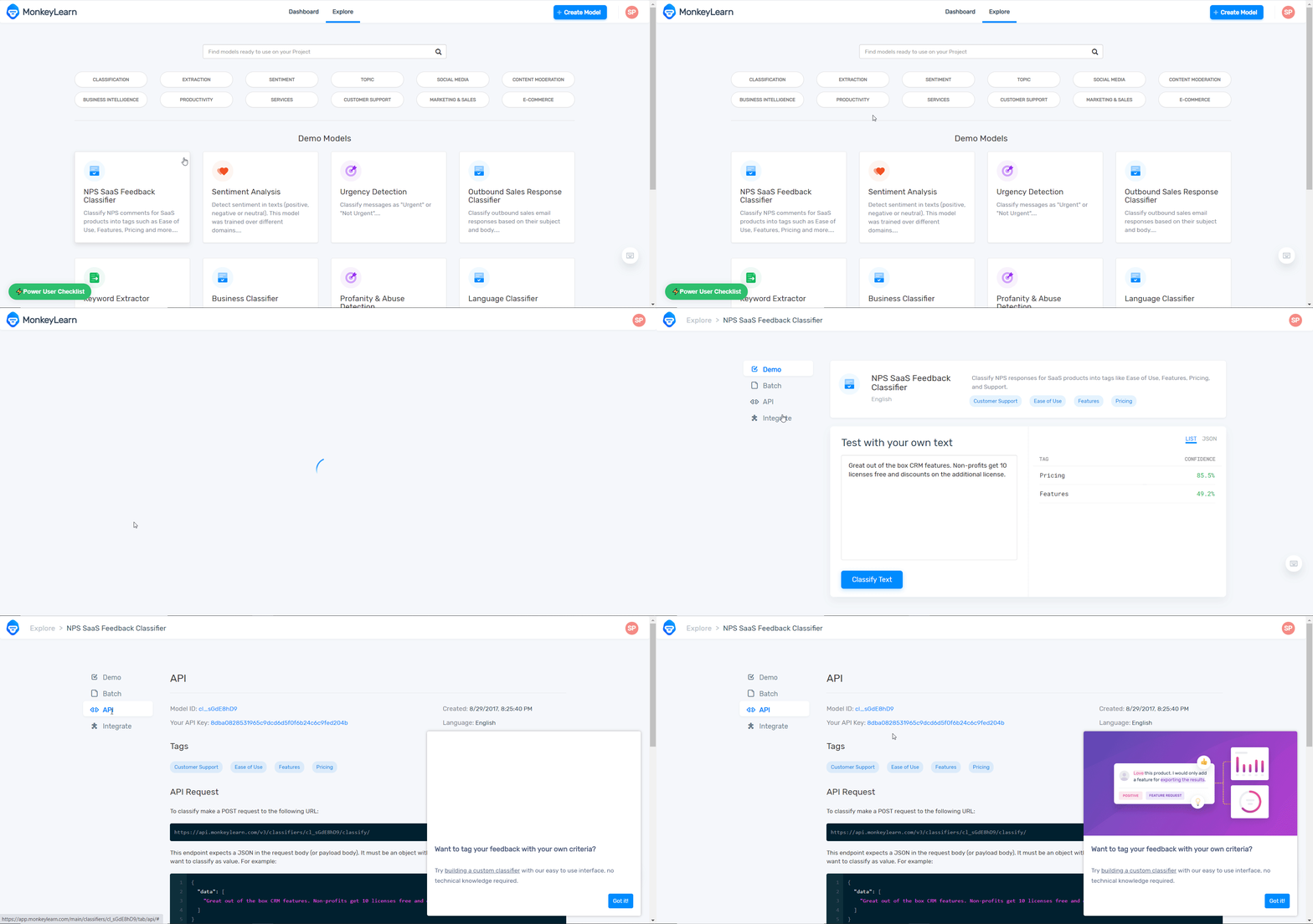
3. Go to Boost.space Integrator and open the MonkeyLearn module’s Create a connection dialog.

4. In the Connection name field, enter the name of the connection.
5. In the API Key field, enter the API key copied in step 2 and click Continue.
The connection has been established.
Classifiers
List Classifiers
Returns all the available classifiers for the user.
Connection
Establish a connection to your MonkeyLearn account.
Order by
Enter the order in which you want to list the classifiers.
For example, -created, ascending, or -updated, descending.
You can specify the order of the list. It can be ordered using any of the field names, either in ascending or descending order (adding ‘-’ before the name). Also, more than one criteria can be specified, separated by commas.
Limit
Enter the maximum number of classifiers Boost.space Integrator must return during one scenario execution cycle.
Get a Classifiers
Returns information about a classifier including its settings, stats, and tags.
Connection
Establish a connection to your MonkeyLearn account.
Model ID
Select the Model ID whose details you want to retrieve.
Classify Text
Classifies the text with a given classifier.
Connection
Establish a connection to your MonkeyLearn account.
Model ID
Select the Model ID whose text you want to classify.
Text
Enter the text you want to classify.
External ID
Enter any External ID which you want to include in the response.
Production Model
Select whether you want to perform the classification by the production model:
-
Yes
-
No
-
Not defined
Upload Classifier Data
Uploads data to a classifier.
Connection
Establish a connection to your MonkeyLearn account.
Model ID
Select the Model ID whose classifier data you want to upload.
Data
Add the data objects:
Text
Enter the text to add or update.
Tags
Enter the list of keywords for referring to the text by their Numeric ID and their name.
Markers
Add the list of markers associated with the text.
Input Duplicate Strategy
Select the action to perform for duplicate texts in the request:
-
Merge
-
Keep First
-
Keep Last
Existing Duplicate Strategy
Select the action to perform for existing texts in the model:
-
Ignore
-
Overwrite
-
Merge
Create a Classifier
Creates a new classifier.
Connection
Establish a connection to your MonkeyLearn account.
Name
Enter a name for the classifier model.
Description
Enter the details of the classifier model.
Algorithm
Select the algorithm in which the model is trained:
-
NB
-
SVM
Language
Select the language of the model.
Max Features
Enter the maximum number of features used when training the model.
The value must be greater than or equal to 10 and less than or equal to 10000.
Ngram Range
Enter a two-digit n-gram range used when training the model. For example, [2, 3].
The numbers must be between 1 and 3 and they indicate the minimum and maximum n for the n-grams used respectively.
Use Stemming
Select whether the stemming is used when training the model:
-
Yes
-
No
-
Not defined
Preprocess Numbers
Select whether the number preprocessing is done when training the model:
-
Yes
-
No
-
Not defined
Preprocess Names
Select whether the people names preprocessing is used when training the model:
-
Yes
-
No
-
Not defined
Preprocess Emails
Select whether the email addresses preprocessing is used when training the model:
-
Yes
-
No
-
Not defined
Preprocess URLs
Select whether the URLs preprocessing is used when training the model:
-
Yes
-
No
-
Not defined
Preprocess Social Media
Select whether the preprocessing of social media is done when training the model:
-
Yes
-
No
-
Not defined
Normalize Weights
Select whether the weights will be normalized when training the model:
-
Yes
-
No
-
Not defined
Stopwords
Enter the comma-separated list of the stopwords used when training the module.
Whitelist
Enter the comma-separated list of the whitelists of words used when training the module.
Tagging Strategy
Select the tagging strategy of the model:
-
Autodetect
-
Single
-
Multi
Update a Classifier
Updates a classifier name, description, and settings.
Connection
Establish a connection to your MonkeyLearn account.
Model ID
Select the Model ID you want to update.
Name
Enter a name for the classifier model.
Description
Enter the details of the classifier model.
Algorithm
Select the algorithm in which the model is trained:
-
NB
-
SVM
Language
Select the language of the model.
Max Features
Enter the maximum number of features used when training the model.
The value must be greater than or equal to 10 and less than or equal to 10000.
Ngram Range
Enter a two-digit n-gram range used when training the model. For example, [2, 3].
The numbers must be between 1 and 3 and they indicate the minimum and maximum n for the n-grams used respectively.
Use Stemming
Select whether the stemming is used when training the model:
-
Yes
-
No
-
Not defined
Preprocess Numbers
Select whether the number preprocessing is done when training the model:
-
Yes
-
No
-
Not defined
Preprocess Names
Select whether the people names preprocessing is used when training the model:
-
Yes
-
No
-
Not defined
Preprocess Emails
Select whether the email addresses preprocessing is used when training the model:
-
Yes
-
No
-
Not defined
Preprocess URLs
Select whether the URLs preprocessing is used when training the model:
-
Yes
-
No
-
Not defined
Preprocess Social Media
Select whether the preprocessing of social media is done when training the model:
-
Yes
-
No
-
Not defined
Normalize Weights
Select whether the weights will be normalized when training the model:
-
Yes
-
No
-
Not defined
Stopwords
Enter the comma-separated list of the stopwords used when training the module.
Whitelist
Enter the comma-separated list of the whitelists of words used when training the module.
Tagging Strategy
Select the tagging strategy of the model:
-
Autodetect
-
Single
-
Multi
Delete a Classifier
Deletes a classifier.
Connection
Establish a connection to your MonkeyLearn account.
Model ID
Select the Model ID you want to delete.
Extractors
List Extractors
Returns all the available extractors for the user.
Connection
Establish a connection to your MonkeyLearn account.
Order by
Enter the order in which you want to list the extractors.
For example, -created, ascending, or -updated, descending.
You can specify the order of the list. It can be ordered using any of the field names, either in ascending or descending order (adding ‘-’ before the name). Also, more than one criteria can be specified, separated by commas.
Limit
Enter the maximum number of extractors Boost.space Integrator must return during one scenario execution cycle.
Get an Extractor
Returns information about an extractor.
Connection
Establish a connection to your MonkeyLearn account.
Model ID
Select the Model ID whose details you want to retrieve.
Extract Text
Extracts information from the text with a given extractor.
Connection
Establish a connection to your MonkeyLearn account.
Model ID
Enter the maximum number of classifiers Boost.space Integrator must return during one scenario execution cycle.
Text
Enter the text you want to extract.
External ID
Enter the External ID which you want to give in the request for the text to include in the response.
Production Model
Select whether you want to perform the classification by the production model:
-
Yes
-
No
-
Not defined
Other
Make an API Call
Performs an arbitrary authorized API call.
Connection
Establish a connection to your MonkeyLearn account.
URL
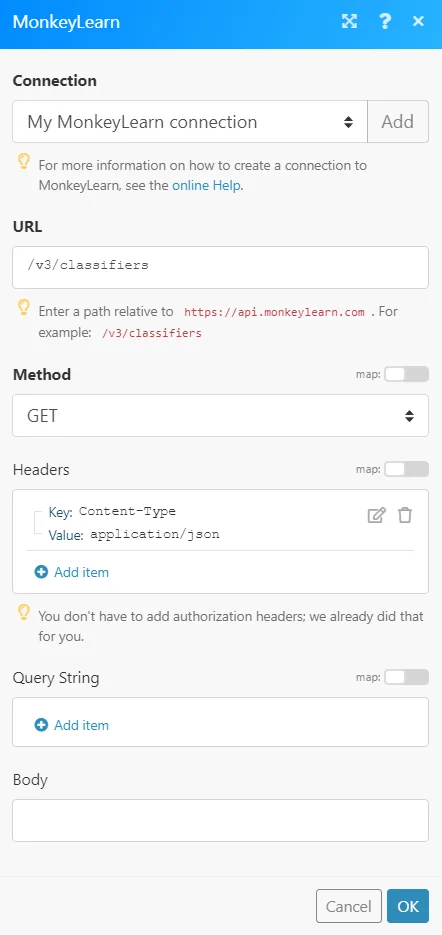
Enter a path relative to https://api.monkeylearn.com/. For example: /v3/classifiers
For the list of available endpoints, refer to the MonkeyLearn API Documentation.
Method
Select the HTTP method you want to use:
GET to retrieve information for an entry.
POST to create a new entry.
PUT to update/replace an existing entry.
PATCH to make a partial entry update.
DELETE to delete an entry.
Headers
Enter the desired request headers. You don’t have to add authorization headers; we already did that for you.
Query String
Enter the request query string.
Body
Enter the body content for your API call.
Example of Use – List Classifiers
The following API call returns all the classifiers from your MonkeyLearn account:
URL: /v3/classifiers
Method: GET
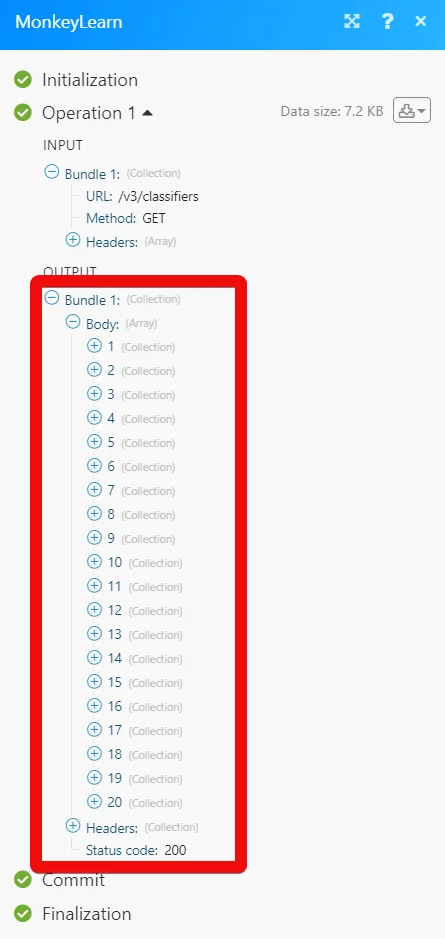
Matches of the search can be found in the module’s Output under Bundle > Body. In our example, 20 classifiers were returned:
Legacy article, imported from the original Boost.space knowledge base (/knowledge-base/applications/business-intelligence/monkeylearn/).

